The extended gameplay premiere for Grand Theft Auto VI was captured on a PlayStation 5, which means the on-screen prompts scattered across its 27 minutes are real DualSense mappings rather than generic placeholders. Nearly every interaction in the video — knocking on a door, jimmying a car lock, petting a dog, holding hands — surfaces a small white label paired with a PlayStation glyph. Read together, those glyphs form the clearest picture yet of how the game will feel in your hands.
Quick answer: R1 is the universal use/consume button, L1 picks up or swaps a ground weapon, Triangle handles positive contextual verbs (knock, pet, grab a bag, slim jim), Circle handles the aggressive or negative option (smash a window, scold, hurry, take down, break a grapple), and L2 focuses on a nearby character or animal.
How GTA 6 assigns its face buttons
There is a consistent logic underneath the individual prompts. Triangle is the cooperative or careful action. Circle is the blunt one. R1 puts something in your character’s mouth or hand. L2 aims your attention at another living thing, whether that is your partner or a stray dog.
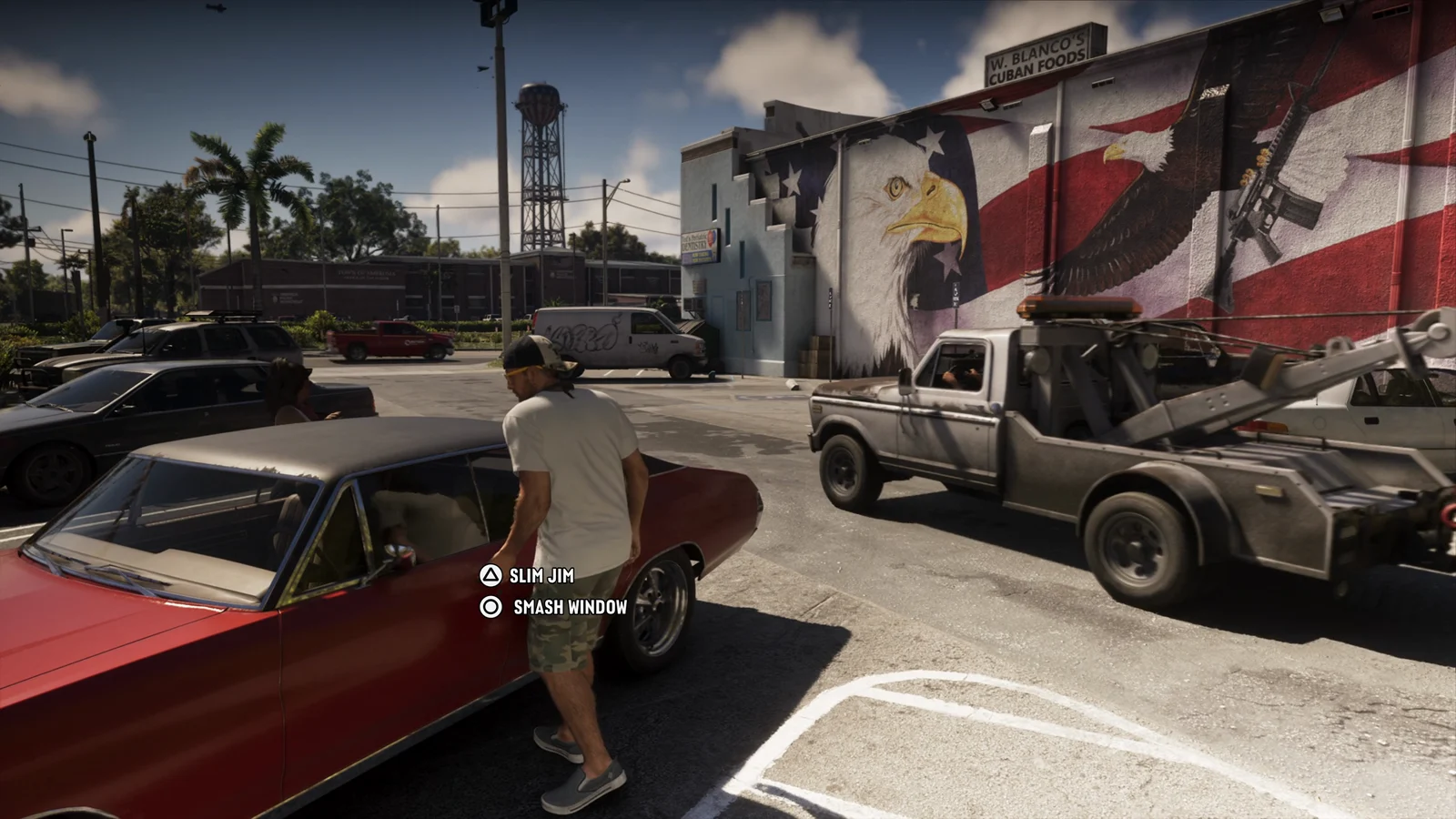
That split shows up most clearly at a parked car, where Triangle for the slim jim and Circle for smashing the window appear side by side on the same vehicle. It is the same grammar the rest of the game uses, just made explicit for one decision.
| Button | Role it plays |
|---|---|
| Triangle | Careful or friendly contextual verb, plus quick-use energy shot on the wheel |
| Circle | Forceful, dismissive or cancel-style verb |
| Square | Quick-use health pills from the weapon wheel |
| R1 | Consume or examine (drink, eat, smoke, study) |
| L1 | Pick up or swap a weapon from the ground |
| L2 | Focus on a character or animal; also throw cash |
| R2 | Sustained physical actions (hold hands, shoot a basketball) |
On-foot world interaction controls
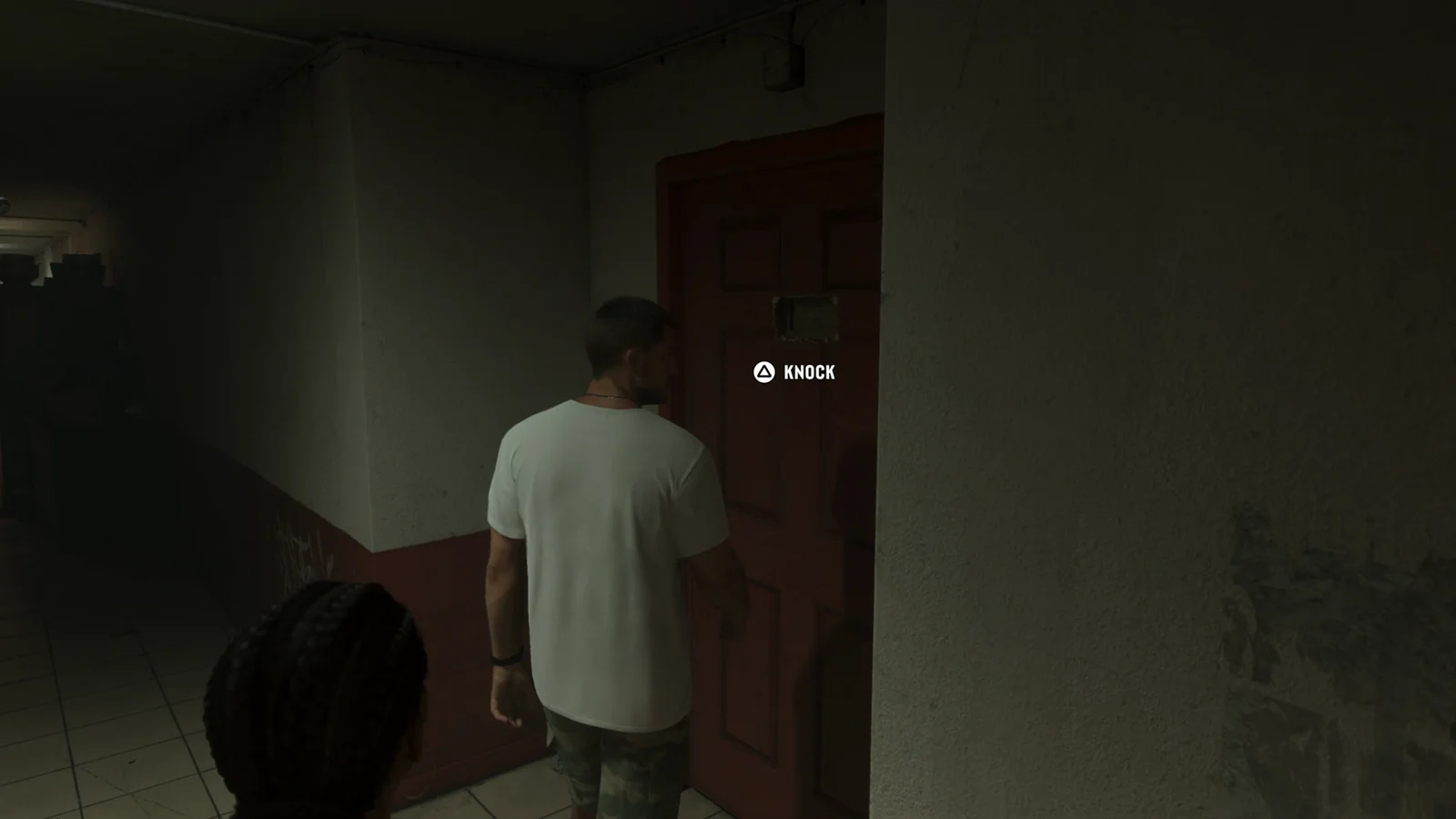
Contextual verbs appear as small white labels along the right edge of the screen, next to the matching glyph. Some prompts instead float directly at the object you are looking at, which is how KNOCK and BAG are presented.
| Action | Input |
|---|---|
| Knock on a door | Triangle |
| Pick up a mission item or duffel bag | Triangle |
| Pick up or swap a weapon on the ground | L1 |
The weapon pickup prompt names the specific gun rather than saying “pick up weapon” — the shotgun on the floor during the lab raid reads MORELAND 850 SHOTGUN alongside the L1 glyph, so you know what you are swapping to before you commit.
Car theft controls and the slim jim minigame
Stealing a car is no longer a single button press that plays an animation. Approaching a locked vehicle surfaces two prompts at once, and each one changes how much noise you make.
Partner controls when Jason and Lucia are together
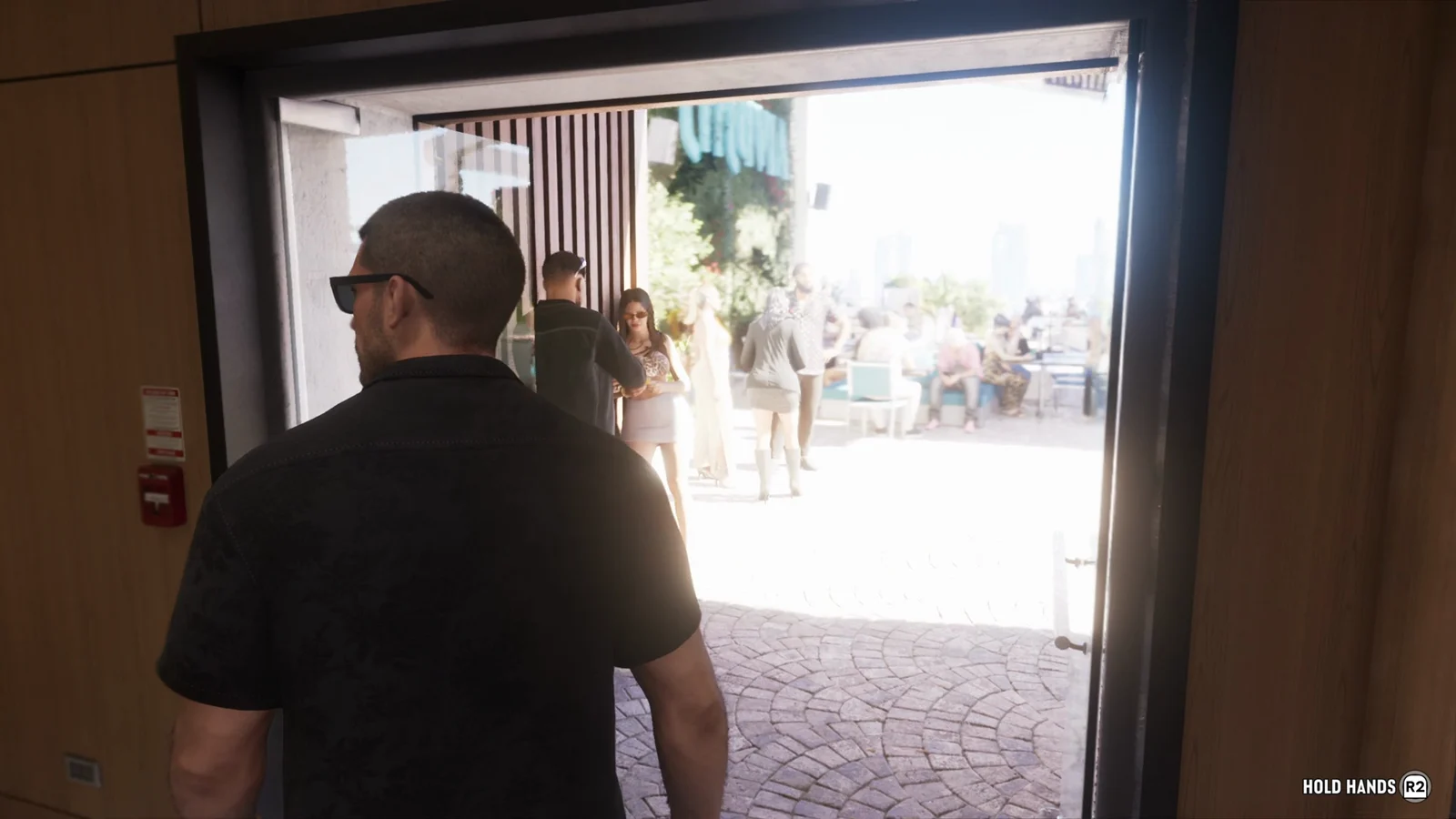
When you are controlling one protagonist and the other is nearby, a small chip with the partner’s name appears with an L2 glyph. Playing as Jason, that chip reads LUCIA. Holding L2 turns your attention toward them and opens up the follow-up verbs.
| Action | Input |
|---|---|
| Focus on or address your partner | L2 |
| Hurry them along | Circle |
| Hold hands while walking | R2 |
Hold hands is a held input rather than a toggle. The R2 prompt stays visible on screen for as long as the two are walking together hand in hand, which is how it works entering the rooftop lounge.
Consumables and ambient activity prompts
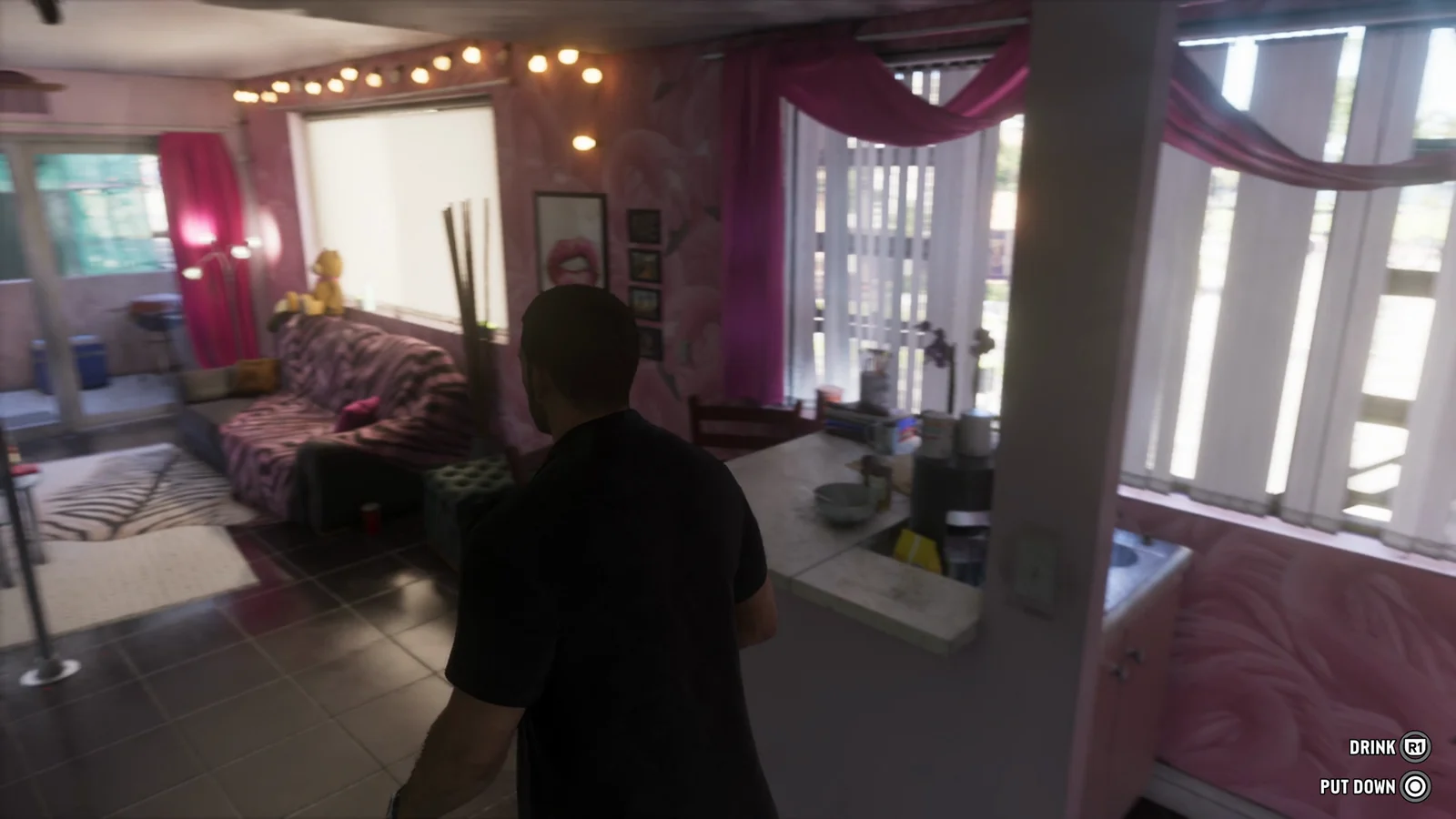
R1 is the single most reused button in the whole video. Anything your character puts to their mouth runs through it, and Circle is consistently the way out — put it down or drop it.
| Action | Input |
|---|---|
| Drink | R1 (Circle to put down) |
| Eat | R1 (Circle to drop) |
| Smoke | R1 |
| Throw cash bills | L2 |
| Shoot a basketball | R2 |
| Bench press rep | Alternate L2 and R2 |
The bench press is the one activity that asks for rhythm rather than a single press. Each rep alternates between L2 and R2, so the input pattern mirrors the motion on screen.
Dog and animal interaction wheel
Animals get a full interaction wheel rather than a single prompt. Approaching a dog and focusing on it with L2 opens four options at once, each mapped to its own button.
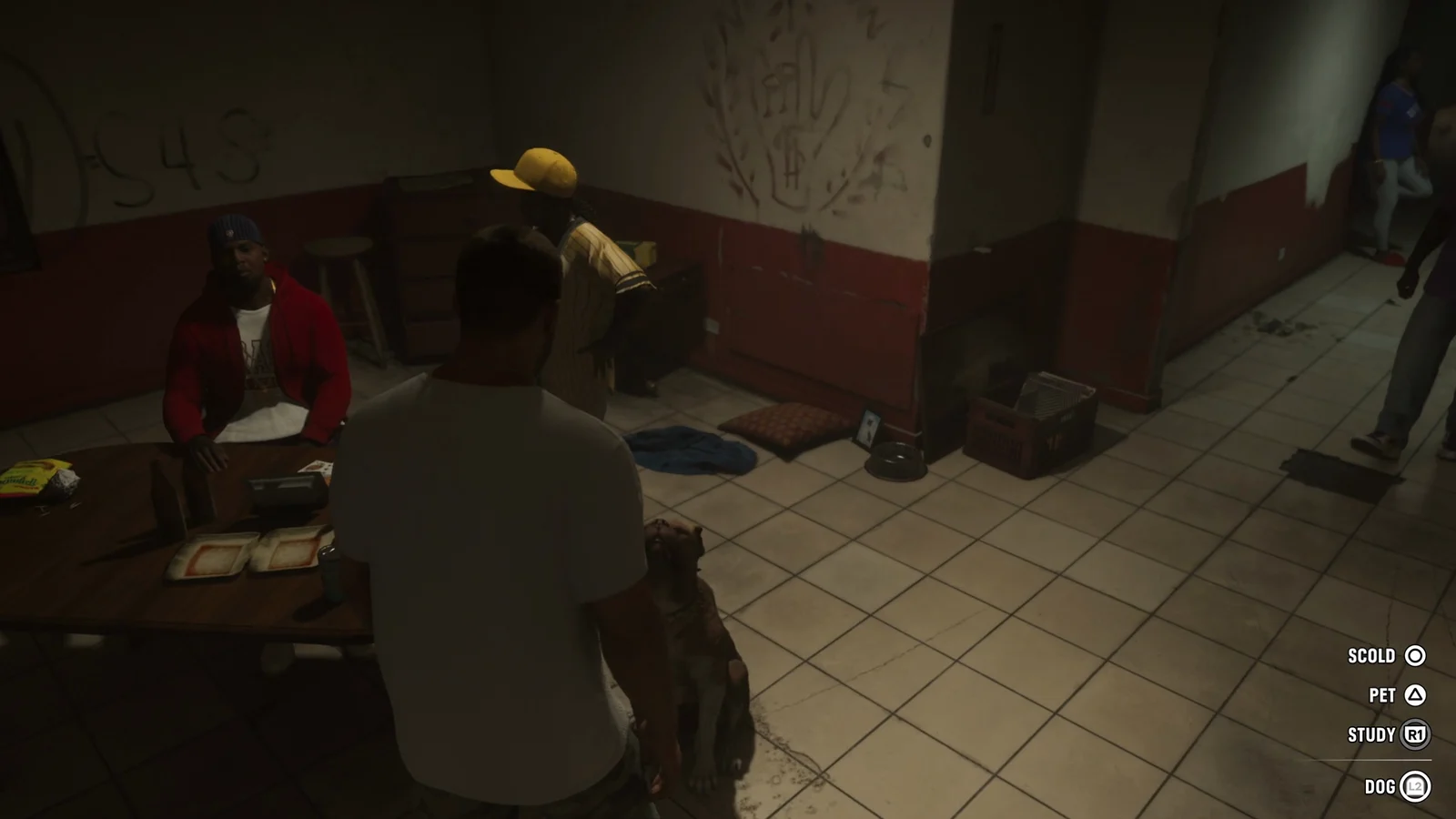
- L2 — focus on the dog
- Triangle — pet
- Circle — scold
- R1 — study
Note: The PET option expands into further choices after your first interaction, so the wheel is not a fixed one-shot menu.
Weapon wheel, items tab and quick-use slots
There is one radial wheel handling both weapons and gear, split into two tabs labelled WEAPONS and ITEMS. R1 toggles between those tabs while the wheel is open, so you never have to close and reopen it to reach a consumable.
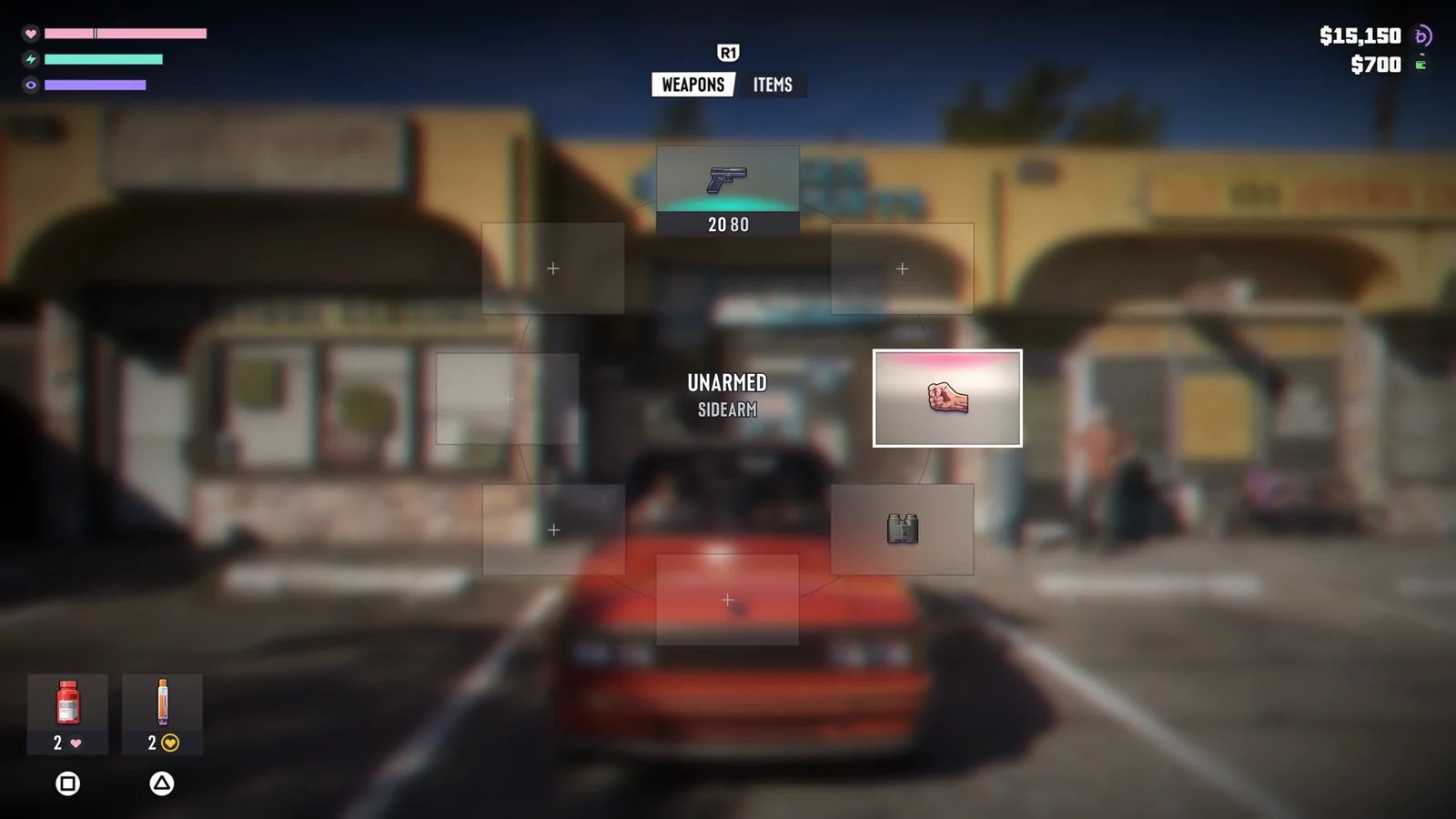
The wheel shown near the pawn shop includes UNARMED and SIDEARM slots — the pistol displays 20/80 ammo — along with a body armor slot. Quick-use consumables sit in the bottom-left corner of the wheel screen with their own buttons: Square for health pills (two in stock, marked with a heart icon) and Triangle for an adrenaline shot (also two). Cash on hand is printed on the same screen, reading $15,150 with a smaller $700 figure beside it.
A separate mask wheel exists for pulling on a disguise quickly from inside a vehicle, seen just before the jewelry store job.
Melee, takedowns and ground struggle inputs
Close-quarters fighting uses timed prompts rather than a free-form combo system. When Lucia gets pinned by an attacker, a pulsing Circle indicator appears — that is the tap prompt to break the grapple. Triangle surfaces during the same struggle as a counter or disarm window.
Circle also covers standing takedowns. Inside the jewelry store, it is the button that puts a resisting employee on the floor.
Where the prompts and HUD elements appear on screen
Knowing where to look matters as much as knowing the buttons, because the game places prompts in three different spots depending on what they do. Vehicle entry prompts sit bottom-center. Contextual verbs run down the right edge. Object-specific prompts like KNOCK and BAG float at the interaction point itself.
| HUD element | Position and appearance |
|---|---|
| Health, stamina, third meter | Top-left, slim horizontal bars — pink heart, teal bolt, purple eye |
| Ammo count and weapon icon | Top-right |
| Wanted level stars | Top-right, above or near the ammo readout |
| Minimap | Bottom-left, circular, with GPS route and elevation hints |
The health arc that lived in the bottom-left corner of GTA 5 is gone. Those meters have moved to the top-left as thin bars, which frees the lower-left corner entirely for the minimap and a chat hint sitting beneath it.
Everything mapped above was displayed by the game itself during the reveal, so it reflects the build Rockstar chose to show rather than a finished control scheme. Driving, aiming and cover inputs were not surfaced with visible glyphs, and mappings can still shift between now and launch. Treat this as the current state of the PS5 layout, not the shipping one.
More GTA 6 guides
- GTA 6 guides hub: every system and trick we know
- GTA 6 HUD Icons and Meters Explained (Extended Look)
- GTA 6: How the Weapon Wheel and Inventory Work
- GTA 6: How to Steal Cars With a Slim Jim and Get Away Clean
- GTA 6 Combat: How Grapples, Counters, Cover and Drive-Bys Work
- GTA 6: How to Hold Hands as Jason and Lucia