Voice communication carries matches in Hell Let Loose: Vietnam more than raw aim does. The catch is that your microphone does not simply broadcast to everyone. You speak on a specific channel, and you have to hold the right key or button while you talk.
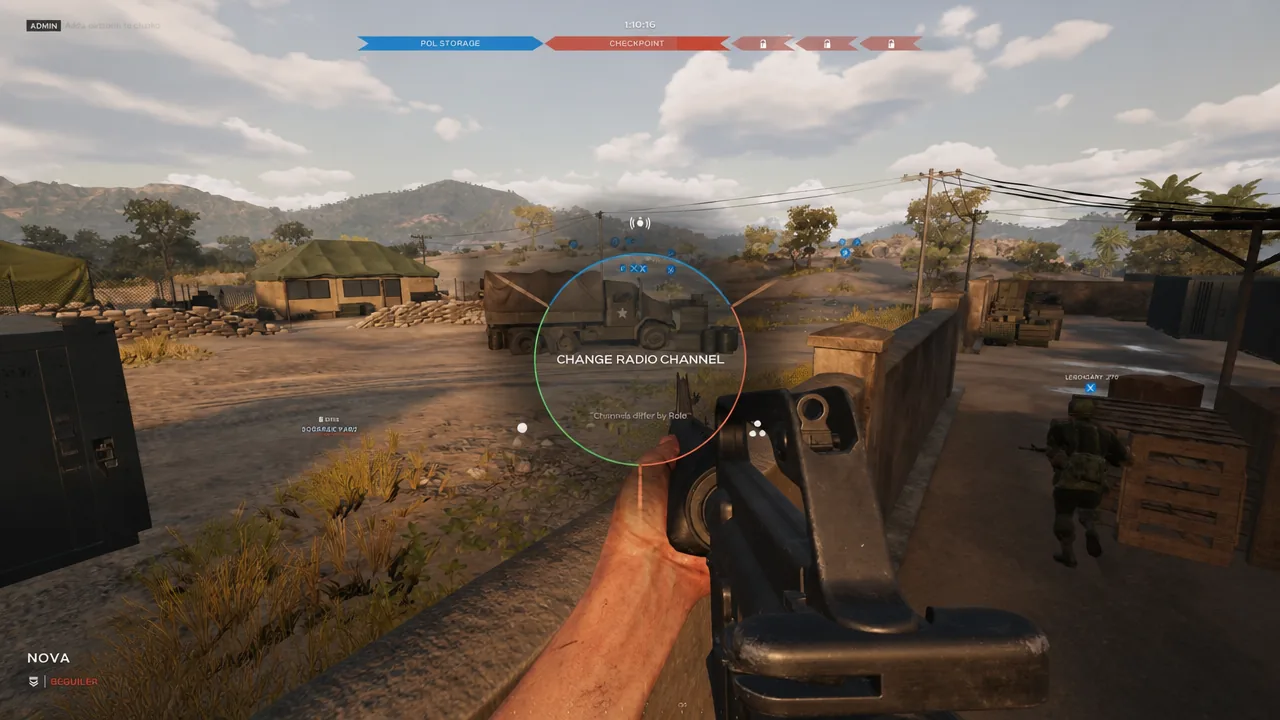
Quick answer: Push-to-talk is already enabled by default on PC and console. On keyboard, hold the channel key and speak (Proximity defaults to V). On a controller, tap the left bumper to open your mic, then speak while your name is showing at the bottom-left.
The three radio channels and who hears you
Every callout goes out on one of three color-coded channels. Picking the wrong one is the most common reason your squad does not respond, so learn what each channel covers before you talk.
| Channel | Color | Who hears you |
|---|---|---|
| Proximity | Blue | All nearby allies, whether or not they are in your squad |
| Unit | Green | The up to six players in your squad, at any distance |
| Leadership | Red | Commander and Squad Leaders across your team |
Proximity works differently from proximity chat in extraction shooters. Only your own allies who are close by can hear you, never nearby enemies. In fact there is no way to speak to the enemy team at all, so you can never accidentally leak information to them.
Unit is the channel you will use most. It reaches your squad clearly no matter how far apart you are, which makes it the default tool for coordinating movement. Proximity is the one to reach for when several squads are fighting in the same area, or when you are downed and need to call for a medic who might not be in your unit.
How to talk on keyboard and mouse
V by default. Unit and Leadership each have their own hold keys, which you can view in the Controls menu.How to talk on a controller
Controllers handle push-to-talk with a toggle rather than a held button, so the flow is slightly different.
Switch between hold-to-talk and toggle
A single option decides whether you hold a key to talk or tap it to keep the mic open. It lives under the Controls page as Toggle Radio Channels.
Neither setting is better across the board. Toggle is convenient if you are already in a party chat elsewhere and only jump onto the in-game channels occasionally, while hold-to-talk keeps the channel clean during firefights.
Who can use the Leadership channel
Most players will never touch the red Leadership channel, and that is intended. It is reserved for the roles that direct the team, letting people in combat request support and report how the match is developing.
- Commander
- Squad Leader
- Spotter
- Tank Commander
- Logistics Officer
- Observer
If you take a Squad Leader slot, this becomes your main line to other leaders and the Commander, and coordinating on it is expected.
Rebind the radio keys
If the default channel keys feel awkward under pressure, you can move them. Open Options, go to Keybindings, and assign the Proximity, Unit, and Leadership keys to whatever suits your hand position. The changes apply immediately, so you can test them in the same session.
Tip: Keep your mic muted or closed between callouts and follow a short, useful pattern when you do speak, such as what you saw, where it is, and what it is doing. That keeps the channel readable for the rest of the squad and confirms your voice is reaching them.