hololive Dreams runs the same save file across Steam, iOS, and Android, but it does not sync automatically. You have to create a login ID on one device and then sign in with it on the others. The rhythm-and-RPG title from QualiArts launched free on all three platforms on July 22, 2026, and the linking flow is identical no matter which platform you start on.
Quick answer: On the device that holds your progress, open Menu → Account Management → Set Link Password, enter a password twice, and copy the ID the game generates. On the second device, open the same menu, choose Login with ID, and enter that ID plus the password.
What you need before linking
You only need the game installed on both devices and the progress you want to keep sitting on one of them. Direction matters here. Whichever device already has your data is the one that must generate the ID. The second device then loads that ID, pulling the save onto it.
Install the versions you plan to use before you begin. The PC build is on the Steam store, and the mobile builds are on the App Store and Google Play under the same name.
Generate a link ID on your main device
Start on the platform that holds your progress. This example uses the Steam version on PC, but the steps read the same on a phone.
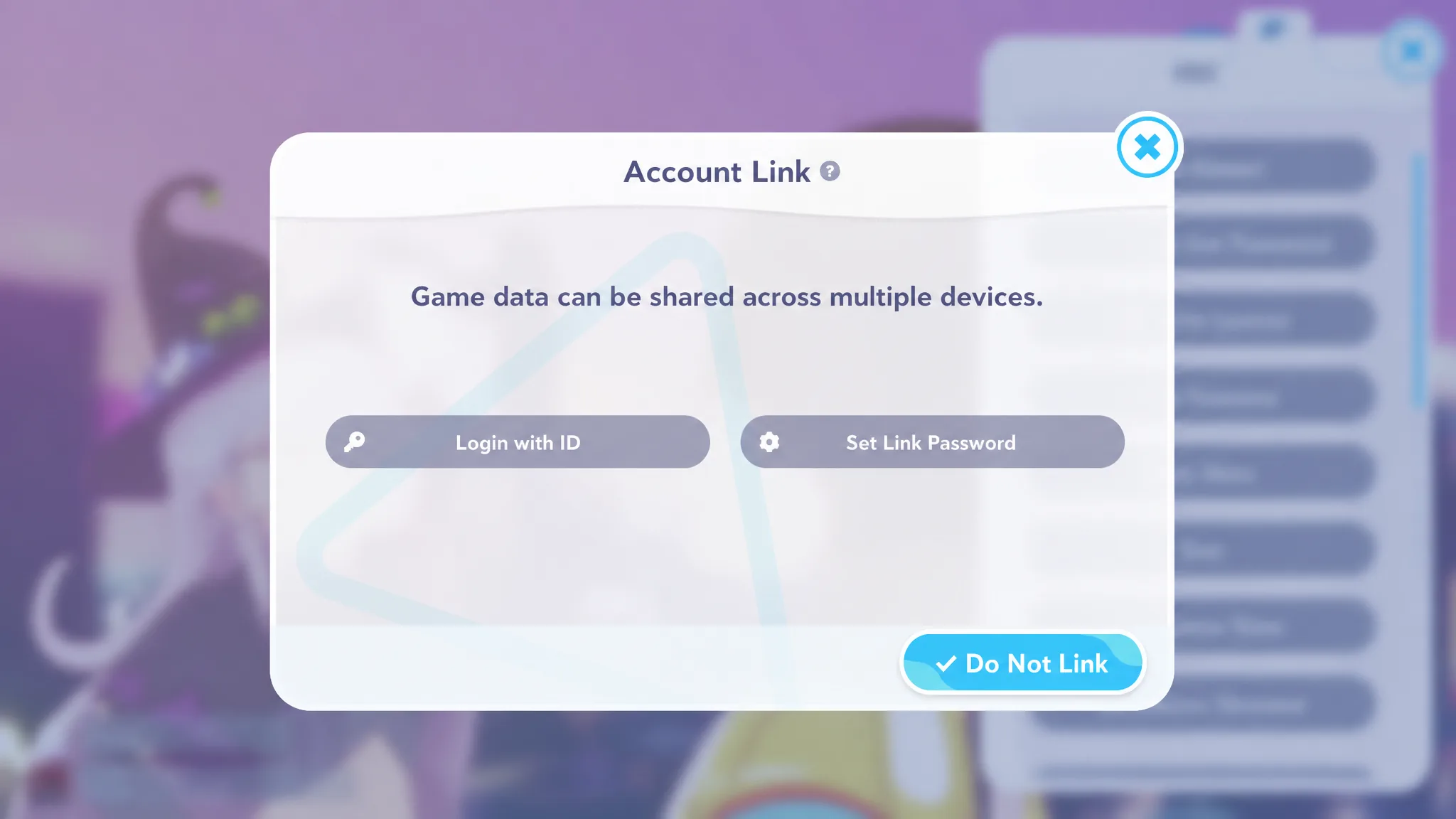
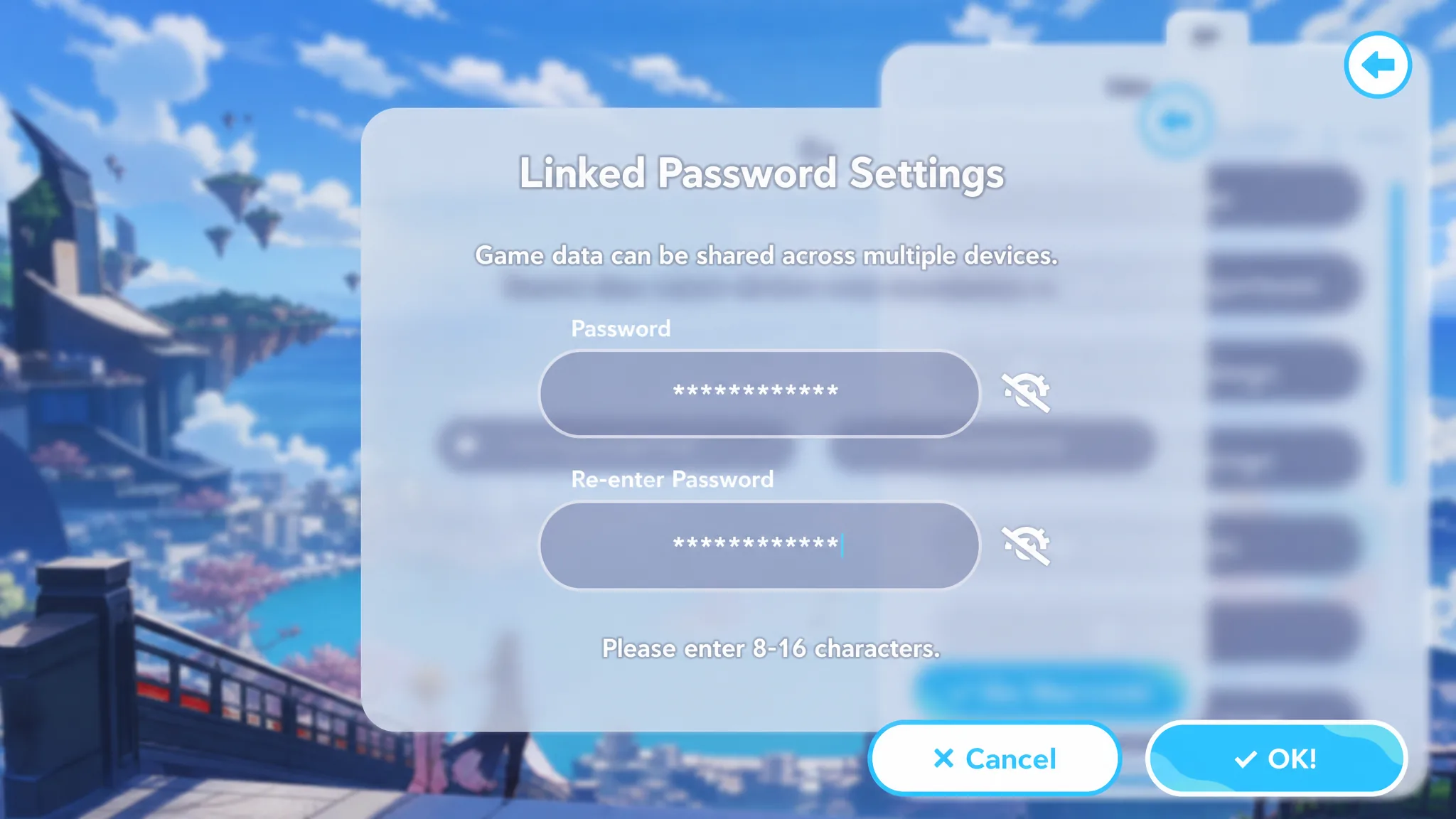
The password field does not accept special characters or symbols. Keep it to plain letters and numbers. Players who first tried symbol-heavy passwords had them rejected, and a simple eight-character letters-and-numbers password worked.
Sign in with the ID on your second device
Once you have the ID and password saved, move to the device you want to add. The order of the two options flips here, since you are loading an existing account instead of creating one.
This works in both directions. You can generate the ID on mobile and use it to sign in on Steam, or start on Steam and carry the save to a phone. The linked account keeps one shared save file across all three platforms.
Confirm the link worked
You know the link succeeded when the second device loads your existing park, roster, and progress rather than a fresh save. If the game drops you into a brand-new tutorial or an empty account, the login did not attach and you should recheck the ID and password.
Why the login fails and how to fix it
Most linking problems trace back to the password or the ID itself. The table below covers the issues that actually block the login.
| Problem | Fix |
|---|---|
| Password rejected while setting the link | Remove symbols and special characters. Use only letters and numbers. |
| Cannot recall the password for an existing account | The ID alone is not enough. Without the matching password there is no login. Set a new link password from a device that is still signed in. |
| Lost the generated ID | Return to a device that still has the account, open Account Management, and set a link password again to view the ID. |
| Second device starts a new save | Re-enter the exact ID and password. Confirm you chose Login with ID, not Set Link Password. |
Set the link before you switch devices for the first time, and store the ID and password together. That single pair is the only thing tying your Steam and mobile installs to the same account, so keeping it safe is what protects your progress.