Subnautica 2 launched into early access without a field of view slider, and the default camera feels narrow on wide monitors and uncomfortable for players prone to motion sickness. Until Unknown Worlds ships an official option, you can widen the view by editing a config file or by installing a small mod.
Method 1: Edit GameUserSettings.ini
This is the fastest path and does not require any mods. The game writes its user settings to an INI file in your local AppData folder, and adding a single line raises the FOV. The catch is that the game rewrites this file on launch, so the final read-only step is mandatory.
%localappdata%, and press Enter. Navigate to Subnautica2\Saved\Config\Windows\.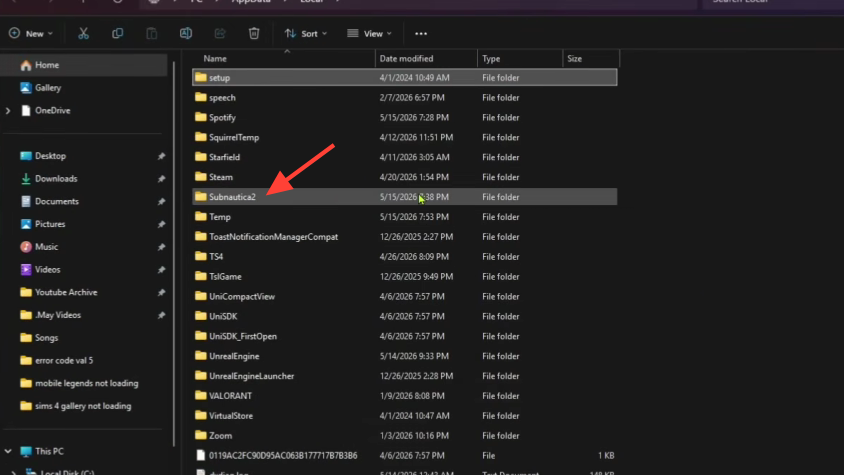
GameUserSettings.ini in Notepad (or Notepad++). Scroll to the header [/script/subnautica2.s2gameusersettings].
[/script/subnautica2.s2gameusersettings]
FieldOfView=110.000000
Example FOV entry
GameUserSettings.ini, choose Properties, tick Read-only, and click OK. Without this, the game will strip your line on the next launch.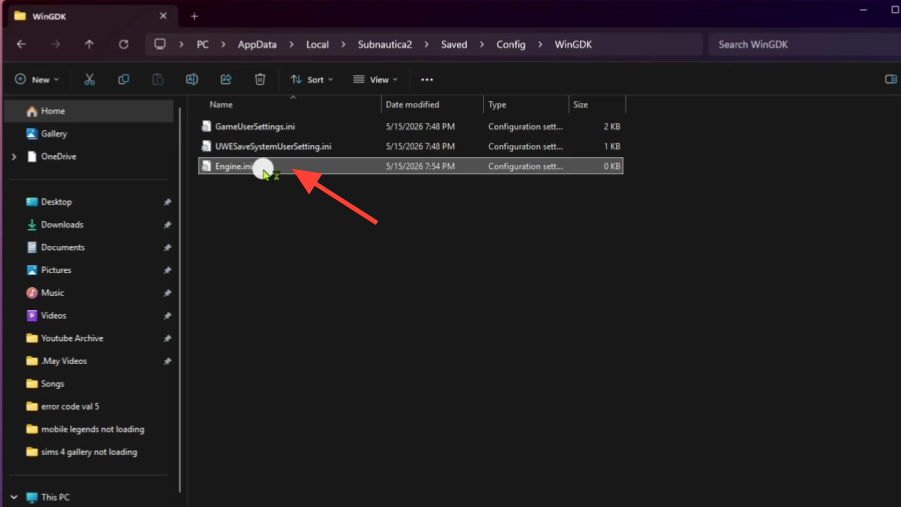
Troubleshooting the config edit
If the FOV line appears to do nothing after a clean launch, a few specific fixes resolve almost every case.
| Symptom | What to try |
|---|---|
| No visible change at all | Confirm the line sits under [/script/subnautica2.s2gameusersettings], not a different header. Try moving it under [/script/subnautica2.sn2settingslocal] as a fallback. |
| Change is too subtle to notice | Push the value higher in increments (95, 100, 105, 110). Stay at or below 115 to avoid instability. |
| File keeps reverting on launch | The Read-only attribute is not set, or the game was still running when you saved. Close the game, edit again, and re-enable Read-only. |
| Key name not recognized | Try alternative key names: DesiredFOV, fFOV, CurrentFOV, or FieldOfViewMultiplier=1.2 (this last one is a multiplier, not an absolute value). |
| Game crashes on launch after edit | You likely set the value too high. Drop it back to 100–110 and relaunch. |
Method 2: Use the Comfort Tweaks mod
If the INI edit keeps reverting or you want a hotkey to toggle the wider view on the fly, the Comfort Tweaks mod by Volitio handles it cleanly. It sets the FOV to 100 by default, supports custom values, and adds an optional F7 key to toggle the change in-game. It also works in multiplayer with negligible performance impact.

The mod runs on top of UE4SS, the Unreal Engine scripting tool that the Subnautica 2 modding community uses to inject Lua mods. You install UE4SS once, then drop Comfort Tweaks into its mods folder.

Subnautica2\Binaries\Win64.Win64\ue4ss\Mods.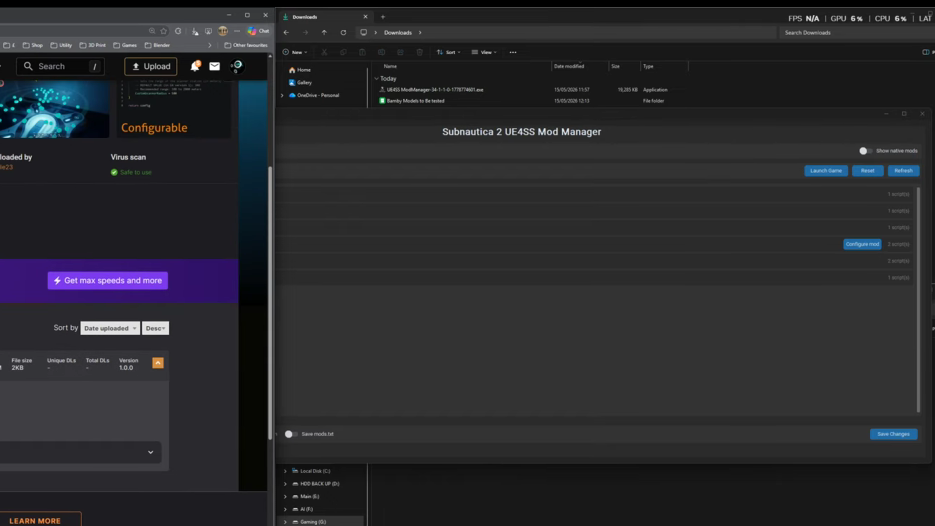
scripts/config.lua in the mod folder and set your preferred FOV value. If you have the Mod Settings mod installed, you can also change it from the in-game menu instead.Aspect ratio fix for ultrawide and motion sickness
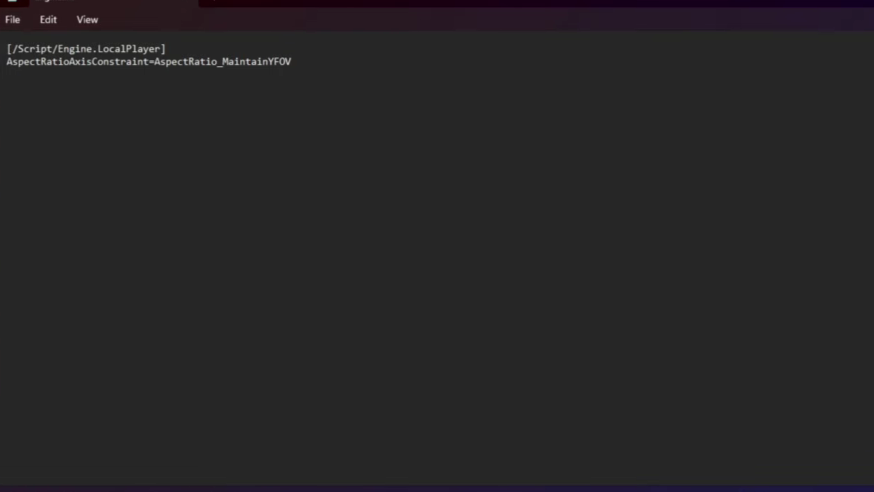
Wide-aspect monitors get hit twice in early access: the FOV is narrow, and the camera also crops vertically rather than expanding horizontally. A separate config tweak forces the engine to maintain vertical FOV, which makes ultrawide views feel less zoomed-in even if you do not change the FOV value itself.
[/Script/Engine.LocalPlayer]
AspectRatioAxisConstraint=AspectRatio_MaintainYFOV
Engine.ini aspect ratio fix
Recommended FOV values by monitor
| Display | Suggested FOV |
|---|---|
| 16:9 at 1080p or 1440p | 90–100 |
| 16:9 at 4K or large screens | 100–110 |
| 21:9 ultrawide | 105–115 |
| 32:9 super-ultrawide | 110–115 (pair with the Engine.ini fix) |
Values above 115 work for some setups but become unstable on others, with reports of hard crashes at 120 and above. Start conservative and step up until the camera feels right.
When the official slider arrives
Unknown Worlds has said that camera and console functions are planned for a future update, with timing tied to a rollout that works across both PC and console. Until that patch lands, the config edit and the Comfort Tweaks mod are the two reliable ways to play with a wider view. Both are safe to remove later: deleting the INI line (or the mod folder) returns the game to its default FOV with no save-file consequences.