

Keeping your computer’s time zone accurate is essential for timely notifications, scheduled tasks, and maintaining correct system logs. Whether you’re traveling to a different region or your system isn’t displaying the correct time, Windows 11 provides easy ways to change your time zone settings. Here’s how you can adjust them manually, set them to update automatically, or troubleshoot common issues.
How to Set Windows 11 to Change Time Zones Automatically
If you frequently travel between different time zones, enabling automatic time zone updates can save you the hassle of manual adjustments.
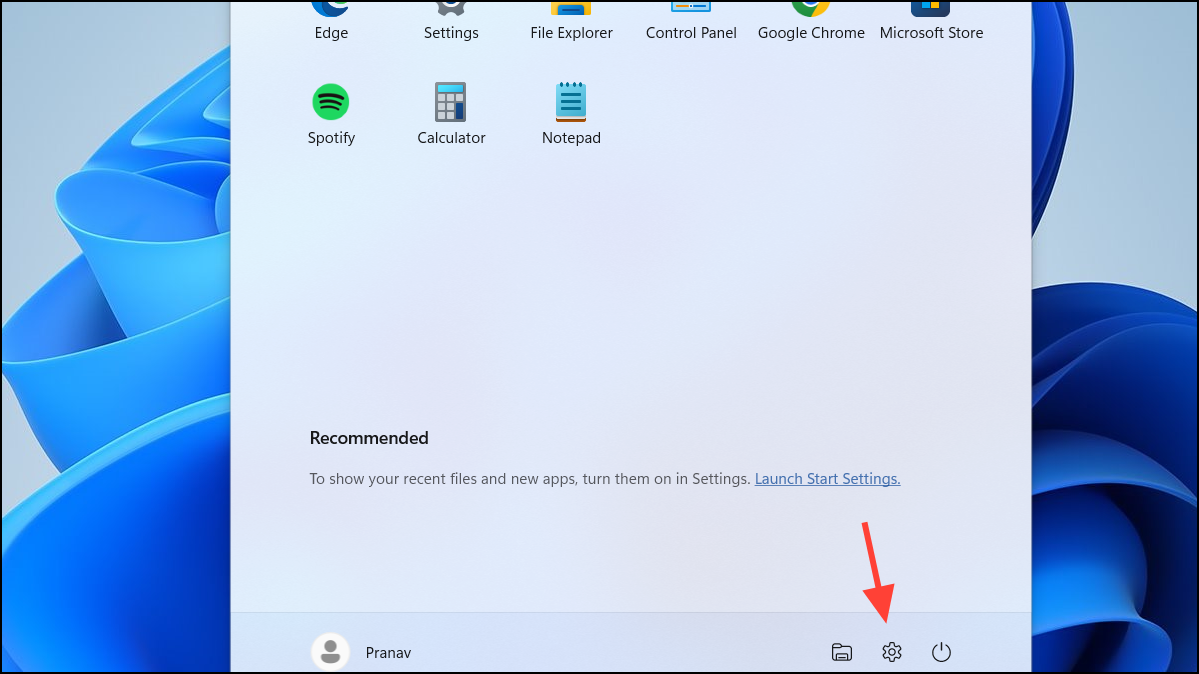
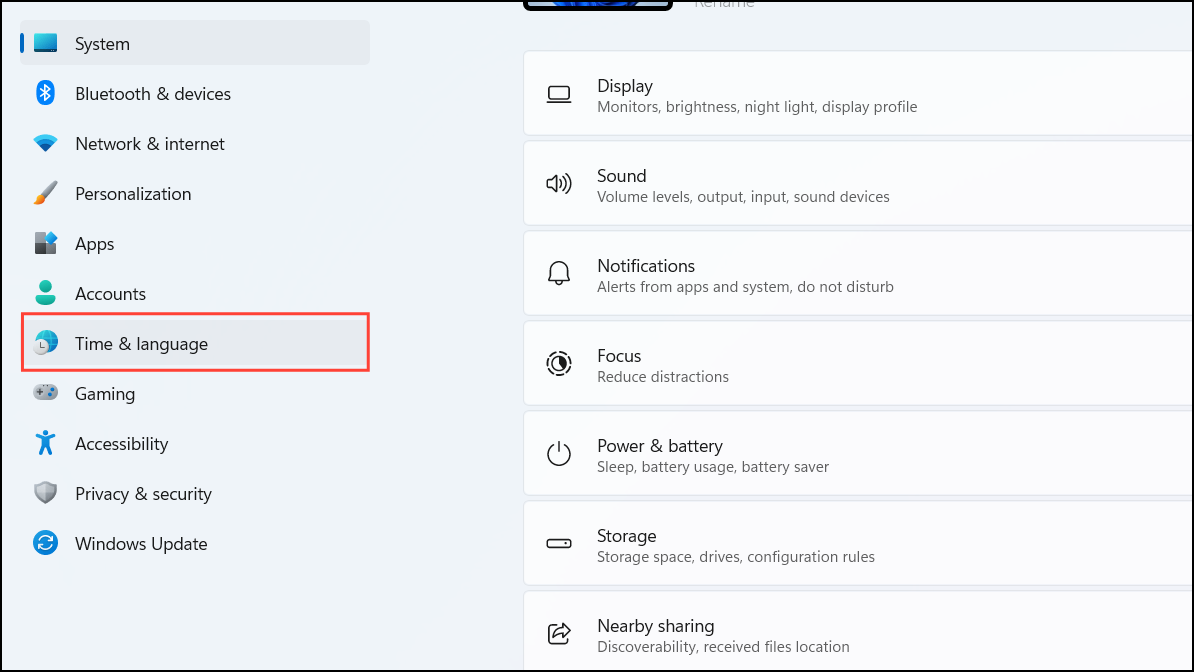
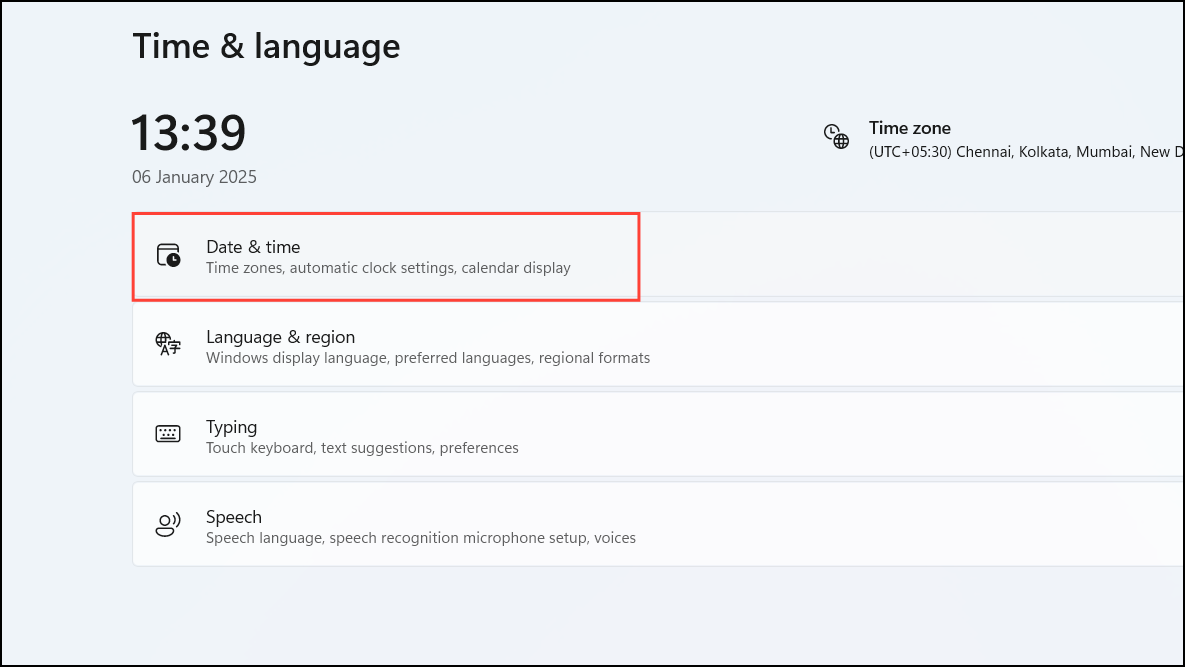
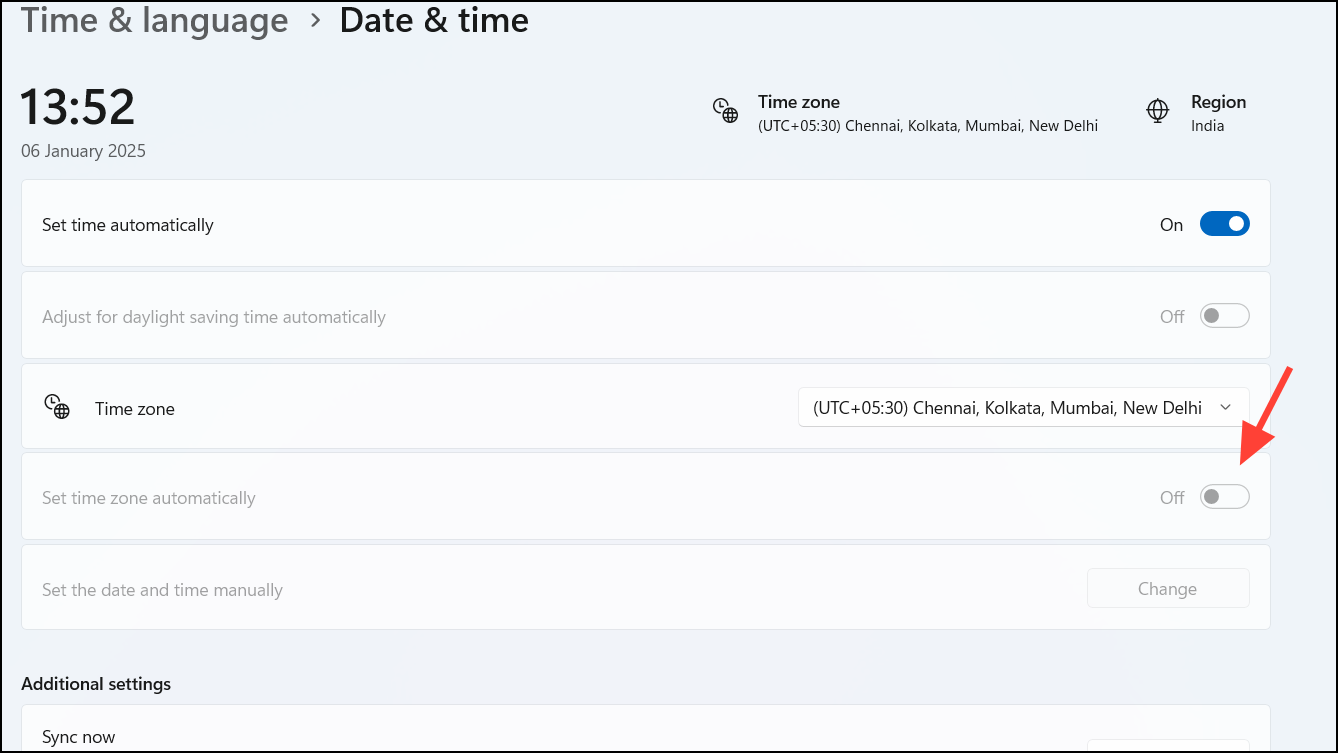
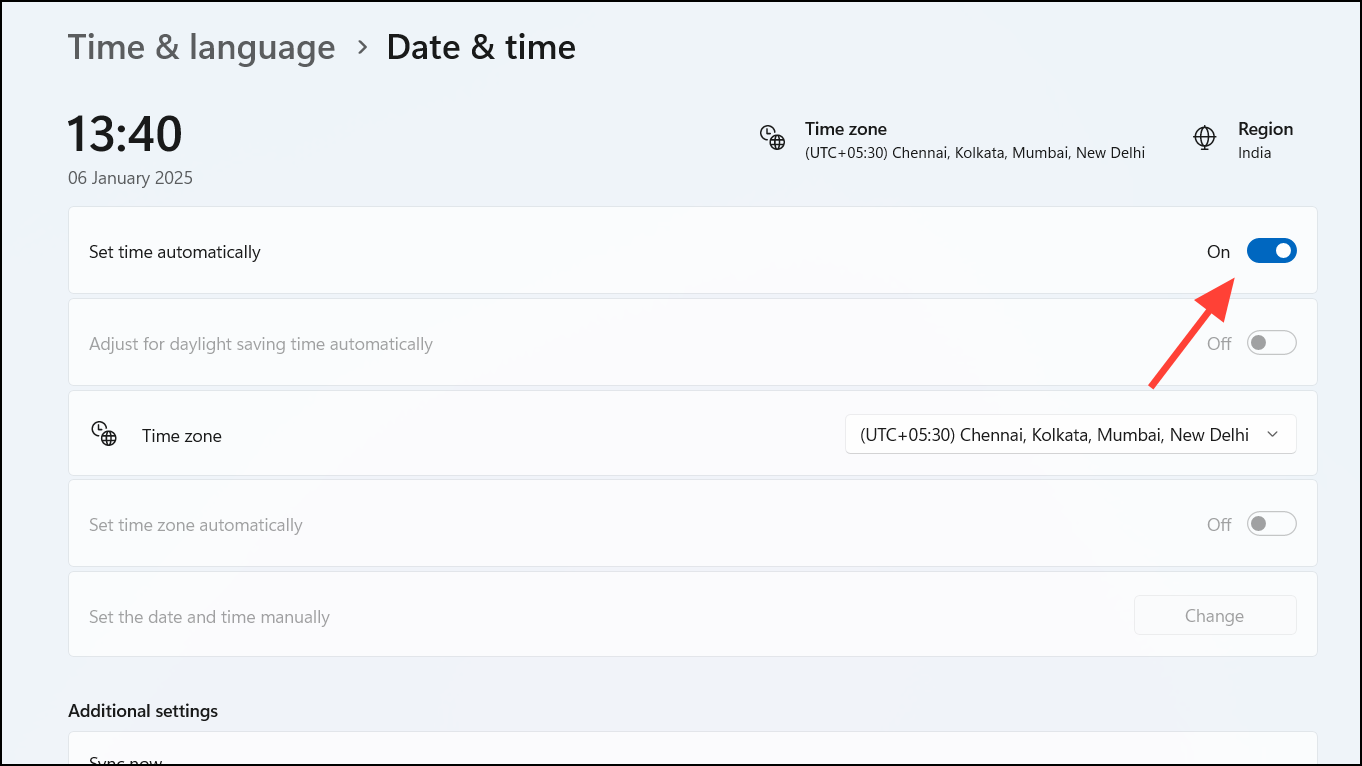
With these settings enabled, Windows 11 will automatically detect your location and update the time zone accordingly whenever you travel.
How to Change the Time Zone Manually in Windows 11
If Windows isn’t detecting your time zone correctly or you prefer to set it yourself, you can manually choose your time zone.
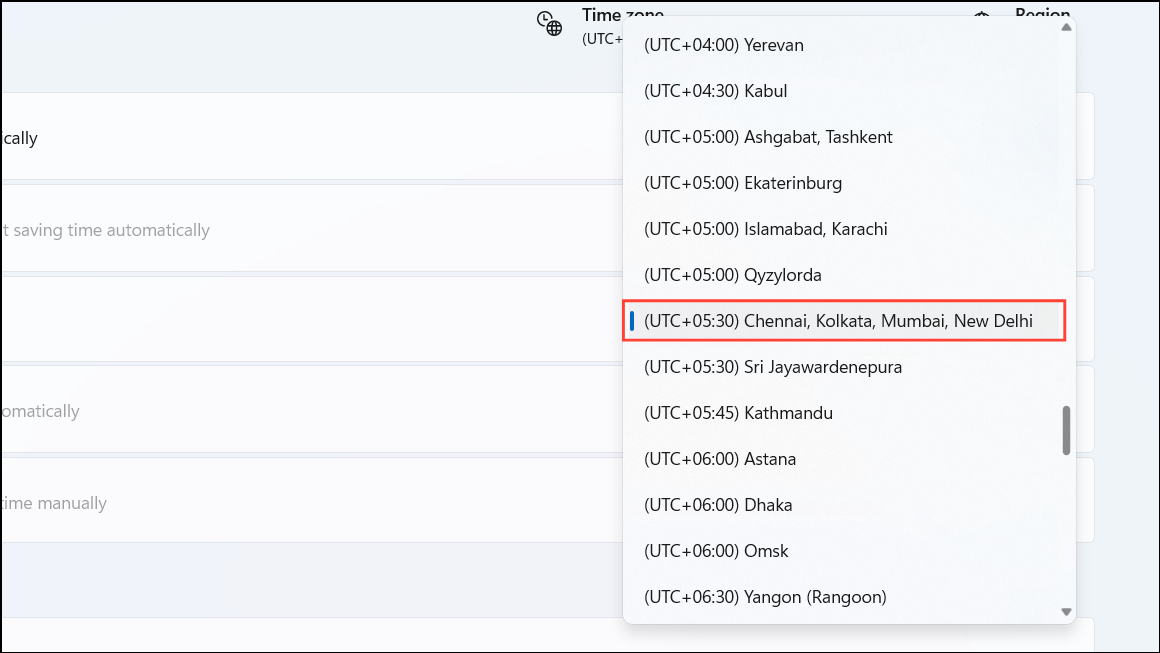
Your system clock will now update to reflect the selected time zone.
How to Manually Set the Date and Time in Windows 11
If you need to set a specific date and time, you can manually adjust these settings.
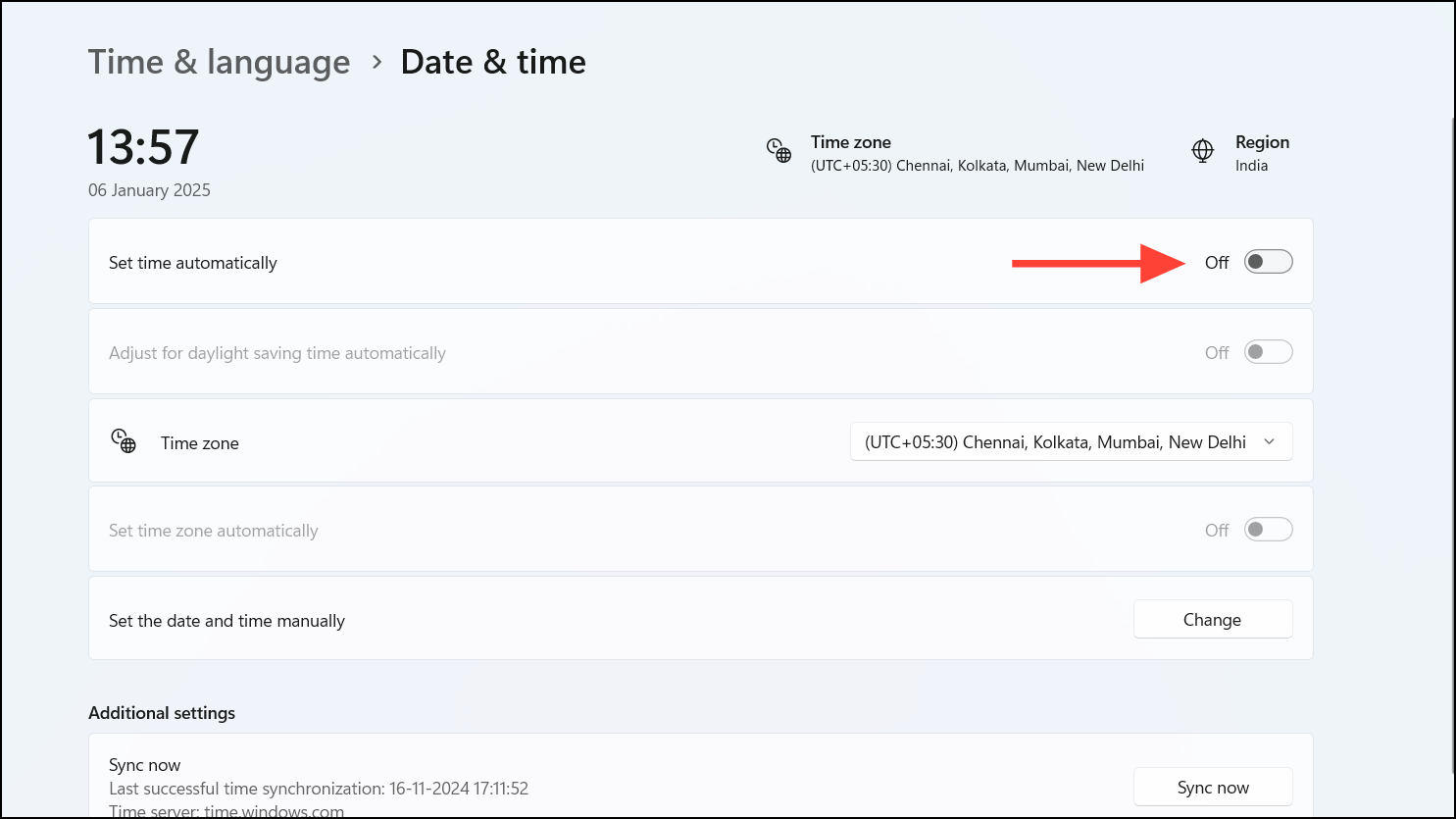
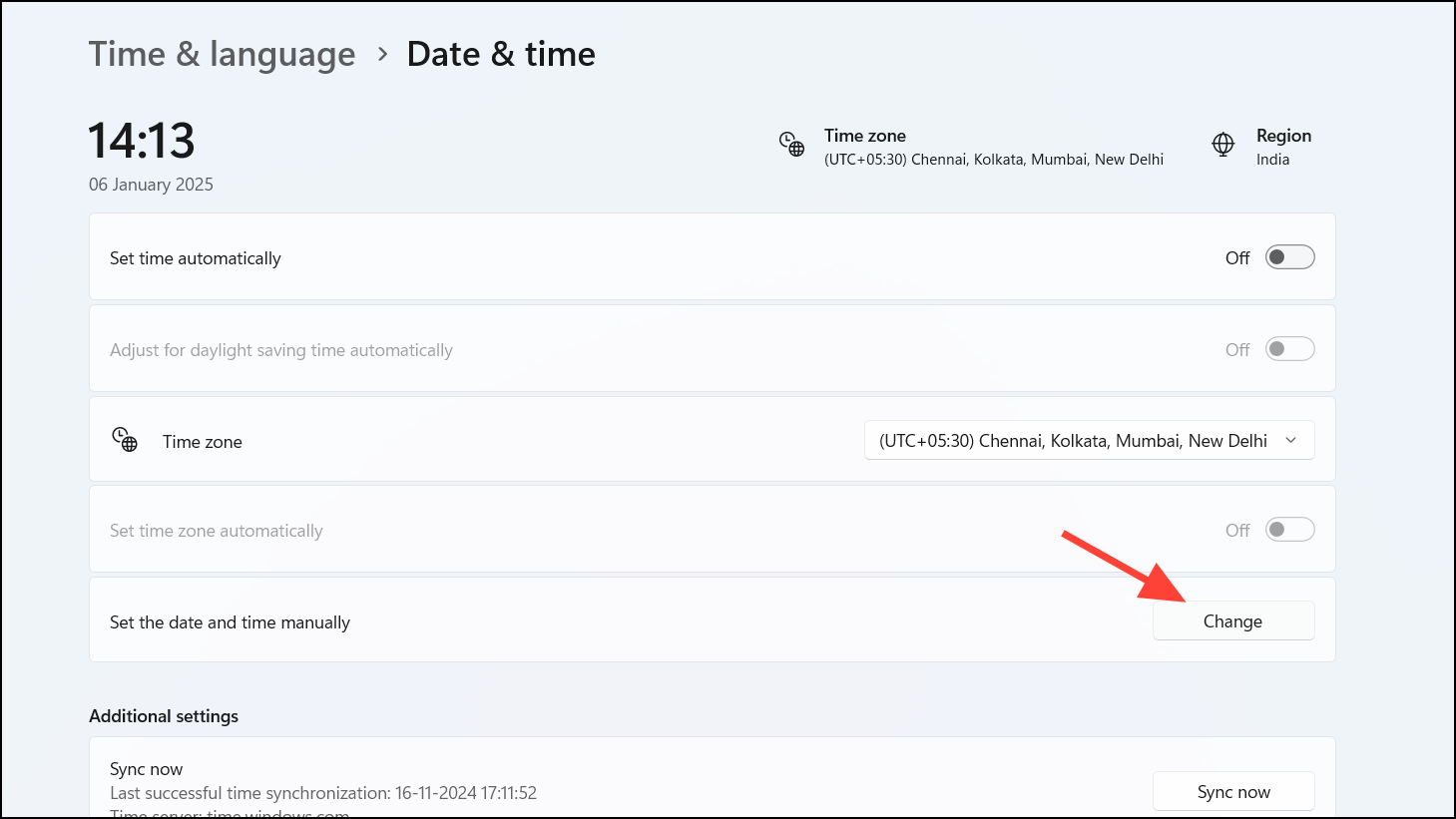
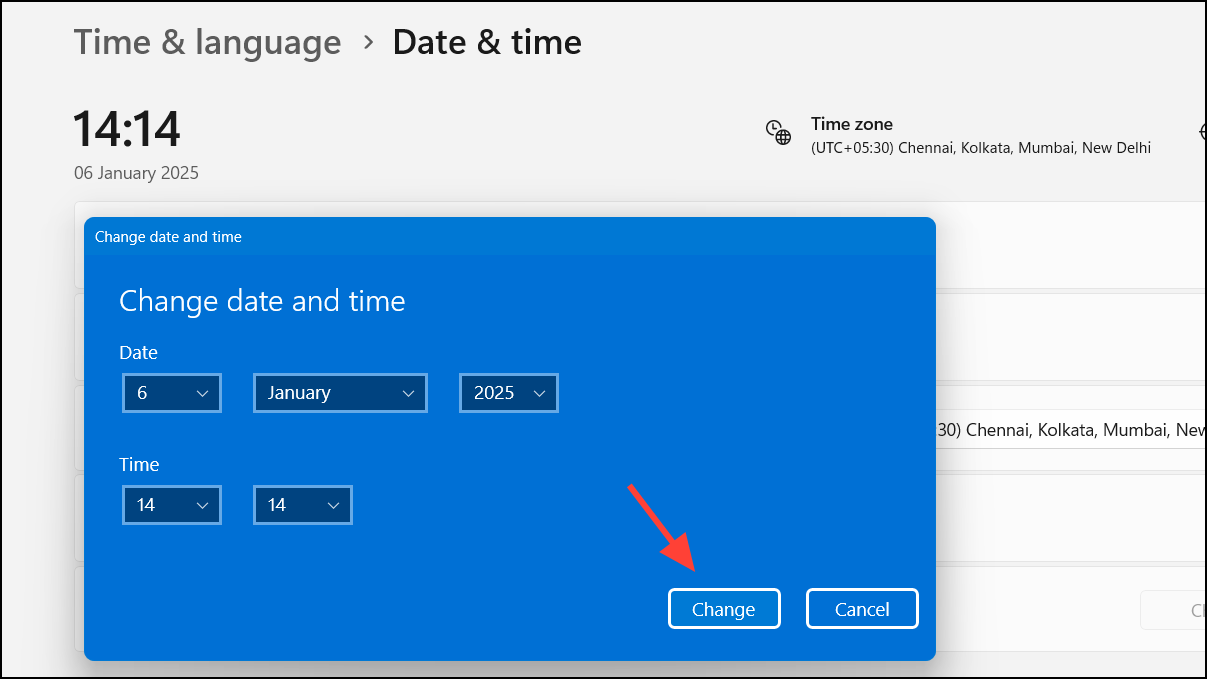
Your system will now use the manually entered date and time.
How to Change the Time Zone Using Command Prompt or PowerShell
For advanced users, you can also adjust the time zone using Command Prompt or PowerShell.
Using Command Prompt:
cmd in the Start menu, right-click Command Prompt, and select Run as administrator.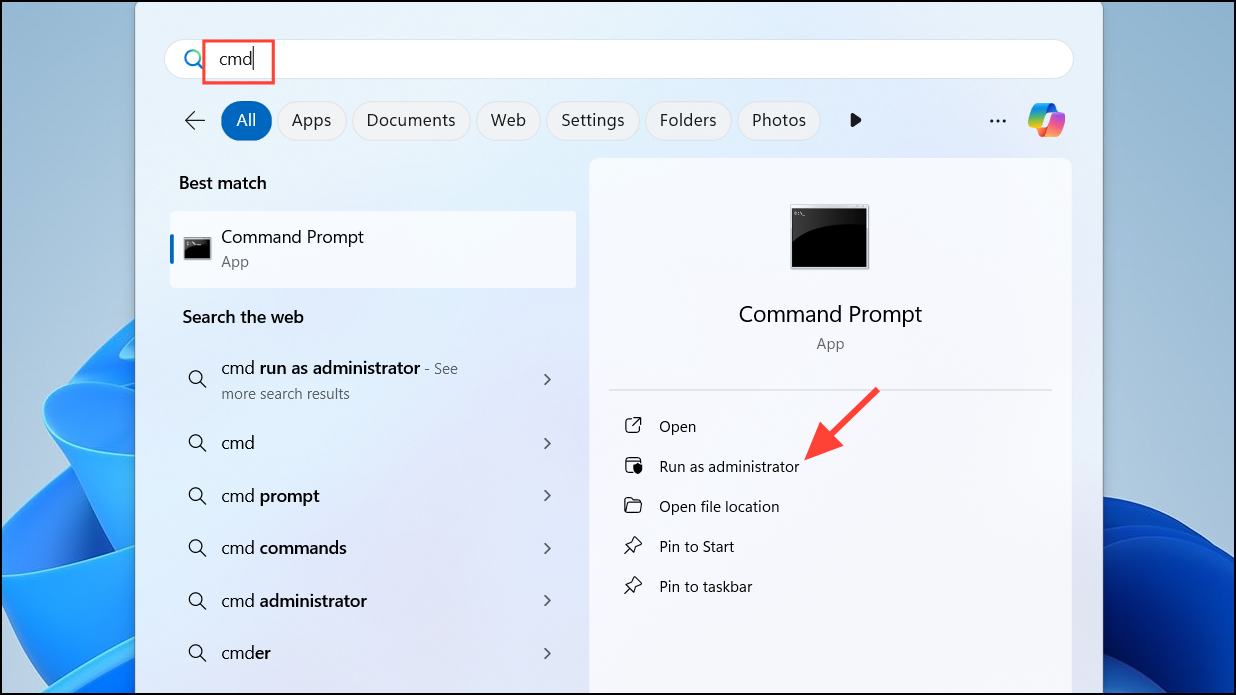
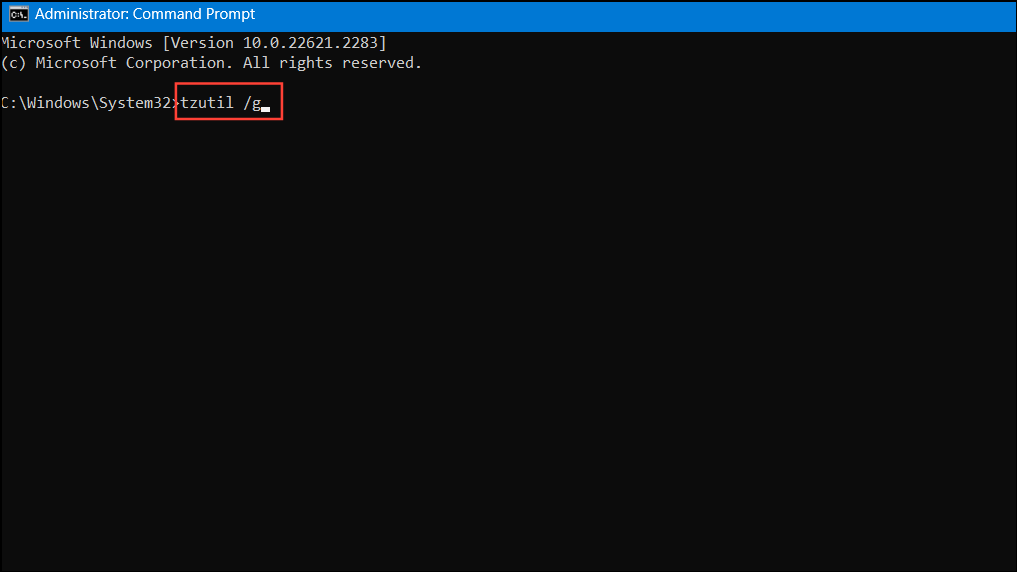
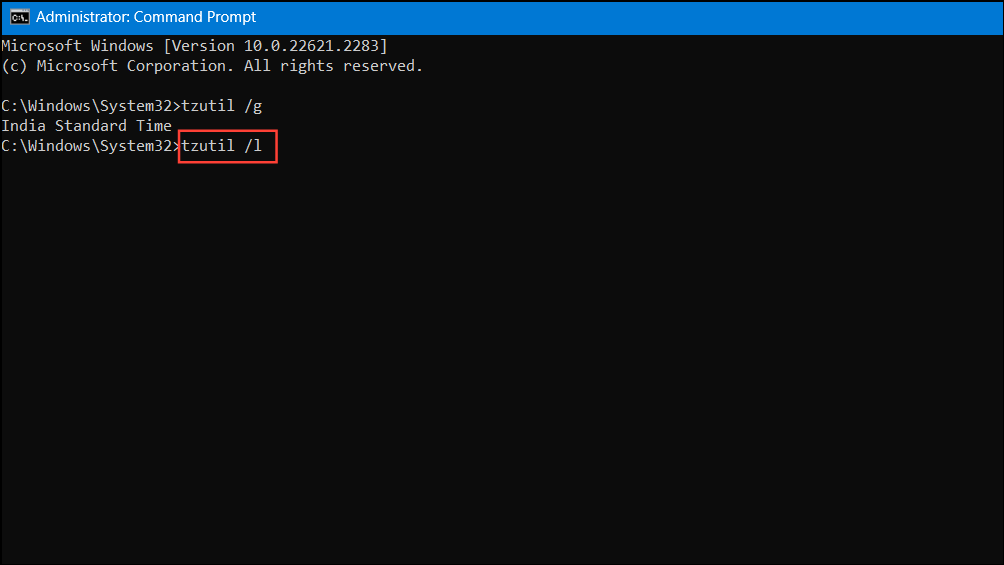
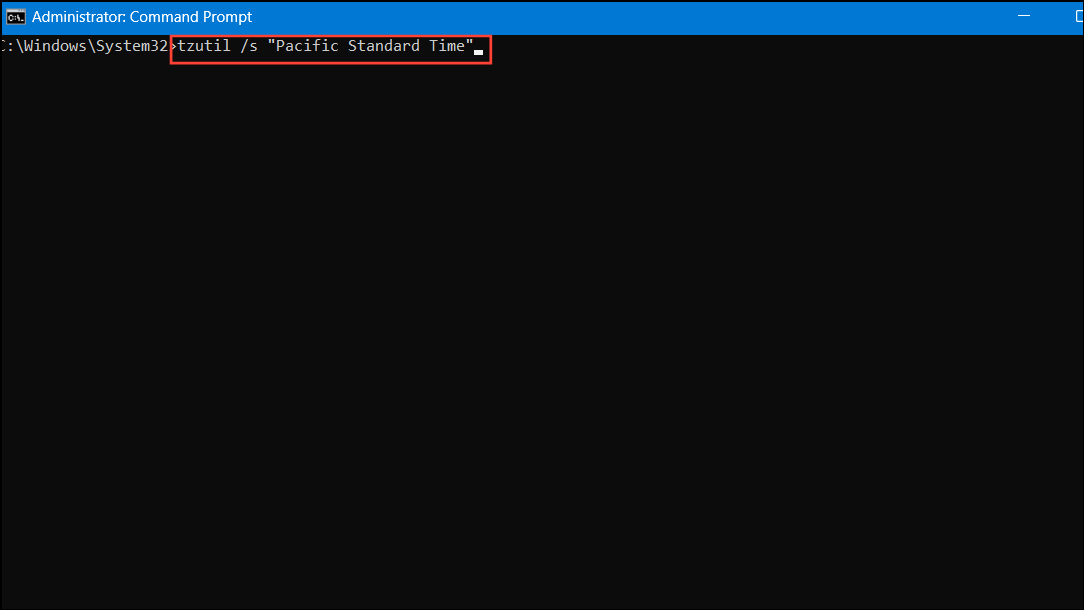
tzutil /s "Your Time Zone", replacing "Your Time Zone" with the exact name from the list.Example: tzutil /s "Pacific Standard Time"
Using PowerShell:
PowerShell, right-clicking on Windows PowerShell, and selecting Run as administrator.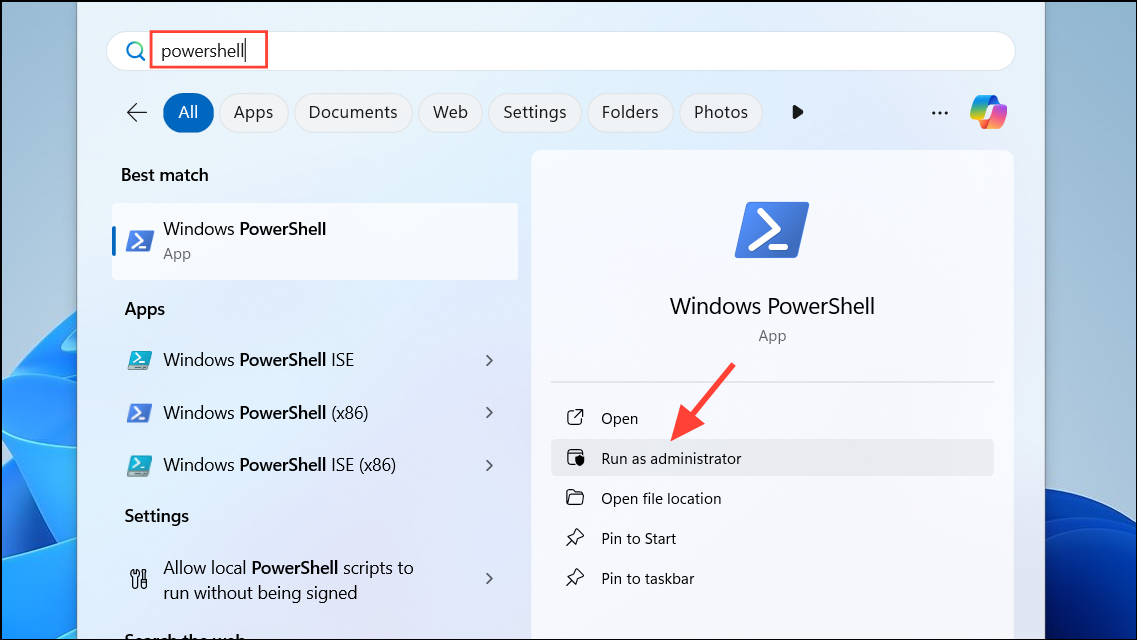
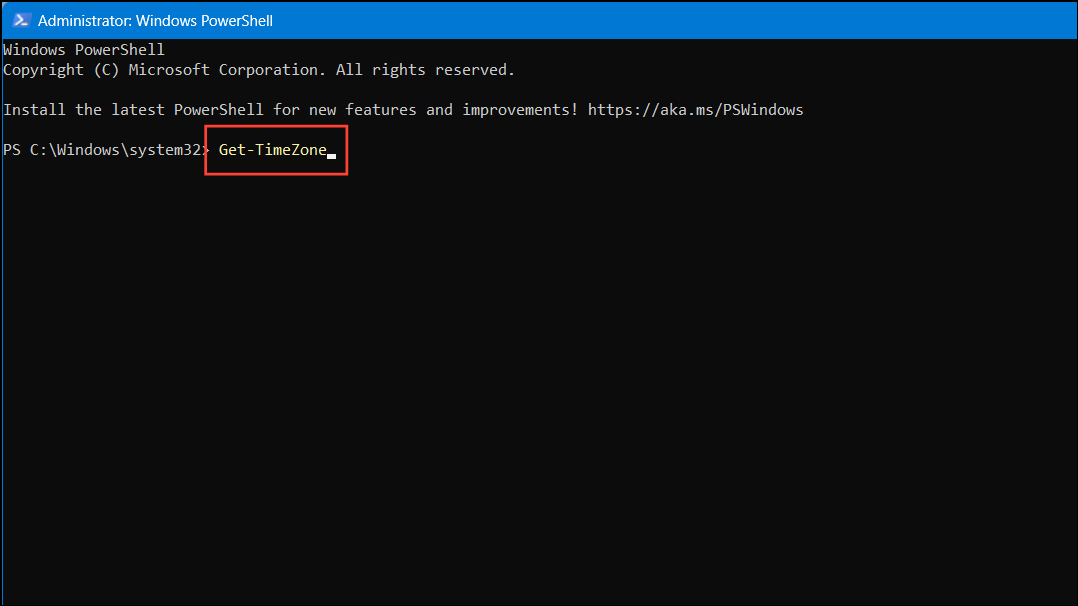
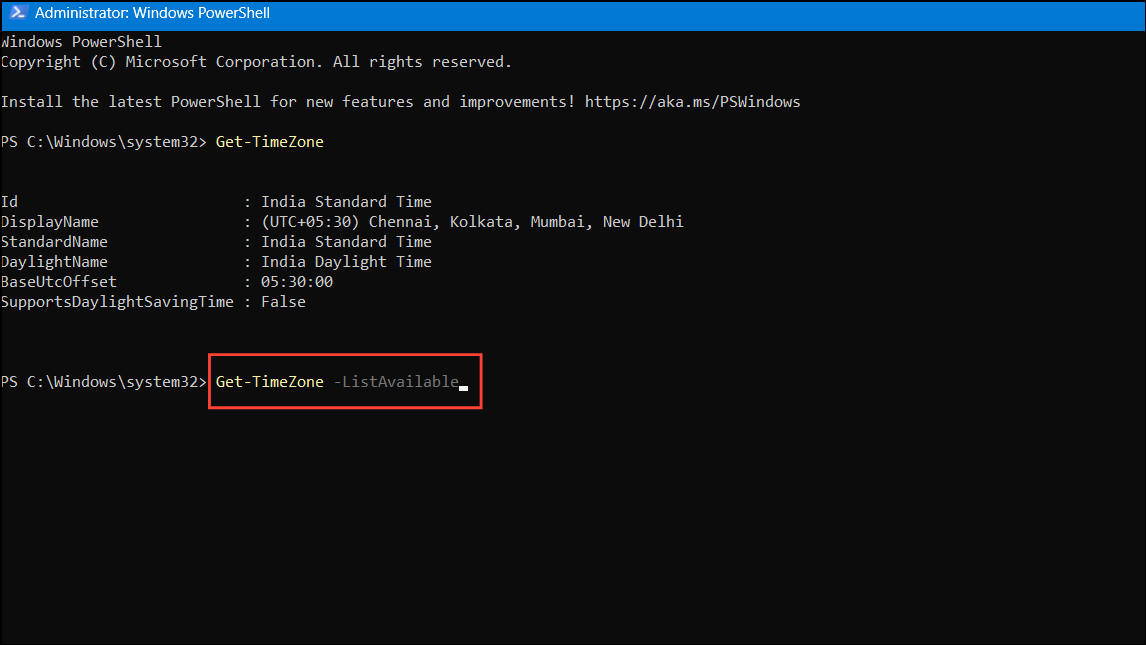
Set-TimeZone -Name "Your Time Zone", replacing "Your Time Zone" with the desired time zone name.Example: Set-TimeZone -Name "Eastern Standard Time"
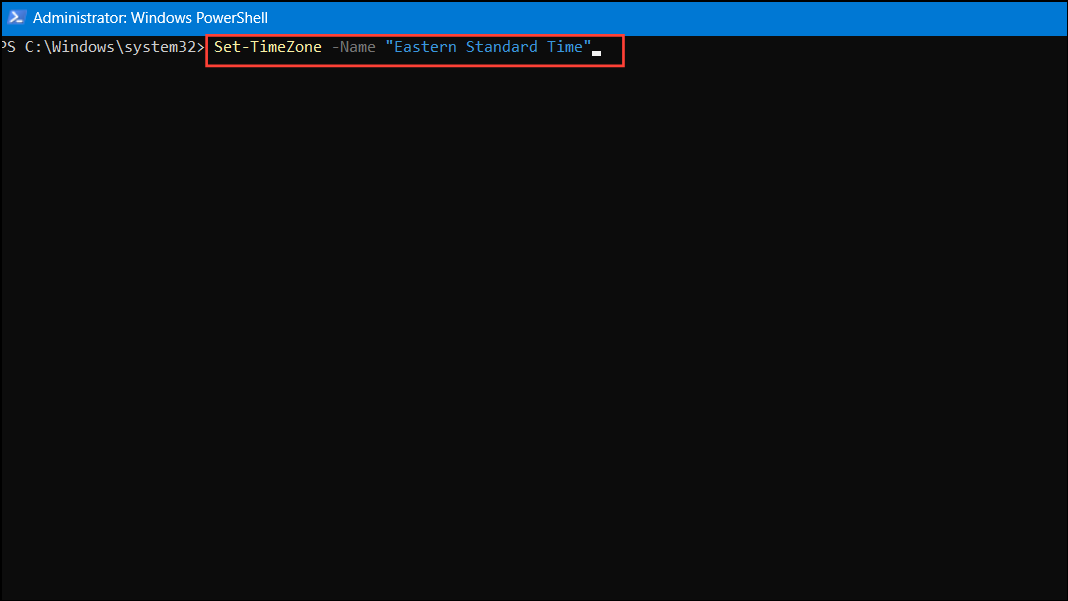
These commands allow you to script time zone changes or adjust settings remotely.
Troubleshooting Time Zone Issues in Windows 11
If you’re unable to change the time zone, it might be due to account permissions or system policies.
Settings, click on Accounts, and confirm that your account has administrative privileges.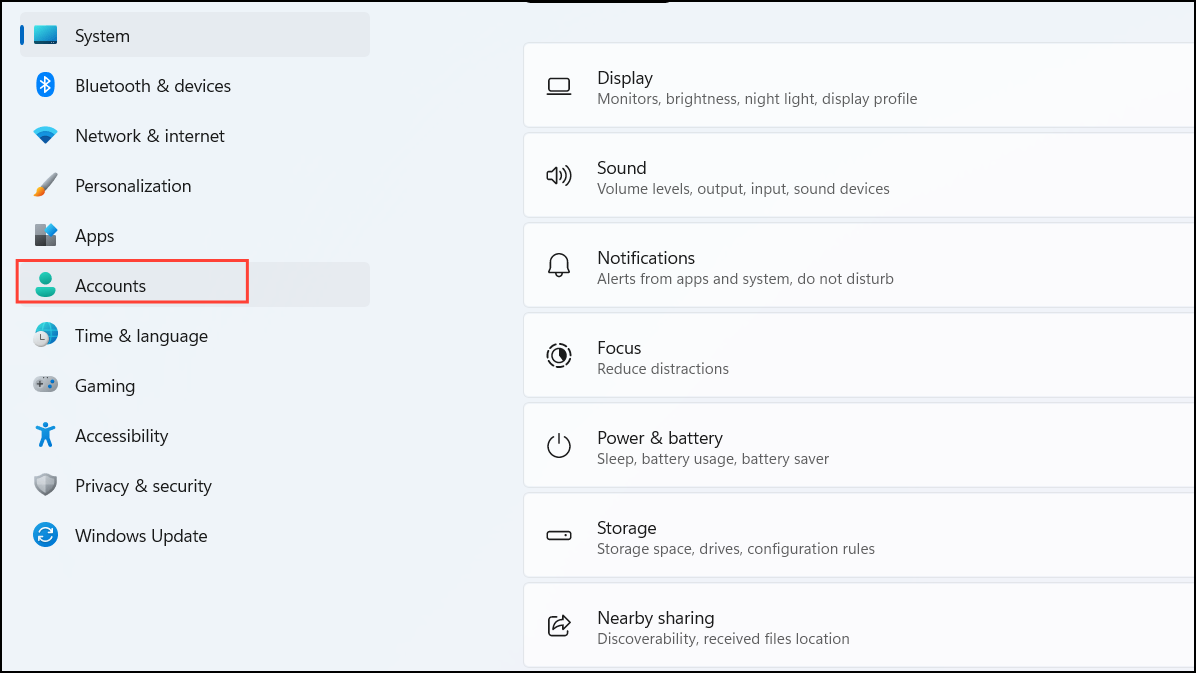
Windows + R to open the Run dialog, type timedate.cpl, and press Enter.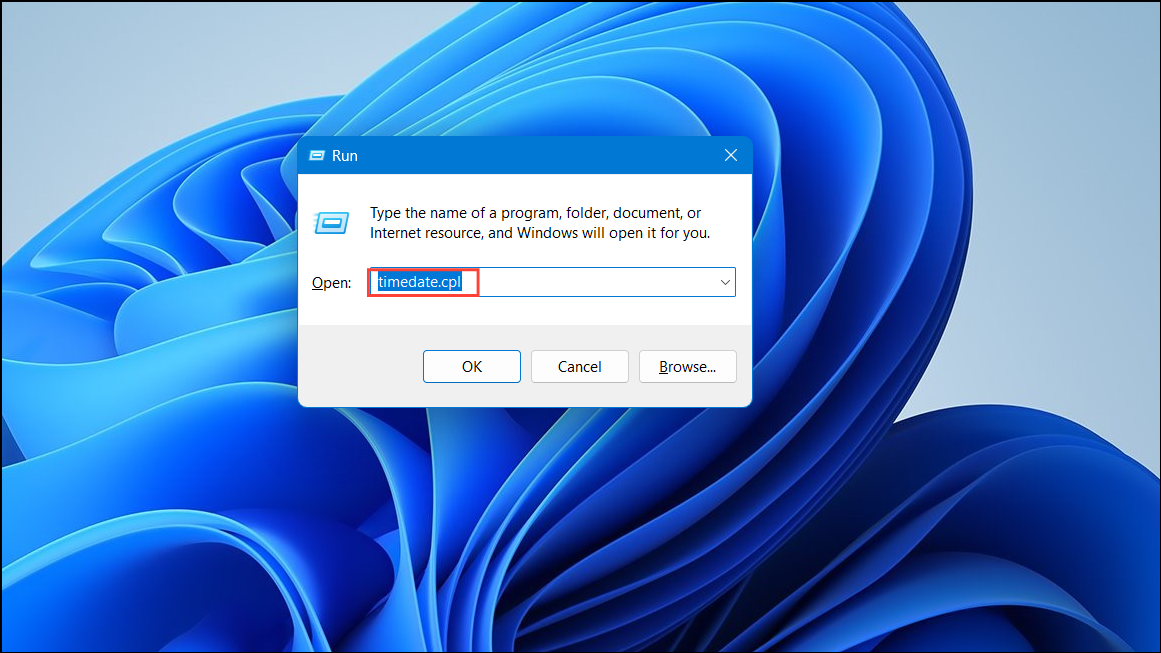
Change time zone... and select your desired time zone from the dropdown menu.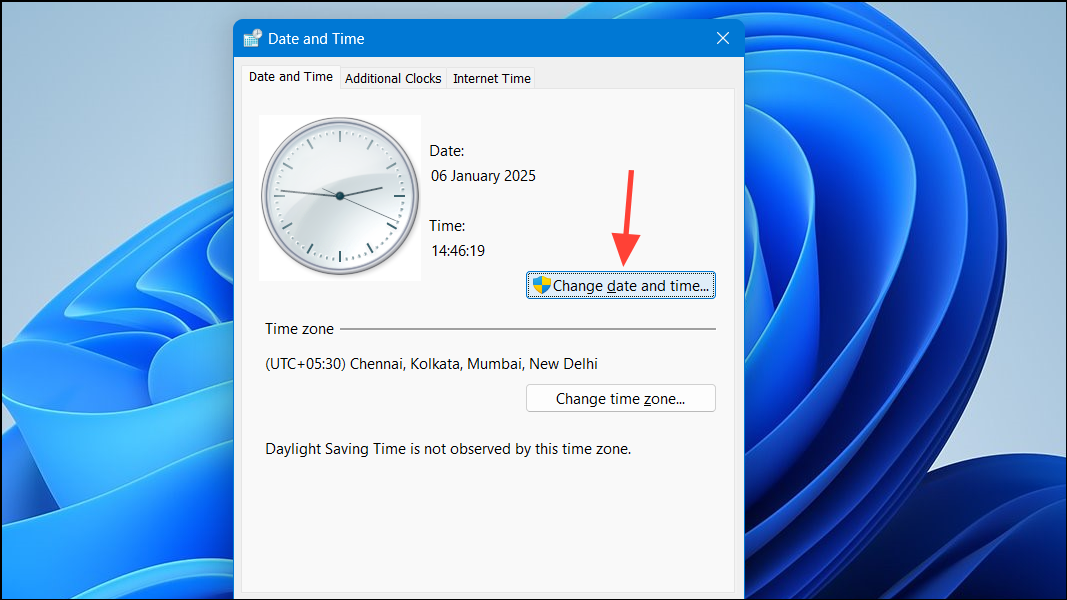
By following these methods, you can ensure that your Windows 11 device displays the correct time, keeping your schedule organized and your applications running smoothly.



