
Windows 11 stores a record of your activity history, including the apps you use, files you open, and websites you visit in Microsoft Edge. This feature supports features like Timeline and cross-device syncing if you use a Microsoft account. However, retaining this data can raise privacy concerns or clutter your device with records you no longer need. Clearing your recent activities directly addresses these issues, giving you more control over your personal information and device performance.
Clear Activity History Using Windows 11 Settings
Win + I on your keyboard. This shortcut quickly brings up the main configuration panel for your system.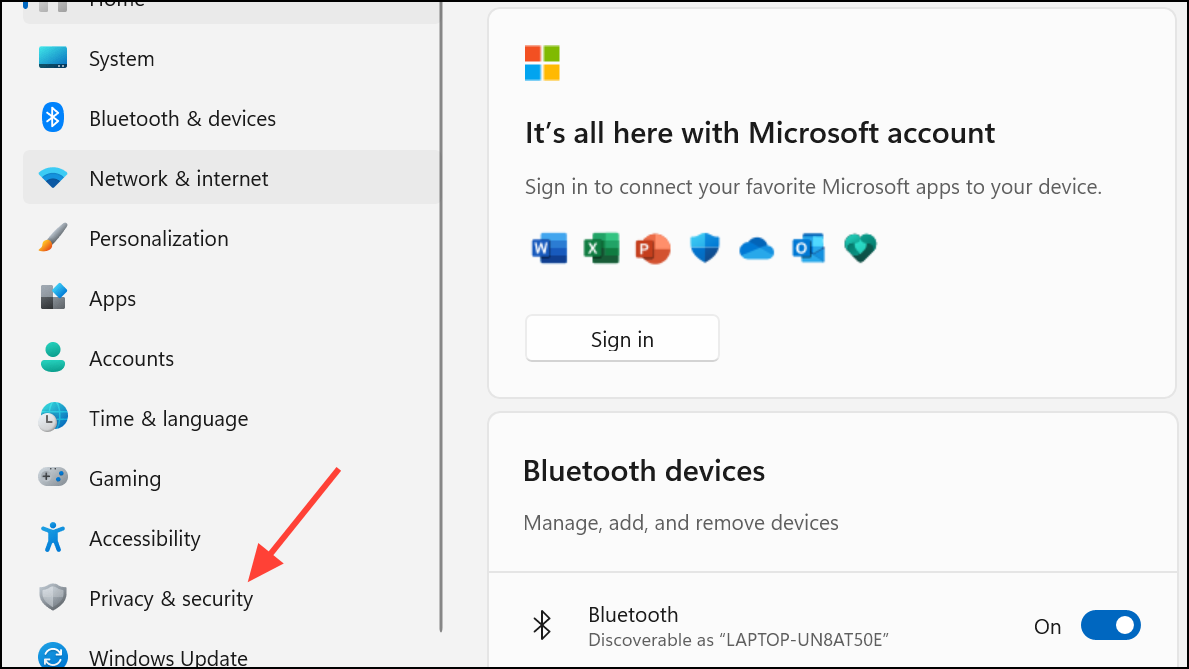
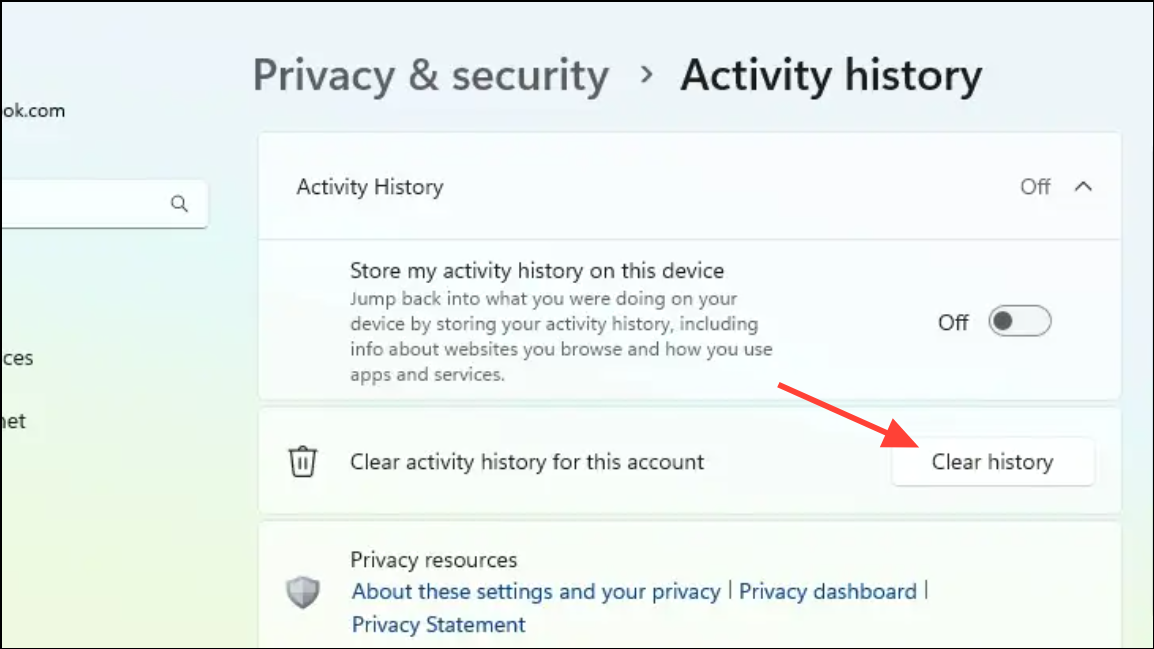
Clearing your activity history in this way removes locally stored records of your recent activities. This action does not affect your browsing history in Microsoft Edge or other browsers, nor does it remove files from your device—it only deletes the record of access.
Stop Windows 11 from Saving Future Activity History
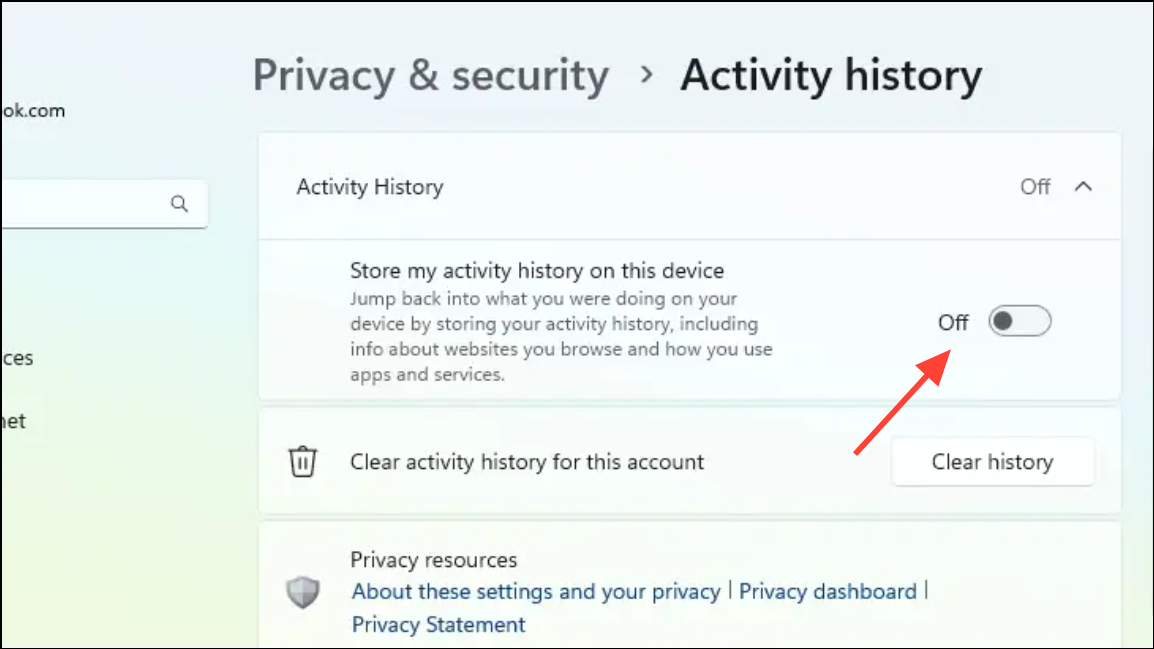
Turning off this setting means features like Timeline and some personalized suggestions will no longer reflect your previous actions. However, your browsing history in Microsoft Edge and other application-specific histories may still be retained separately.
Delete Activity History from Your Microsoft Account Online
For users who previously allowed Windows to sync activity history with their Microsoft account, additional records may exist in the cloud. Removing these ensures your data is not retained across devices or on Microsoft servers.
Remove Specific Activities from Timeline (If Available)
On some Windows 11 builds, Timeline lets you view and manage your daily activities. If you want to clear only certain items instead of your entire history:
This approach allows for granular control, enabling you to keep useful records while removing sensitive or unnecessary entries.
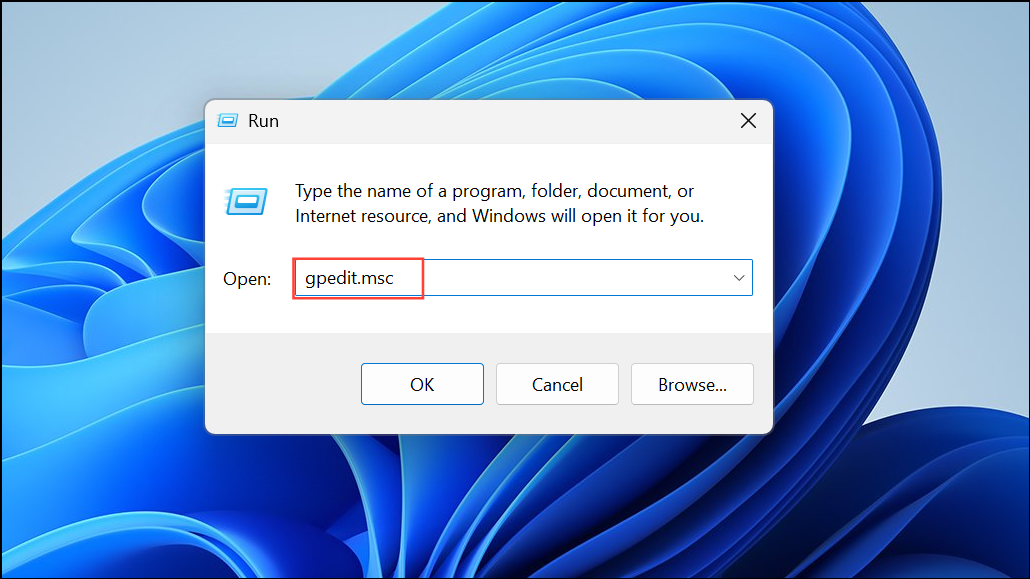
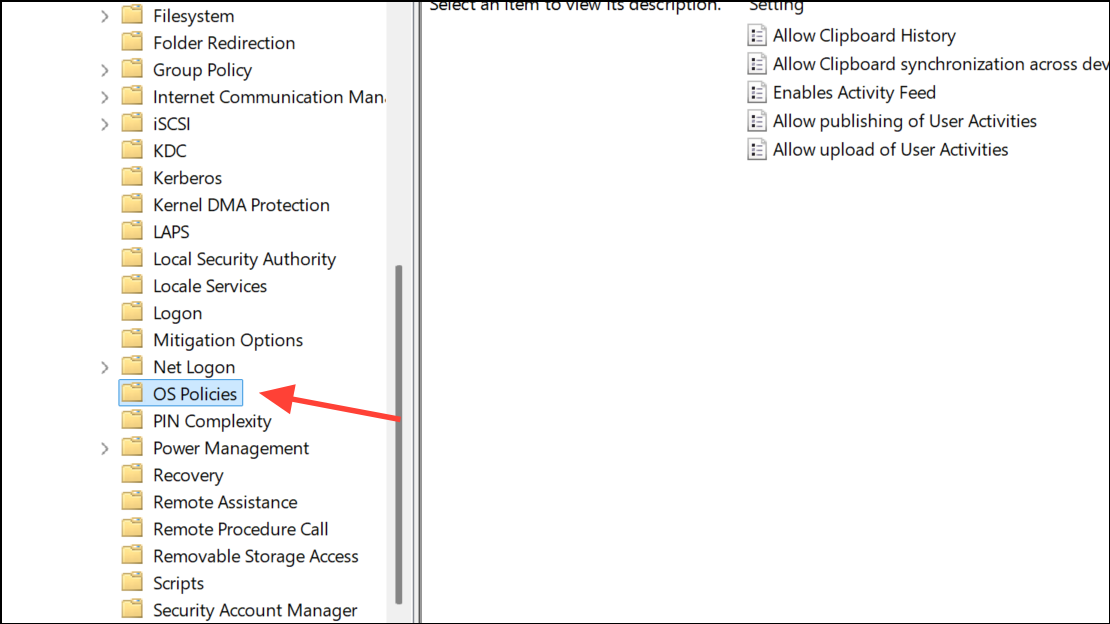
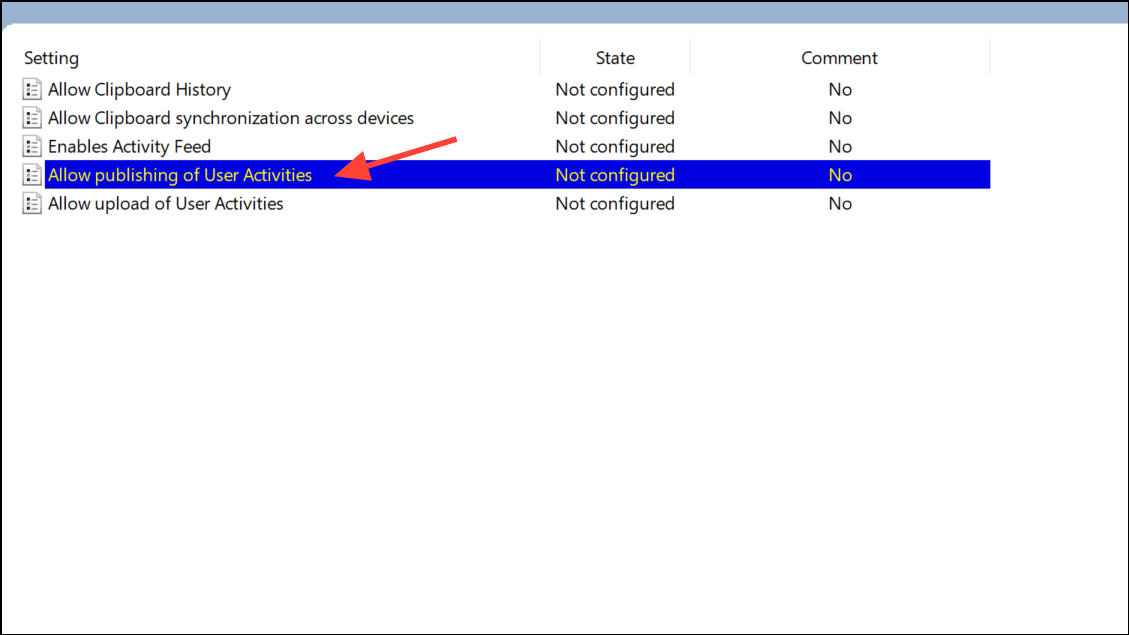
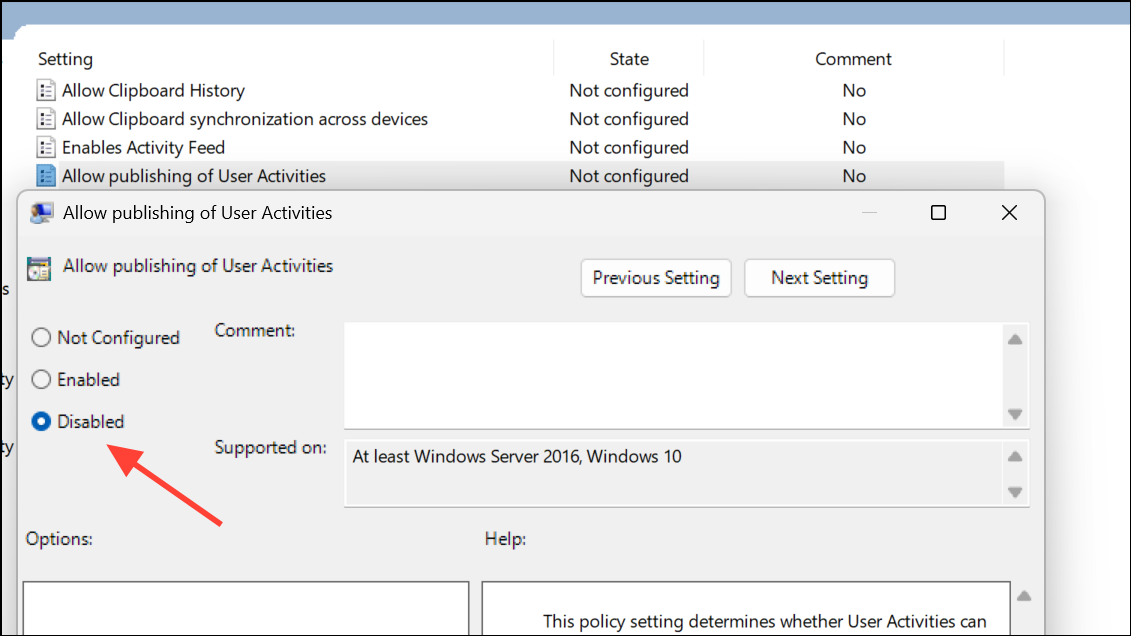
Using The Group Policy Editor
Administrators or advanced users can use Group Policy or Registry Editor to disable activity history collection across multiple devices or enforce privacy policies. To use the Group Policy Editor in Windows,
Using The Registry Editor
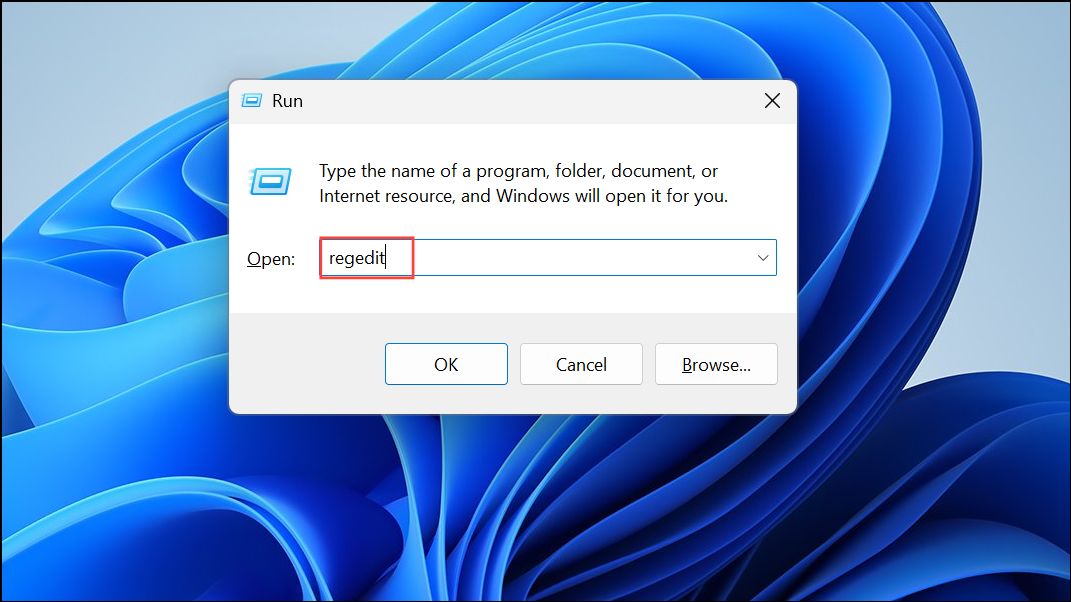
HKEY_LOCAL_MACHINE\SOFTWARE\Policies\Microsoft\Windows\System. If the System key doesn’t exist, create it by right-clicking and selecting New > Key.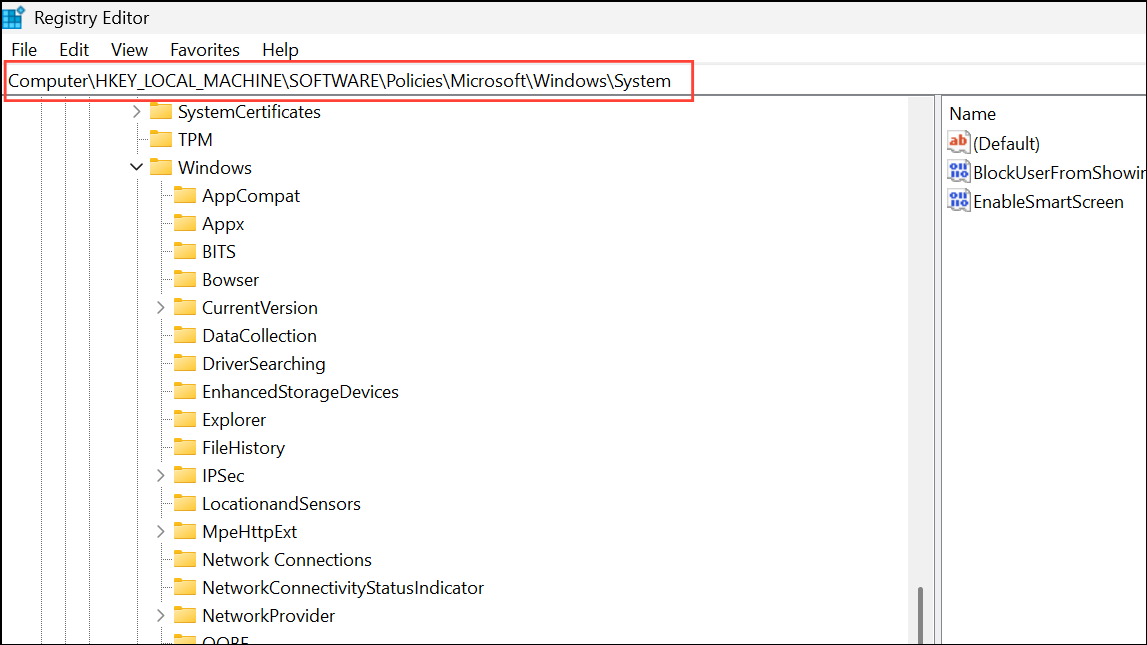
PublishUserActivities.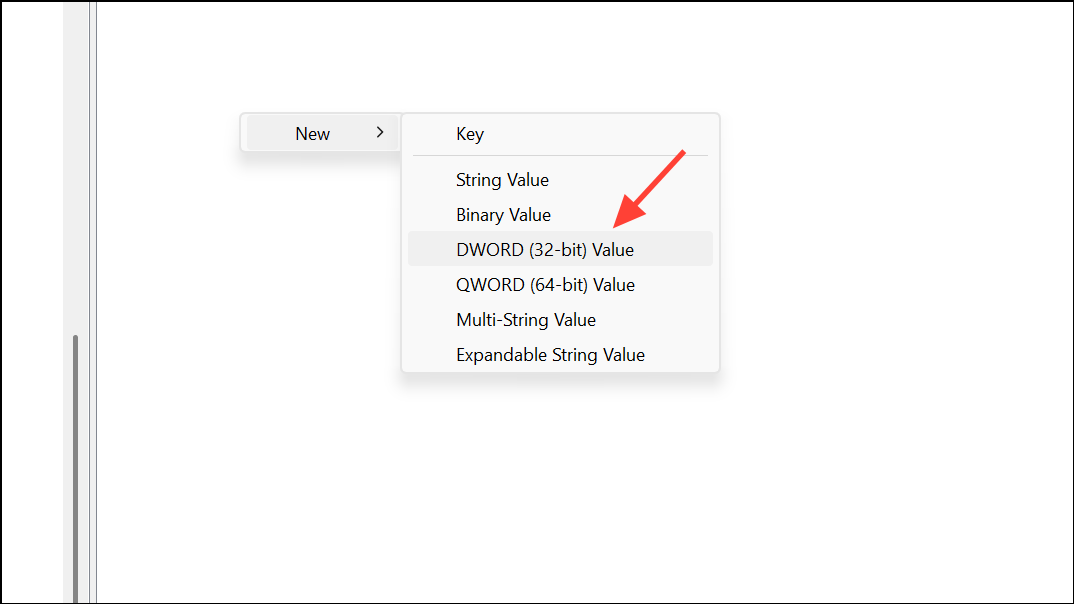
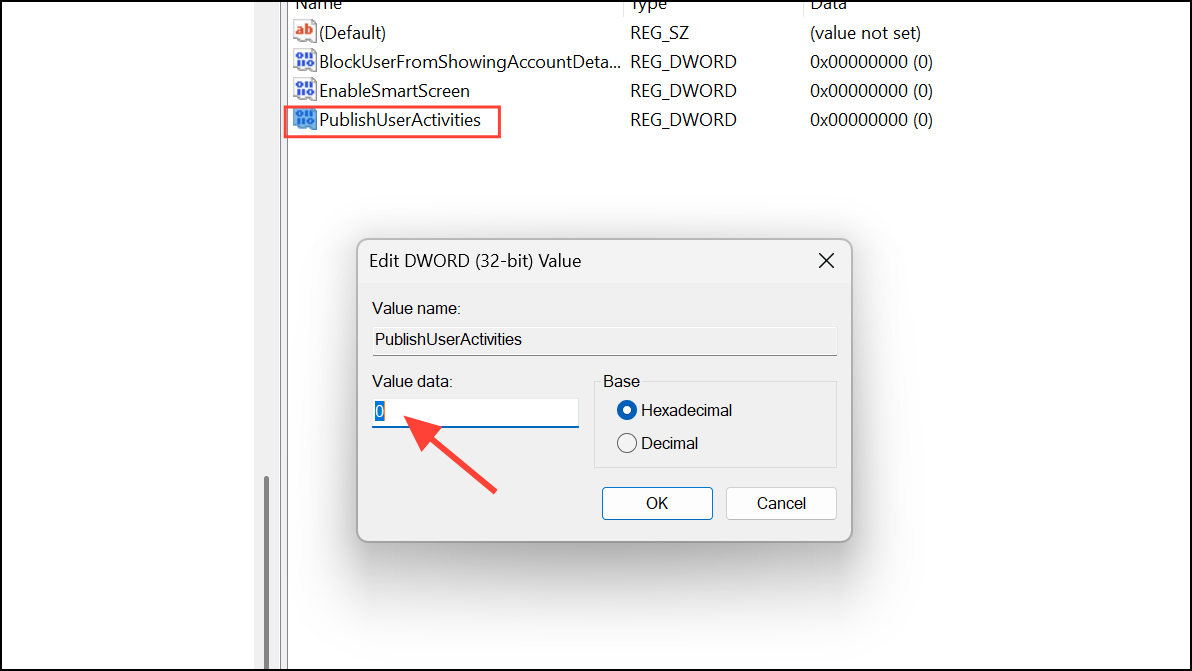
These steps provide persistent control over activity history collection, especially useful in managed or shared environments.
Clearing recent activities on Windows 11 gives you direct control over your privacy and can help keep your device clutter-free. Regularly reviewing and managing these settings ensures your data stays secure and only as visible as you want it to be.



