
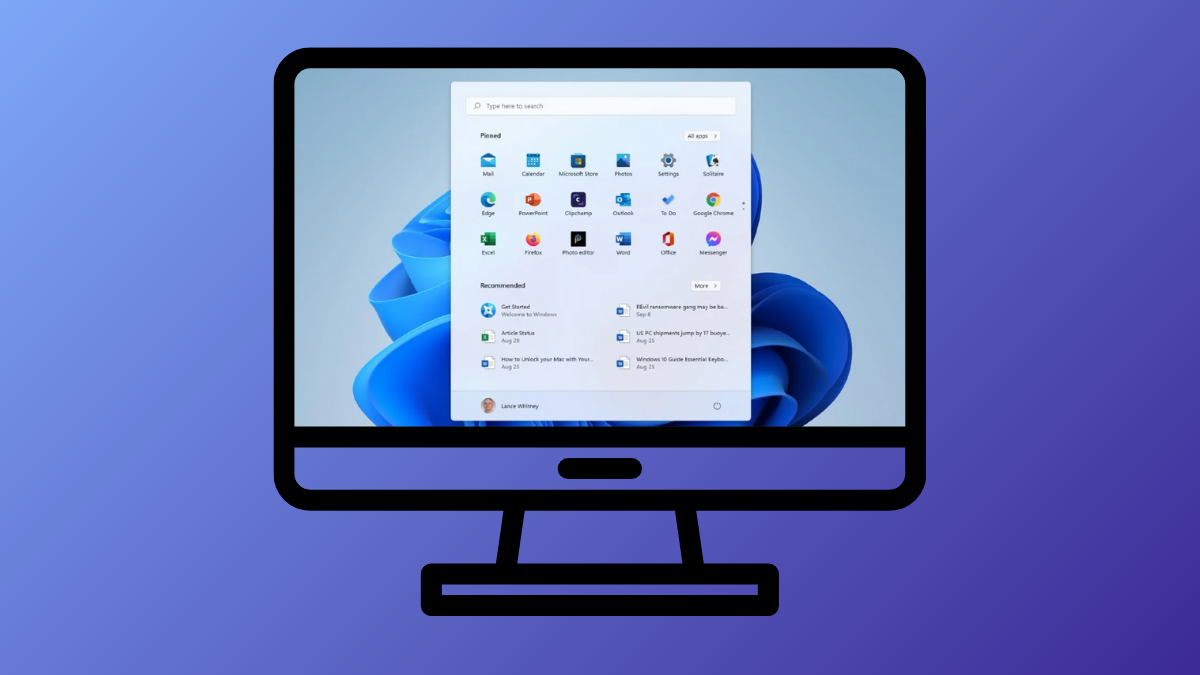
Windows 11 introduces a redesigned Start menu that, while visually modern, often leaves users searching for familiar features and efficient workflows. For those who want a more streamlined, productive experience, Windows 11 offers several built-in options to customize the Start menu—no third-party apps needed. Making these adjustments can reduce clutter, speed up access to your favorite apps, and restore some of the flexibility found in earlier Windows versions.
Pin and Unpin Apps for Faster Access
Click the Start button and select the
All button to view your complete list of installed applications. Scroll to find the app you want quick access to.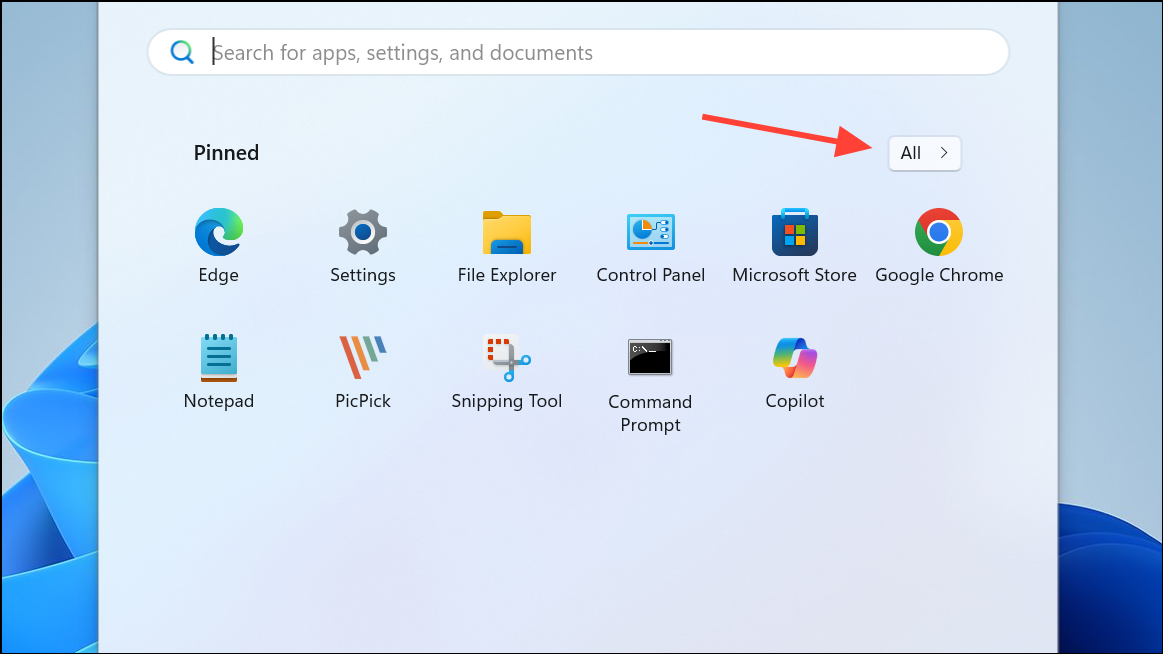
Right-click the desired app and choose
Pin to Start. This immediately adds the app to your Start menu’s pinned section, making it available with a single click.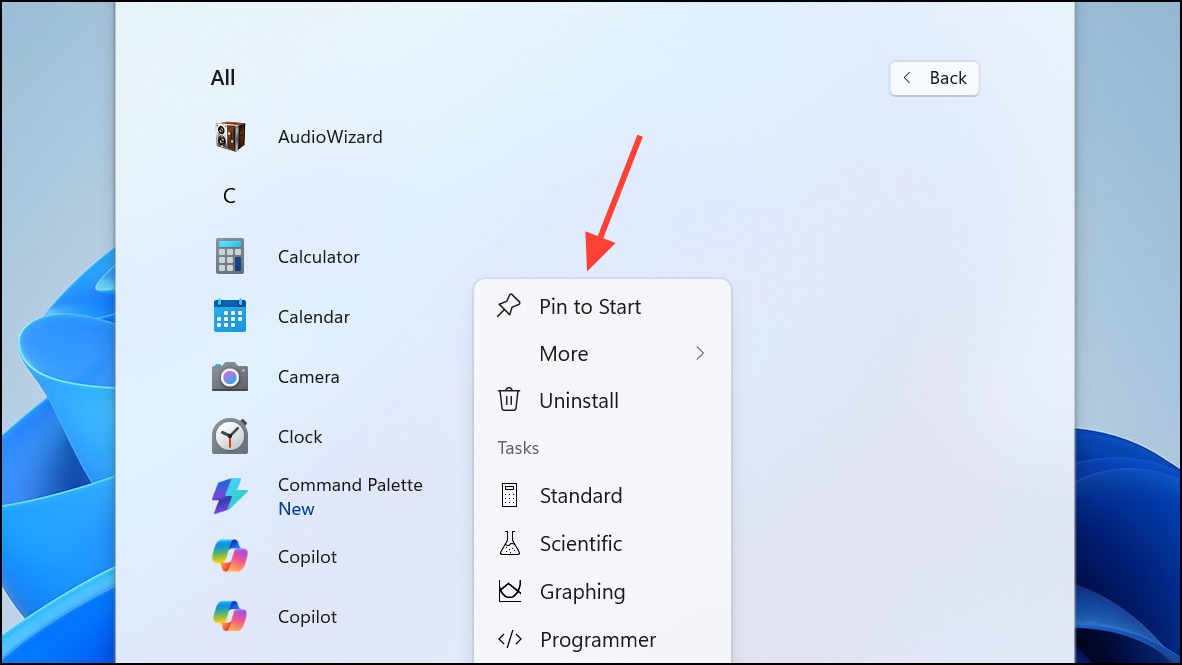
To remove an app you no longer need in the Start menu, right-click its icon and select
Unpin from Start. The app remains installed but disappears from the pinned area, reducing visual clutter.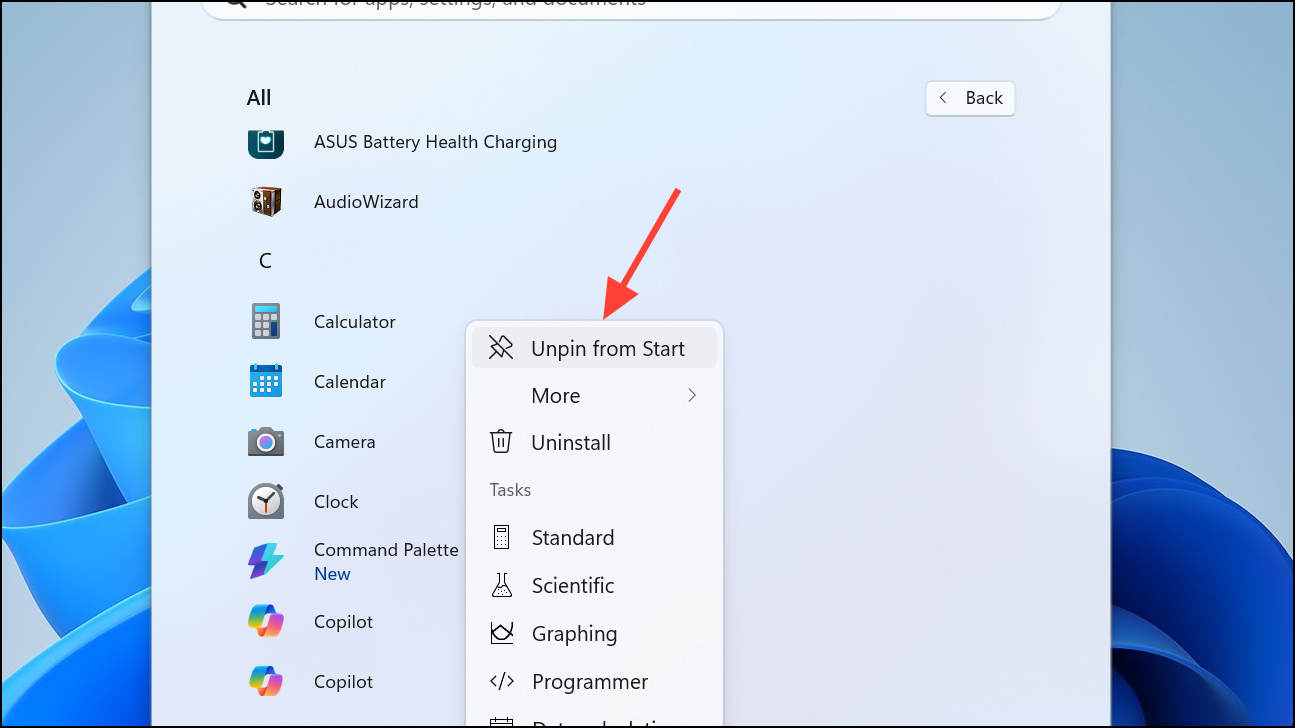
Rearrange and Organize Start Menu Icons
Drag and drop pinned app icons to reorder them. Position your most-used apps at the top for quicker access and move less-frequently used apps lower down.
For even faster reordering, right-click an app and select
Move to front to place it at the very top of your pinned section.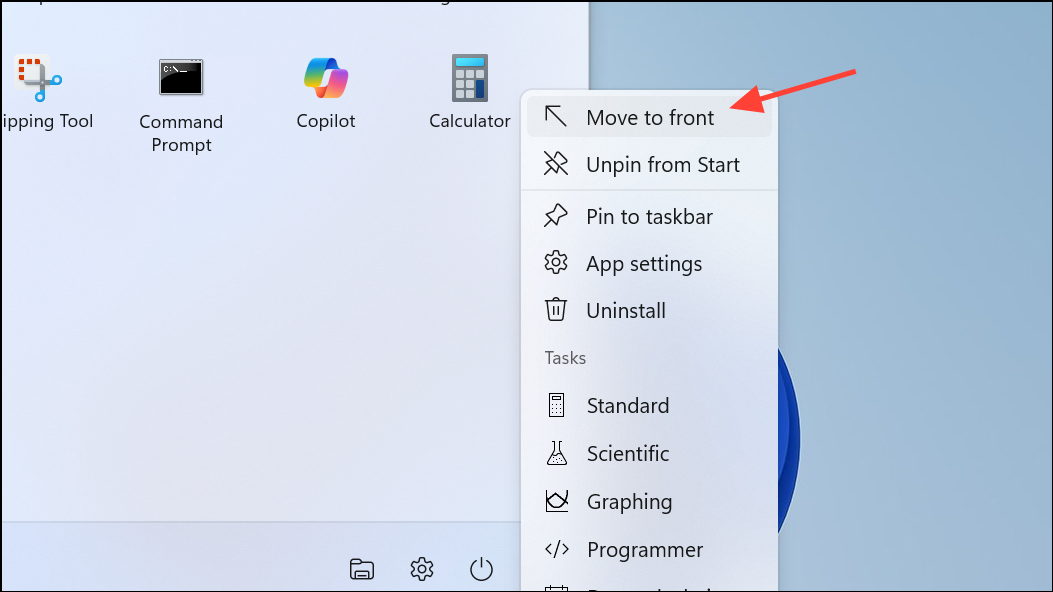
Create Folders to Group Related Apps
Ensure your system is running Windows 11 version 22H2 or newer. To check, go to
Settings > System > About and look under Windows specifications.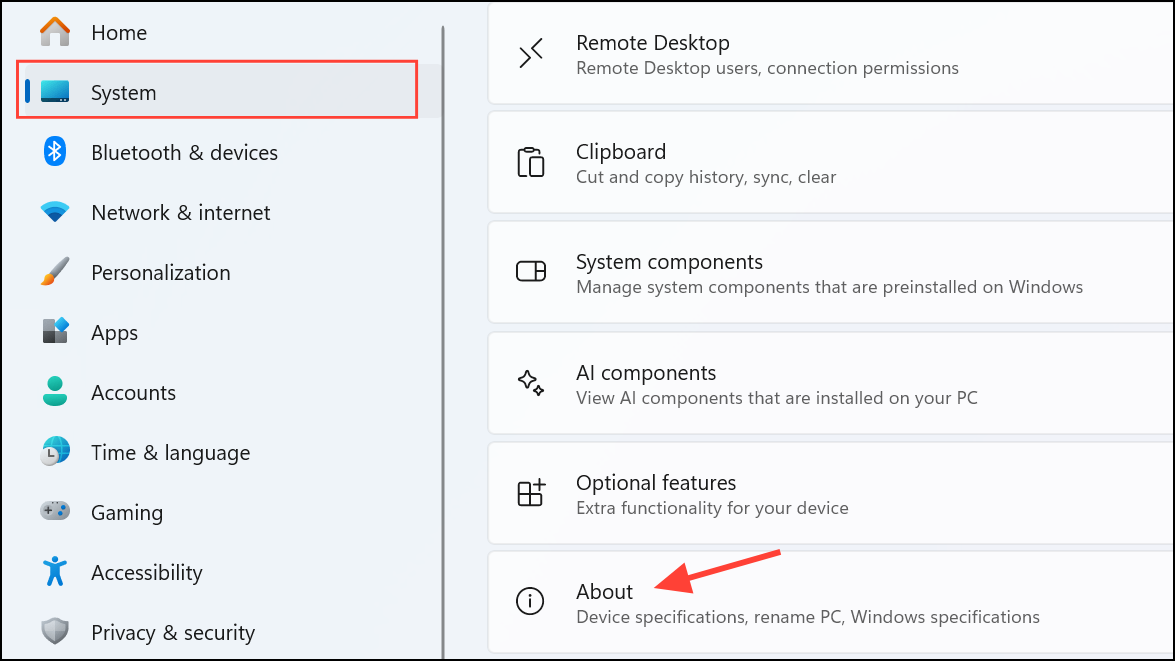
To create a folder, drag one app icon directly on top of another in the pinned section. Windows will automatically generate a new folder containing both apps.
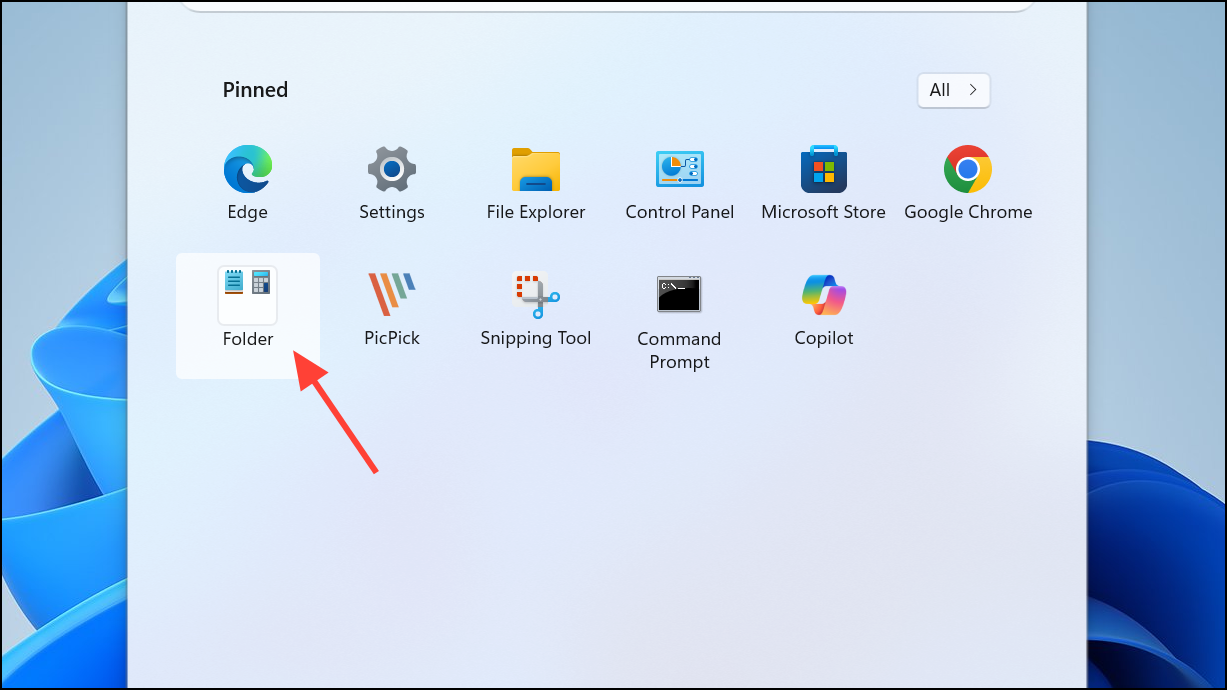
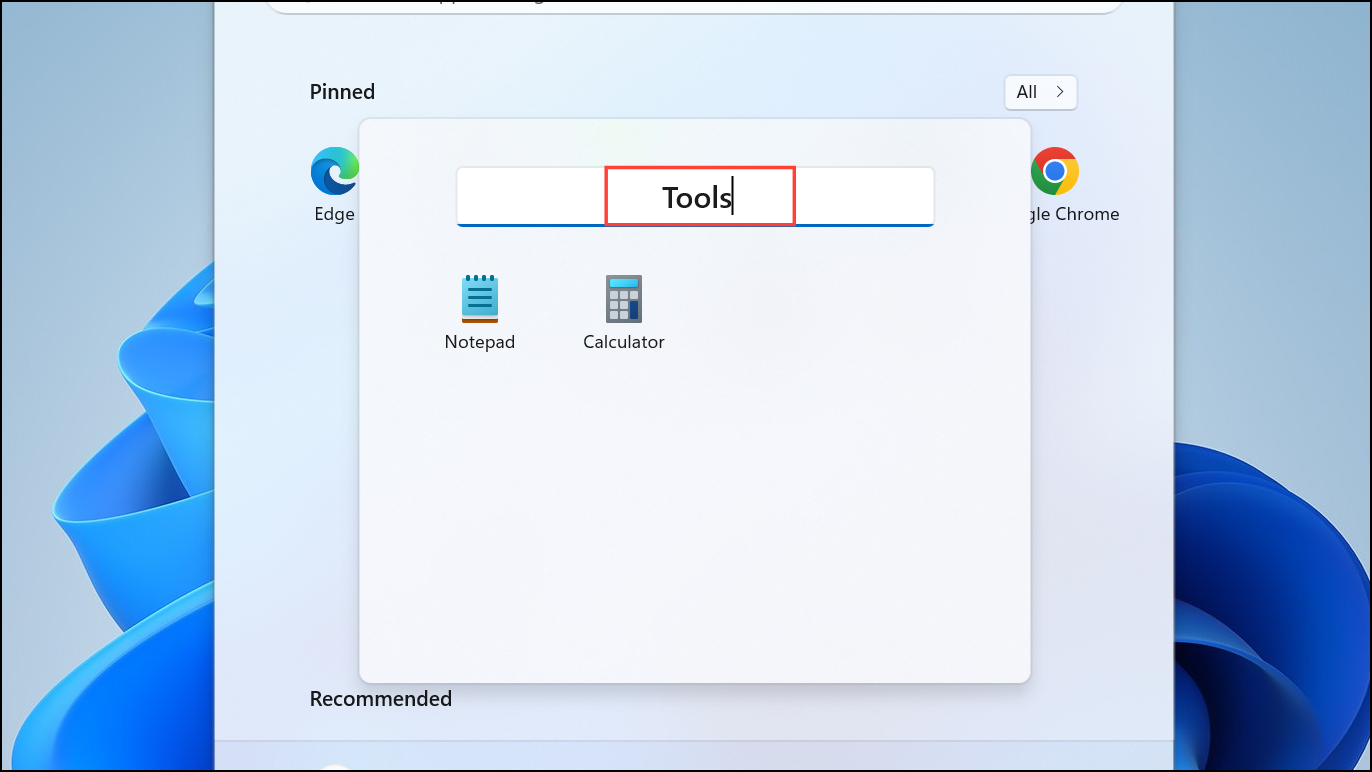
Click the new folder to open it, then click the name field to assign a custom label. You can drag more apps into this folder to keep your Start menu tidy and organized by project, category, or function.
Customize the Layout and Recommendations
Open
Settings > Personalization > Start. Here, you can adjust how much space is dedicated to pinned apps versus recommended content.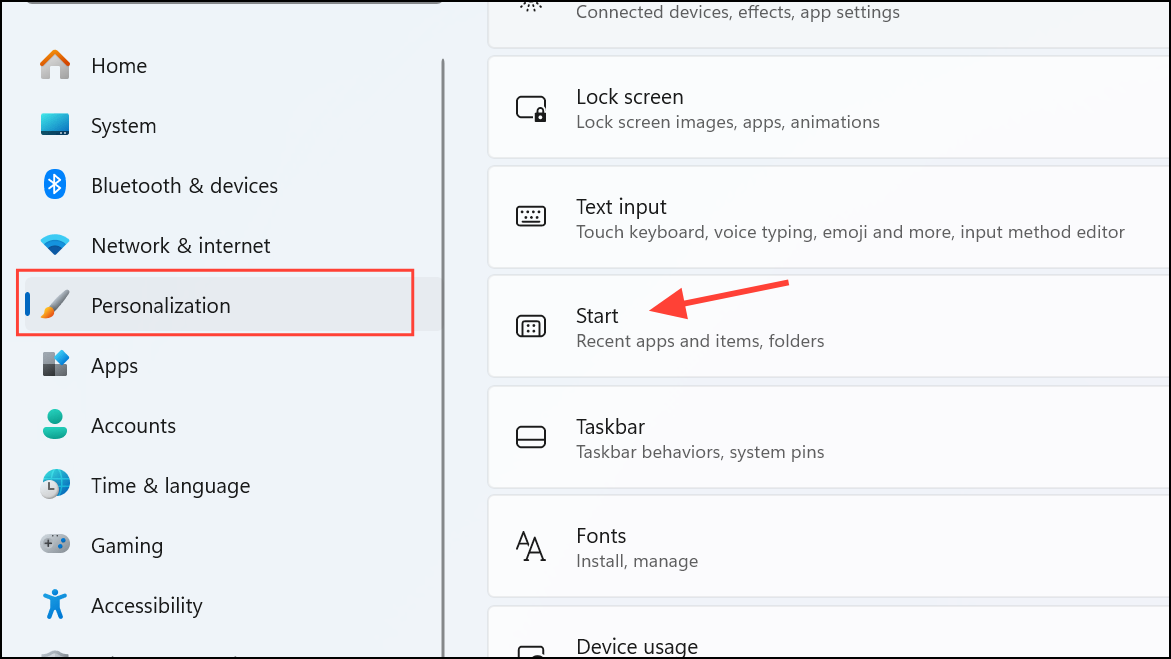
Choose between
More pins or More recommendations to prioritize the section you use most. This directly impacts how much scrolling you need to do each time you open the Start menu.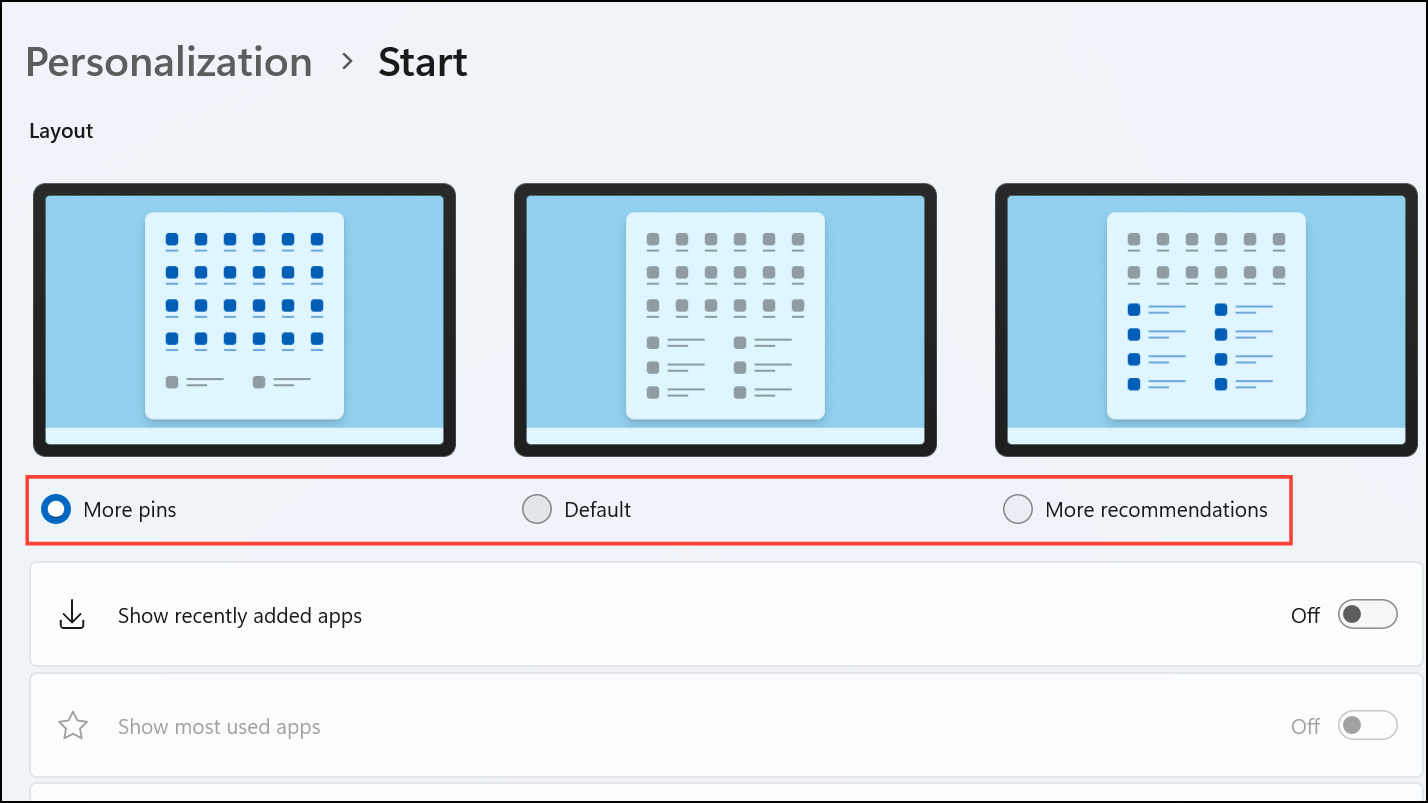
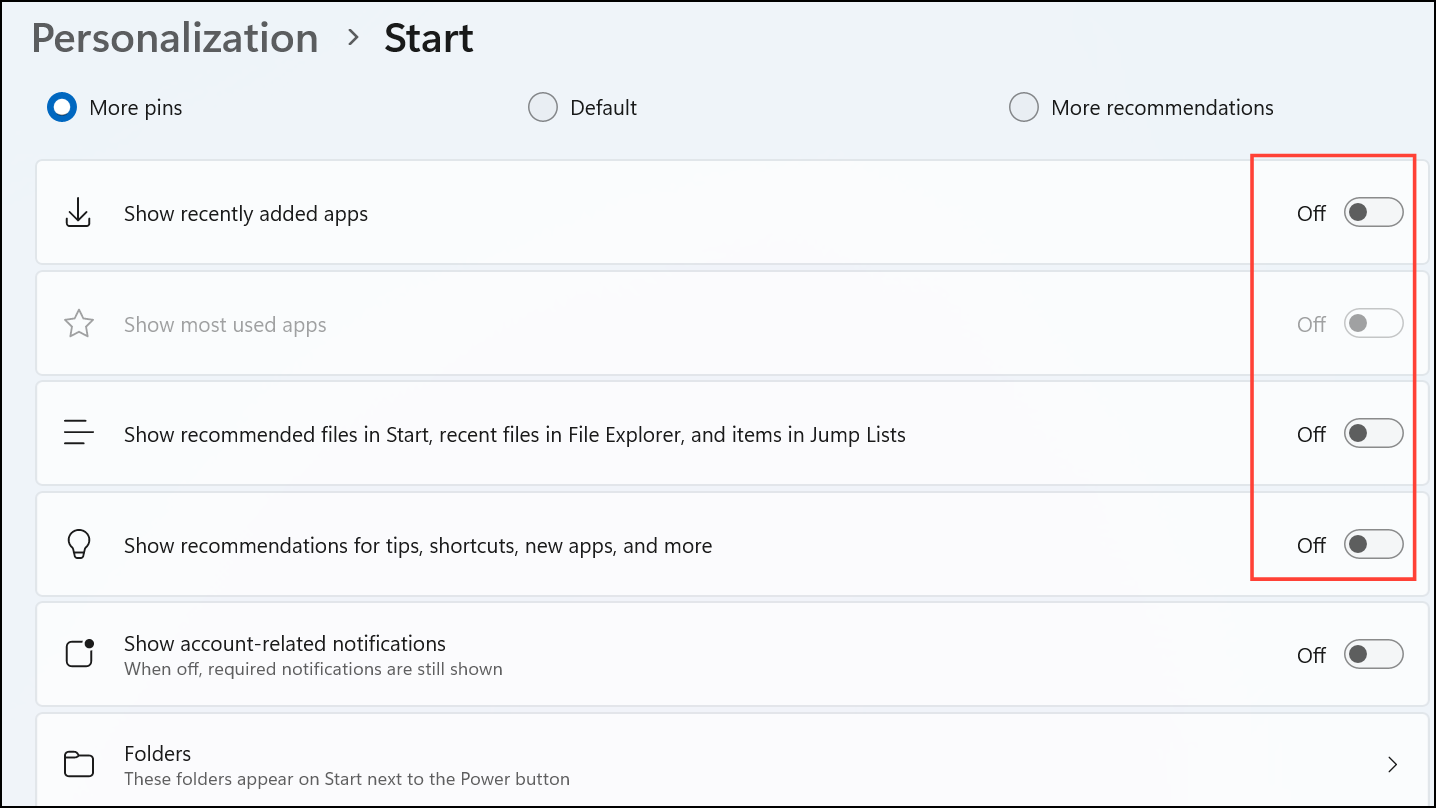
Toggle off options to show recently added apps, most used apps, or recently opened items if you prefer a cleaner look. Disabling all three will leave the Recommended section empty, removing distractions and focusing on your pinned apps.
Add Folders to the Bottom of the Start Menu
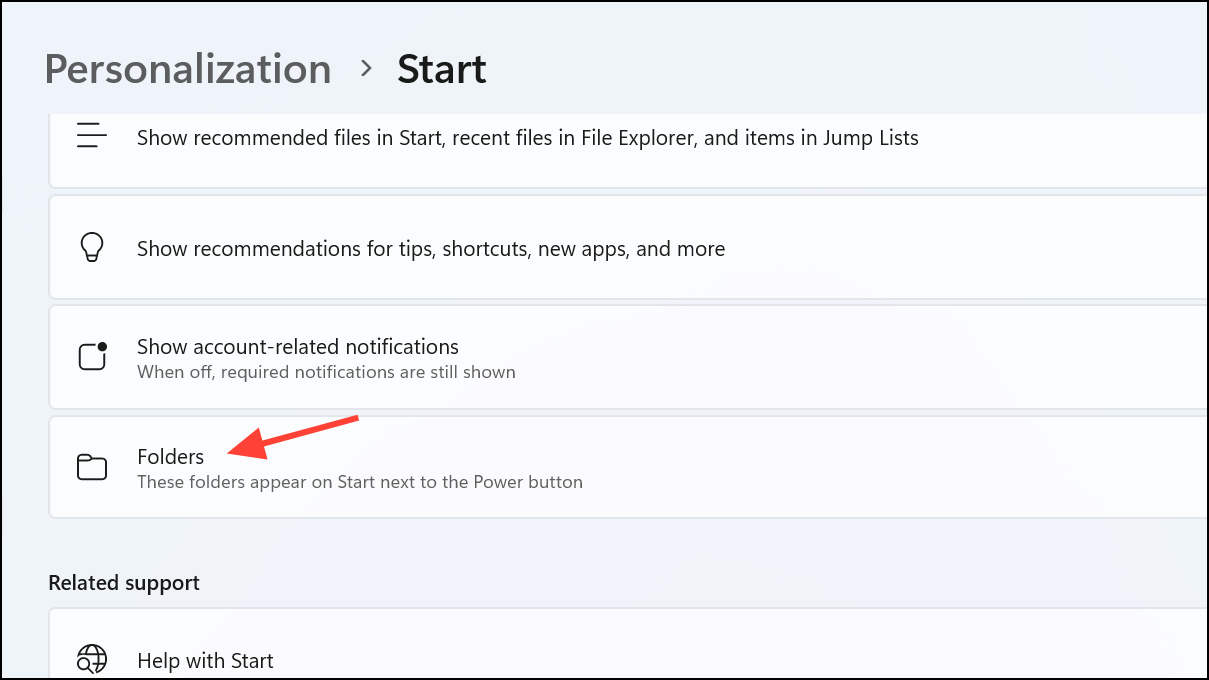
Enable toggles for folders like Documents, Downloads, Music, Pictures, Settings, or File Explorer. These will appear as icons next to the power button at the bottom of the Start menu, providing one-click access to essential directories and system tools.
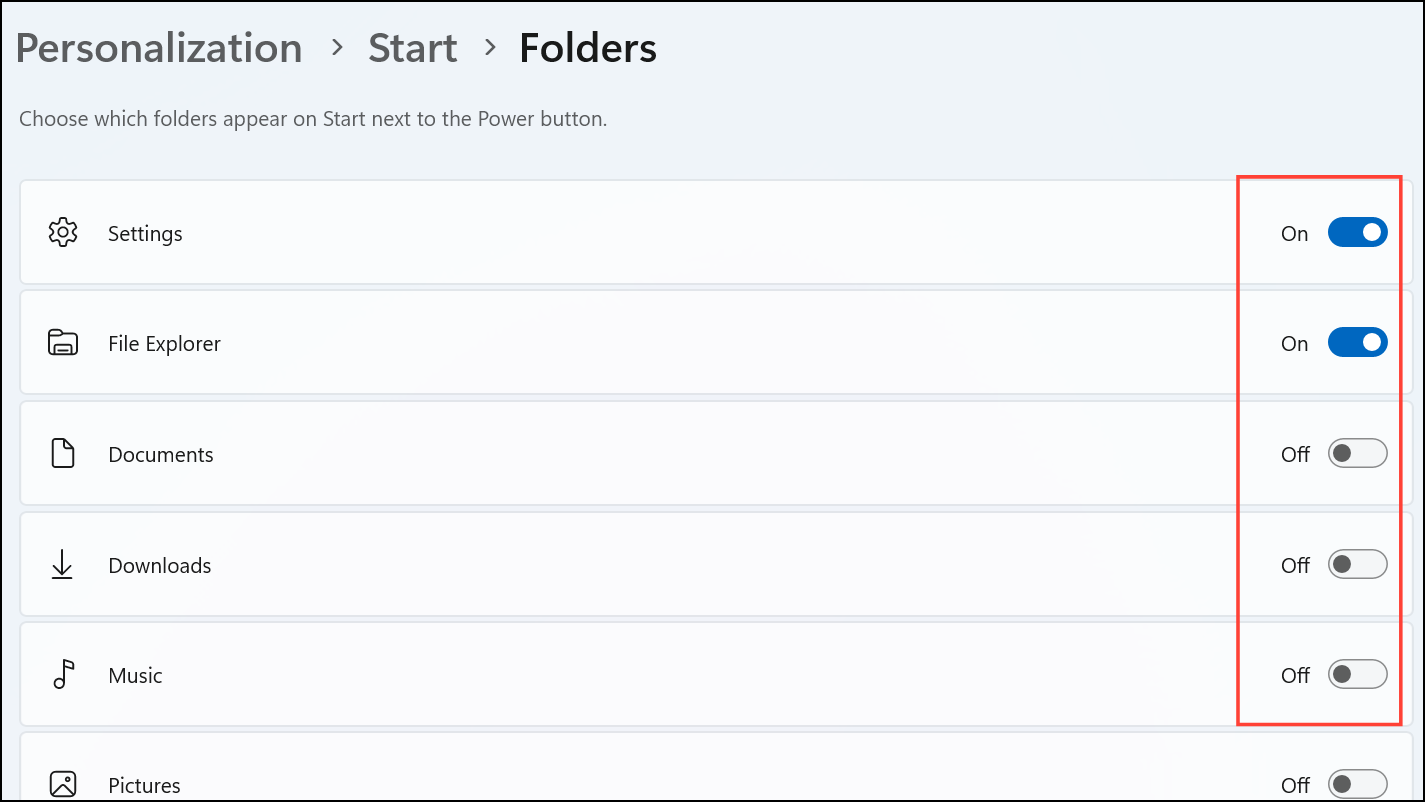
Realign the Start Button and Taskbar
To move the Start button and taskbar icons from the center to the traditional left alignment, go to
Settings > Personalization > Taskbar.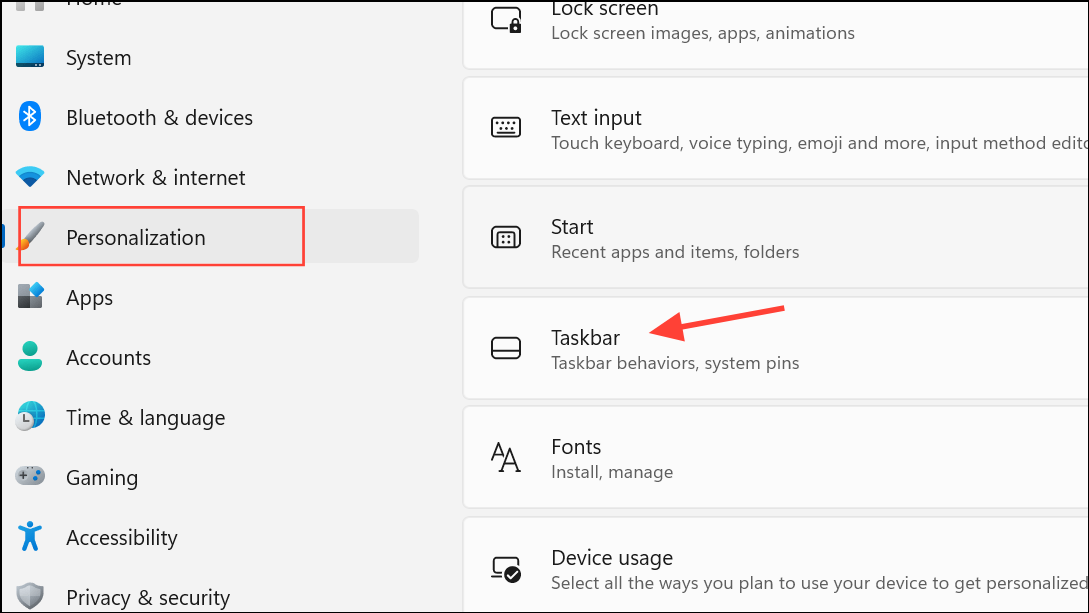
Scroll down to
Taskbar behaviors, then use the Taskbar alignment dropdown to select Left. This restores the familiar layout from previous Windows versions and may speed up navigation for long-time users.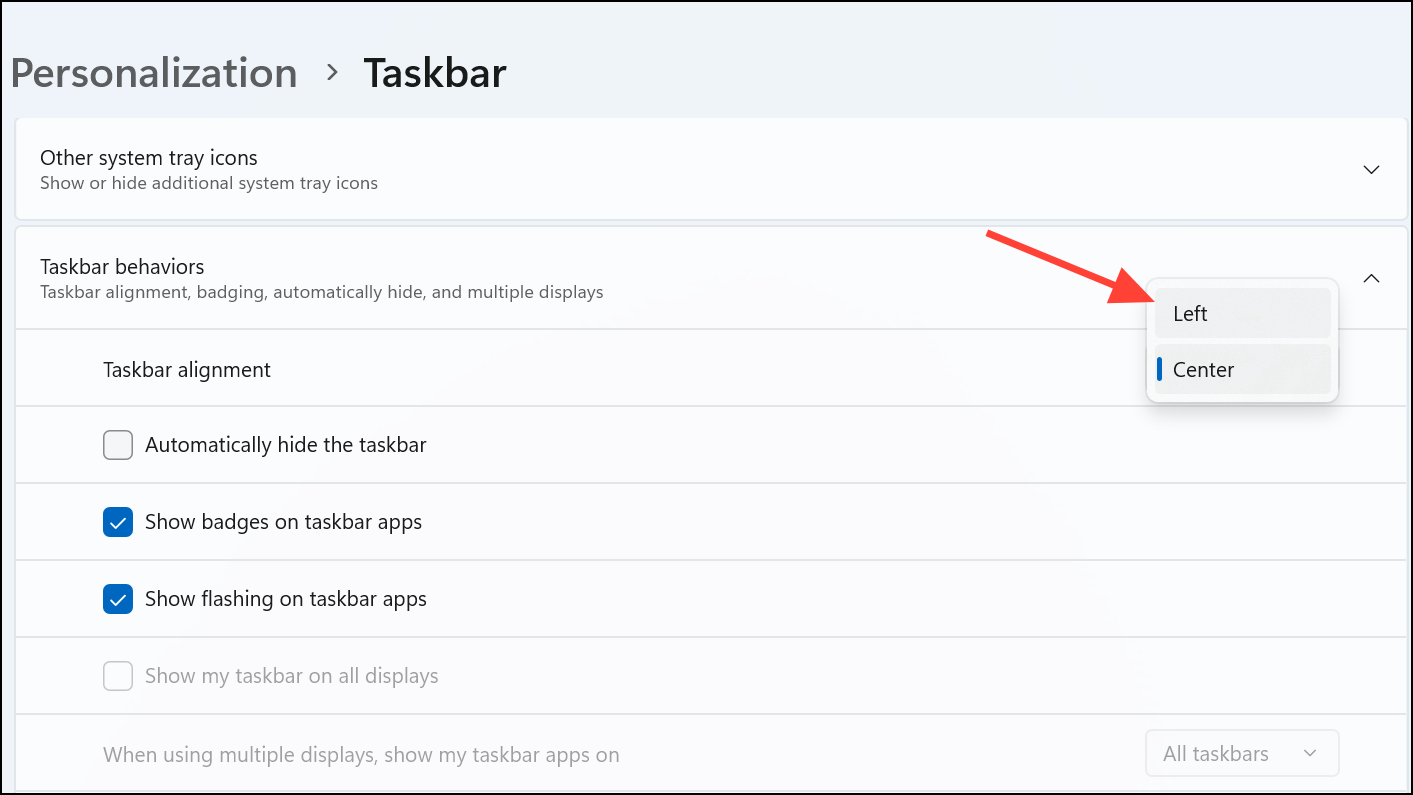
Tips for Maintaining a Productive Start Menu
- Regularly review your pinned apps and folders to keep only the tools you use most often.
- If you rely on quick access to specific files or directories, use the Folders feature to minimize time spent searching.
- After major Windows updates, revisit your personalization settings to verify that your customizations remain intact.
- Experiment with different layouts and folder groupings to find what speeds up your workflow the most.
Making these adjustments to the Windows 11 Start menu can significantly reduce wasted clicks and help you focus on the applications and files that matter most, all without installing any extra software.



