

Switching to the new Outlook interface changes how users access their address book and contacts, especially for those accustomed to the classic layout. The updated Outlook streamlines the process but also introduces some limitations, particularly regarding the visibility and searchability of organization-wide contacts and the Global Address List (GAL). This guide details the most effective methods to find your address book in the new Outlook, explains the reasoning behind each step, and clarifies any important differences from the classic version.
Accessing the Address Book When Composing a New Email
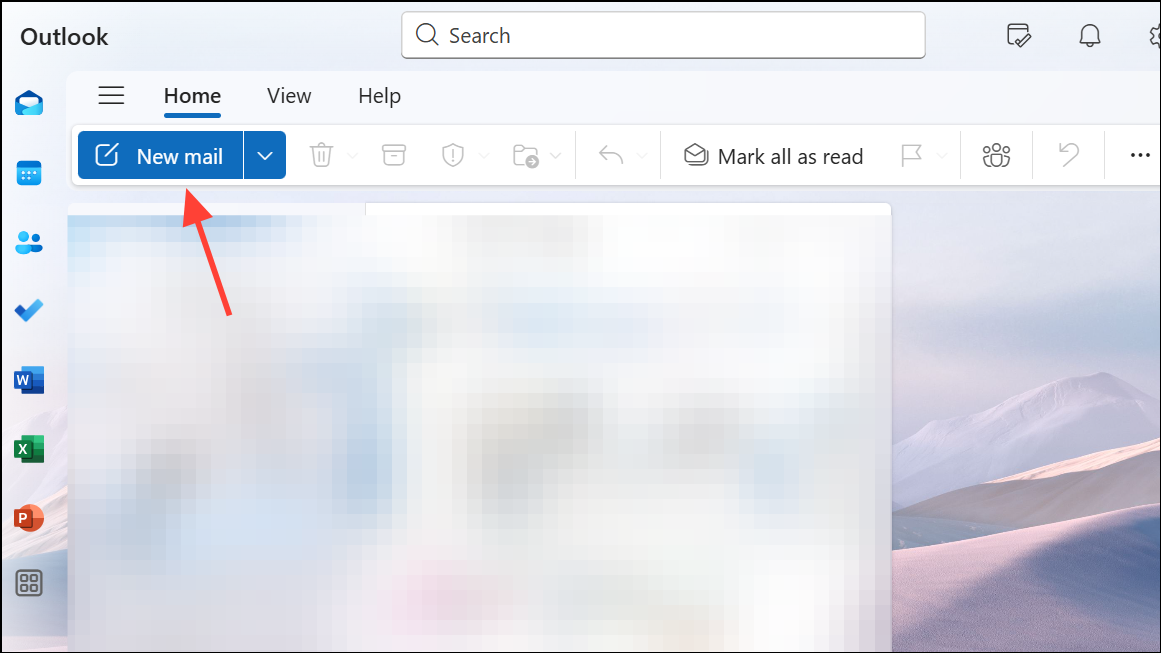
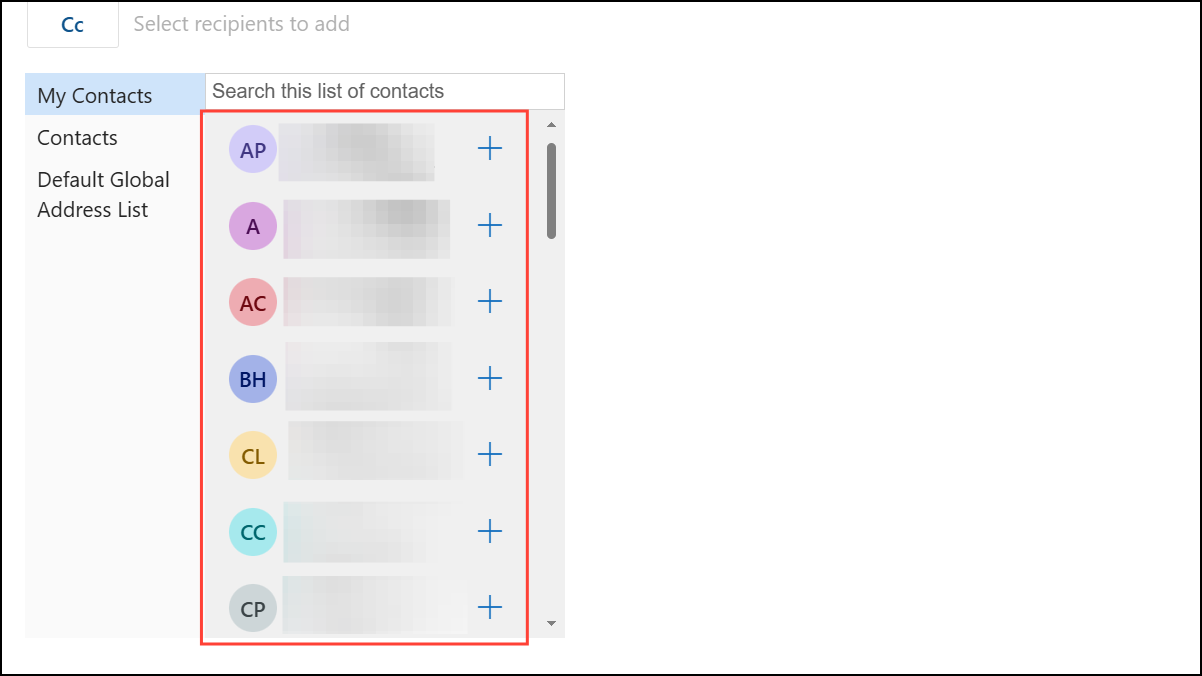
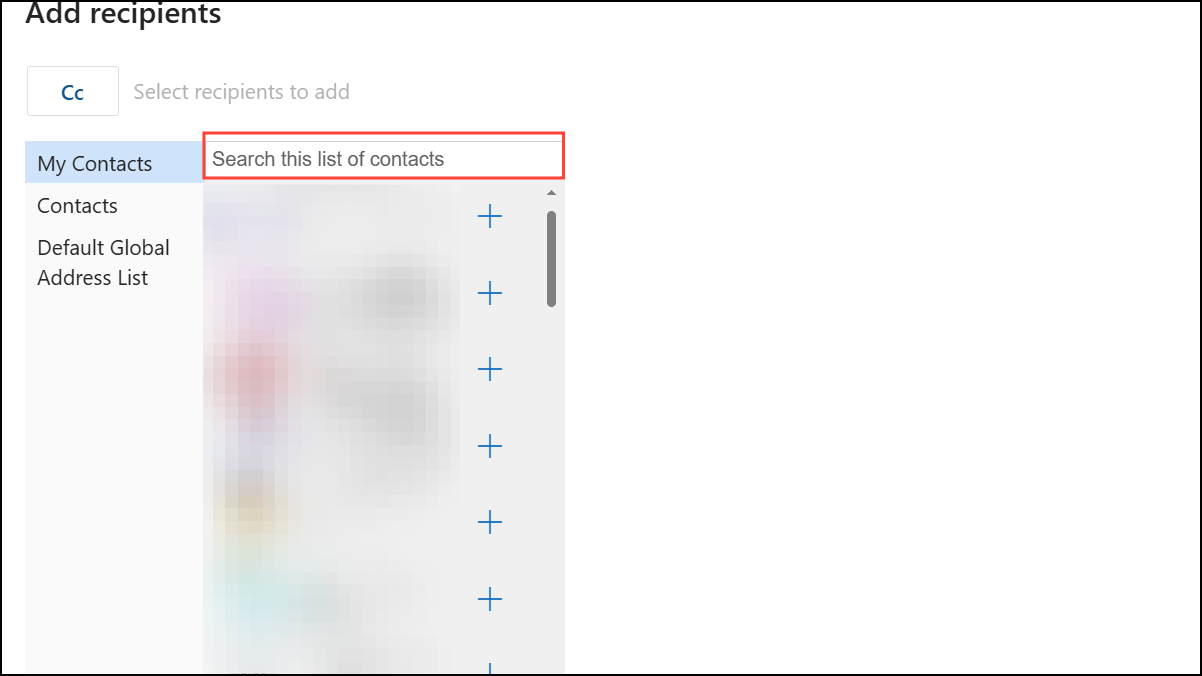
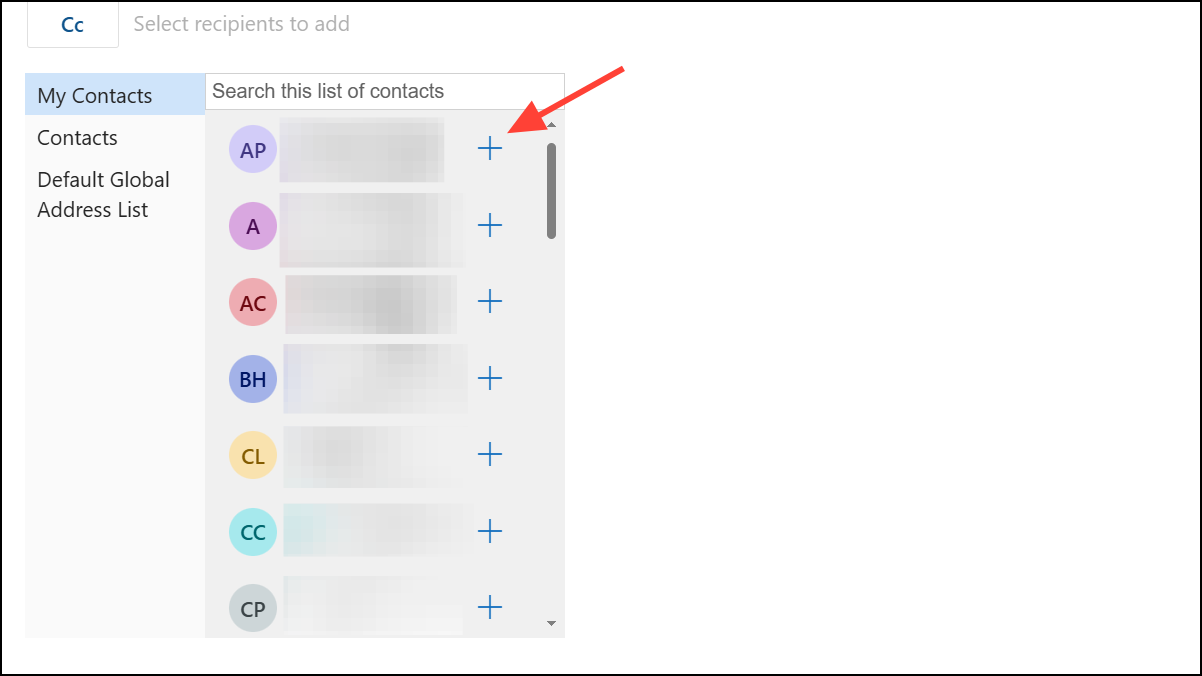
This approach is currently the most reliable method to access all available contacts in the new Outlook, both on Windows and Mac, especially since the classic “Address Book” button and full GAL browsing are no longer directly accessible in the same way.
Using the People (Contacts) Tab for Address Book Access
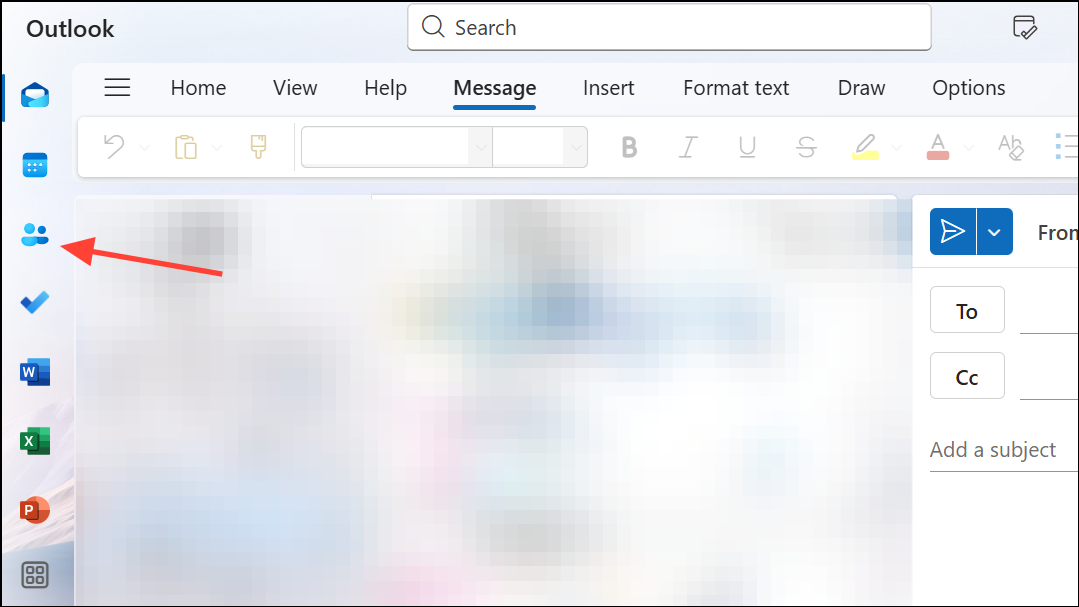
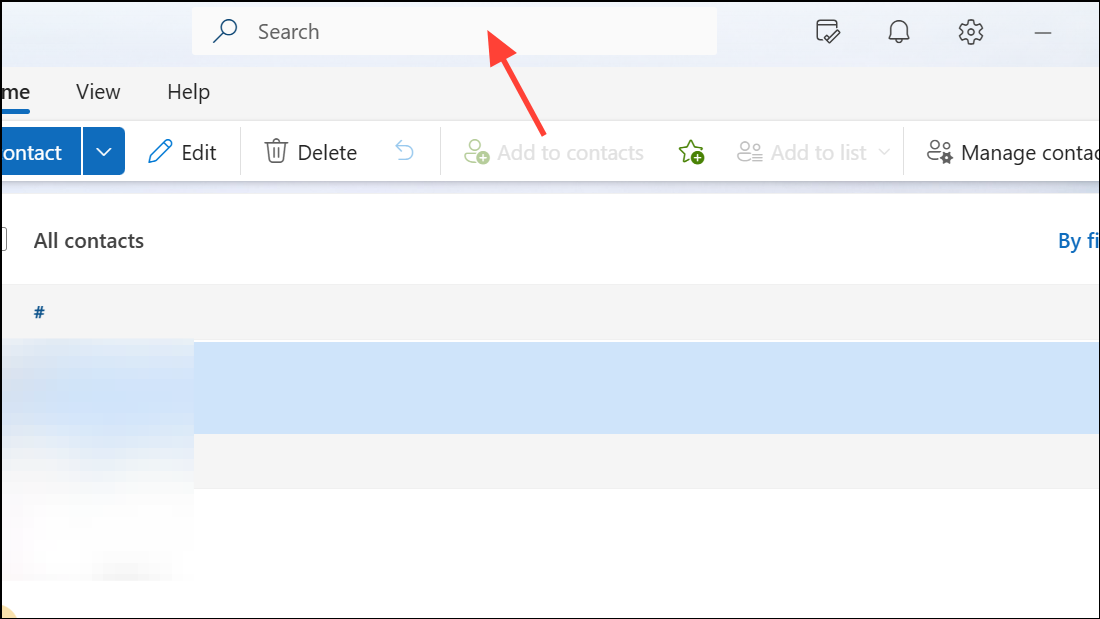
On Mac, after searching, you can click the contact card icon next to a result to view full details. This method works best when you know part of the name or email address you’re looking for, as browsing by department or job title is not currently supported.
Limitations and Workarounds for the Global Address List (GAL)
The new Outlook removes some features previously available in classic Outlook, such as the ability to open the Address Book as a standalone window or browse the full Global Address List without searching. This change affects users who need to view all contacts in a department or who prefer to scroll through the GAL.
For users who need to access the GAL as they did before, consider these options:
- Use the search bar in the People tab or recipient fields to find users by name or keyword.
- If you require advanced GAL browsing (e.g., by department or job title), the current new Outlook does not provide this. You may need to temporarily switch back to classic Outlook or use Outlook on the web, which offers slightly more directory navigation options.
- On Mac, ensure you have the latest version of Outlook installed, as updates may improve directory search capabilities. If functionality is insufficient, Outlook on the web remains a viable alternative for viewing organization-wide contacts.
Keyboard shortcuts such as Ctrl + Shift + B (Windows) can open the address book dialog in classic Outlook, but this shortcut does not provide the same experience in the new version.
Important Notes and Troubleshooting
Some users report that their People tab or directory appears empty. This issue can occur if:
- Your contacts have not synced from a previous version of Outlook.
- You are not connected to your organization’s Exchange or Microsoft 365 directory.
- Permissions or account settings restrict access to the GAL.
If you cannot find contacts in the new Outlook, check your account connection and organization policies. For enterprise or education accounts, contact your IT administrator to confirm directory access and synchronization settings.
If you need to import contacts from an older version of Outlook (such as Outlook 2013), exporting them as a CSV file and importing into the new Outlook may help populate your address book, but this process will not restore full GAL browsing capabilities.
The new Outlook streamlines contact access but also restricts some directory browsing features. Searching via recipient fields or the People tab remains the most effective way to find contacts and distribution lists in the updated interface.





