
Attachment downloads can fail in the new Outlook for Windows or Outlook on the web due to a mix of browser settings, mailbox configurations, or recent software updates. These disruptions can block access to essential files, slow down workflows, and cause repeated error messages like “Error downloading the file content.” Addressing these issues requires a targeted approach, starting with the most effective solutions before moving to broader troubleshooting methods.
Check and Adjust Mailbox Time Zone Settings
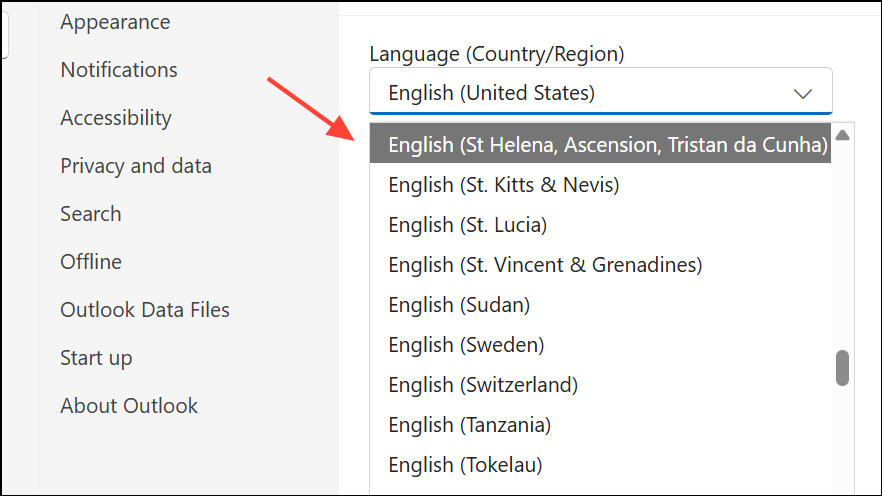
Incorrect time zone settings in shared mailboxes or additional mailboxes often trigger attachment download failures in the new Outlook and Outlook on the web. This misconfiguration can cause emails to appear with future timestamps and prevent files from being downloaded or previewed.
Settings menu (gear icon), then select General, and choose Language and time or Regional settings (the wording may differ based on your Outlook version).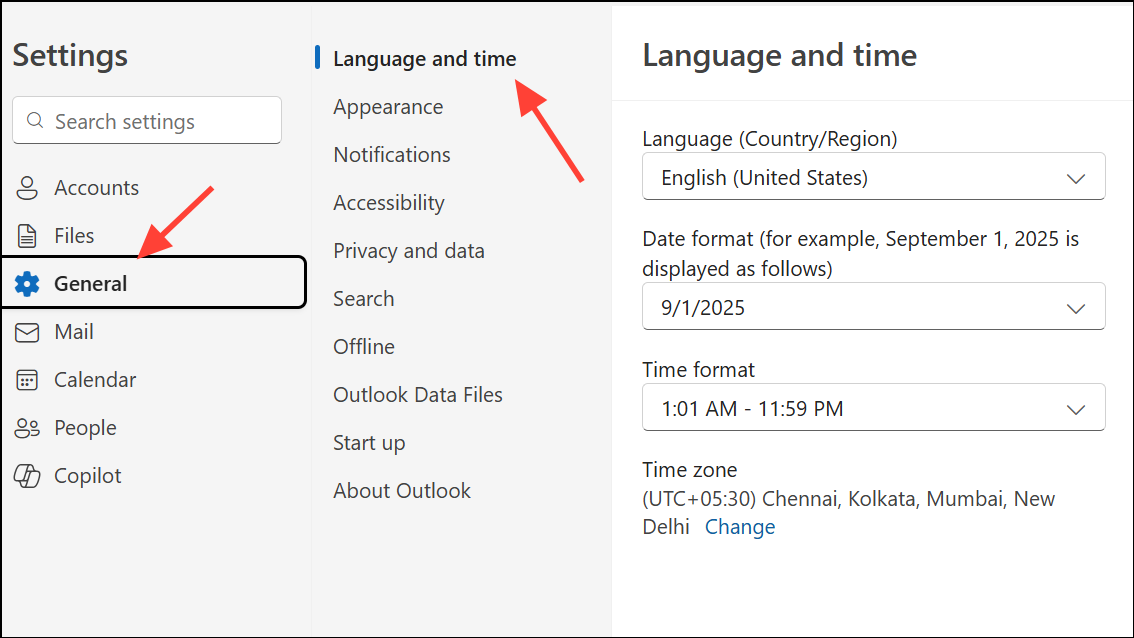
For organizations managing many shared mailboxes, PowerShell can be used to check and set mailbox regional configurations in bulk. This approach is especially useful for IT admins overseeing large environments.
Update Outlook and Exchange Server Software
Some attachment issues stem from bugs introduced in recent updates to Outlook or Exchange Server. Microsoft periodically releases cumulative updates to address these problems.
File > Office Account > Update Options > Update Now to check for and install updates.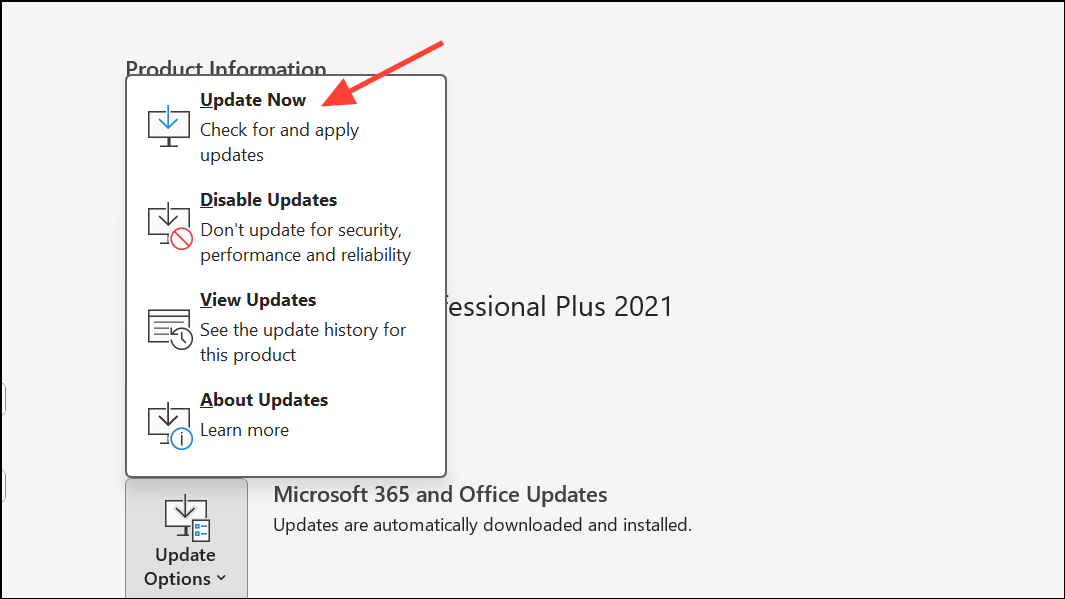
Switch Browsers or Use the Outlook Web Light Version
Browser compatibility problems and cached data can prevent attachments from downloading in Outlook on the web. Using a different browser or the light version can bypass these obstacles.
?layout=light to the end of your mailbox URL (for example, https://outlook.office365.com/owa/[email protected]/?layout=light).Clear Browser Cache and Disable Extensions
Corrupted cache files or browser add-ons (such as ad blockers or security extensions) can disrupt file downloads in Outlook on the web.
chrome://extensions/ and toggle off or remove extensions.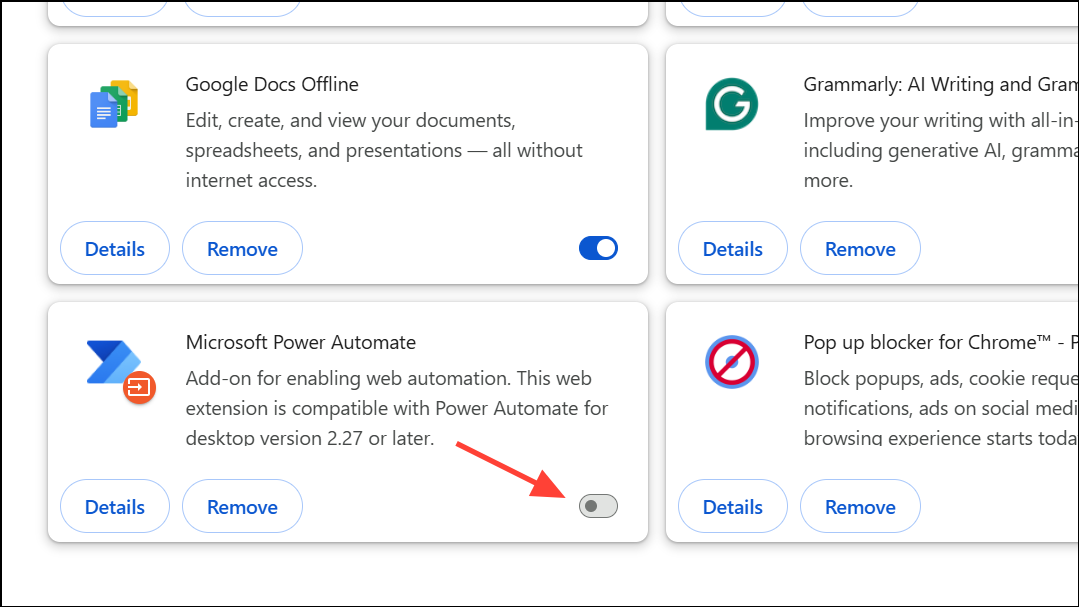
Check Internet Connection and File Restrictions
Slow or unstable internet connections, large attachments, or blocked file types can prevent downloads from completing.
- Confirm your device has a reliable internet connection. Try downloading other files to test speed and stability.
- Check if the attachment size exceeds limits set by Outlook or your organization (often 20–25 MB for emails).
- Ensure the file type is not restricted by your organization’s security policies (for example, some executables or archives may be blocked).
If the attachment is too large or of a restricted type, ask the sender to compress the file (e.g., into a .zip) or use a different format. Alternatively, request the file through a secure cloud sharing service.
Temporarily Disable Antivirus and Firewall
Security software can sometimes block legitimate downloads, especially if it incorrectly flags attachments as suspicious.
Always re-enable your security software after testing to maintain system safety.
Try Downloading All Attachments as a Zip or Save to OneDrive
Some Outlook configurations allow you to download all attachments in an email as a single zip file, or save them directly to OneDrive, bypassing browser restrictions.
- Open the email with attachments. Look for a
Download AllorSave All to OneDriveoption below the attachments. - Choose the preferred method. If the zip download works, extract the files from your downloads folder.
- When saving to OneDrive, access the files from your OneDrive account and download them to your device.
Reinstall or Reset Your Browser
Persistent browser issues may require a full reset or reinstall. This is especially relevant for users who find that only certain browsers (like Microsoft Edge) fail to download attachments.
Settings > Reset Settings > Restore settings to their original defaults.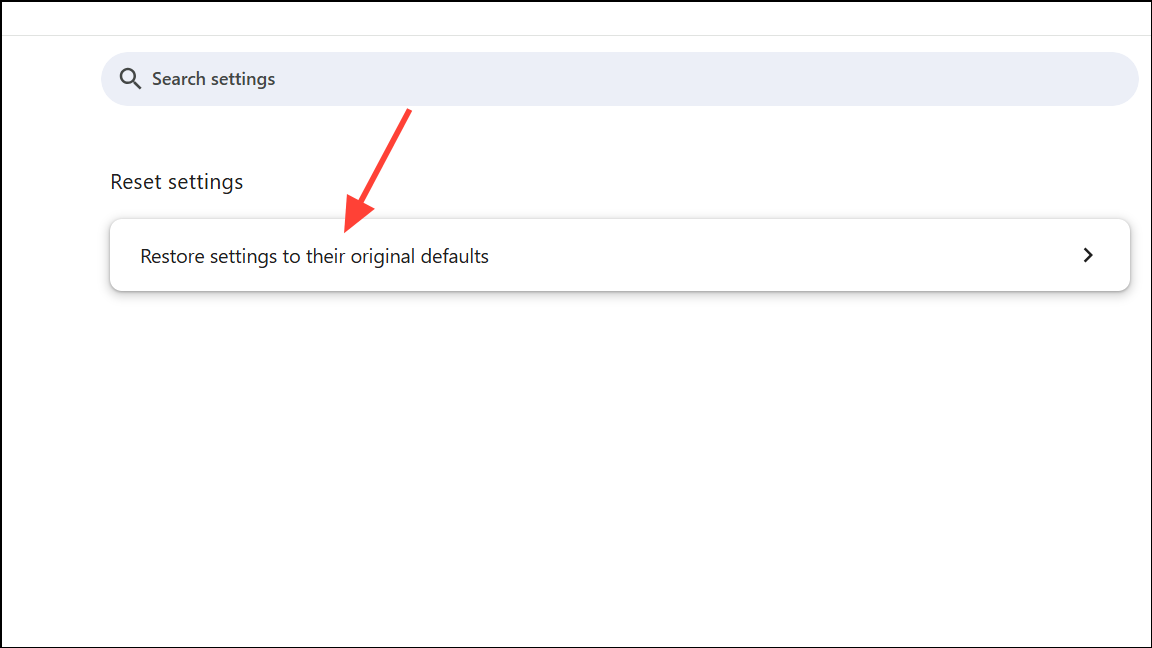
Monitor Microsoft Service Health and Updates
Occasionally, attachment issues result from outages or bugs on Microsoft’s end. These may be documented under a specific incident ID (e.g., EX765364 or EX1015106) on the Microsoft 365 Service Health Dashboard.
- Ask your IT admin to check the Service Health Dashboard for ongoing incidents affecting Outlook attachment downloads.
- Follow Microsoft’s status updates for timelines on bug fixes or service restoration.
- Consider switching to the desktop Outlook client or mobile app temporarily if web-based downloads remain unavailable.
Additional Tips and Workarounds
- For users needing “Save As” functionality in the new Outlook, feature rollouts may be gradual. If not available, try dragging and dropping attachments to a file explorer window as a workaround.
- Previewing attachments and then saving from the preview window may work for some file types (such as PDFs), but may not be supported for all formats.
- If attachment downloads work after forwarding the email to yourself, use this temporary workaround until a permanent fix is available.
Resolving attachment download issues in the new Outlook usually involves a mix of mailbox configuration, browser troubleshooting, and keeping software up to date. If none of these methods restore normal functionality, report the problem to your IT support or Microsoft for further investigation.





