Missing or non-functional background effects in Microsoft Teams can disrupt privacy and professionalism during video calls, especially when the blur or custom image options suddenly disappear or fail to apply. These issues often stem from software glitches, outdated applications, hardware limitations, or system settings that block the feature. Addressing these root causes restores access to Teams’ background options, so meetings run smoothly and distractions stay out of view.
Method 1: Update Teams and Verify Device Compatibility
Check for updates, and allow Teams to download and install any available updates. Running the latest version resolves many feature glitches, including missing background options.Quit. Then, relaunch the application. This refreshes settings and can restore missing features.Method 2: Ensure Camera is Enabled and Background Filters Are Accessible
Background filters. If the button is grayed out, double-check your camera permissions and hardware connections.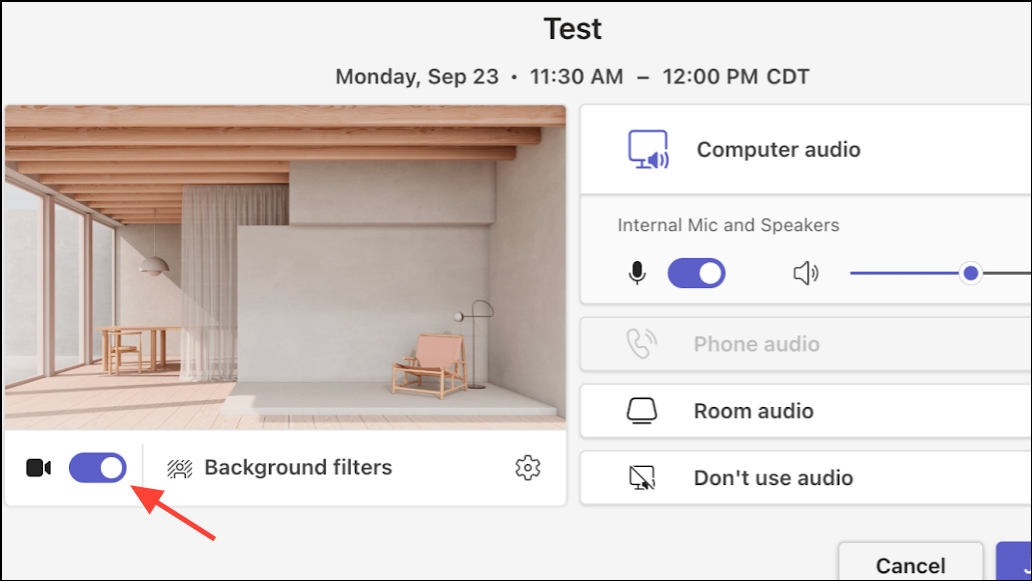
Method 3: Clear Teams Cache to Fix Glitches
Quit to fully close the application.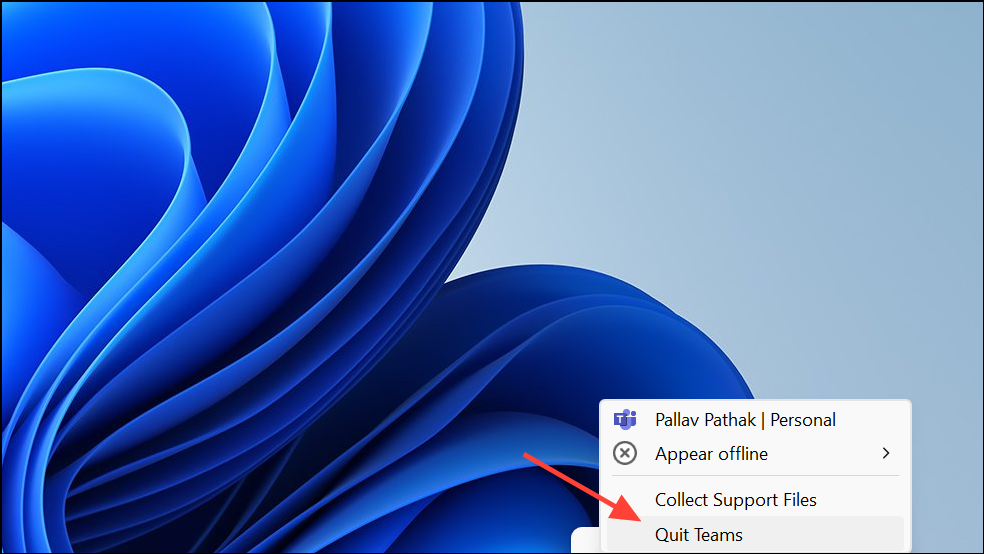
Windows key and press R to open the Run dialog. Enter %appdata%\Microsoft\Teams and click OK.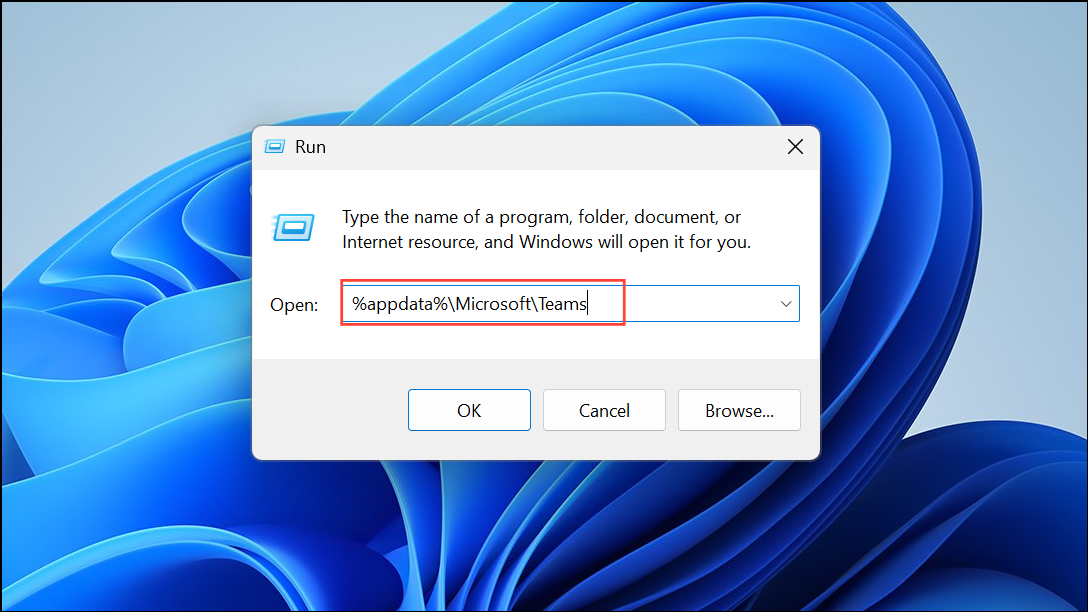
application cache\cache.blob_storage.databases.cache.gpucache.Indexeddb.Local Storage.tmp.
Method 4: Adjust GPU Hardware Acceleration and Virtualization Settings
Settings > General. Scroll to the Application section and enable the Disable GPU hardware acceleration option. Restart Teams and check if background effects work. This setting can resolve issues on systems with incompatible or underpowered graphics hardware.Method 5: Replace Configuration Files from a Working Machine (Advanced)
%AppData%\Microsoft\Teams and copy the following files: desktop-config.json, settings.json, and storage.json.%AppData%\Microsoft\Teams with the copies from the working device. Start Teams, sign out, and sign in again. This method can restore missing options if the issue is related to corrupted or misconfigured settings.Additional Tips and Maintenance
For best results, always use high-resolution images for custom backgrounds and keep your Teams app up to date. If your organization restricts custom backgrounds, contact your IT administrator for assistance. Preview backgrounds before meetings to check for visual glitches, and use simple, neutral designs for professional calls. If none of these methods resolve the issue, consider reinstalling Teams or seeking further support from Microsoft.
Restoring Teams background effects streamlines your meeting experience, improves privacy, and keeps distractions out of sight. Keeping your app updated and maintaining compatible hardware ensures these features remain available whenever you need them.