How to Fix Device Manager Blinking or Flickering in Windows 11
Resolve persistent Device Manager flickering and refreshing issues in Windows 11 with targeted troubleshooting steps to restore stable system performance.
Resolve persistent Device Manager flickering and refreshing issues in Windows 11 with targeted troubleshooting steps to restore stable system performance.
by Pallav Pathak
Device Manager repeatedly blinking, flickering, or refreshing in Windows 11 often points to hardware changes, driver conflicts, or problematic applications. This behavior disrupts system management and can also cause display settings to reset or stutter, especially during demanding tasks or while connected to the internet. Addressing the root causes—ranging from faulty drivers to conflicting software—restores system stability and prevents further interruptions.
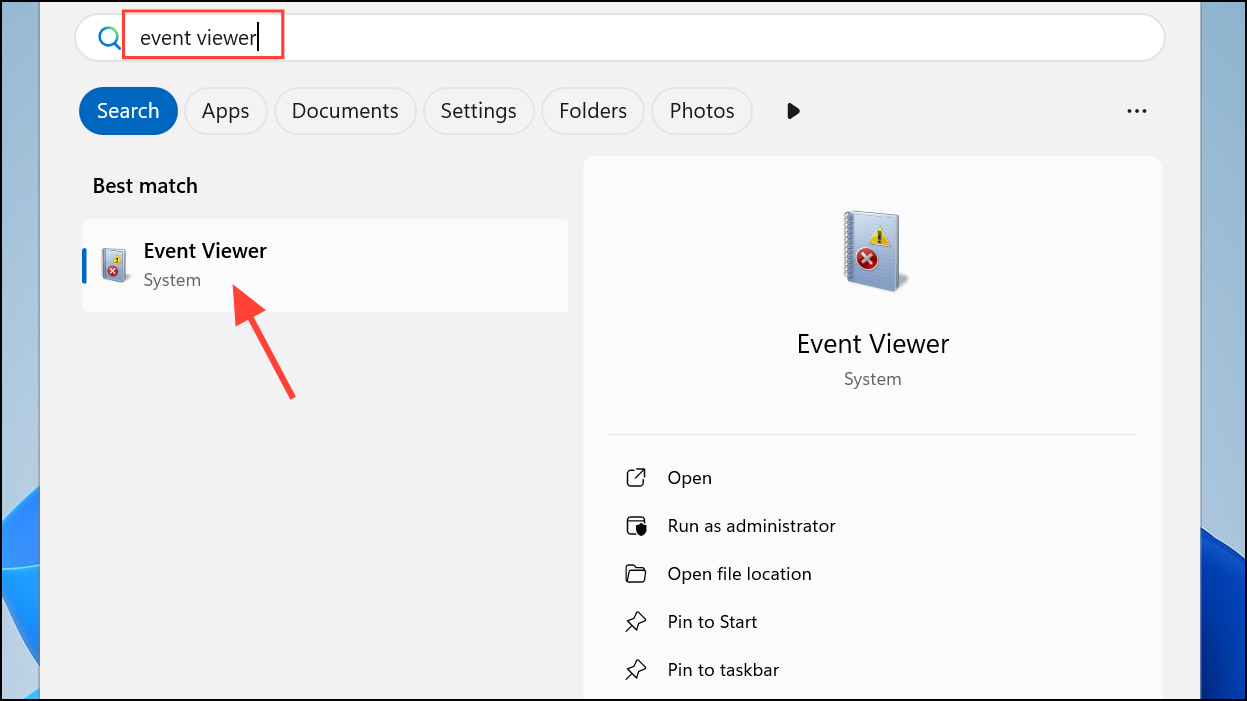
Monitor which applications are running when Device Manager starts flickering. Some users have traced the issue to specific software, such as ASUS Armoury Crate, VMWare, or Xbox-related services. If you recently installed or updated any apps, especially system utilities or hardware management tools, consider temporarily disabling or uninstalling them.
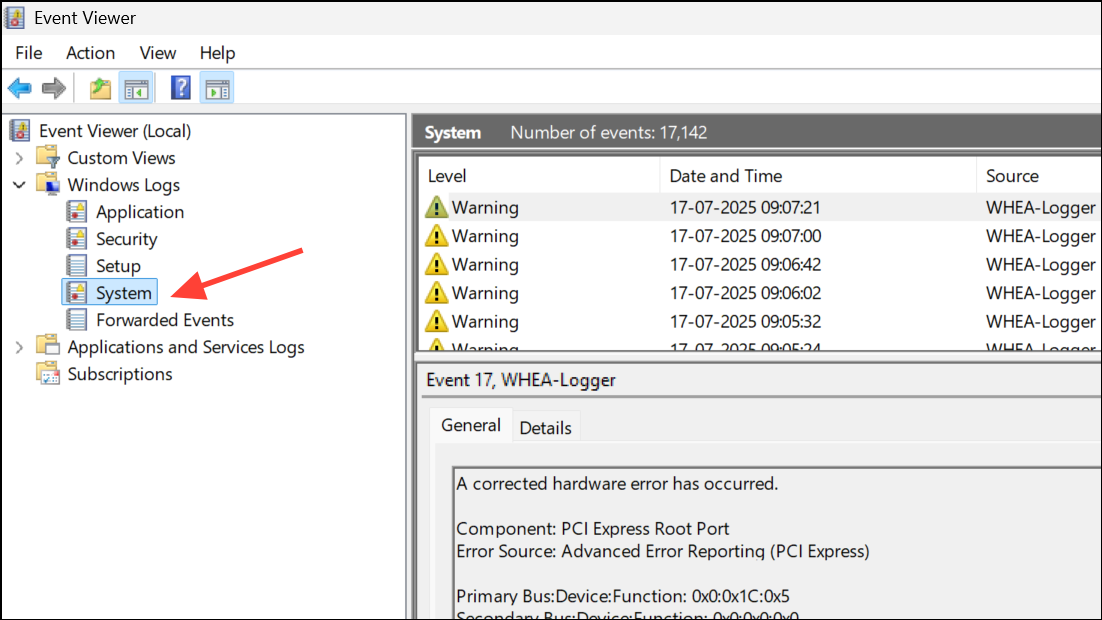
Under Windows Logs > System, look for entries that coincide with the flickering. This can reveal which driver or service is triggering hardware refreshes.
If you identify a specific application or service (such as ArmouryCrate.UserSessionHelper.exe), try stopping the service or moving the executable to another folder as a test. Always back up files before deleting or moving system executables.
Update, Roll Back, or Reinstall Display and Other Drivers
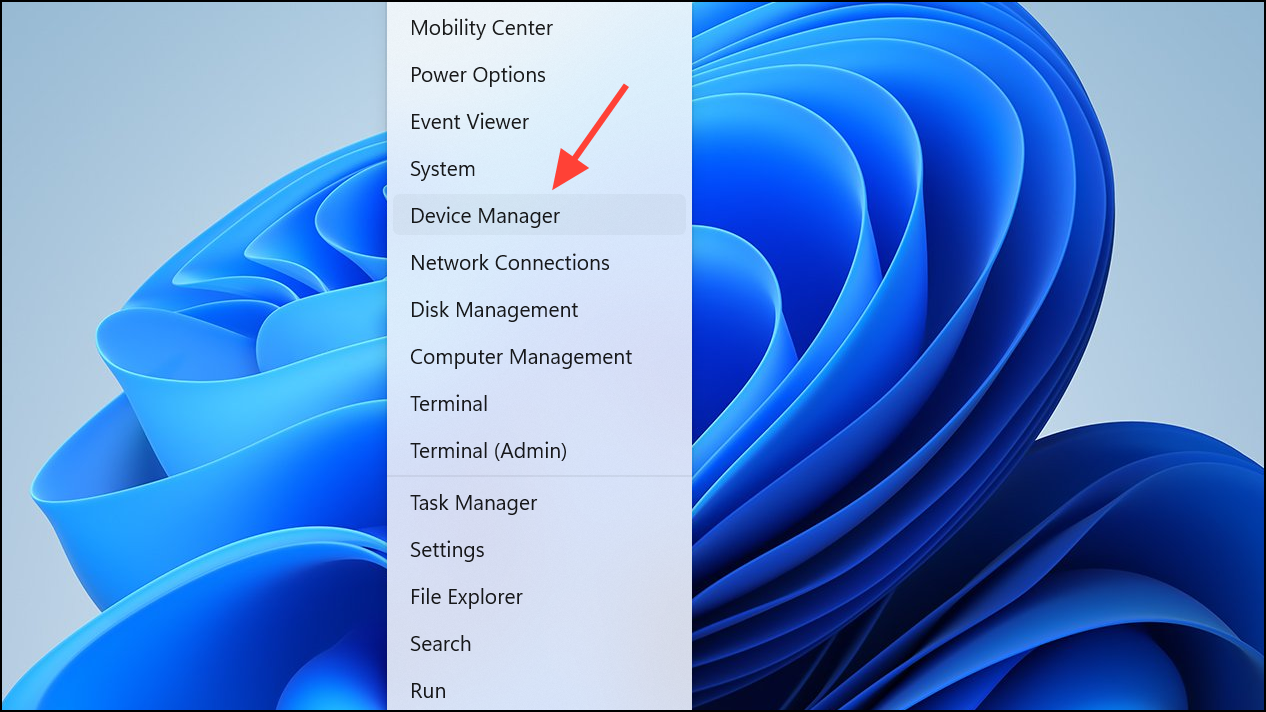
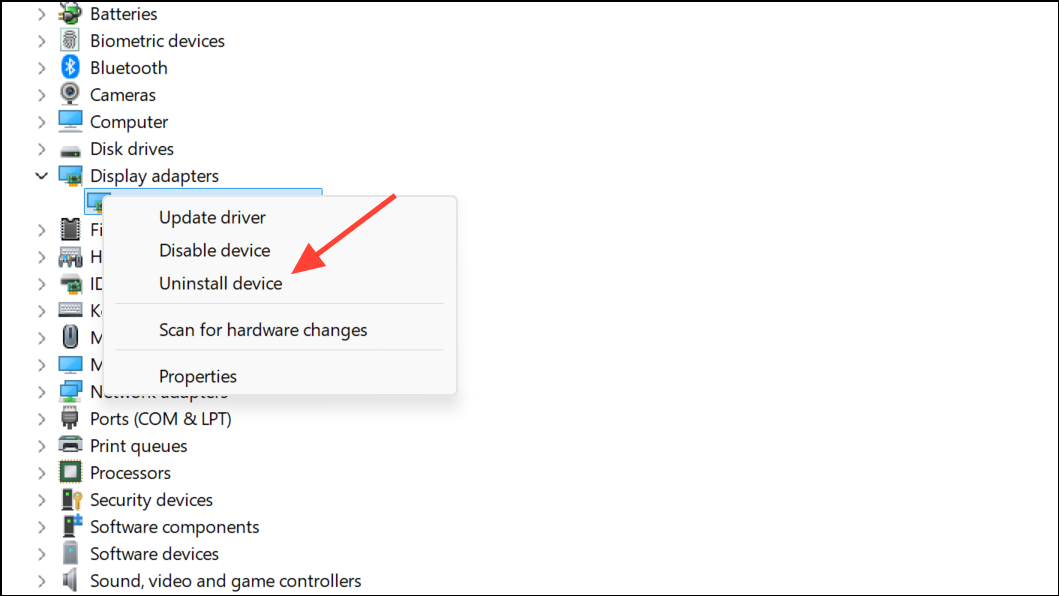
Expand Display adapters, right-click your graphics card, and choose Uninstall device. Confirm any prompts. Restart your PC; Windows will attempt to reinstall the correct driver automatically.
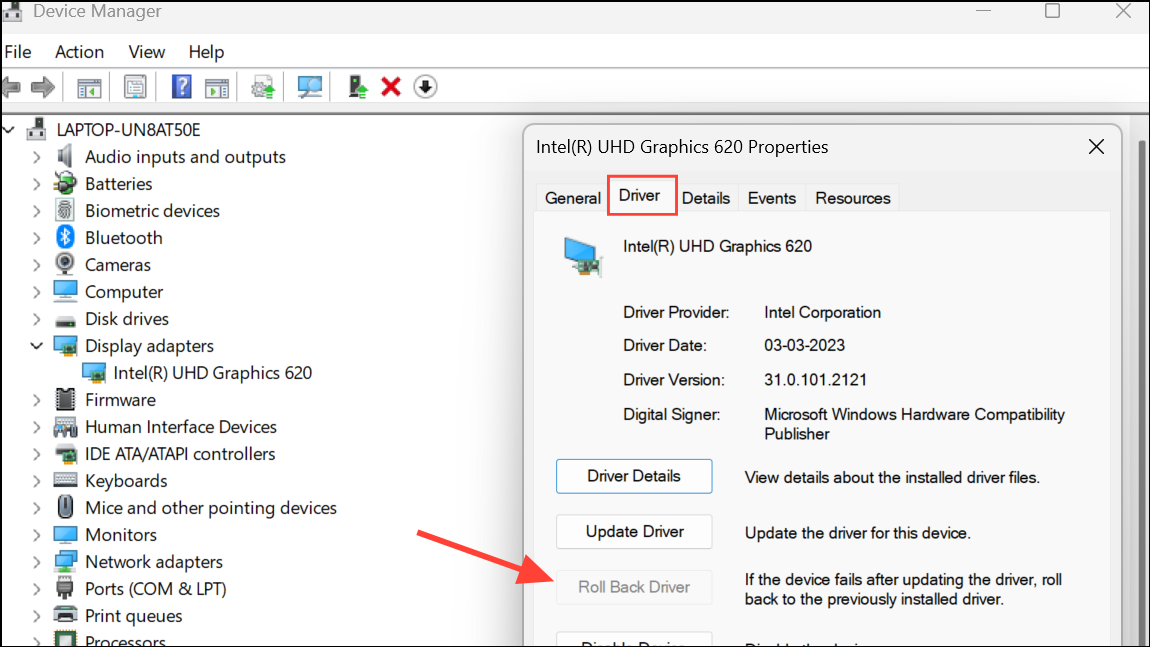
If the issue persists, right-click the graphics card again, select Properties, go to the Driver tab, and click Roll Back Driver if available. This reverts to a previous driver version, which can resolve new compatibility issues.
For best results, download the latest driver directly from your hardware manufacturer’s website (such as NVIDIA, AMD, or Intel). Install the driver and reboot.
Unplug all external devices (USB drives, external hard disks, printers, adapters) from your computer. A faulty or rapidly connecting/disconnecting device can trigger Device Manager to refresh.
Observe if the flickering stops. If it does, reconnect devices one at a time to identify the culprit. Replace or update drivers for any problematic hardware.
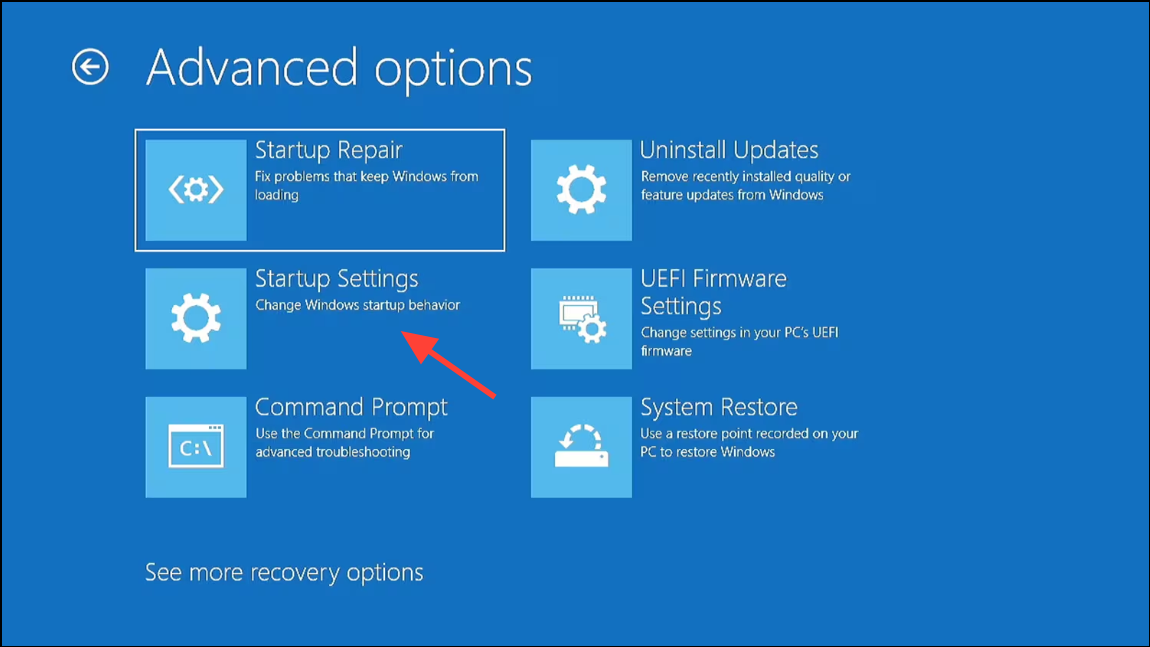
In Safe Mode, open Device Manager and check for flickering. If the issue is gone, a third-party application or driver is likely responsible. Take note of any disabled devices or drivers in Safe Mode, then boot back into normal mode and disable or update them one by one to find the cause.
Run a full malware scan using trusted tools such as Malwarebytes or Windows Security. Malware can interfere with device detection and cause persistent flickering.
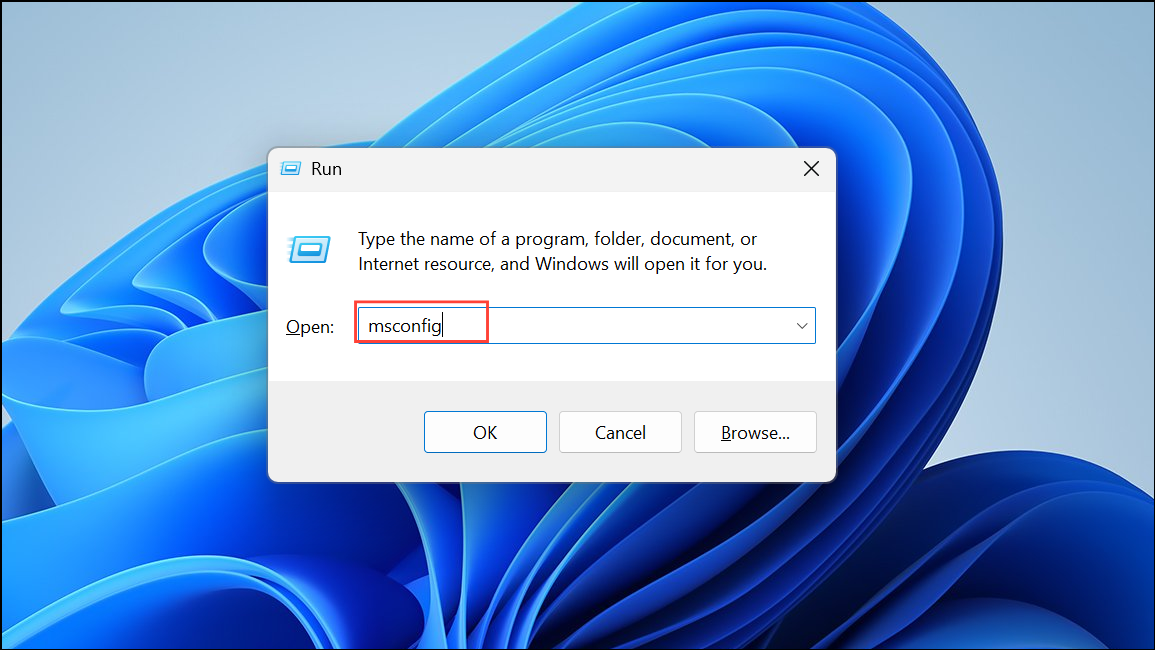
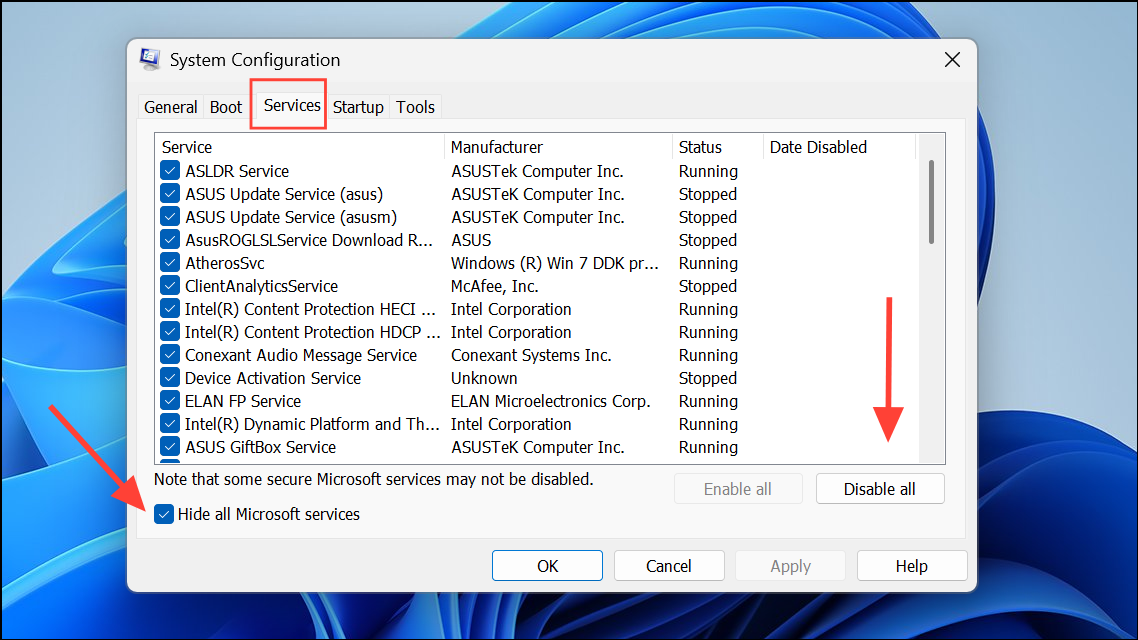
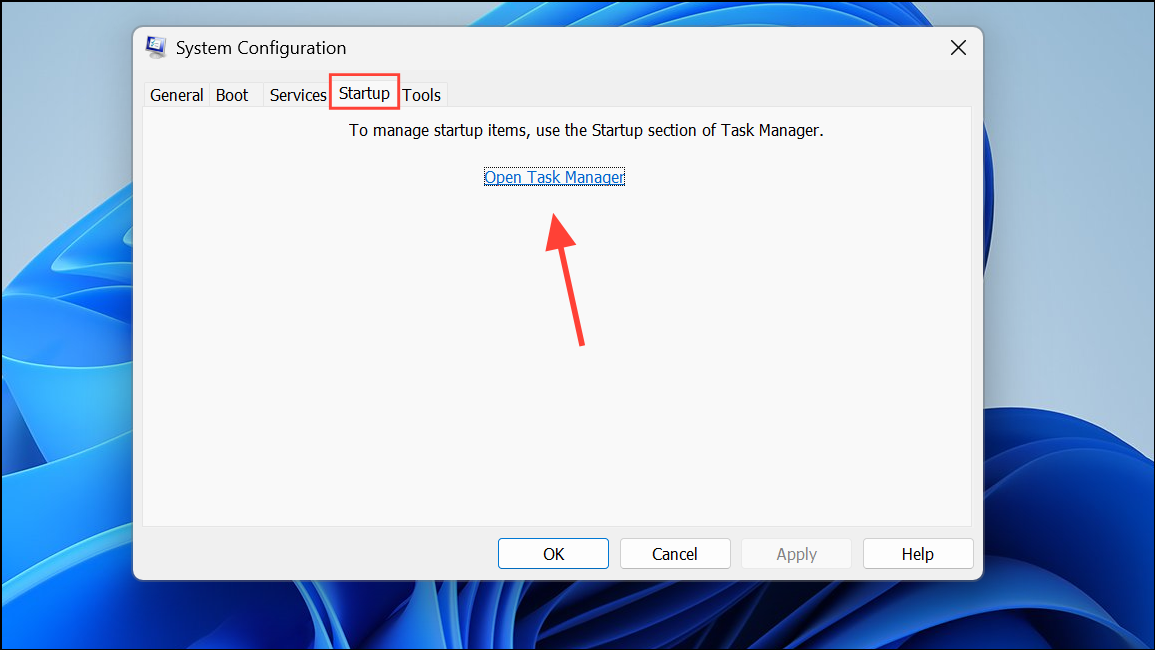
Switch to the Startup tab and click Open Task Manager. Disable all unnecessary startup items. Apply changes, close all windows, and restart your PC. If the problem disappears, gradually re-enable services and startup items to identify the conflicting software.
Inspect your monitor and all connecting cables for visible damage or loose connections. Replace any suspect cables and ensure all connections are secure.
Test with another monitor or connect your system to an external display. If flickering stops on the new monitor, your original display or its internal cable may be faulty.
Additional Steps and When to Seek Professional Help
If all software troubleshooting fails and flickering persists even after a factory reset, hardware issues such as a failing graphics card, motherboard, or monitor may be responsible. For laptops, a damaged internal LCD cable can also cause intermittent flickering.
Consult a professional technician if you suspect hardware failure or if the issue is beyond routine troubleshooting. Avoid opening your device if you are not comfortable with hardware repairs, as this can void warranties or cause further damage.
By systematically addressing software, driver, and hardware causes, you can resolve Device Manager flickering in Windows 11 and restore a stable, responsive system. Regular updates and cautious installation of new software help prevent future issues.