
Dynamic Lighting in Windows 11 allows users to control the RGB lighting of supported peripherals directly from the system settings, streamlining the management of LED effects across keyboards, mice, and other devices. However, users sometimes report issues where Dynamic Lighting does not work as expected—such as lighting controls being unresponsive, devices not detected, or lighting appearing dim or incorrect. These problems often arise due to software conflicts, misconfigured settings, or firmware limitations.
Adjust Dynamic Lighting Settings in Windows 11
Personalization > Dynamic Lighting. Here, you can see a list of all connected RGB-capable devices that Windows recognizes. If your device does not appear, verify it is connected and compatible with Windows Dynamic Lighting.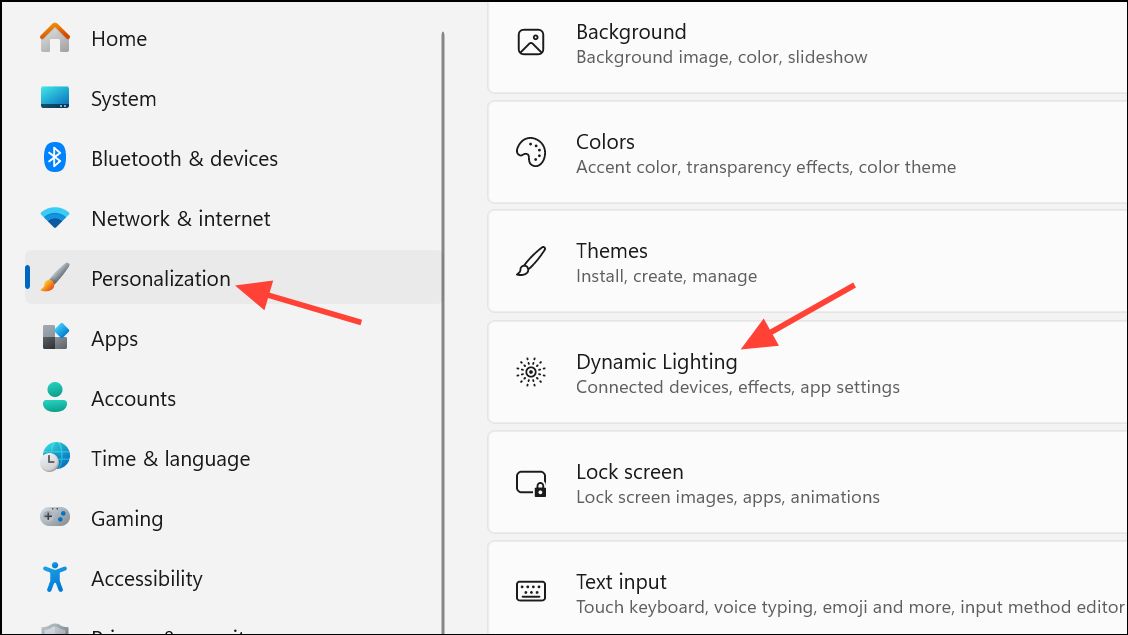
Use Dynamic Lighting on my devices is toggled On. When this feature is off, devices revert to their default lighting behavior and cannot be managed through Windows.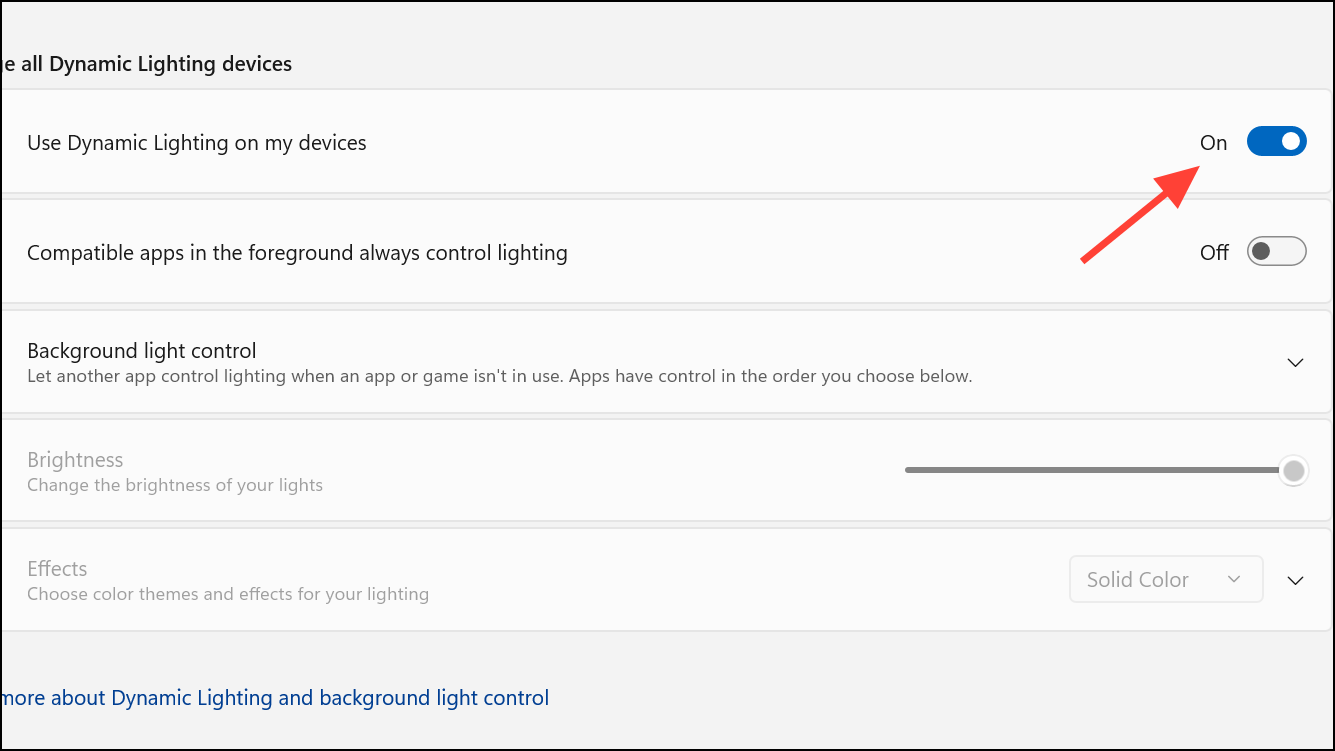
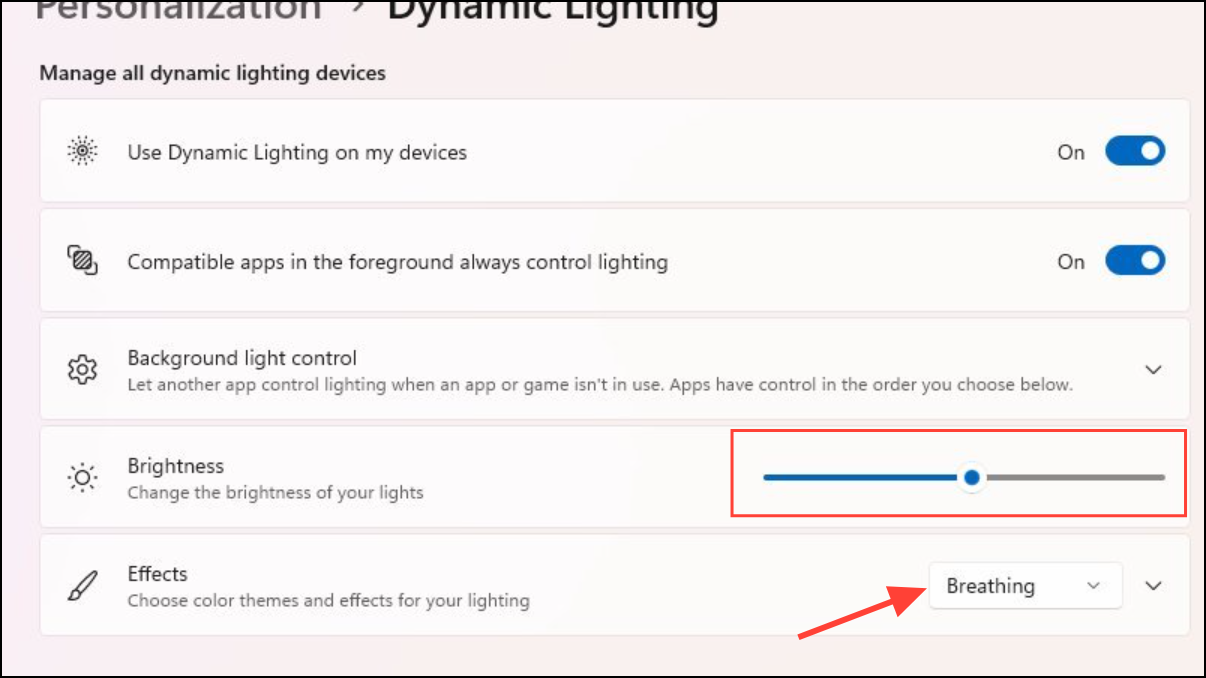
Dynamic Lighting Background Controller to the top of the list to give Windows priority over other software. This step is crucial when multiple lighting controllers are installed, as only the highest-priority app controls the device.Use Device-Specific Software for Lighting Control
Some devices, such as those from Logitech or Razer, may require their own software to properly manage lighting or to enable Dynamic Lighting support.
Workarounds for Dim or Incorrect Lighting
Some single-color backlit keyboards (such as the Logitech G413) may appear very dim or completely off after enabling Dynamic Lighting. This is typically caused by Windows setting the device’s lighting effect to a color value that is not fully supported by the hardware.
Settings > Personalization > Dynamic Lighting, select your keyboard and change the effect to Single Color. Then, set the custom color to the brightest option available (for example, White (#FFFFFF) for white backlighting or Red for red-only keyboards).Use Dynamic Lighting on my devices off and then on again, or cycle through available effects to reset the device’s state. Some users report that turning Dynamic Lighting off disables the keyboard’s lighting entirely, but leaving it on and selecting a bright color restores normal illumination.Alternative RGB Control Apps
If Windows Dynamic Lighting does not meet your needs or remains unresponsive, third-party applications like OpenRGB or SignalRGB can provide direct control over many RGB devices. These tools often support a broader range of hardware and may bypass limitations present in Windows Dynamic Lighting or manufacturer apps. Download and install your preferred app, then follow its instructions to detect and configure your devices.
Keyboard Shortcuts for Quick Lighting Changes
Certain keyboards offer built-in shortcuts for adjusting lighting without software. For example, on the Razer Huntsman V2 Tenkeyless, holding FN + CTRL and pressing 2 cycles through solid colors. Refer to your device manual for available shortcuts.
Resolving Dynamic Lighting issues in Windows 11 often comes down to prioritizing controller apps, updating firmware, and using the right software for your device. If problems persist, keep your system updated and check for new compatibility improvements from device manufacturers or Microsoft.



