
Outlook applications can abruptly crash or freeze the moment you hit the Send button, interrupting communication and risking loss of unsent messages. This issue often emerges after recent Microsoft Office or Windows updates, profile corruption, or misconfigured account settings. In some cases, the crash is tied to a specific build or a faulty delivery location, while in others, add-ins or corrupted data files are the root cause. Applying the right fix restores Outlook’s stability, allowing you to send emails reliably again.
Update or Roll Back Office to a Stable Version
Recent Microsoft 365 and Office updates have introduced bugs causing Outlook to crash when sending emails, especially for users with Outlook.com or Exchange accounts. Microsoft has released fixes in newer builds, but if your version is affected, reverting to a previous build can immediately resolve the issue.
File > Office Account, and note the build number next to About Outlook.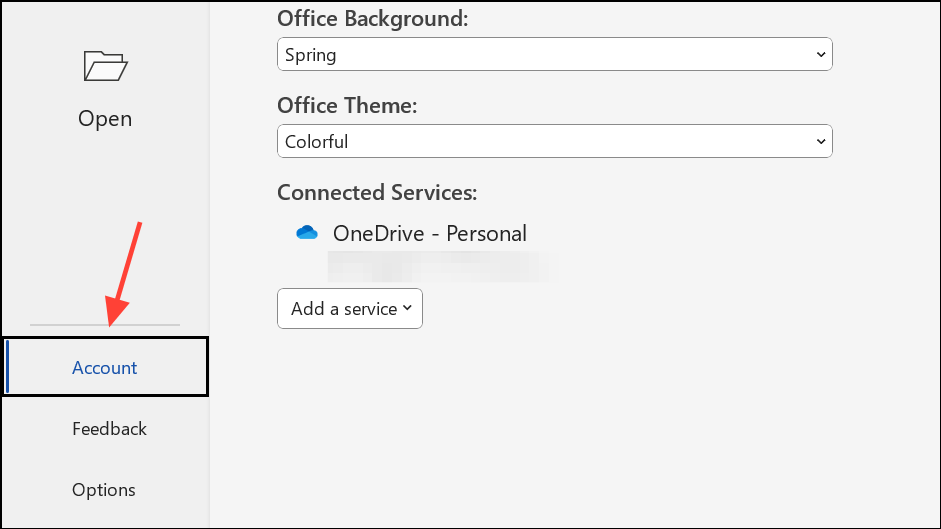
File > Office Account, click Update Options > Update Now. Allow the update to complete, then restart Outlook and test sending an email.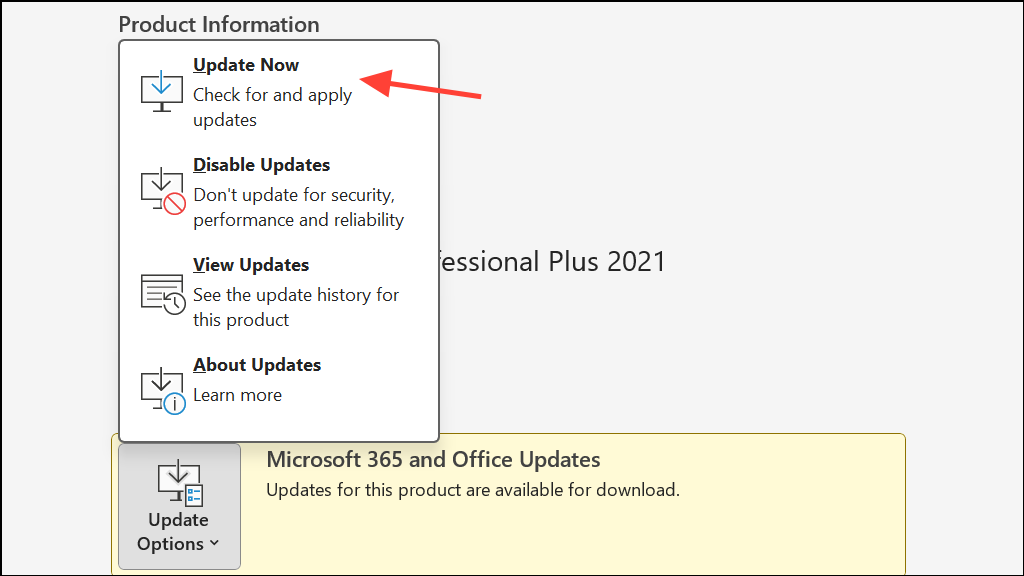
cd %programfiles%\Common Files\Microsoft Shared\ClickToRun
officec2rclient.exe /update user updatetoversion=16.0.16924.20124
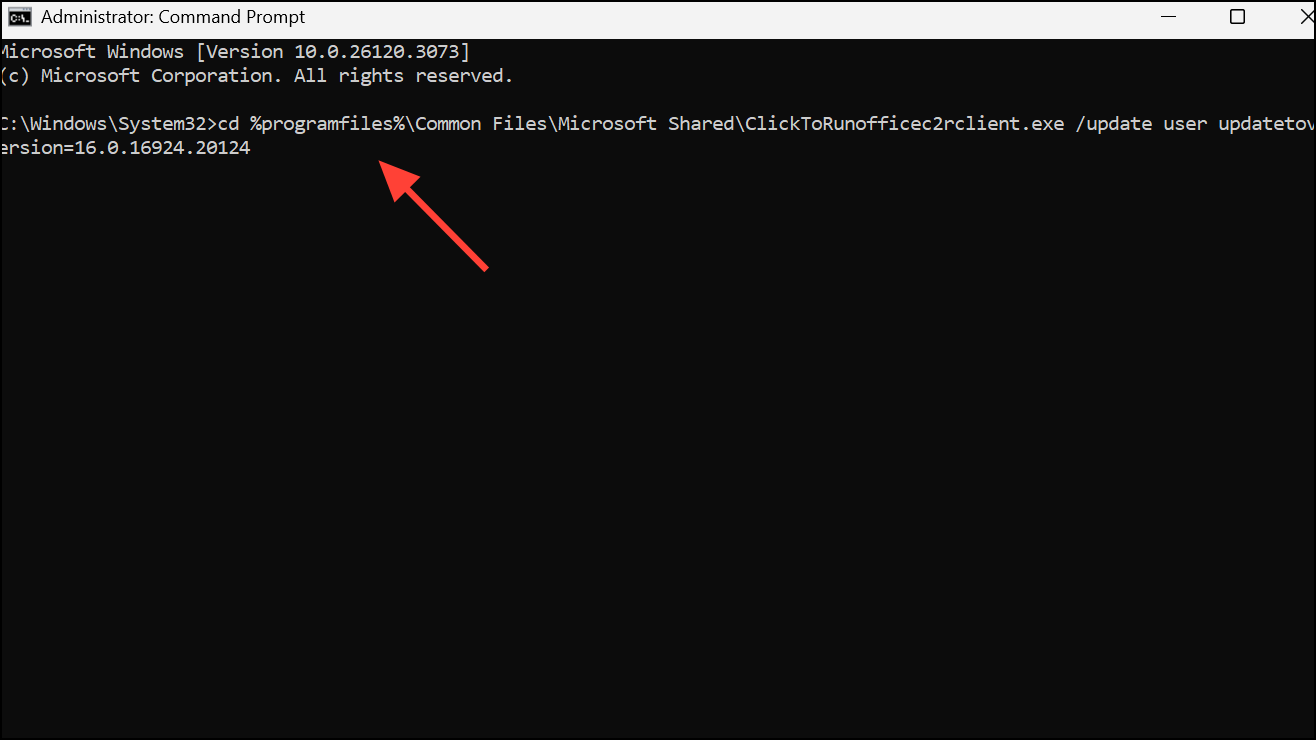
This command reinstalls a previous Office build that does not exhibit the crashing issue. After rollback, restart your computer and launch Outlook.
Repair or Recreate the Outlook Profile
Corrupted profiles are a common cause of Outlook crashing during email transmission. Creating a new profile can resolve persistent crashes when other fixes fail.
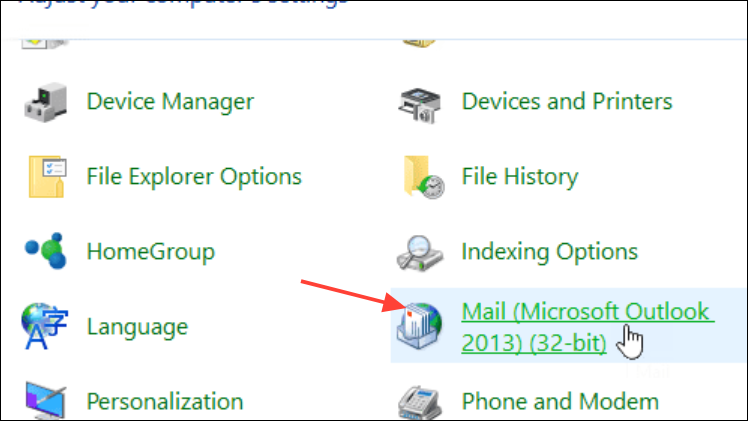
Show Profiles, then select Add to create a new profile. Enter a distinct name for the profile.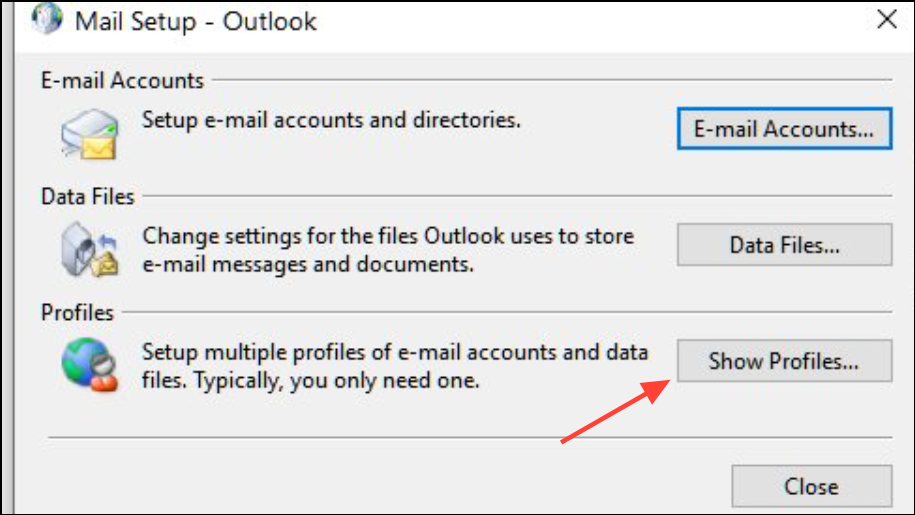
Always use this profile and choosing your new profile from the dropdown.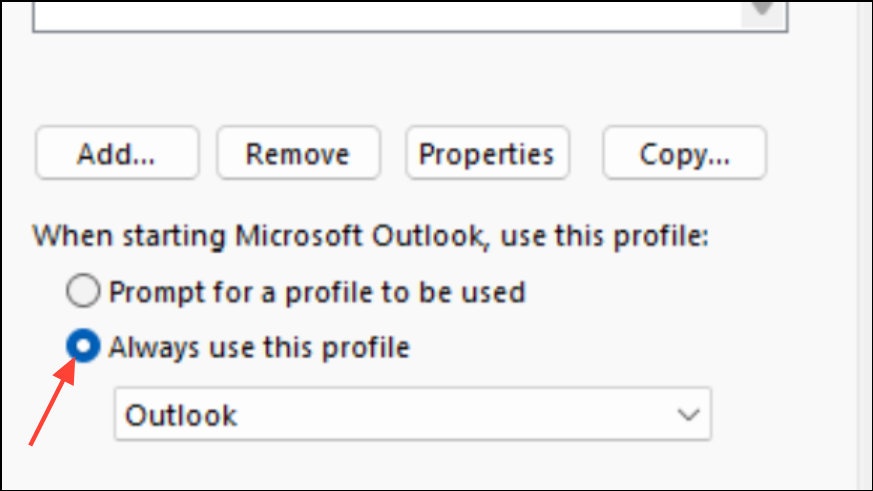
Correct the Email Delivery Location
Outlook may crash if a POP3 account or mixed account profile references a delivery location (such as a folder) that no longer exists. Updating this setting ensures messages are delivered to a valid folder, preventing the crash loop.
Mail > Show Profiles. Highlight your profile and click Properties.E-mail Accounts. On the E-mail tab, select your POP3 account and then click Change Folder.OK.Disable Add-ins and Run Outlook in Safe Mode
Faulty or outdated add-ins can trigger Outlook to freeze or crash during sending. Running Outlook in Safe Mode disables all add-ins, which helps isolate the cause.
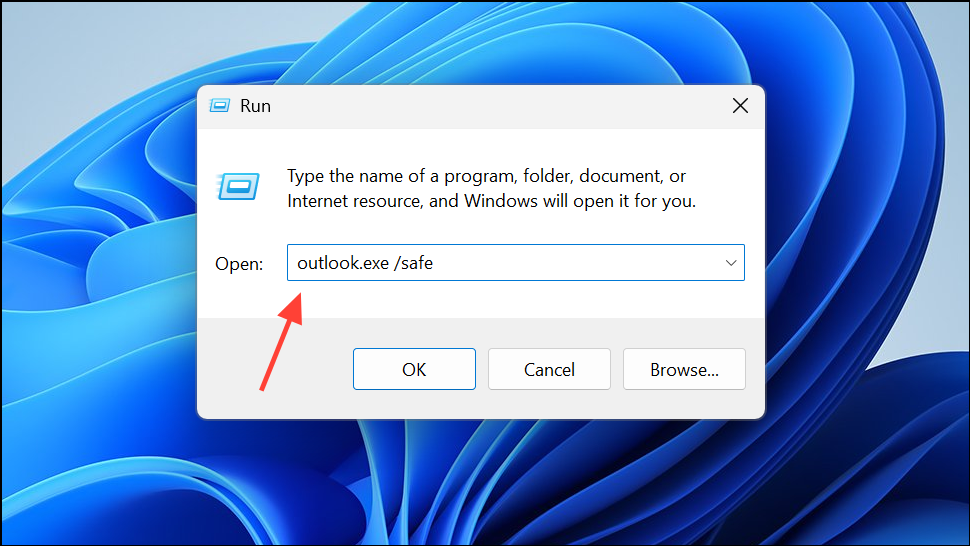
File > Options > Add-ins. At the bottom, set the Manage dropdown to COM Add-ins and click Go. Uncheck all add-ins and click OK.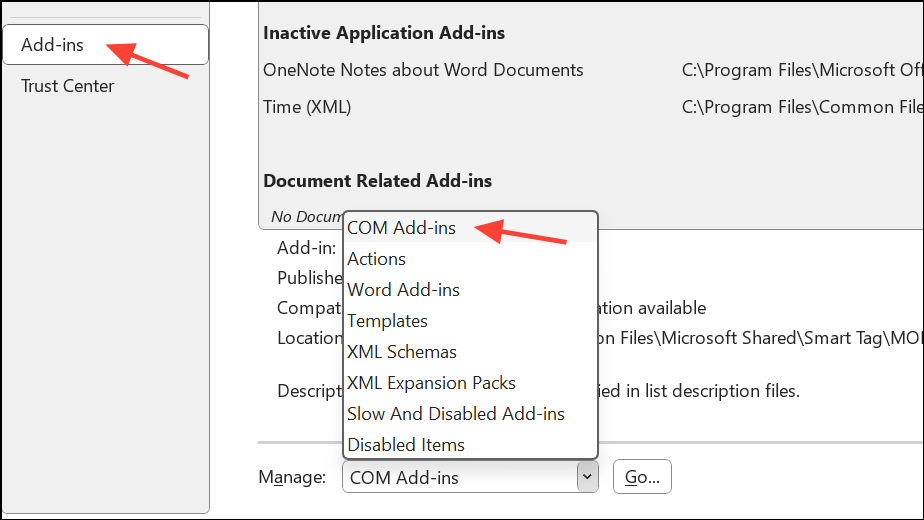
Repair Outlook Data Files
Corrupted PST or OST files can destabilize Outlook. The Inbox Repair Tool (ScanPST) can scan and fix these files.
ScanPST.exe on your system. It is typically found in the Office installation directory, such as C:\Program Files (x86)\Microsoft Office\root\Office16 for Office 2016.Start to scan for errors. If errors are found, click Repair and wait for the process to finish.Additional Troubleshooting Steps
- Disable antivirus or firewall software temporarily to rule out interference with outgoing mail.
- Check for large attachments or emails stuck in the Outbox, as these can freeze Outlook during sending.
- Test sending emails from Outlook on the web (outlook.com) to confirm if the issue is limited to the desktop app.
- If using different Office versions on different user accounts, standardize to a single version to avoid conflicts.
- For issues with Exchange accounts, try switching to IMAP/SMTP as a temporary workaround until a permanent fix is released.
Applying these methods restores Outlook’s ability to send emails without crashing, minimizing disruption and reducing the risk of losing important messages. Regular updates and periodic profile maintenance help keep Outlook running smoothly.





