
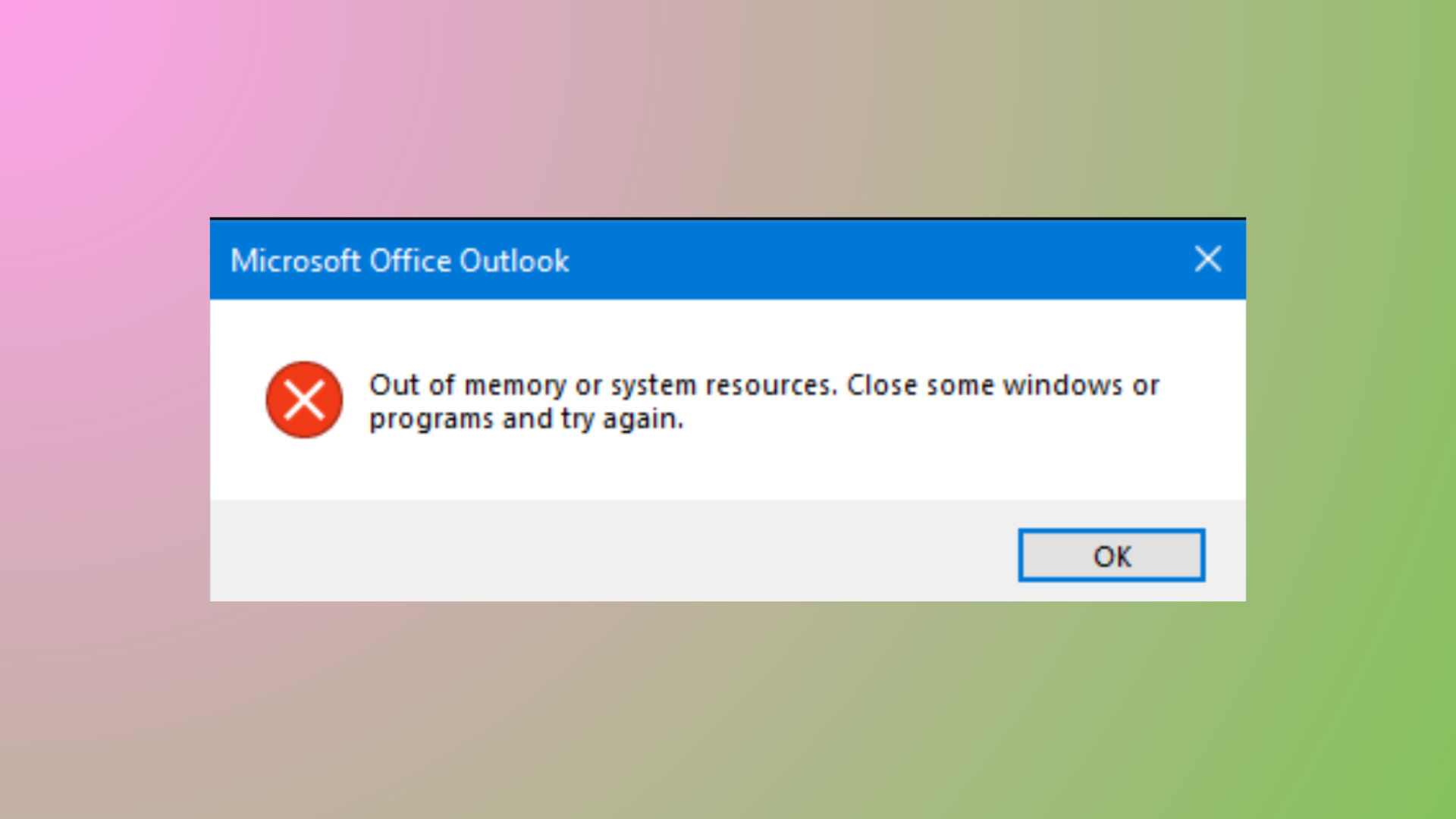
The error message “Out of memory or system resources. Close some windows or programs and try again” in Outlook occurs when the application cannot secure enough memory or system resources to perform essential tasks. Users may notice Outlook crashing, freezing, or failing to open folders and attachments, even on systems with ample RAM. This issue is often linked to oversized data files, excessive add-ins, corrupted profiles, or system configuration limits. Addressing this problem requires targeted steps to free up resources, repair data files, and adjust system settings.
Reduce Unnecessary Outlook Data Files and Profiles
File in the top menu. Select Account Settings, then choose Account Settings again from the dropdown.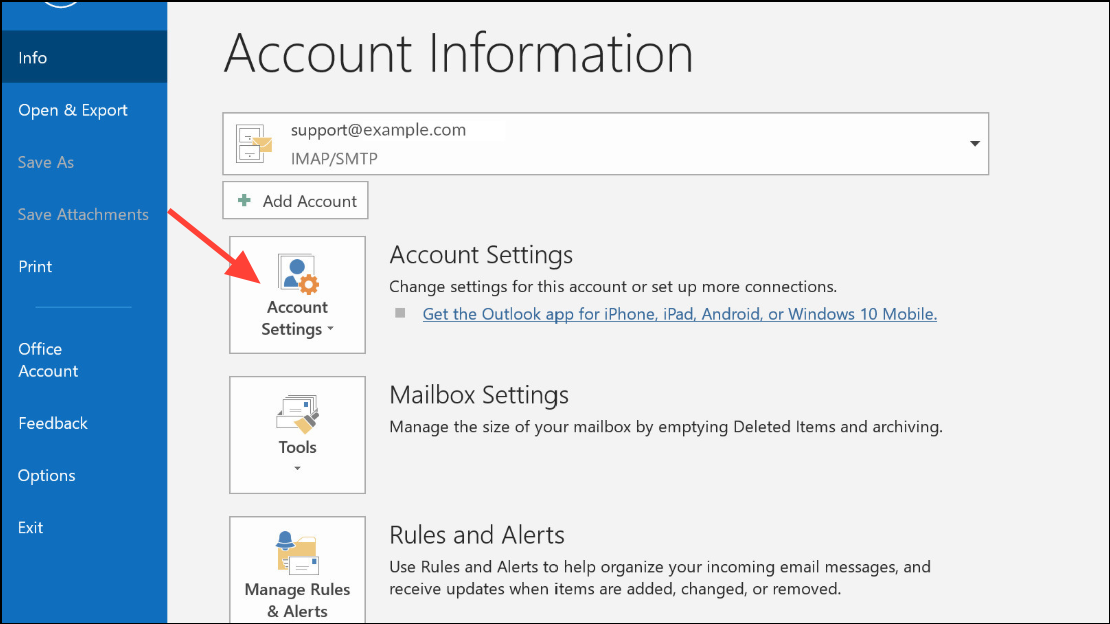
Data Files tab. Review the list of connected PST (Personal Storage Table) or OST (Offline Storage Table) files. Select any data files that are no longer needed and click Remove to disconnect them from Outlook. This step reduces the load on Outlook’s memory management and can resolve resource exhaustion errors.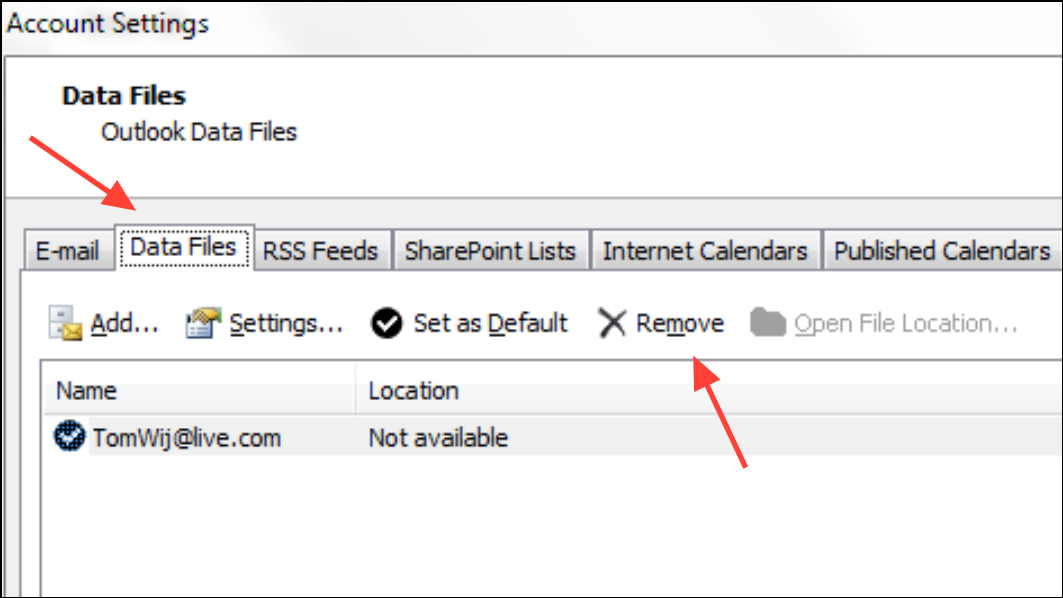
Control Panel > Mail > Show Profiles and deleting any that are not required. Fewer profiles mean Outlook allocates less memory at startup.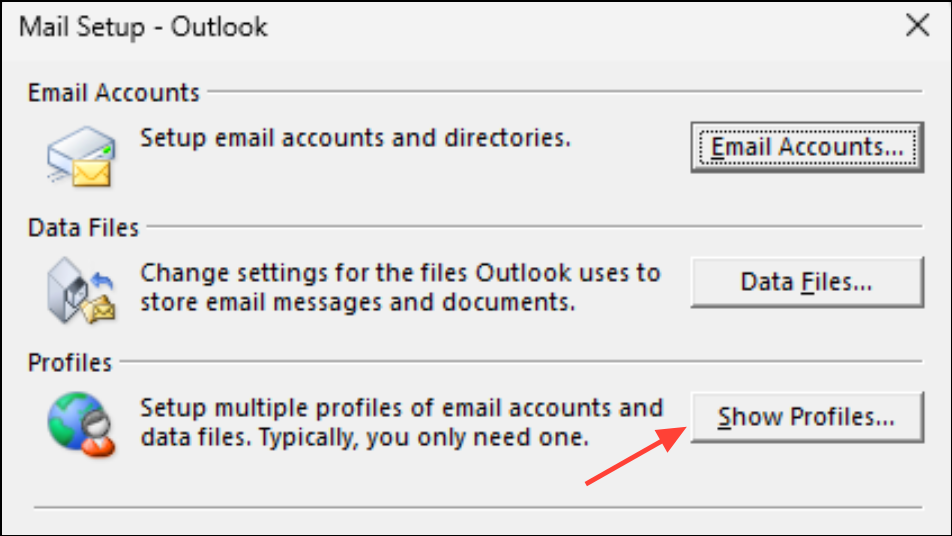
Repair Corrupted Outlook Data Files
ScanPST.exe, in your Office installation directory. Common paths include C:\Program Files\Microsoft Office\root\OfficeXX\ where XX matches your Office version.ScanPST.exe to launch the repair tool. Click Browse and select the PST or OST file you want to repair. Click Start to begin scanning the file for errors.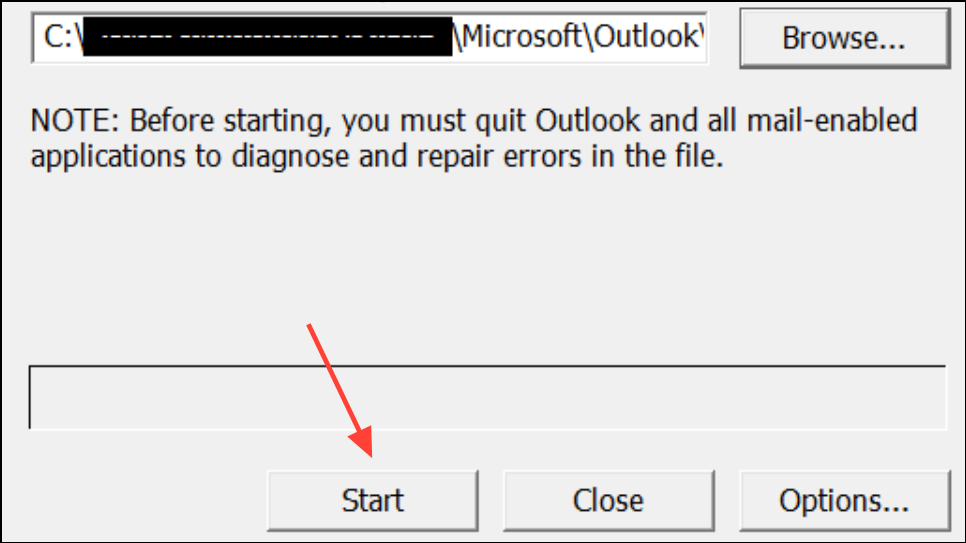
Repair to fix detected issues. After the repair finishes, restart Outlook and check if the memory error persists. Repairing corrupted data files reduces unnecessary memory consumption and prevents Outlook from attempting to load damaged data.Reduce Cache Size via Registry Editor
Windows + R to open the Run dialog, type regedit, and press Enter to launch the Registry Editor. If prompted by User Account Control, allow the app to make changes.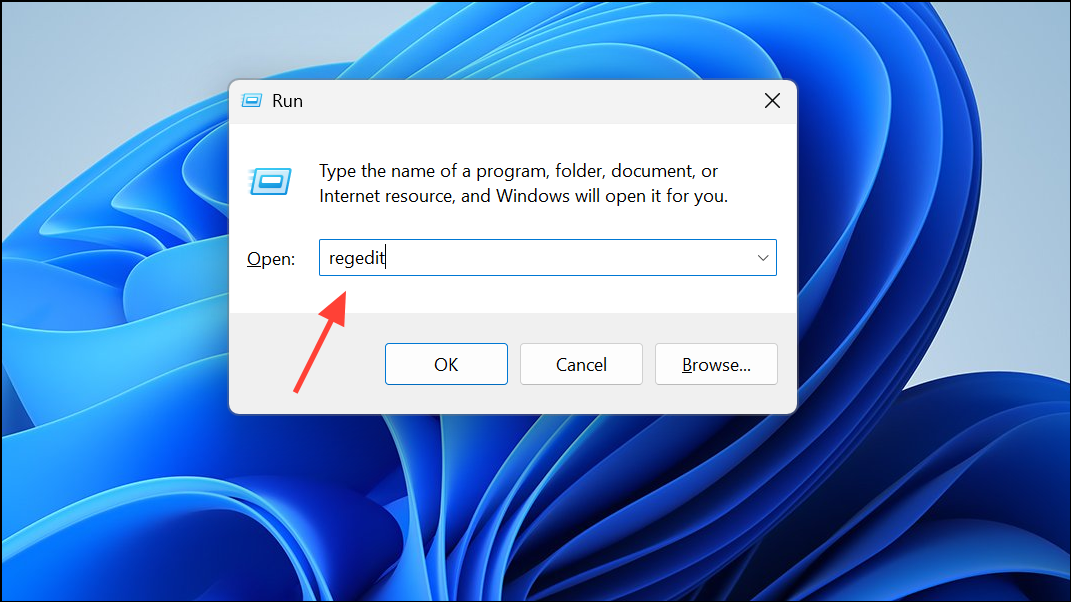
HKEY_CURRENT_USER\Software\Microsoft\Office\XX.X\Outlook\PST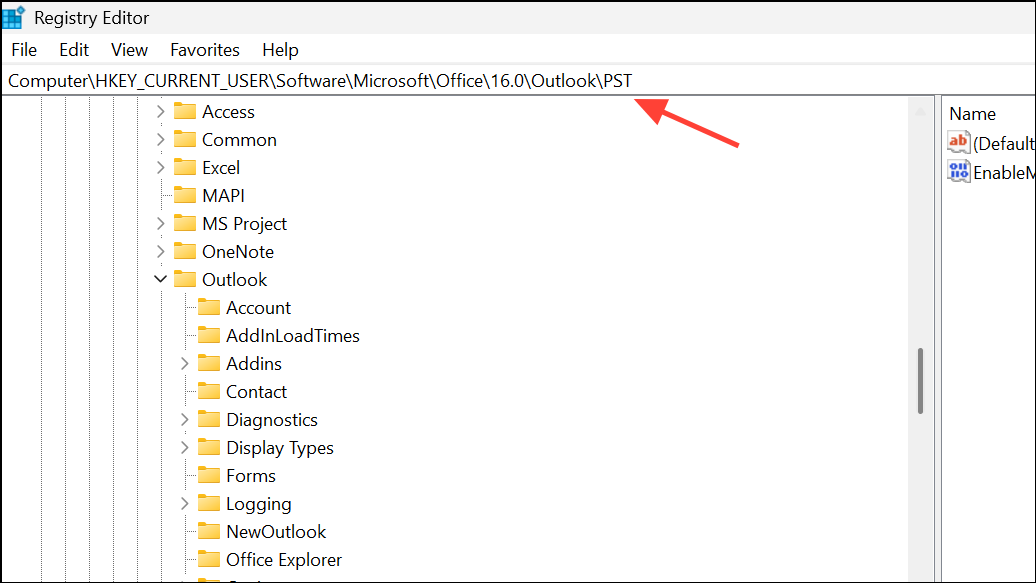
Replace XX.X with your Outlook version (e.g., 16.0 for Outlook 2016).
New > DWORD (32-bit) Value. Name the new value UseLegacyCacheSize.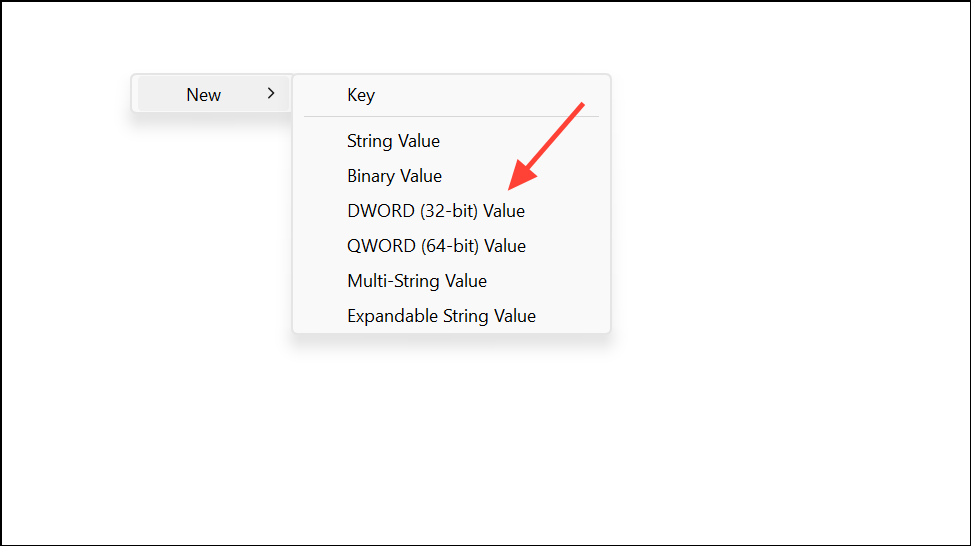
UseLegacyCacheSize, set its value data to 1, and click OK. This instructs Outlook to use the legacy cache size, which can help prevent resource exhaustion when working with large data files.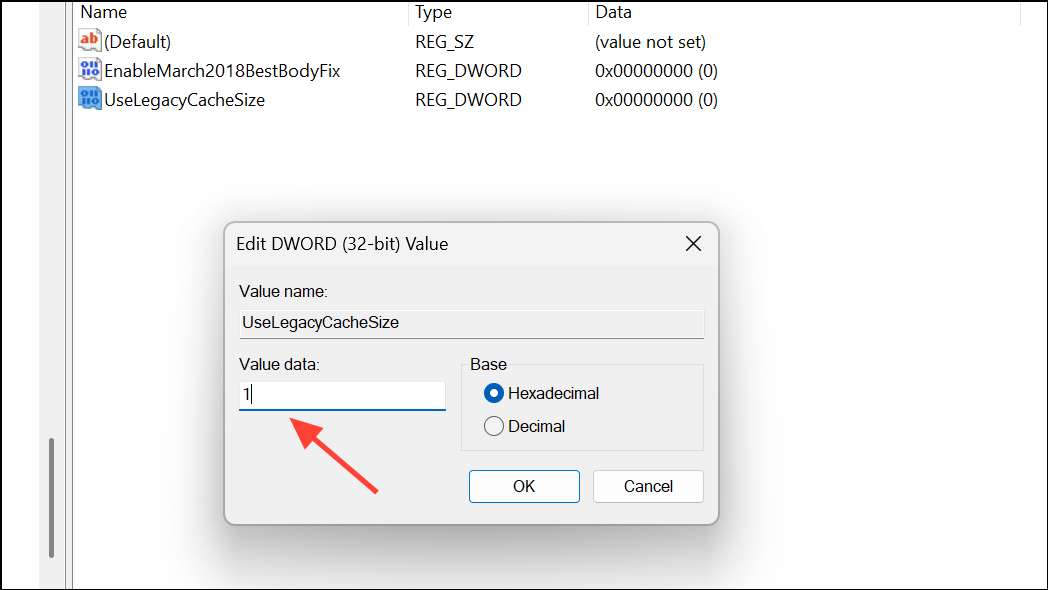
Optimize System and Virtual Memory Settings
This PC or My Computer and select Properties. Click Advanced system settings on the page that opens.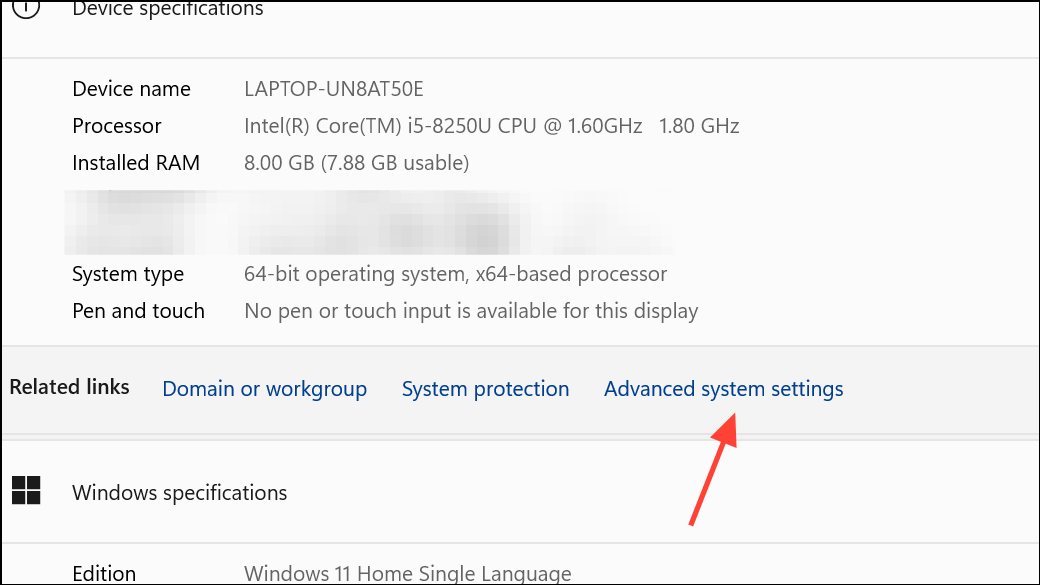
Advanced tab, click Settings in the Performance section. In the new window, go to the Advanced tab and click Change under Virtual memory.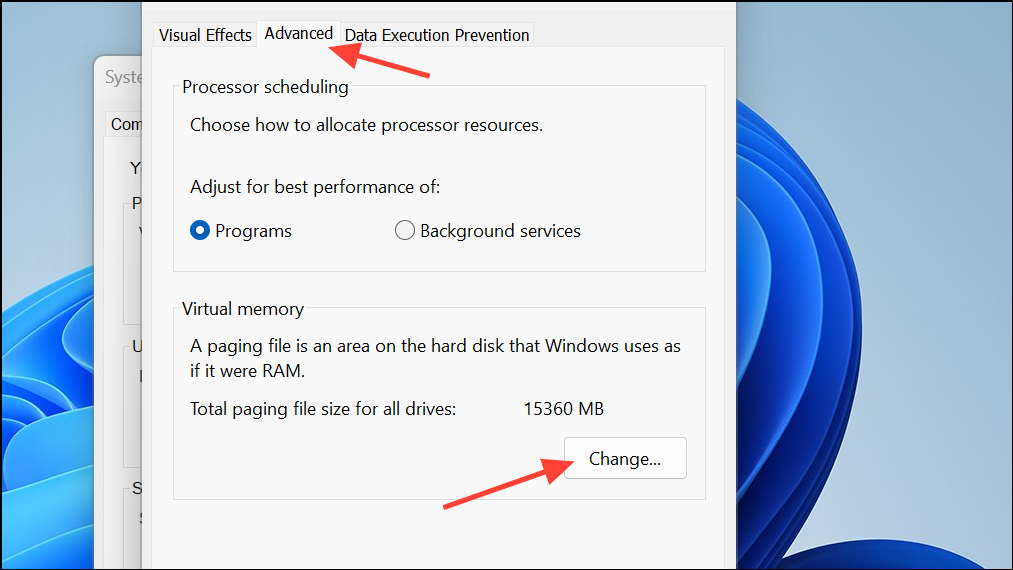
Automatically manage paging file size for all drives. Select your system drive, choose Custom size, and increase both the initial and maximum size values according to your system’s available storage and RAM (for example, set both to at least 4096 MB for 4GB, but higher for modern systems).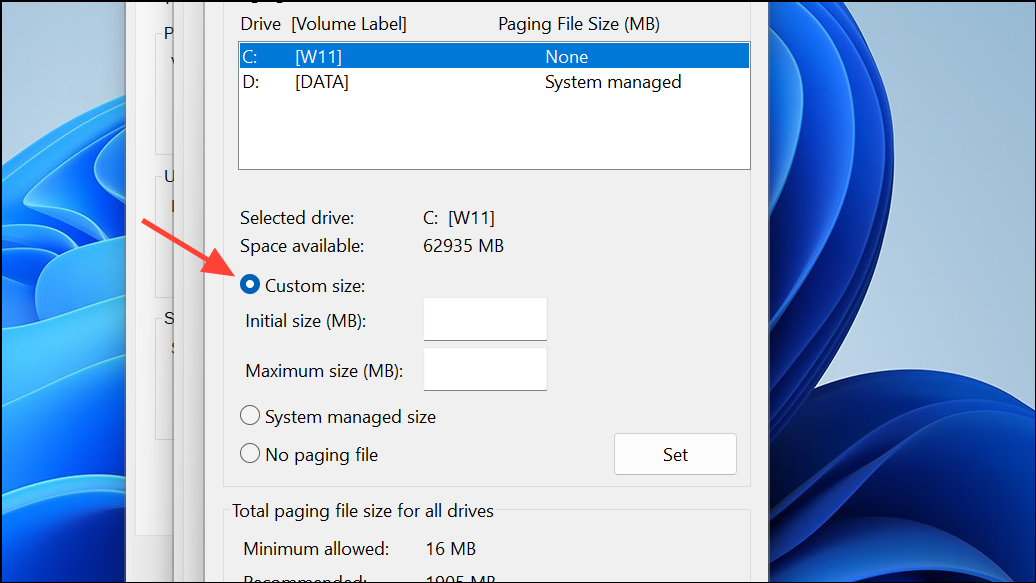
Set, then OK. Restart your computer to allow Windows to allocate the new virtual memory settings. Increasing virtual memory gives Outlook more resources to work with, especially on systems with limited physical RAM.Disable Faulty or Excessive Add-Ins
Windows + R, type Outlook.exe /safe, and press Enter to start Outlook in Safe Mode. This loads Outlook without any third-party add-ins.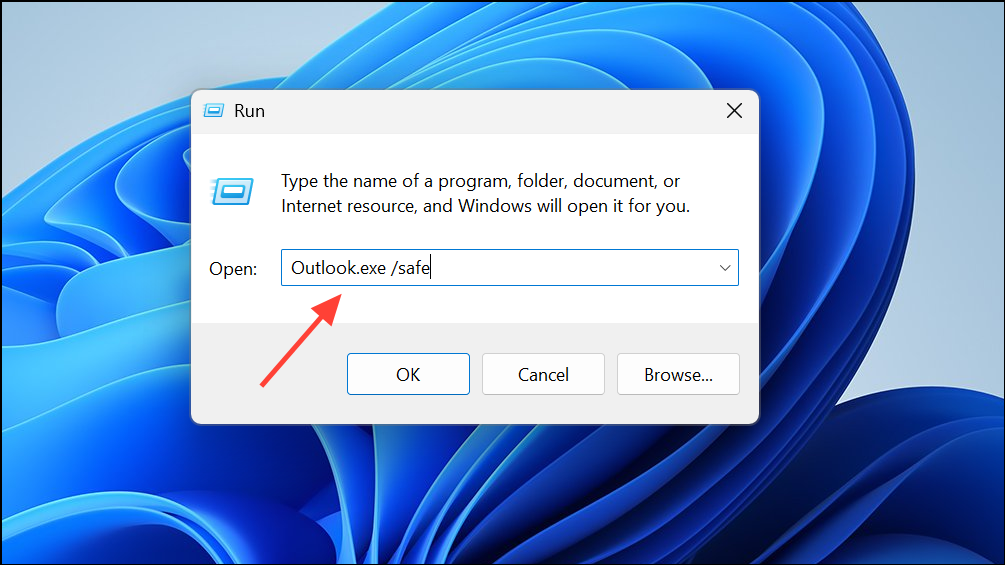
File > Options > Add-ins. At the bottom, select COM Add-ins from the dropdown and click Go.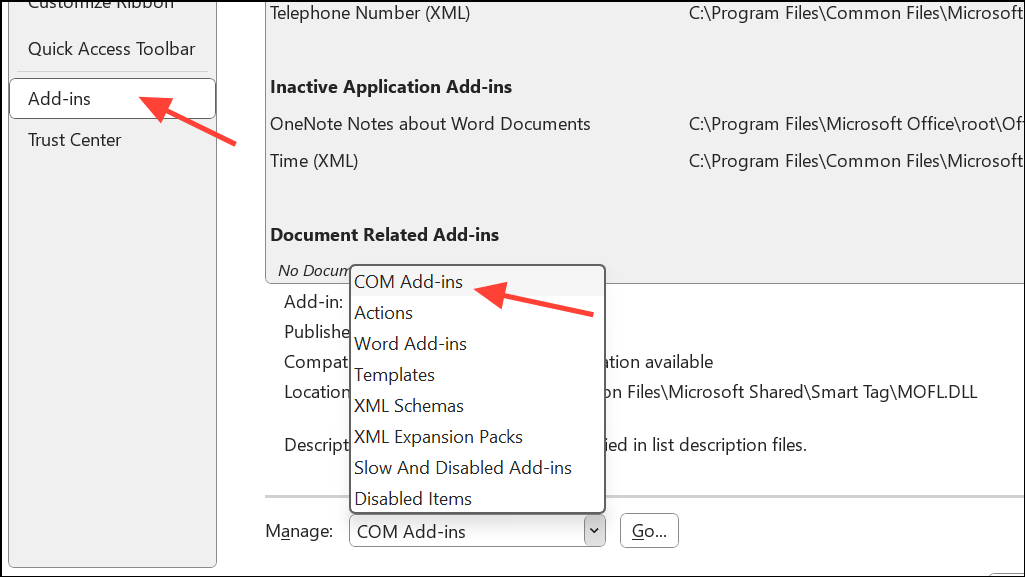
Update Outlook and Windows
File > Office Account > Update Options > Update Now. Allow Office to download and install any available updates.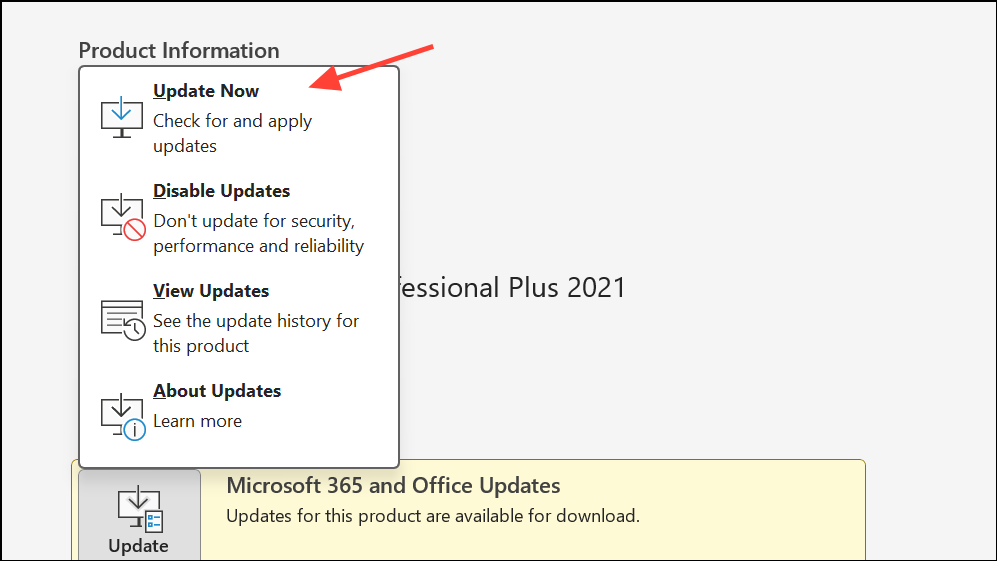
Settings > Update & Security > Windows Update and click Check for updates. Install all recommended updates and restart your computer.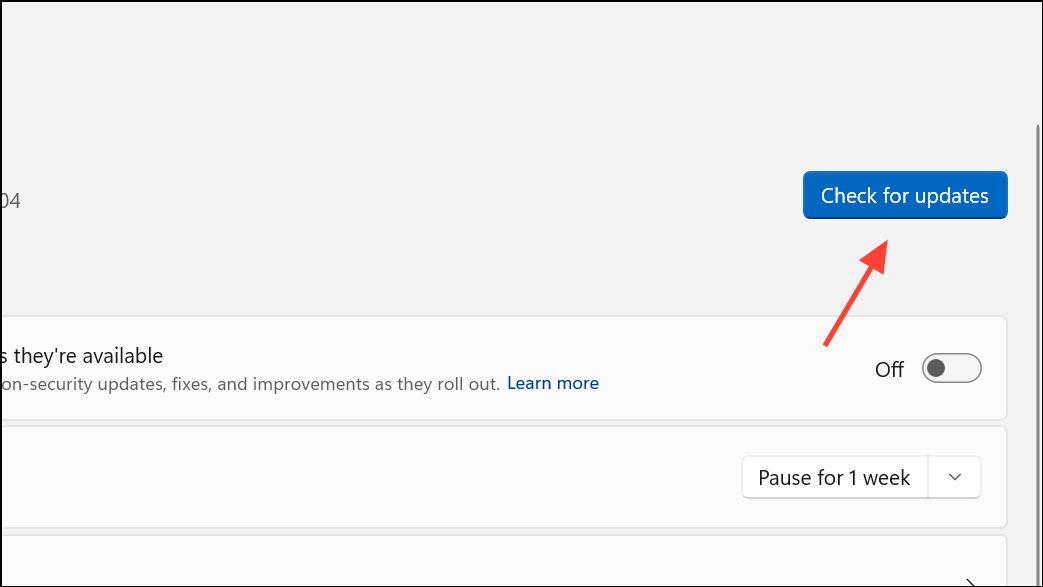
Running the latest versions of Outlook and Windows ensures you receive bug fixes and optimizations that address known memory management issues.
Increase GDI Object Limit in Windows Registry (Advanced)
HKEY_LOCAL_MACHINE\SOFTWARE\Microsoft\Windows NT\CurrentVersion\Windows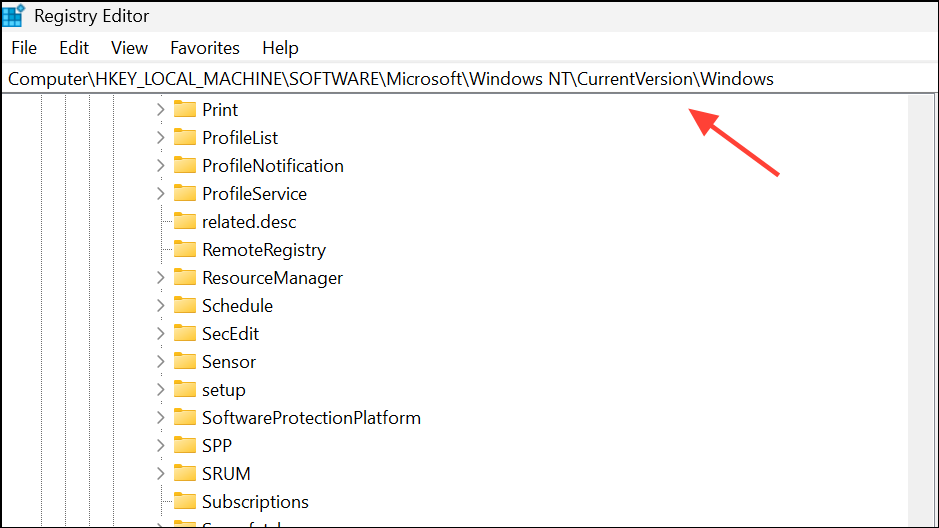
GDIProcessHandleQuota. If it does not exist, right-click in the right pane, select New > DWORD (32-bit) Value, and name it GDIProcessHandleQuota.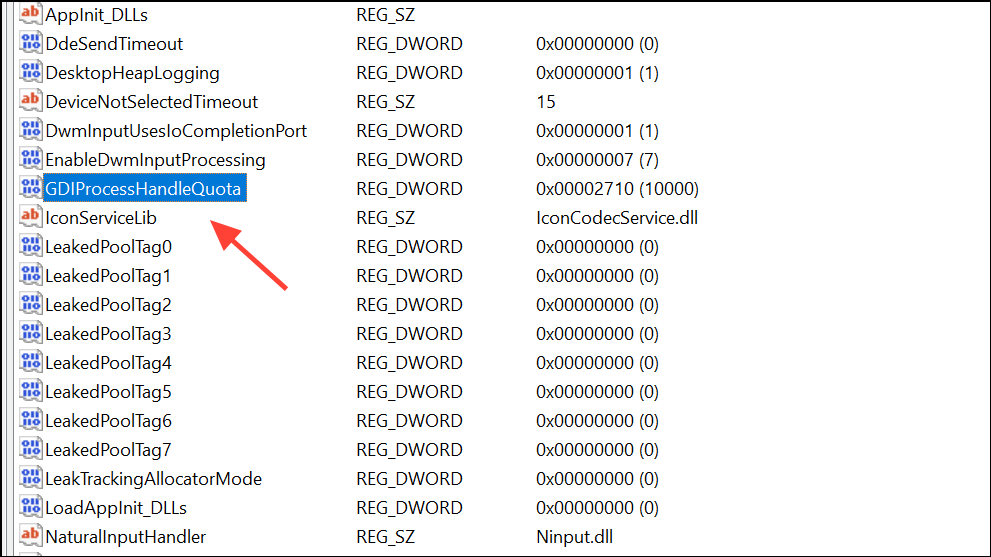
GDIProcessHandleQuota and set the value to 20000 (decimal). This increases the number of GDI objects Windows allows per process, which can resolve memory errors in Outlook and other applications that frequently handle graphics or UI elements.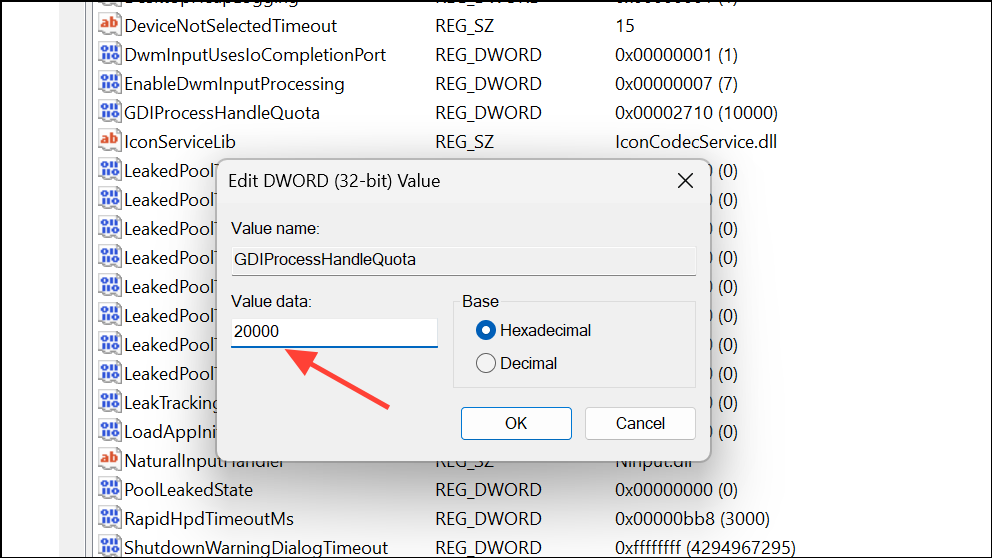
Addressing the “Out of memory or system resources” error in Outlook usually means freeing up memory, repairing damaged files, and optimizing system configurations. Regularly maintaining your mailbox and keeping software up to date goes a long way toward preventing future issues.





