

Outlook signatures often fail to appear when replying to emails due to message format mismatches, incorrect default signature settings, or software conflicts. This issue disrupts professional communication and can lead to missing branding or contact details in replies. Directly addressing message format and signature configuration settings restores signature visibility and ensures consistent email appearance.
Set the Correct Default Signature for Replies
File tab at the top left corner. Click Options to open Outlook’s settings window.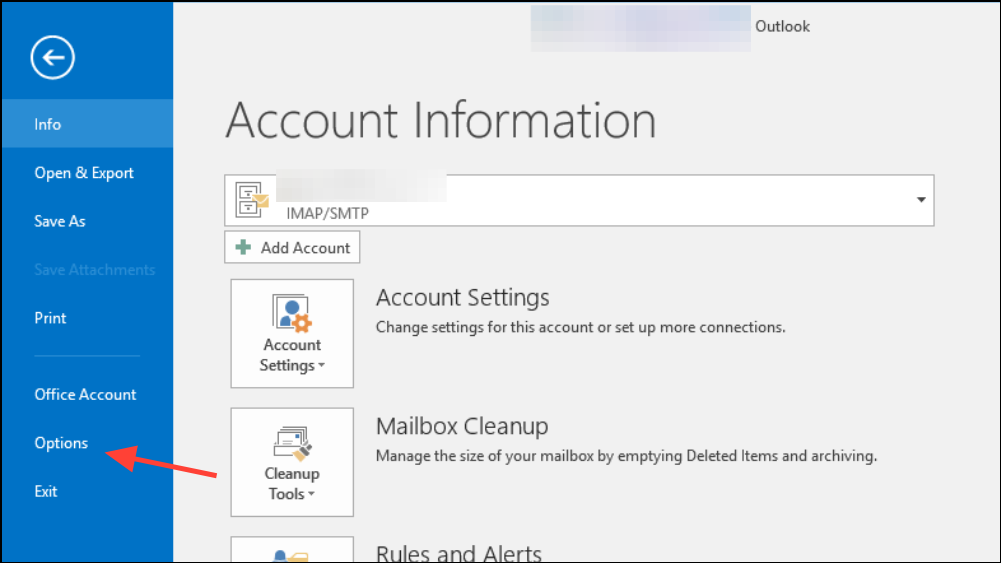
Mail category from the left sidebar. Click the Signatures… button under the “Compose messages” section.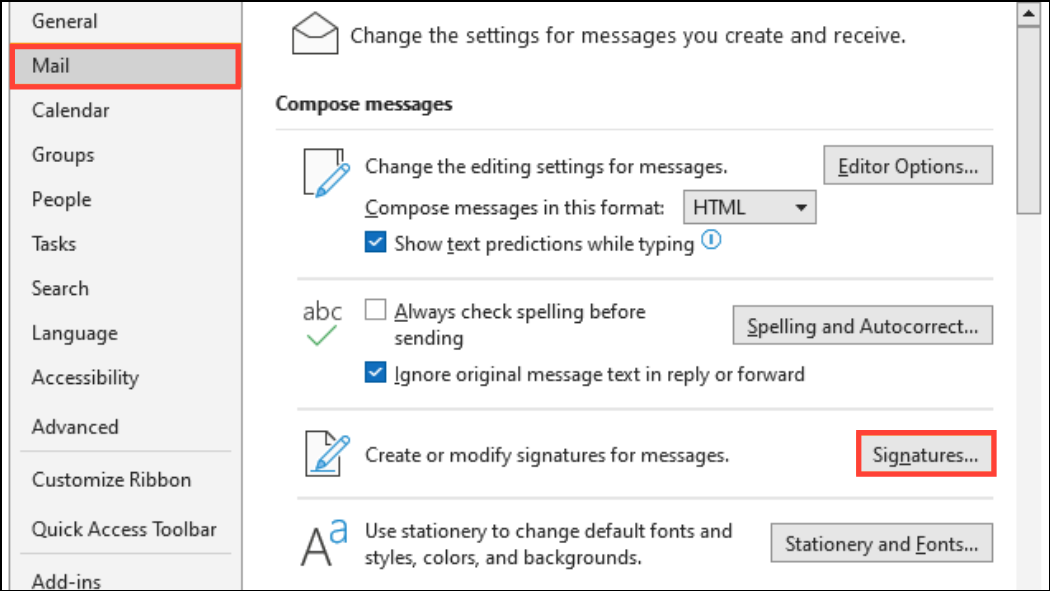
Choose default signature section. Set your preferred signature for Replies/forwards using the dropdown menu. Make sure the correct signature is also selected for New messages if needed.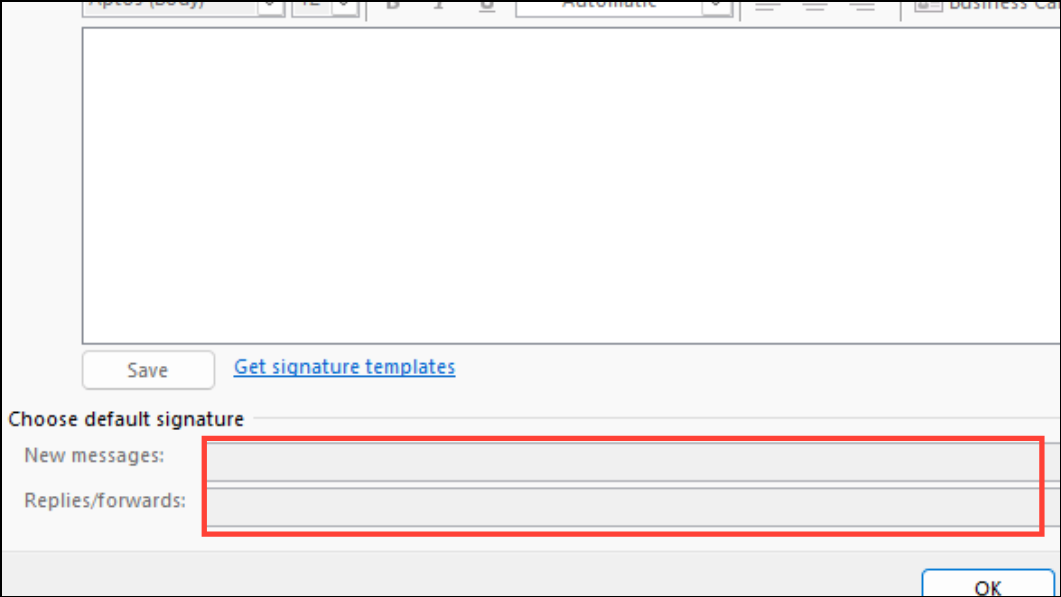
Switch Message Format to HTML
Signatures with images or formatting will not display correctly if the email format is set to Plain Text or Rich Text. HTML format is required for full signature functionality.
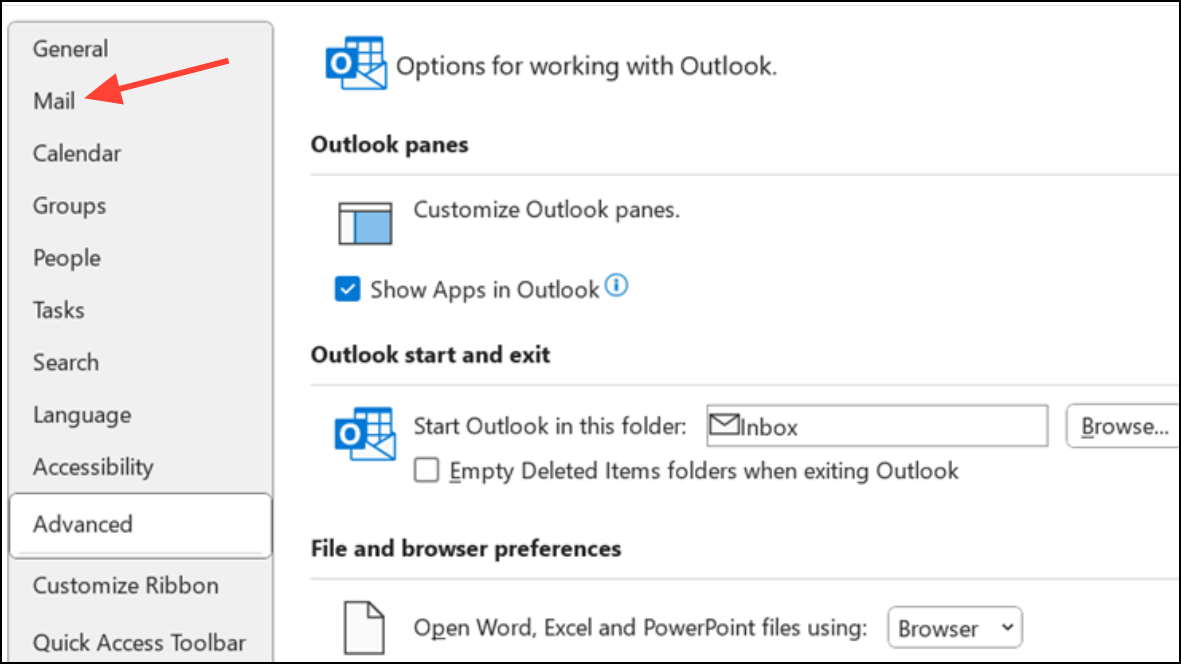
Compose messages in this format. Select HTML from the list.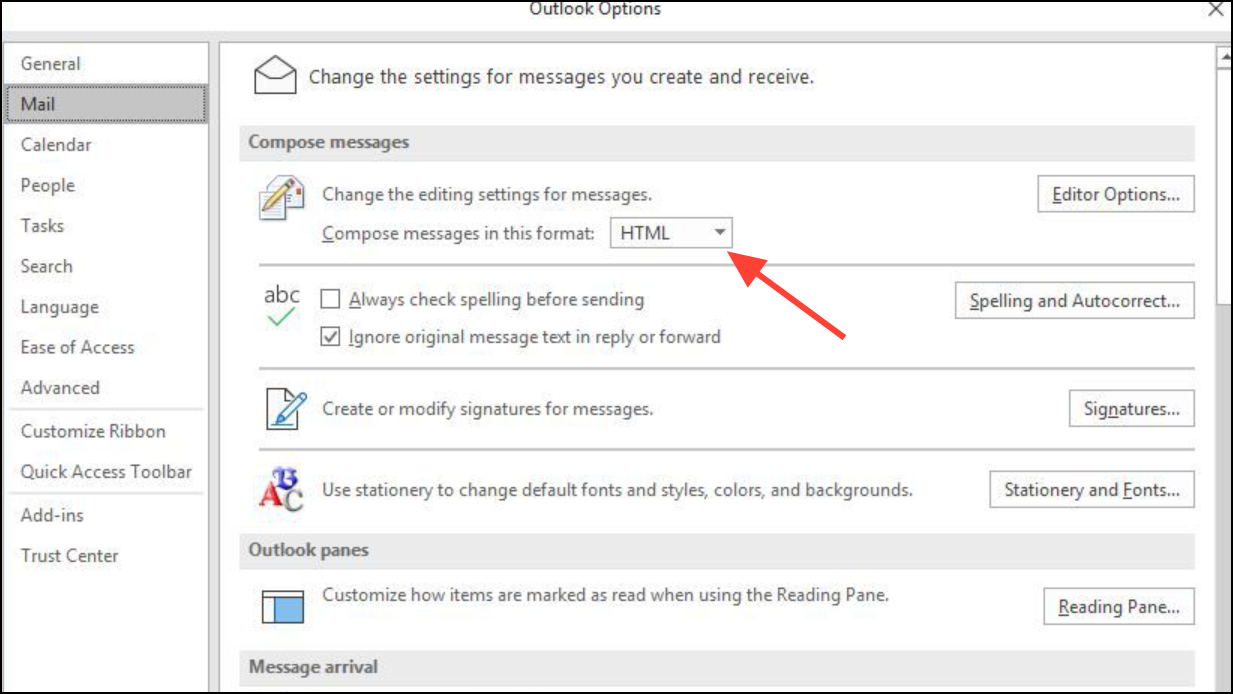
OK to apply the change. Replies and forwards will now support images and formatted signatures.If you are replying to a message and the signature still does not appear, check the message’s format in the reply window. On the ribbon, select the Format Text tab and choose HTML if it is not already selected.
Recreate Your Signature
Corrupted or outdated signature files can cause display issues. Recreating your signature ensures all elements are properly configured.
New to create a fresh signature. Enter your desired content, including any images or links.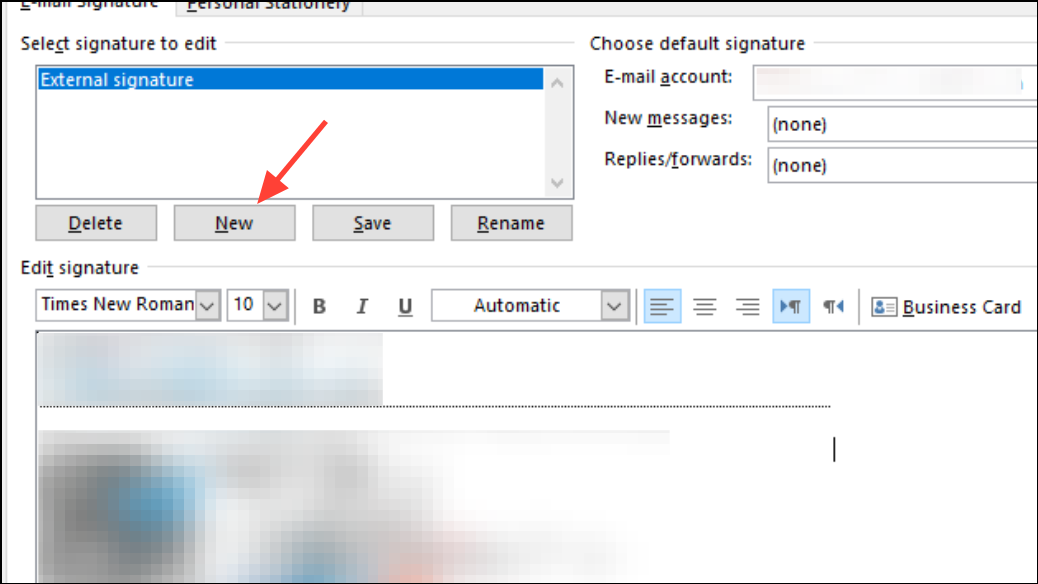
Check Signature Behavior in Web and Pop-Out Windows
Outlook’s web interface and the desktop app’s reading pane sometimes handle signatures differently. In some cases, signatures only appear when composing in a separate window.
Pop Out button at the top right of the reply pane. Click it to open the reply in a new window.Signature dropdown becomes available on the toolbar. Select your signature manually if needed.Settings > View all Outlook settings > Mail > Compose and reply, and making sure the signature is enabled for replies and forwards.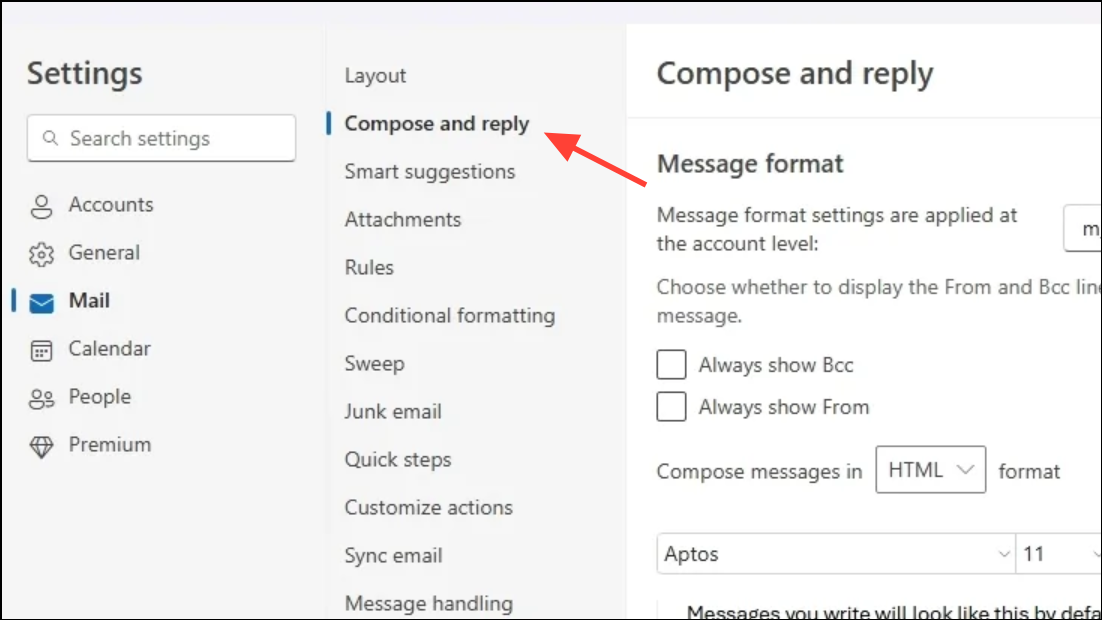
Repair or Reinstall Microsoft Office
Software corruption or leftover files from previous Office installations can prevent signatures from displaying properly.
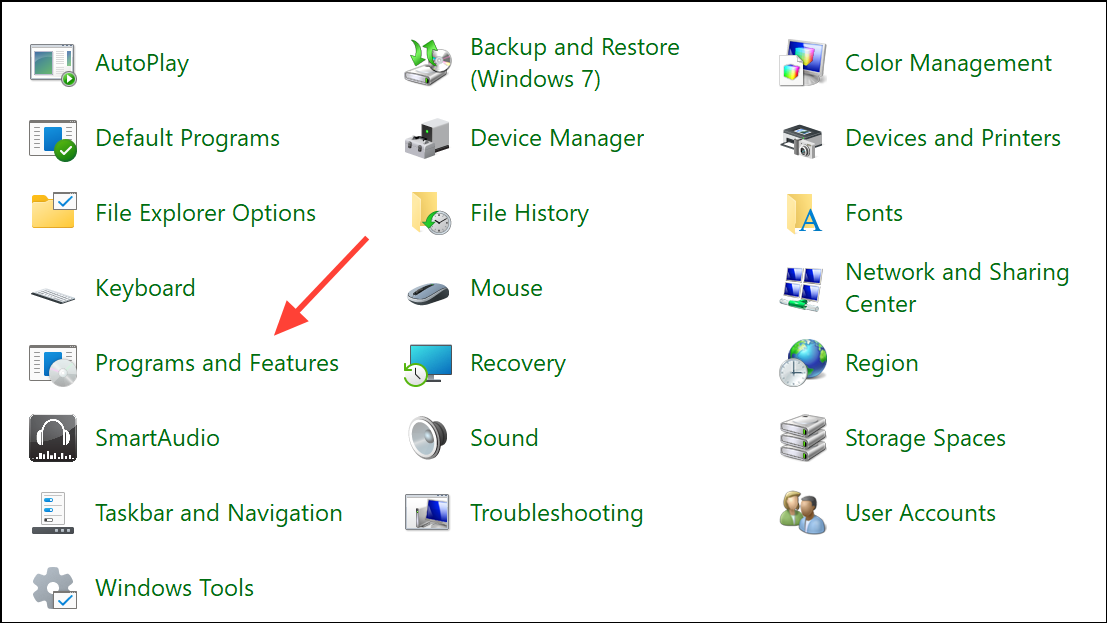
Change, then choose Repair. Start with Quick Repair. If problems persist, repeat the process and select Online Repair for a more thorough fix.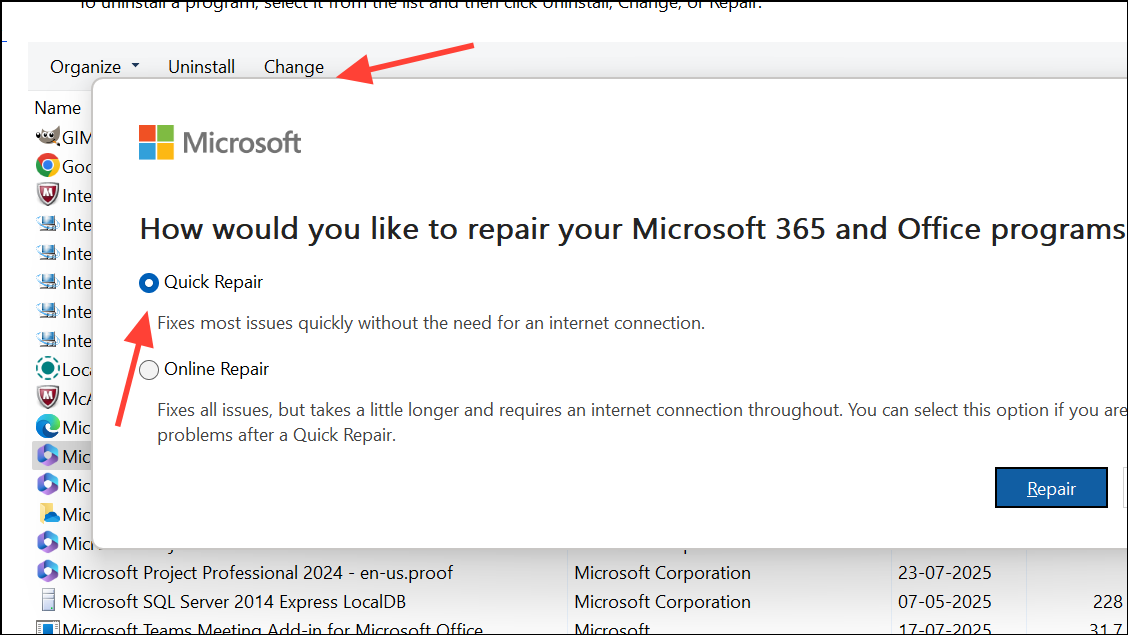
Address Signature Placement Issues in Conversation Threads
Sometimes, signatures may appear at the very end of a conversation thread instead of directly beneath your reply. This is especially common in Outlook web or after recent updates.
Additional Troubleshooting Steps
- Update Outlook to the latest version to receive bug fixes.
- Run Outlook in Safe Mode by pressing
Windows + R, typingoutlook /safe, and pressing Enter. If signatures work in Safe Mode, disable problematic add-ins viaFile>Options>Add-ins. - Reset the navigation pane by closing Outlook, pressing
Windows + R, and enteringoutlook.exe /resetnavpane. - Create a new Outlook profile via
Control Panel>Mail>Show Profiles>Add, then set up your account and test signatures. - Check for conflicting or leftover trial versions of Office and uninstall them if present.
- For signatures with images, verify that the image file is accessible and inserted directly (not linked from an external site) to avoid missing images in replies.
Consistently applying the correct message format and signature settings restores signature functionality in Outlook replies. If issues continue, escalating to Microsoft support or your IT administrator ensures more persistent technical problems are addressed.





