

PowerPoint presentations that include embedded or inserted videos frequently trigger application crashes or freezing, especially on newer systems or after recent updates. This issue can interrupt workflow, cause data loss, and make it difficult to deliver important presentations. Addressing both software and hardware factors, as well as file compatibility, is essential for restoring stability when working with media in PowerPoint.
Update PowerPoint, Windows, and Graphics Drivers
Outdated software and drivers can cause compatibility issues with video playback in PowerPoint. Keeping everything current can resolve many crash scenarios.
File menu, select Account, then click Update Options > Update Now to install the latest updates.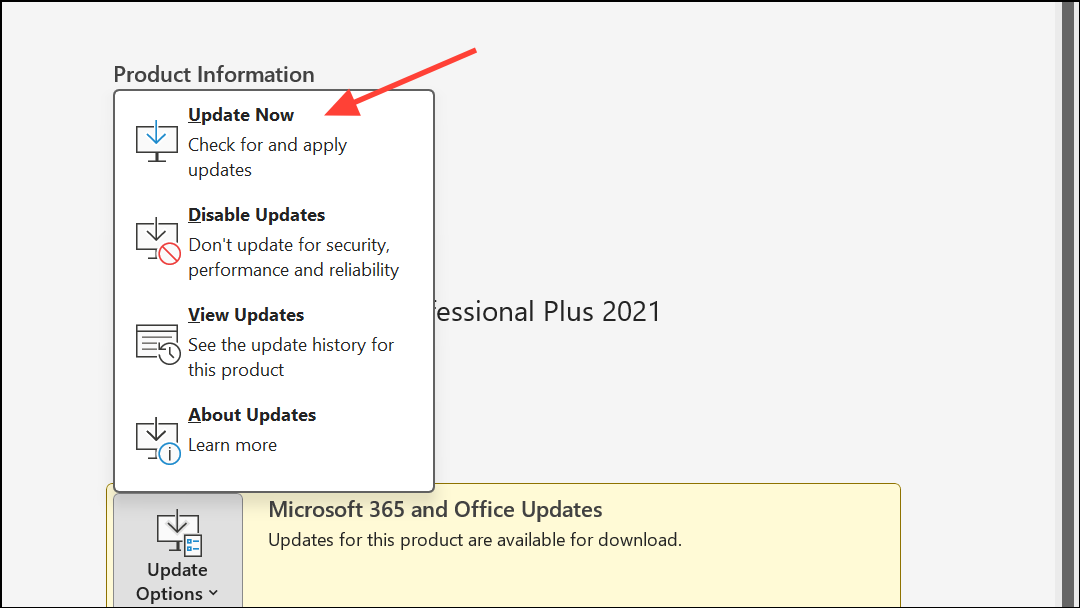
Settings > Windows Update and select Check for updates. Restart your PC after updates are installed.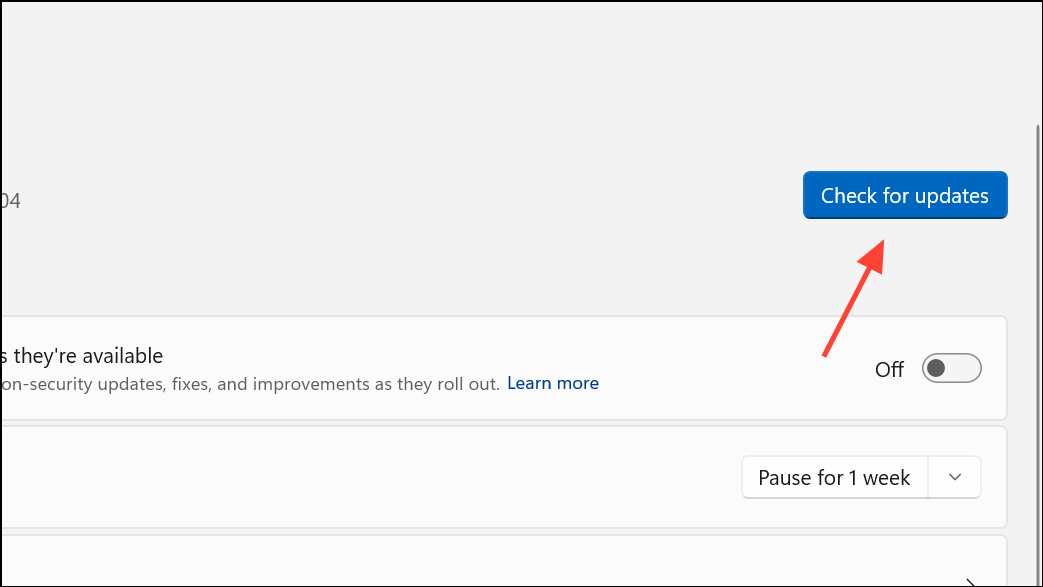
Optimize Video and Media Files Before Inserting
PowerPoint supports specific video formats and codecs. Incompatible or high-bitrate files can cause the program to freeze or close unexpectedly.
Insert > Video > This Device rather than copying and pasting. This ensures PowerPoint processes the file correctly.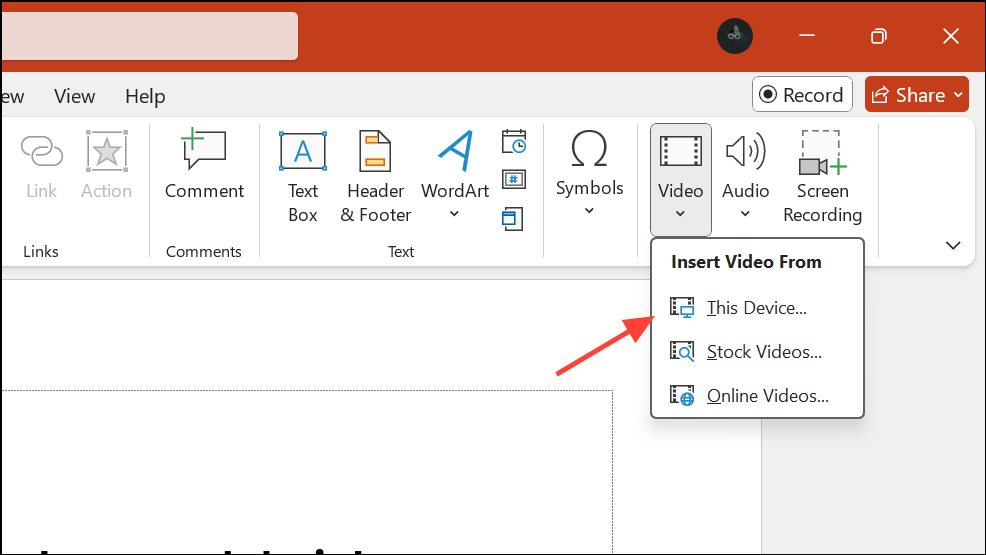
File > Info menu to check for an Optimize Compatibility button. If available, select it to address potential playback issues.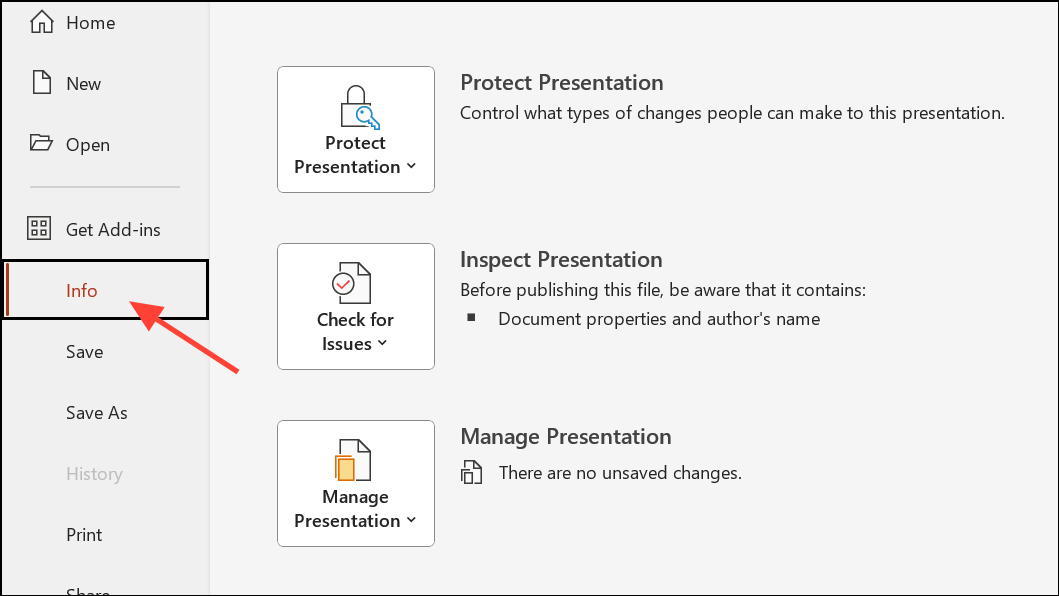
Disable Hardware Graphics Acceleration
Hardware acceleration can sometimes conflict with certain graphics drivers or Office builds, especially on systems with Intel Iris Xe or UHD graphics, resulting in PowerPoint crashes when playing or scrubbing through videos.
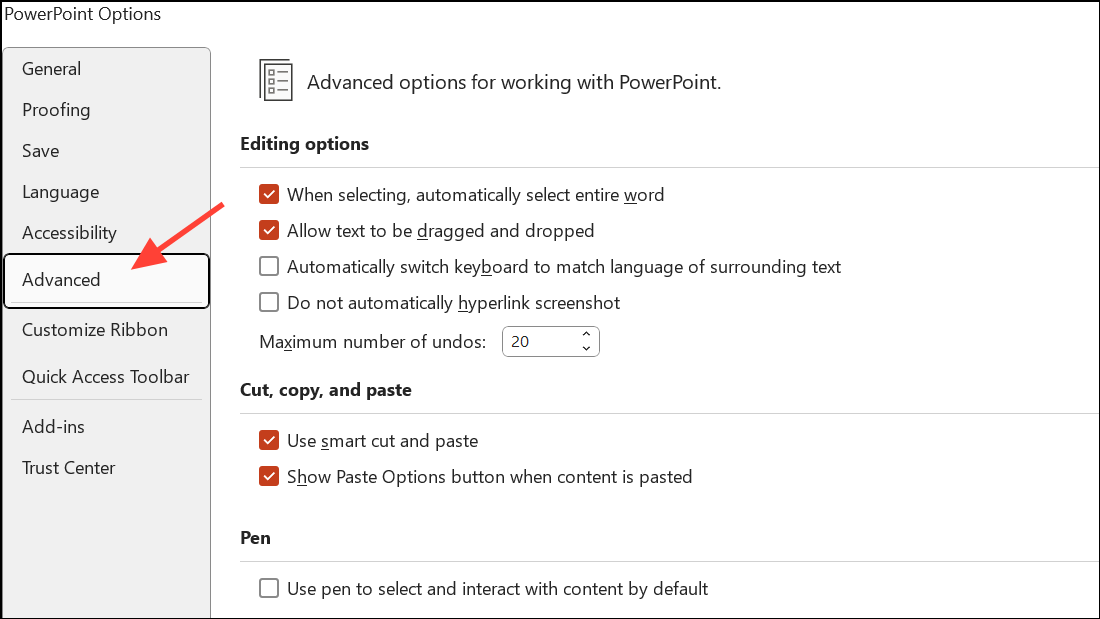
Display section and check the box for Disable hardware graphics acceleration and/or Disable Slide Show hardware graphics acceleration.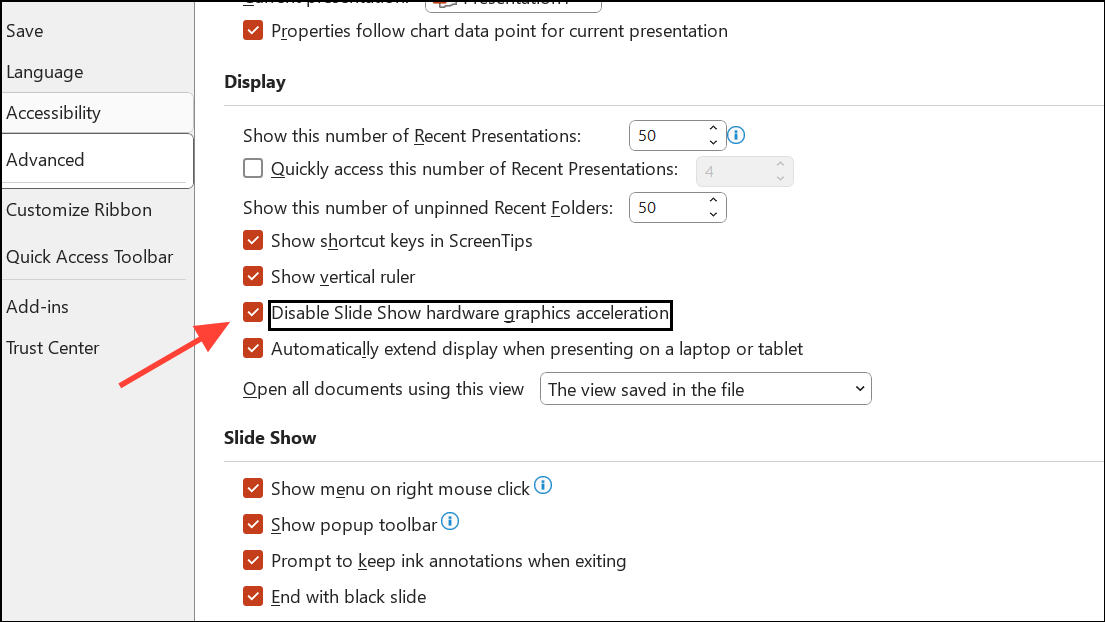
Repair Microsoft Office Installation
Corrupted Office installations can cause persistent application crashes across PowerPoint and other Office apps. Repairing the installation restores default settings and replaces damaged components.
Settings > Apps > Installed apps (or Control Panel > Programs and Features).
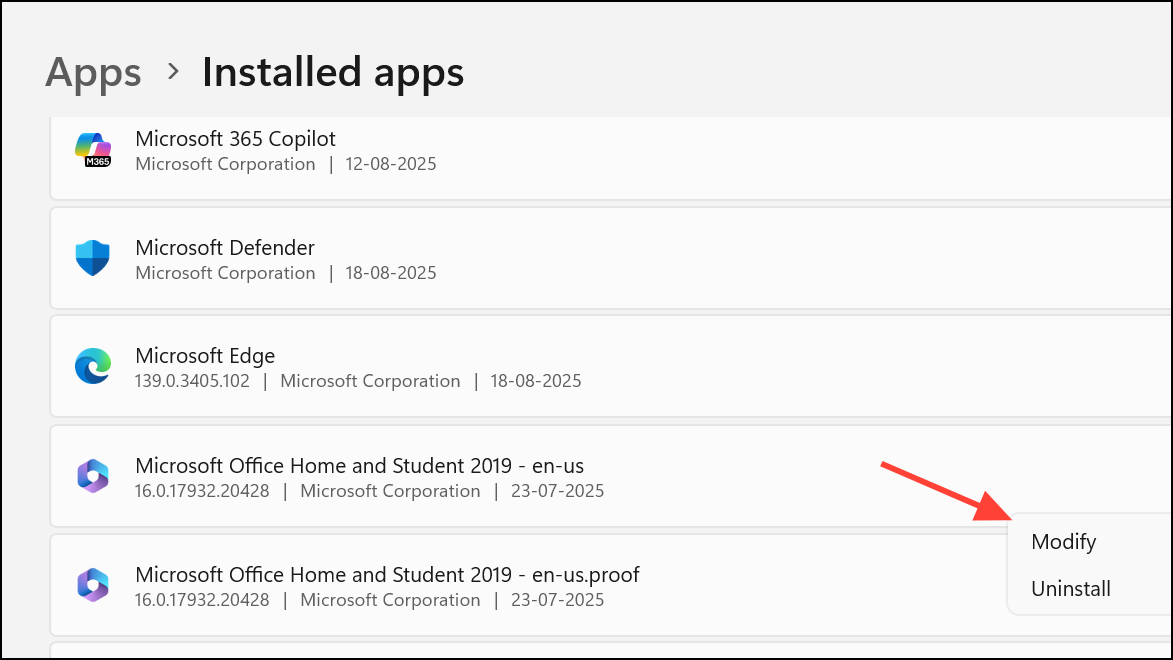
Quick Repair first. If the problem persists, repeat and select Online Repair for a more thorough fix. Restart your computer and retest PowerPoint.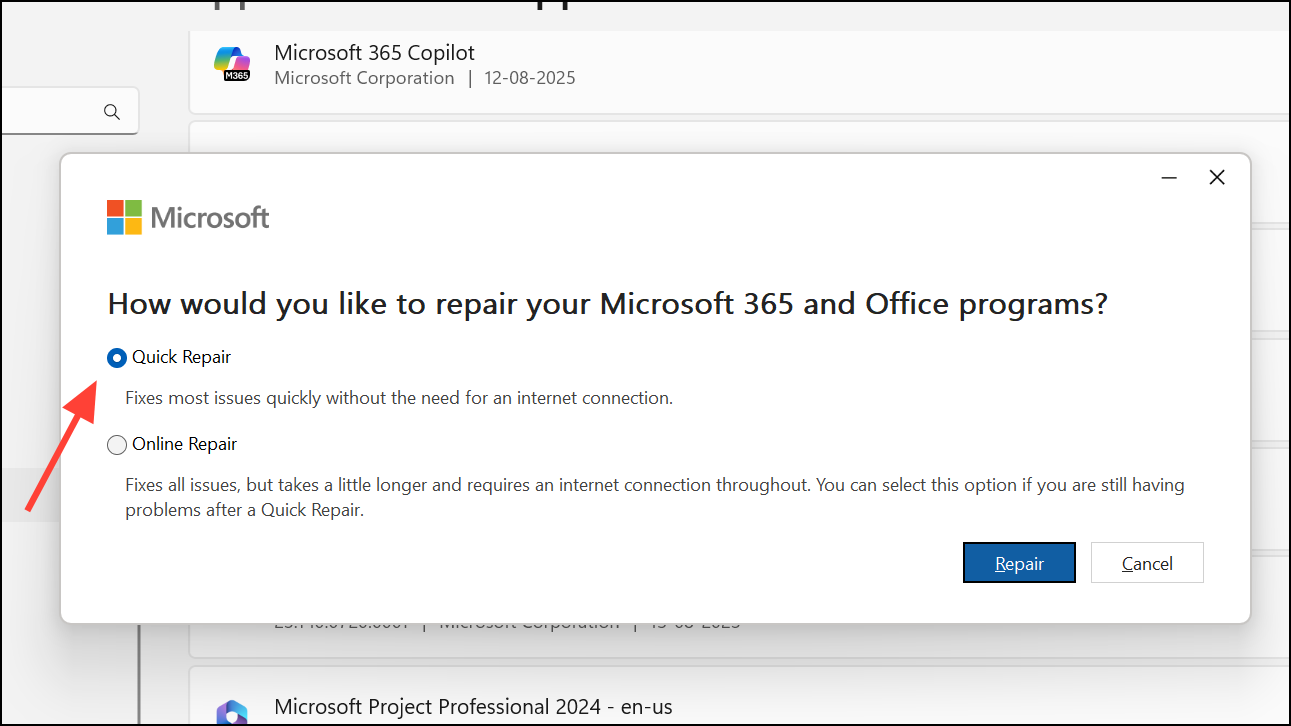
Check and Remove Problematic Add-ins
Third-party add-ins can interfere with PowerPoint’s ability to process and play embedded videos, causing crashes or freezing.
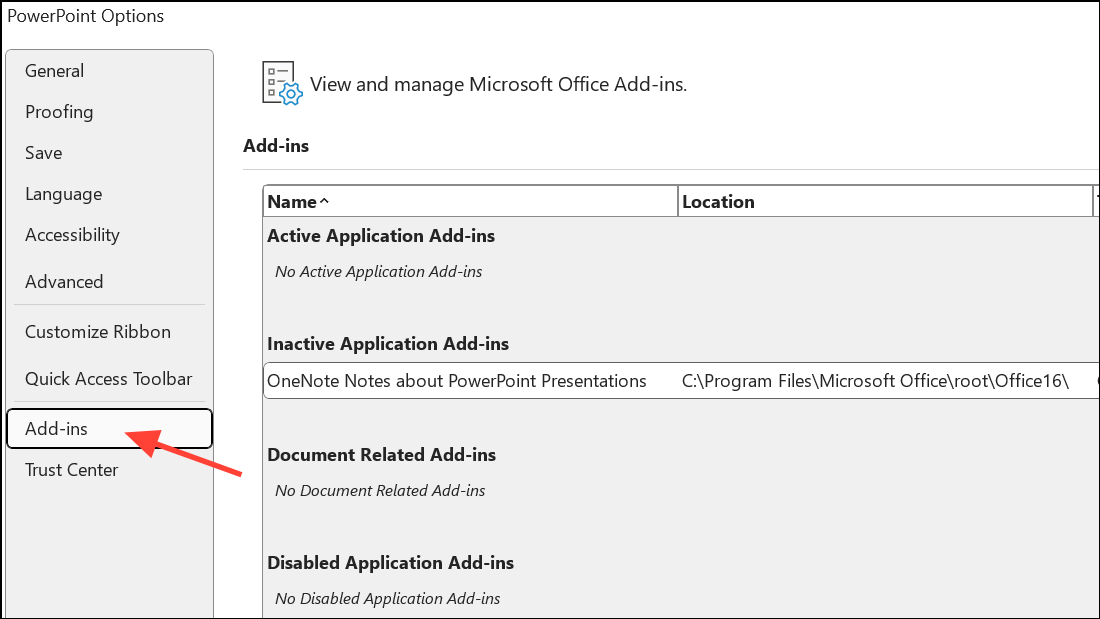
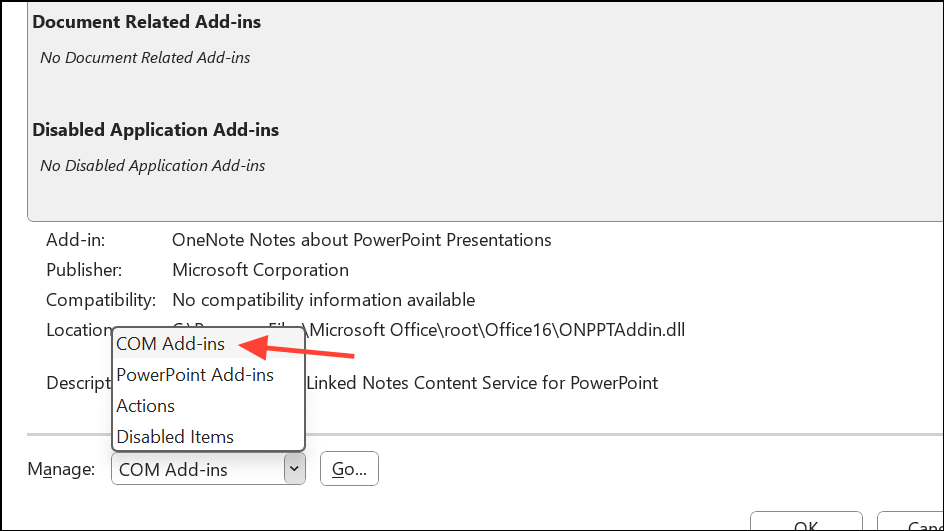
Reduce Presentation File Size and Complexity
Large presentations with many slides, high-resolution images, or lengthy videos can exceed system resource limits, causing PowerPoint to freeze or crash during media insertion or playback.
Properties to view its size. Aim to keep presentations under 10 MB when possible; files over 50 MB are more likely to cause problems.Compress Pictures feature under the Picture Format tab.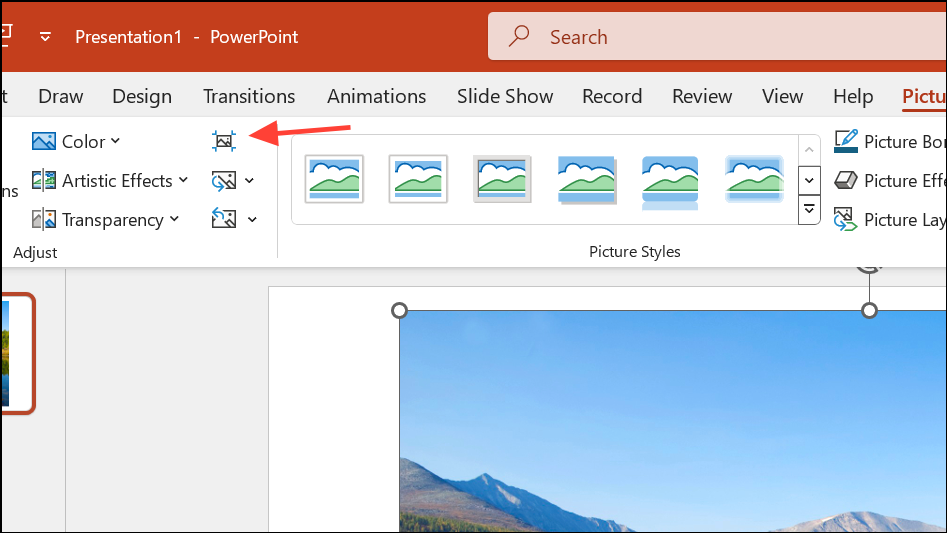
Optimize System Resources and Hardware
Running multiple applications or using outdated hardware can deplete available memory and processing power, making PowerPoint more likely to crash during video playback or insertion.
Ctrl + Alt + Del and open Task Manager. End unnecessary processes consuming significant CPU or memory.Repair Corrupted PowerPoint Files
Corrupted PowerPoint files are a common cause of repeated crashes, particularly after inserting or playing videos. Specialized repair tools can scan and fix damaged presentations, restoring access and improving application stability.
Additional Maintenance and Troubleshooting Tips
- Save your work frequently and enable AutoSave to minimize data loss in case of a crash.
- Check that antivirus software is updated and not interfering with PowerPoint. If needed, add PowerPoint to the antivirus exception list.
- If PowerPoint continues to crash, try working in Safe Mode by holding
Ctrlwhile launching the application. This disables add-ins and can help isolate the problem. - For persistent or unresolvable issues, consider reinstalling Microsoft Office or switching to a different Office build, as some users have found specific versions more stable with media playback.
- On Mac, ensure both Office and macOS are updated to the latest versions, especially if you are experiencing crashes when mirroring or extending your display.
Resolving PowerPoint crashes when inserting or playing videos often requires a combination of file optimization, software updates, and hardware adjustments. Applying these strategies will help you create and present media-rich slideshows without interruptions.





