
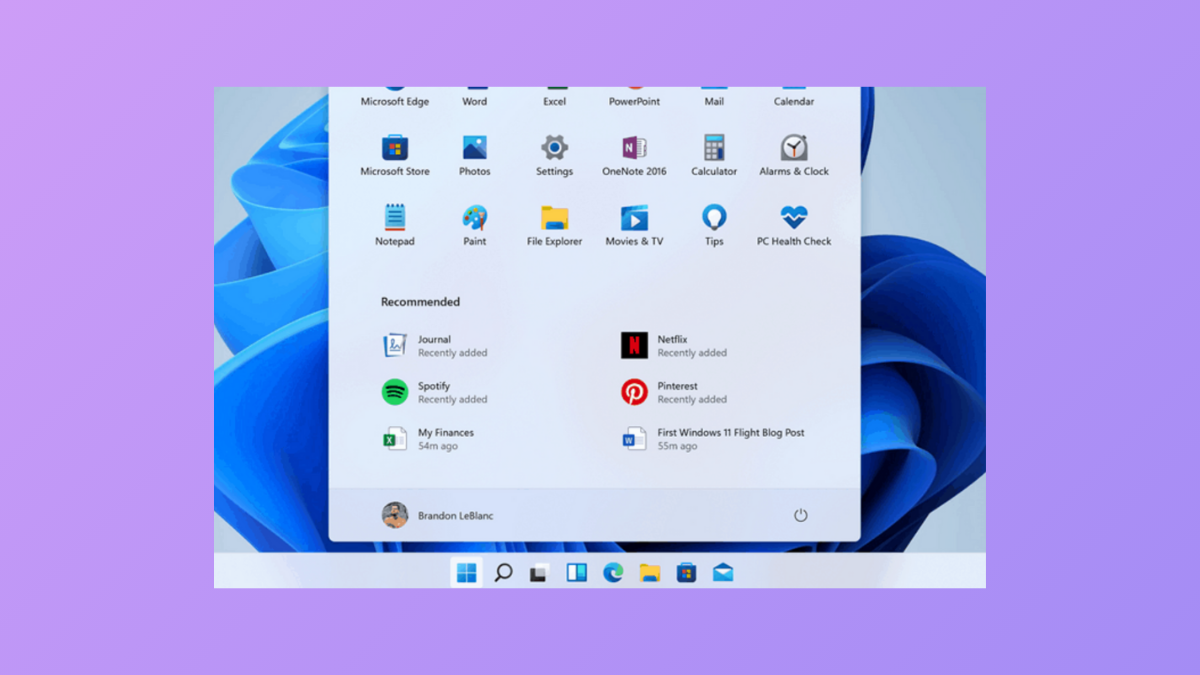
Fullscreen and maximized applications sometimes cover the Windows 11 taskbar or cause it to disappear entirely, especially after switching between multiple monitors or using third-party utilities. This can block access to taskbar shortcuts and system notifications, slowing down your workflow. The following methods address the most reliable fixes for this problem, with detailed instructions and practical context for each solution.
Restart Windows Explorer to Restore Taskbar Visibility
Restarting Windows Explorer resets the user interface components responsible for the taskbar, often restoring its proper position above application windows. This is the most effective solution for cases where the taskbar is hidden or stuck behind apps.
Ctrl + Shift + Esc to open Task Manager. If Task Manager opens in simplified mode, click “More details” at the bottom to expand it.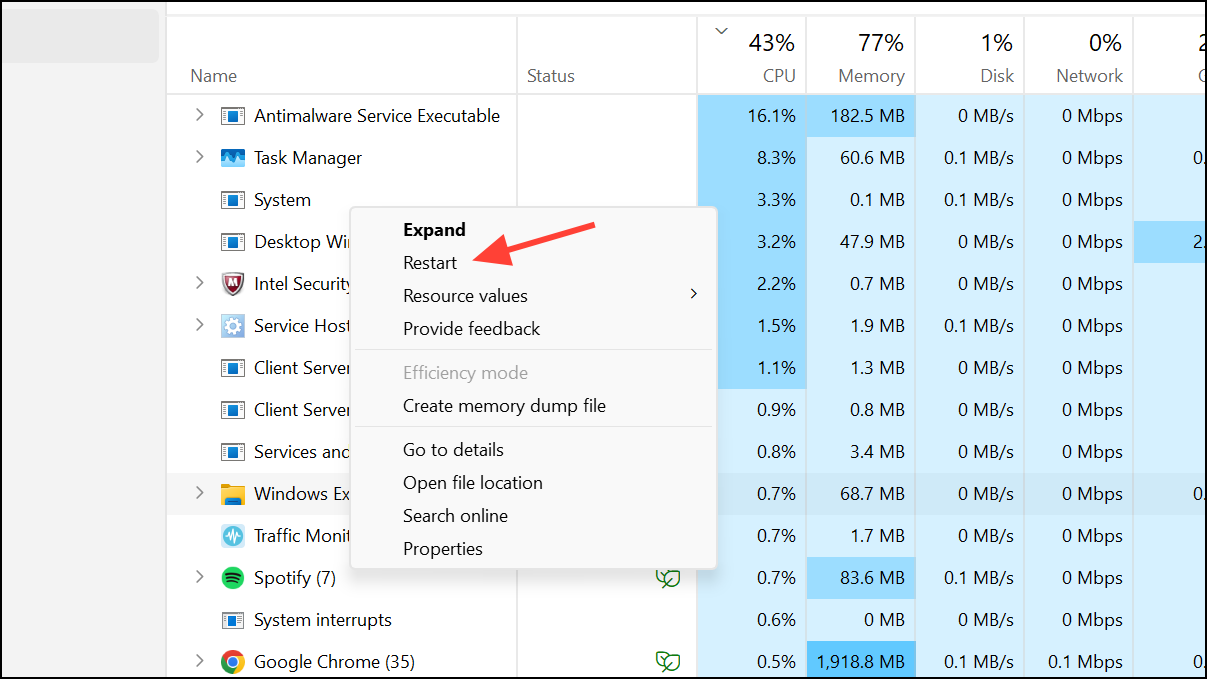
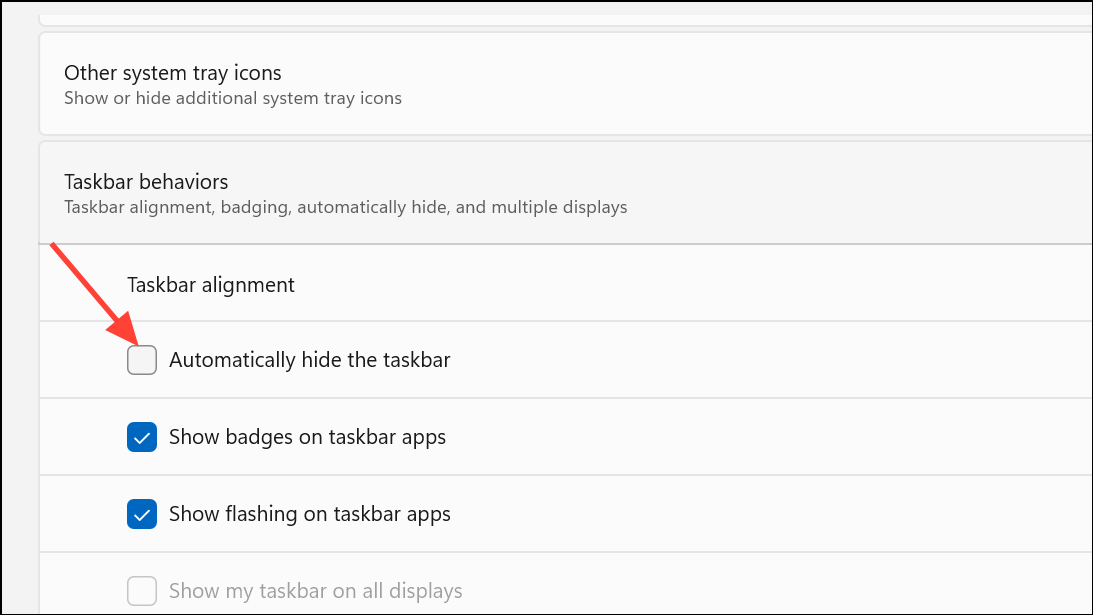
Check Taskbar Auto-Hide and Behavior Settings
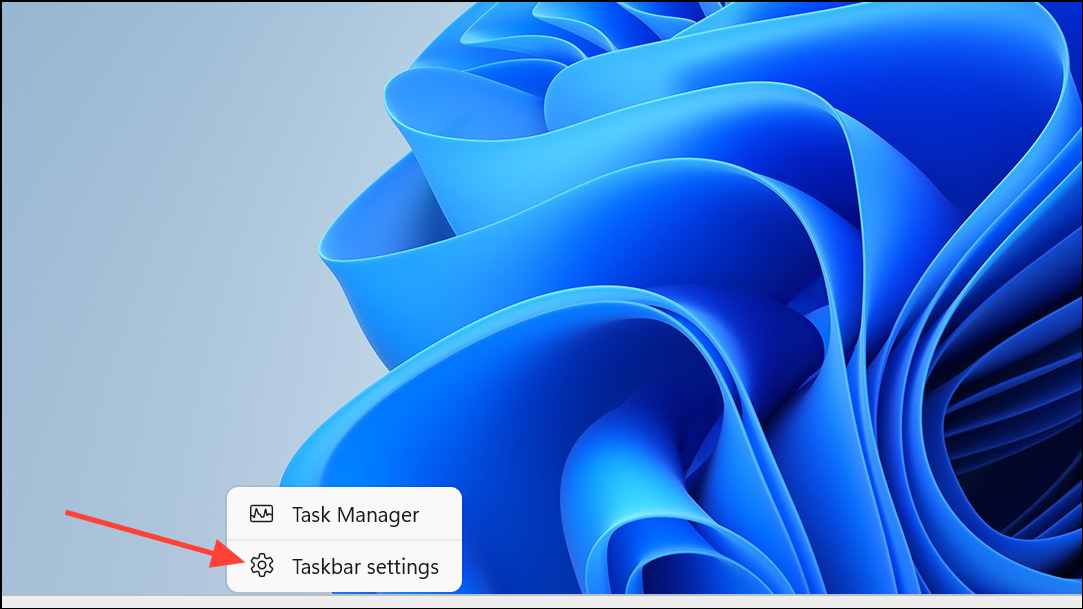
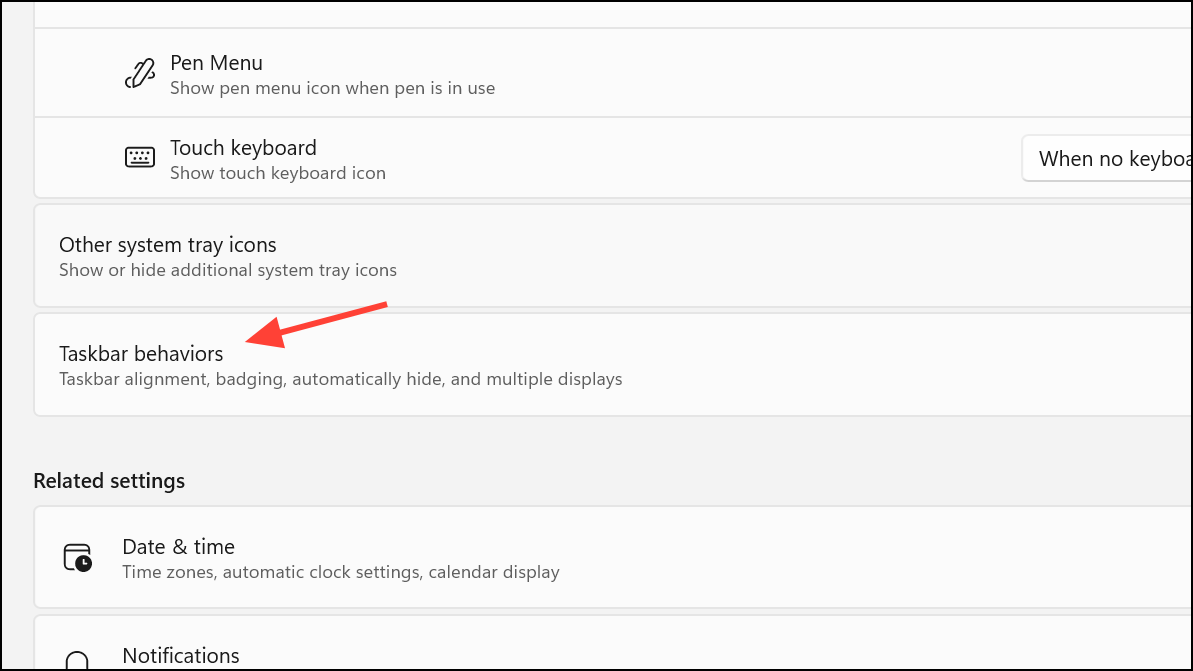
Incorrect taskbar settings can cause it to hide or appear behind applications. Adjusting these settings ensures the taskbar remains accessible when needed.
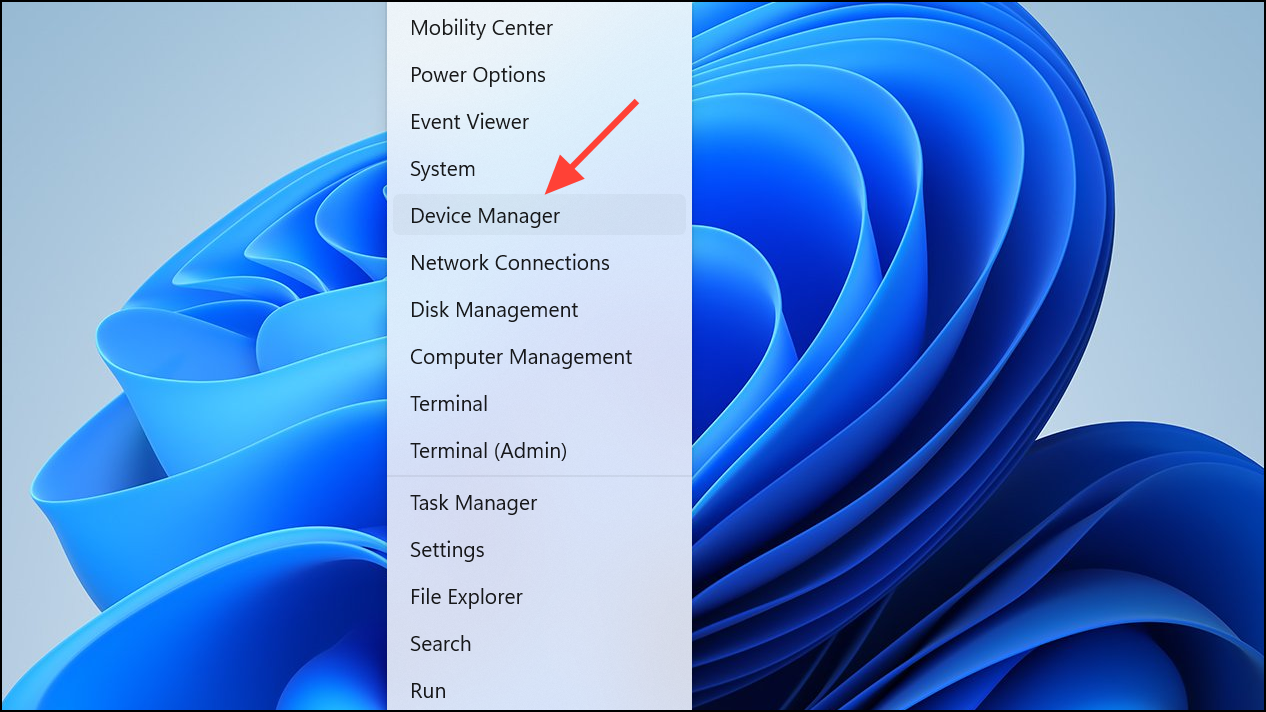
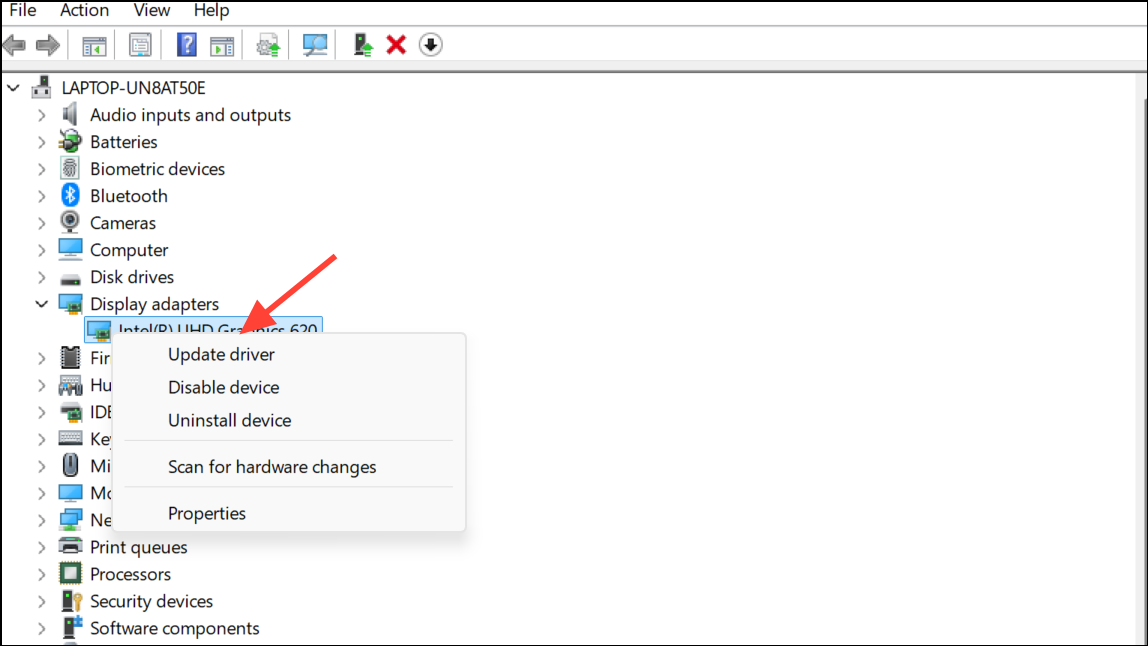
Update Graphics Drivers and Address Third-Party Utility Conflicts
Outdated graphics drivers or third-party software (such as DisplayFusion or Nvidia GeForce Experience) can interfere with taskbar rendering and monitor layouts, especially on multi-monitor setups.
Clear App Notifications and Restart Problematic Applications
Taskbar visibility problems can sometimes be triggered by pending application notifications, which prevent the taskbar from hiding or reappearing correctly.
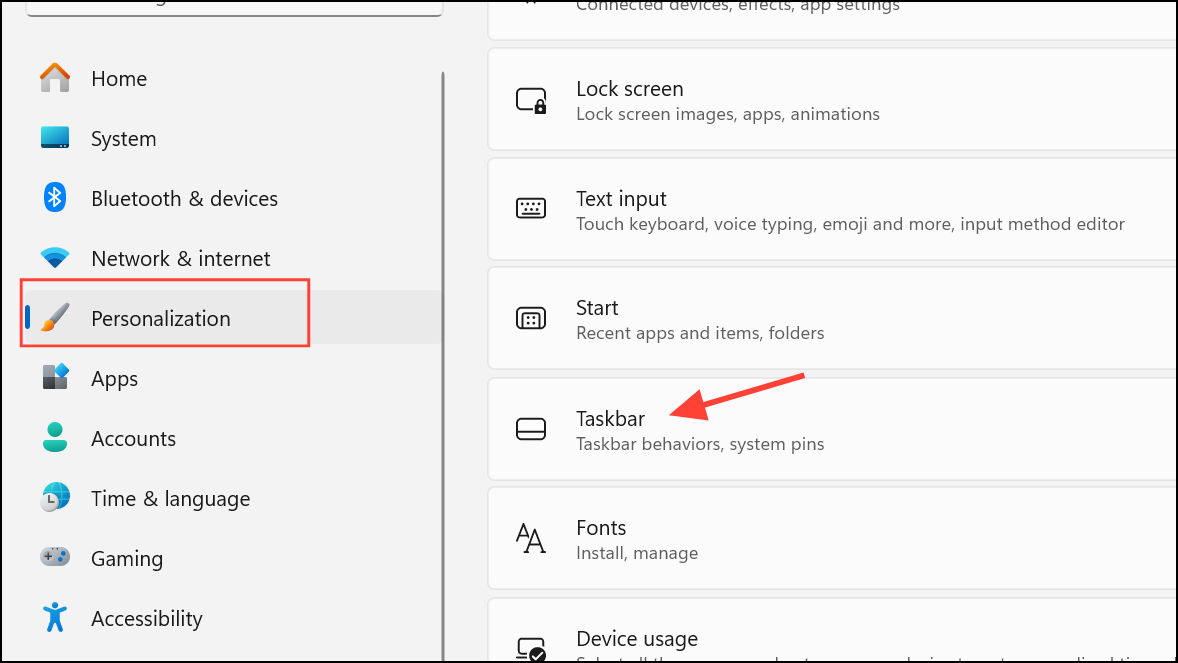
Reset Taskbar Settings to Default
Resetting the taskbar configuration can resolve persistent issues caused by corrupted or misconfigured settings.
Run System File Checker to Repair Corrupted Files
System file corruption can disrupt taskbar functionality, especially after system updates or unexpected shutdowns. The System File Checker tool scans and repairs these files.
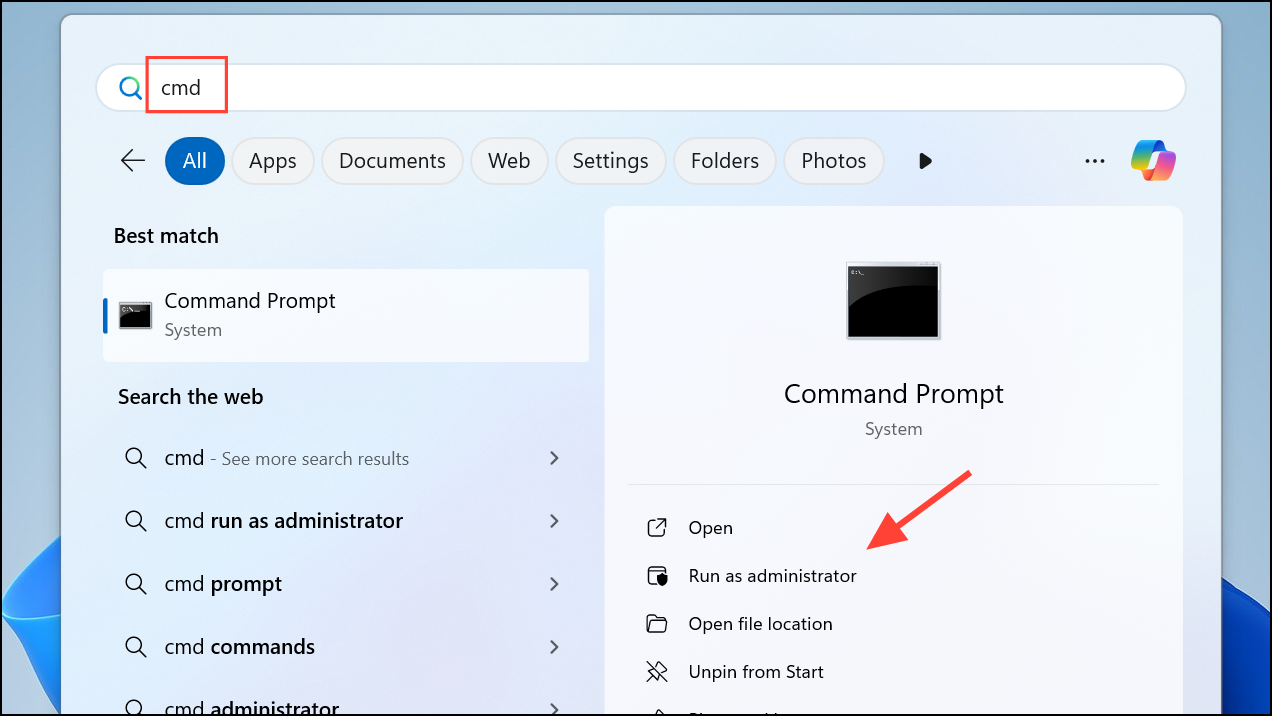
sfc /scannow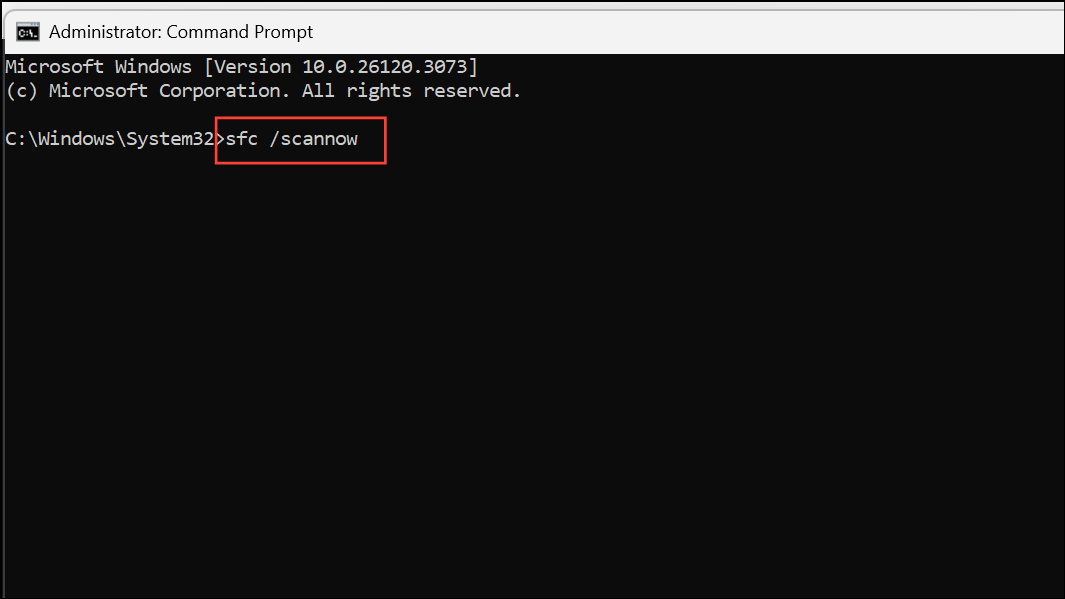
Advanced: Manually Restart Explorer When Taskbar Is Missing
On rare occasions, especially with multi-monitor setups and after docking or undocking a laptop, the taskbar may disappear or remain hidden even after restarting Explorer from the standard Task Manager view. In this case, a more direct approach is required.
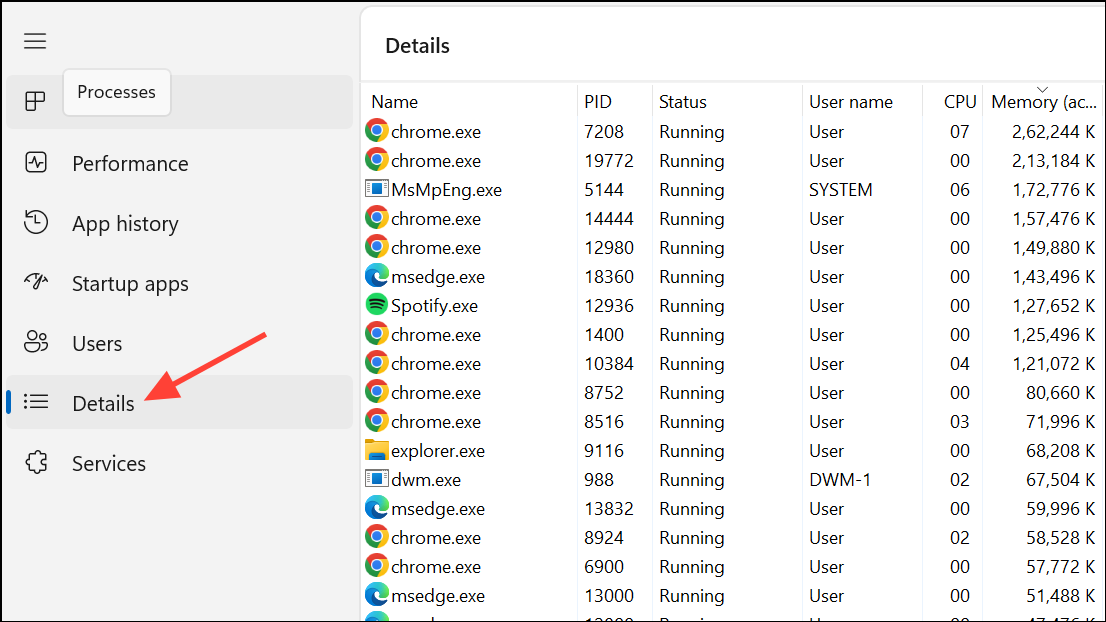
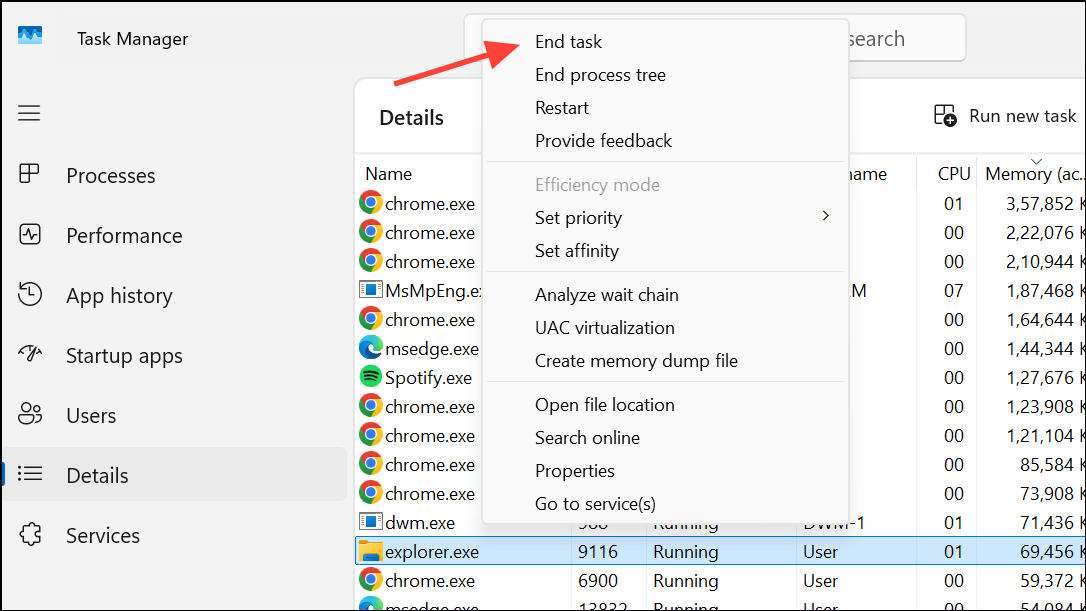
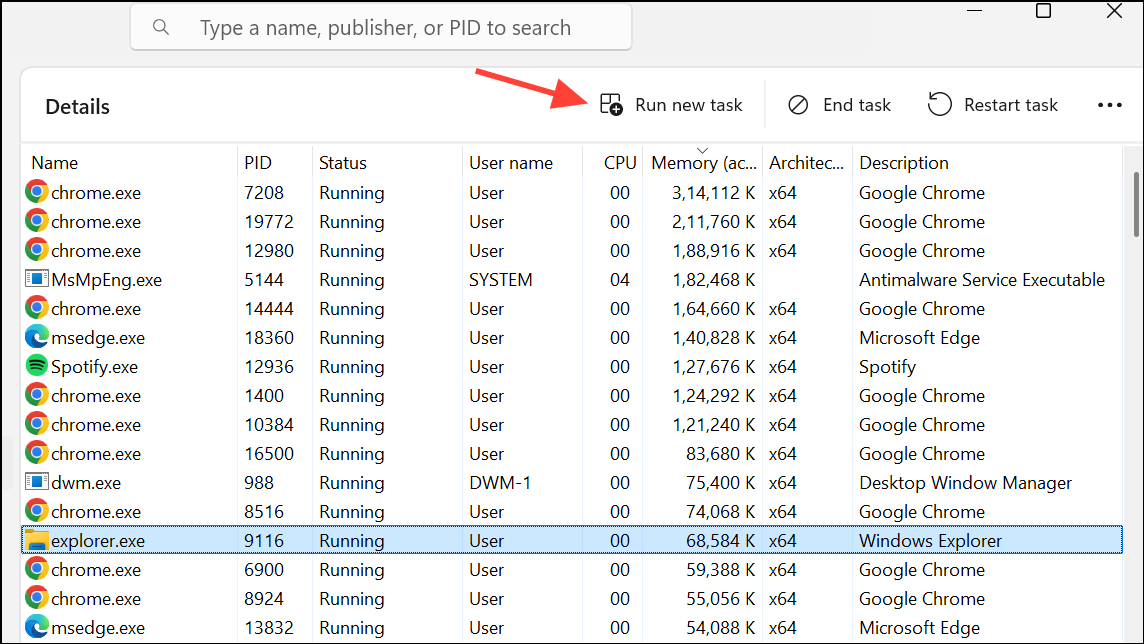
This method can restore the taskbar in situations where it does not reappear using typical restart steps.
Applying these targeted fixes restores the taskbar’s correct behavior in Windows 11, letting you quickly regain access to system shortcuts and notifications. If issues persist, keep your system and related utilities updated, and consider reporting recurring bugs to Microsoft or relevant software vendors.



