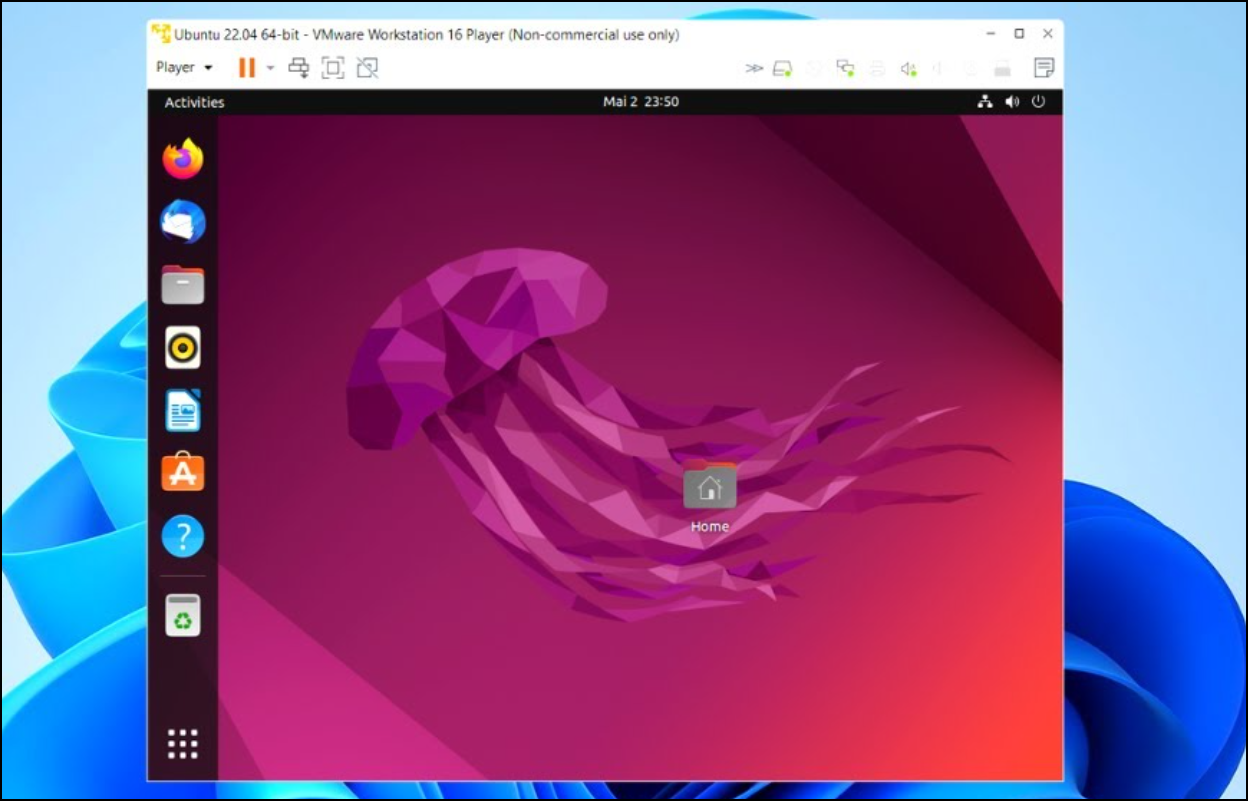
Slow terminal performance, especially when using tools like tmux on Ubuntu 22.04 within VMware, commonly results from specific system settings or configurations. Delays in key input, lagging cursor movements, or slow screen refreshes significantly reduce productivity and workflow efficiency. Fortunately, several straightforward adjustments can quickly restore smooth, responsive terminal behavior.
Method 1: Disable Hardware Acceleration in VMware
1Shut down your Ubuntu virtual machine completely. It’s essential to power off the VM to modify its hardware settings.
2Launch VMware Workstation or VMware Player and select your Ubuntu 22.04 virtual machine from the list. Click on “Edit virtual machine settings.”
3Under the “Hardware” tab, select “Display.” Locate the option labeled “Accelerate 3D graphics” and uncheck this box. Disabling hardware acceleration reduces graphical overhead, significantly speeding up terminal responsiveness inside the VM.
4Click “OK” to save your changes, then restart your Ubuntu VM. Once booted, open your terminal and tmux session again. You should notice markedly smoother and quicker interactions.
1In VMware Workstation or Player, select your Ubuntu VM and open “Edit virtual machine settings.”
2Navigate to the “Options” tab and then click on “Advanced.”
3Locate the “Keyboard” section and set the option “Optimize for games” to “Always.” This setting ensures that keyboard inputs are immediately passed to the VM, reducing latency and improving terminal responsiveness.
4Click “OK,” and restart your Ubuntu virtual machine. Open your terminal and tmux session to test the improved responsiveness.
Method 3: Adjust tmux Configuration to Reduce Lag
1Open your tmux configuration file located at ~/.tmux.conf using your preferred text editor. For example:
nano ~/.tmux.conf
2Add or modify the following line to reduce tmux’s internal delay settings:
set-option -sg escape-time 0
This configuration removes the escape-time delay, making tmux responses instantaneous and noticeably improving overall terminal speed.
3Save your changes and reload the tmux configuration by running:
tmux source-file ~/.tmux.conf
Your terminal should now feel more responsive when navigating or entering commands within tmux.
Method 4: Disable Visual Effects in Ubuntu
1Open the “Settings” application on your Ubuntu desktop.
2Navigate to “Accessibility” and select “Visual Effects.”
3Set animations and visual effects to “Off.” Disabling these effects reduces graphical processing demands, leading to a snappier terminal experience, especially in resource-constrained virtual environments.
4Close the settings application and test your terminal performance again by opening a new terminal window or tmux session.
- Ensure your virtual machine has adequate resources allocated, such as sufficient RAM (at least 4GB recommended) and CPU cores (at least 2 cores recommended).
- Regularly update both your Ubuntu installation and VMware software to benefit from performance improvements and bug fixes.
- Consider using a lightweight desktop environment like XFCE or LXDE if persistent performance issues continue.
By following the methods described above, you can quickly resolve slow terminal and tmux performance issues in Ubuntu 22.04 running within VMware. With these adjustments, your terminal interactions will feel smoother, faster, and more responsive, greatly improving your workflow.