

Outlook displays the error message This file cannot be previewed because there is no previewer installed for it when attempting to preview attachments such as PDFs, Word, or Excel documents. This issue disrupts workflow efficiency, especially when you need to view attachments quickly without downloading them. The root causes typically include conflicts with Microsoft PowerToys, mismatched application “bitness,” missing preview handlers, or incorrect Trust Center settings in Outlook. Here’s how to systematically resolve this error on Windows 11 systems.
Method 1: Disable PDF Previewer in Microsoft PowerToys
Microsoft PowerToys includes a PDF preview feature that can override Outlook’s default PDF preview handler, leading to the missing previewer error. Disabling this setting restores normal preview functionality.
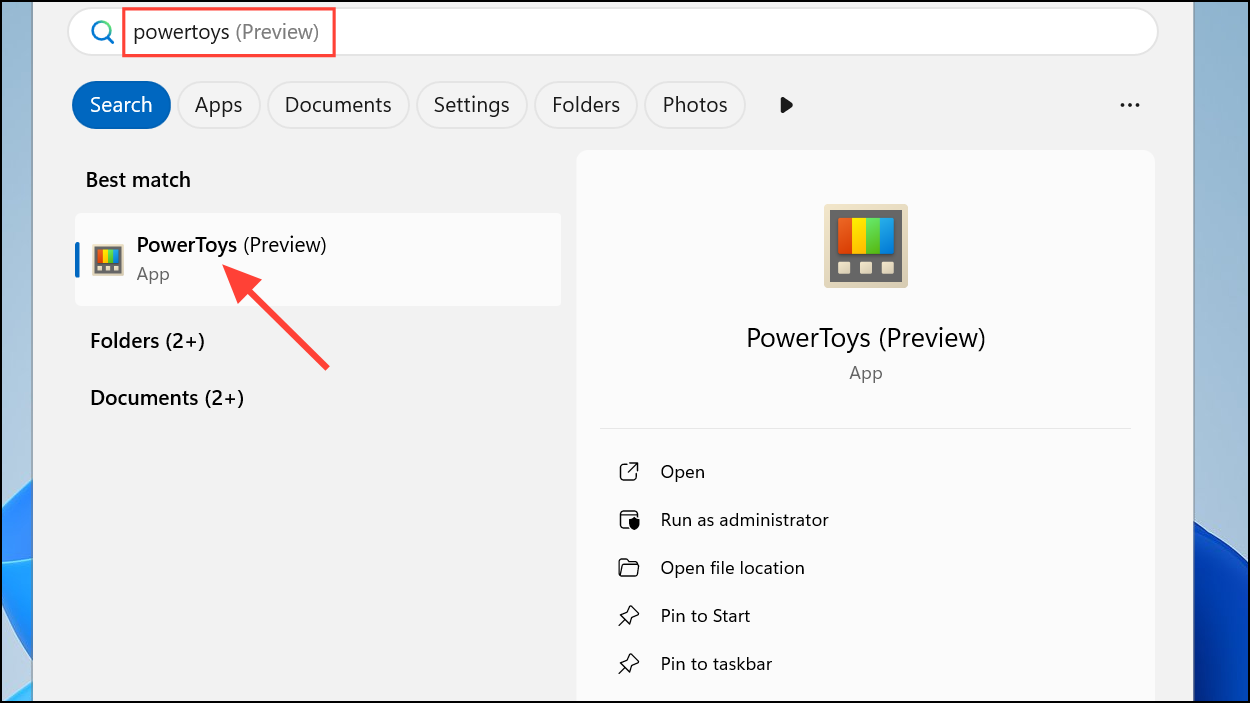
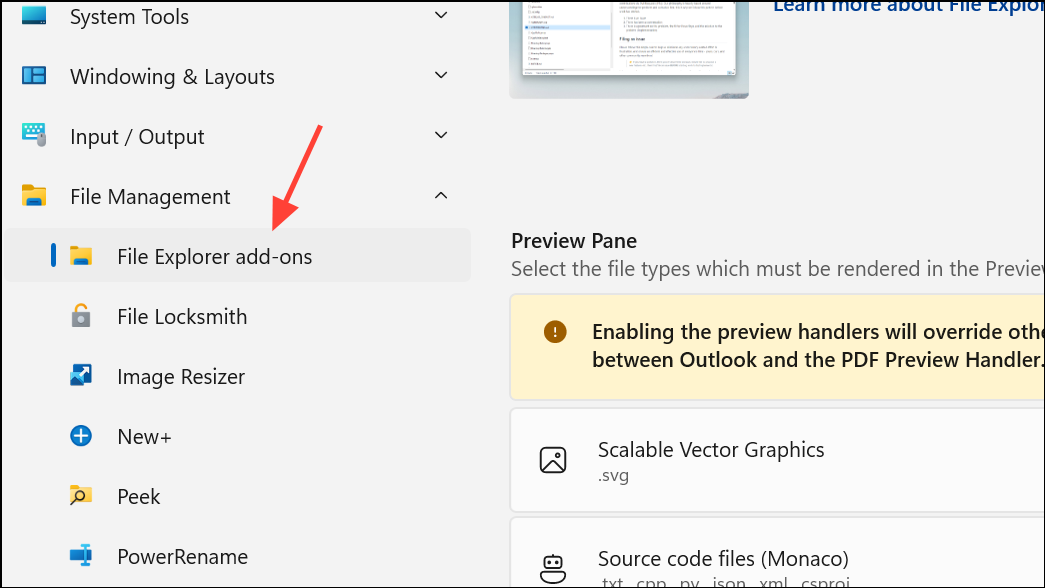
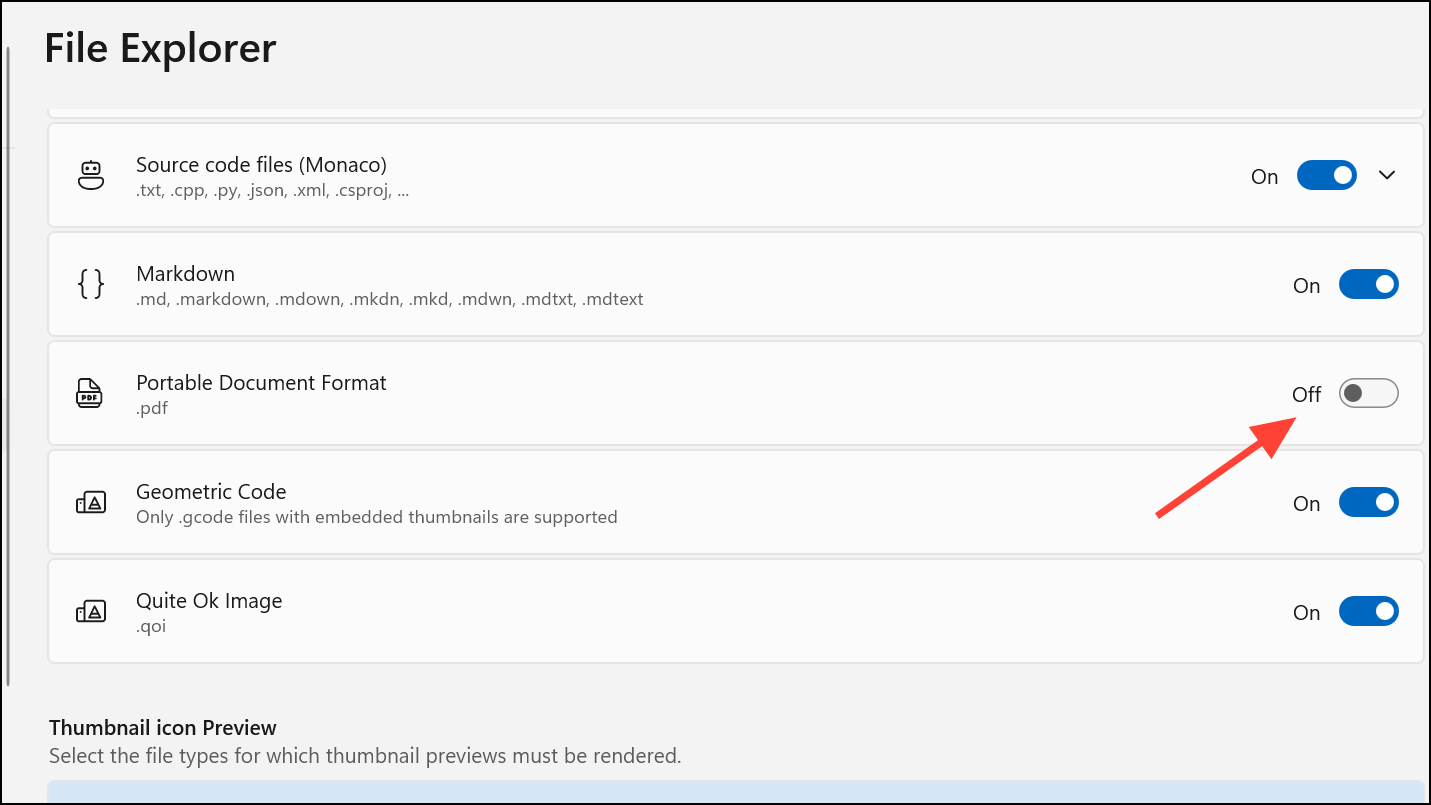
This step corrects conflicts where PowerToys’ PDF handler blocks Outlook from using the installed PDF previewer, restoring the ability to preview PDF attachments directly within Outlook.
Method 2: Match Application Bitness (32-bit vs. 64-bit)
Outlook and PDF viewers like Adobe Acrobat Reader must match in “bitness” (32-bit or 64-bit) for previewing to work. If the versions differ, Outlook cannot load the correct preview handler, resulting in the error.
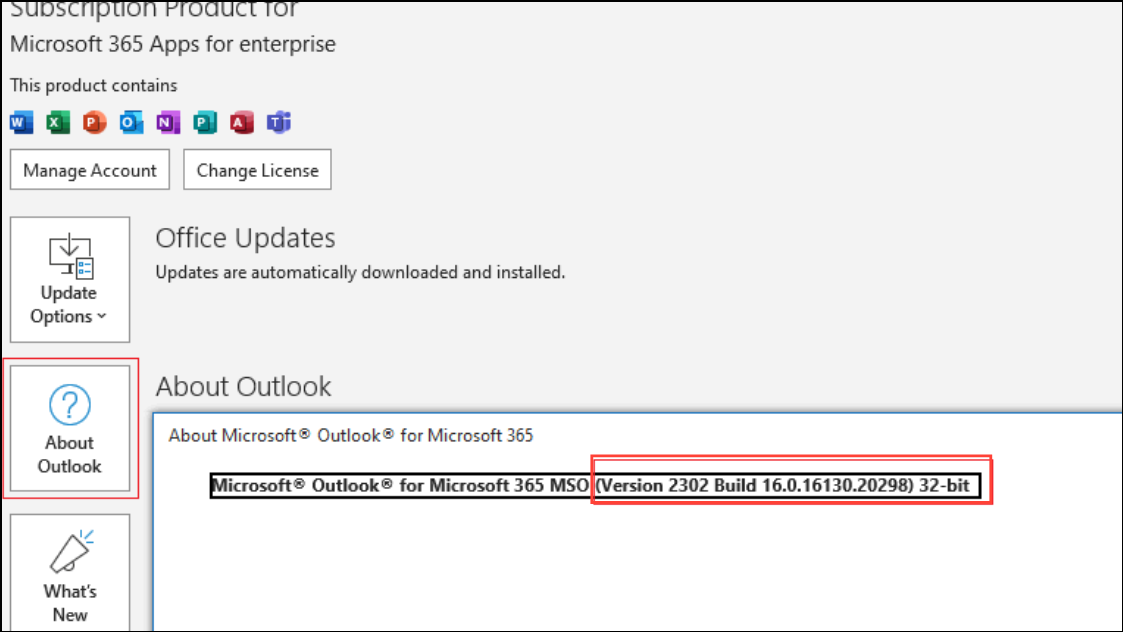
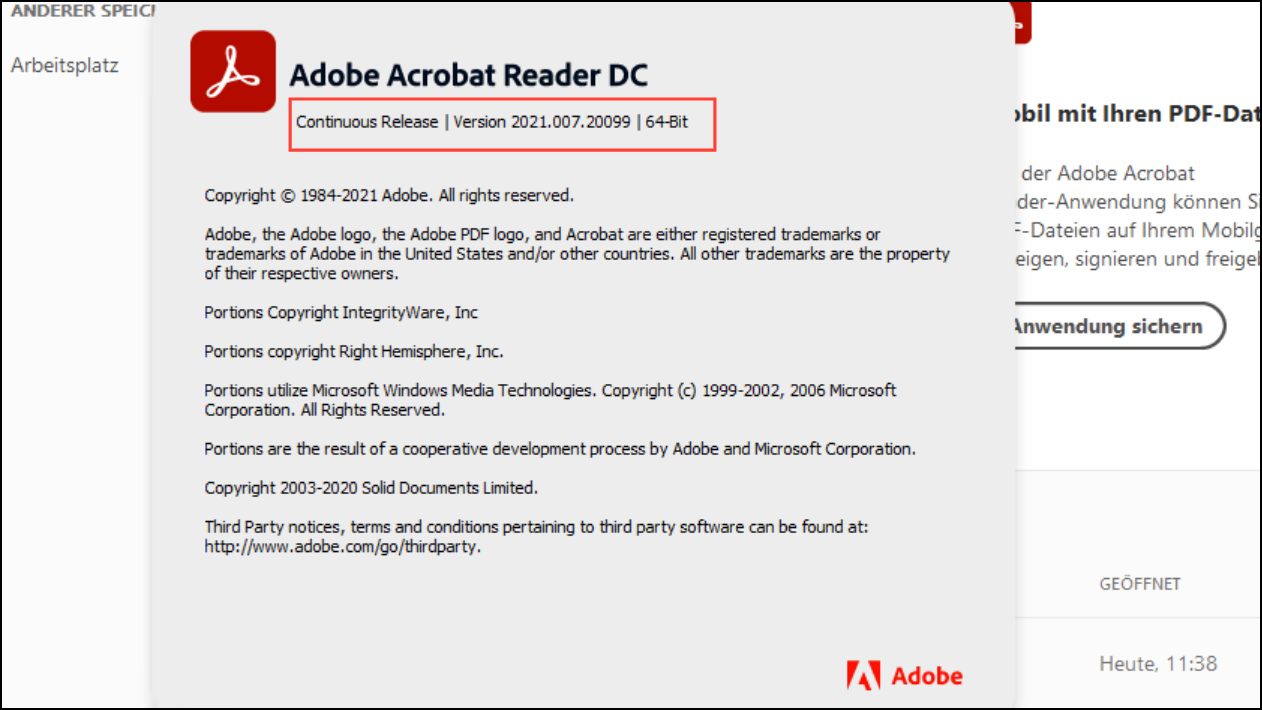
Ensuring both applications run under the same architecture allows Outlook to load the preview handler correctly.
Method 3: Verify and Enable Attachment Previewers in Outlook Trust Center
Incorrect Trust Center settings can disable previewers for specific file types. Adjusting these options re-enables file previews for Word, Excel, PDF, and other supported formats.
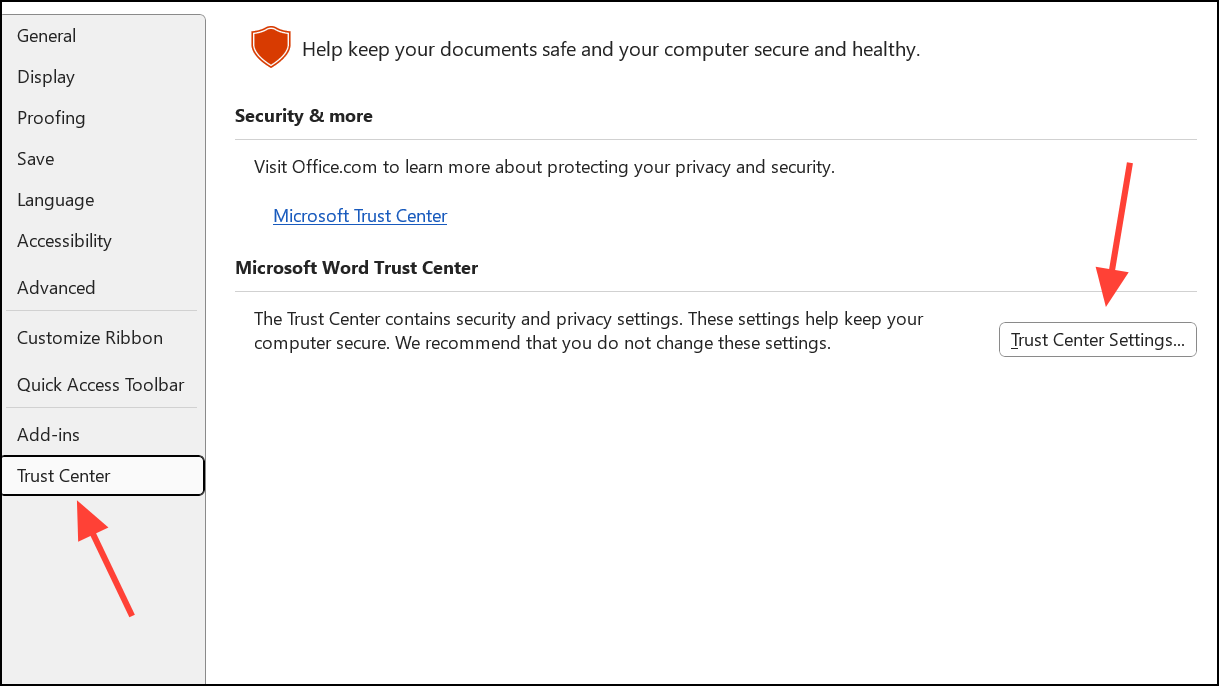
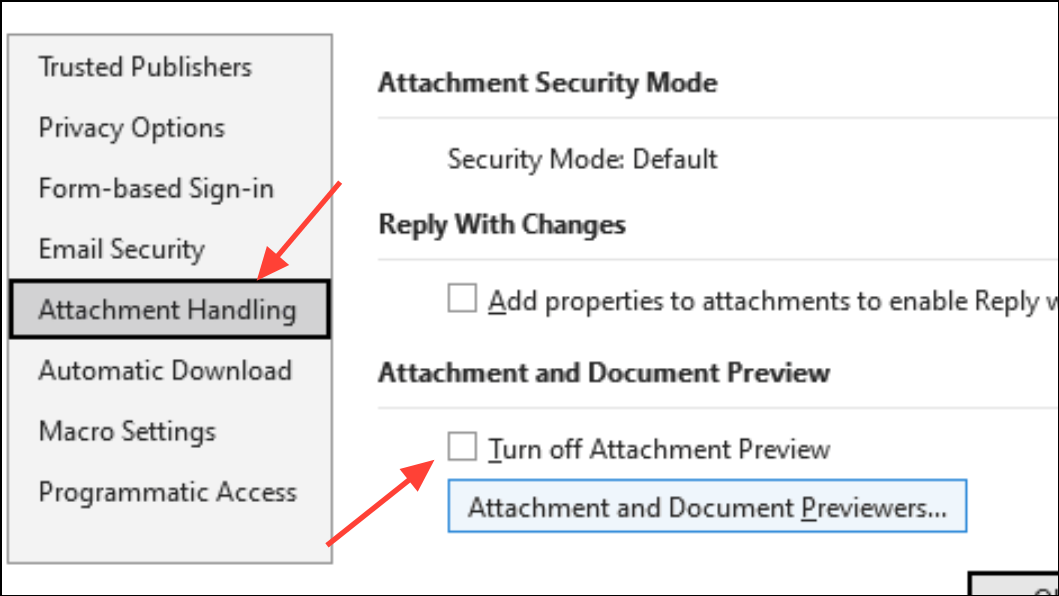
This step restores preview capabilities for all supported file types if they were previously disabled.
Method 4: Set the Default PDF Viewer and Enable Explorer Previews
Windows 11 requires a registered preview handler for PDF files. Setting Adobe Acrobat Reader (or another supported PDF viewer) as the default and enabling its preview options ensures compatibility.
.pdf and set your preferred PDF viewer (such as Adobe Acrobat Reader) as the default.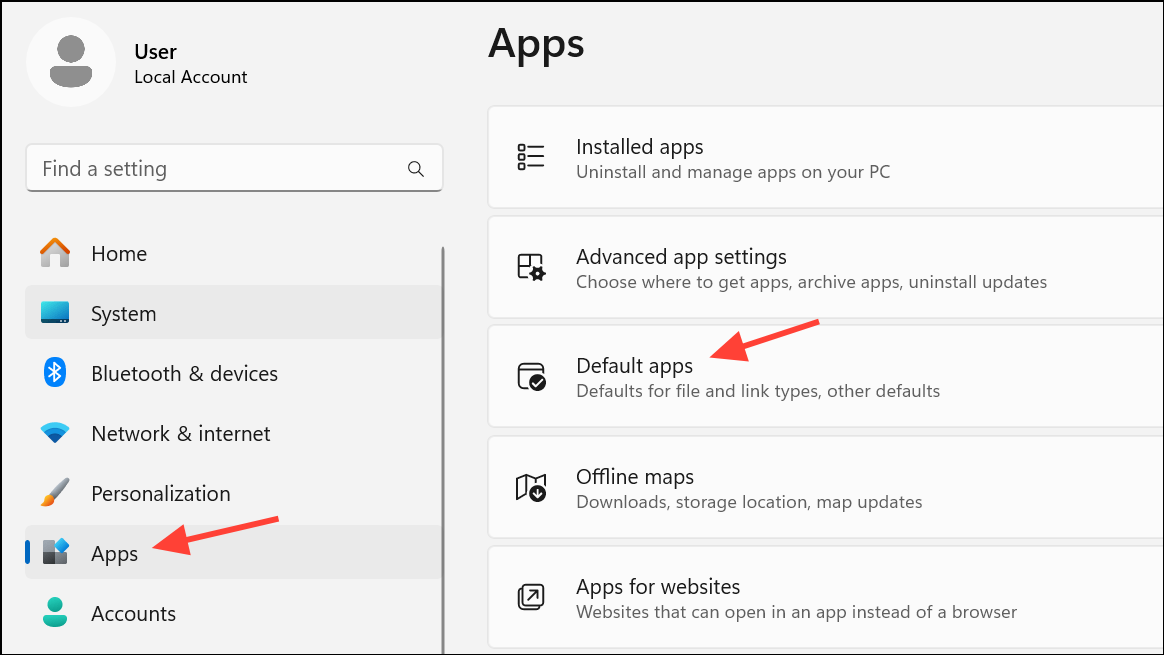
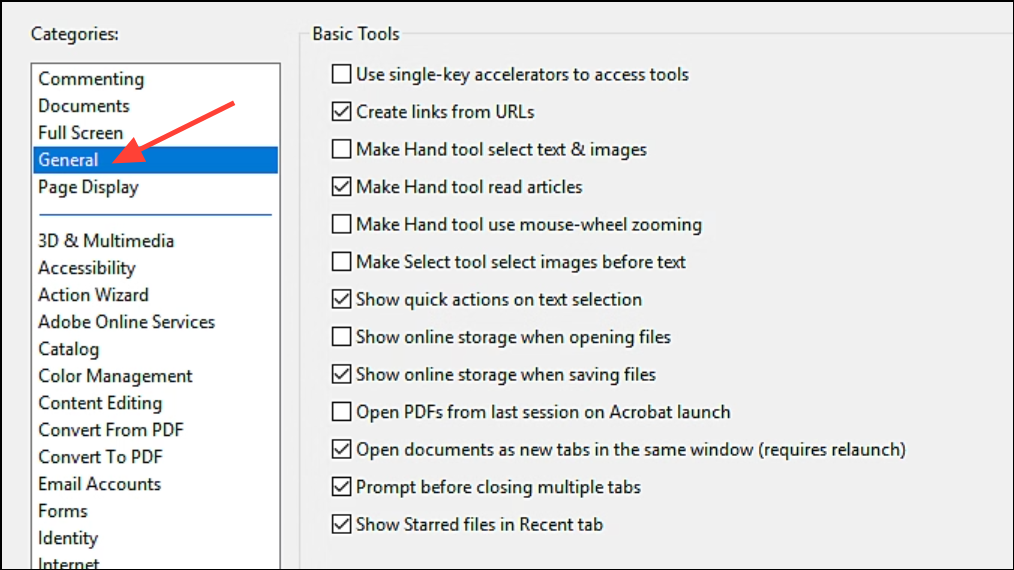
These steps register the PDF preview handler system-wide, making it available for Outlook and File Explorer.
Method 5: Repair Outlook or Office Installation
Corrupted program files or registry entries can prevent preview handlers from loading. Repairing your Office installation reinstalls missing components and corrects registry issues.
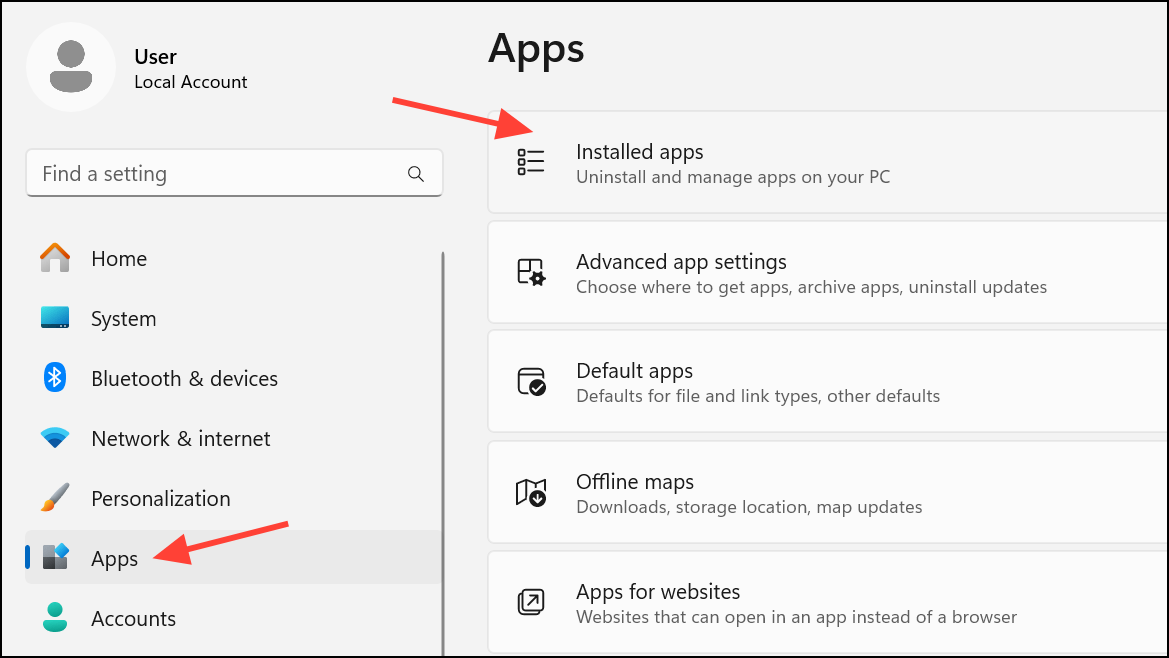
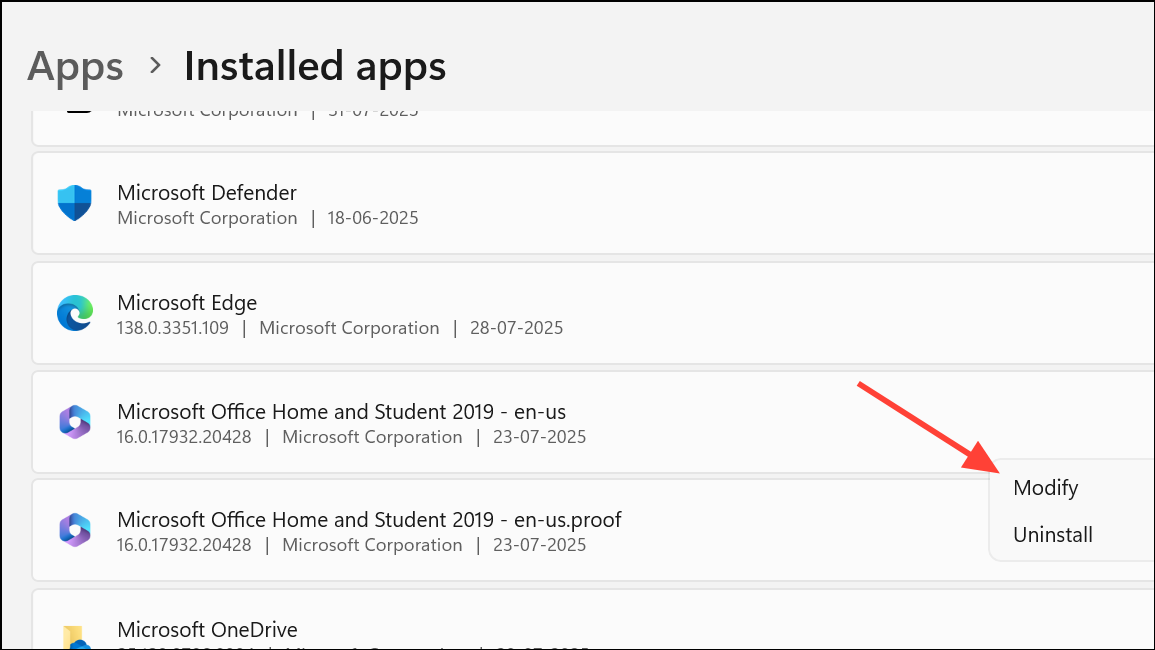
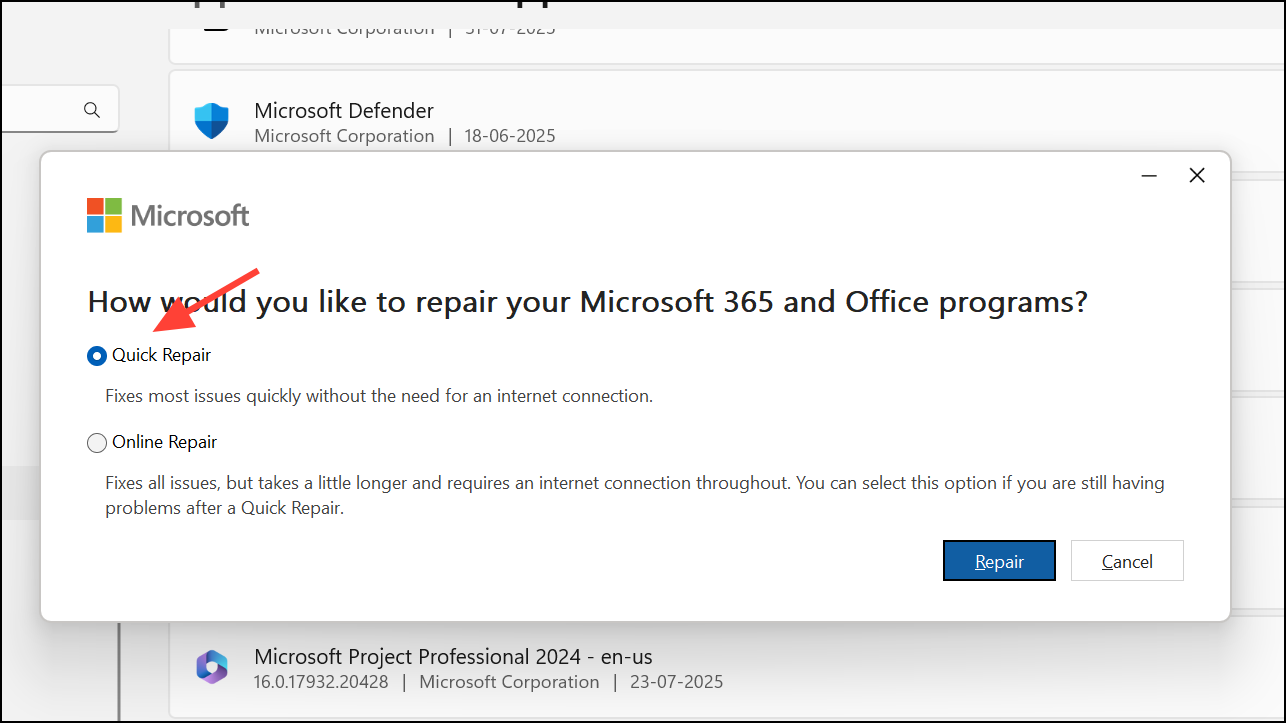
This process restores all Office components, including preview handlers.
Method 6: Additional Troubleshooting Steps
- Check for multiple PDF viewers. Uninstall unused or conflicting PDF applications.
- Update Windows 11 and all Office applications to the latest versions.
- Clear Outlook’s temporary files by closing Outlook, pressing
Windows + R, typing%localappdata%\Microsoft\Windows\INetCache\Content.Outlook, and deleting all files in the folder (do not delete the folder itself). - For advanced users, verify preview handler registry keys based on your system’s bitness. Incorrect or missing registry entries can block preview functionality.
Resolving the missing previewer error in Outlook on Windows 11 typically involves correcting PowerToys settings, matching application bitness, and verifying Trust Center configurations. These steps restore reliable file previews for attachments, streamlining your daily workflow.





