
Windows 11 systems updated to version 24H2 may display a persistent “Activate Windows” watermark, refuse to accept previously valid license keys, or show error codes such as 0xC004F213. This issue disrupts access to personalization settings and can limit system features, especially for users with OEM or digital licenses tied to hardware IDs. The following approaches address the most reliable ways to restore activation, based on recent user experiences and technical support threads.
Run the Activation Troubleshooter
Microsoft’s Activation Troubleshooter is designed to automatically detect and resolve common activation problems, especially after major updates that alter hardware IDs or license data. This tool is most effective for digital licenses linked to your Microsoft account or device.
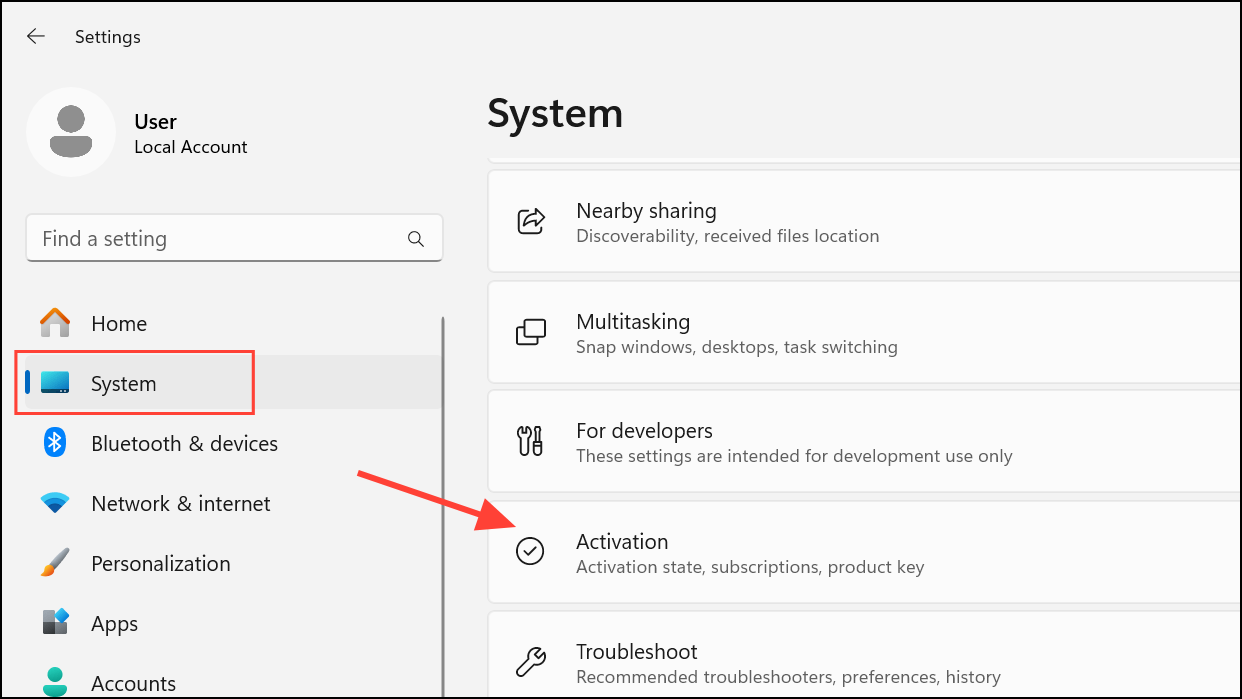
Troubleshoot button next to your activation state. Windows will scan for activation issues and attempt to resolve them. Some users report needing to run the troubleshooter multiple times before activation is restored.Re-Enter Your Product Key
After the 24H2 update, Windows may lose track of your original product key or revert to a generic key. Re-entering your valid product key often restores activation, especially for OEM or retail licenses.
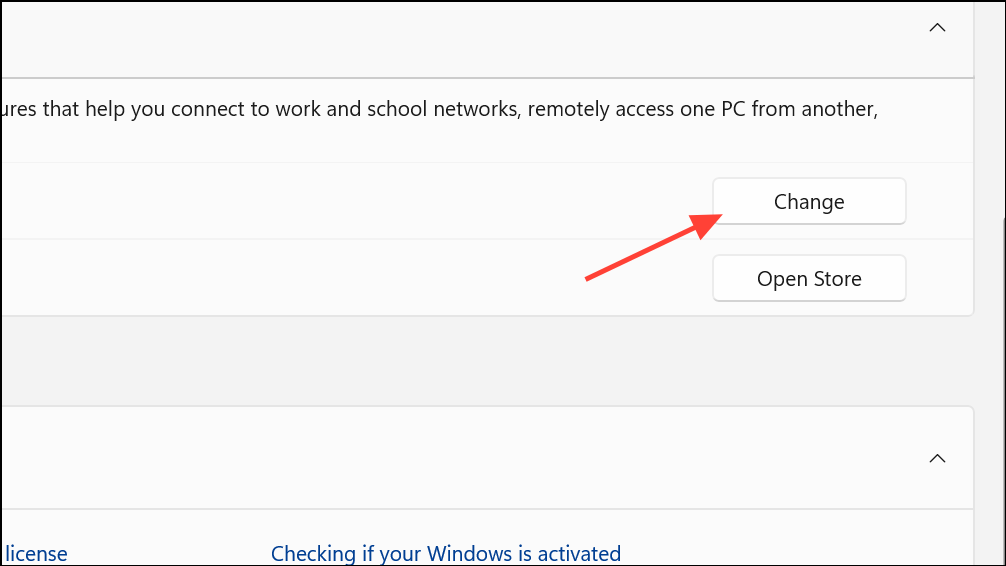
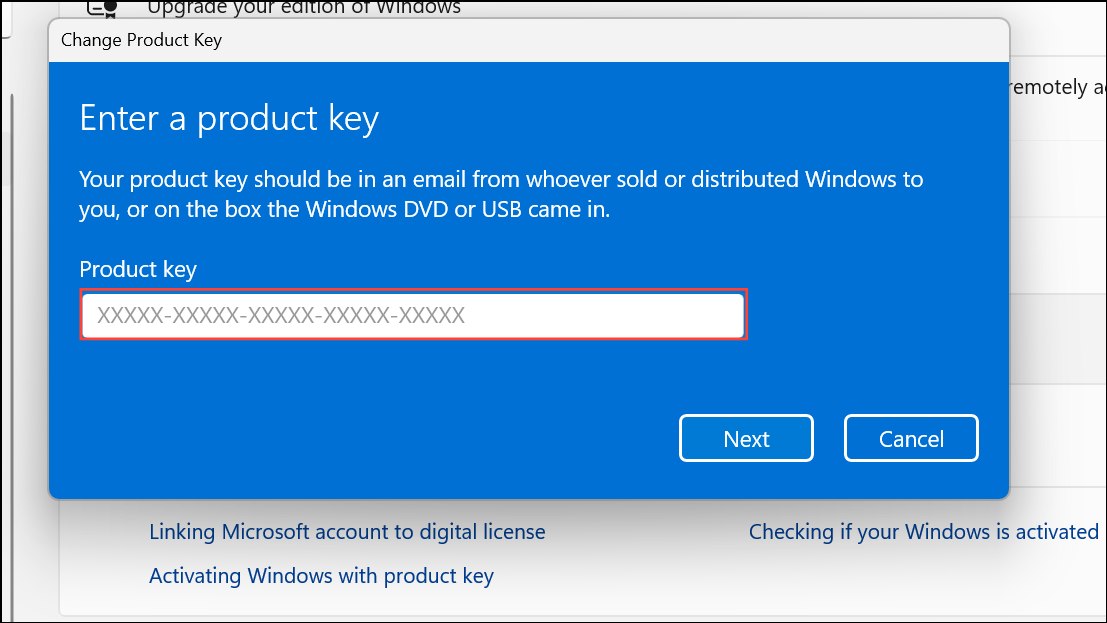
slmgr /dlv in Command Prompt) to match each PC with its proper license.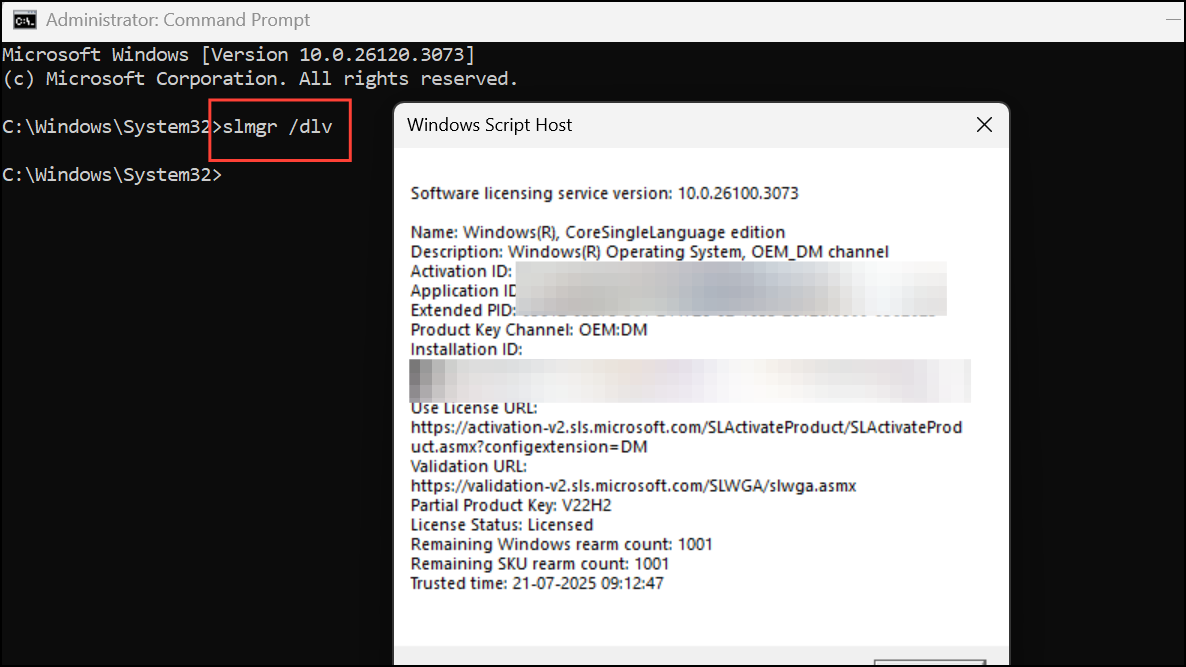
Reload the License Configuration File
The update process can sometimes corrupt or misplace the license configuration file. Reloading this file can restore activation without changing keys.
cmd in the Start menu, right-clicking, and choosing Run as administrator.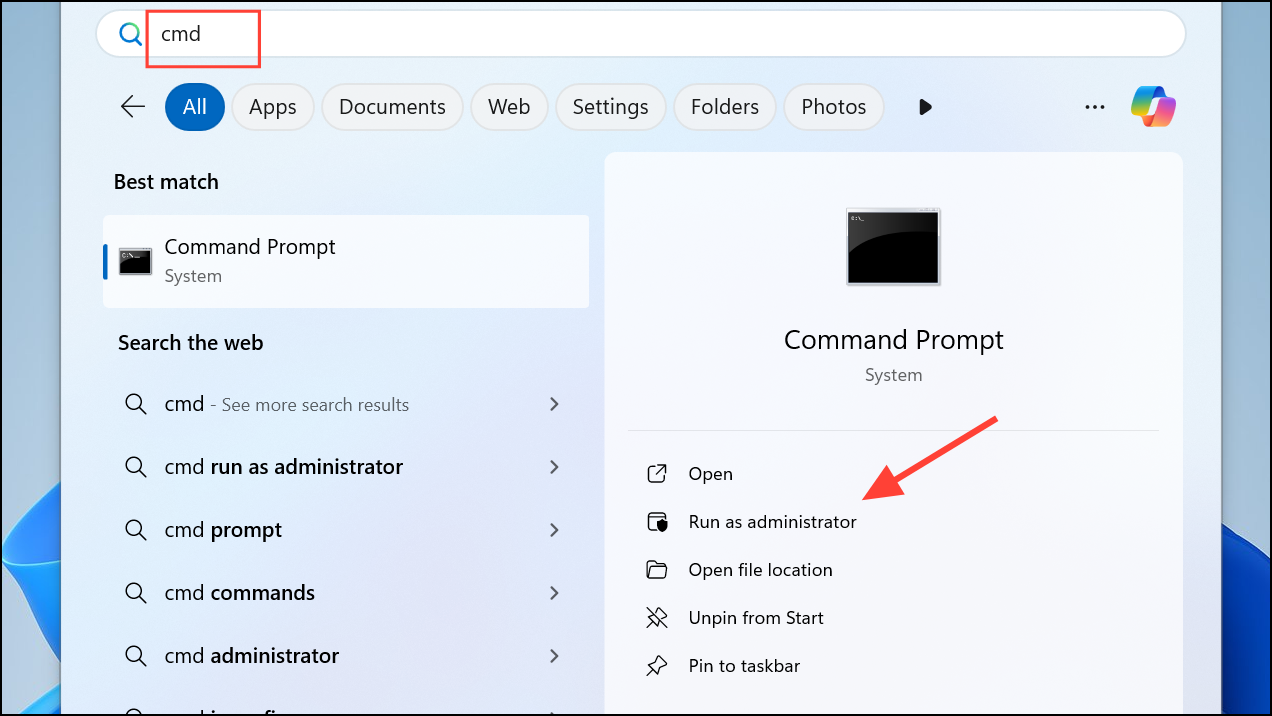
slmgr /rilcSettings > System > Activation and check your activation status. If still not activated, run the Activation Troubleshooter again.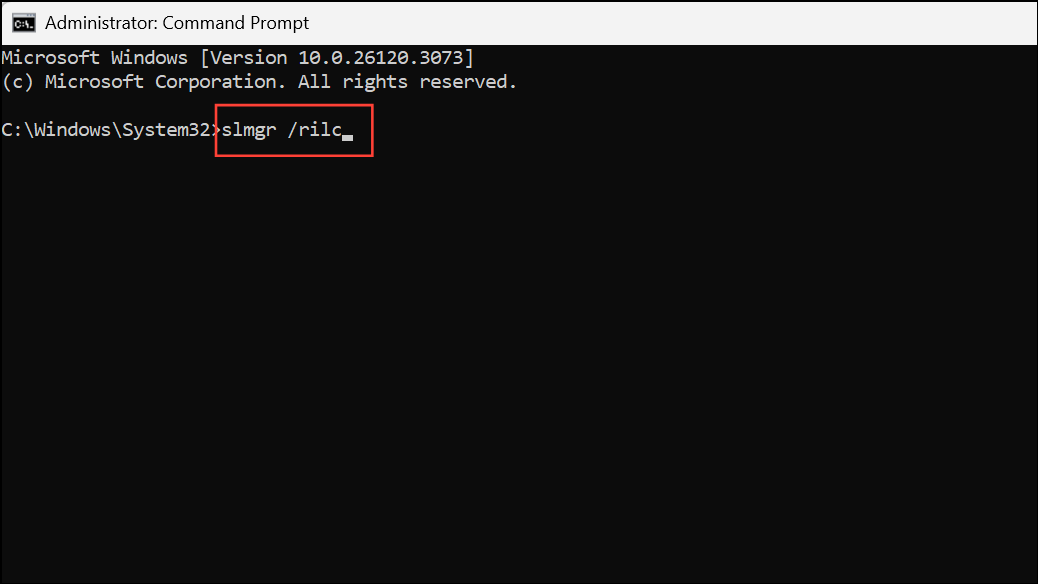
Activate Using Slmgr Command
For some users, especially those with MAK (Multiple Activation Key) or KMS (Key Management Service) licenses, activating Windows via scripting tools provides a direct solution when the GUI fails.
slmgr.vbs /ato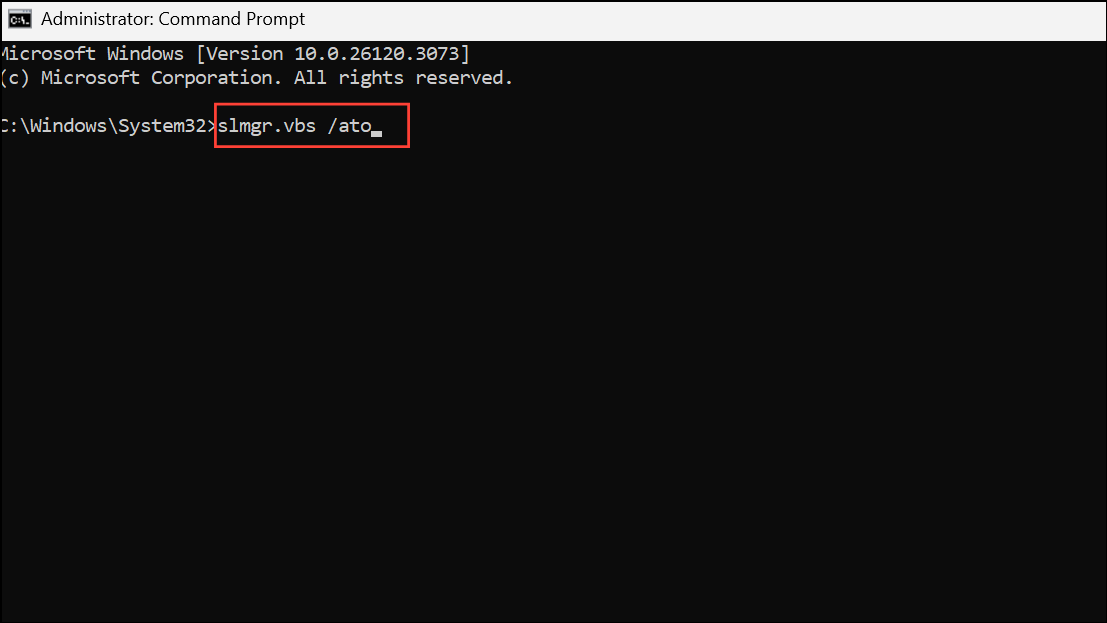
Retrieve Your Product Key Using Command or Third-Party Tools
If you do not have your original key, you can attempt to retrieve it from your system’s firmware or registry—though this may not work for all OEM or digital licenses.
wmic path SoftwareLicensingService get OA3xOriginalProductKey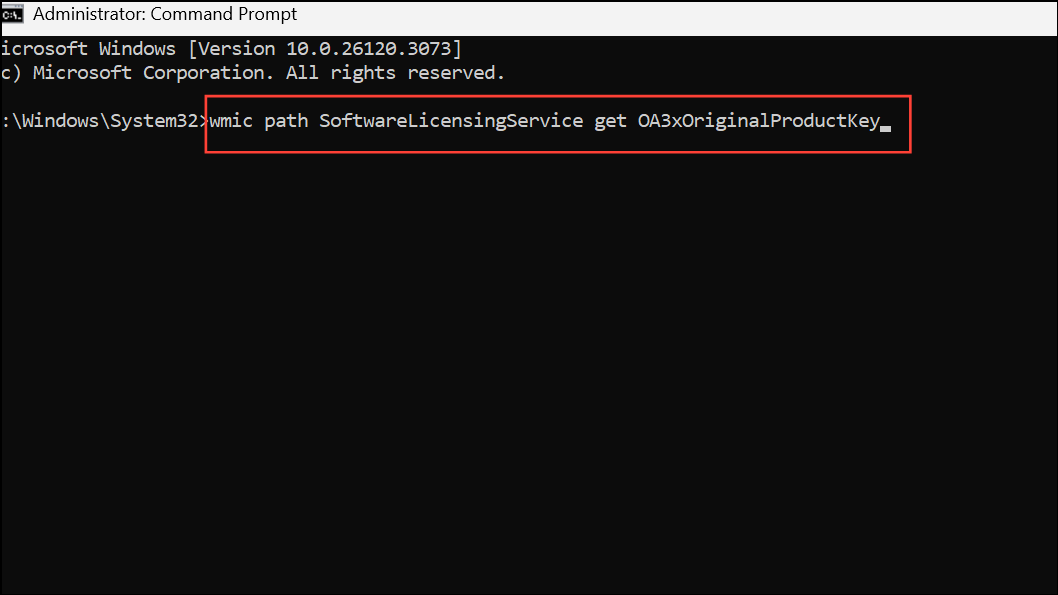
Repair System Files
Corrupted system files can sometimes prevent activation. Running system scans can repair these files and resolve activation errors caused by update glitches.
sfc /scannow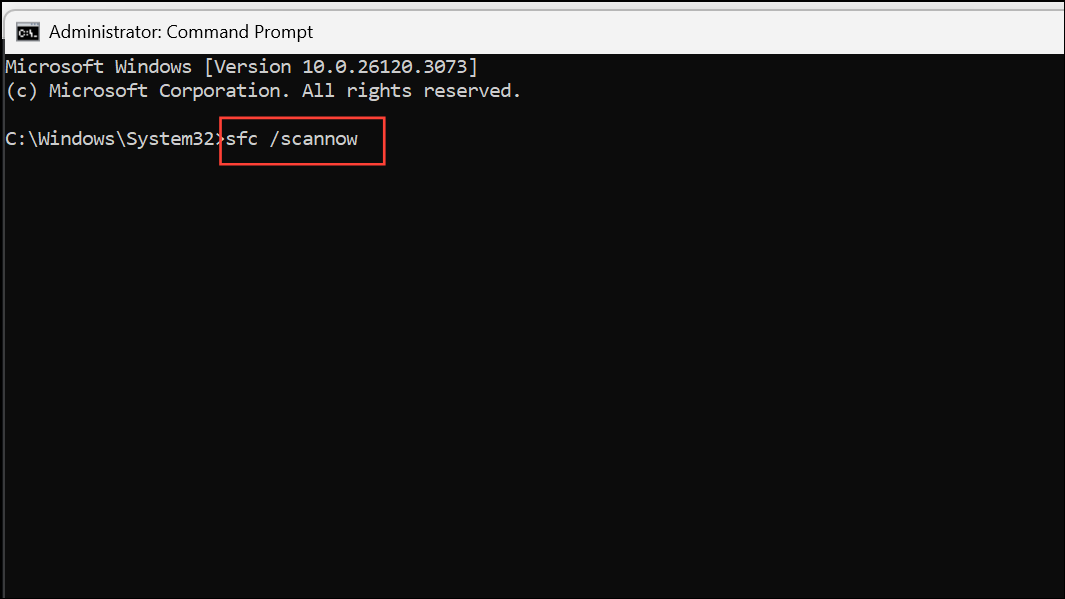
DISM /Online /Cleanup-Image /CheckHealth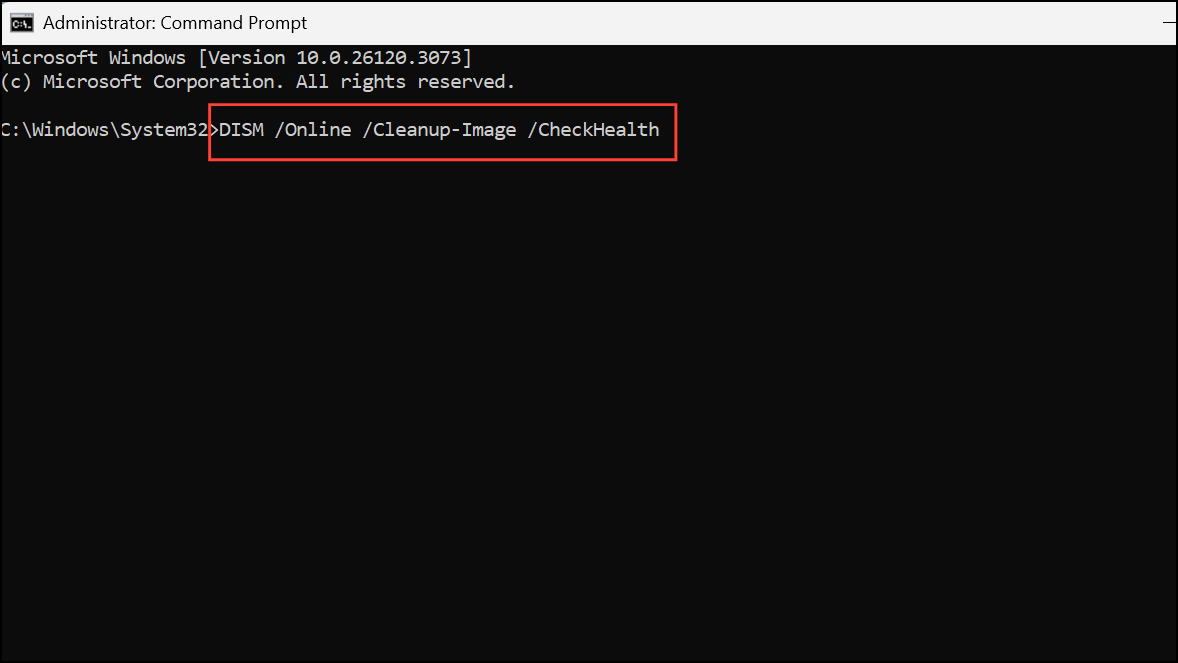
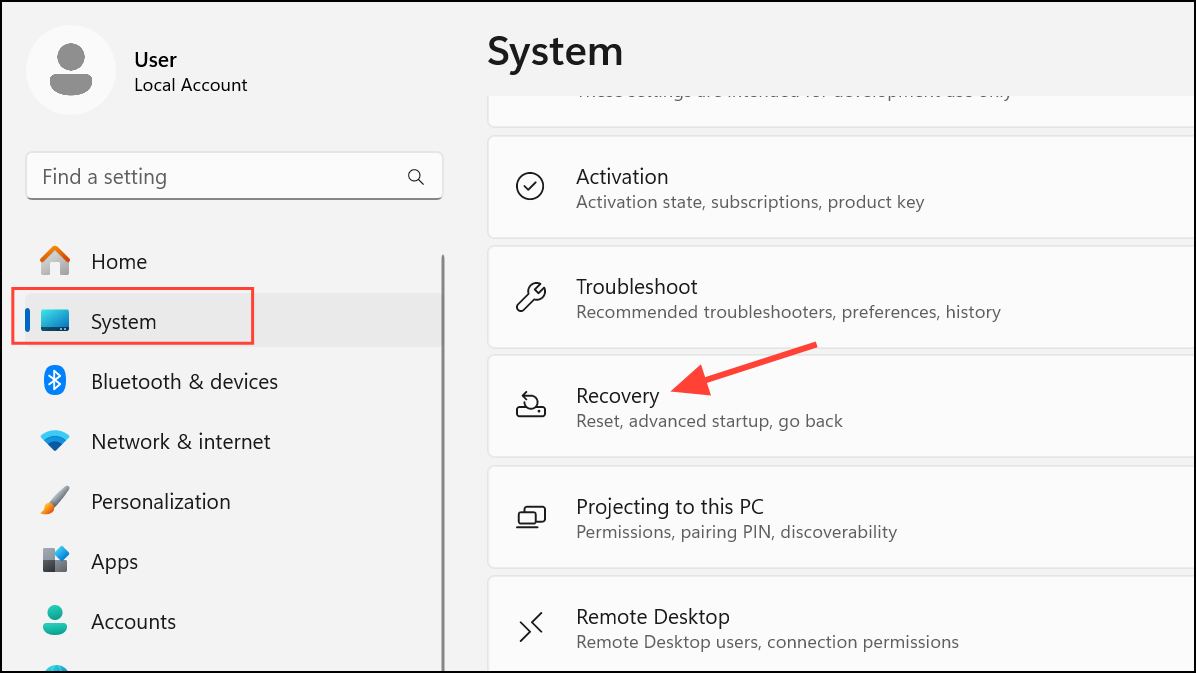
Revert to Previous Windows Version
If none of the above methods restore activation and you need immediate access to all features, rolling back to Windows 11 23H2 (or your previous version) will restore your original activation state.
Contact Microsoft Support or Your Device Seller
If all self-service methods fail, especially for OEM or MAK licenses, contact Microsoft Support for reactivation. Provide your product key, proof of purchase, and error details. If your PC was built by a local shop or small business, reach out to them for your original license information, as they may keep records for such situations.
Restoring Windows 11 activation after the 24H2 update requires a mix of troubleshooting, command-line tools, and sometimes manual license entry. Keeping your product key accessible and backing up important files before major updates can save time if issues arise in the future.



