
When your wireless mouse unexpectedly stops responding on Windows 11, it can disrupt your workflow significantly. Problems such as lagging, freezing, or complete unresponsiveness typically stem from issues like outdated drivers, power management settings, or hardware malfunctions. Fortunately, several straightforward troubleshooting methods can quickly restore your mouse’s functionality.
Check Basic Hardware Issues First
Before diving into software-related fixes, confirm these basic hardware checks:
- Ensure the mouse is switched on. Most wireless mice have a physical power button on the underside.
- Replace or recharge the mouse batteries. Weak batteries are a common cause for wireless mice to stop responding.
- Confirm the USB receiver is securely plugged into your computer. Try a different USB port to rule out port-specific issues.
- Examine the mouse and receiver for physical damage. If damaged, replacement might be necessary.
- Test your mouse on another PC to determine if the issue lies with the mouse or your computer.
Method 1: Reconnect the USB Receiver
Sometimes, simply reconnecting your mouse’s USB receiver fixes the issue. Disconnect the receiver from your PC, wait about 10 seconds, and then plug it back in. This action forces Windows to reinitialize the connection, resolving minor glitches.
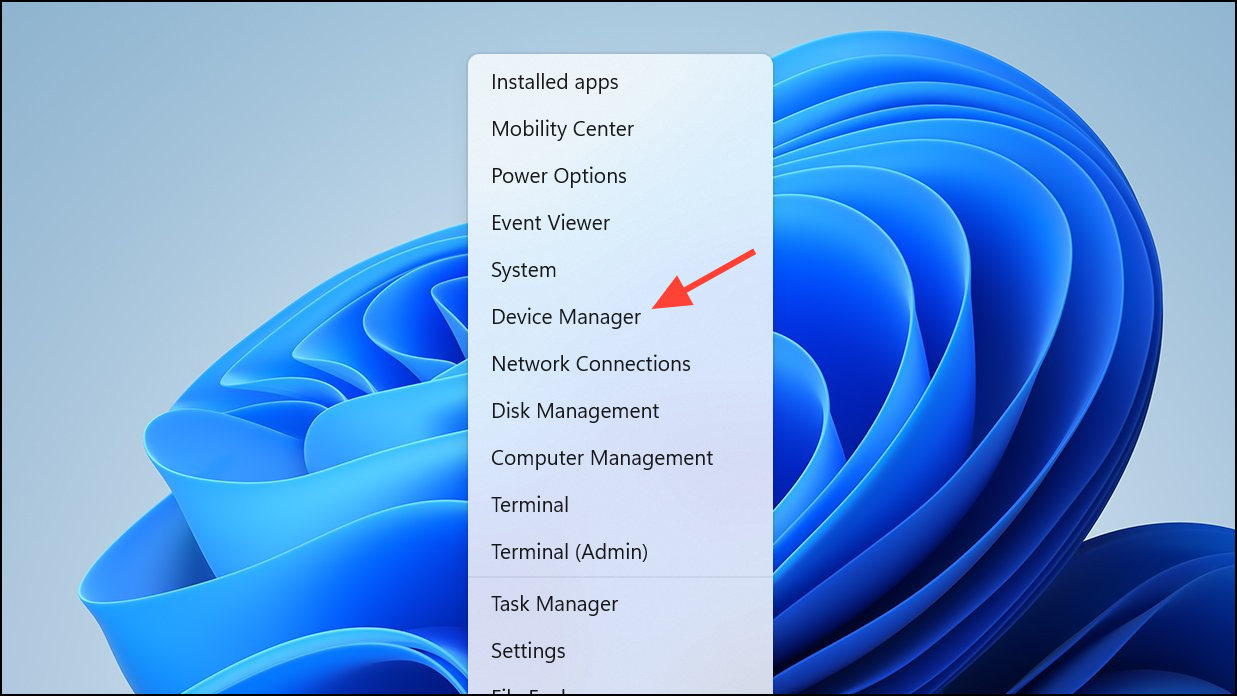
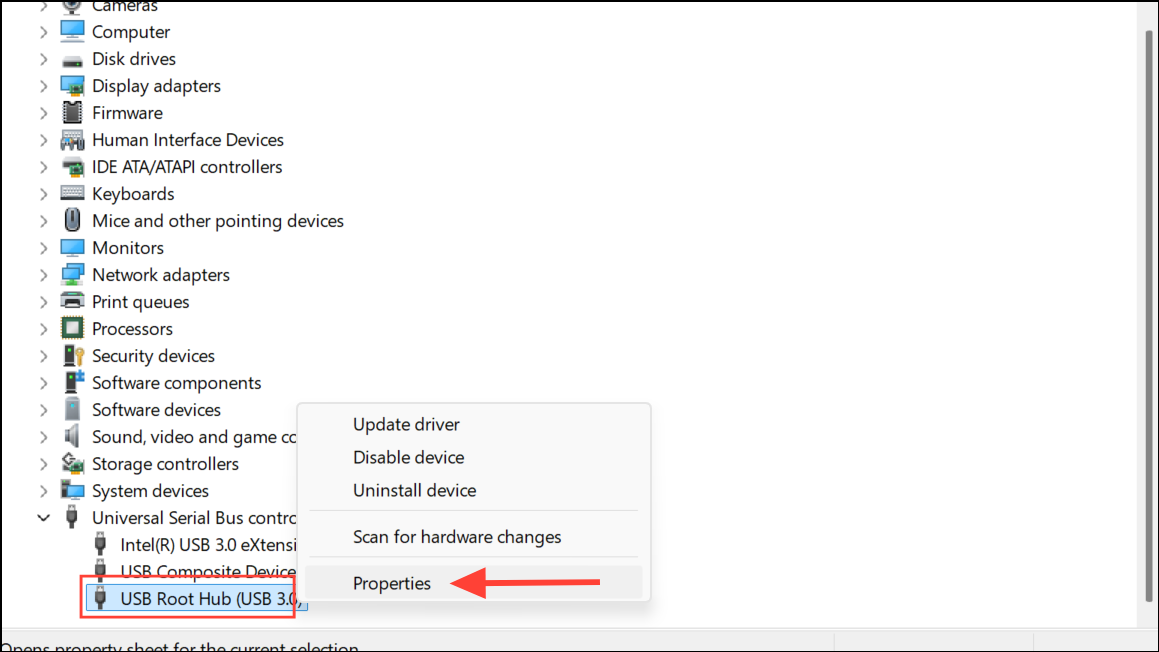
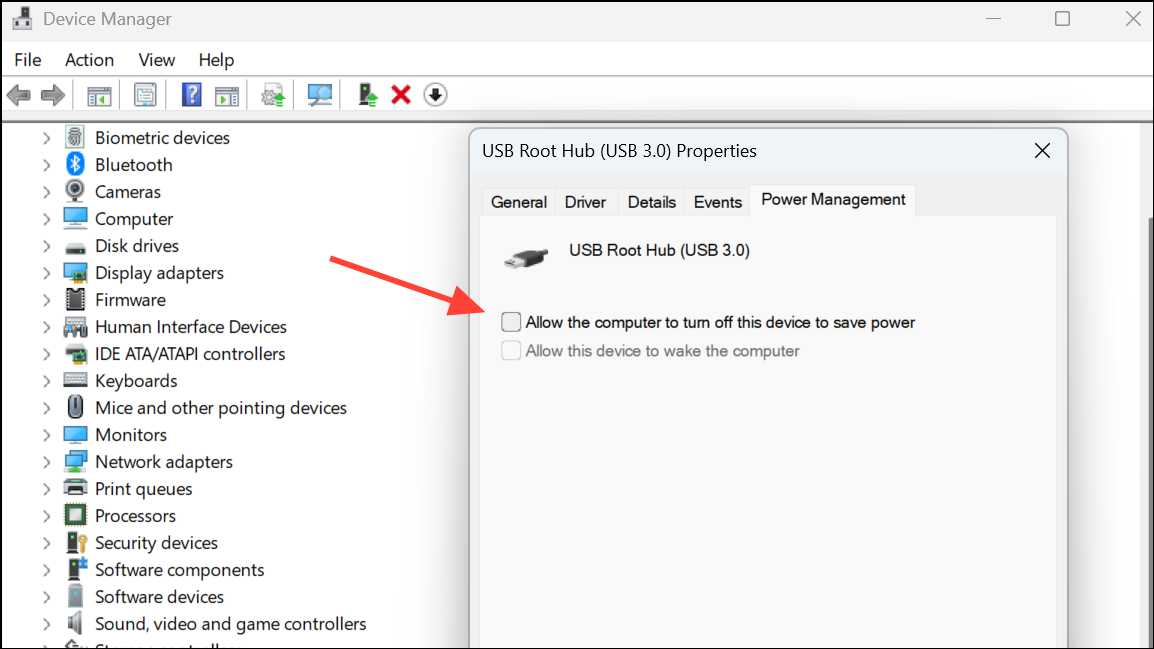
Method 2: Disable USB Power Management
Windows 11 features power-saving settings that may disable USB devices, causing your mouse to stop functioning. To disable this feature:
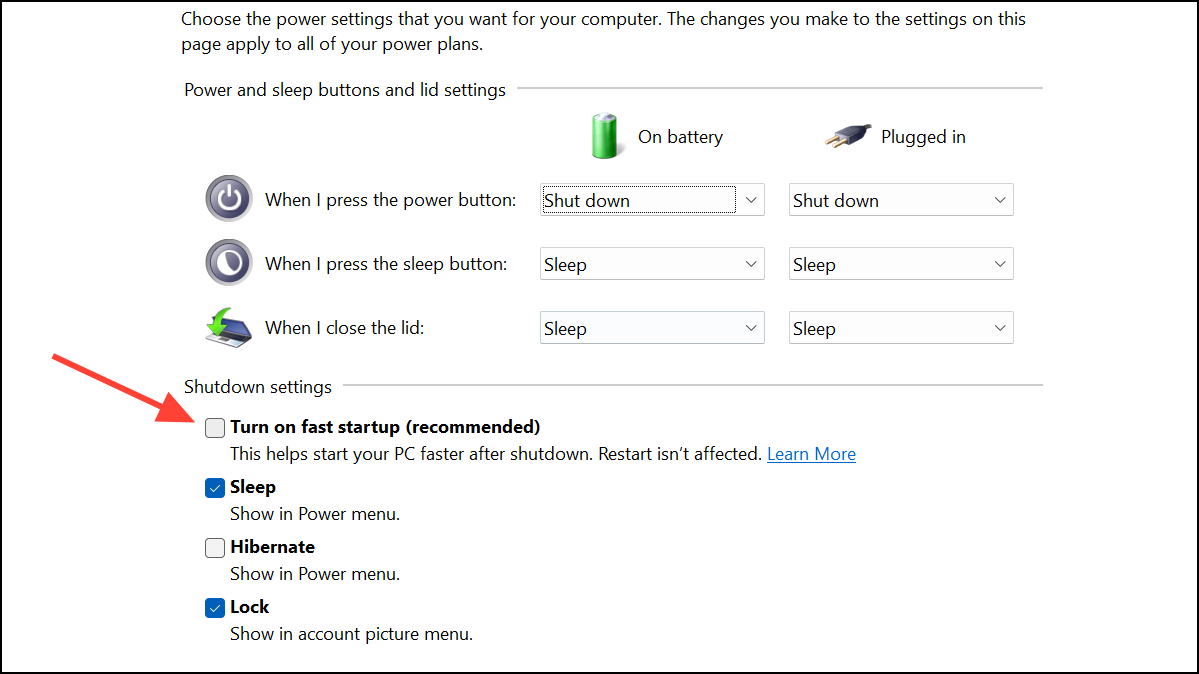
Method 3: Disable Fast Startup
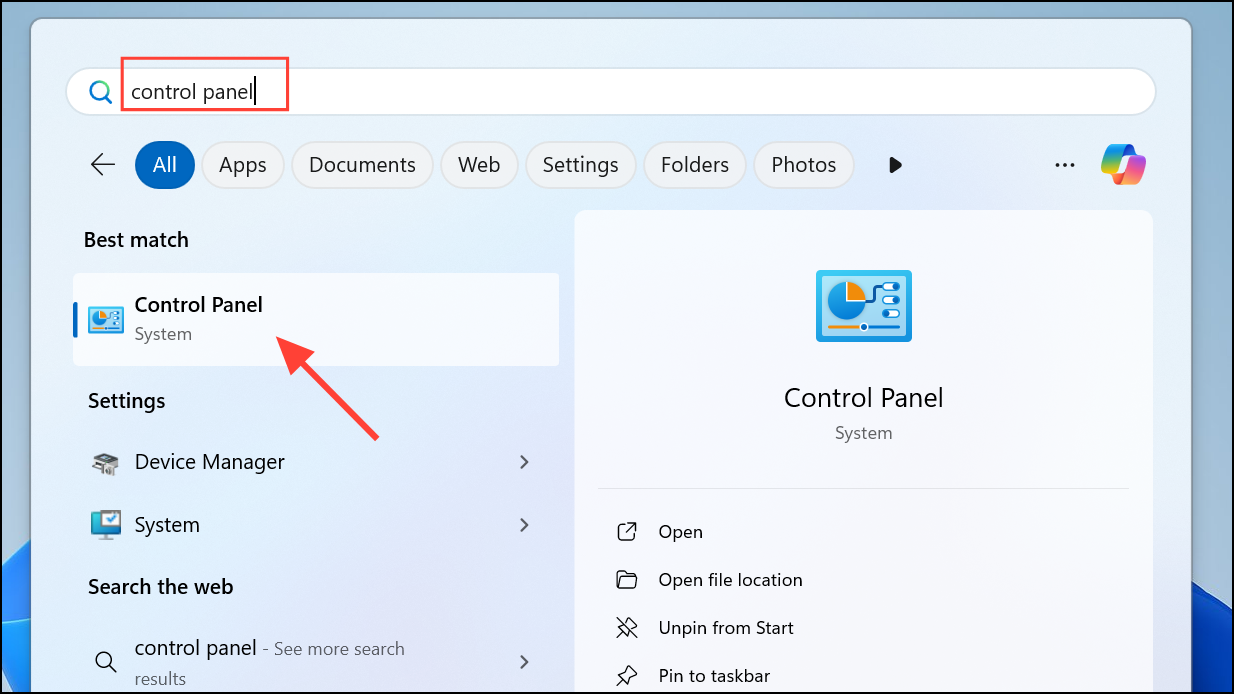
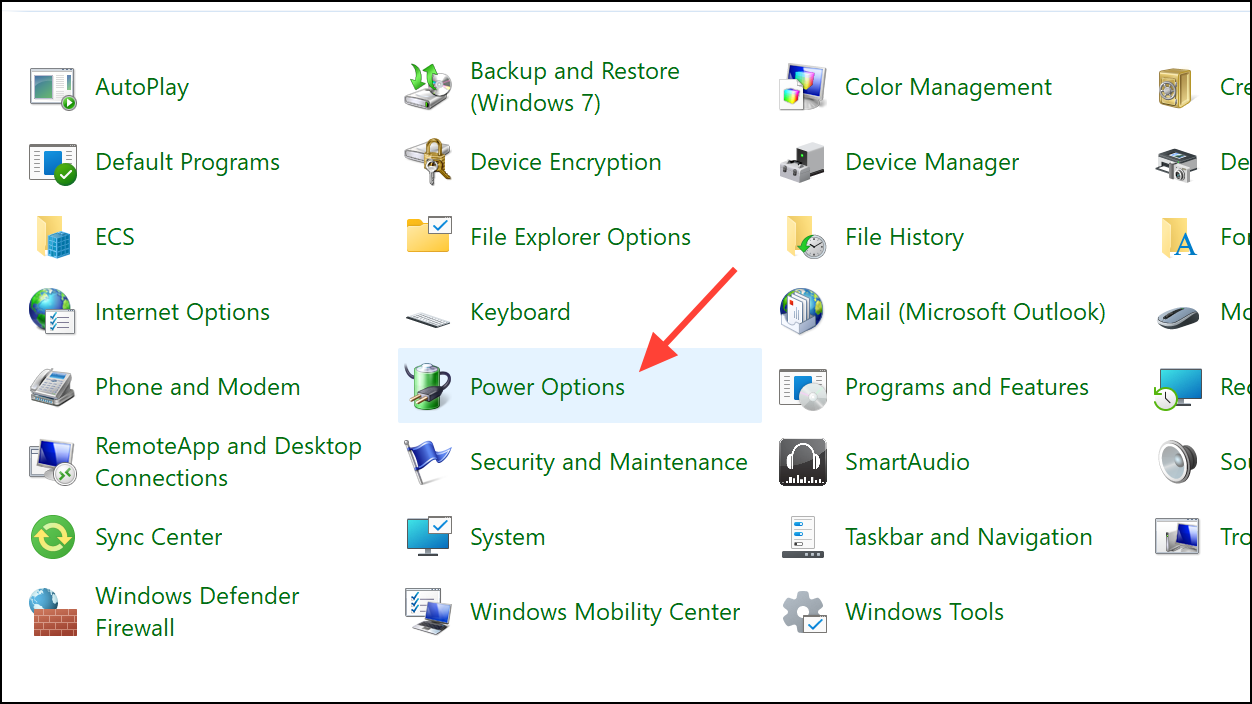
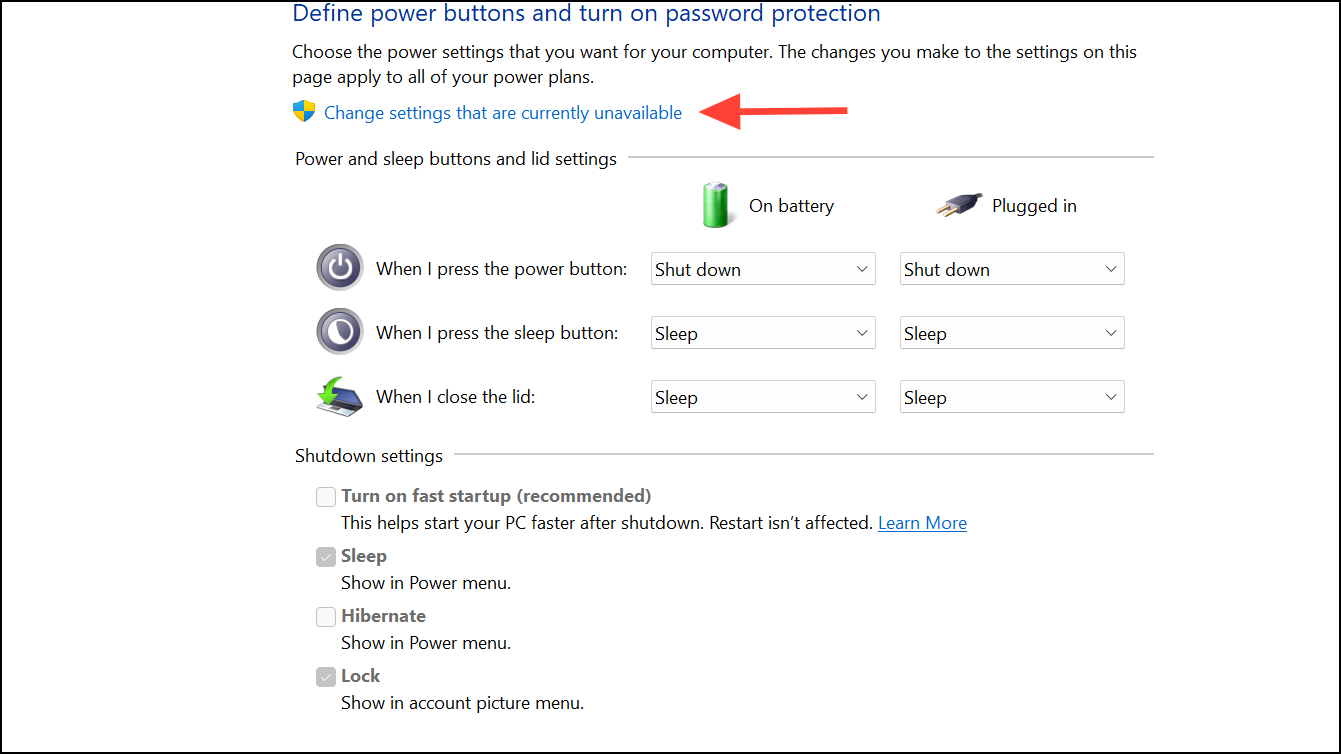
Windows 11’s Fast Startup feature can sometimes interfere with device drivers, including those for wireless mice. To disable Fast Startup:
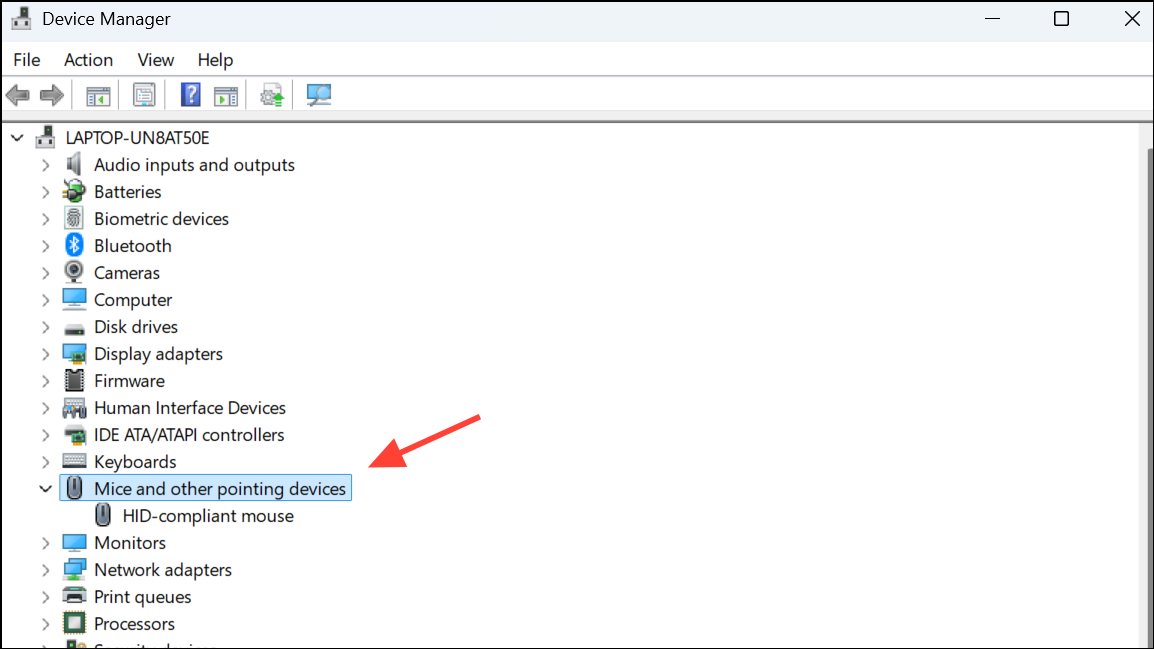
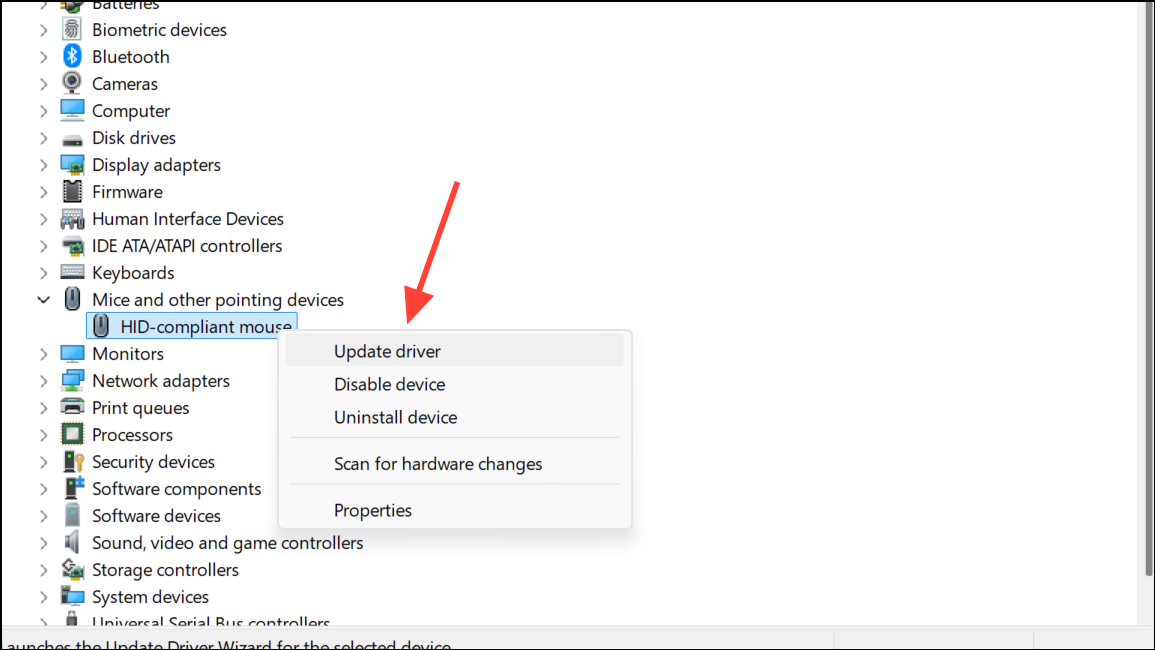
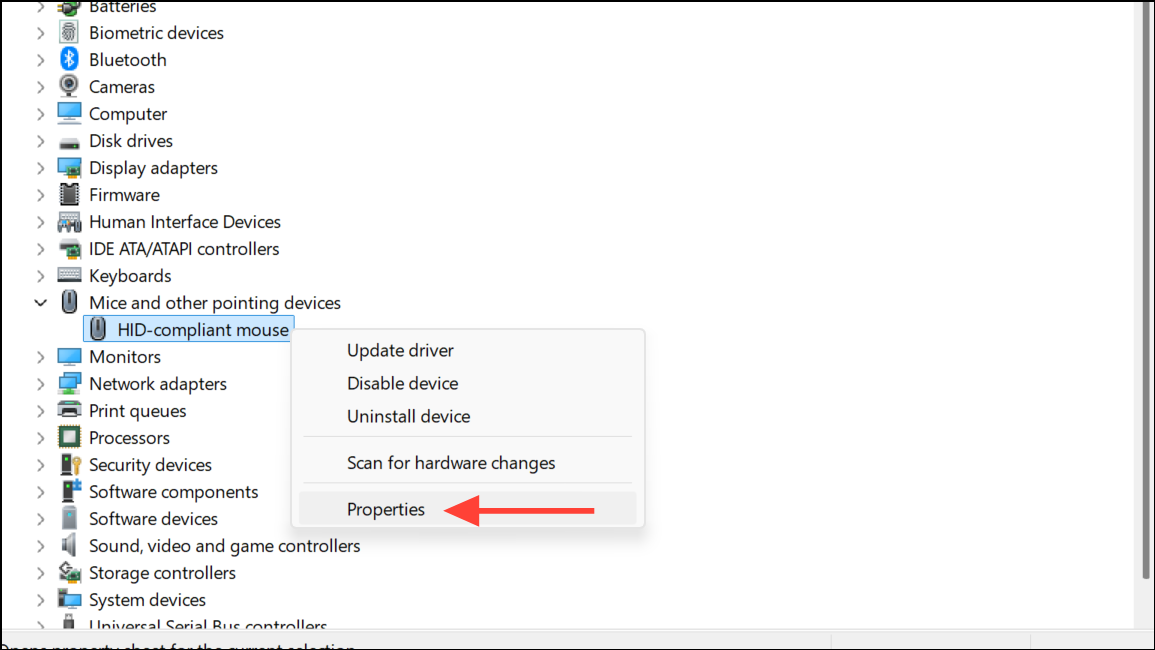
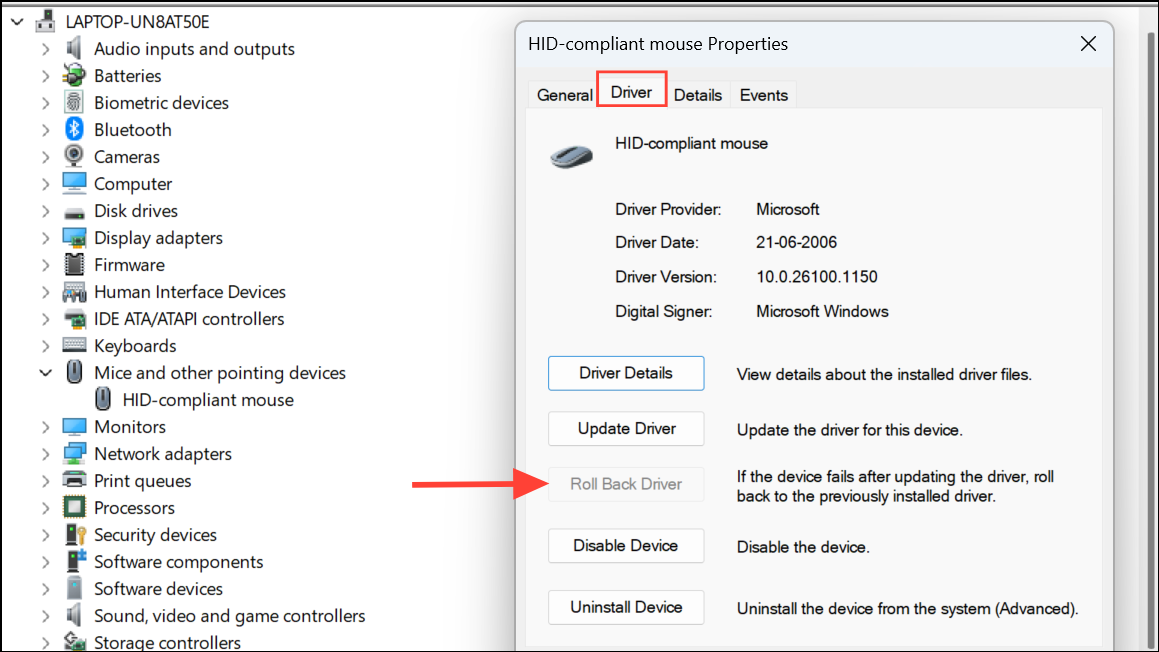
Method 4: Update or Roll Back Mouse Drivers
Outdated or corrupted drivers often cause hardware issues. You can either update or roll back your mouse drivers depending on your situation.
To update mouse drivers:
To roll back mouse drivers:
If your mouse stopped working after a recent driver update, roll back to the previous version:
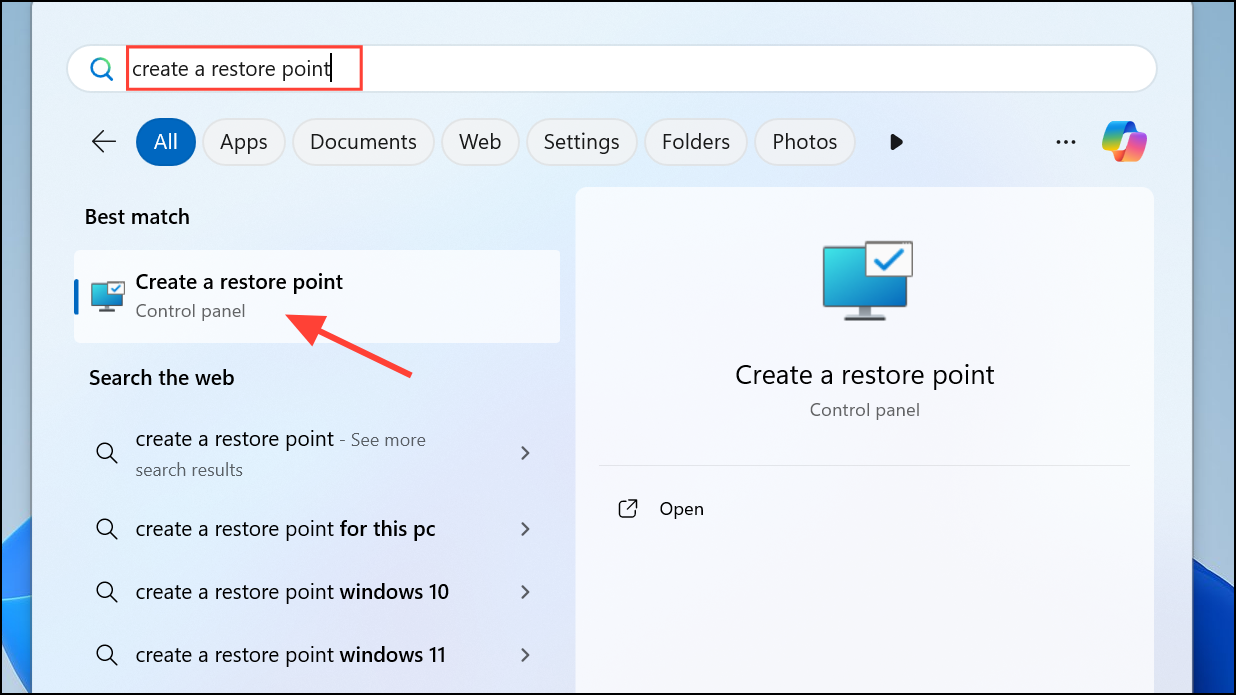
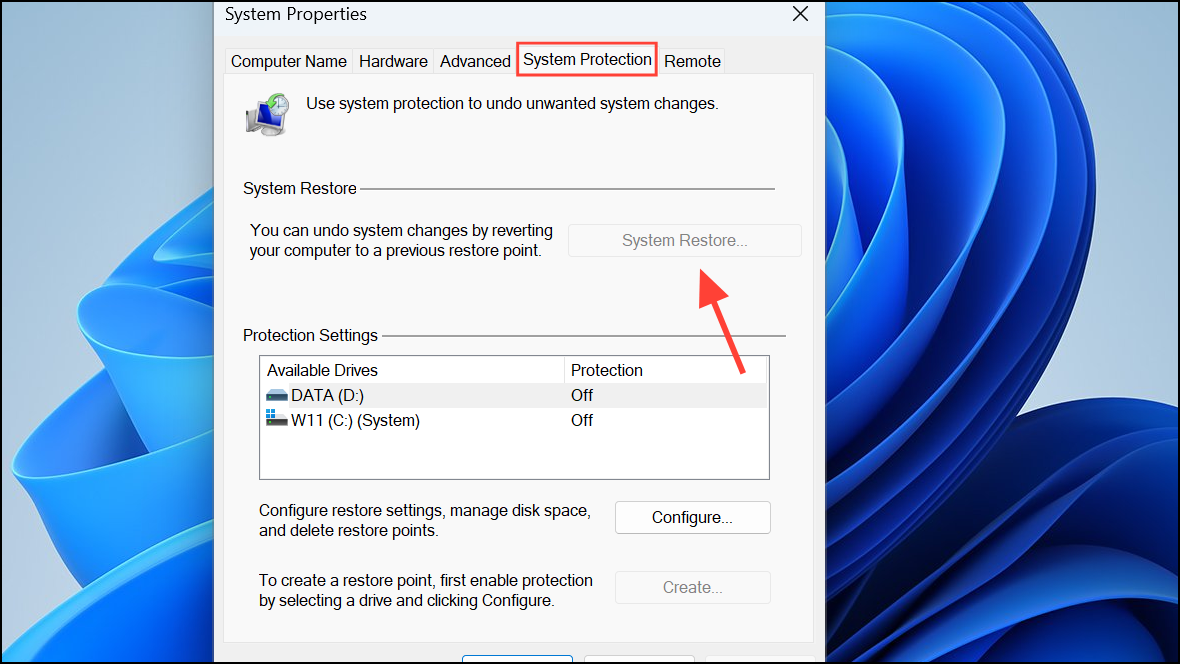
Method 5: Perform a System Restore
If your wireless mouse issue began after a recent system change or update, performing a system restore can revert your system to a previous working state. You should have set up a restore point earlier to be able to use it.
Fixing Bluetooth Mouse Connectivity Issues
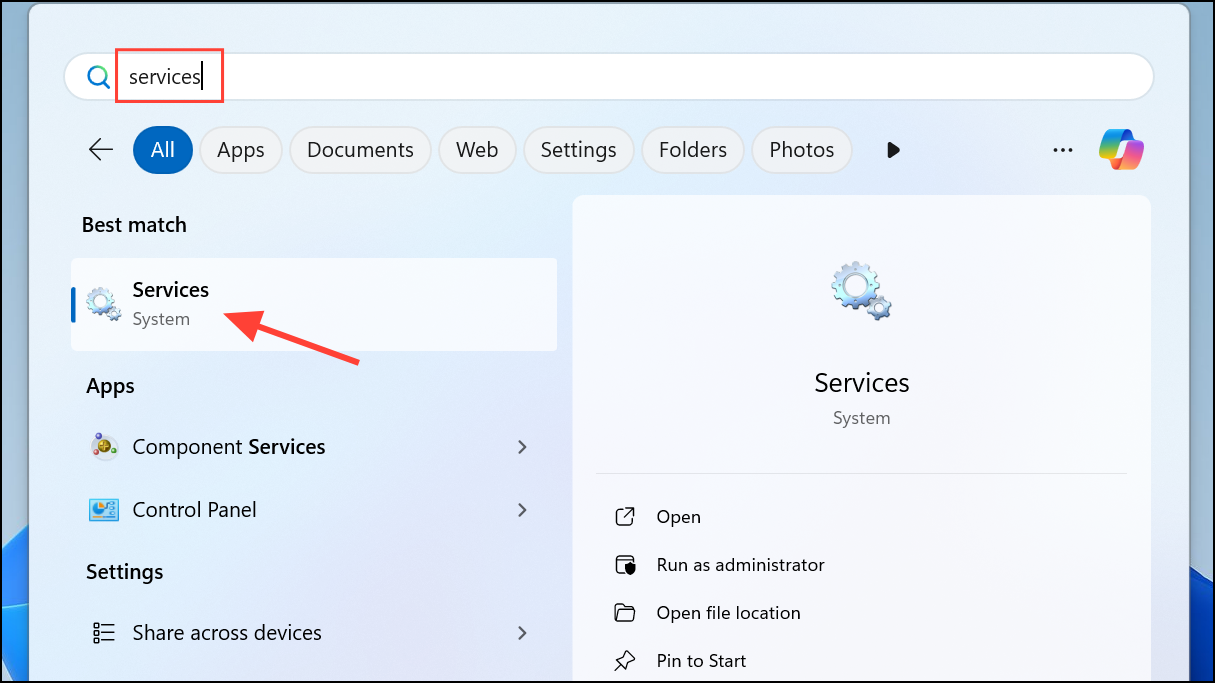
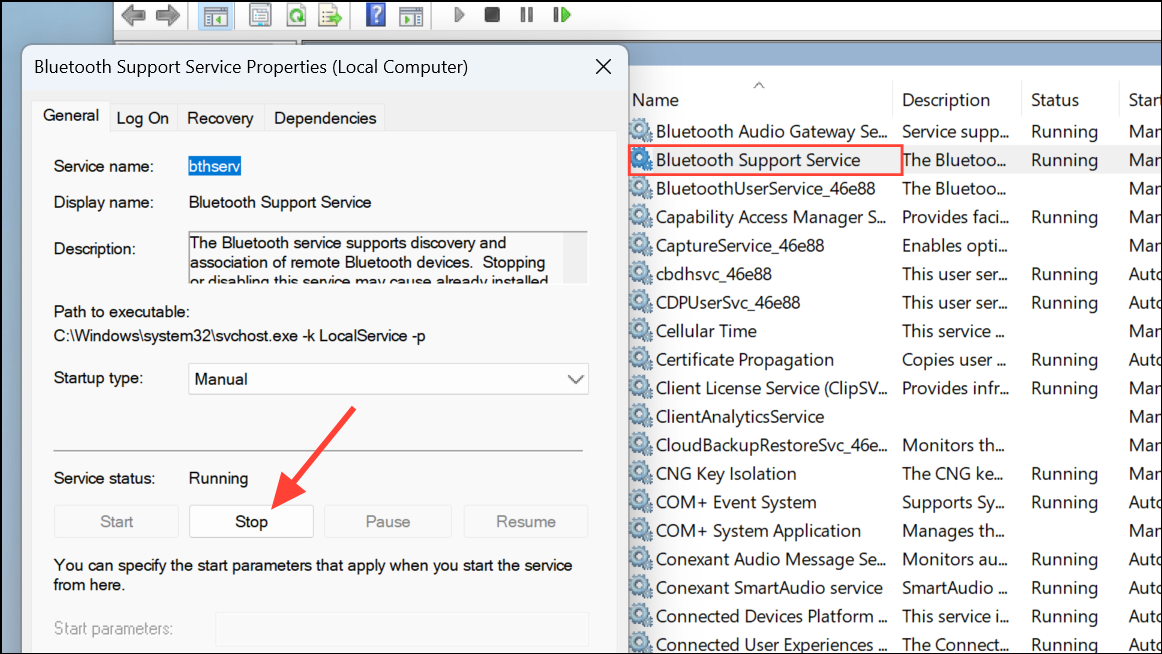
If you’re using a Bluetooth mouse, additional troubleshooting steps can help resolve connectivity problems:
Restart Bluetooth Services:
Re-add Your Bluetooth Mouse:
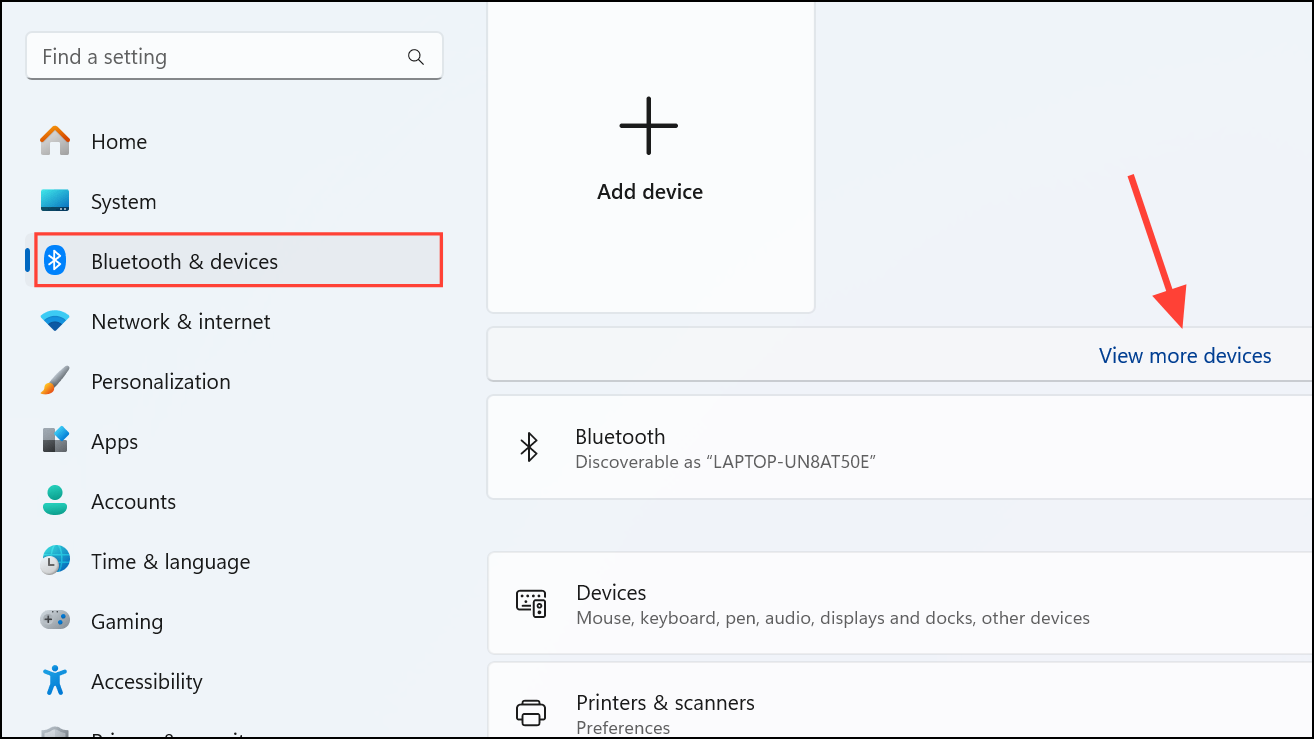
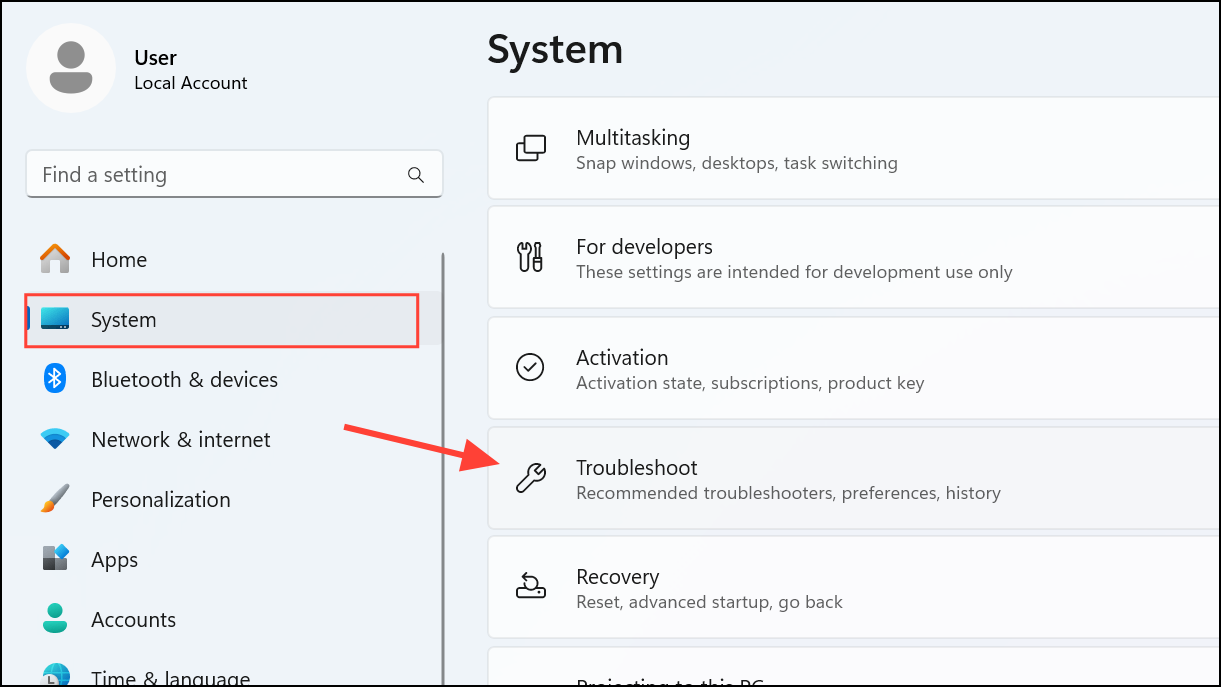
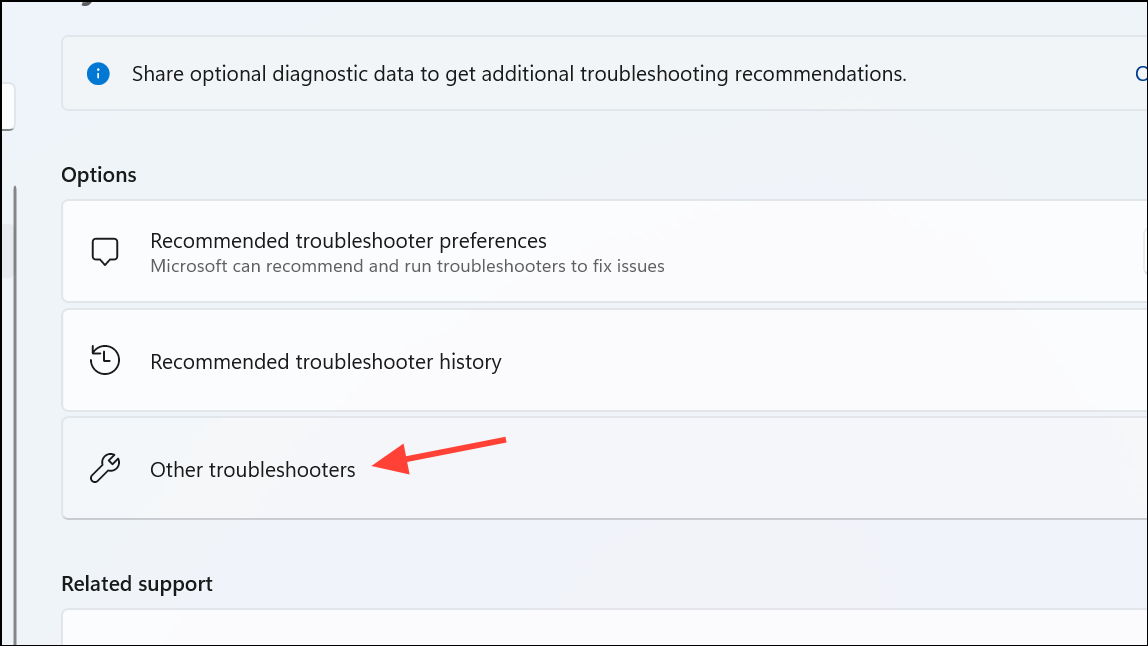
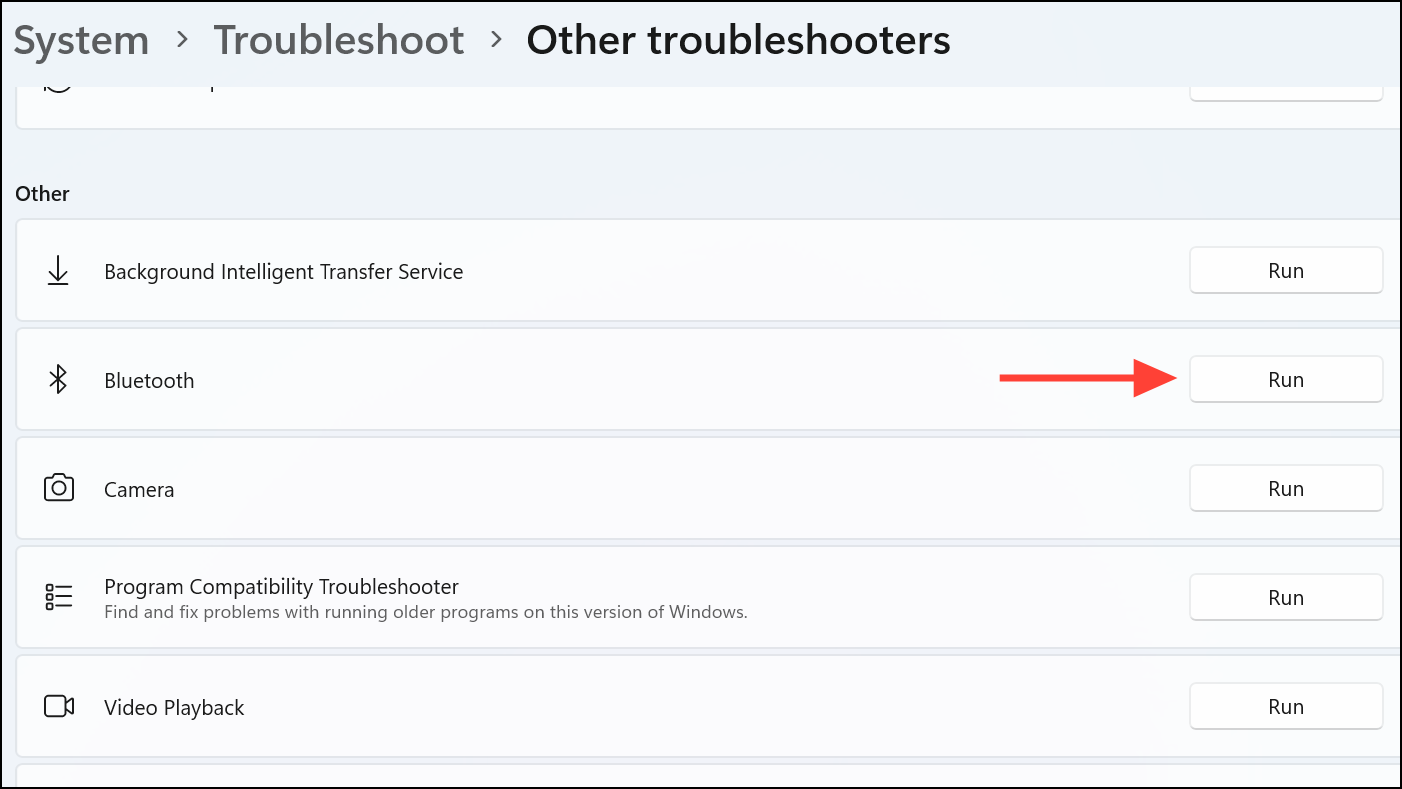
Run Bluetooth Troubleshooter:
With these solutions, you should be able to quickly restore your wireless mouse’s functionality on Windows 11. If the problem persists despite these steps, it may be time to consider replacing the hardware itself.



