
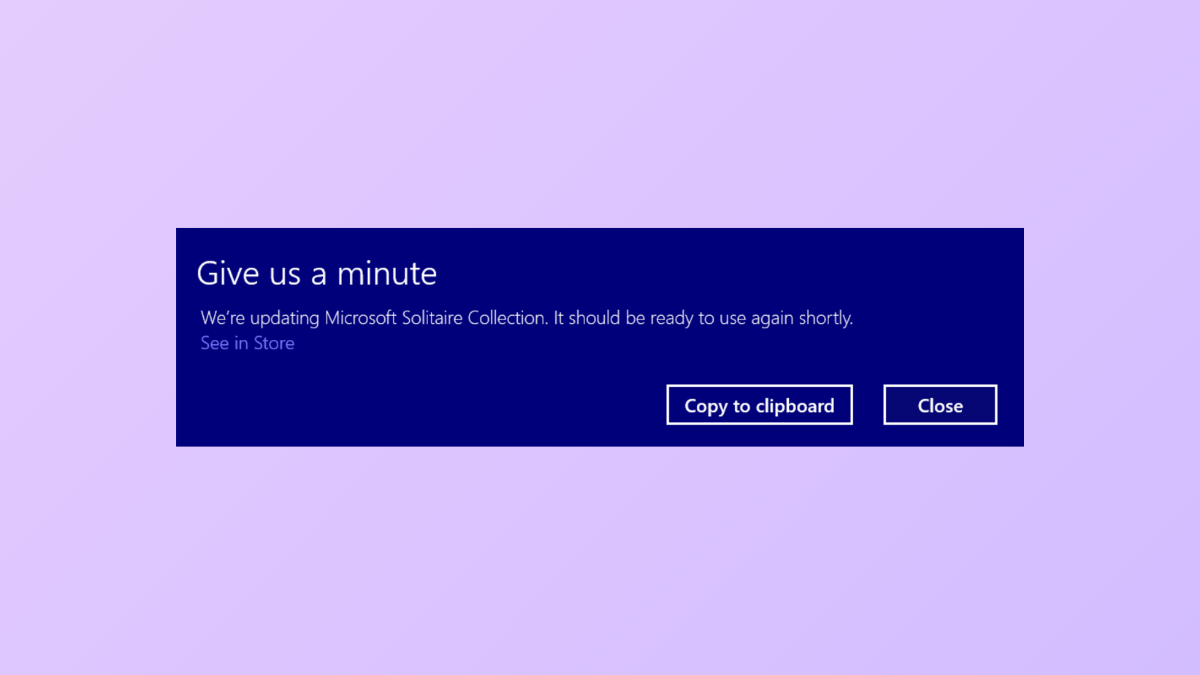
The “Give Us a Minute” message appears on Windows 11 systems when the operating system, Microsoft Edge, or a built-in app is attempting to update or prompt the user to complete an action, such as restarting to finish updates. This notification can interrupt your workflow, cause brief system freezes, or repeatedly reappear if not addressed. Resolving this issue involves adjusting system notification settings, managing app updates, and, in some cases, resetting or re-registering problematic apps.
Disable Tips, Suggestions, and App Notifications in Windows 11
Settings app by pressing Windows + I on your keyboard. This brings up the main configuration panel for your system.System, then click on Notifications from the main panel. Here, you control all system and app notifications.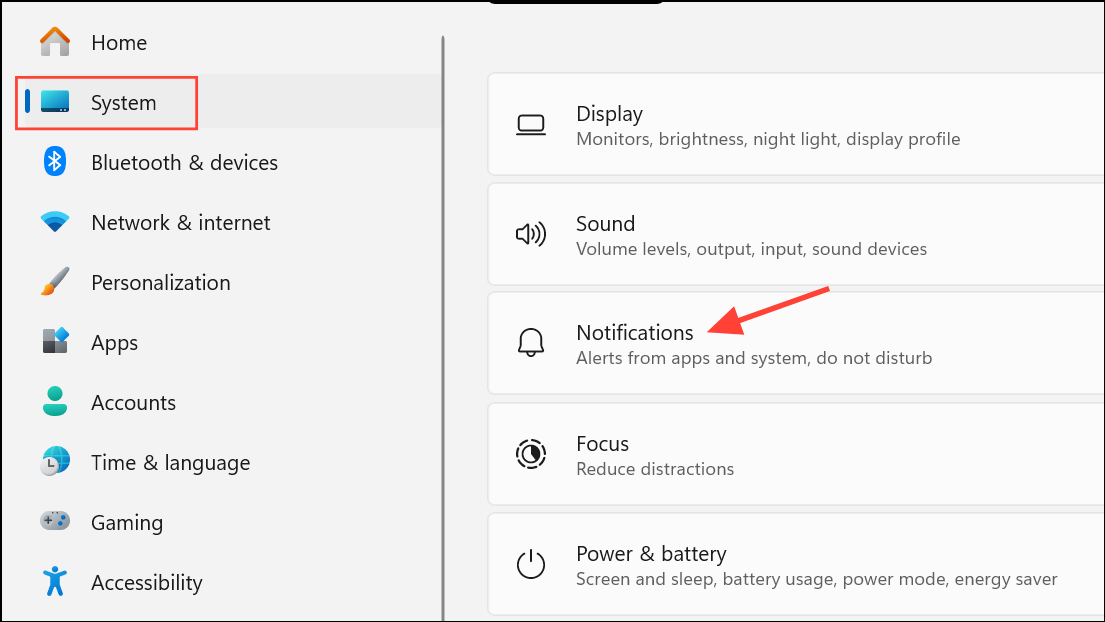
Additional settings. You will see several options related to Windows tips and suggestions.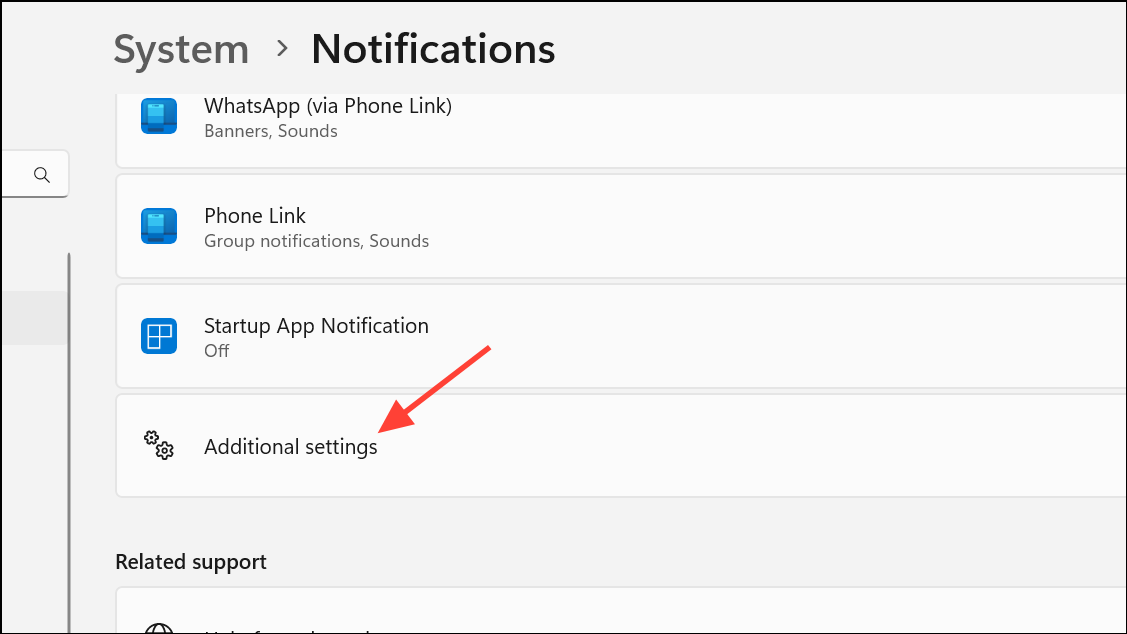
Show me the Windows welcome experience after updates and when signed in to highlight what's new and suggested.Suggest ways to get the most out of Windows and finish setting up this device.Get tips and suggestions when using Windows.
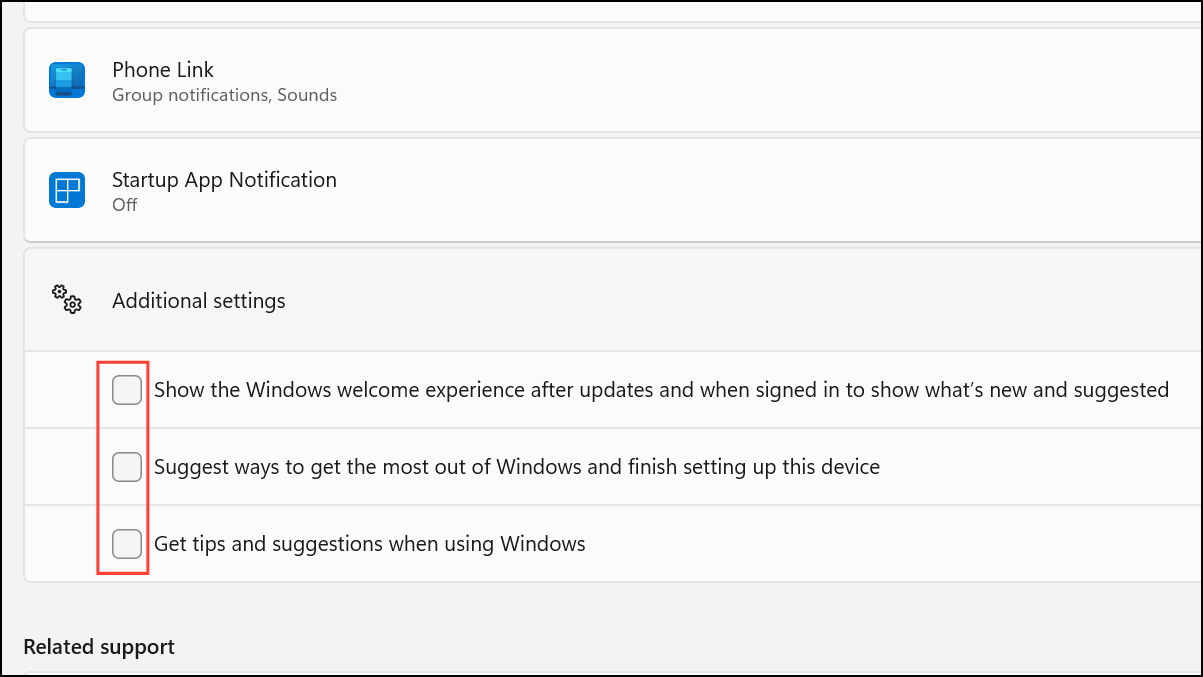
Disabling these options prevents Windows from displaying most informational pop-ups, including the “Give Us a Minute” message if it’s related to system tips or app suggestions.
Restart to Complete Pending Updates
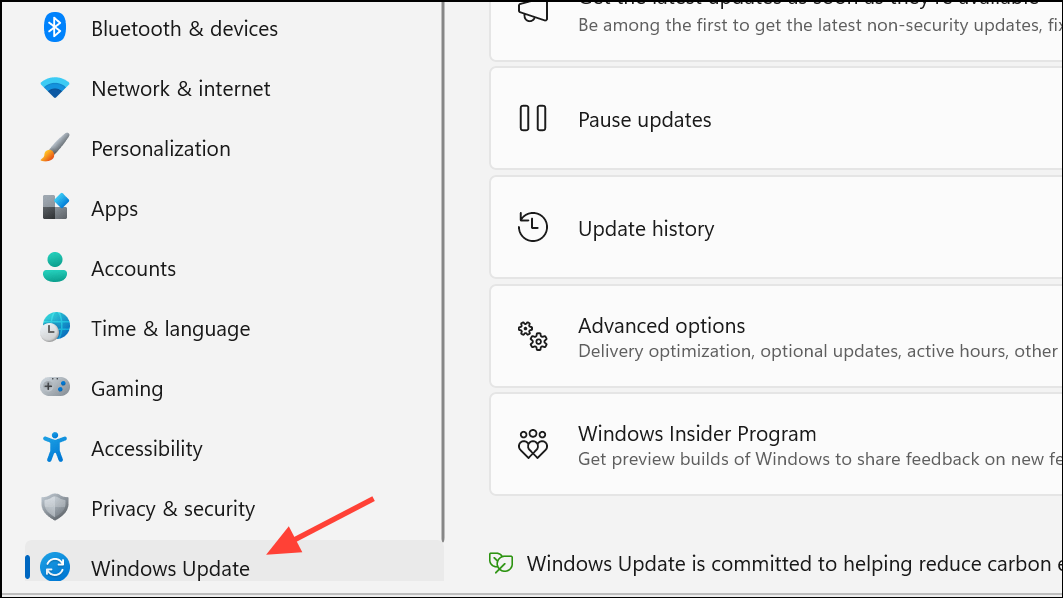
Pending Windows updates are a common trigger for the “Give Us a Minute” notification, especially if the system is prompting for a restart to finish installation.
Reset or Re-register Problematic Apps
If the “Give Us a Minute” message references a specific app (such as Photos, Outlook, or Tips), resetting or re-registering that app can resolve update or launch issues.
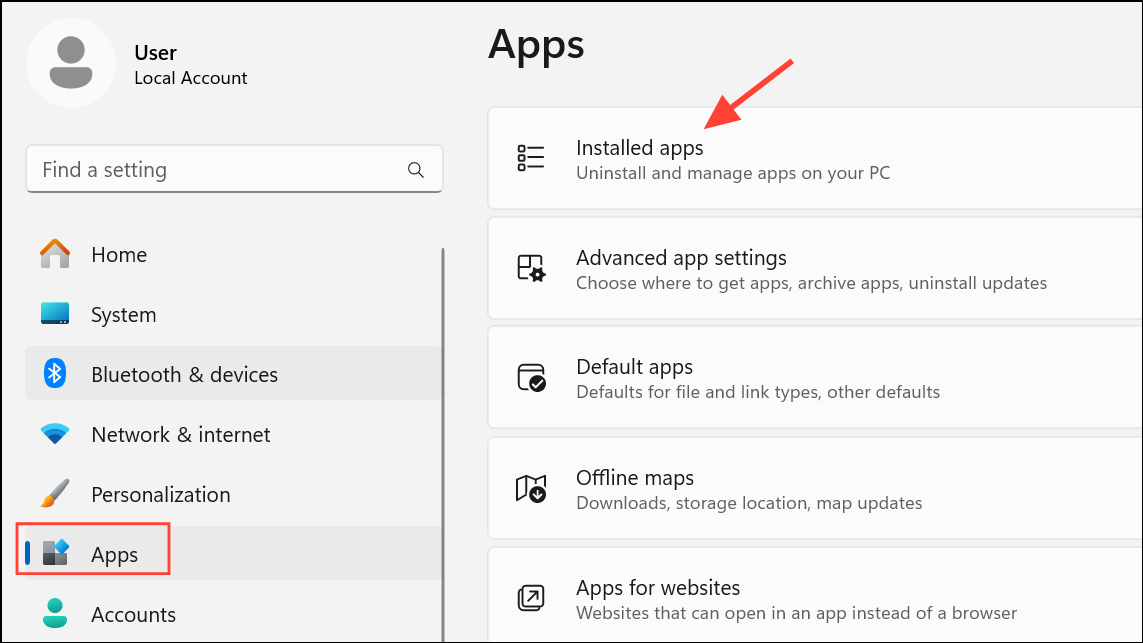
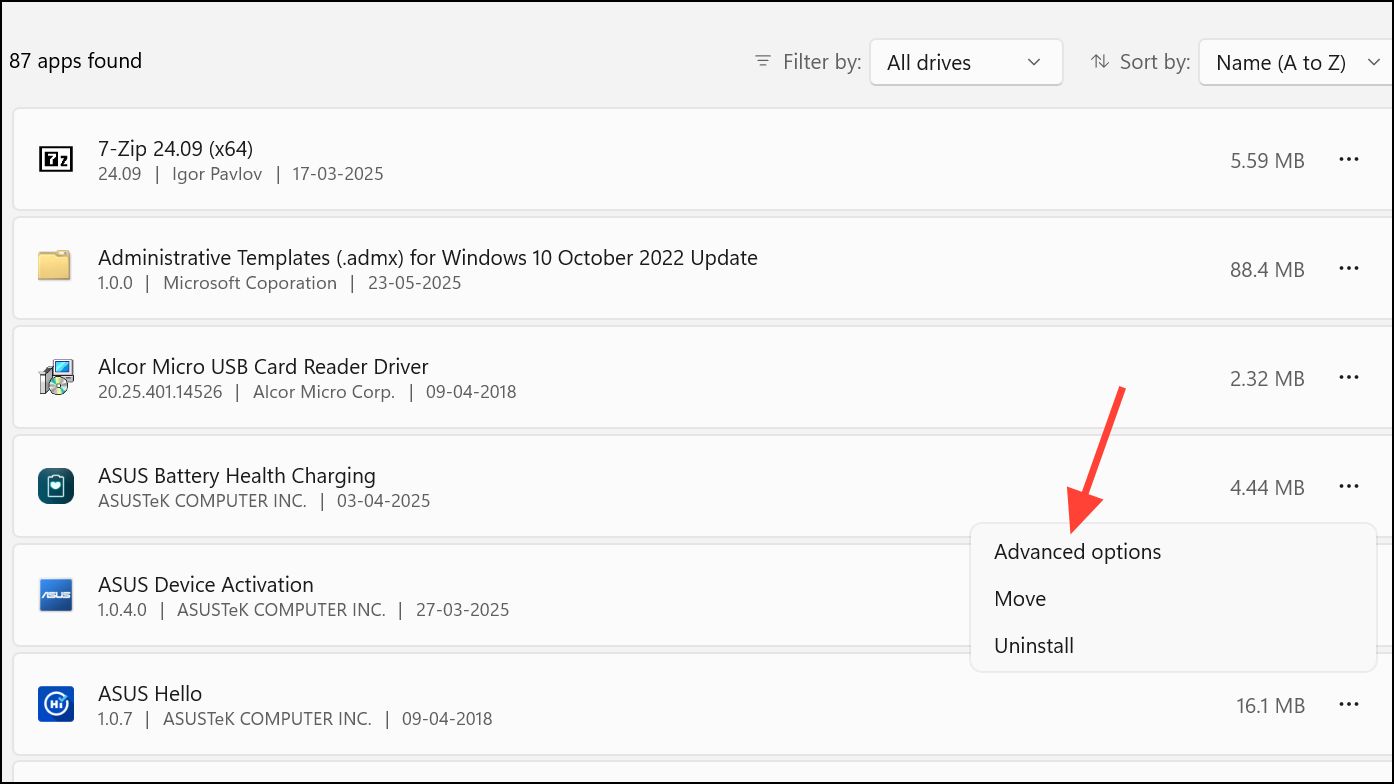
Reset. Confirm when prompted. This clears the app’s data and settings but doesn’t remove your files.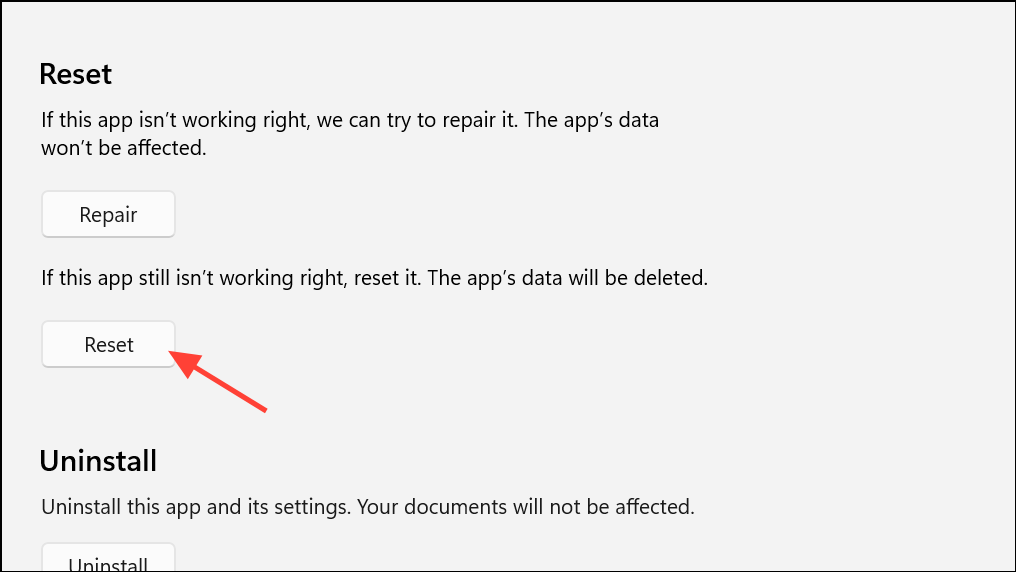
Windows Terminal (Admin) or PowerShell (Admin), and run the following command:Get-AppXPackage -AllUsers | Foreach {Add-AppxPackage -DisableDevelopmentMode -Register "$($_.InstallLocation)\AppXManifest.xml"}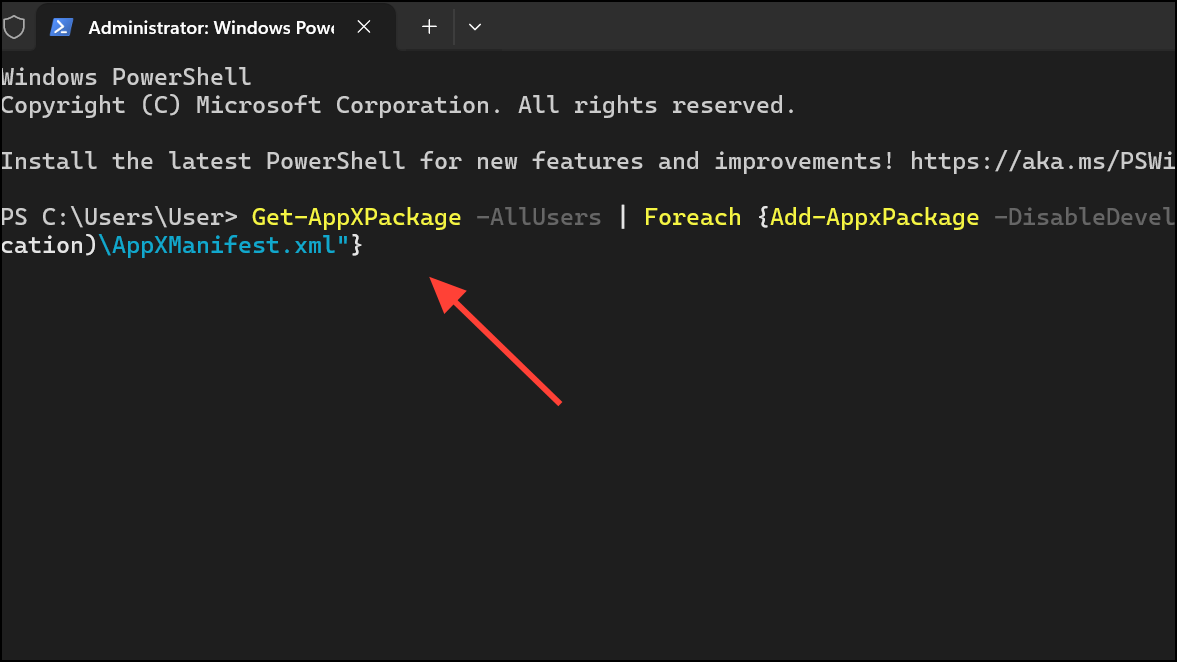
This command reinstalls and re-registers all built-in apps, which can resolve update issues that cause persistent pop-ups.
Manage Microsoft Edge and Feature Recommendations
Microsoft Edge may display its own notifications or feature recommendations that resemble system pop-ups.
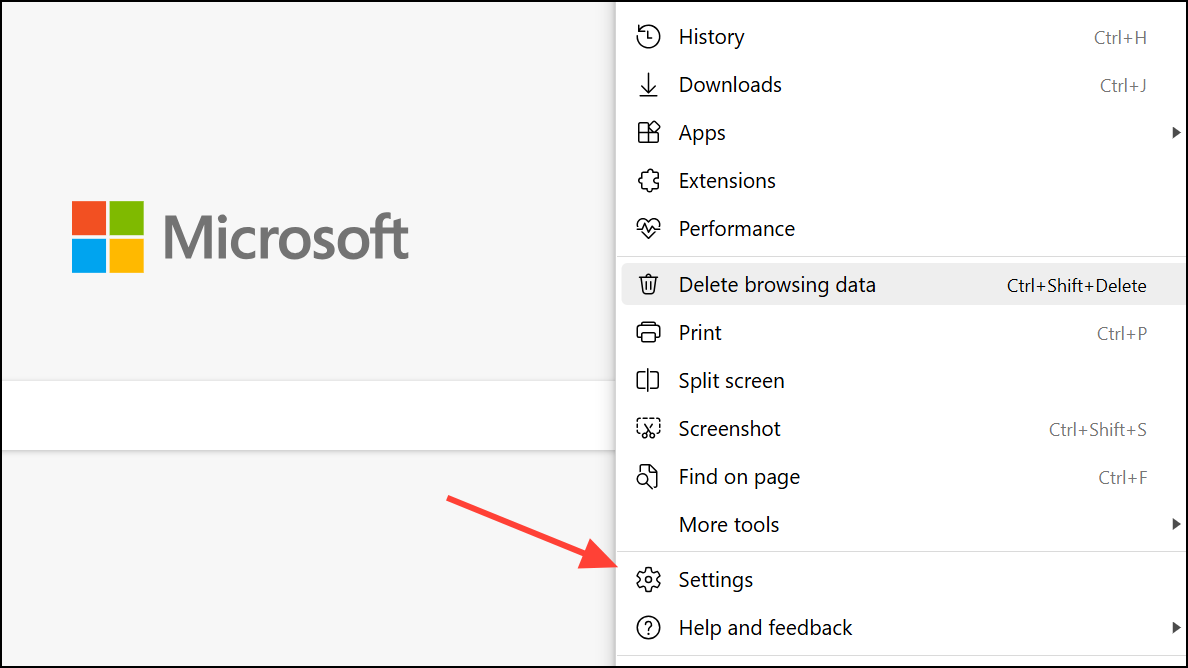
System and performance. Look for any toggles related to startup boosts, background extensions, or feature recommendations, and disable them if present.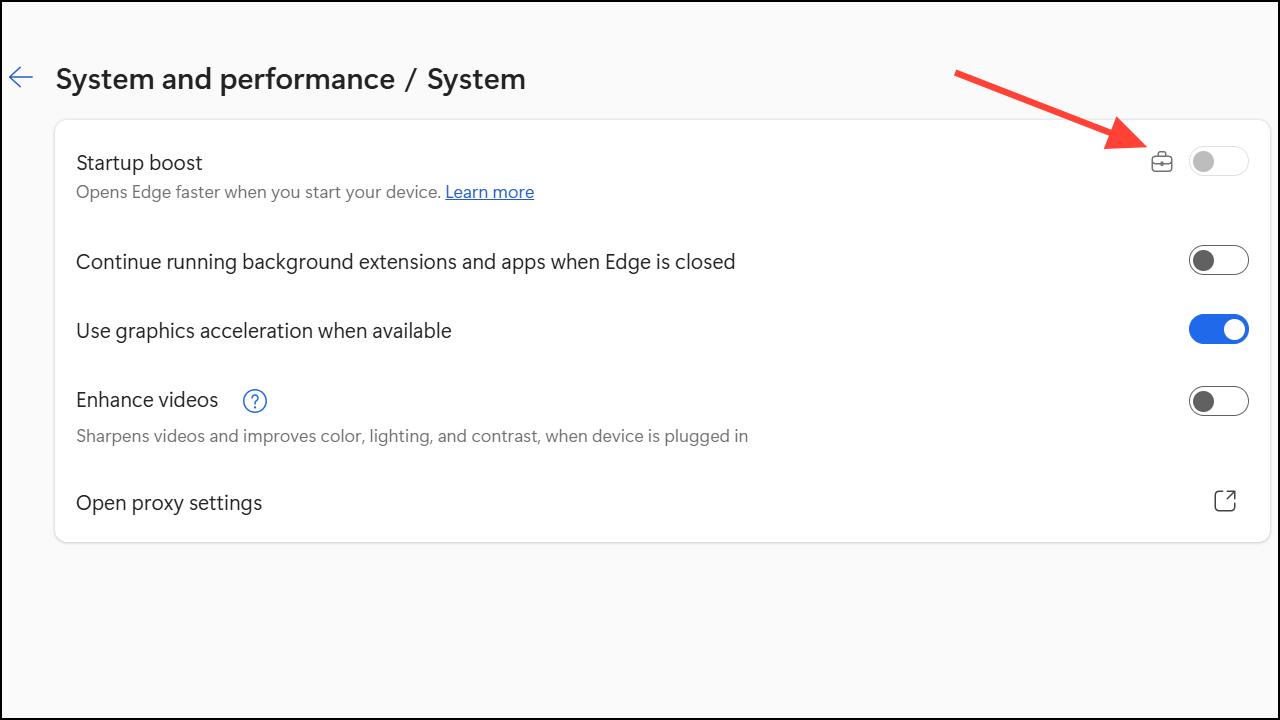
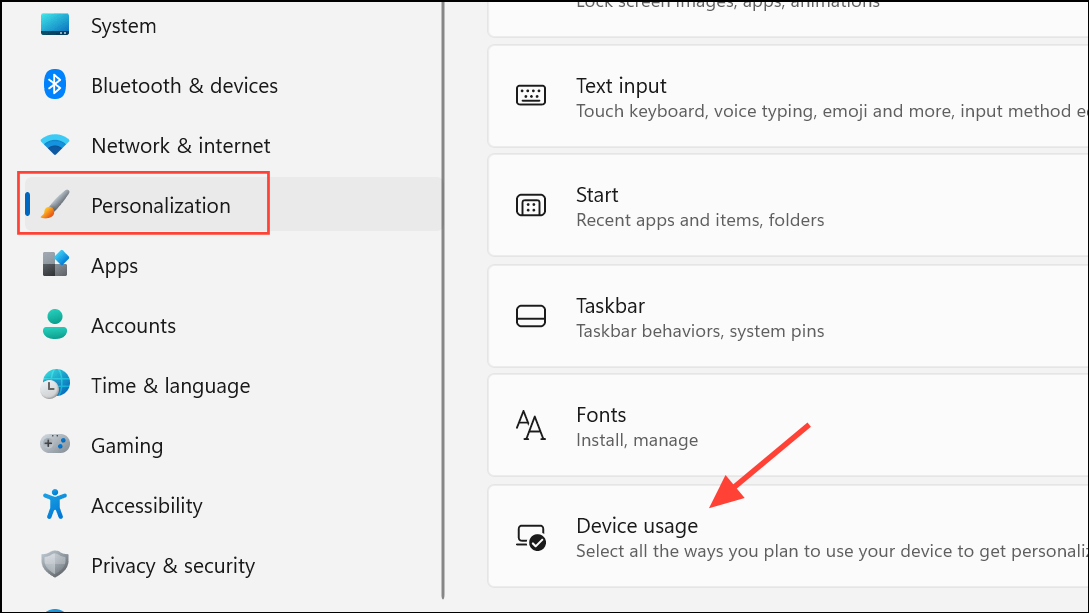
edge://flags by searching for edge-show-feature-recommendations. However, this flag has been removed in recent updates, so focus on in-app settings instead.Turn Off Device Usage Personalization
Windows 11 offers device usage-based personalization that can trigger targeted tips and notifications.
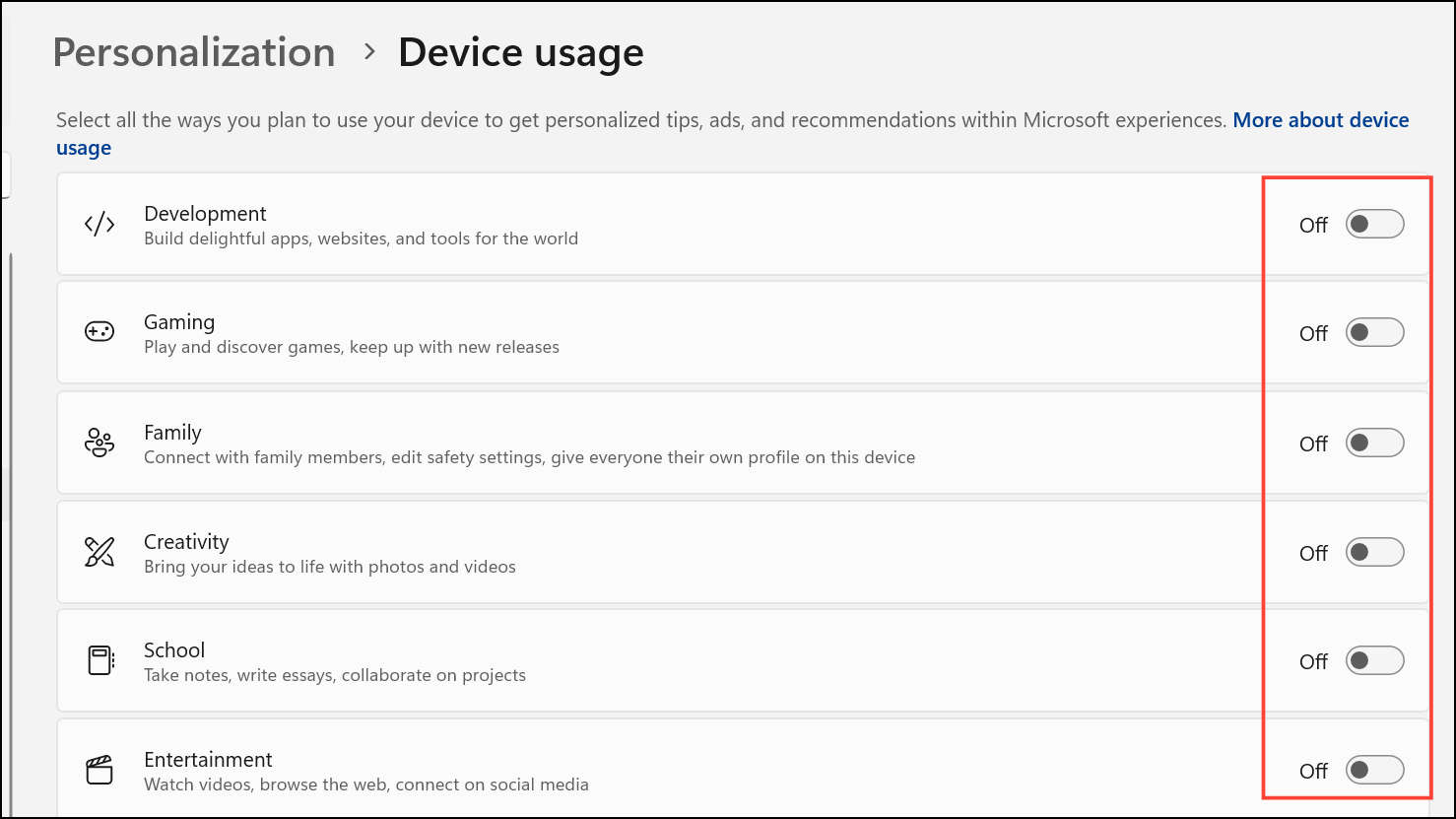
Suppress Notifications from the Action Center
When a pop-up appears, you can use the Notifications panel to directly block future messages from the same source.
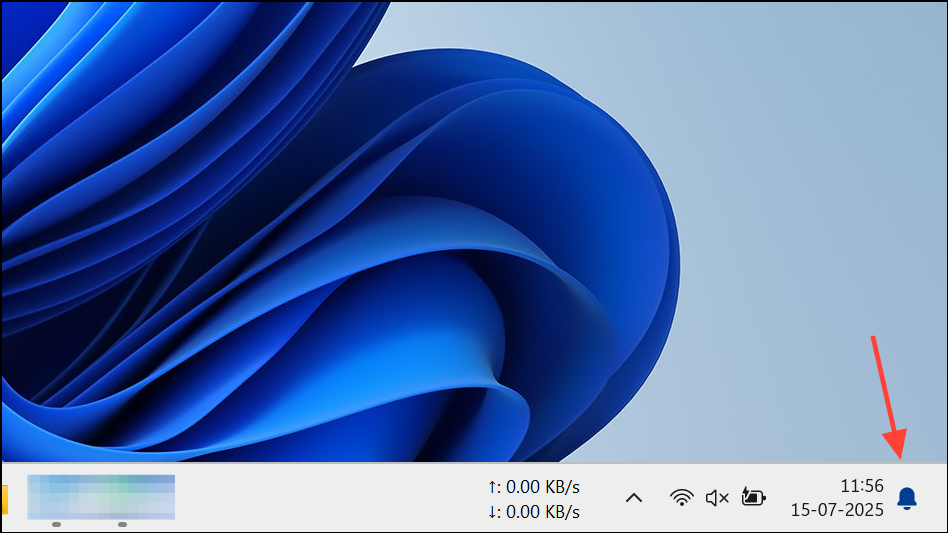
Turn off all notifications for this app or a similar option. This immediately blocks further notifications from that app or service.Disabling tips and suggestions, completing pending updates, and managing notification settings typically removes the “Give Us a Minute” pop-up in Windows 11. If the message persists, resetting or re-registering apps and reviewing Edge settings can further reduce interruptions.



