Integrating Google Drive with Grok Studio unlocks a faster, more flexible way to manage documents, code, and collaborative projects without toggling between multiple platforms. By connecting your Drive, you can pull in files, analyze data, and co-edit content directly within Grok’s canvas-style workspace, improving speed and reducing context switching for both technical and non-technical tasks. The process is straightforward, and both free and premium Grok users can take advantage of this integration for document creation, code execution, and real-time feedback.
Integrating Google Drive With Grok Studio
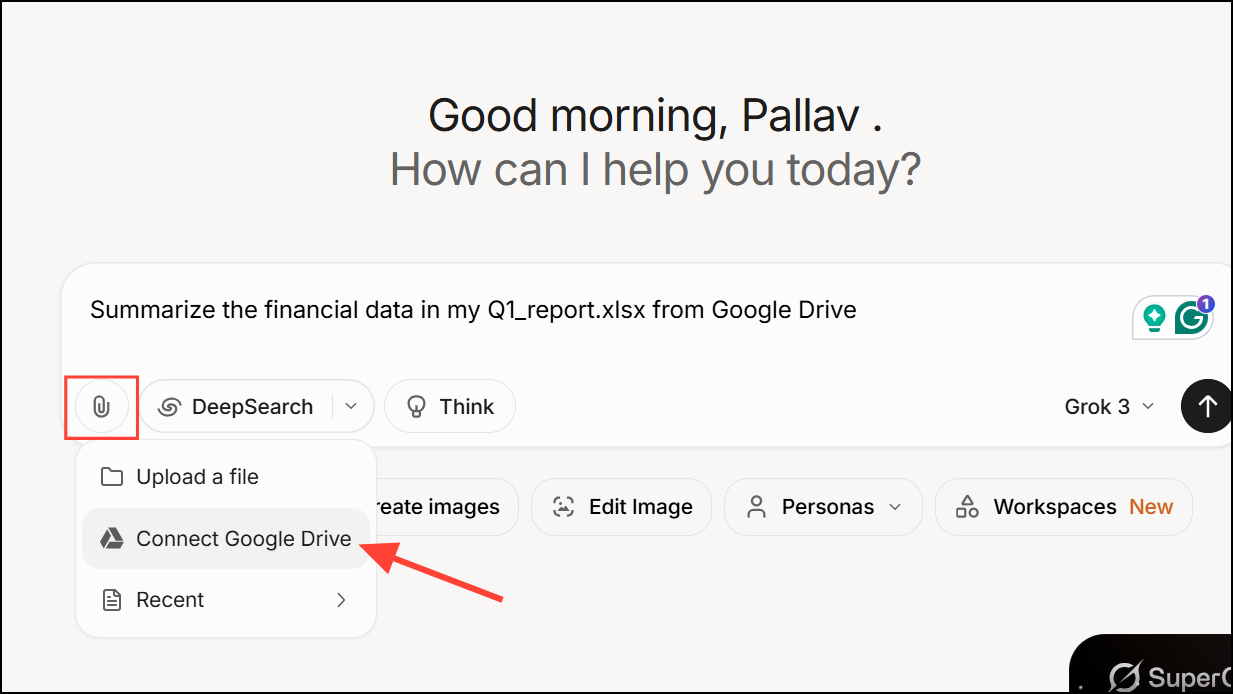
Summarize the financial data in my Q1_report.xlsx from Google Drive or Create a presentation using the slides from my Drive.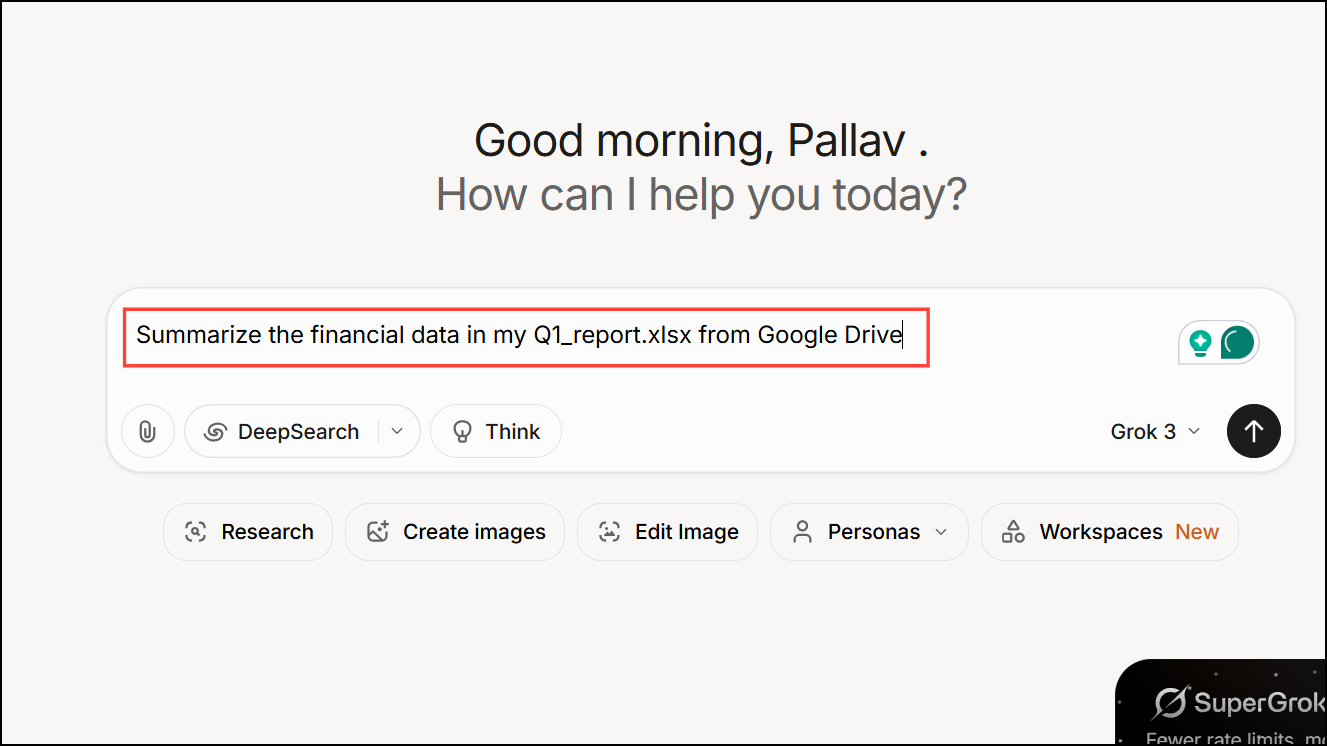
Optimizing Your Workflow With Grok Studio and Google Drive
Connecting Google Drive to Grok Studio streamlines several common tasks:
- Summarize lengthy reports: Attach large documents and prompt Grok to extract key points or generate summaries.
- Analyze spreadsheet data: Select spreadsheets from Drive, then ask Grok to calculate statistics, identify trends, or visualize results.
- Edit presentations: Import slide decks and collaborate with Grok to refine content, add talking points, or reformat slides.
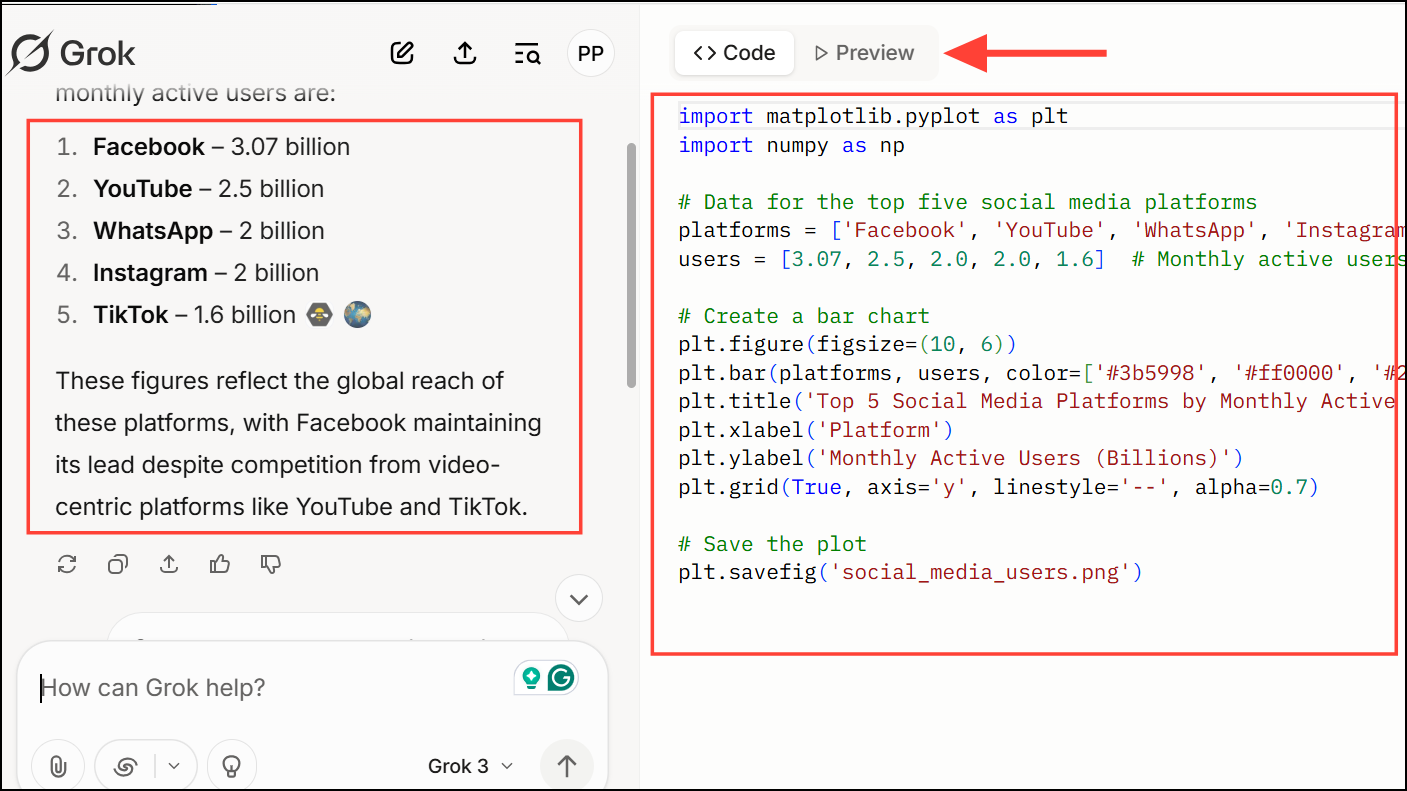
- Collaborative coding: Share code snippets or full scripts from Drive, run them in Grok Studio’s preview tab, and receive instant feedback or debugging help.
Grok Studio’s integration with Google Drive reduces manual file transfers and context switching, making it easier to manage digital content in one unified workspace. Unlike some competing AI tools, Grok Studio provides these features to all users, not just paid subscribers, and supports a wide range of file types and programming languages.
Security and Privacy Considerations
When connecting your Google Drive, always review which files you grant Grok Studio access to. Only attach documents you intend to use, especially when working with sensitive or confidential information. Grok Studio processes the files you select, but it’s best practice to avoid uploading documents from untrusted sources to minimize risk.
If you ever want to revoke Grok Studio’s access to your Google Drive, you can manage app permissions in your Google account settings. This allows you to disconnect Grok Studio at any time, maintaining control over your data and privacy.
Integrating Google Drive with Grok Studio speeds up document and code workflows, letting you create, analyze, and collaborate—all in one place, with fewer steps and less hassle.