
Pressing the Print Screen key on Windows 11 often launches the built-in Snipping Tool instead of third-party screenshot utilities like Greenshot. This default behavior prevents Greenshot from capturing screenshots with the expected shortcut, which slows down workflow—especially for users who rely on quick region captures or need advanced editing features. Adjusting system settings and Greenshot preferences allows users to restore the Print Screen key functionality for Greenshot, resolving the conflict and restoring efficient screenshot capture.
Disable Windows 11’s Print Screen Shortcut for Snipping Tool
Windows 11 assigns the Print Screen key to its own Snipping Tool by default, which overrides Greenshot’s ability to use this key for screenshots. Disabling this setting is essential to allow Greenshot to register the Print Screen key as its hotkey.
Win + I. Navigate to Accessibility in the sidebar, then scroll down and select Keyboard.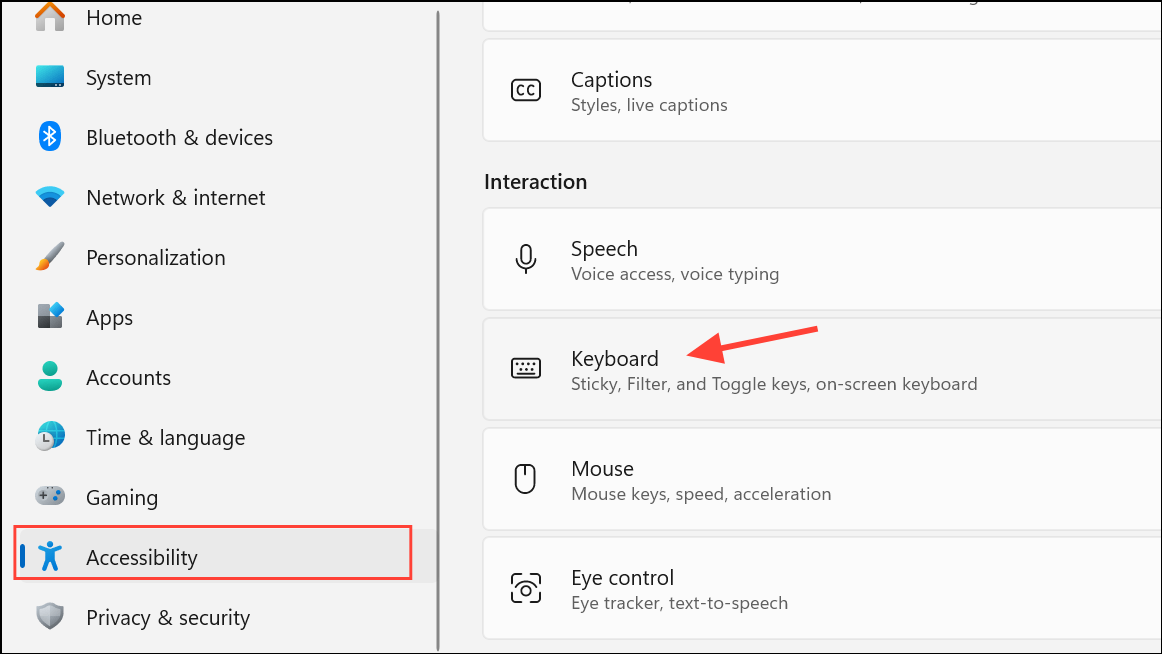
Print Screen key is pressed, freeing it for use by Greenshot.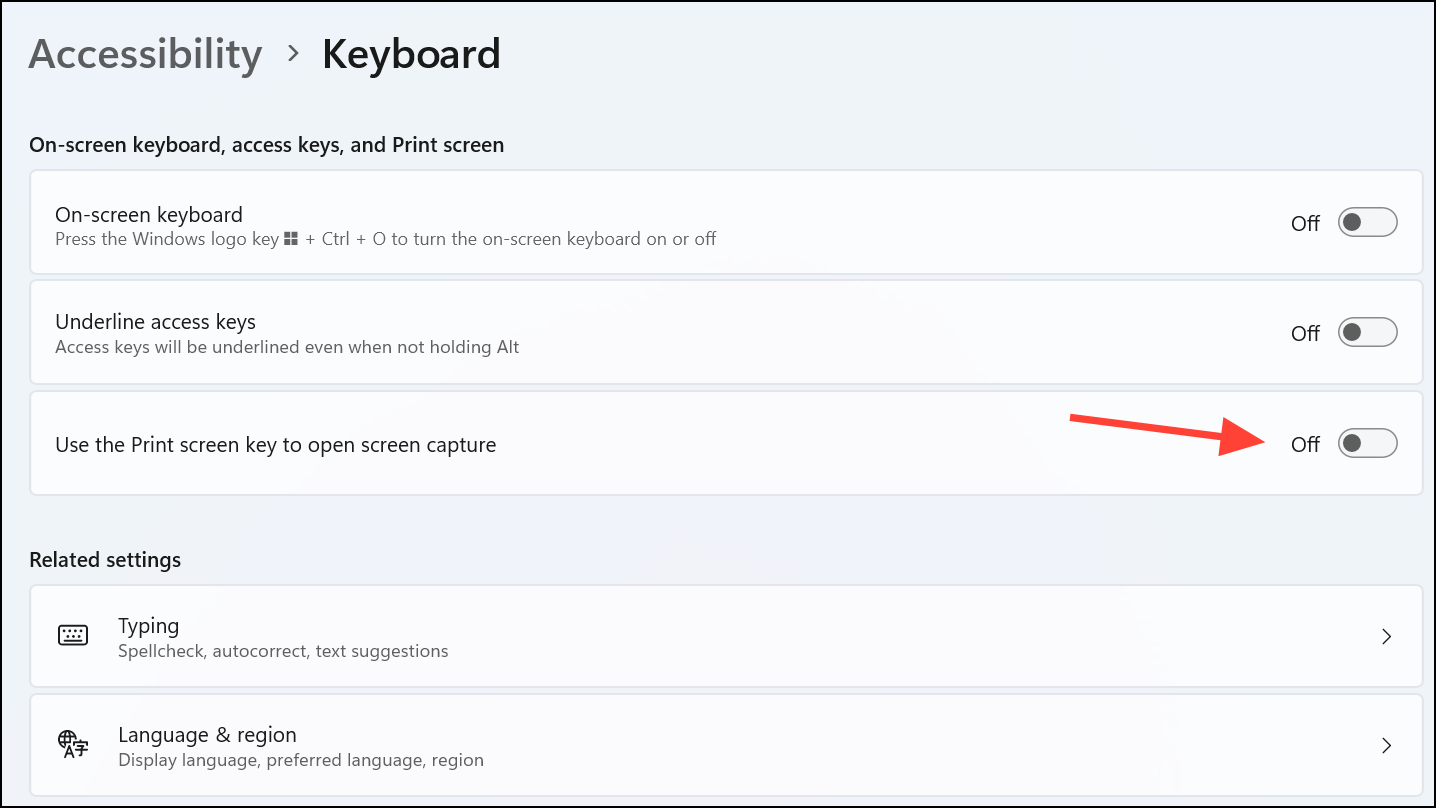
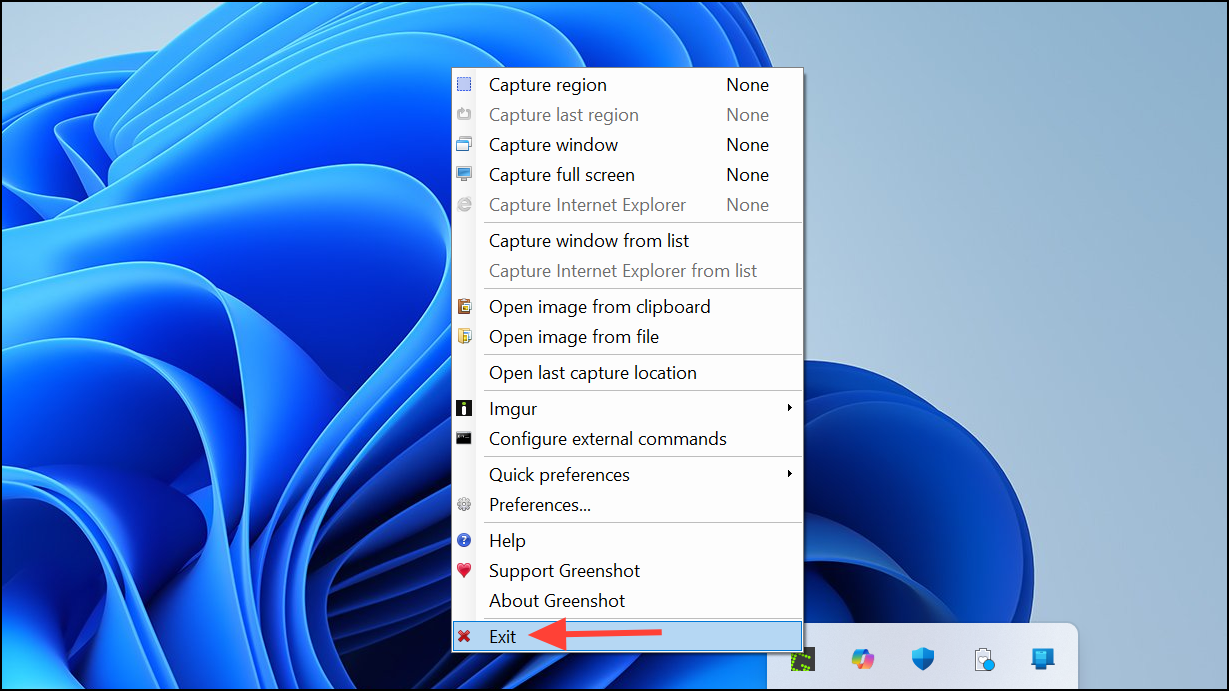
Reassign the Print Screen Key in Greenshot
After disabling the Windows shortcut, Greenshot may still need to have the Print Screen key re-registered as its capture hotkey. This ensures Greenshot responds when the key is pressed.
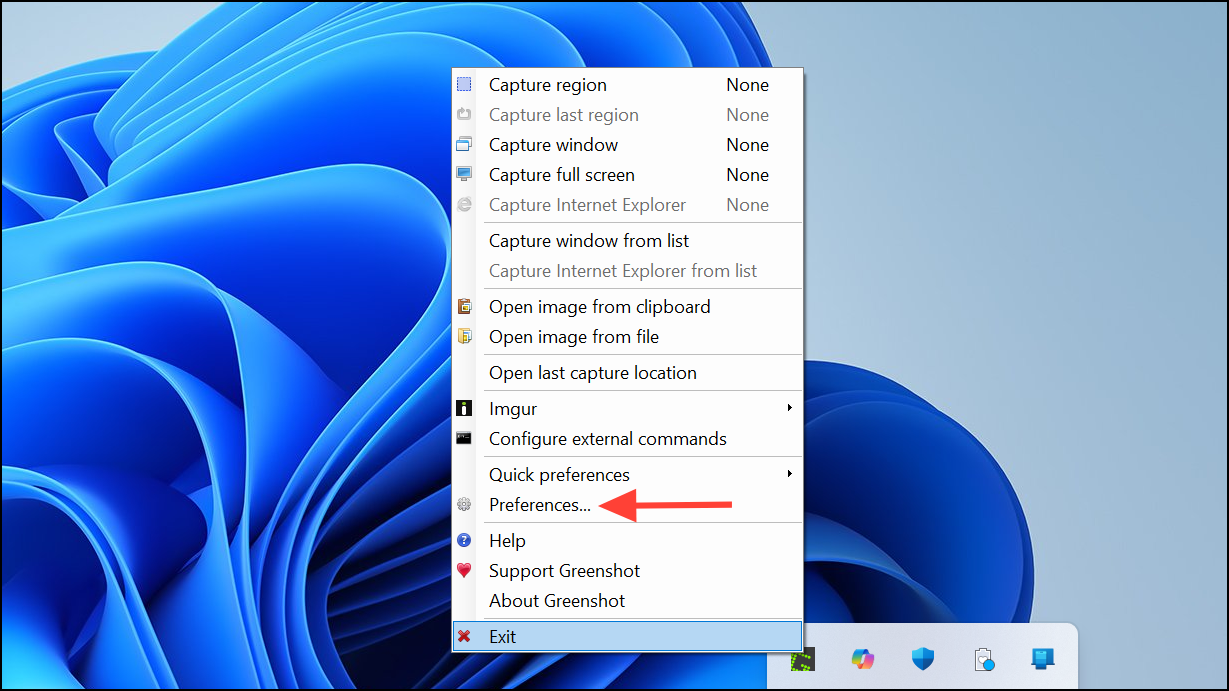
Print Screen key. This action assigns the key to Greenshot’s screenshot function.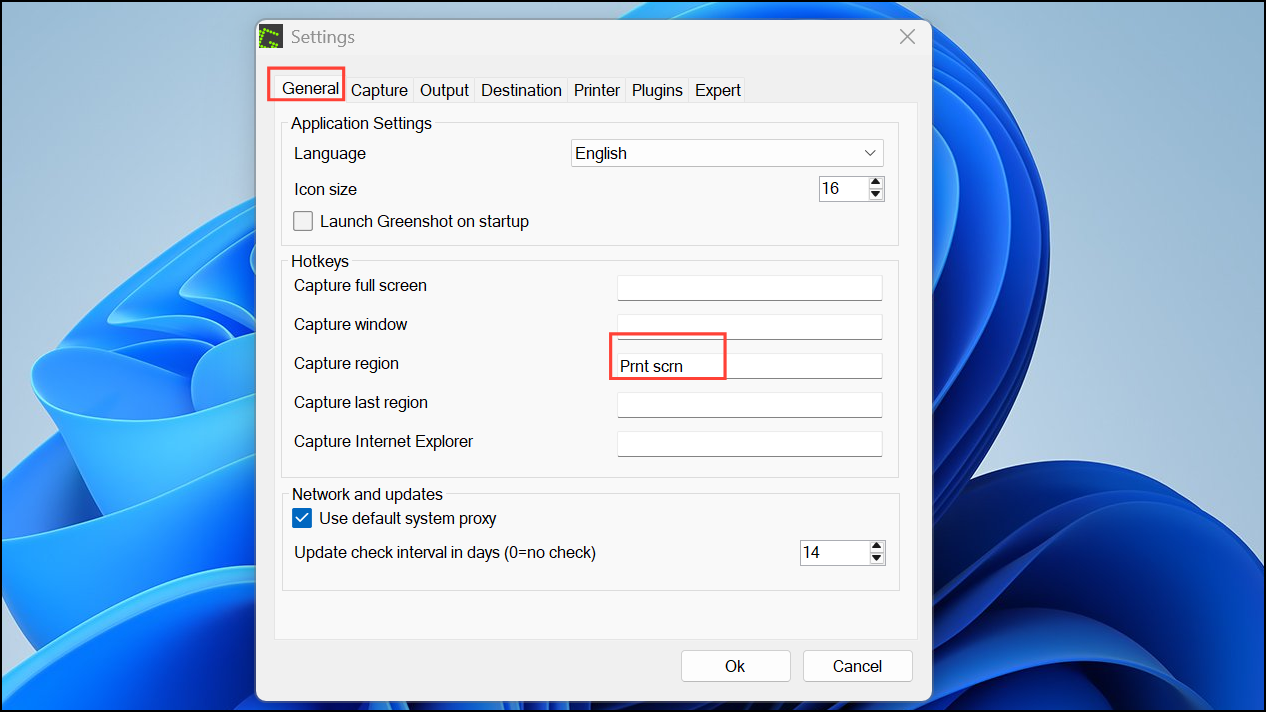
Print Screen; Greenshot should now activate and allow region selection or full-screen capture, depending on your configuration.Check for Keyboard-Specific Software or Function Key Settings
Some laptops—especially Lenovo models—and external keyboards may have additional software or function key configurations that affect the Print Screen key’s behavior. These settings can interfere with Greenshot’s hotkey registration.
Print Screen requires holding the Fn key, adjust the setting so Print Screen works directly.Print Screen key assignment and ensure it is set to standard Print Screen functionality, not a vendor-specific screen capture tool.Alternative Approach: Assign a Different Hotkey in Greenshot
If the Print Screen key remains unavailable, you can assign a different key combination for Greenshot captures.
Ctrl + Shift + G or Alt + Print Screen, to set it as the new shortcut.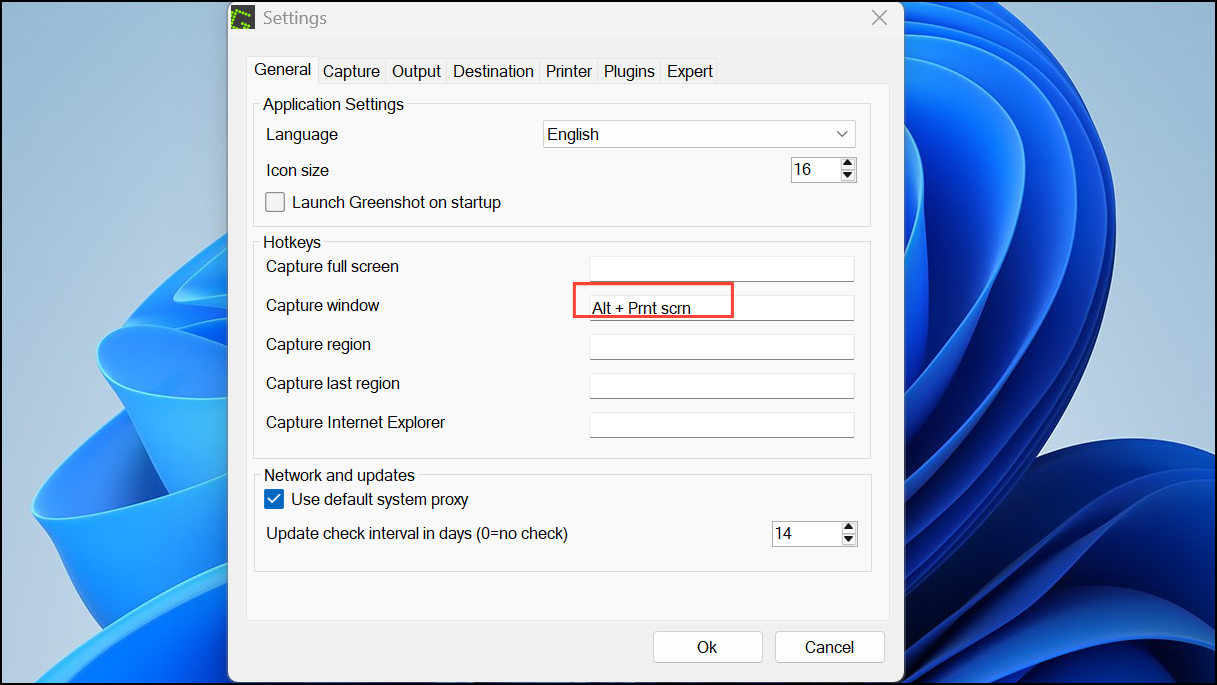
Print Screen directly.Resetting Windows 11’s accessibility keyboard setting and restarting Greenshot restores fast, reliable screenshot capture with the Print Screen key. If problems persist, checking keyboard software or switching to a different shortcut keeps Greenshot working smoothly for all your screenshot needs.



