

Mapping a drive in Windows 11 provides quicker access to frequently used network shares or local folders by assigning them drive letters. Mapped drives appear in File Explorer as if they were local drives, allowing you to manage files more efficiently and streamline your workflow. Follow the detailed instructions below to map network and local folders as drives in Windows 11.
How to Map a Network Drive Using File Explorer
Windows Key + E. Alternatively, right-click the Start button and select “File Explorer”.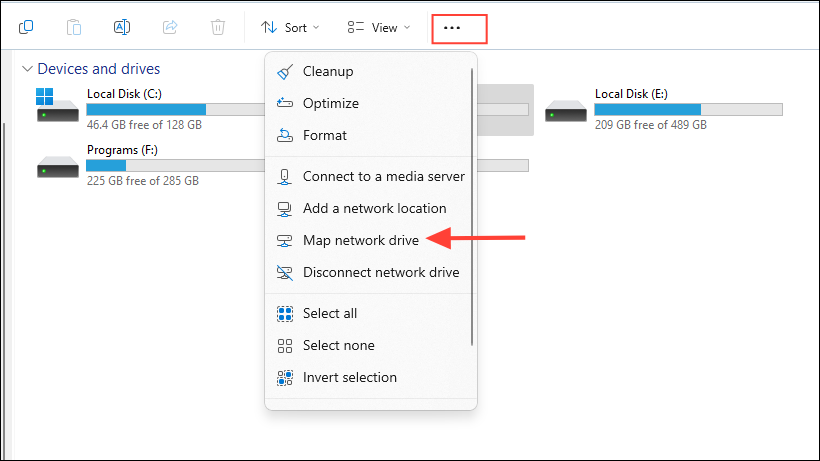
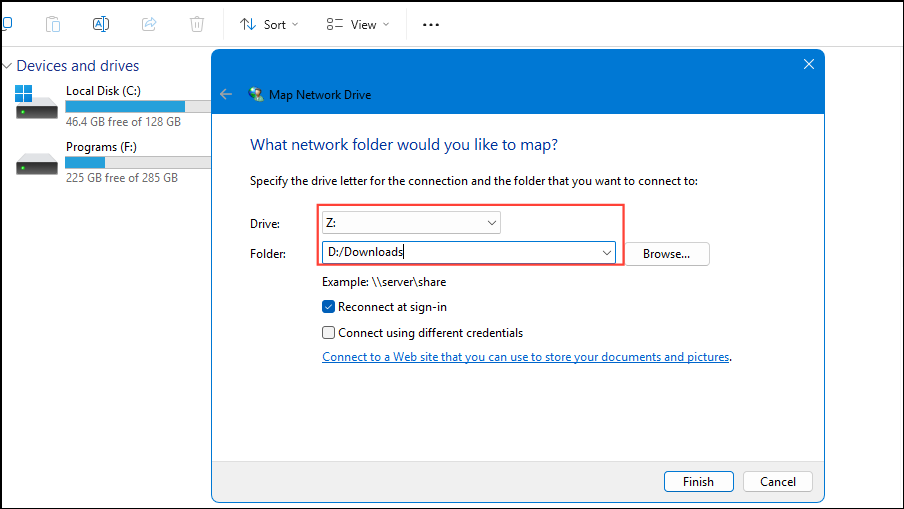
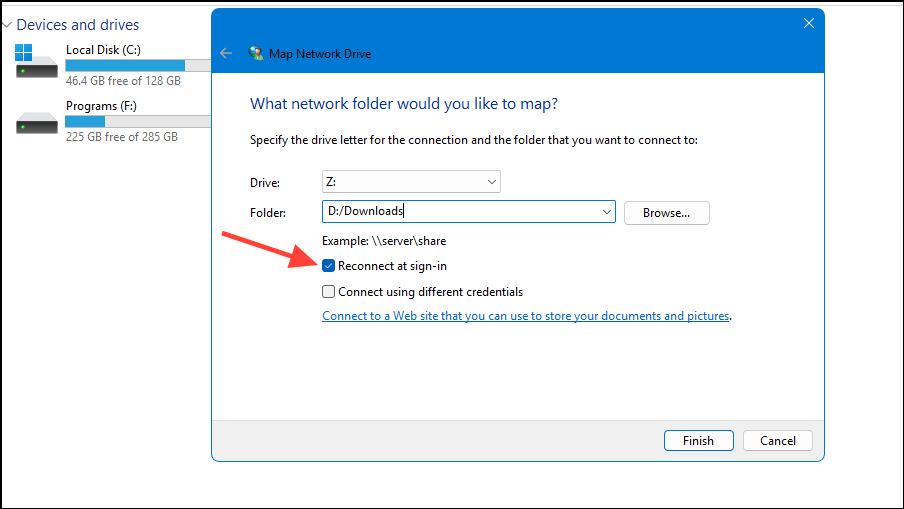
Once completed, the mapped drive appears under “This PC” and in the File Explorer sidebar under “Network”. You can now access it just as easily as your local drives. However, keep in mind that network drives might perform slower than local drives due to network speed limitations.
How to Map a Network Drive Using Command Prompt
If you prefer using Command Prompt, follow these steps:
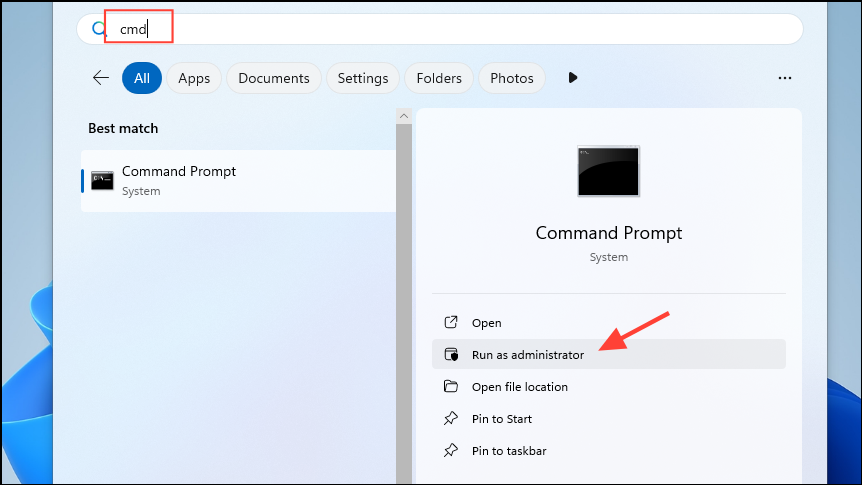
net use Z: \\ServerName\SharedFolder /persistent:yesReplace Z: with your desired drive letter and \\ServerName\SharedFolder with your actual network path.
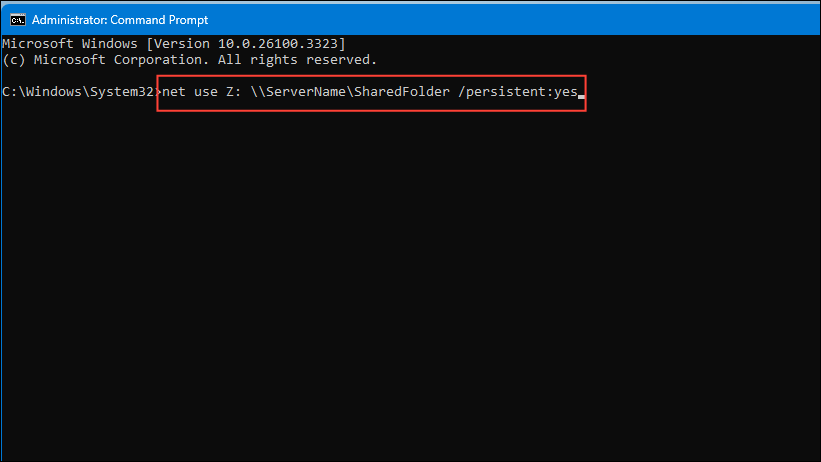
After executing this command, the mapped drive will appear in File Explorer and reconnect automatically at each login.
How to Map a Network Drive Using PowerShell
PowerShell provides another efficient method to map network drives:
New-PSDrive -Name "Y" -PSProvider FileSystem -Root "\\ServerName\SharedFolder" -Persist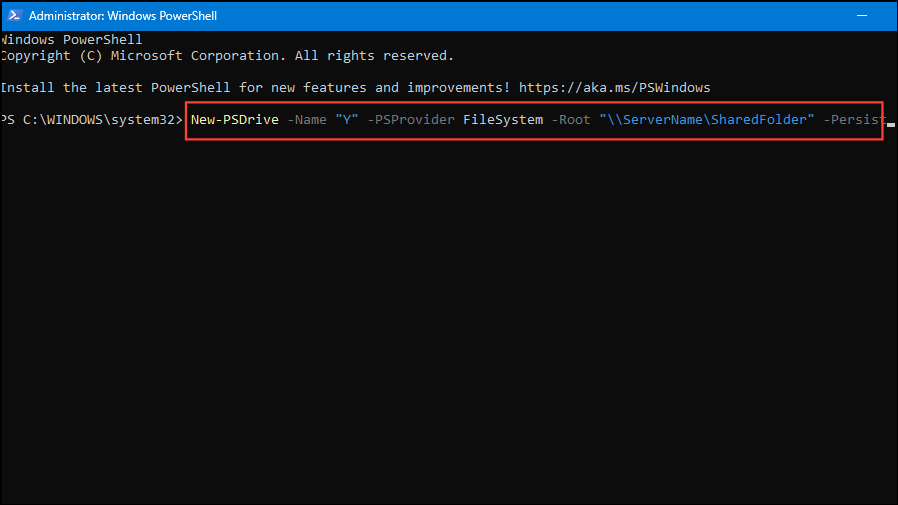
This command maps the specified network folder to the drive letter you provided. The mapped drive will persist across system restarts.
How to Map a Local Folder as a Drive in Windows 11
Windows 11 also allows mapping local folders as drives using the subst command. Follow these steps to set it up:
subst X: "C:\Path\To\Your\Folder"Replace X: with the drive letter you want and "C:\Path\To\Your\Folder" with the actual path of the folder you want to map.
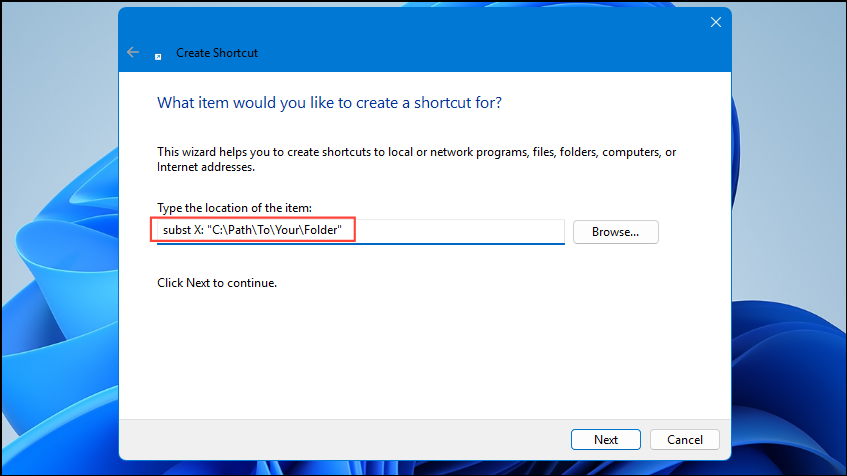
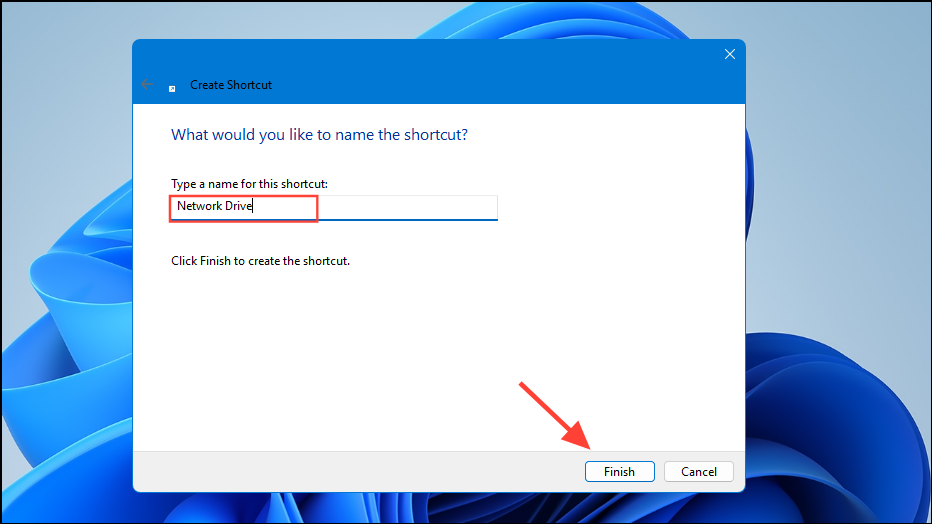
Windows Key + R, type shell:startup, and press Enter. Paste the shortcut into the Startup folder. Now, the local folder will automatically map as a drive each time you log into Windows 11.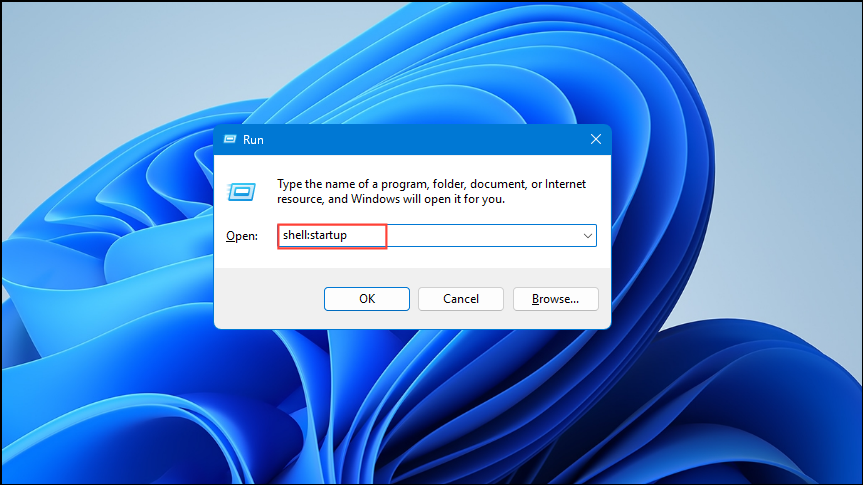
Mapping drives in Windows 11 simplifies file access and management, saving you time and effort. Whether you’re connecting to network shares or organizing local folders, these methods provide quick and convenient access to your important files.



