
Windows 11 can sometimes interrupt critical processes like app installation or uninstallation by shutting down or restarting unexpectedly, or by displaying messages such as “This app is preventing shutdown.” These interruptions can disrupt workflows, cause data loss, or leave software in an incomplete state. Adjusting system settings and troubleshooting problematic applications can stop these shutdowns and ensure smoother software management.
Automatically End Tasks That Prevent Shutdown
Configuring Windows 11 to auto-close apps that block shutdown or restart is the most direct way to resolve this issue. By default, Windows waits for user confirmation if an app is still running or not responding, which can stall shutdowns during installations or removals.
regedit in the Start menu search and pressing Enter. Accept any permission prompts.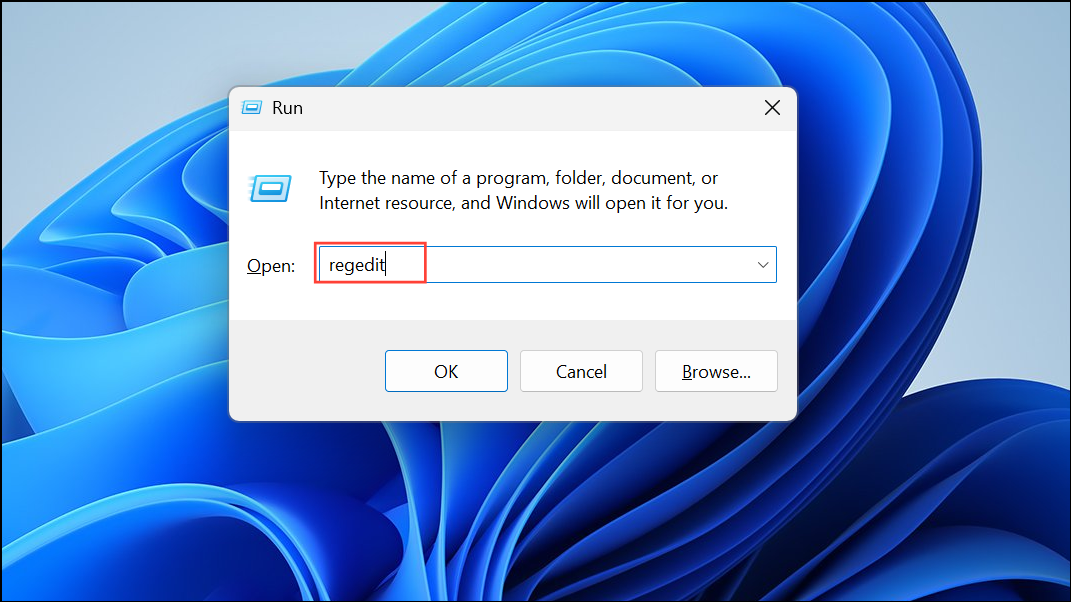
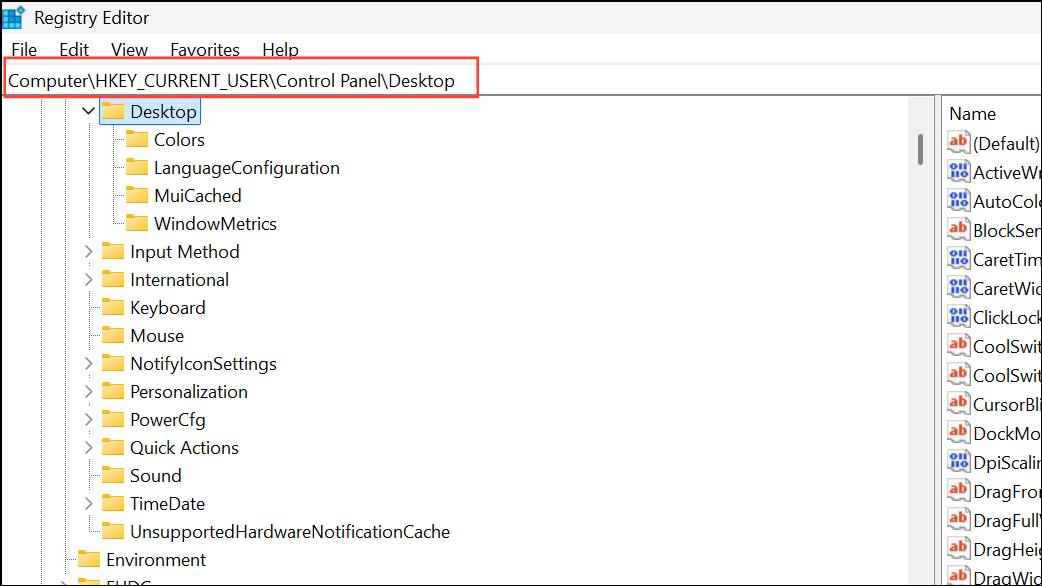
AutoEndTasks. If it does not exist, right-click, select New > String Value, and rename it to AutoEndTasks.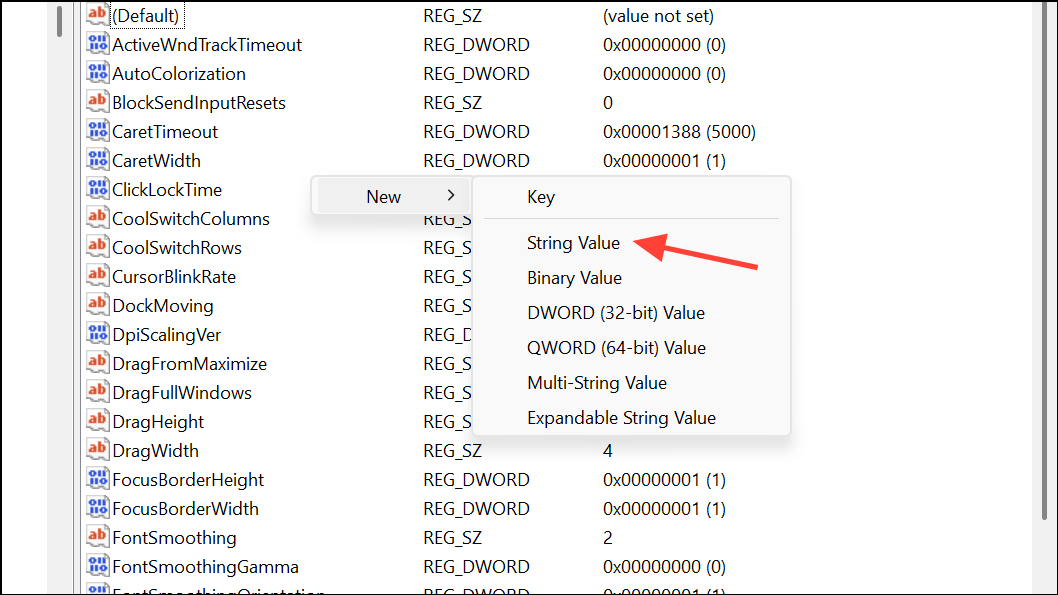
AutoEndTasks and set its value to 1. This instructs Windows to automatically close any apps blocking shutdown or restart.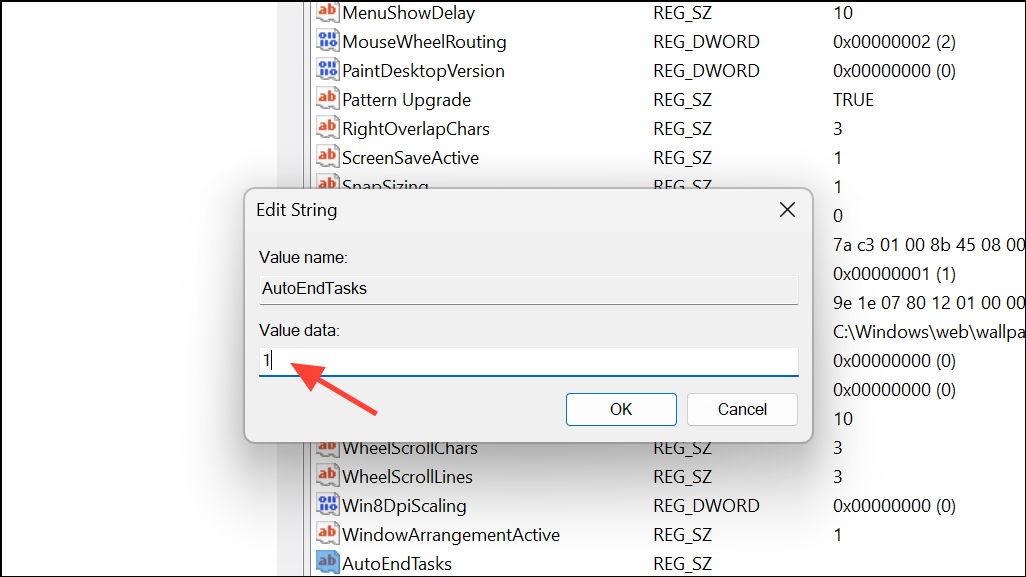
WaitToKillAppTimeout: Set to2000(milliseconds) to shorten the wait before Windows kills open apps.HungAppTimeout: Set to2000for faster closure of non-responsive apps.
HKEY_LOCAL_MACHINE\SYSTEM\CurrentControlSet\Control and set WaitToKillServiceTimeout to 2000.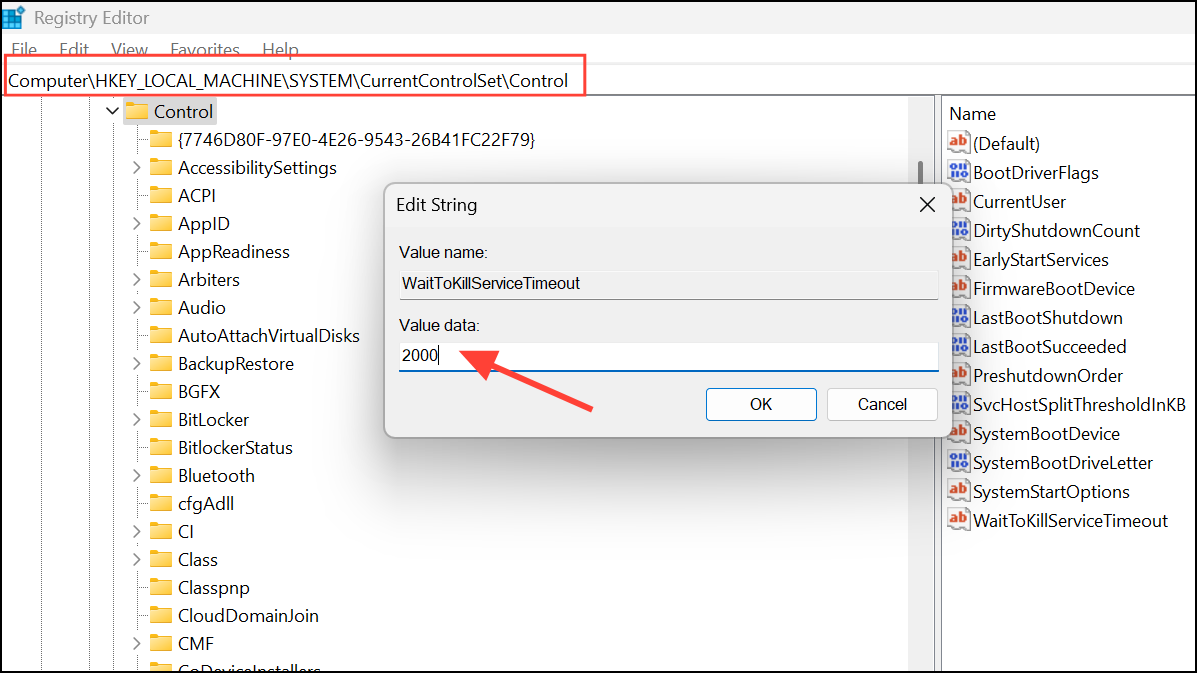
Adjust Power and Sleep Settings
Incorrect power settings can cause Windows 11 to shut down or sleep during lengthy installations or uninstallations. Ensuring your device remains active prevents interruptions.
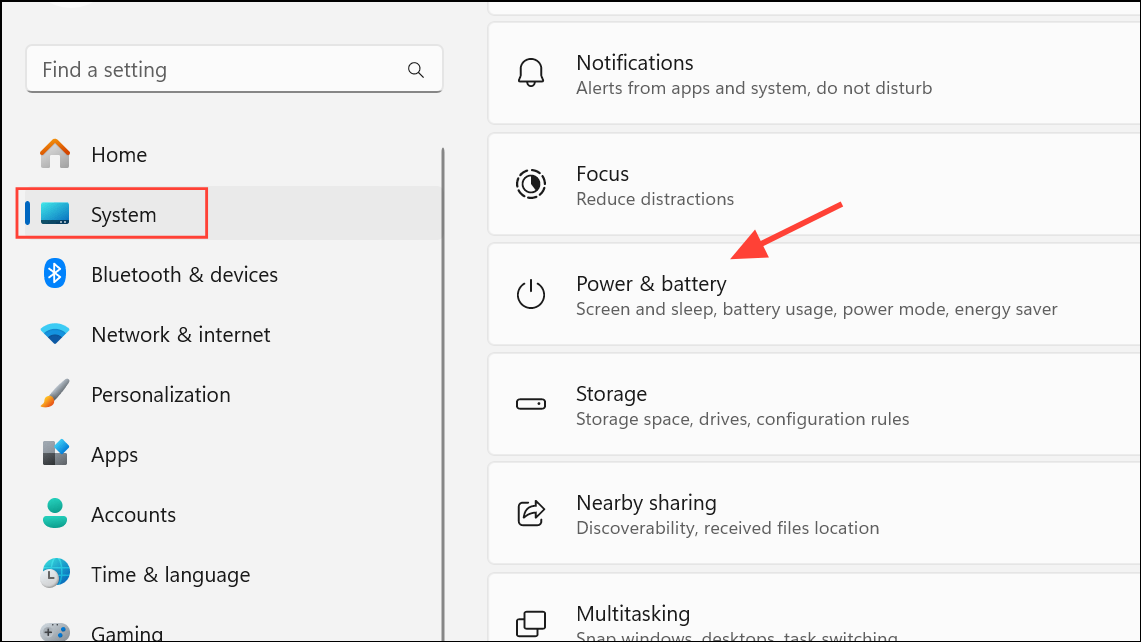
Screen and Sleep options to Never while installing or uninstalling software. This keeps the system awake and prevents automatic shutdowns.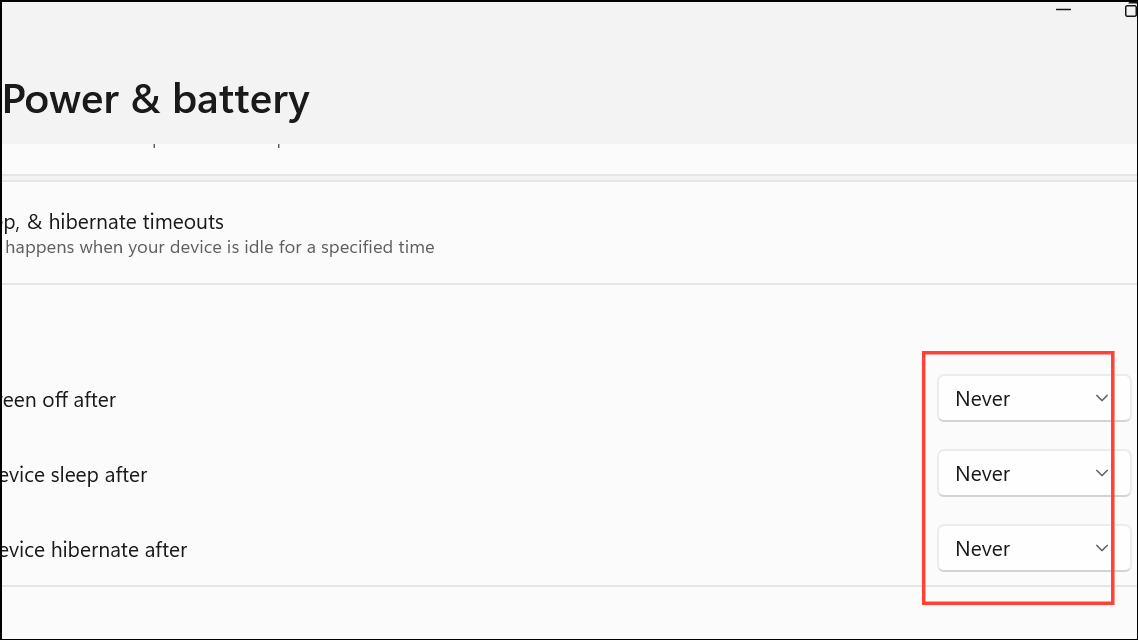
Temporarily Disable Third-Party Security Software
Antivirus or firewall programs may interfere with installations or cause Windows to halt shutdowns. Temporarily disabling them can resolve these conflicts.
Clean Up Temporary Files and Perform a Clean Boot
Corrupted temporary files or conflicting startup programs can cause shutdown or installation issues. Cleaning up temp folders and performing a clean boot removes potential sources of conflict.
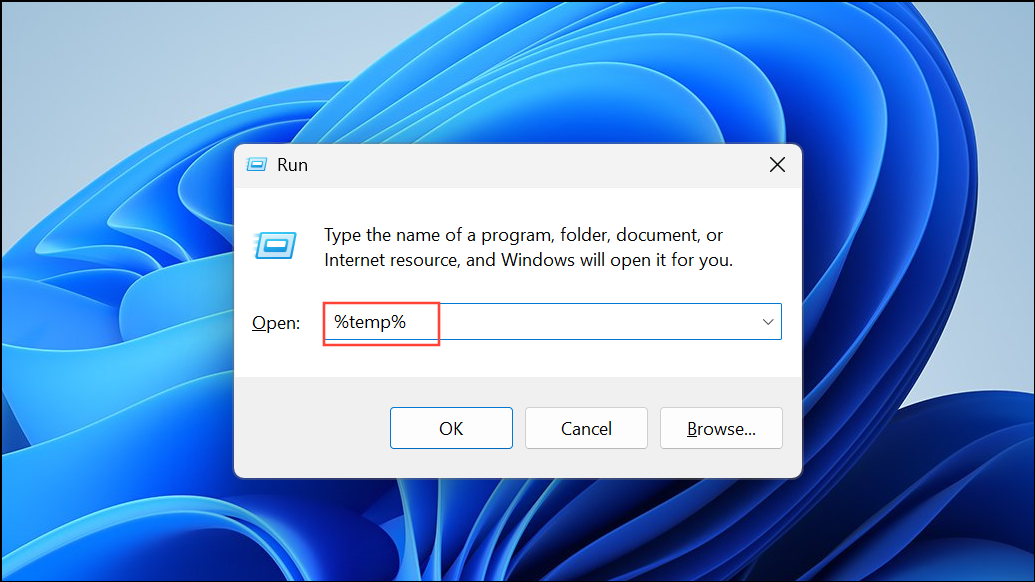
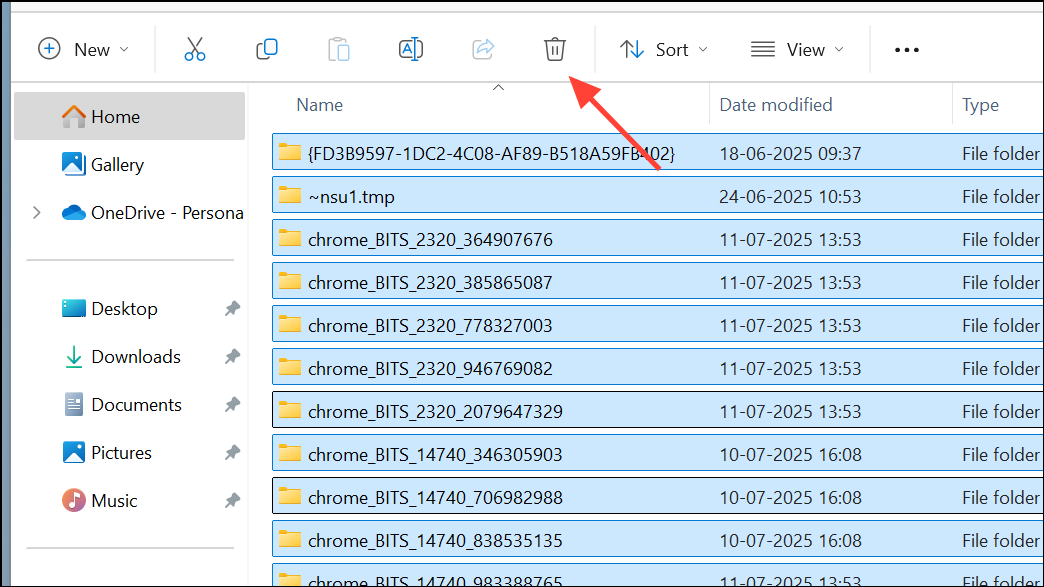
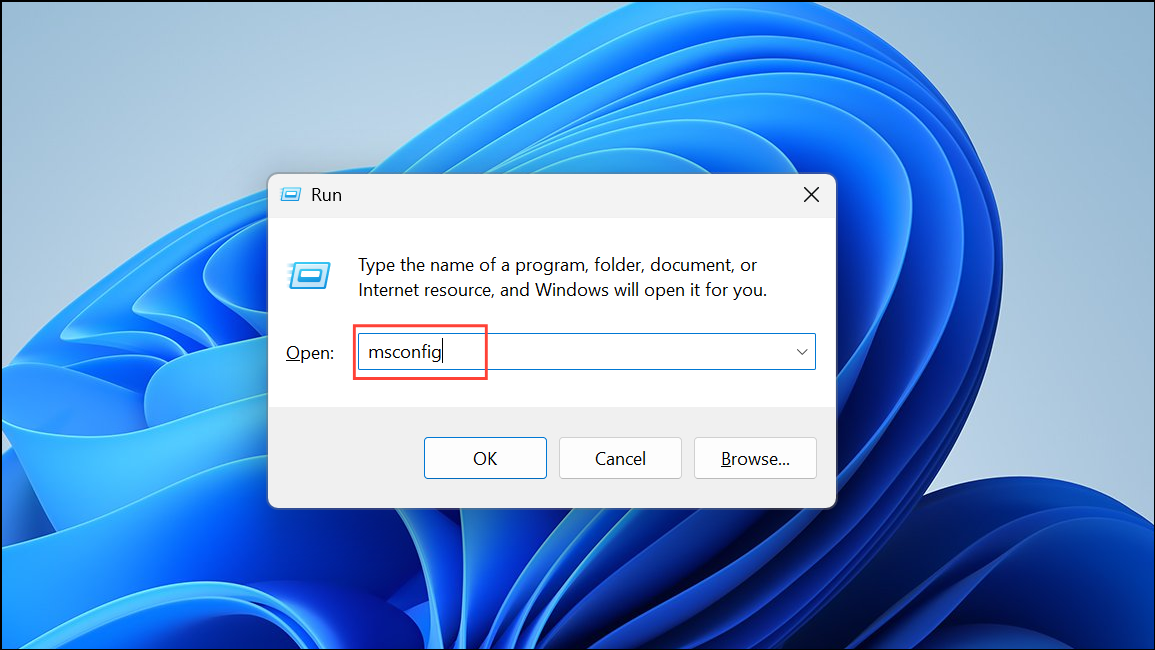
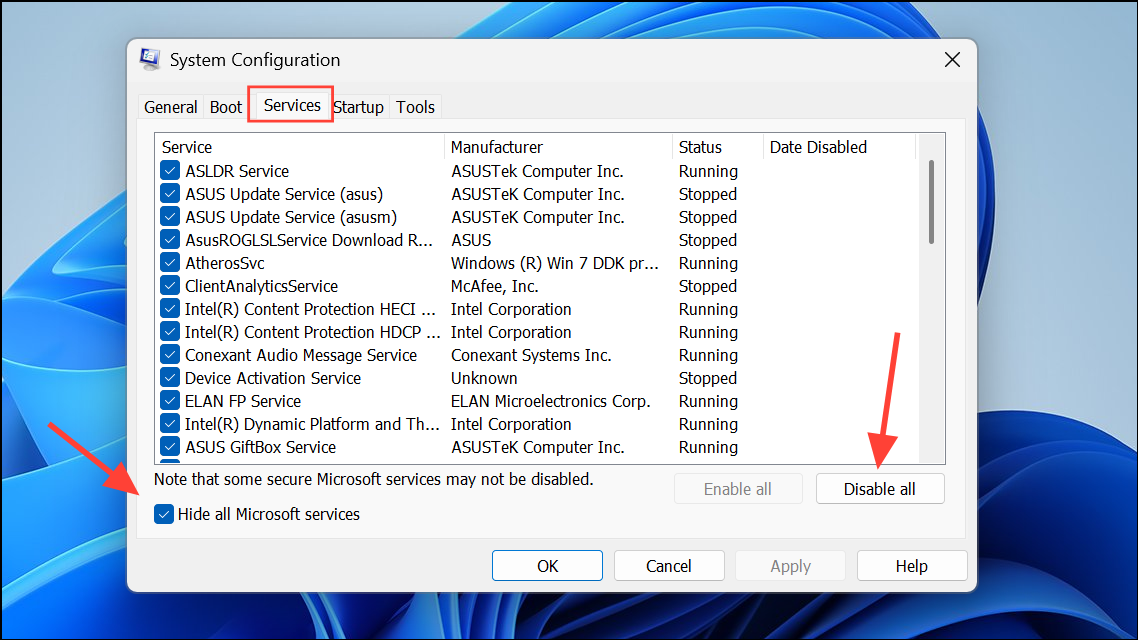
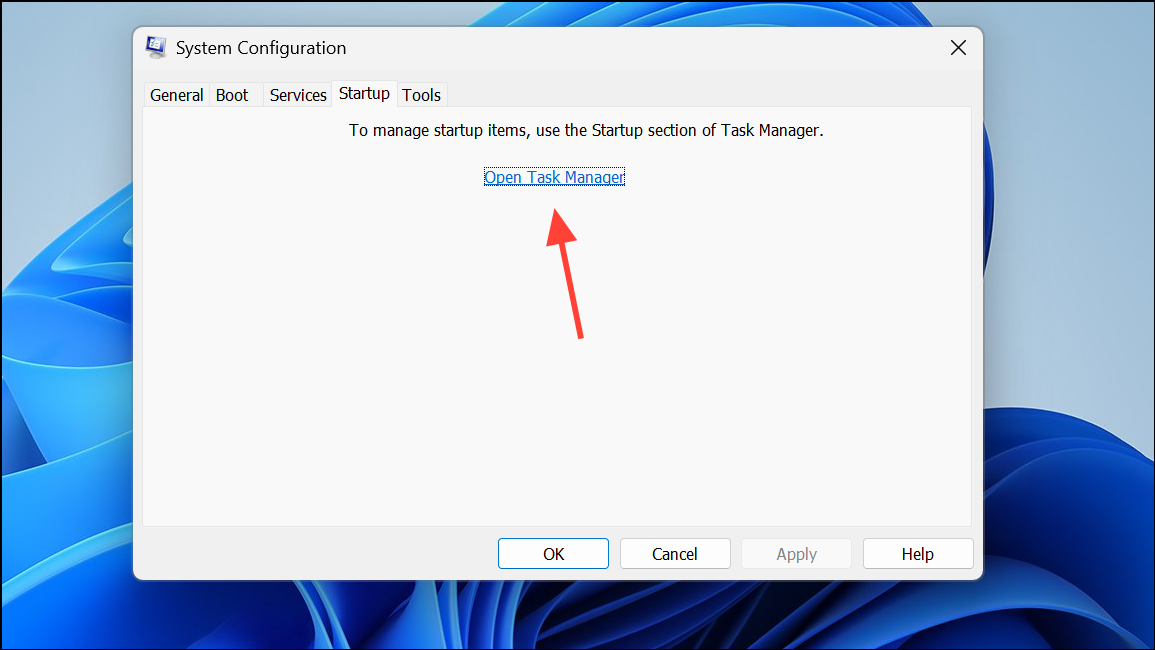
This process starts Windows with only necessary services, helping identify if a background app is causing shutdown or installation problems.
Uninstall Problematic Applications via Control Panel
If Windows 11 Settings closes unexpectedly during app uninstallation, use the classic Control Panel or a third-party uninstaller.
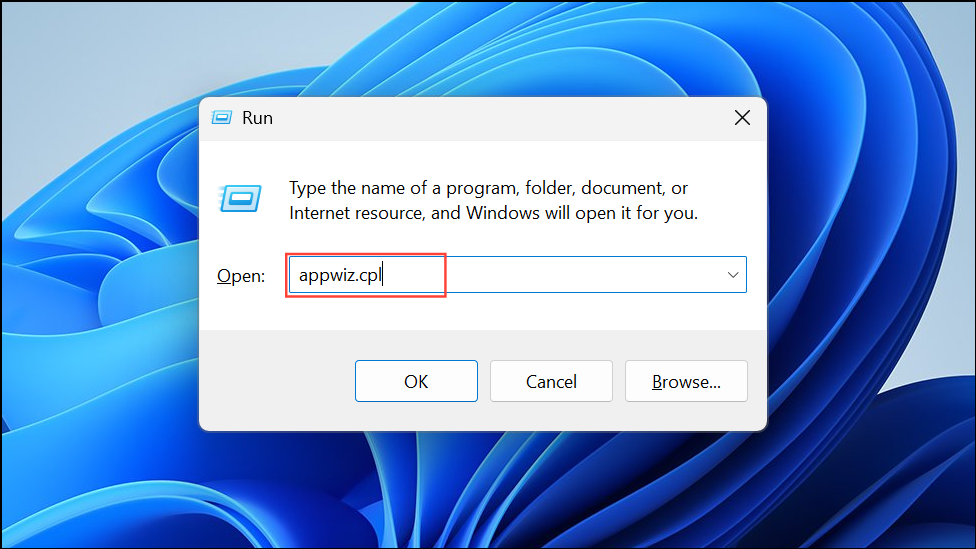
Uninstall. Follow the prompts to complete removal.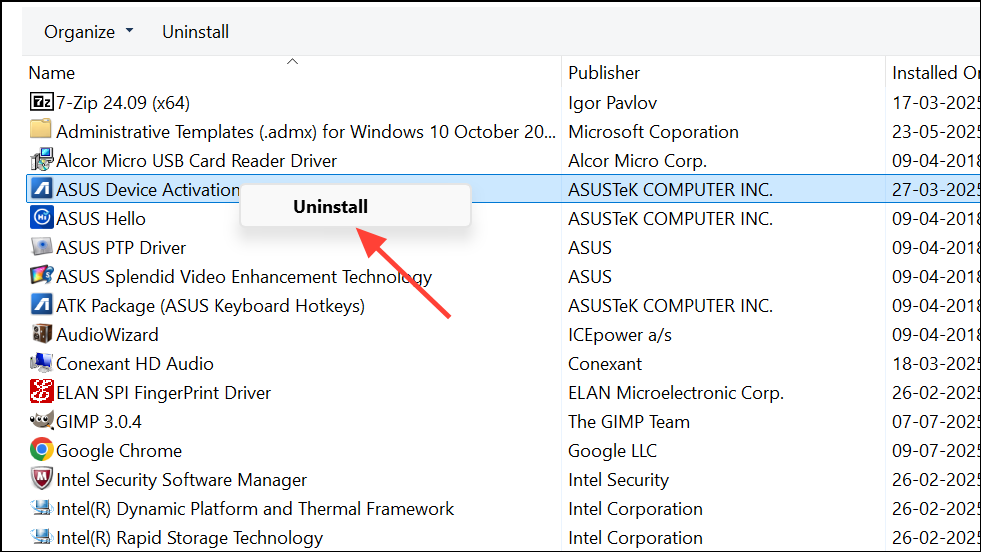
Check for Windows Updates and System File Issues
Corrupted system files or problematic updates can trigger shutdown or installation failures. Addressing these issues stabilizes your system.
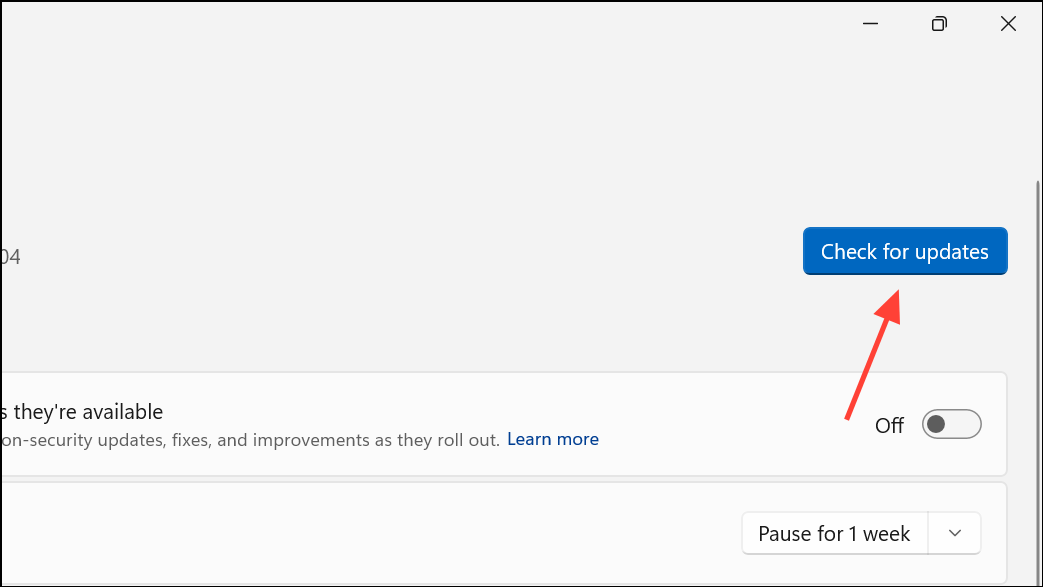
sfc /scannow
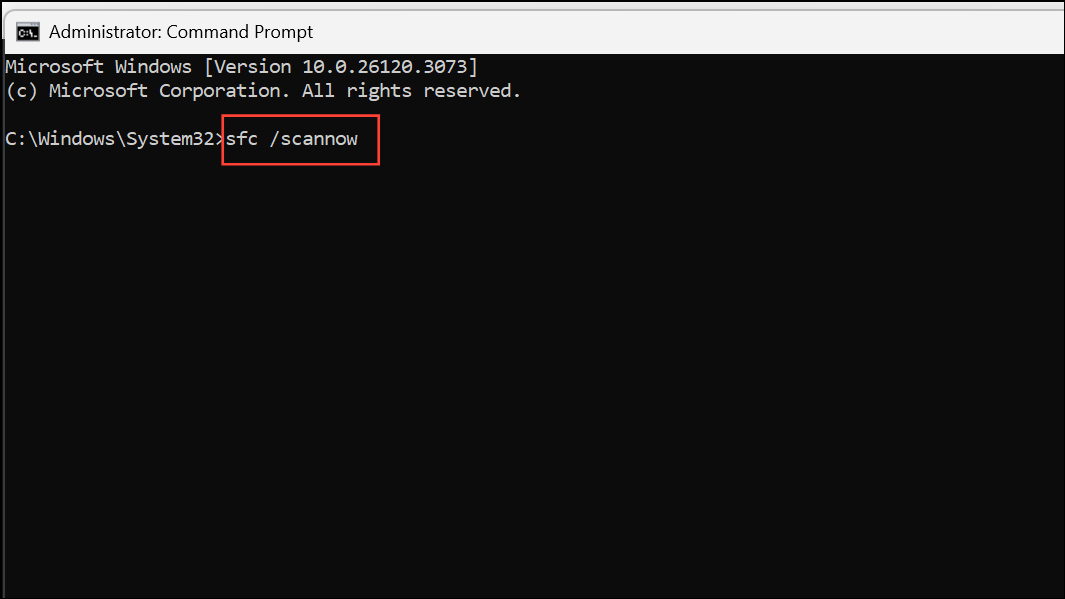
Wait for the scan to finish and follow any on-screen instructions.
DISM.exe /Online /Cleanup-image /Scanhealth
DISM.exe /Online /Cleanup-image /Restorehealth
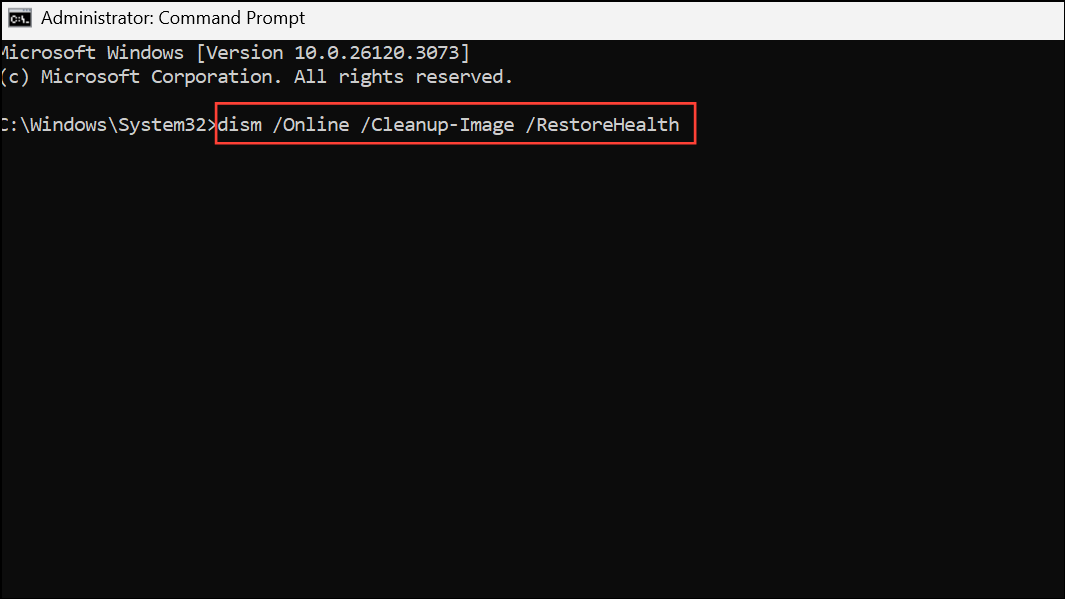
Use Utilities to Keep Windows Awake During Installations
Utilities like Microsoft PowerToys Awake or third-party tools such as Caffeine simulate activity to prevent your PC from sleeping or shutting down during lengthy installations or removals.
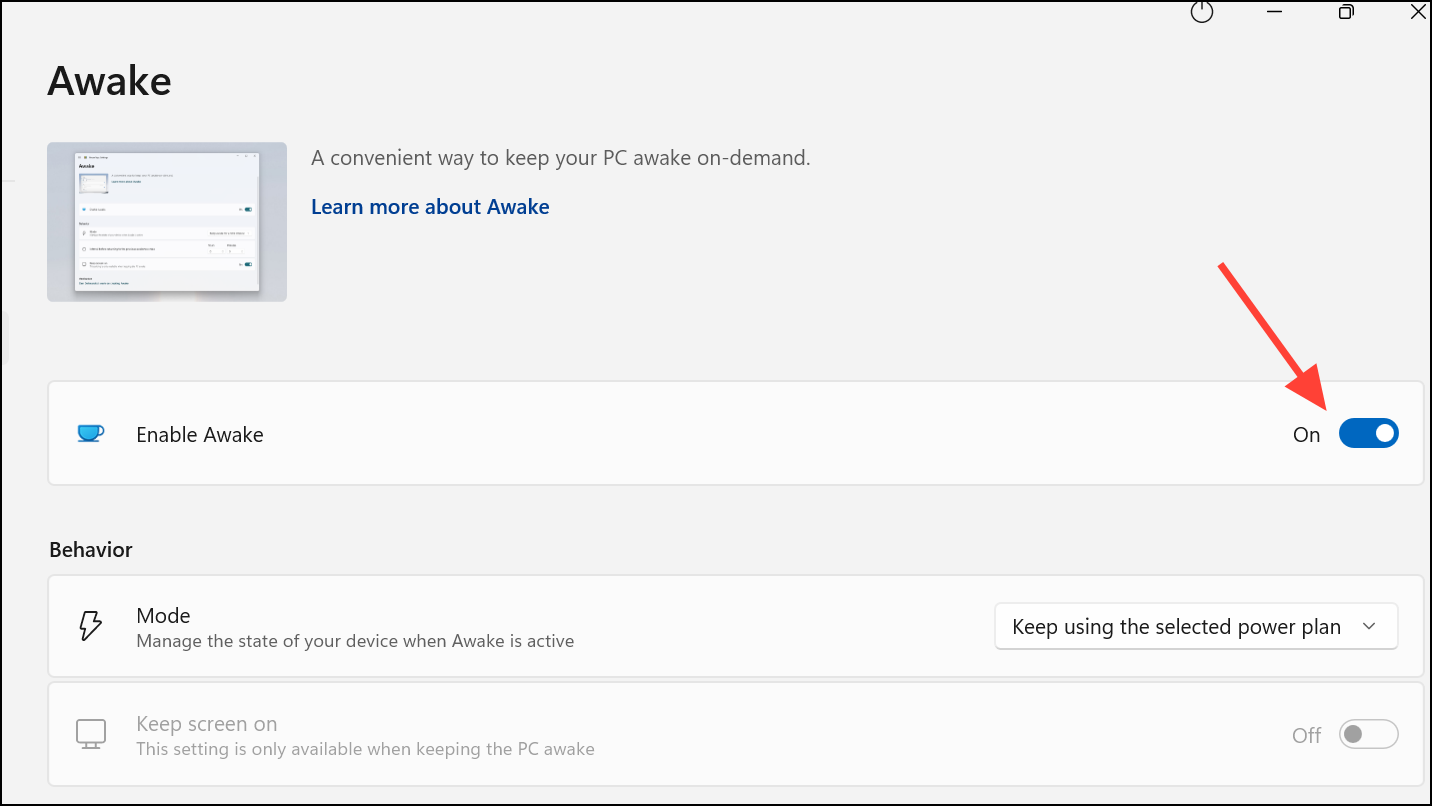
By adjusting shutdown behavior, managing power settings, and troubleshooting app conflicts, you can stop Windows 11 from shutting down during installations or uninstallations. Regular system maintenance and careful monitoring of third-party apps further reduce interruptions for a smoother experience.



