

Bluetooth technology enables wireless communication between devices, making it easy to transfer files without the need for cables or internet connectivity. In this guide, we’ll walk you through the steps to receive files over Bluetooth on your Windows 11 computer.
Prerequisites
Before you begin, ensure the following:
- Bluetooth is enabled on both your Windows 11 PC and the sending device (e.g., smartphone, tablet, or another computer).
- Both devices are within close proximity, preferably within 10 meters (33 feet) of each other.
- The sending device is discoverable and ready to share files via Bluetooth.
Steps to Receive Files via Bluetooth
Press Windows + I to open the Settings app. In the left sidebar, click on Bluetooth & devices. Ensure the Bluetooth toggle is switched to On.
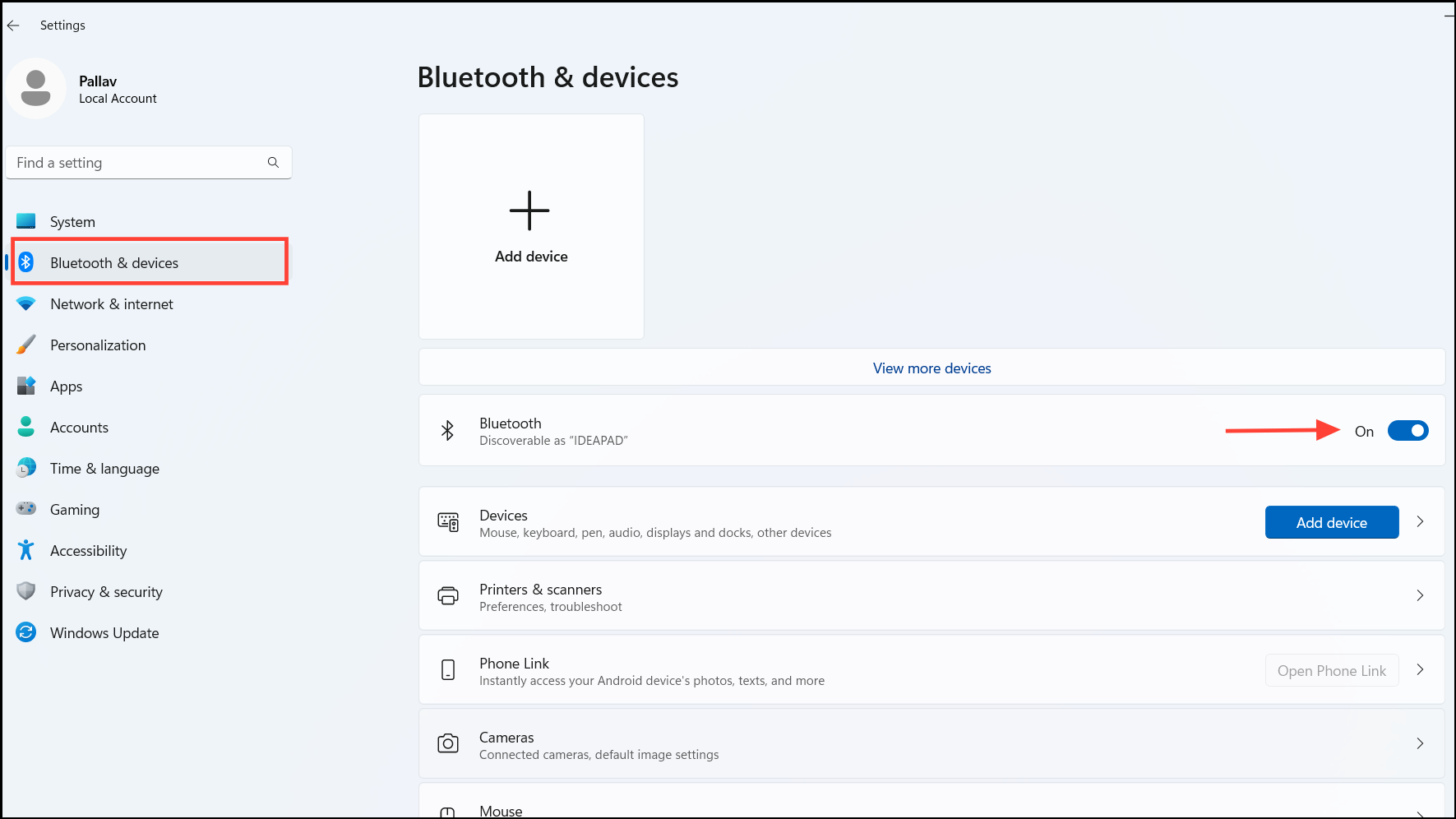
Your PC is automatically discoverable when the Bluetooth settings page is open. Keep the Bluetooth & devices window open to ensure your PC remains visible to other devices.
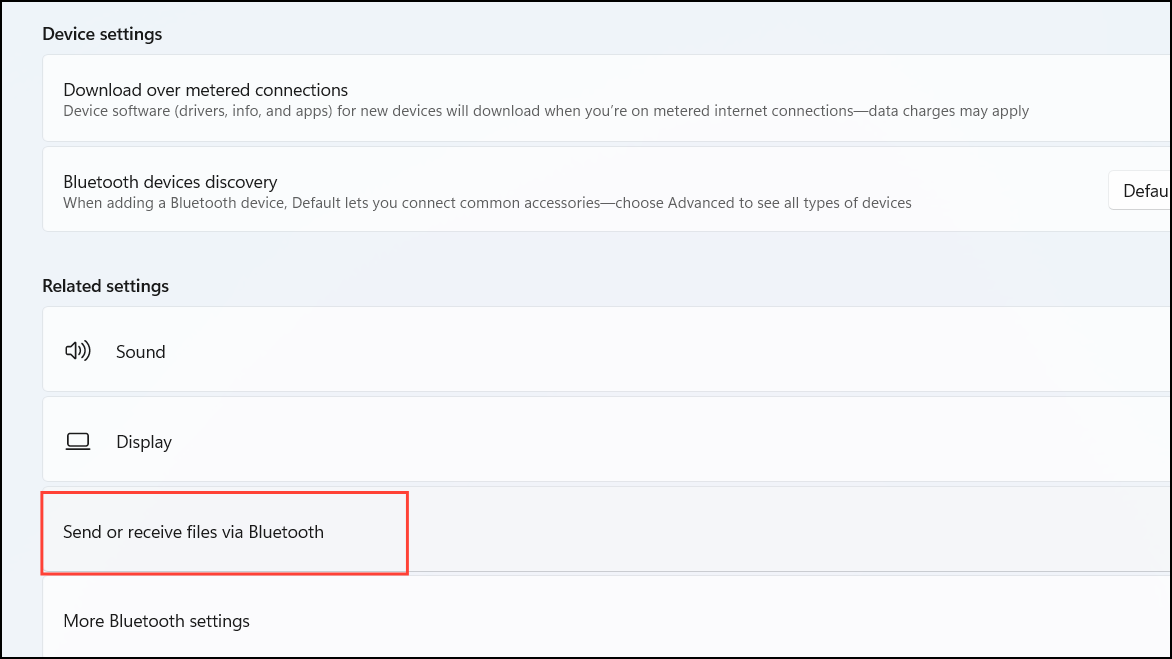
In the Bluetooth & devices settings, scroll down and click on Devices if not already selected. Under Related settings, click on Send or receive files via Bluetooth.
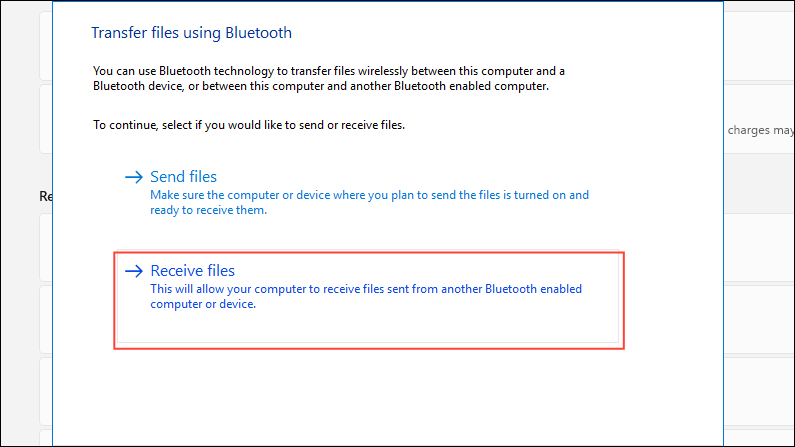
The Bluetooth File Transfer window will appear. Select Receive files to put your computer in a ready state to accept incoming files.
On the sending device, locate the file you wish to transfer. Use the share feature and choose Bluetooth as the sharing method. From the list of available devices, select your Windows 11 PC.
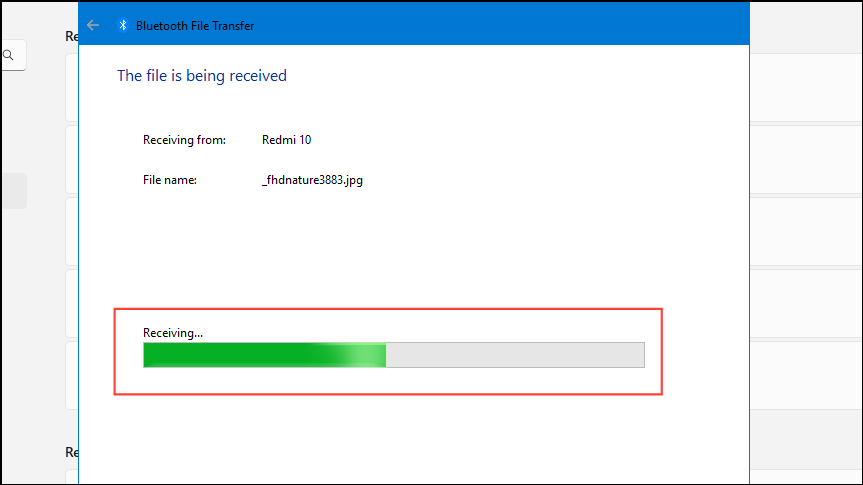
Once the sending device initiates the transfer, your Windows 11 PC will begin receiving the file automatically. You will see a progress bar indicating the transfer status.
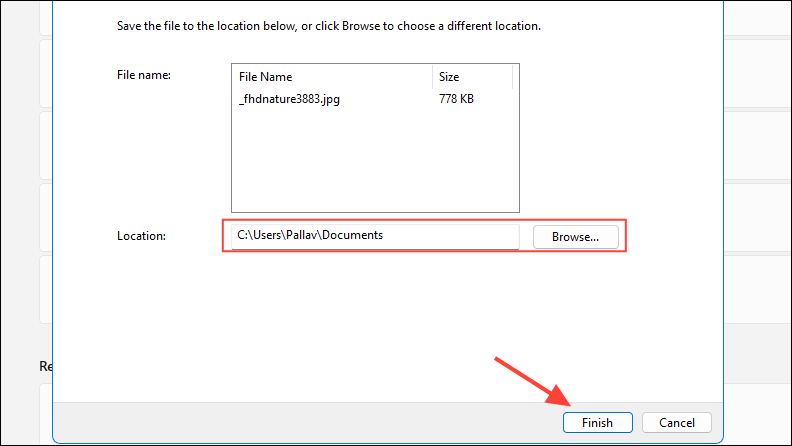
After the transfer completes, the Save the received file window will appear. Choose the destination folder where you want to save the file and click Finish.
Troubleshooting Tips
If you encounter issues during the file transfer process, consider the following solutions:
- Ensure devices are paired: Both devices must be paired before transferring files. To pair a device, go to Settings > Bluetooth & devices and click on Add device. Follow the on-screen instructions to complete the pairing process.
- Check Bluetooth visibility: Make sure the sending device is discoverable. On most devices, this can be done by accessing the Bluetooth settings and enabling the Discoverable option.
- Restart Bluetooth: Try turning off Bluetooth on both devices and then turning it back on to reset the connection.
- Update drivers: Outdated Bluetooth drivers can cause connectivity issues. Consider updating your Bluetooth drivers via the Device Manager or the manufacturer’s website.
- Verify range: Keep both devices within close range to maintain a stable Bluetooth connection.
Alternative Method: Using the Bluetooth Icon in the System Tray
You can also initiate the file receiving process directly from the system tray:
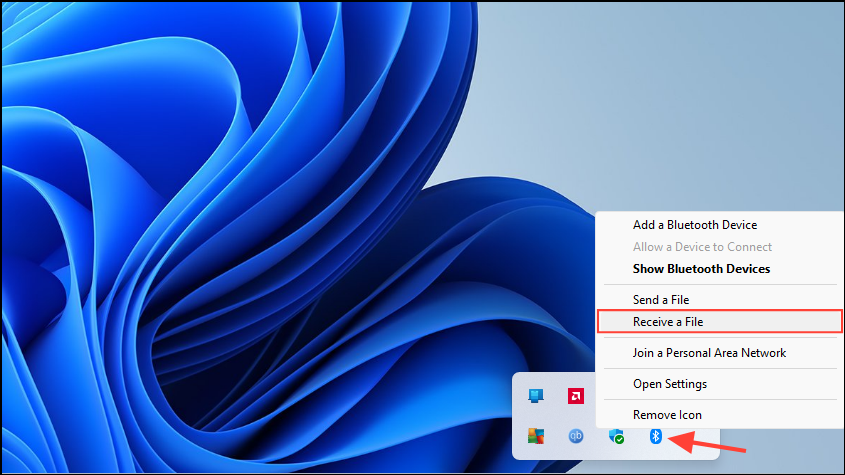
Proceed with Step 5 and Step 6 as described earlier to complete the file transfer.
Receiving files over Bluetooth on Windows 11 is a convenient way to share data without relying on cables or internet connections. By following these steps, you can easily transfer files from various devices to your PC, enhancing your productivity and connectivity.



