

Slide numbers in PowerPoint help track progress during presentations and make handouts easier to reference, but there are situations where removing them is necessary, whether for a title slide, specific slides, or the entire deck. PowerPoint provides several ways to control slide numbering, each suited to different scenarios. Below are the most effective methods for removing slide numbers, including solutions for persistent numbering in printouts and handouts.
Remove Slide Numbers from All Slides
Insert tab on the ribbon. Click Slide Number. This opens the Header and Footer dialog box, where you can manage slide numbering and other footer elements.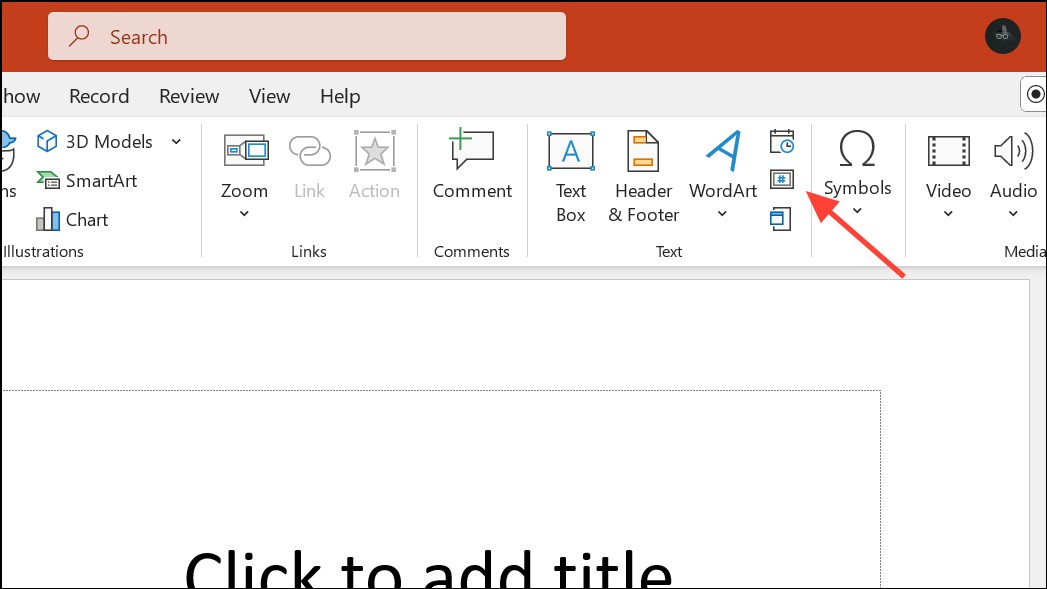
Slide tab. Uncheck the box labeled Slide number. This tells PowerPoint not to display slide numbers on any slides that use this setting.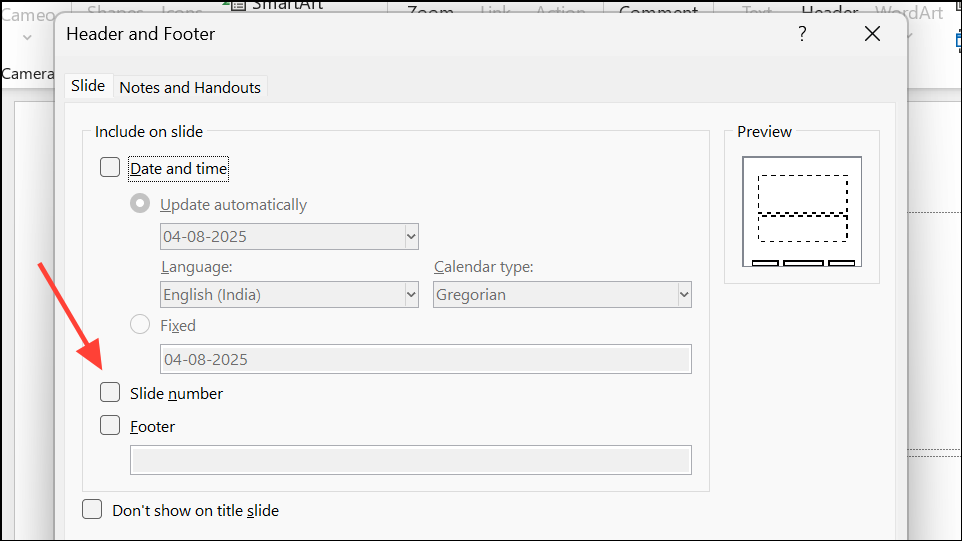
Apply to All. This removes slide numbers from every slide in your presentation, including those using custom layouts derived from the Slide Master.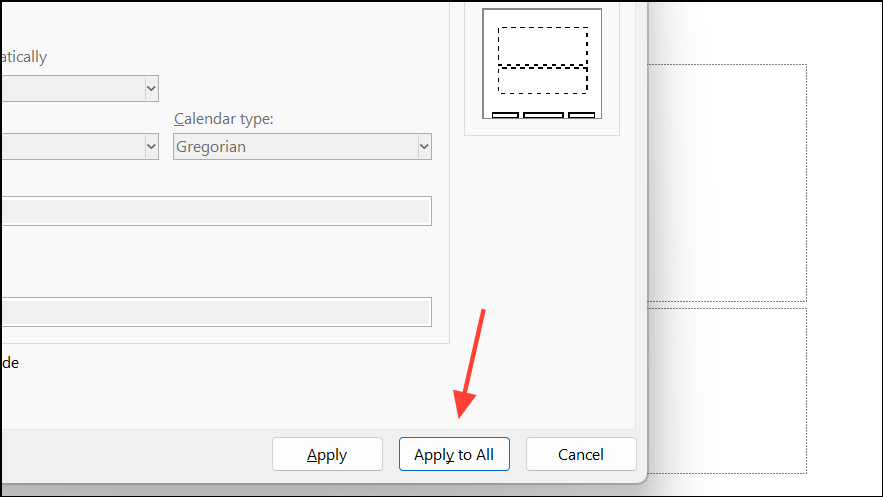
Remove Slide Numbers from the Title Slide Only
Many presentations require the title slide to appear without a slide number, while numbers remain visible on subsequent slides.
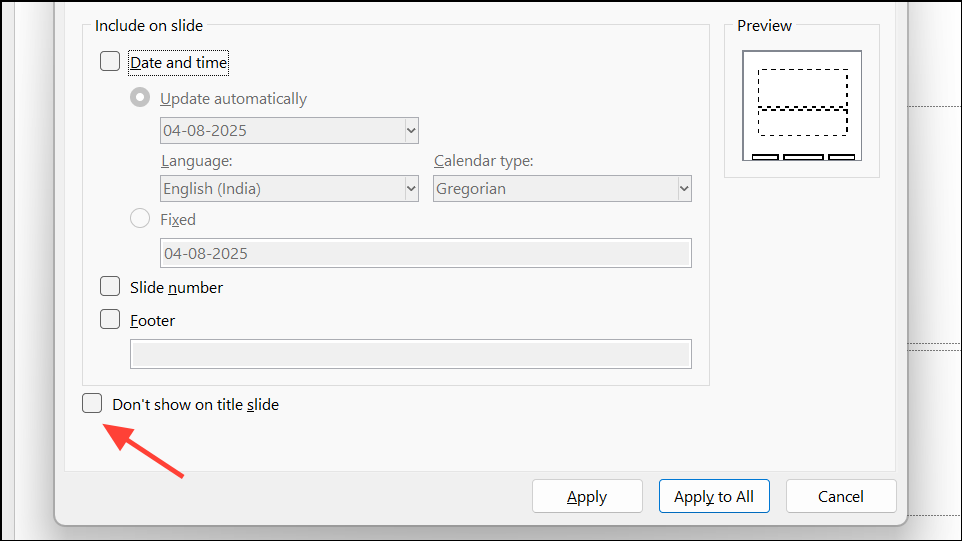
Apply to All. PowerPoint hides the slide number for any slides using a Title Slide layout, while keeping numbers on all other slides.Remove Slide Numbers from Specific Slides
Sometimes, you may want to hide the slide number on one or more slides that are not the title slide. PowerPoint allows you to do this on a slide-by-slide basis.
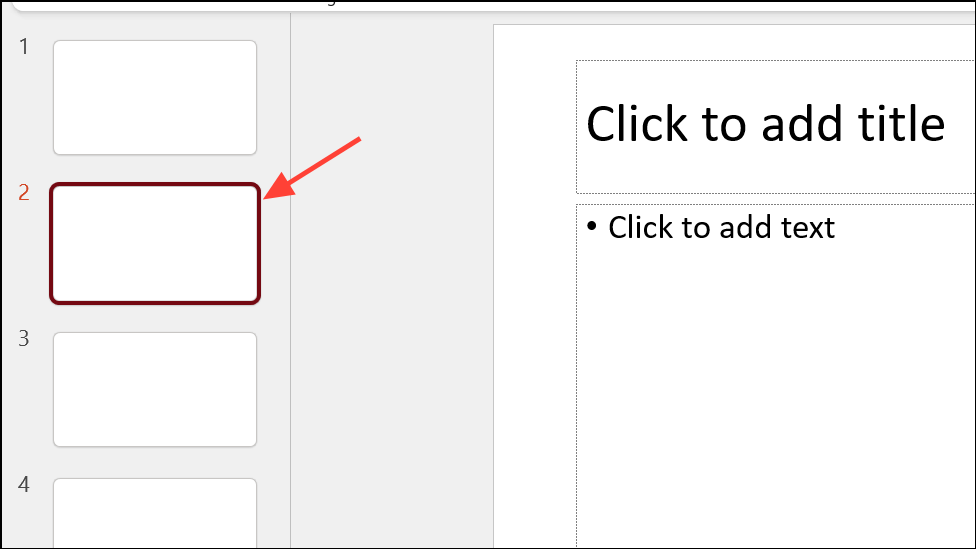
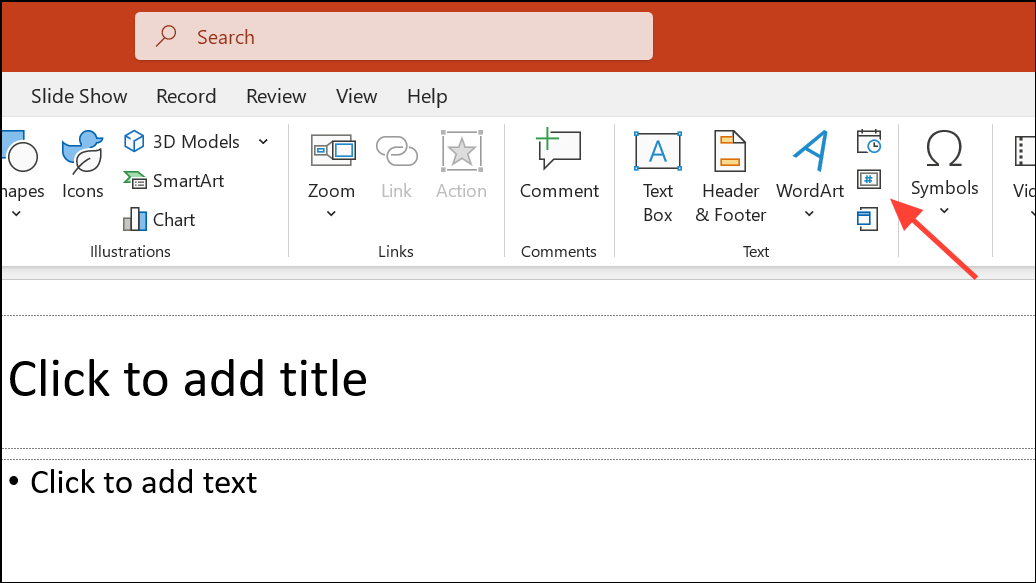
Apply (not Apply to All). This removes the number from the currently selected slide only, leaving other slides unaffected.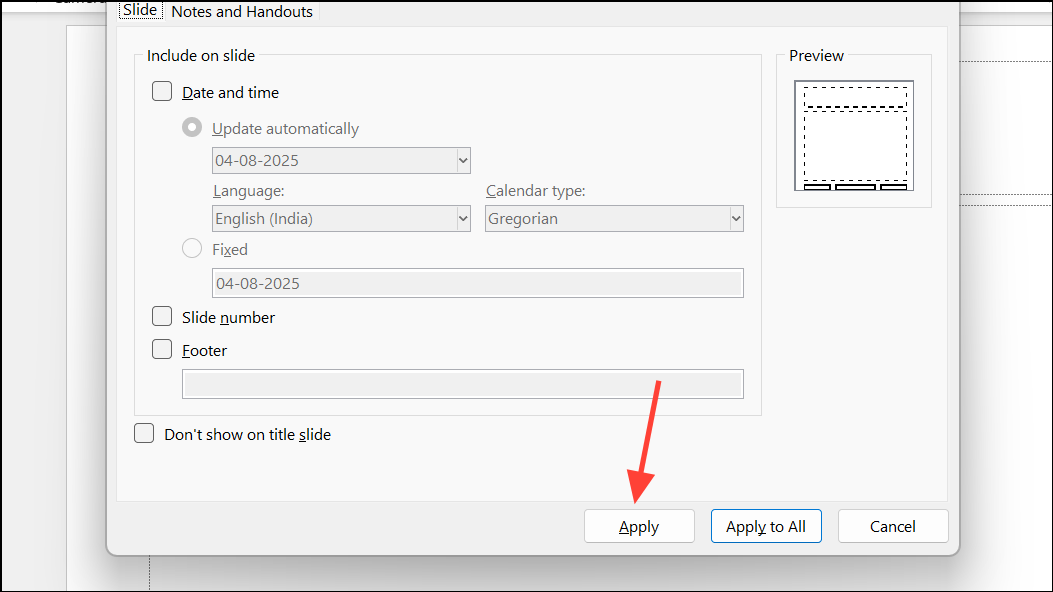
Remove Slide Numbers Using Slide Master
Slide numbers are often inserted via placeholders in the Slide Master. If the above methods do not remove the numbers, or if you want to delete the placeholder entirely (for example, to prevent future numbers from being added), you can do so in the Slide Master view.
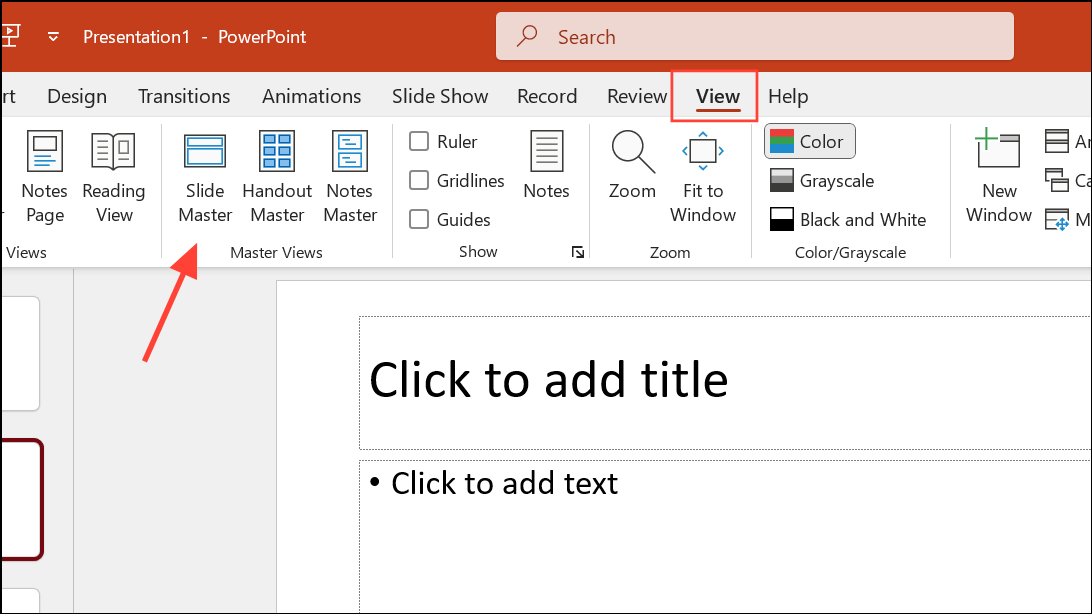
<#> or similar).Selection Pane (under Home > Arrange > Selection Pane), locate the slide number placeholder, and unlock it if it is locked. Once unlocked, select and delete the placeholder.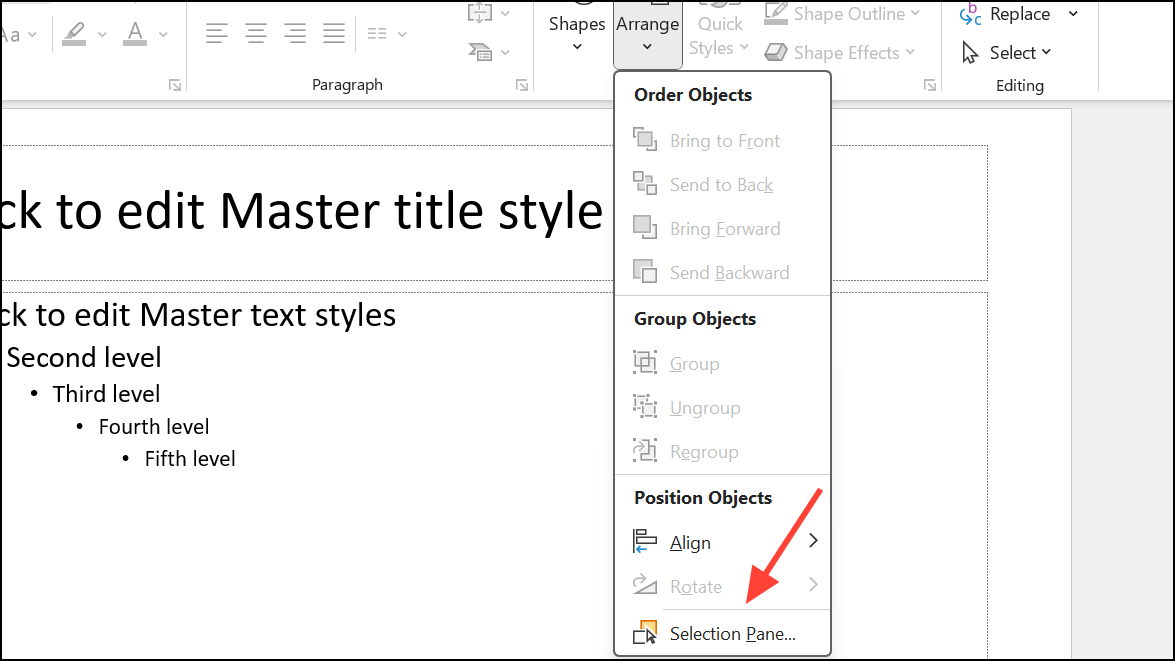
Prevent Slide Numbers from Appearing in Printed Handouts
Even after removing slide numbers from slides, they may still show up on printed handouts or PDF exports. This is controlled separately in PowerPoint’s print settings.
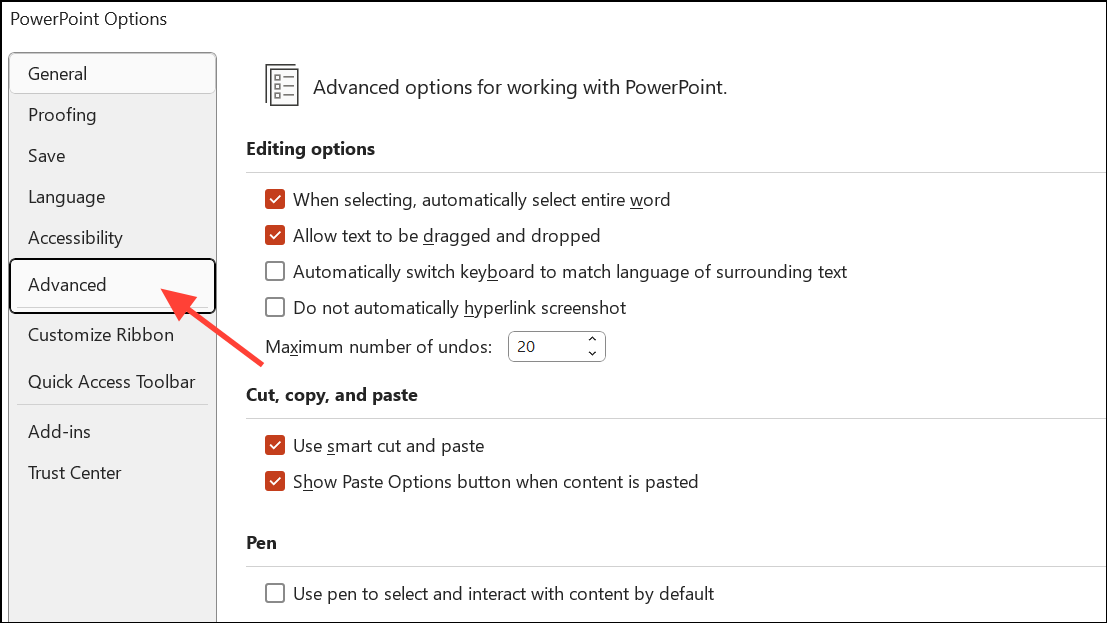
OK to save your changes. Slide numbers will no longer appear under slides in printed handouts or PDFs, even if they are present in the main presentation.Show slide numbers on handounts option may not be present in all versions of PowerPoint. If that’s the case, use any of the other methods to hide the slide number in your presentation.Hide Slide Numbers on Hidden Slides or Special Cases
PowerPoint does not automatically skip slide numbers for hidden slides during a presentation, so slide numbering may appear to jump when hidden slides are present. If you need slide numbers to reflect only visible slides, you can:
- Move hidden slides to the end of the presentation before presenting.
- Use third-party add-ins like PPT Productivity to skip numbering on hidden slides automatically.
- Manually insert text boxes with custom numbering on each slide, though this approach is time-consuming and not dynamic.
Troubleshooting Slide Number Issues
If slide numbers still appear after following the above steps, check for the following:
- Slide numbers may be part of background graphics. Right-click the slide, choose
Format Background, and enableHide background graphicsto mask them on specific slides. - Custom layouts or imported templates may have embedded slide numbers. Edit these using the Slide Master option view as described above.
- If using an older version of PowerPoint, some menu labels may differ slightly, but the overall method remains consistent.
Removing slide numbers in PowerPoint is straightforward with the right settings—whether you want to clear them from all slides, just the title slide, or specific slides. Adjust print options to avoid unwanted numbers in handouts, and use Slide Master for deeper template edits if needed.





