
Graphics issues like sudden black screens, frozen visuals, or unexpected crashes often indicate problems with your graphics card drivers in Windows 11. Resetting your graphics card drivers can quickly resolve these issues and restore normal functionality to your system.
Reset Graphics Card Drivers Using Keyboard Shortcut
Windows + Ctrl + Shift + B simultaneously. Your screen will briefly flicker or go black momentarily. This indicates Windows is resetting your graphics driver.Reinstall Graphics Drivers via Device Manager
If the keyboard shortcut doesn’t resolve your issue, reinstalling your graphics driver through Device Manager can fix deeper driver-related problems.
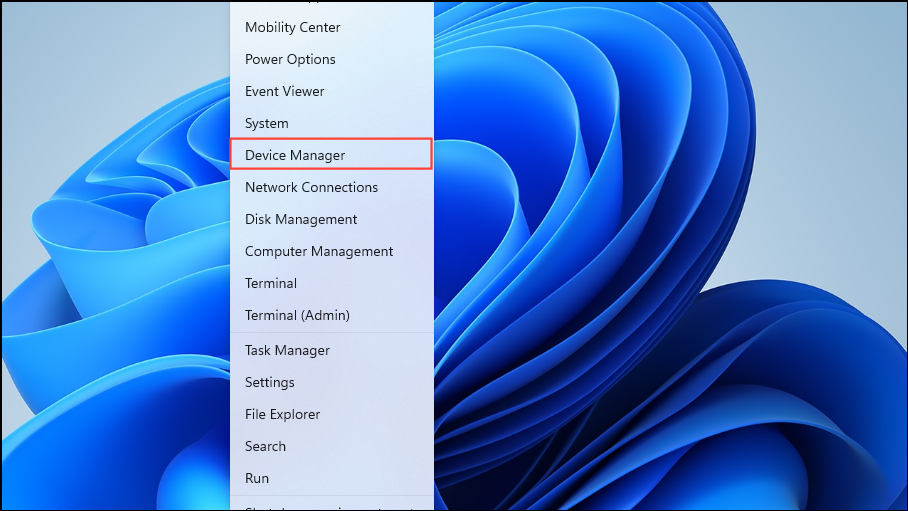
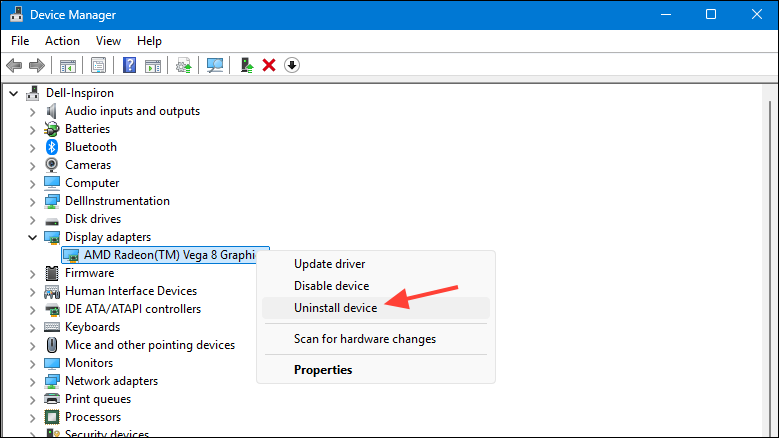
Perform a Clean Graphics Driver Reinstallation
If standard reinstallation doesn’t resolve the issue, performing a clean reinstall ensures all previous driver files and settings are entirely removed before installing fresh drivers.
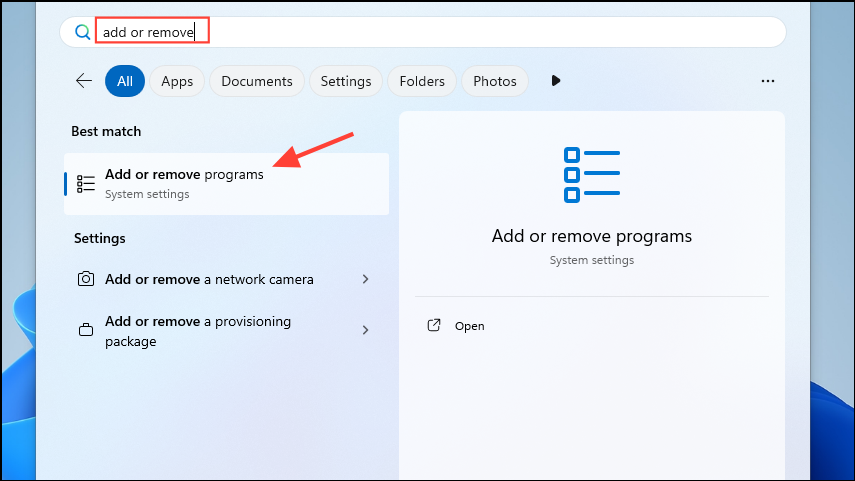
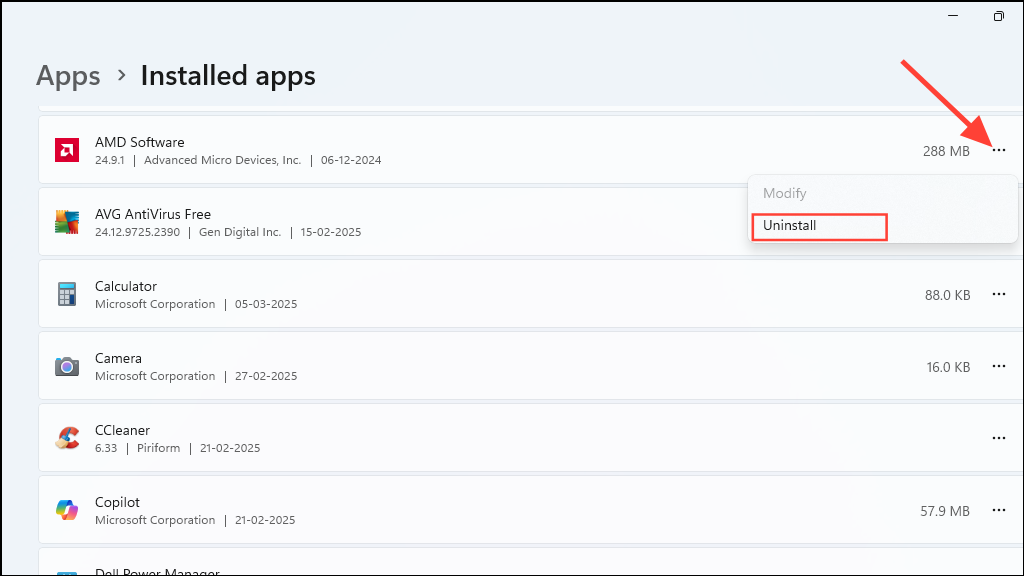
Step 3 (Optional but recommended): To thoroughly remove all driver remnants, you can use a third-party tool called Display Driver Uninstaller (DDU). Follow the instructions provided on the official DDU site to completely clean your system of old graphics drivers.
Reset Graphics Settings to Defaults (Optional)
If graphics issues started after you customized graphics settings, resetting these settings to defaults can resolve conflicts or performance problems.
NVIDIA Users: Right-click your desktop and select NVIDIA Control Panel. Under Manage 3D Settings, click Restore Defaults at the bottom. Restart your computer to apply the changes.
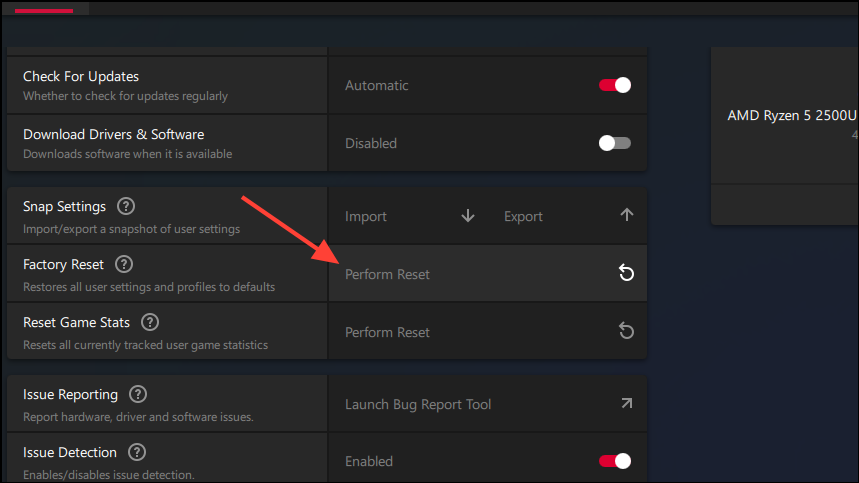
AMD Users: Right-click your desktop and open AMD Radeon Settings. Navigate to the Preferences tab and select Restore Factory Defaults or Perform Reset. Restart your PC afterward.
Intel Users: Right-click your desktop and select Intel Graphics Settings. Click the Restore Defaults option, confirm the action, and restart your system.
After following these steps, your graphics issues in Windows 11 should be resolved, allowing you to enjoy a smooth visual experience again.



