

Outlook users often need to save emails as files on their PC—whether to free up mailbox space, create backups, or retain important correspondence when leaving an organization. Exporting emails to your computer ensures you always have access to your messages, regardless of changes to your account or email provider. The following methods outline the most reliable and widely used approaches for saving Outlook emails to your PC, covering both individual messages and bulk exports.
Export Outlook Emails to a PST File
Exporting your Outlook mailbox to a Personal Storage Table (.pst) file is the most comprehensive way to back up all your emails, including folders, attachments, calendar events, and contacts. A PST file can be imported back into Outlook at any time, making it ideal for archiving or transferring data to another device.
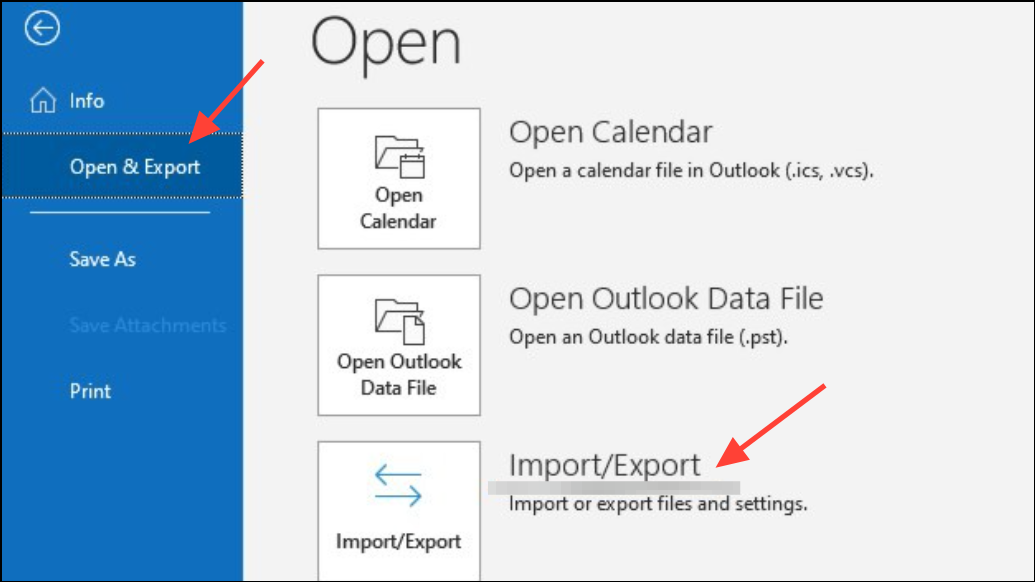
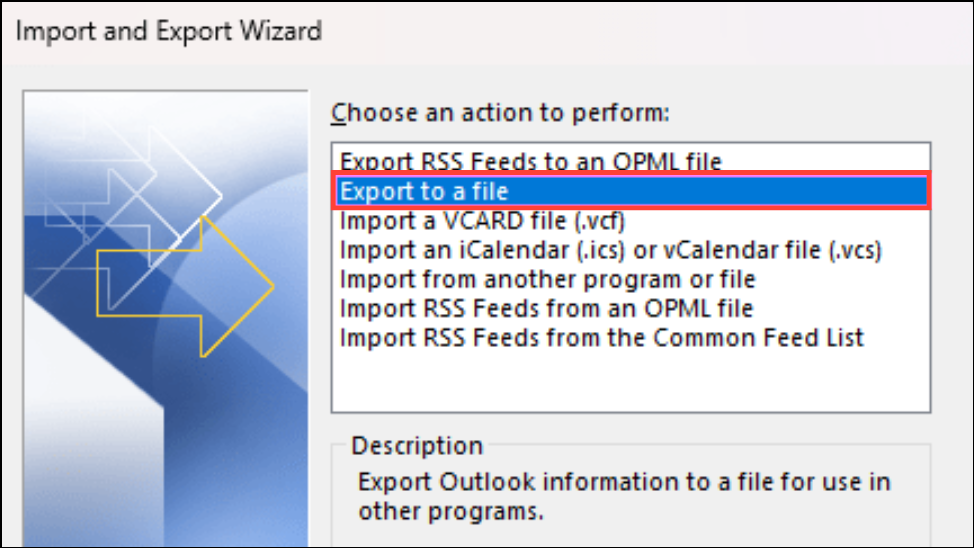
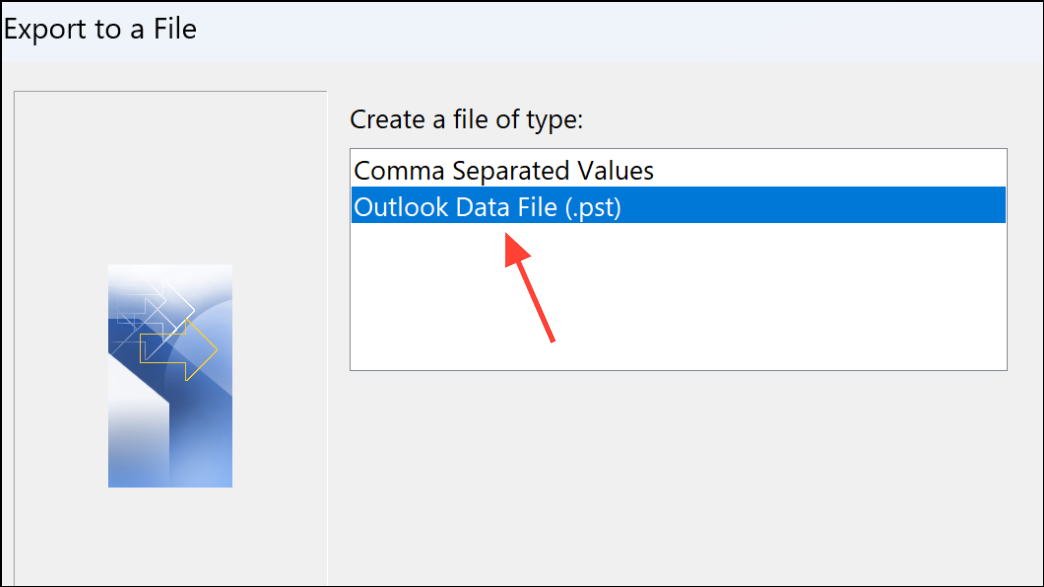
Next.Browse to select a location on your PC to save the PST file. Enter a file name and click Finish.OK.Using a PST file preserves the structure and content of your emails, allowing you to restore them in Outlook or migrate to another account with full fidelity.
Save Individual Outlook Emails as EML, PDF, or Other File Types
For users who need to save specific messages, Outlook offers several file formats, including EML (Email Message), PDF, and more. This is useful for archiving important correspondence, sharing messages outside Outlook, or keeping records for compliance.
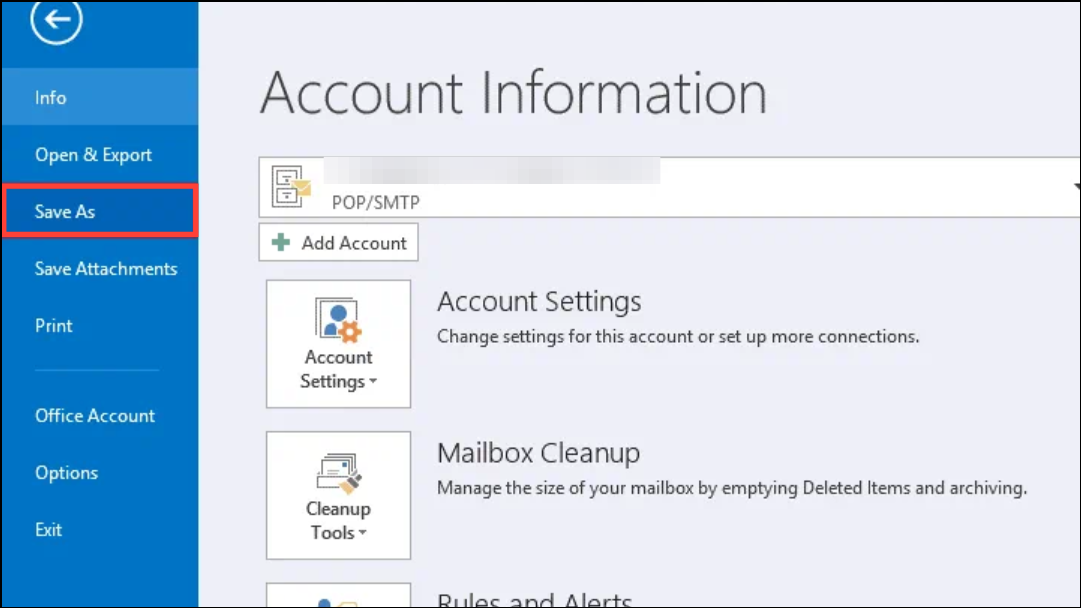
Save.Print from the More Actions menu. In the Printer dropdown, select Microsoft Print to PDF, then follow the prompts to save the output as a PDF file on your PC.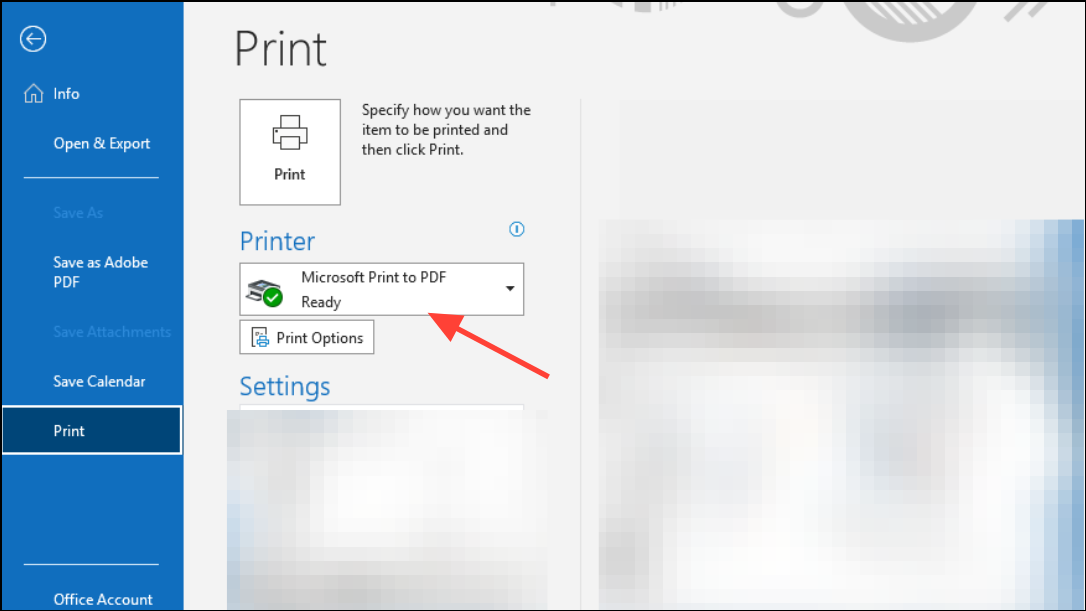
EML files can be opened by most email clients, while PDF files are useful for sharing or archiving messages in a universally accessible format. Note that saving as .msg or .txt may not be available in the latest Outlook versions, and bulk saving in these formats is often limited.
Drag and Drop Emails to a Folder on Your PC
Outlook allows you to select one or more emails and drag them directly from the application into a folder in Windows File Explorer. This creates a separate file for each email, usually in .msg or .eml format, depending on your Outlook version.
This method is quick for exporting a batch of emails, but keep in mind that the resulting files may require Outlook or a compatible viewer to open. Some users report that, in the latest Outlook, the drag-and-drop feature may only work for individual messages or may save files as EML rather than MSG.
Export Emails from Outlook Web App (Outlook.com)
Outlook on the web (Outlook.com) does not natively support exporting all emails directly to your PC. However, some users can request a mailbox export through account settings, which generates a downloadable PST file. This feature may not be available for all accounts or organizations.
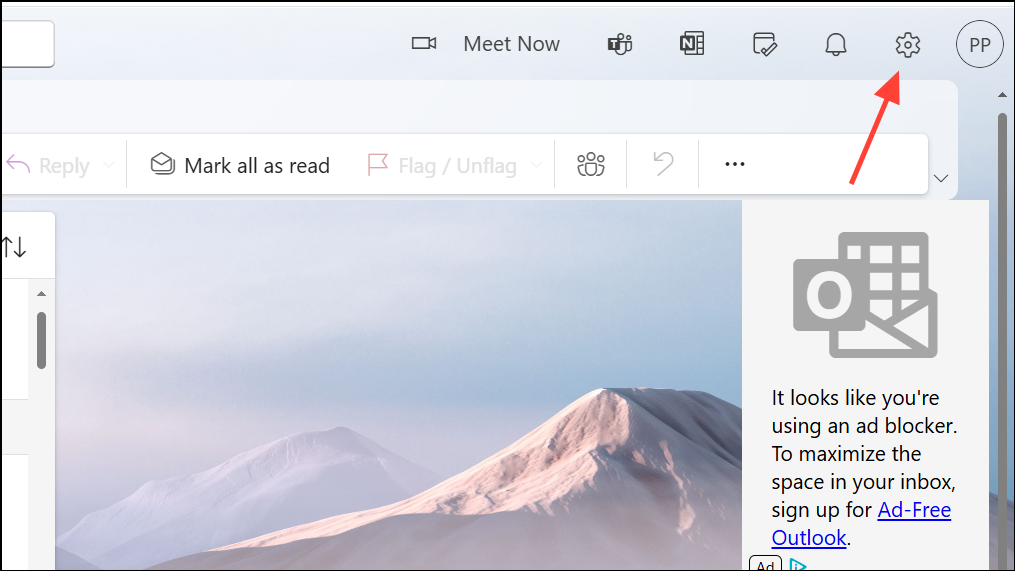
General > Privacy and Data, then look for the Export mailbox option. If available, request the export and wait for the download link to be sent to your email.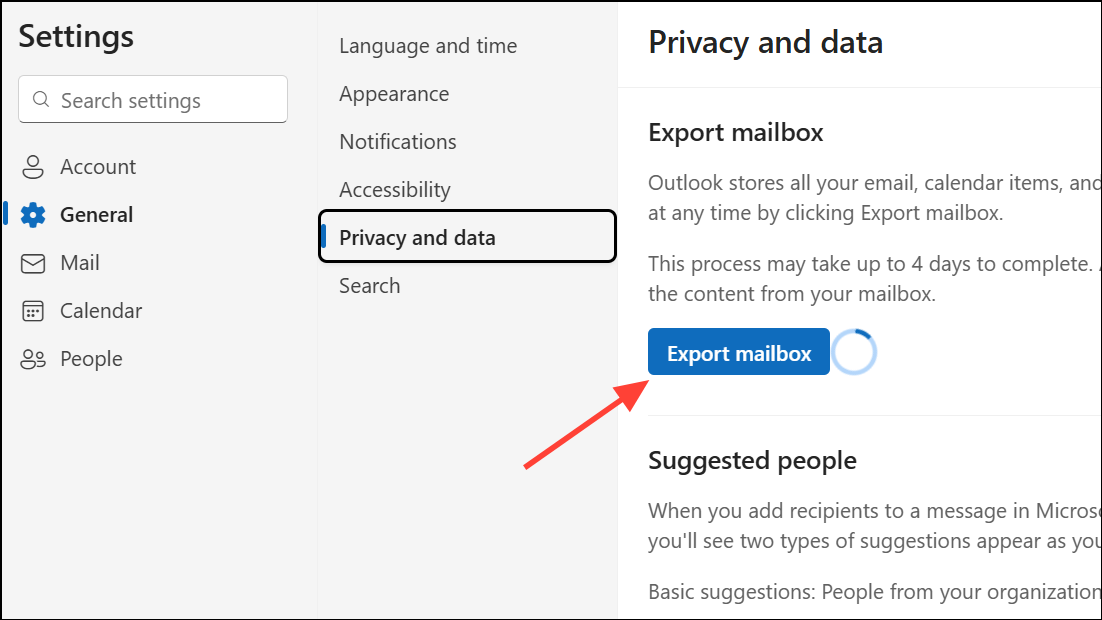
If your account does not offer this option, consider adding your Outlook.com account to the Outlook desktop app and exporting via the PST method described earlier.
Save Outlook Emails as Text or HTML Files
Saving emails as plain text or HTML files provides a lightweight, readable format for archiving or sharing. However, bulk saving in these formats is limited in newer Outlook versions.
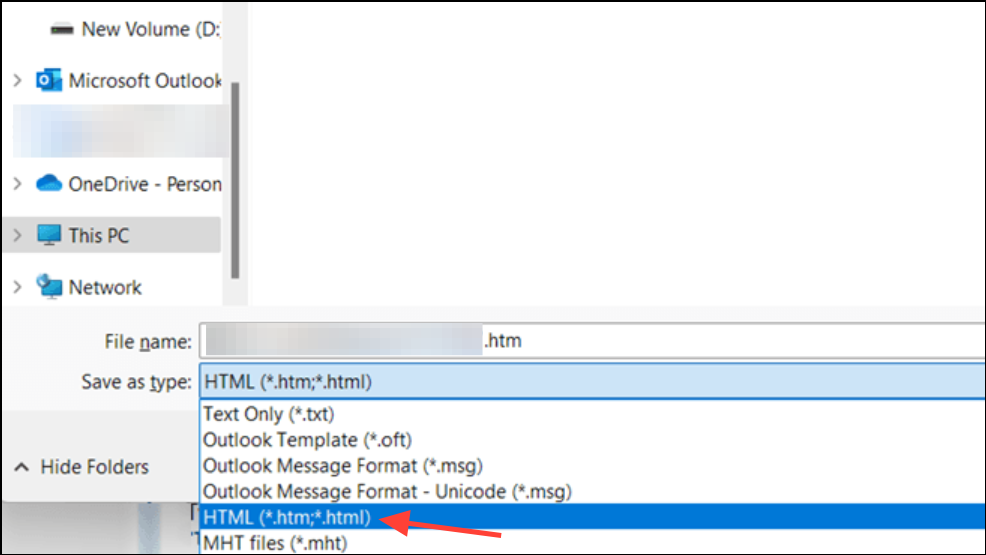
Bulk saving multiple emails as a single text file is no longer supported in new Outlook, and saving multiple emails at once may result in incomplete data. For classic Outlook, batch saving to TXT or HTML is more reliable. As an alternative, drag-and-drop can be used to save multiple emails, though the resulting files may require Outlook to open or may not be universally readable.
Backup Outlook Emails with Third-Party Tools
If Outlook’s built-in export features are unavailable or insufficient, third-party tools like MailStore Home or Thunderbird can help download and archive emails from various accounts. These tools often support exporting to different file formats and may provide more flexibility for bulk operations.
For example, adding your Outlook account to Thunderbird allows you to copy emails to local folders or another email account. MailStore Home indexes and archives emails from multiple sources, enabling easy search and export.
Saving Outlook emails as files to your PC ensures you retain access to important messages and attachments, even if your account changes or is deleted. Choose the export method that fits your needs—PST files for complete backups, EML or PDF for individual messages, or third-party tools for extra flexibility.





