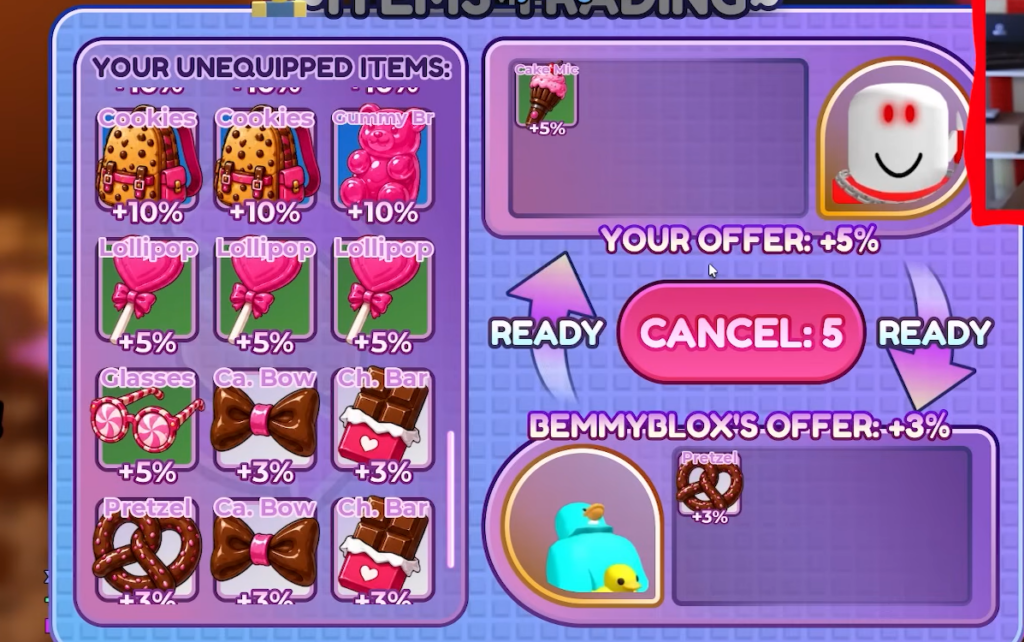
+1 Speed Keyboard Escape now lets players trade items directly with each other. An ITEMS TRADING menu handles the whole exchange, pulling from your unequipped items and lining them up against another player’s offer before either side confirms.
Quick answer: Open the ITEMS TRADING menu, tap an item under YOUR UNEQUIPPED ITEMS to move it into YOUR OFFER, then press READY. The trade completes when both players are ready.
What you can trade
Trading is limited to items you are not currently wearing. These items each grant a speed multiplier, and only pieces sitting in your unequipped list can be offered. The trade window shows two sides, YOUR OFFER and the other player’s offer, so both people can see exactly what is on the table.
The multiplier attached to each item is the main thing to weigh before you hand it over. Higher percentages mean a bigger speed boost when equipped.
| Item | Speed multiplier |
|---|---|
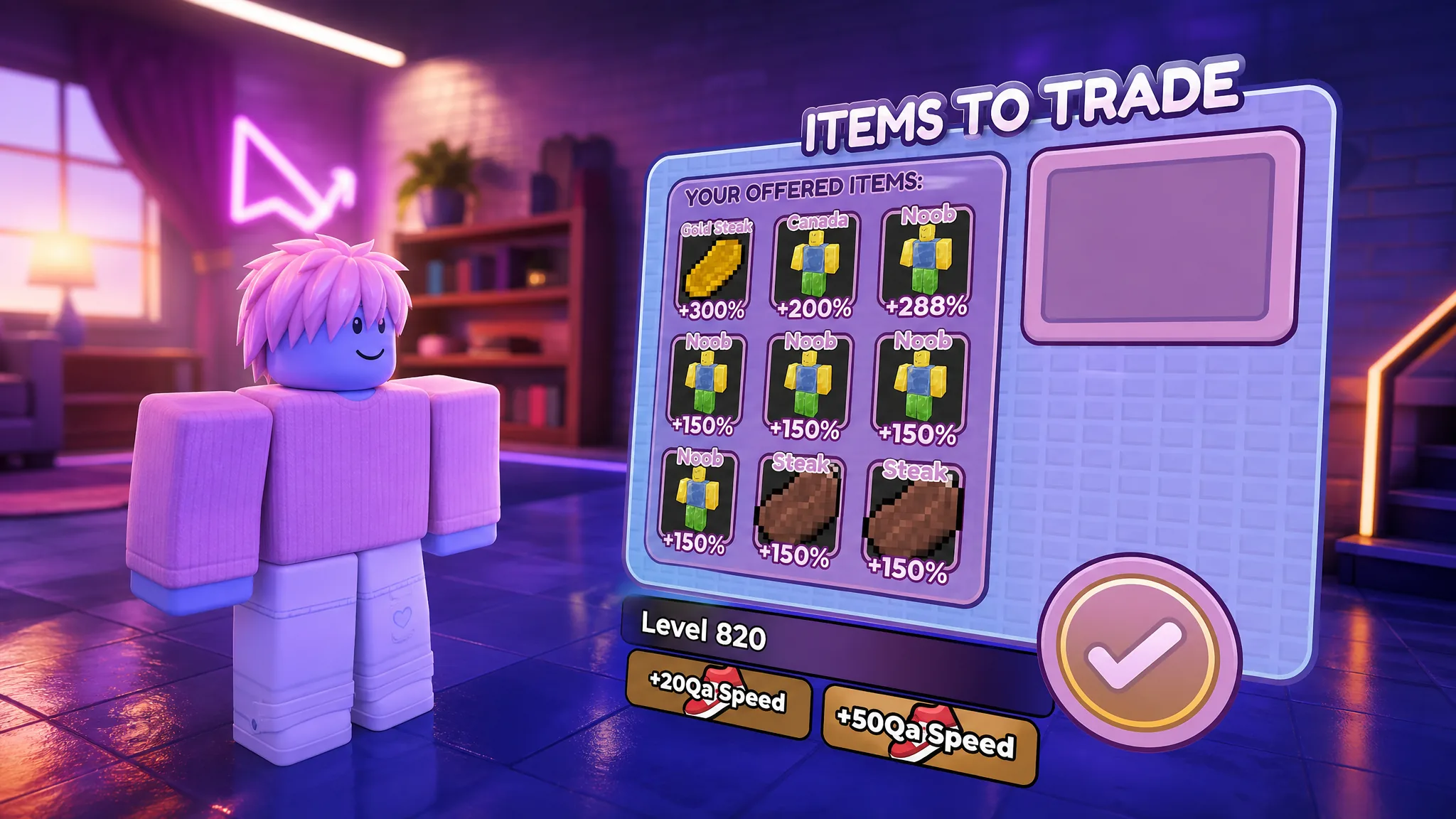
| Gold Steak | +300% |
| Canada | +200% |
| Noob | +288% |
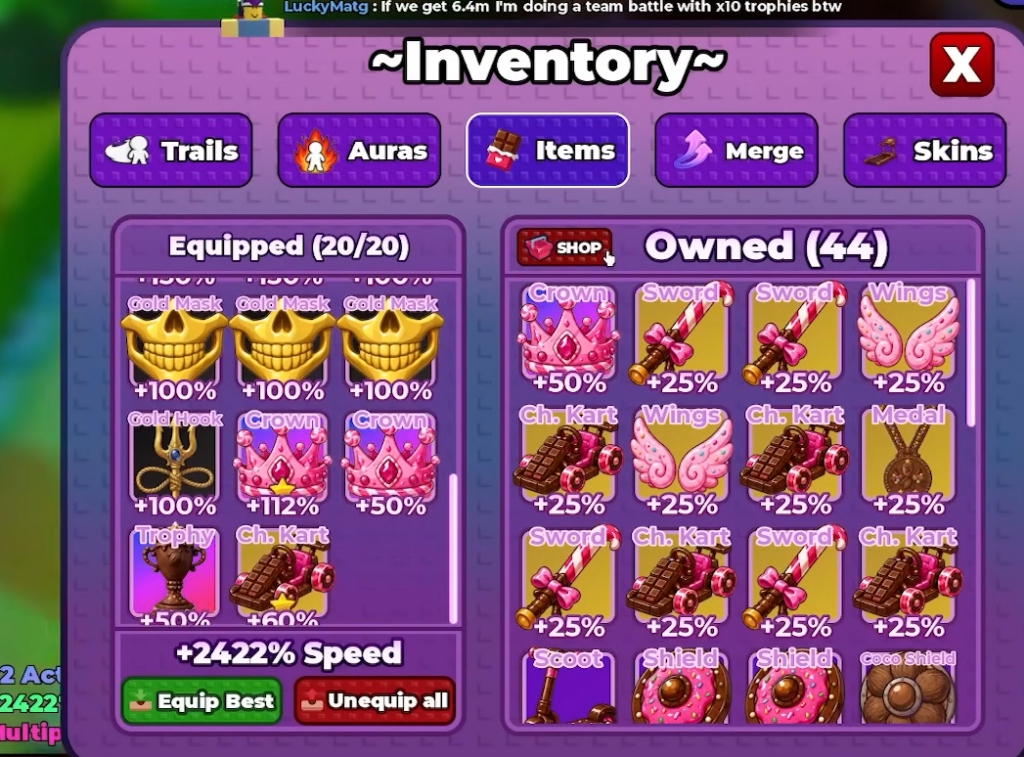
| Golden Hook | +100% |
Other items such as Steak and Cold Mask also appear in the inventory, and the game lists additional boosts like +150%. Because the value of a trade comes down to these multipliers, check the number on both your item and the one you would receive before you commit.
How to trade items step by step
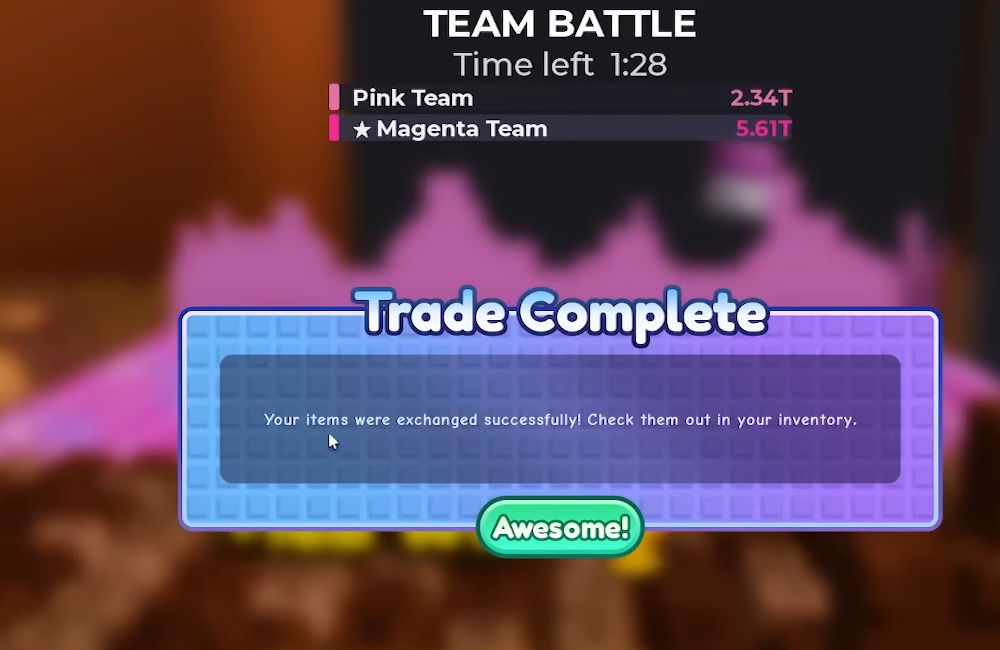
How to know the trade went through
The trade needs both players to press READY. Once you confirm, your item leaves YOUR OFFER and the item you accepted lands in your inventory. If either side hits CANCEL before both are ready, nothing is exchanged and the offer clears.
Note: the item you trade away has to be unequipped, so if something you want to send is missing from the list, equip a different item and try again.
Trading gives players a direct way to move speed items between accounts, which matters most when you are chasing higher multipliers to clear stages faster. Keep an eye on the percentage on each side, confirm only when both offers look right, and the swap finishes the moment both players are ready.