

Sudden rotation of your Windows 11 device screen—especially on convertibles, tablets, or 2-in-1 laptops—can disrupt workflow and make reading or viewing content difficult. Disabling automatic screen rotation ensures your display remains in your preferred orientation, regardless of how you hold or move your device. Windows 11 provides several ways to control this feature, from straightforward toggles to advanced registry edits for persistent issues.
Disable Automatic Screen Rotation via Settings
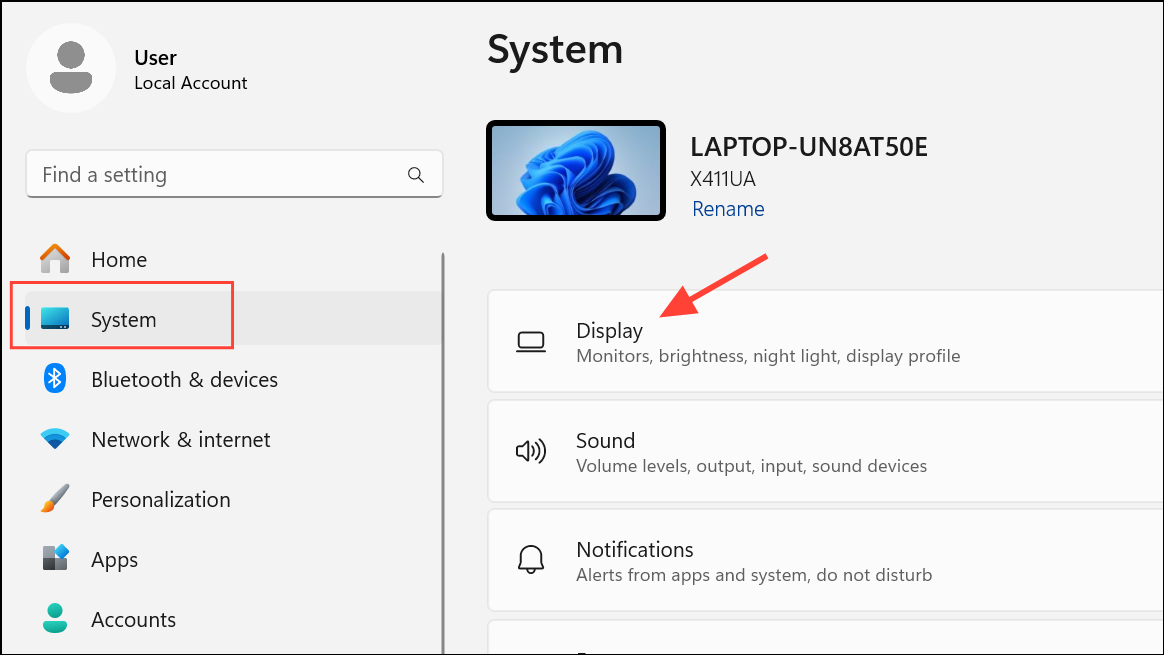
If the Rotation lock option is grayed out or missing, try rotating your device to portrait or tent mode. On some devices, the option only appears in certain orientations or when the keyboard is detached (for tablets and convertibles).
Disable Automatic Screen Rotation Using Quick Settings
If you do not see the Rotation lock button, click the pencil icon to customize your Quick Settings and add it. This method offers a fast way to toggle rotation lock without navigating through menus.
Turn Off Auto-Rotate with a Keyboard Shortcut
Windows + O to toggle the rotation lock on or off instantly. This shortcut works on most devices that support auto-rotation.Disable Auto-Rotation Using the Registry Editor
For users who need a more persistent solution, especially if standard toggles reset after updates or restarts, editing the Windows Registry can help. Caution: Modifying the registry can affect system stability. Create a restore point before making changes.
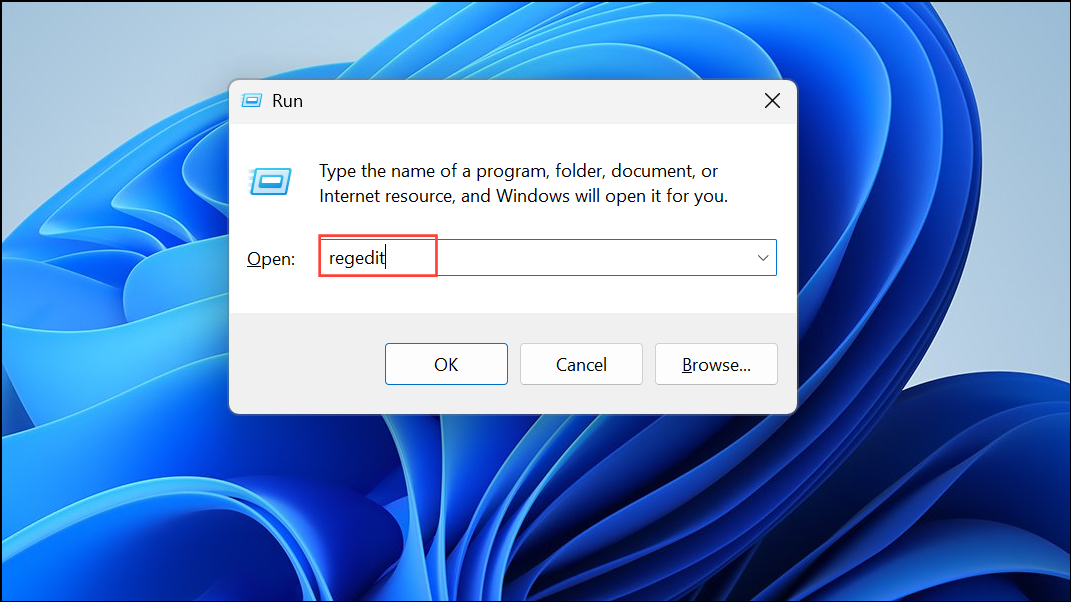
HKEY_LOCAL_MACHINE\SOFTWARE\Microsoft\Windows\CurrentVersion\AutoRotation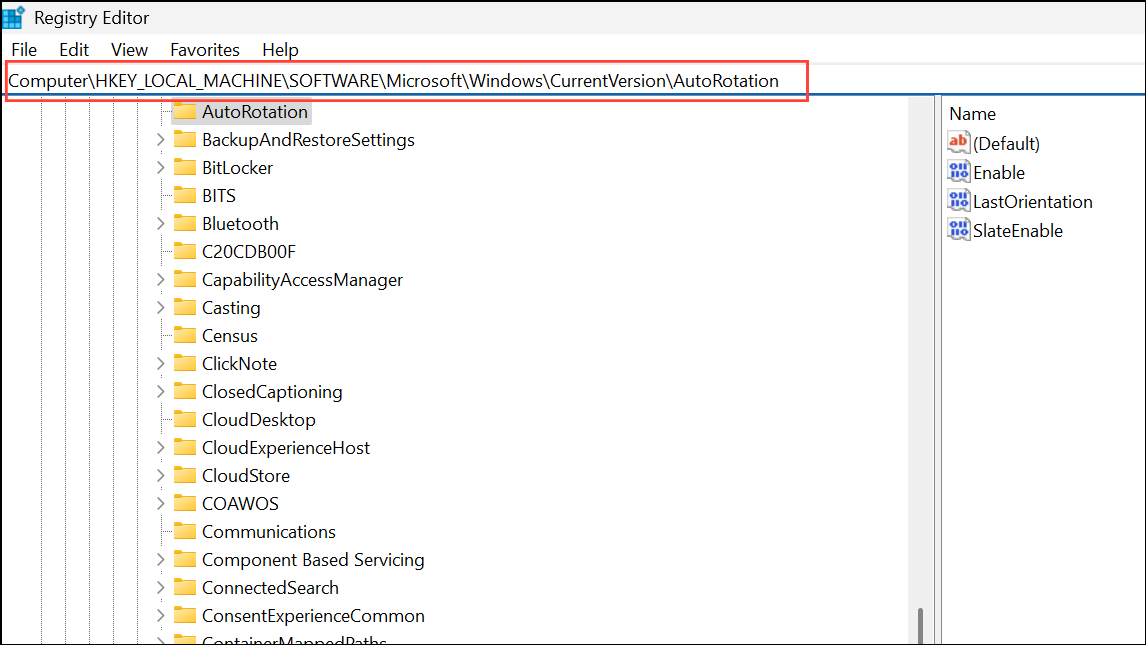
0 to disable automatic rotation. Click OK and close Registry Editor.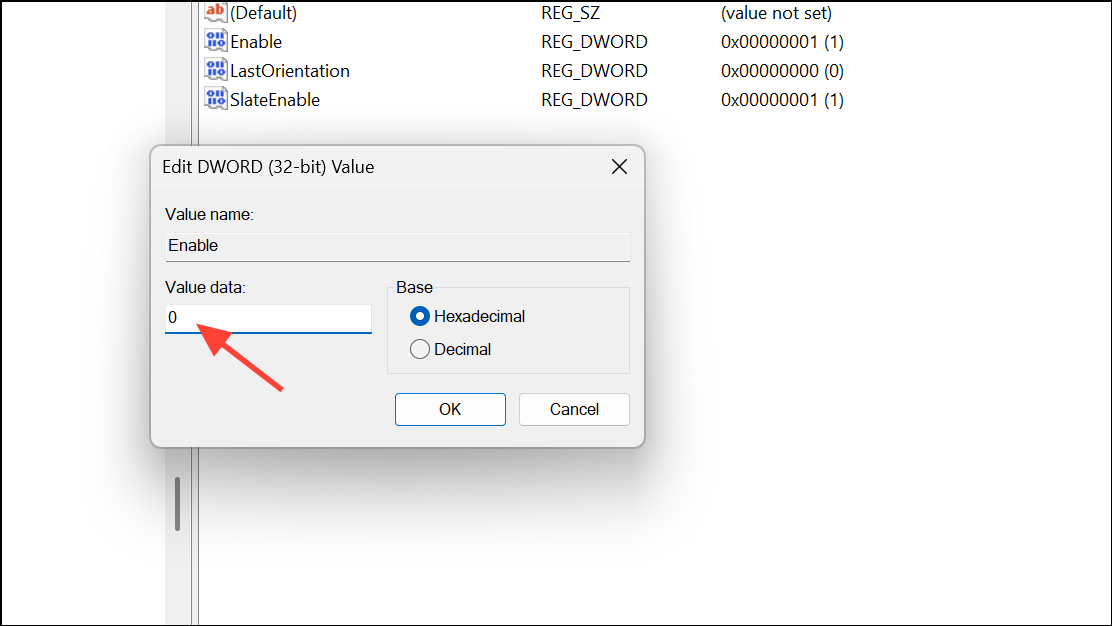
1.Troubleshooting: Rotation Lock Option Grayed Out
On some devices, especially 2-in-1 laptops or tablets with detachable keyboards, the Rotation lock toggle may be unavailable. This usually occurs when:
- The device is in standard laptop mode with the keyboard attached.
- The display orientation is not supported for rotation lock (try changing between portrait and landscape modes).
- Sensor drivers are missing or malfunctioning.
To resolve sensor driver issues:
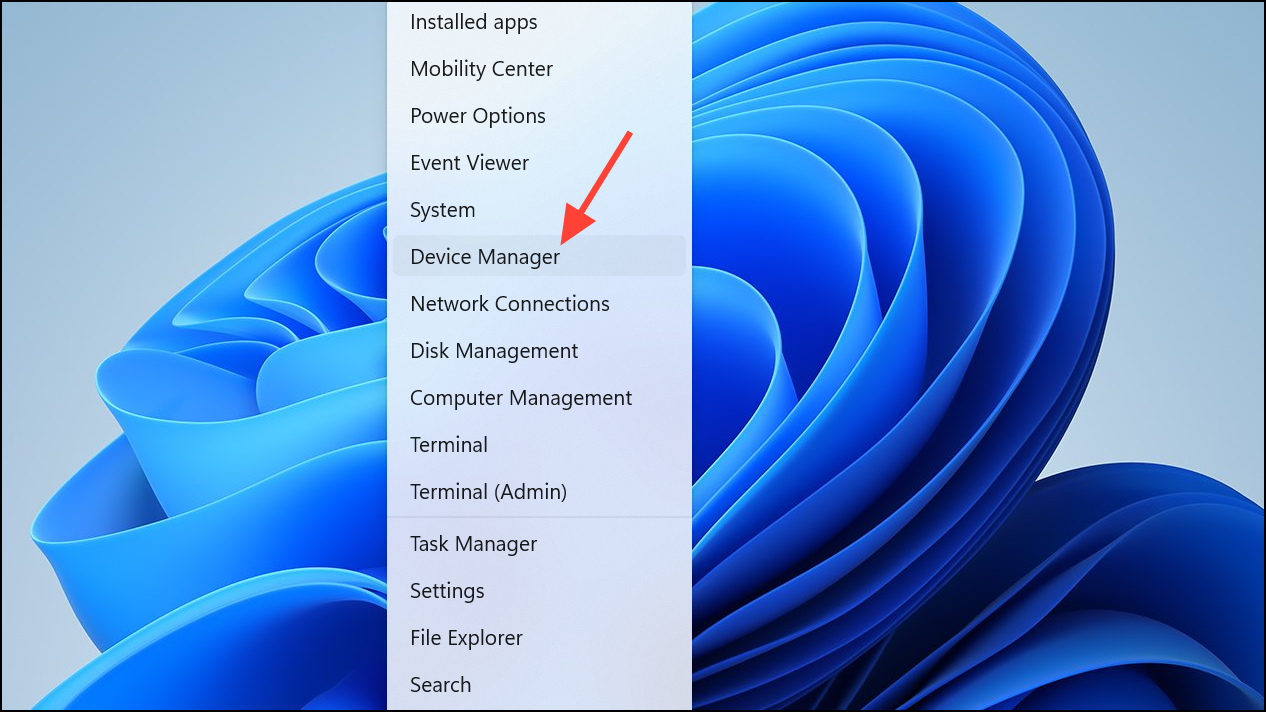
If the issue persists, update your device’s BIOS, Windows updates, and graphics drivers to ensure all components recognize orientation sensors properly.
Advanced: Disable Sensor Service (Permanent Solution)
For users who want to completely stop auto-rotation and sensor-driven orientation changes, you can disable the Windows Sensor Service. This method is more advanced and will affect all sensor-based features.
HKEY_LOCAL_MACHINE\SYSTEM\CurrentControlSet\Services\SensorService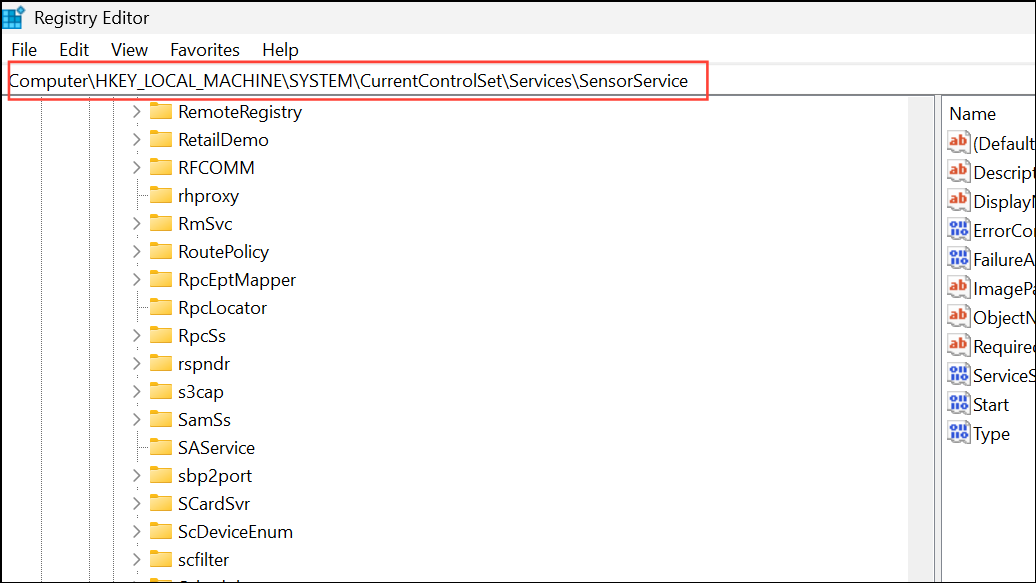
4 to disable the service. Restart your computer. This will prevent all sensor-based features, including auto-rotation, from functioning until you revert the change.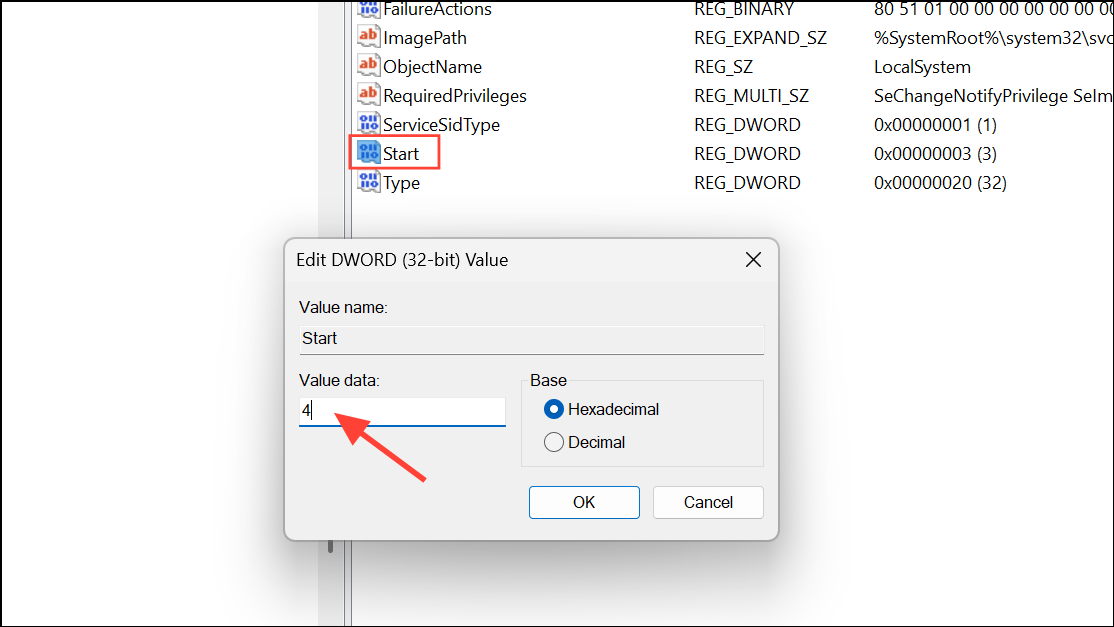
Disabling automatic screen rotation in Windows 11 can stabilize your display orientation and minimize distractions, whether you use a tablet, convertible, or standard laptop. If you ever need auto-rotate again, you can reverse these steps at any time.



