
Seeing the “These files might be harmful to your computer” warning each time you copy or move files across network locations in Windows 11 can disrupt workflow and slow down file management. This prompt is triggered by Windows security settings that treat certain network paths as potentially unsafe, even if you are working within your local network or trusted environment. Adjusting the correct security zone settings removes these prompts and streamlines file operations—if you are sure your network is secure.
Add Network Locations to the Local Intranet Zone Using Internet Options
Internet Options in the Windows Search bar and selecting it from the results. This utility controls how Windows classifies network locations for security purposes.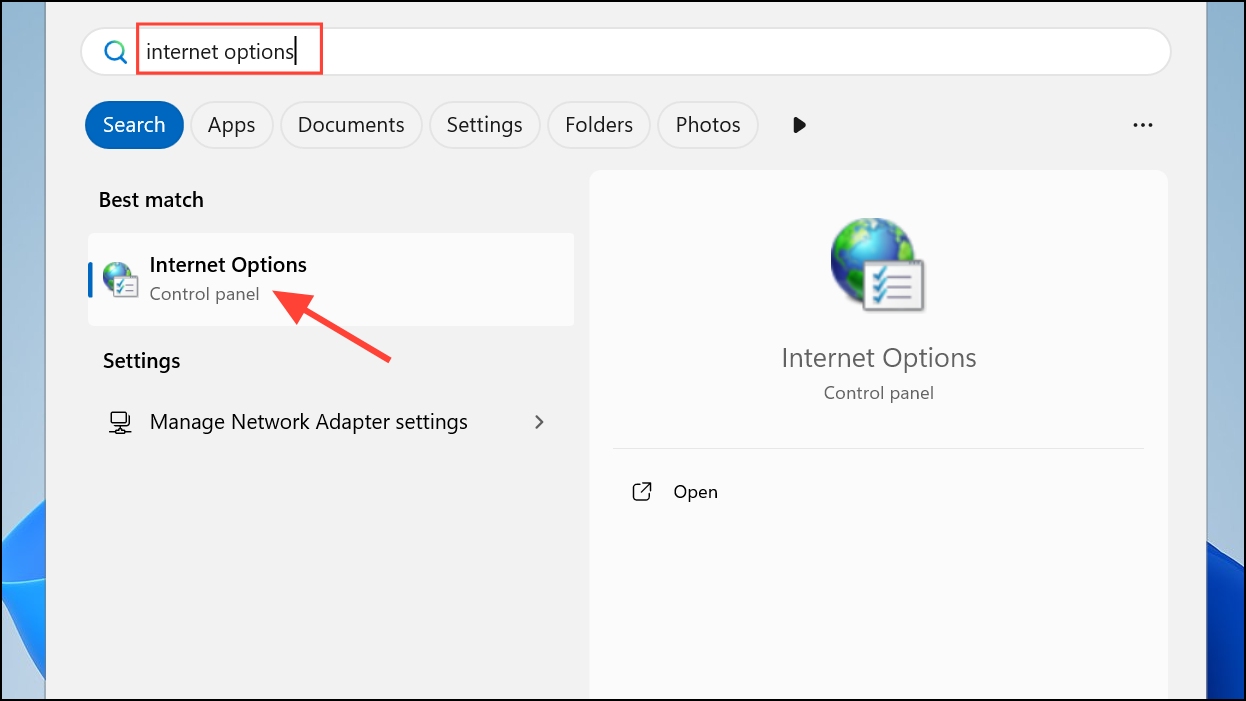
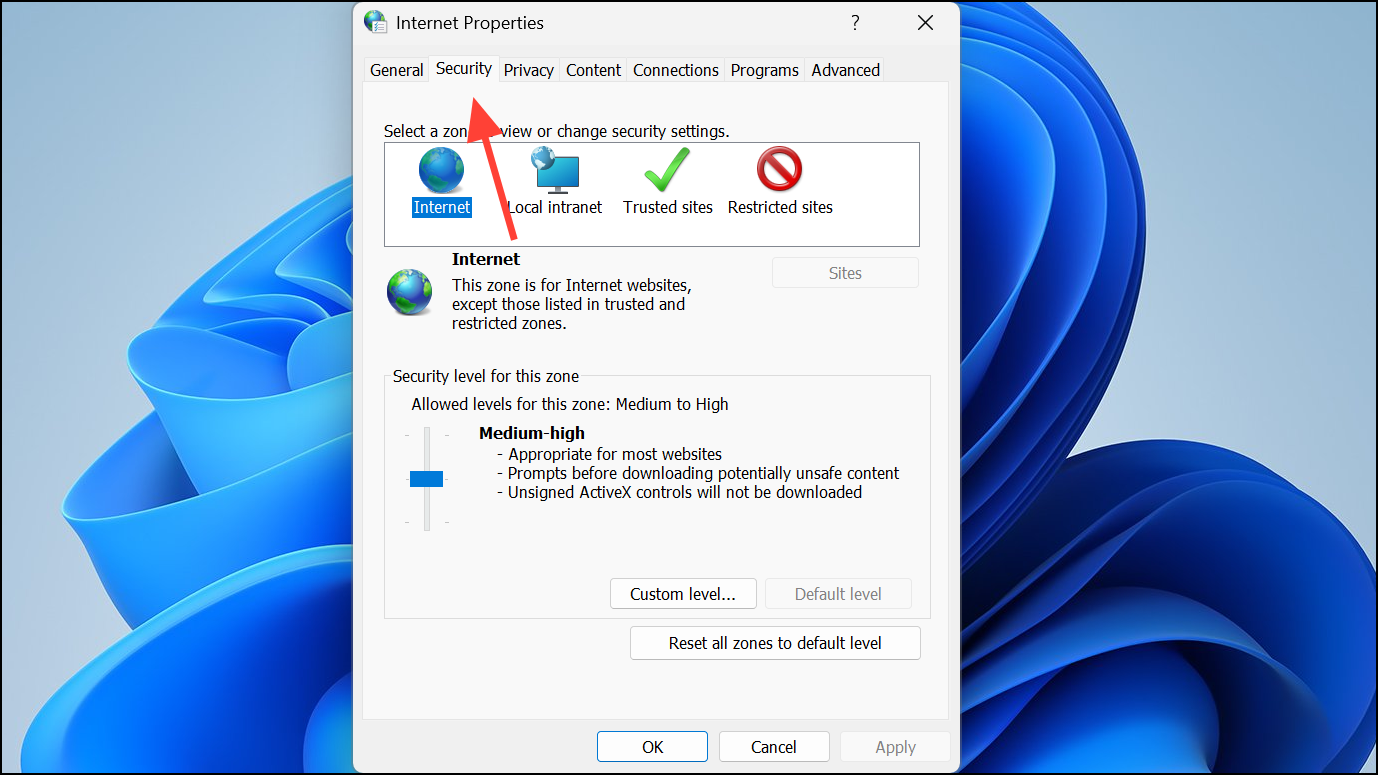
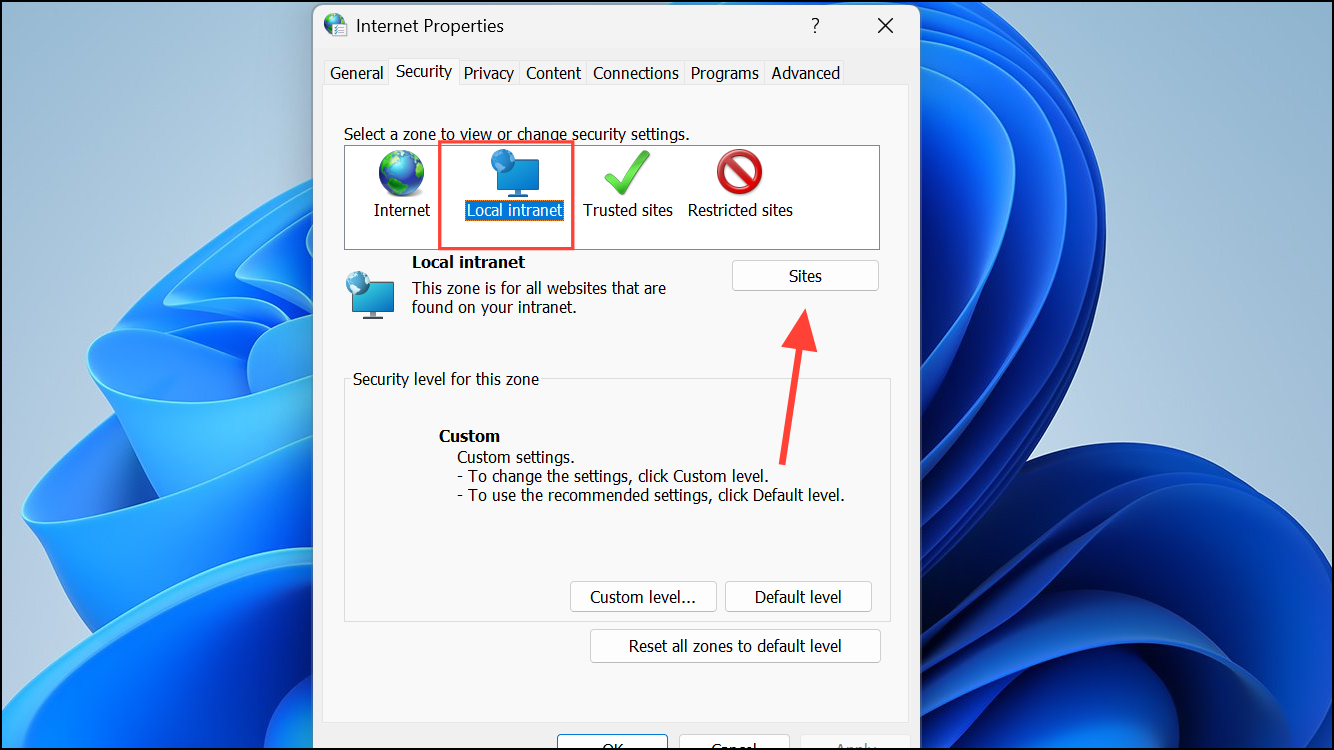
192.168.1.* or to trust a NAS server by name, use \\NAS. Click Add after each entry.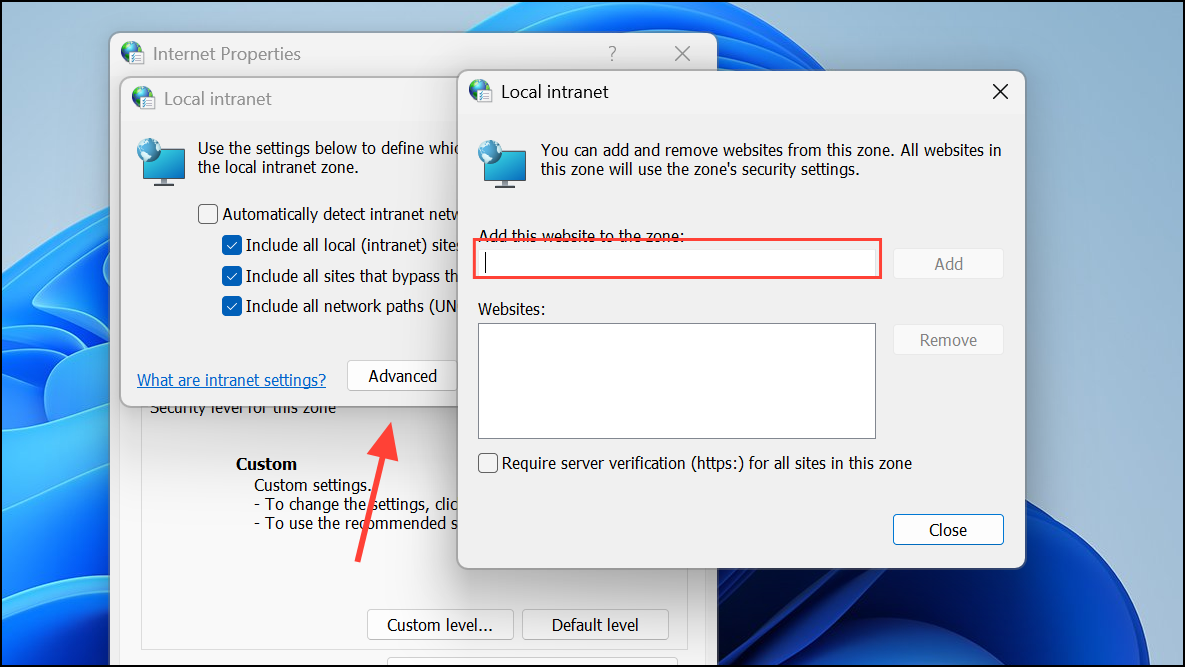
wsl.localhost to the list.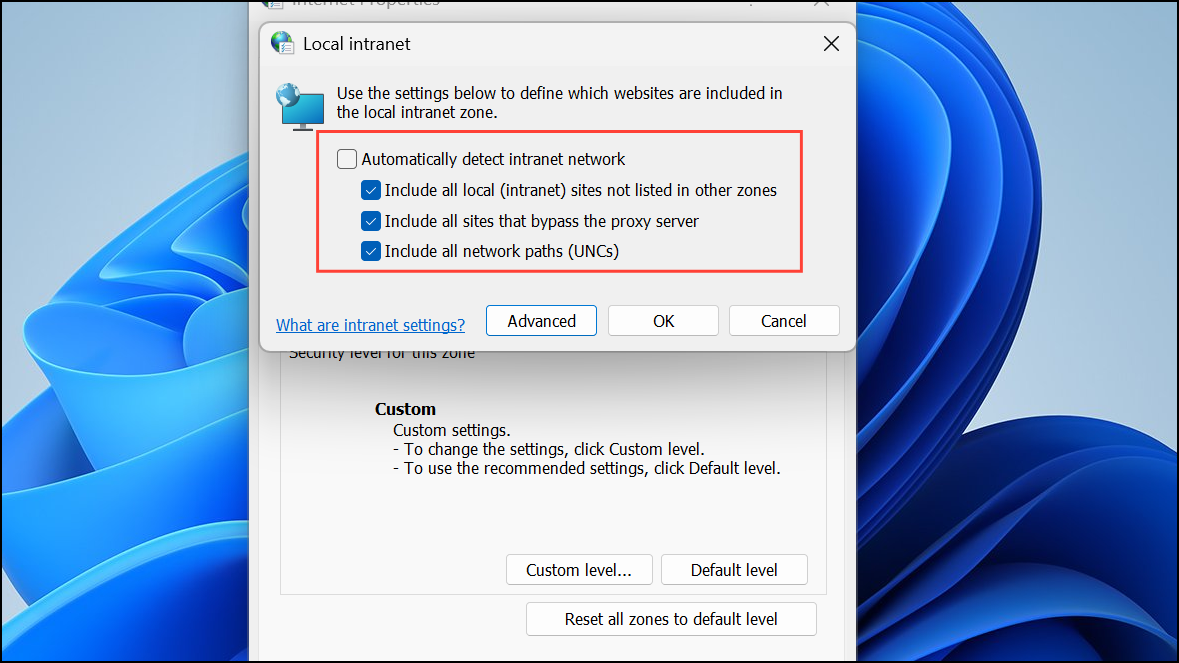
Adjust Group Policy Settings (Windows 11 Pro and Enterprise)
For devices managed in a business or advanced environment, Group Policy provides more granular control over security prompts.
Windows + R to open the Run dialog, type gpedit.msc, and press Enter to open the Group Policy Editor.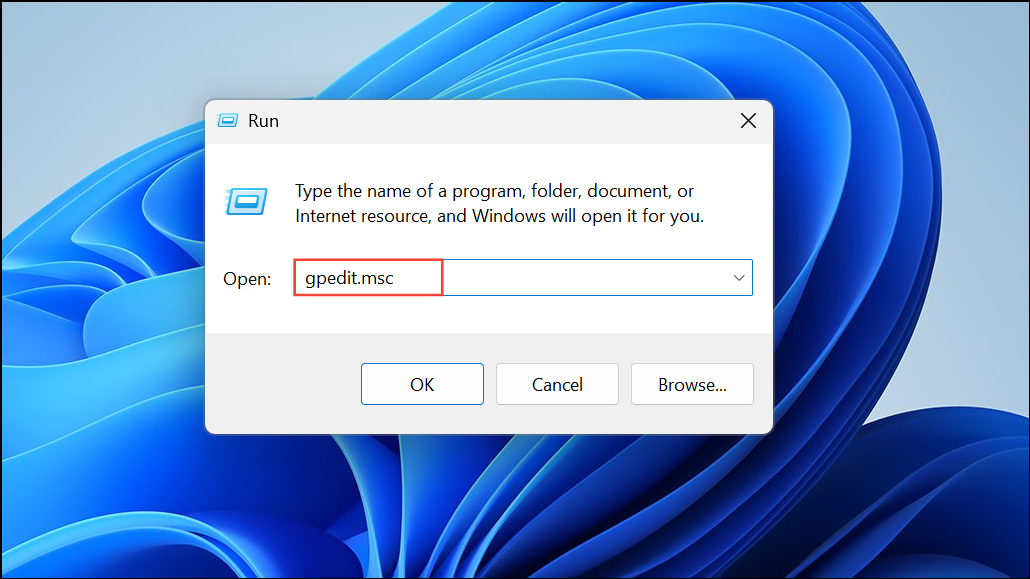
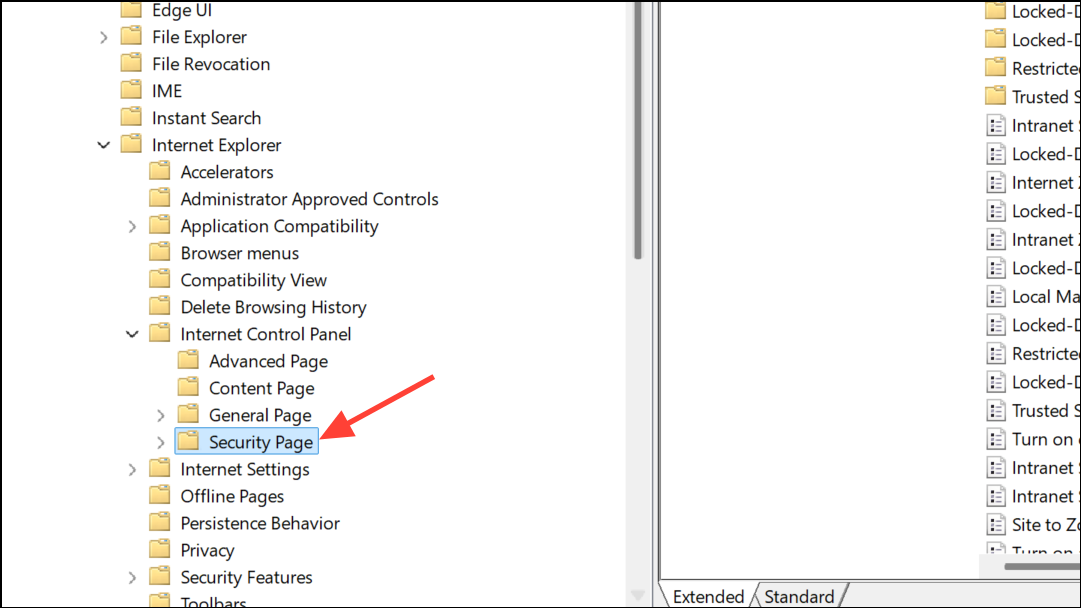
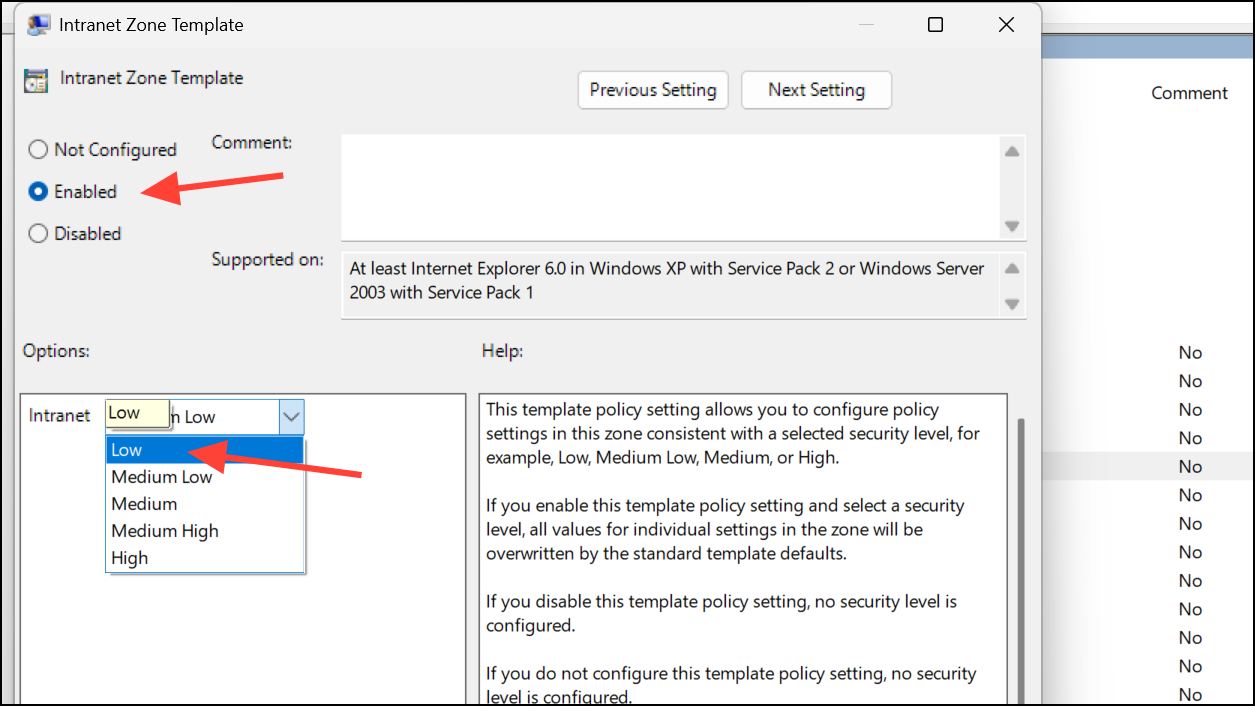
1 (which assigns them to the intranet zone).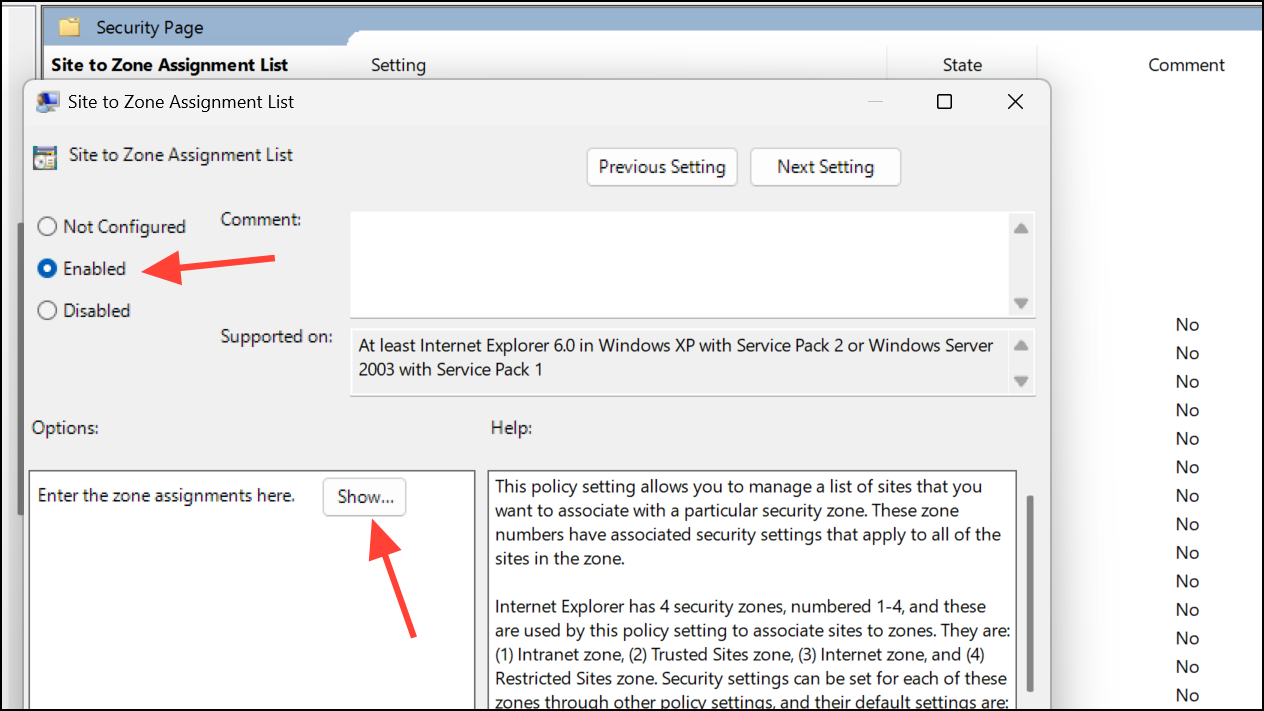
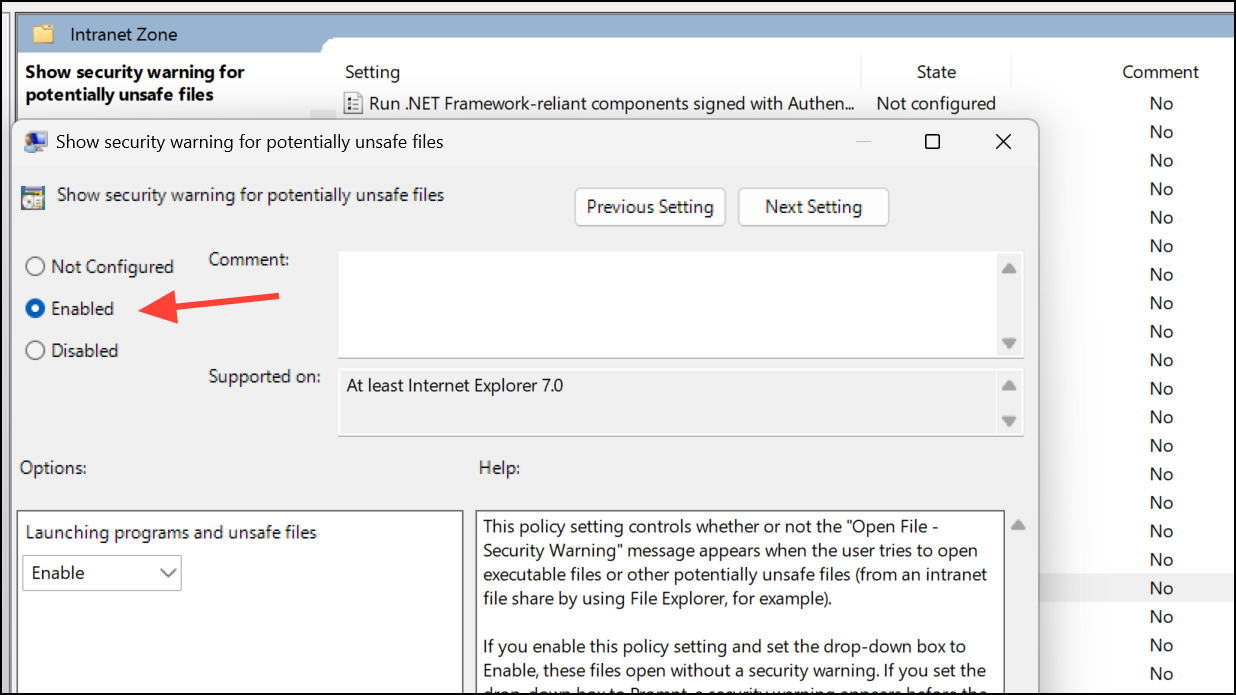
gpupdate /force in a Command Prompt or restart your computer.Registry Tweak for Advanced Users
Advanced users can directly edit the Windows registry to assign trusted network ranges or servers to the intranet zone. This method is not recommended unless you are comfortable making registry changes and have a backup.
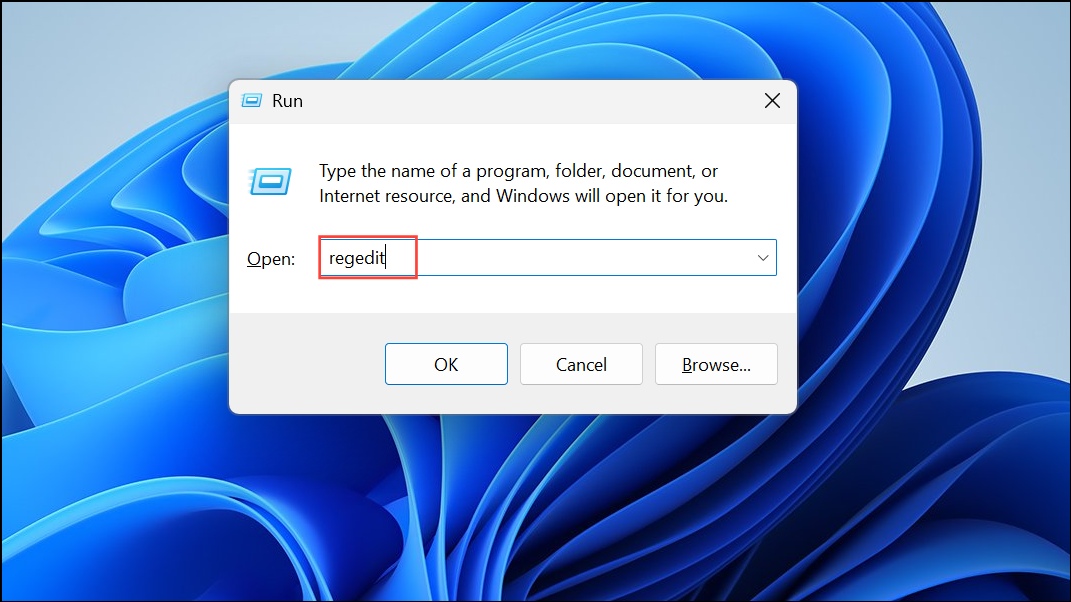
HKEY_CURRENT_USER\Software\Microsoft\Windows\CurrentVersion\Internet Settings\ZoneMap\Ranges for IP ranges, or HKEY_CURRENT_USER\Software\Microsoft\Windows\CurrentVersion\Internet Settings\ZoneMap\Domains for domain names.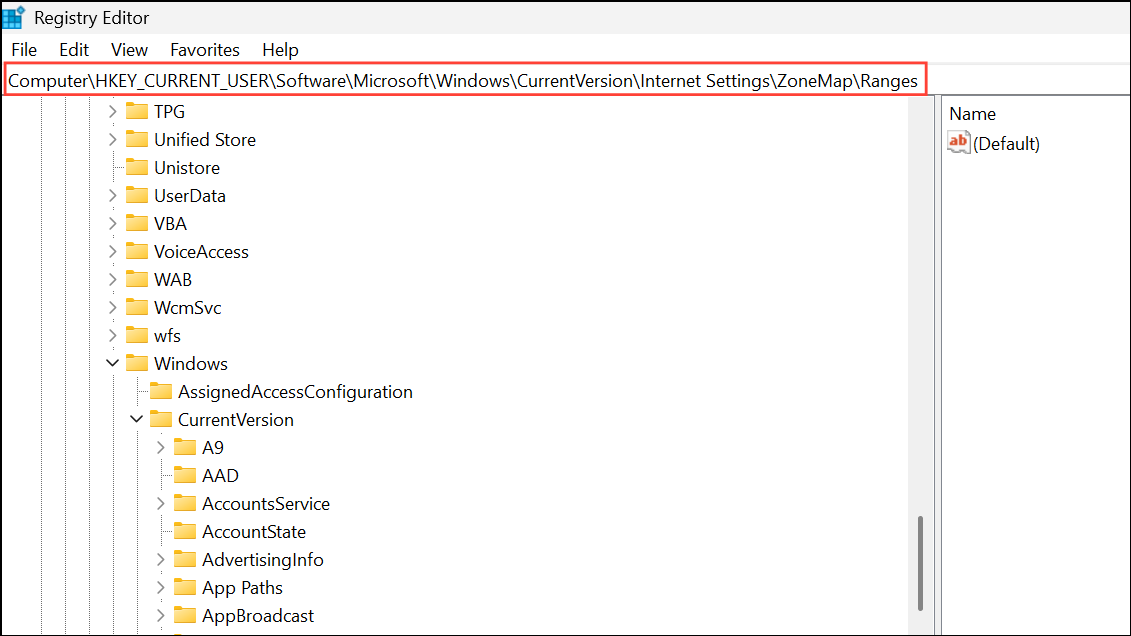
192.168.1.*:
Windows Registry Editor Version 5.00

[HKEY_CURRENT_USER\Software\Microsoft\Windows\CurrentVersion\Internet Settings\ZoneMap\Ranges\Range1]
"*"=dword:00000001
":Range"="192.168.1.*"
Additional Tips and Cautions
While removing this warning speeds up file operations, it also lowers the barrier for potentially unsafe files from trusted network locations. Only disable this prompt if you are confident in your network’s security and know the sources of your files. If you are part of a managed IT environment, consult your IT administrator before making these adjustments.
If the warning persists after making these changes, try disconnecting and remapping network drives or restarting Windows Explorer. Some users have reported that restarting the explorer process temporarily suppresses the warning, but the above methods provide a more permanent solution.
Disabling the “These files might be harmful to your computer” warning in Windows 11 can make file transfers smoother and less intrusive, especially on trusted networks. Always weigh the security trade-offs before changing these settings.



