
Windows 11 File Explorer includes several default folders pinned to the sidebar, such as Documents, Pictures, Music, and Videos. While these folders can be convenient for quick access, they might clutter your workspace if you rarely use them. Fortunately, you can easily remove these default pinned folders to streamline your File Explorer navigation. Follow these straightforward methods to customize your sidebar.
Method 1: Using File Explorer Settings
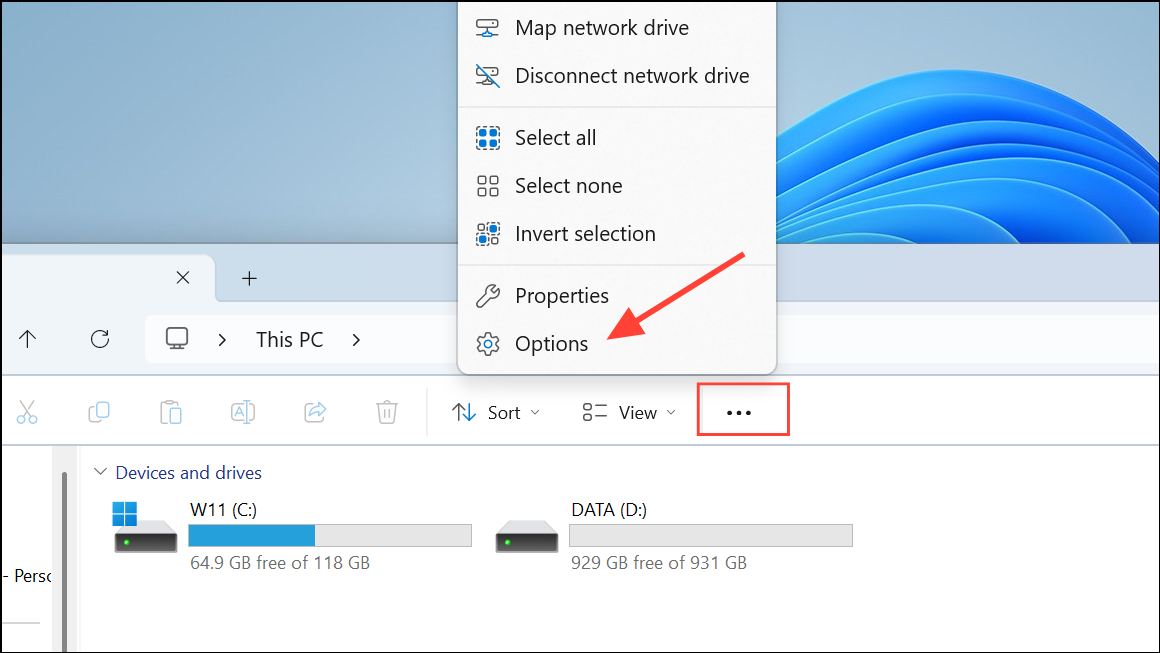
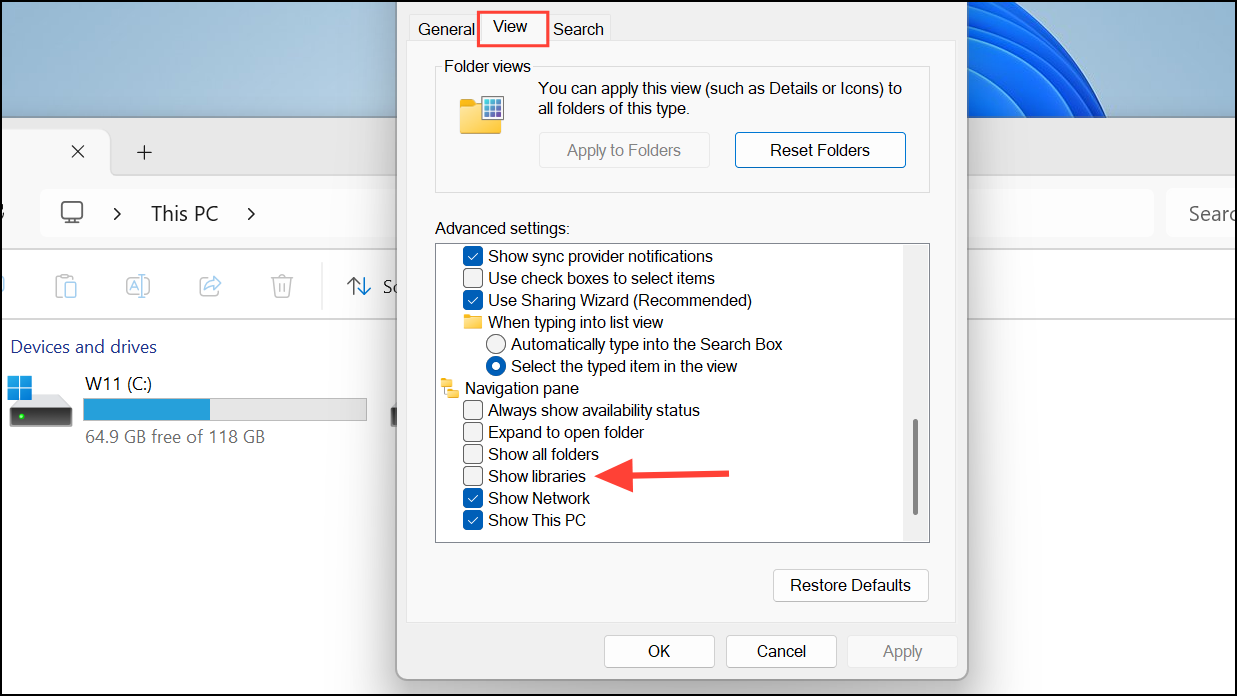
Method 2: Removing Folders via Registry Editor
Windows key + R to open the Run dialog. Type regedit and press Enter to open the Registry Editor.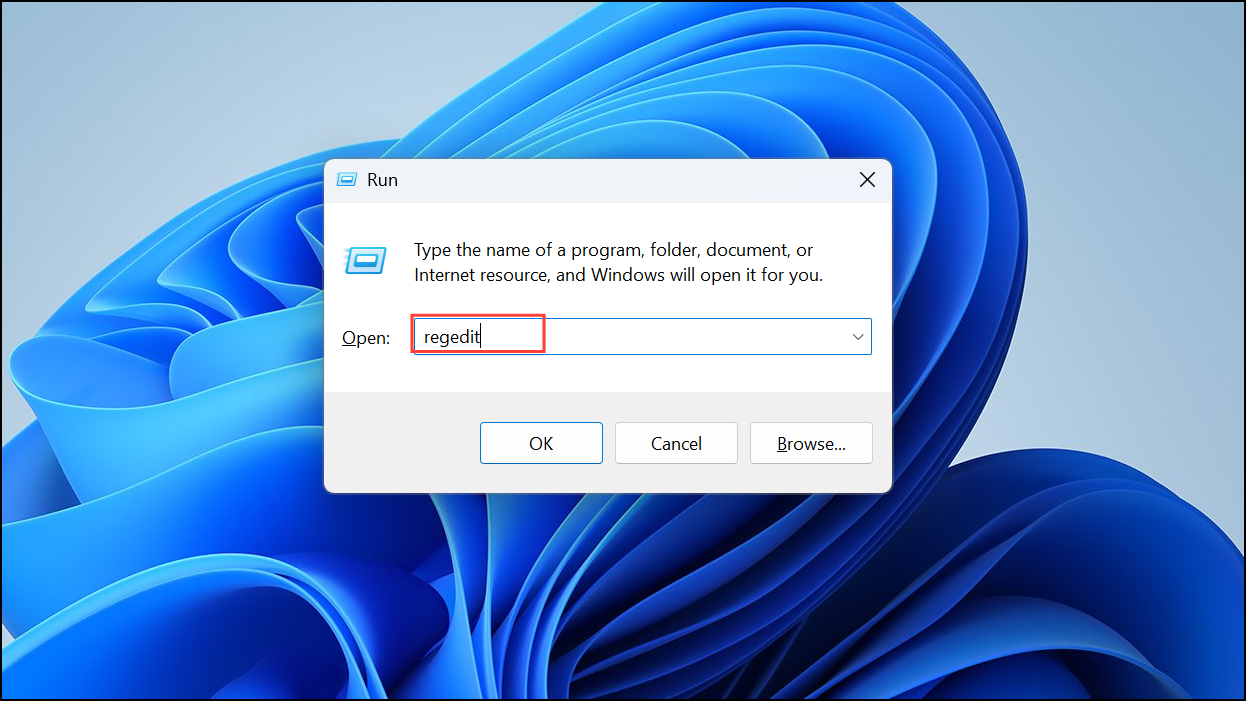
HKEY_LOCAL_MACHINE\SOFTWARE\Microsoft\Windows\CurrentVersion\Explorer\FolderDescriptions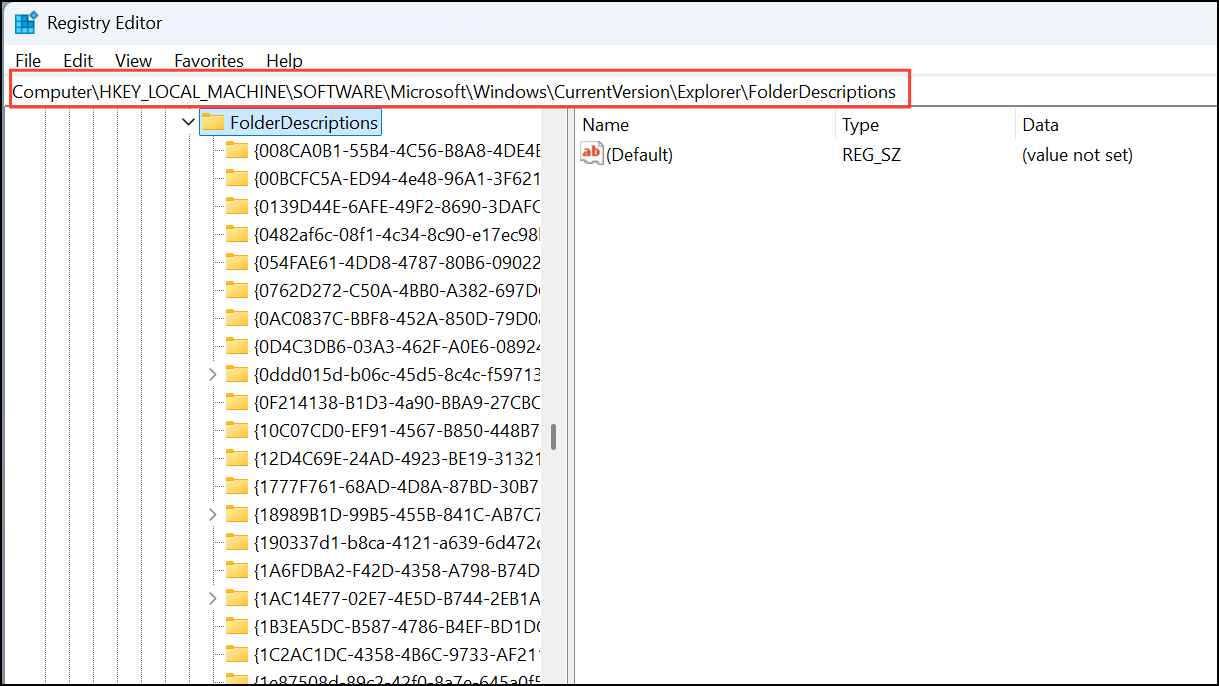
- Documents:
{f42ee2d3-909f-4907-8871-4c22fc0bf756}. - Pictures:
{0ddd015d-b06c-45d5-8c4c-f59713854639}. - Music:
{a0c69a99-21c8-4671-8703-7934162fcf1d}. - Videos:
{35286a68-3c57-41a1-bbb1-0eae73d76c95}. - Downloads:
{7d83ee9b-2244-4e70-b1f5-5393042af1e4}.
ThisPCPolicy.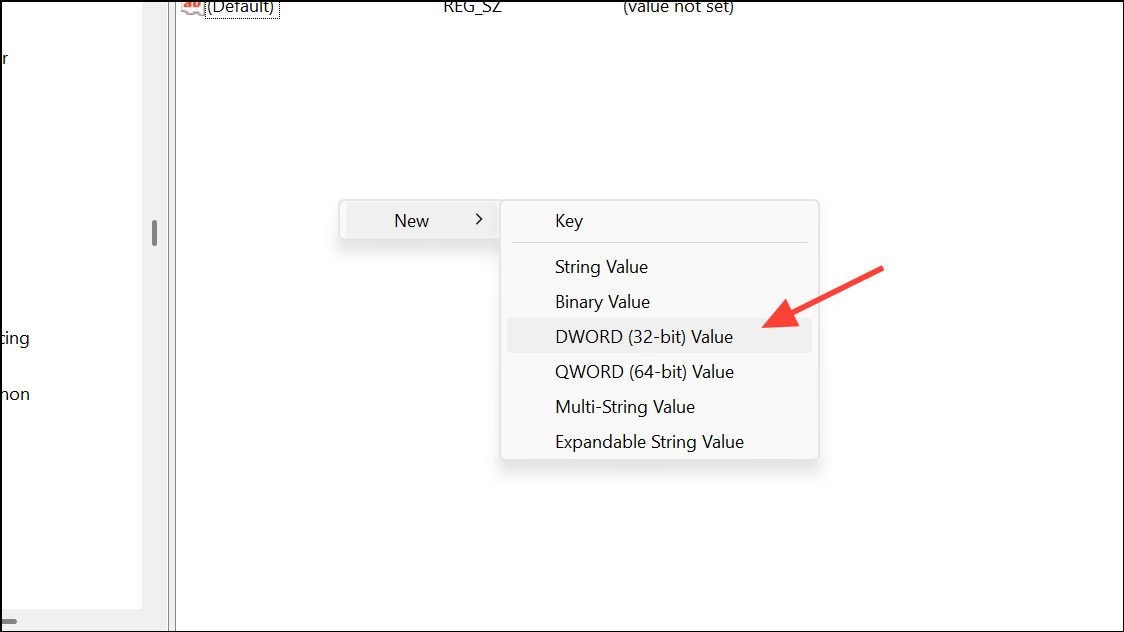
ThisPCPolicy value and set its data to Hide (enter the number 1 in hexadecimal format). Click OK to save changes.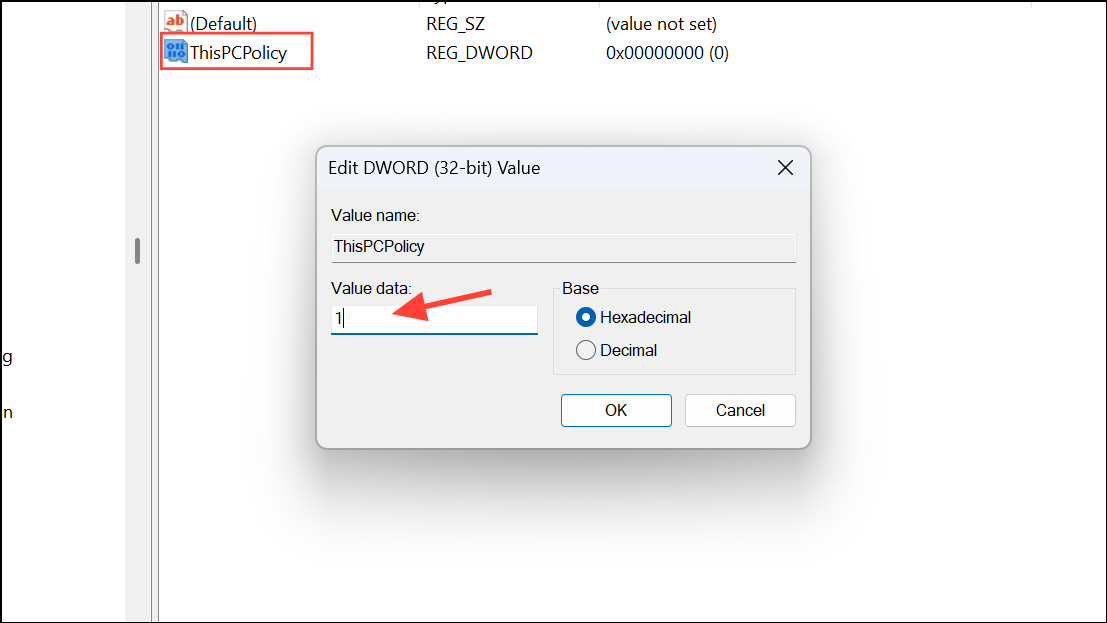
Method 3: Using Third-Party Tools
If you’re uncomfortable editing the Registry manually, a third-party tool like Winaero Tweaker can simplify this process significantly. Winaero Tweaker provides a user-friendly interface that lets you quickly remove or restore default folders in File Explorer without directly interacting with the Registry.
After following any of these methods, your File Explorer sidebar will be cleaner and more tailored to your personal workflow. Remember, you can always re-pin folders later if you change your mind.



