

Managing multiple tabs in your web browser can be overwhelming and inefficient. Thankfully, browsers like Google Chrome and Microsoft Edge offer an experimental feature called ‘Tab Groups’ that helps organize your tabs for a more streamlined browsing experience. Although still in development, you can enable and start using Tab Groups right now to keep your tabs tidy.
The Tab Groups feature is experimental and not yet rolled out to the public. Enabling it may risk browser data loss or compromise security and privacy. Proceed with caution.
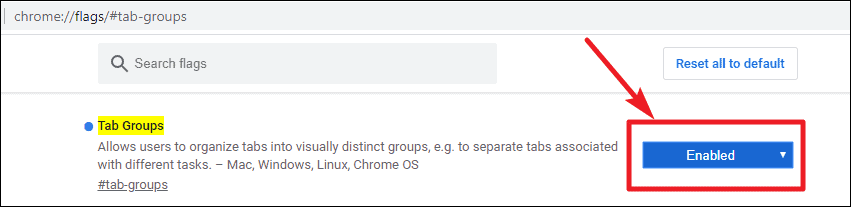
How to enable Tab Groups in Chrome
Alternative: Directly access the flag by typing chrome://flags/#tab-groups in the address bar and pressing Enter.

How to enable Tab Groups in Microsoft Edge
If you’re using the new Chromium-based Microsoft Edge, you can enable Tab Groups in a similar way.
Alternative: Directly navigate to the flag by entering edge://flags/#tab-groups in the address bar and pressing Enter.
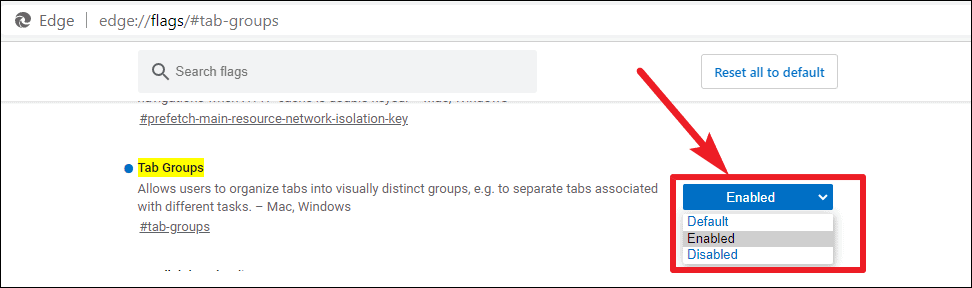

The Tab Groups feature enhances your browsing experience by allowing you to organize tabs efficiently. Once enabled, you can start grouping your tabs for better management.
Creating a new tab group
After relaunching your browser, you won’t notice any immediate changes. Start by opening a few tabs to see the feature in action.
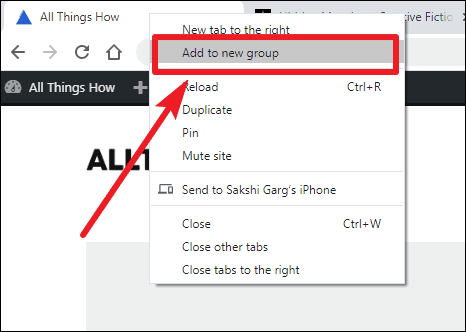
A new tab group will be created, indicated by a colored circle next to the tab. All tabs in this group will share the same color boundary.
Naming a tab group
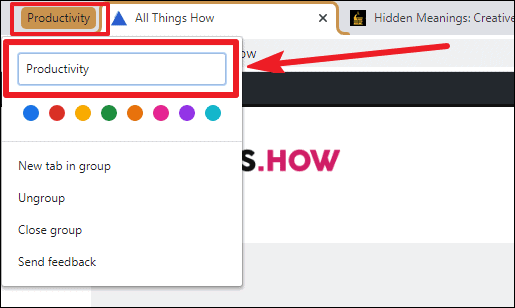
Assigning a name to your tab group helps keep your tabs organized.
The name you enter will replace the colored circle, making it easier to identify the group.
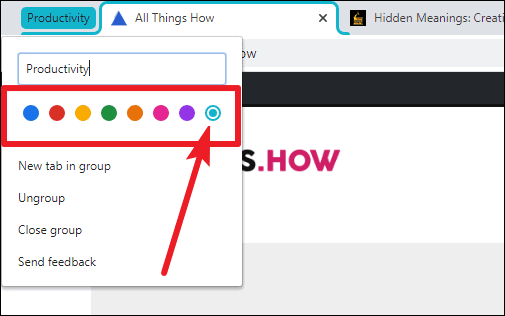
Changing the color of a tab group
You can change the color of your tab group to differentiate it from others.
Using different colors helps in visually organizing your tab groups, especially if you haven’t named them.
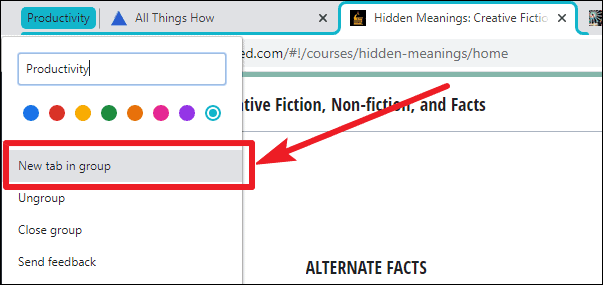
Launching a new tab in a tab group
You can add new tabs directly into an existing group.
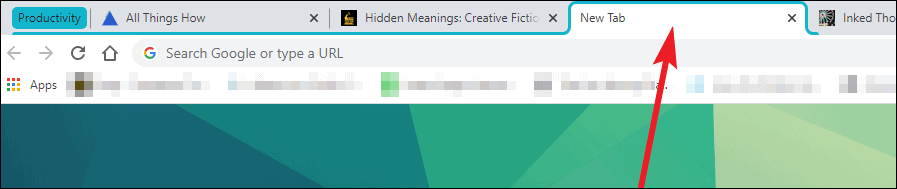
The new tab will open within the group, highlighted with the group’s color.
Adding an open tab to an existing tab group
To add an already open tab to a group, follow these steps:
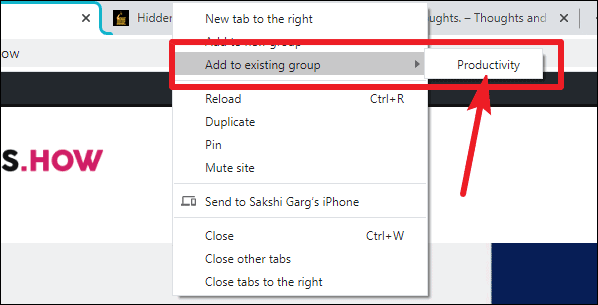
💡 Tip: You can also drag a tab into a group. Click and hold the tab, then drag it into the group until it adopts the group’s color, and release it.
Removing a tab from a group
If you need to remove a tab from a group:
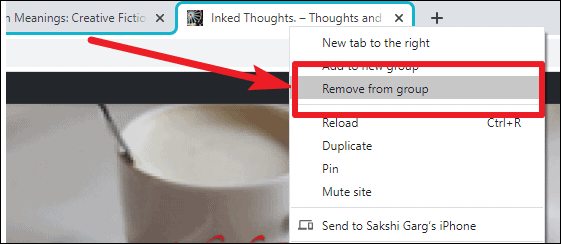
You can also remove a tab by dragging it out of the group. Simply click and drag the tab away from the group until it no longer displays the group’s color.
How to ungroup a tab group
To dissolve a tab group and separate all its tabs:
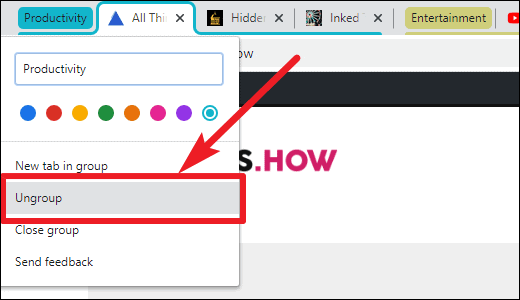
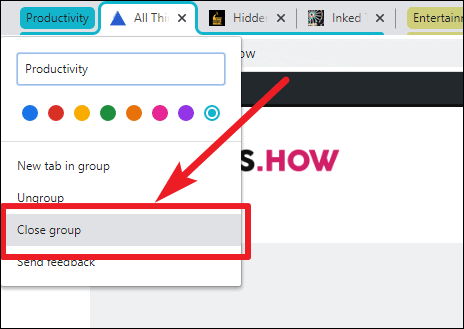
Closing a tab group
To close all tabs within a group at once:
Arranging tab groups
You can rearrange tabs within a group or move entire groups to different positions.
To rearrange tabs: Click and drag a tab within the group to your preferred position.
To rearrange groups: Click and hold the group name or colored circle, then drag the entire group to a new location among your tabs.
By utilizing the Tab Groups feature in Chrome or Edge, you can keep your browser organized and improve your productivity while navigating the web.





