
Google Chrome is a popular browser known for its speed and reliability, but over time, it can slow down due to accumulated cache, too many open tabs, extensions, and background processes. Fortunately, several straightforward methods can help you optimize Chrome’s performance and restore its speed.
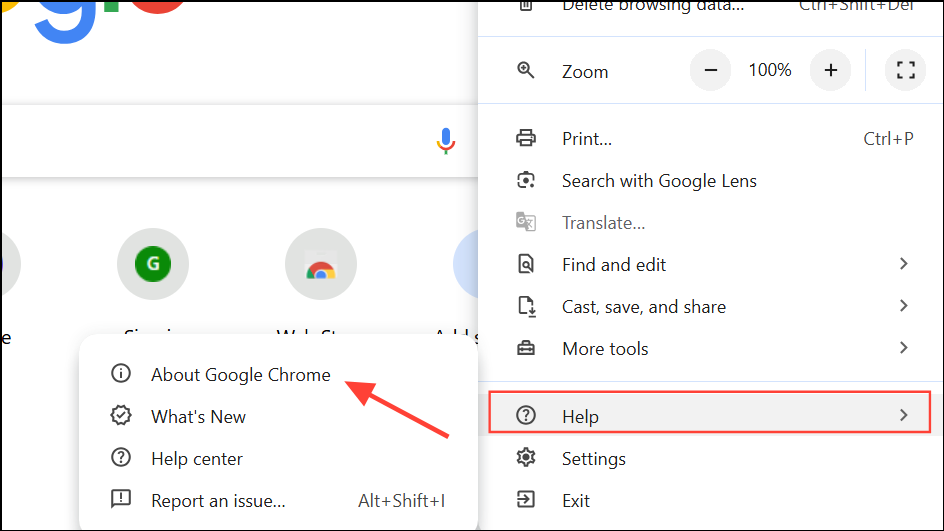
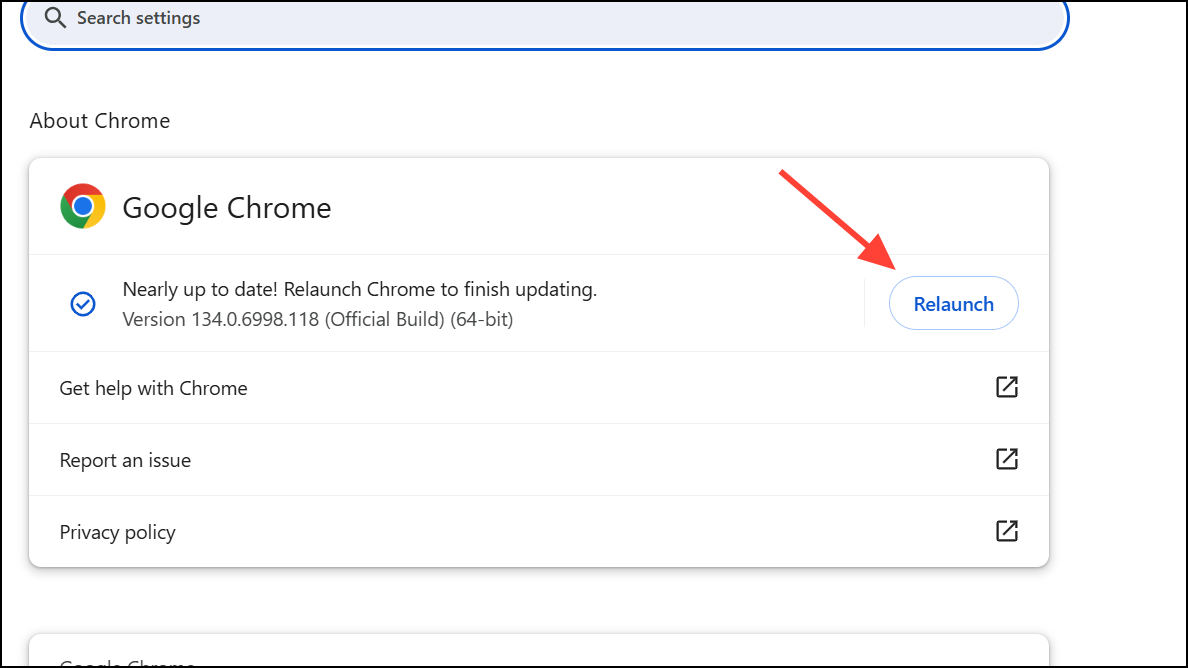
Update Google Chrome
Close Unused Tabs
Every open tab consumes memory and processing power. To close unnecessary tabs, simply click the “X” icon on the tab you want to close. Alternatively, you can use keyboard shortcuts: press Ctrl + W on Windows/Linux or ⌘ + W on Mac to quickly close the current tab.
Reducing the number of open tabs frees up system resources, allowing Chrome to operate faster and more smoothly.
Disable or Remove Unused Extensions
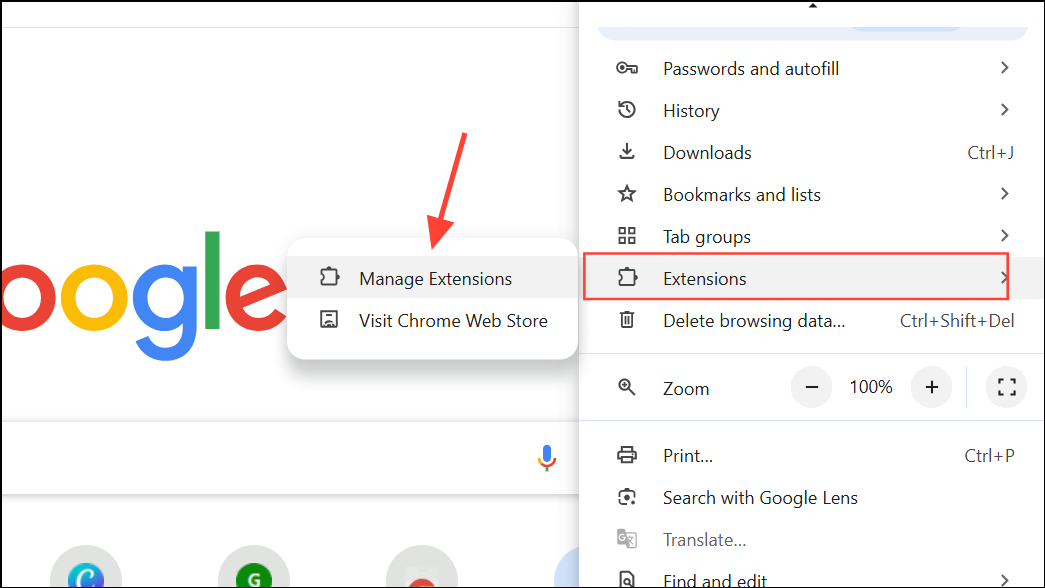
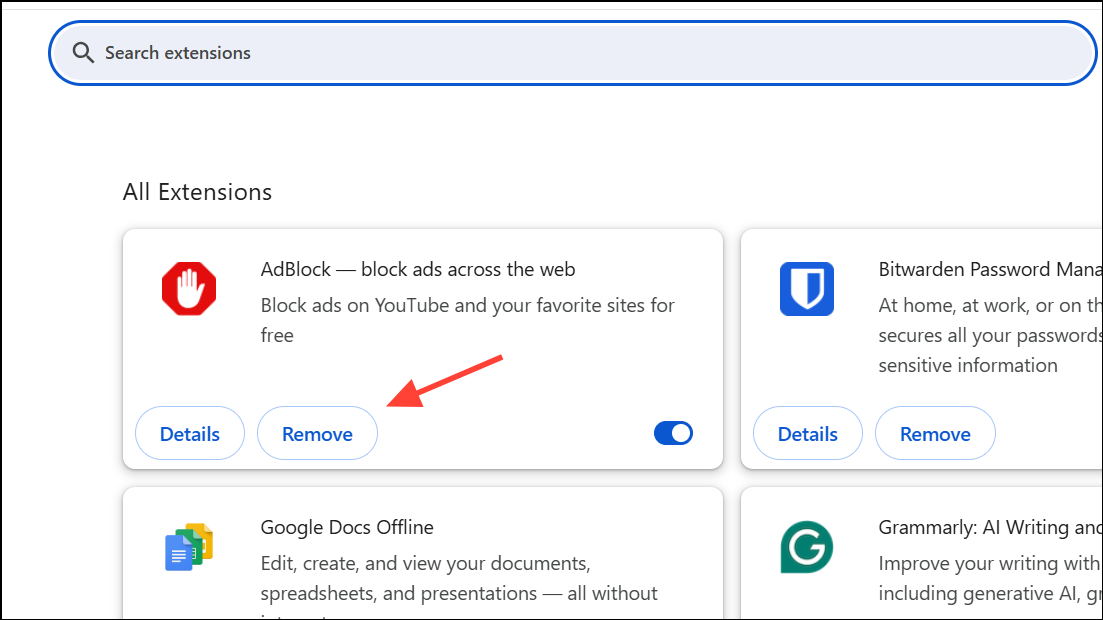
Regularly reviewing and removing unnecessary extensions reduces memory usage and improves Chrome’s responsiveness.
Stop Resource-Heavy Tasks
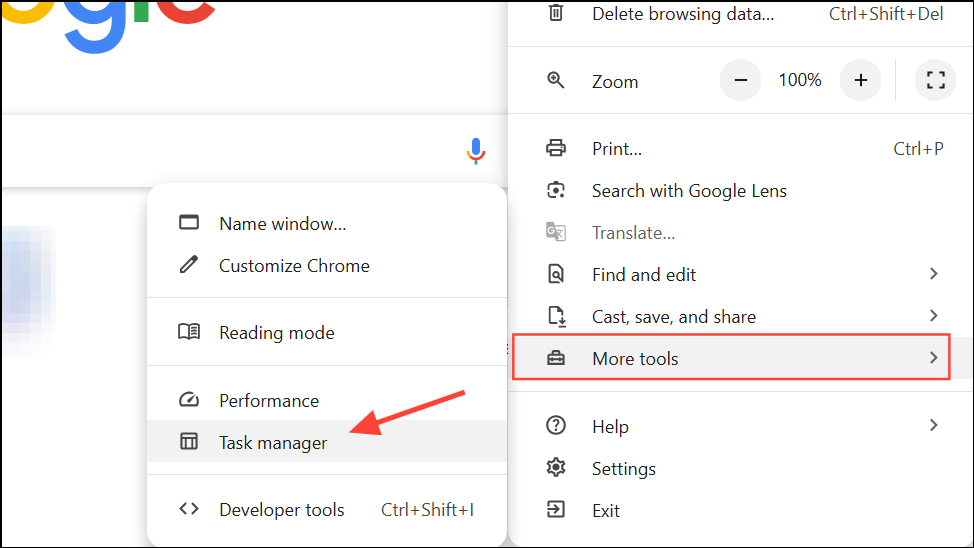
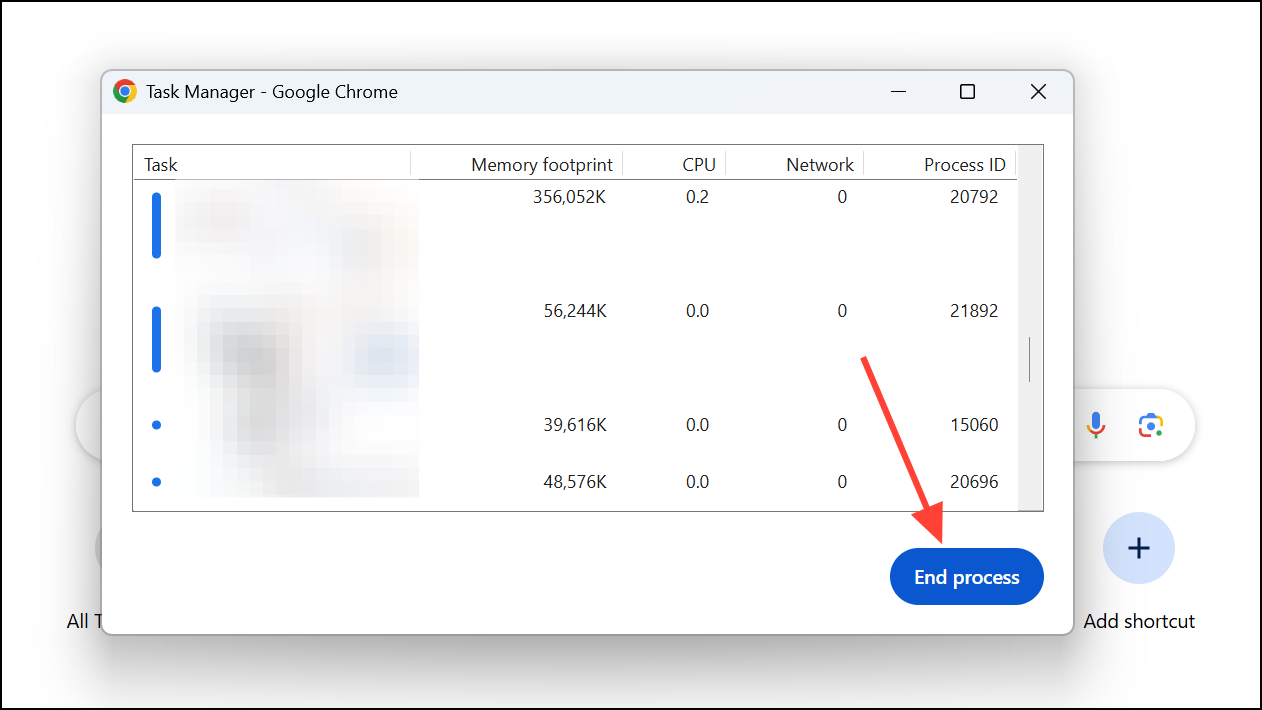
Clear Browsing Data and Cache
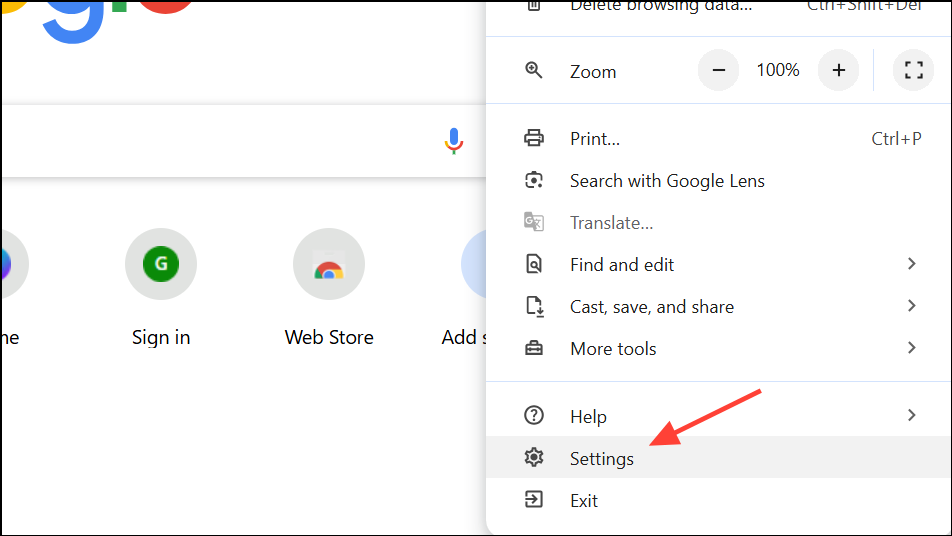
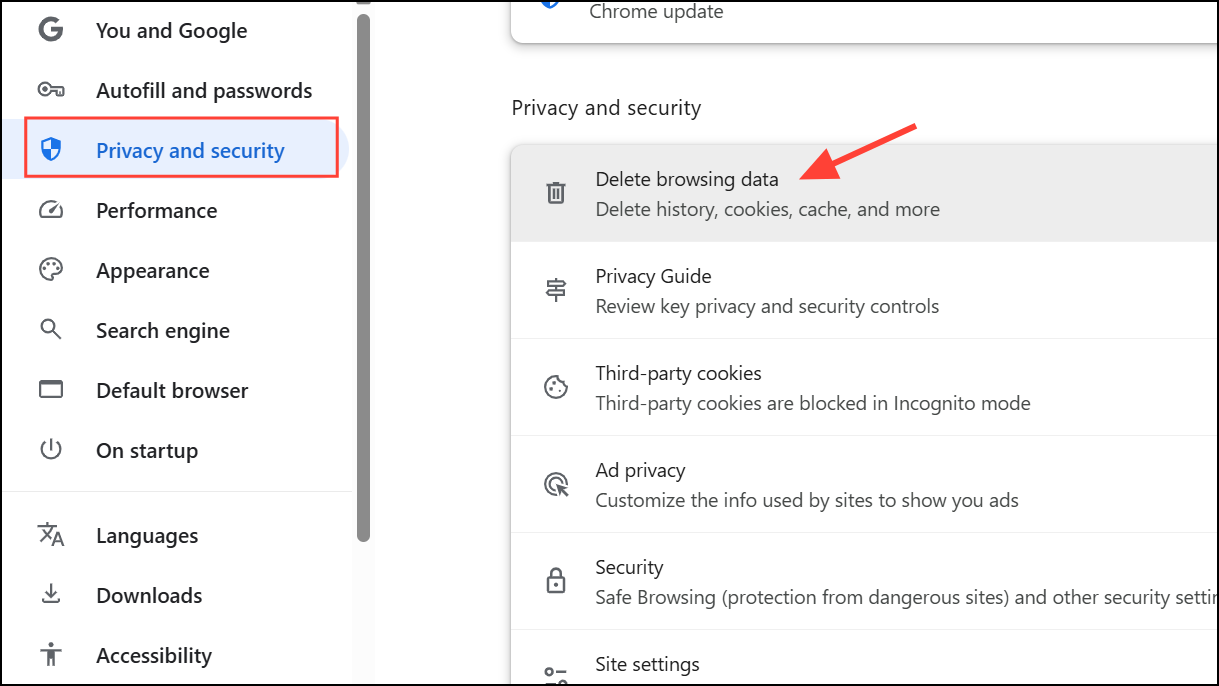
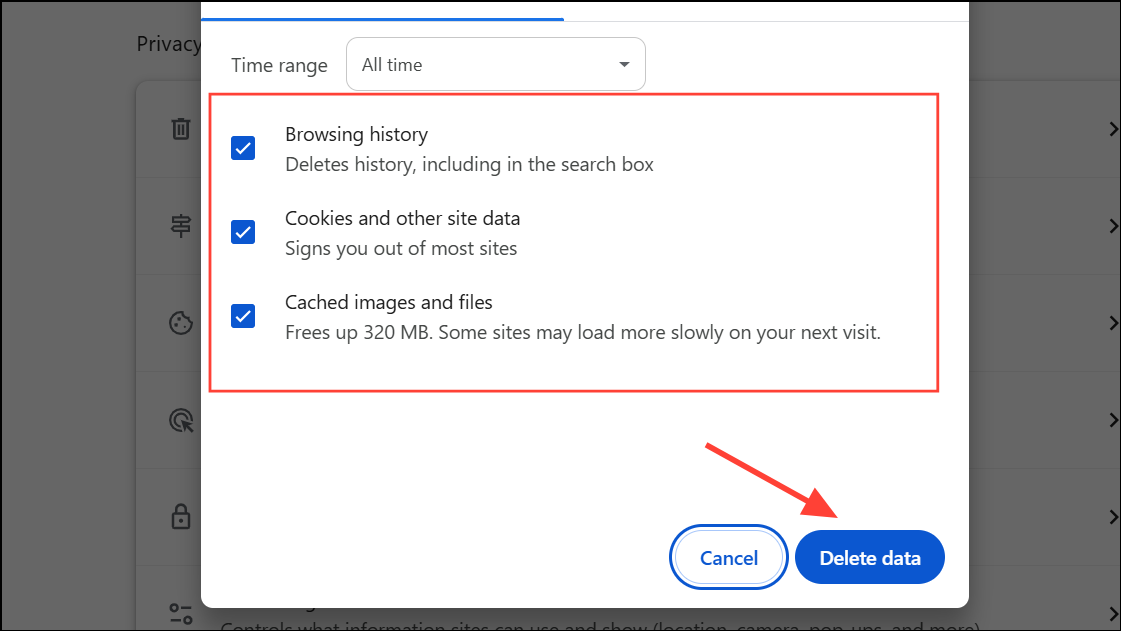
Regularly clearing cache and browsing data improves Chrome’s load times and overall performance.
Enable Page Preloading
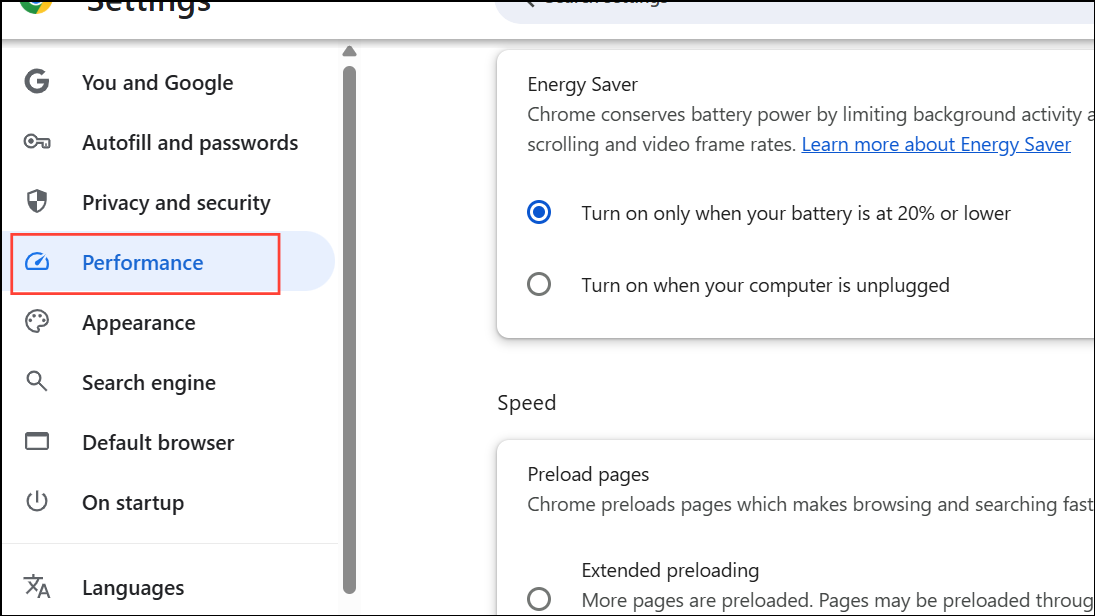
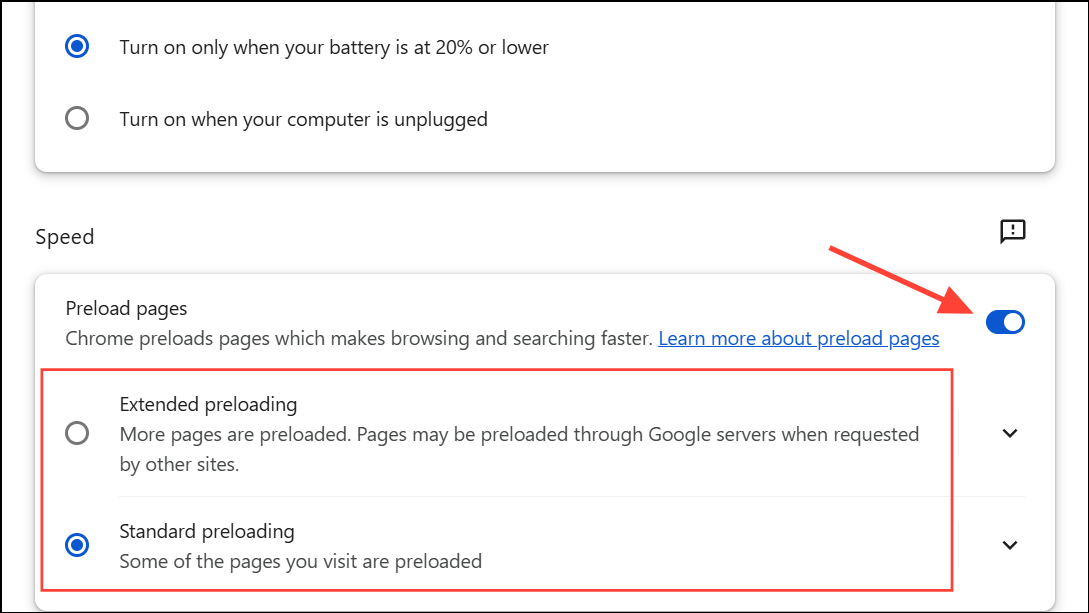
This proactive loading helps pages appear instantly when you click on them.
Turn On Hardware Acceleration
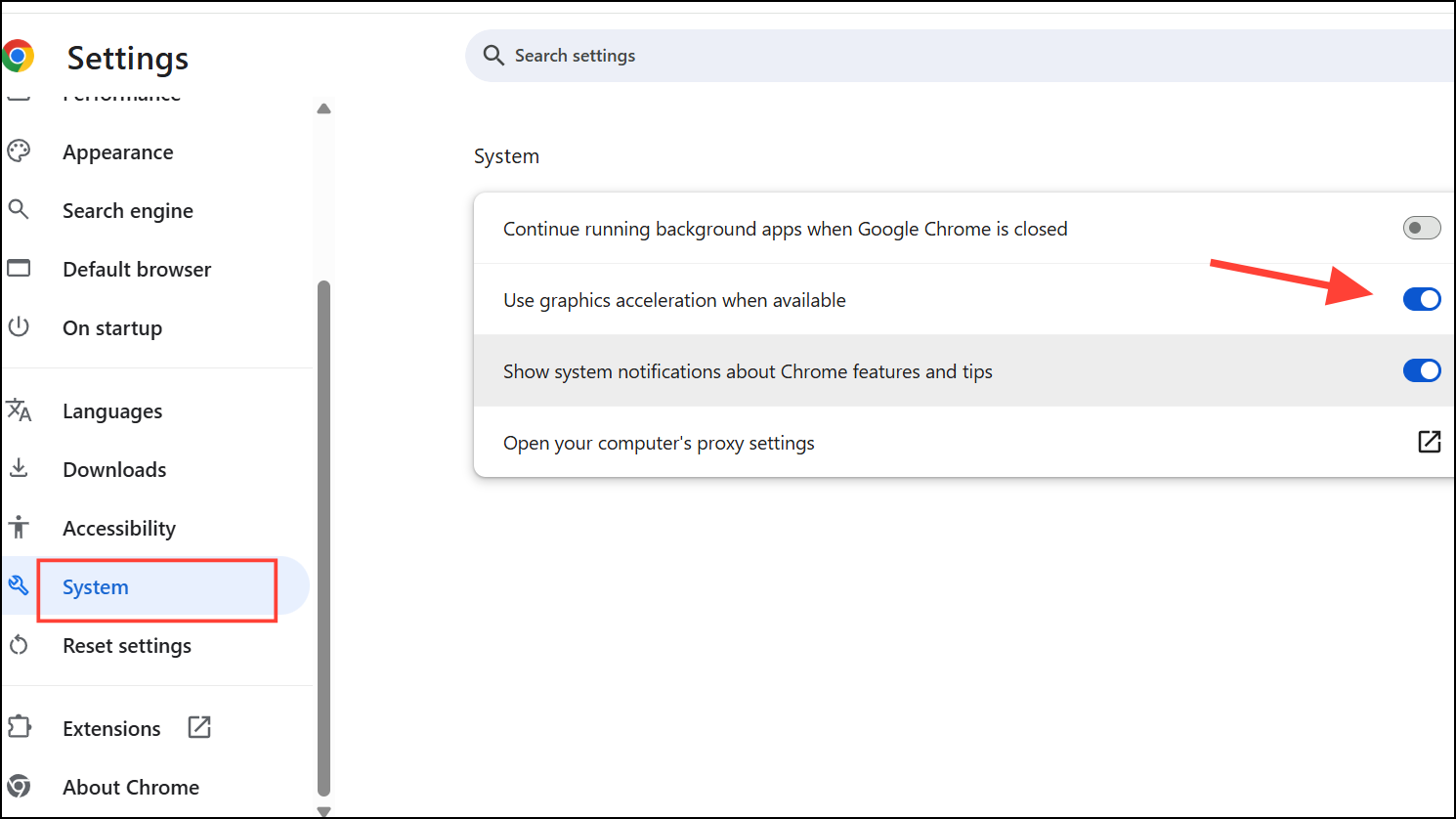
Hardware acceleration allows Chrome to leverage your computer’s GPU for tasks like rendering graphics and videos, which improves browsing speed. To enable this feature, click the three vertical dots, go to Settings > System, and activate the toggle for Use hardware acceleration when available. Restart Chrome for the changes to take effect.
Use Chrome’s Memory Saver Mode
Chrome’s Memory Saver mode automatically suspends inactive tabs to free up memory. To ensure it’s enabled, open Settings, select Performance, and verify that Memory Saver is toggled on. You can also specify exceptions for tabs you don’t want to suspend.
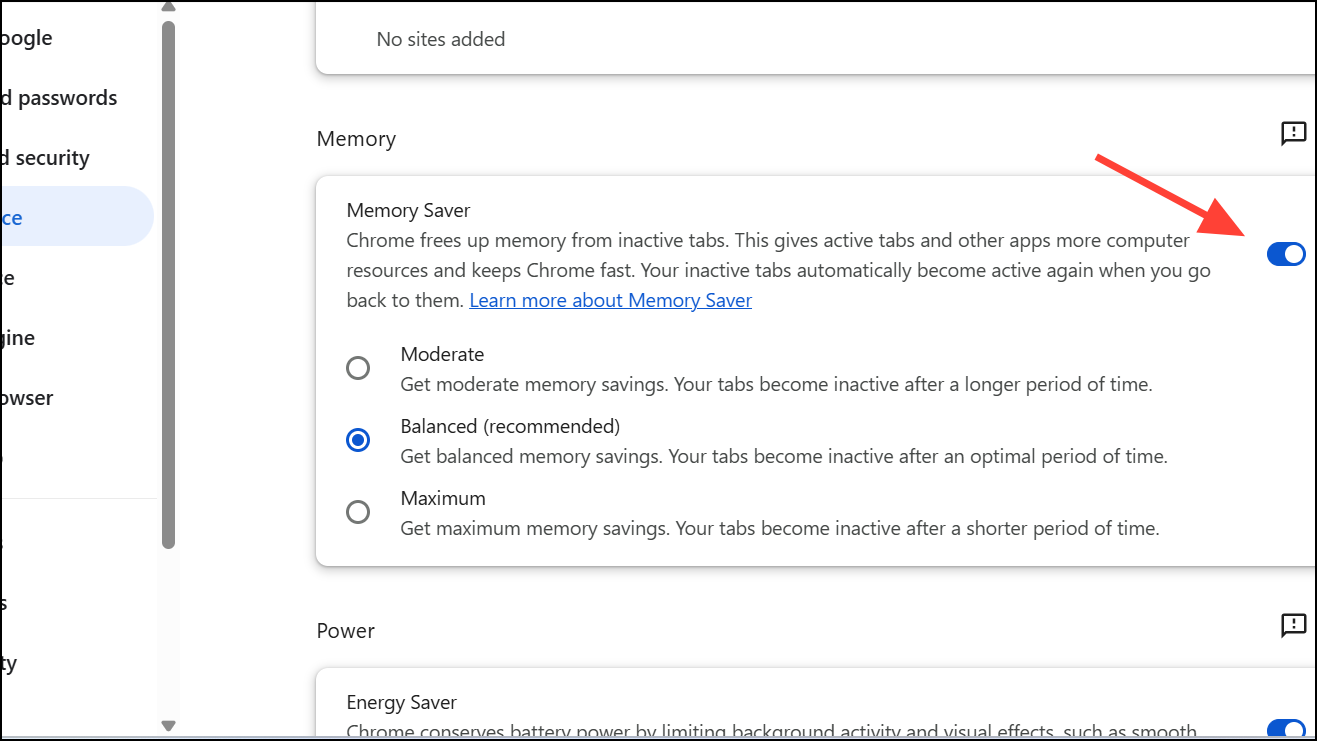
This feature significantly reduces memory usage, improving overall browser speed.
Reset Chrome to Default Settings
If Chrome remains slow despite other optimizations, consider resetting it to default settings. This removes extensions, themes, and other customizations but keeps your bookmarks and passwords intact. Click the three vertical dots, navigate to Settings > Reset settings, and select Restore settings to their original defaults. Confirm by clicking Reset settings.
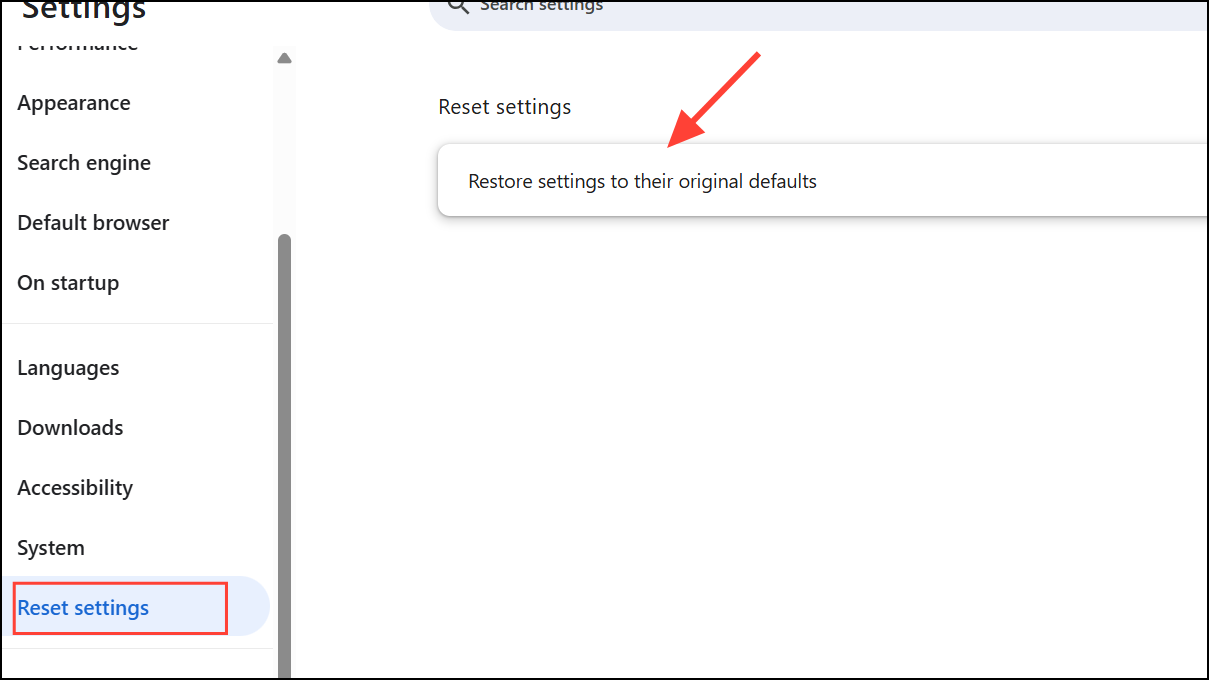
Resetting Chrome can resolve persistent performance issues caused by conflicting extensions or settings.
By following these methods, you can significantly improve Chrome’s speed and responsiveness on your desktop, ensuring a smoother and more efficient browsing experience.





