
Dolby Audio support on Windows 11 optimizes audio playback for movies, games, and streaming, but installation and setup can be confusing due to changes in driver support and available software. For users seeking to restore, update, or newly install Dolby Audio capabilities—especially after system upgrades or audio issues—several methods are available, ranging from the official Microsoft Store app to more technical manual driver installation. Below are detailed instructions for each approach.
Install Dolby Audio via Microsoft Store
Windows + S and searching for Microsoft Store. Open the app from the search results.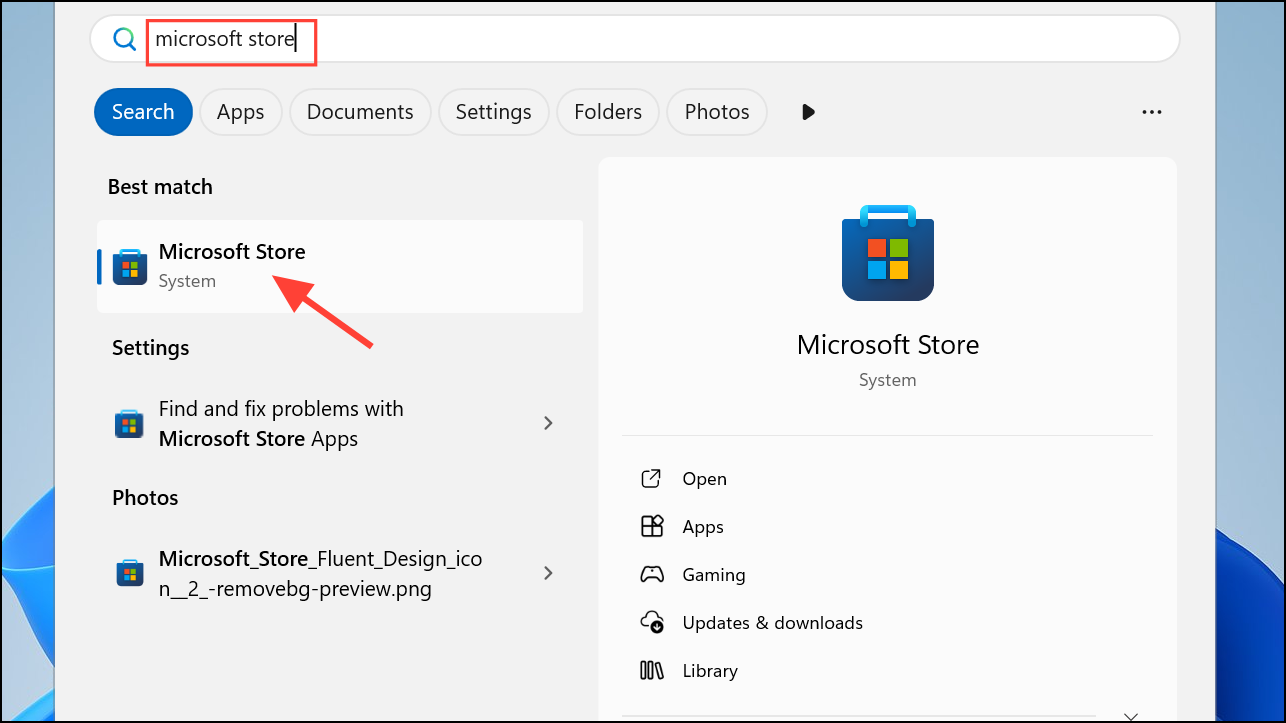
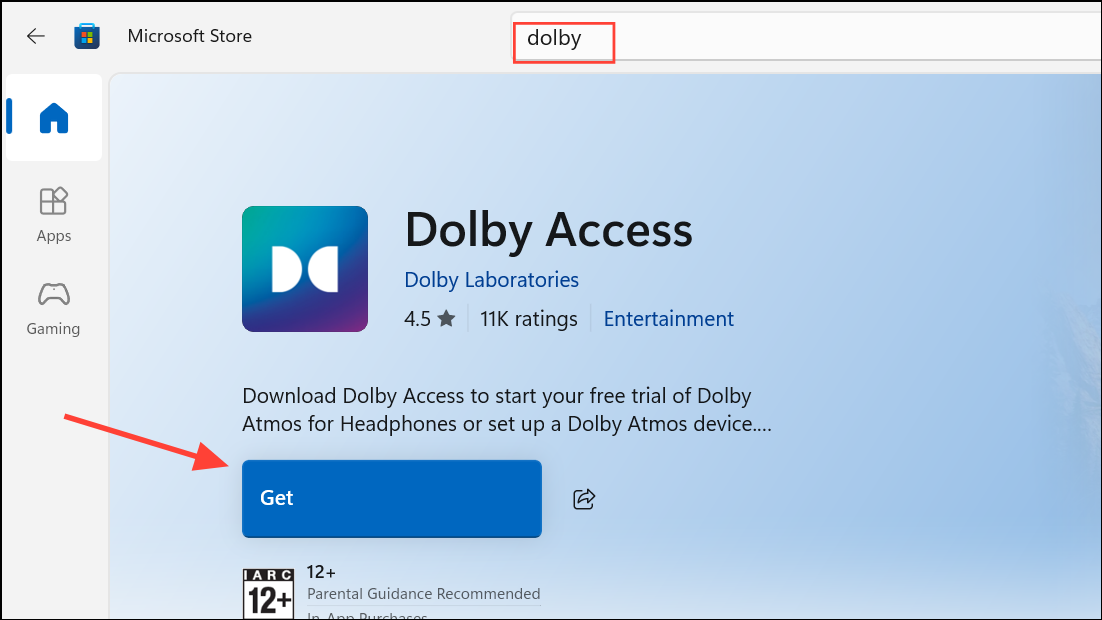
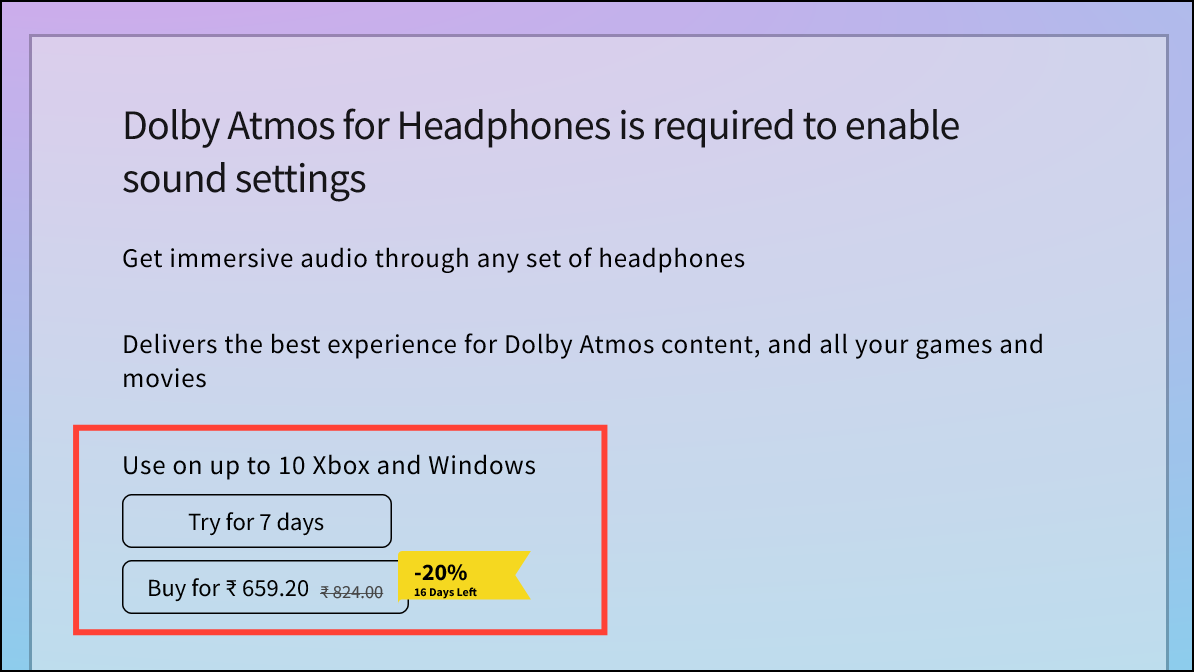
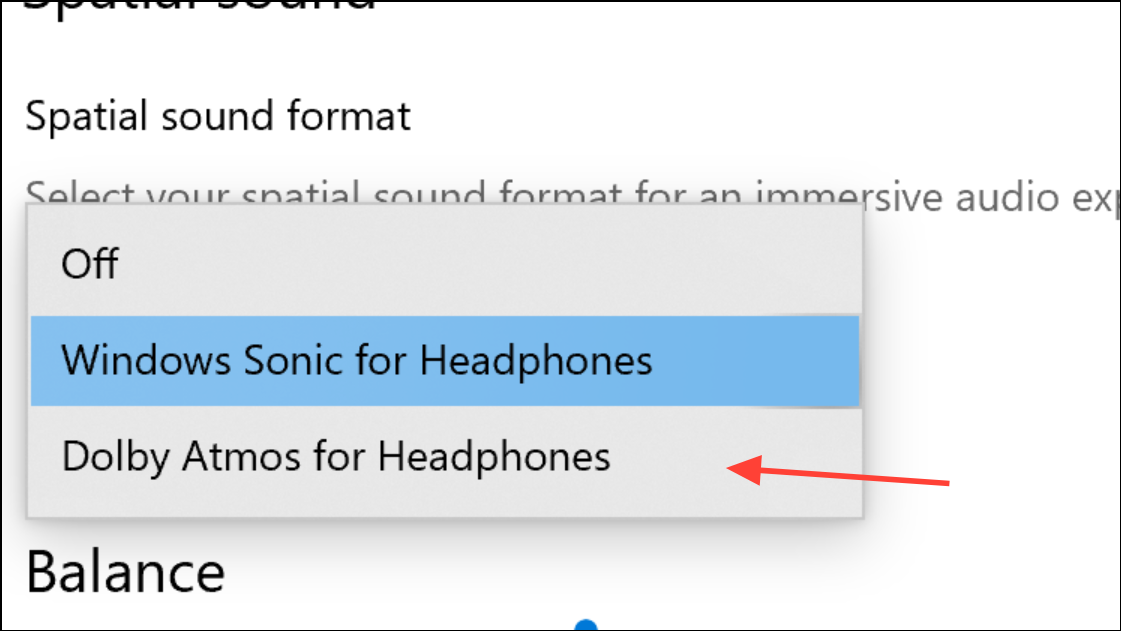
This method is the most straightforward and is officially supported for most modern systems, especially those with compatible hardware or pre-installed Dolby solutions.
Install Dolby Audio Driver from PC Manufacturer
.exe installer or as a compressed archive.Obtaining drivers directly from your manufacturer ensures compatibility and reduces the risk of system instability or unsupported features.
Manual Installation Using Dolby Digital Plus AA Driver
This advanced method is useful if official drivers are unavailable or if Dolby Audio support was lost after a Windows update.
Shift while clicking Restart from the Start menu. After rebooting, select Troubleshoot > Advanced options > Startup Settings > Restart. On the next screen, press F7 to disable driver signature enforcement.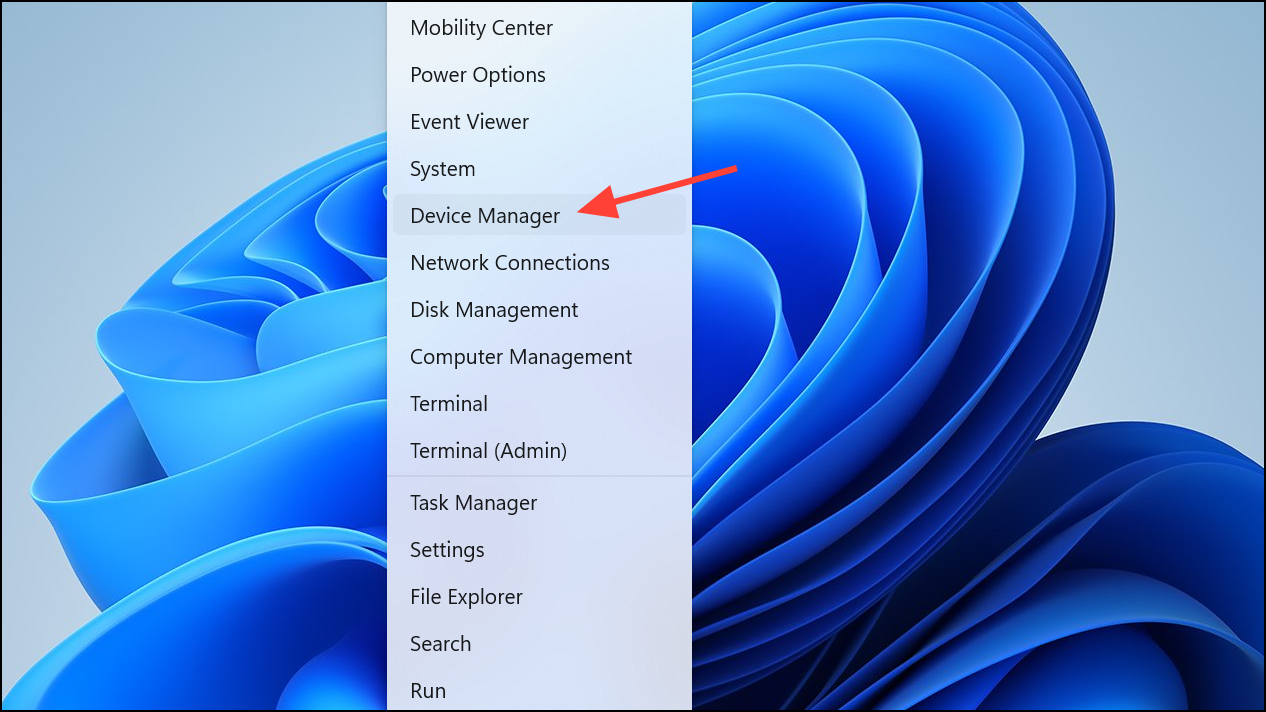
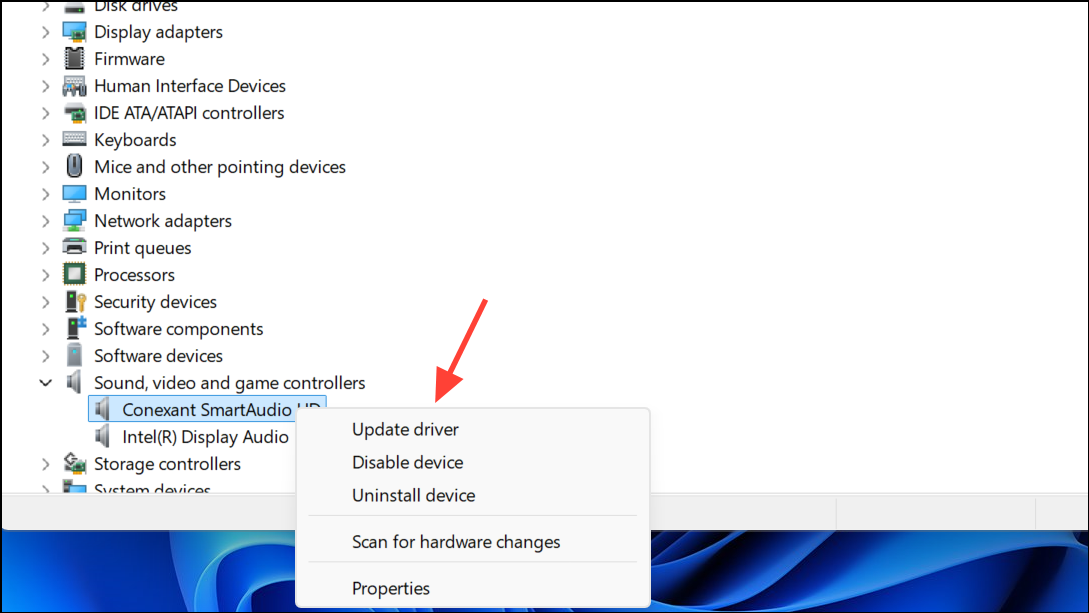
.inf file (such as hdaudio.inf or Digital Plus AA).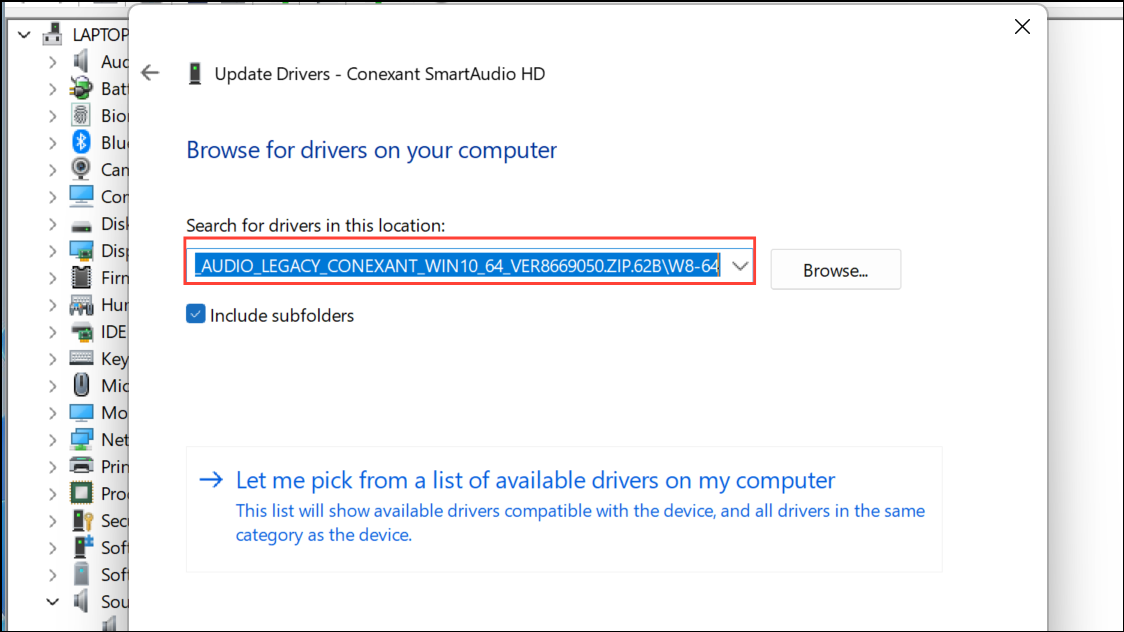
This approach is best reserved for technically experienced users and may be necessary for restoring lost Dolby Audio functionality after major Windows updates or driver conflicts.
Install Dolby AC3 Filters for Microsoft Apps
For users who need AC3 (Dolby Digital) audio support in Microsoft apps, a dedicated installer is available. This method is especially useful if you require AC3 playback in legacy or media applications.
This method enables AC3 audio playback in apps that otherwise lack native support, improving compatibility for a range of audio and video files.
Troubleshooting Dolby Audio Issues on Windows 11
Recent Windows 11 updates have removed or altered surround sound options for some users, especially those using HDMI receivers or legacy Dolby Digital 5.1 setups. If you experience loss of surround sound, only stereo output, or missing Dolby options:
- Update or roll back your audio drivers in Device Manager.
- Check sound settings to ensure your output device is configured for 5.1 or surround sound.
- Install or reinstall the Dolby Access app from the Microsoft Store.
- For HDMI output, changing the display refresh rate (for example, from 60Hz to 50Hz) may temporarily restore 5.1 output until the next reboot.
- Use manufacturer-specific drivers rather than generic Windows drivers when possible.
- Reset audio settings in Settings > System > Sound > Advanced sound options.
Some users report persistent issues after Windows updates, such as the 24H2 release. If official solutions fail, consider reaching out to your device manufacturer or the Dolby support team for updated drivers or firmware.
Installing Dolby Audio on Windows 11 can restore immersive sound for movies and games, but the right method depends on your device and driver support. Always use official sources and back up your system before making major driver changes.



