

Windows 11 enforces modern hardware requirements that block older or custom PCs. You can still deploy version 25H2 by preparing a special USB installer that bypasses checks. Two reliable options are Rufus and Ventoy, both of which create media that removes TPM 2.0, Secure Boot, and memory requirements and can skip the mandatory Microsoft account during setup.
Starting with Windows 11 version 24H2, processors must support the POPCNT instruction to boot correctly. Intel chips also need SSE4.2 and AMD chips need SSE4A. Very old CPUs (primarily pre‑2007) typically lack these capabilities, and no tool can work around this limitation.
Before you start: hardware and downloads
Use a Windows PC to prepare the USB and have an empty flash drive with at least 8 GB of capacity. Download a Windows 11 ISO (25H2 when available) from the official Microsoft download page at microsoft.com/software-download/windows11. If 25H2 is not yet listed for the public, obtain it from the Windows Insider ISO page at aka.ms/wipISO.
For tooling, get Rufus from rufus.ie or Ventoy from github.com/ventoy/Ventoy/releases.
Download the Windows 11 25H2 ISO (official sources)
Use the Windows 11 download page to select the Disk Image (ISO) for x64 devices, choose your language, and save the file. If you specifically need 25H2 and it is not on the main download page yet, use the Insider ISO link. Always save the ISO locally before creating the USB to avoid interruptions.
Create a Windows 11 25H2 USB for unsupported PCs with Rufus
Rufus creates a standard Windows installer and includes options to remove installation checks and the online account requirement. It can also create a local account automatically and prevent automatic Device Encryption/BitLocker enablement on first boot.
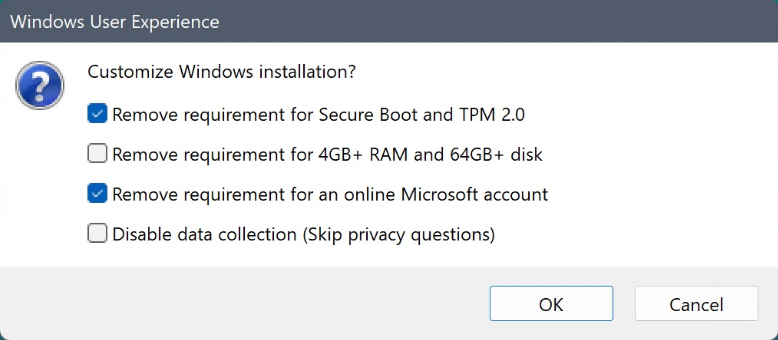
If you do not see the Download option in Rufus, open Rufus Settings and set its update check to Daily to expose it. This enables the built‑in ISO downloader in some configurations.
Create a Windows 11 25H2 USB for unsupported PCs with Ventoy
Ventoy turns a USB into a multi‑ISO boot device. You simply copy the ISO file(s) to the USB and boot them from Ventoy’s menu. Ventoy applies the necessary configuration to bypass Windows 11 hardware requirements by default.
When a newer ISO is released, you do not need to recreate the USB. Copy the newer ISO to the Ventoy drive and boot it from the menu.
Choose a tool: Rufus vs. Ventoy (quick reference)
| Tool | How it works | Bypass options | Good for |
|---|---|---|---|
| Rufus. | Builds a standard Windows installer USB with custom setup options. | Skips TPM, Secure Boot, and RAM checks; can skip online account, create a local account, and block automatic Device Encryption. | One‑off clean installs with precise control over setup behavior. |
| Ventoy. | Makes the USB boot ISO files directly via a menu (no extraction). | Applies configuration to bypass Windows 11 requirements by default. | Keeping multiple Windows or Linux ISOs on a single, reusable USB. |
Limits, support status, and what to expect
Installing Windows 11 on unsupported hardware leaves the device in an officially unsupported state. Updates may still arrive, but they are not guaranteed, and functionality can differ from a supported machine. Hardware instruction support requirements for 24H2 and newer (POPCNT plus SSE4.2 on Intel or SSE4A on AMD) remain mandatory; older CPUs typically cannot boot these builds.
With the ISO in hand, both Rufus and Ventoy streamline installs on older hardware—pick the one that fits your workflow and you’ll be up and running quickly.



