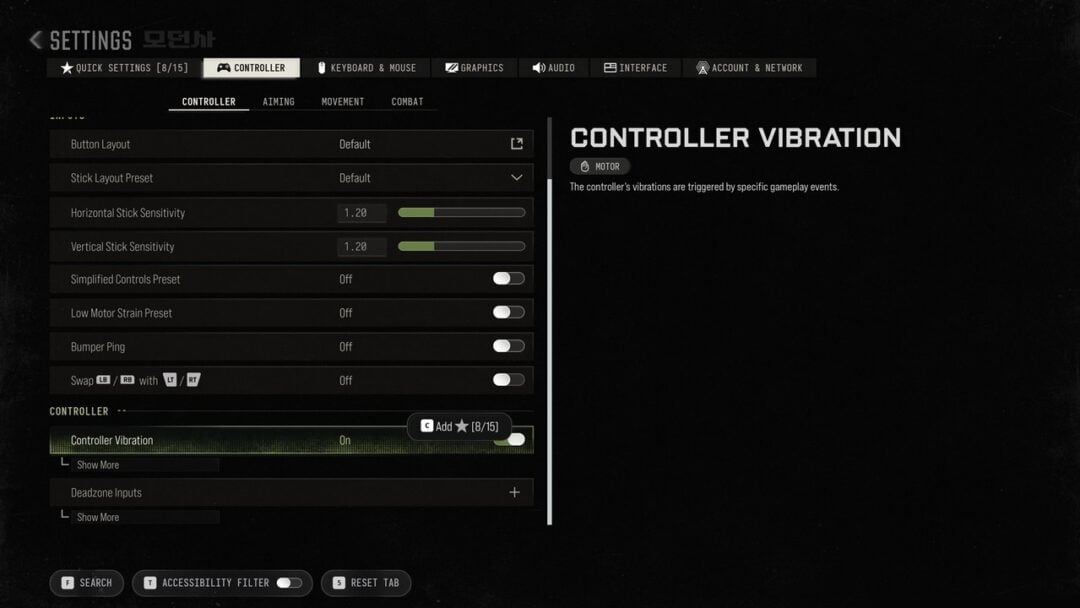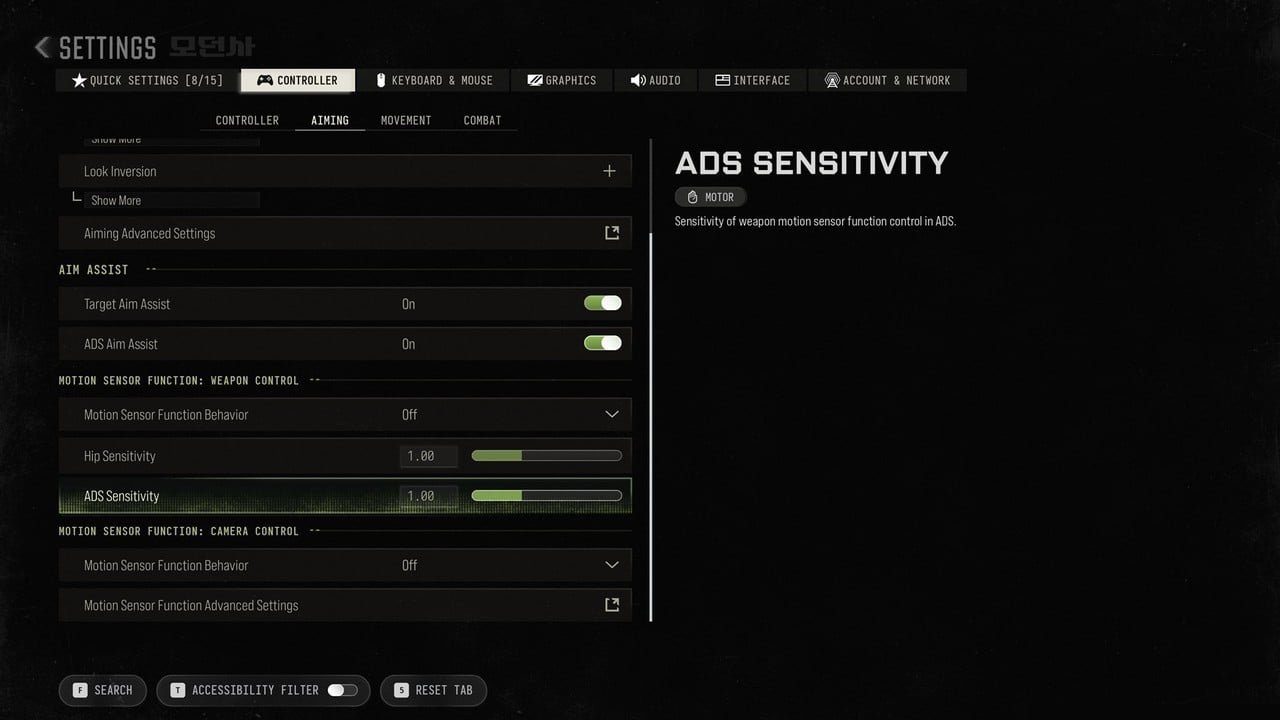
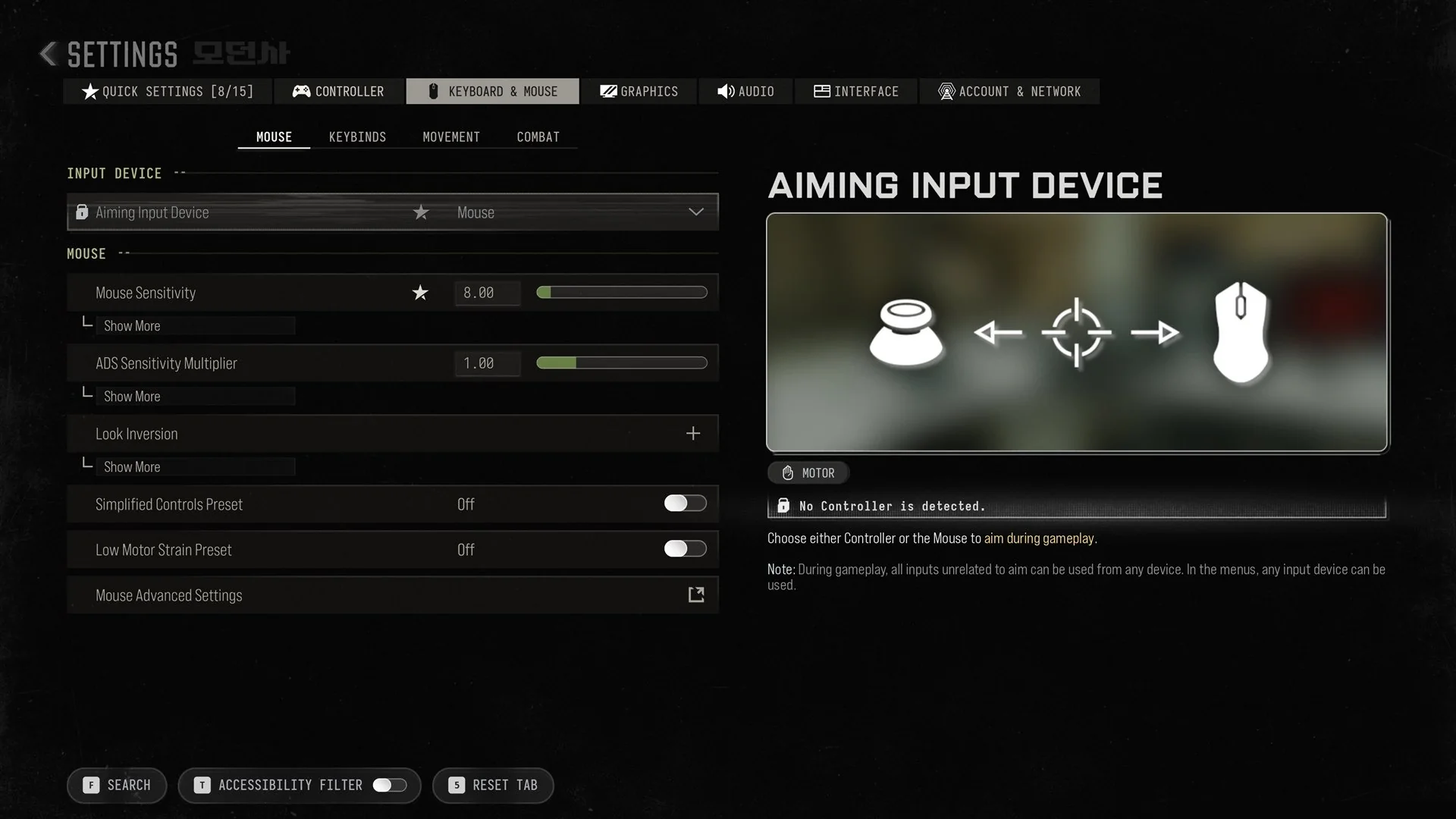
In Call of Duty: Modern Warfare 4 on PC, mouse sensitivity is at Settings > Keyboard & Mouse > Mouse > Mouse Sensitivity, which defaults to 8.00. The ADS Sensitivity Multiplier sits right below it and defaults to 1.00. Mouse Advanced Settings, on the same tab, holds the finer aim-down-sights controls. Playing on a pad instead? See our best Modern Warfare 4 controller settings, and for key bindings our Modern Warfare 4 controls guide.
How to change mouse sensitivity
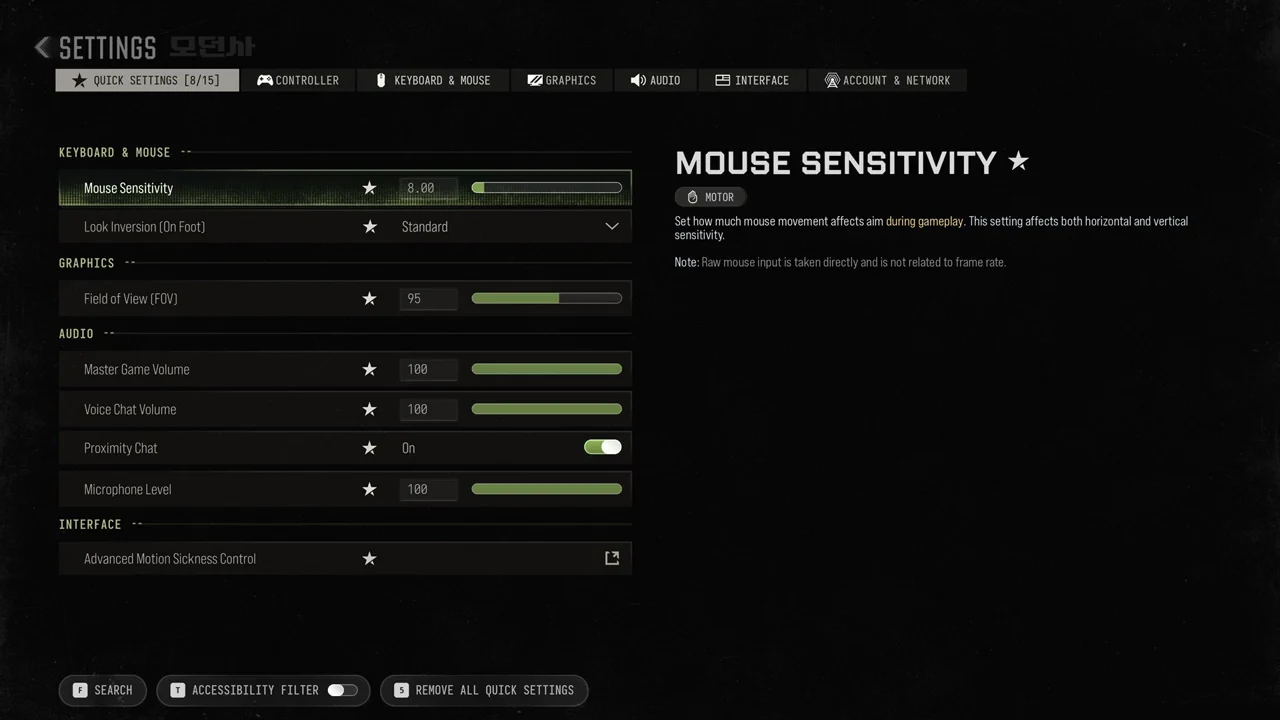
Mouse Advanced Settings
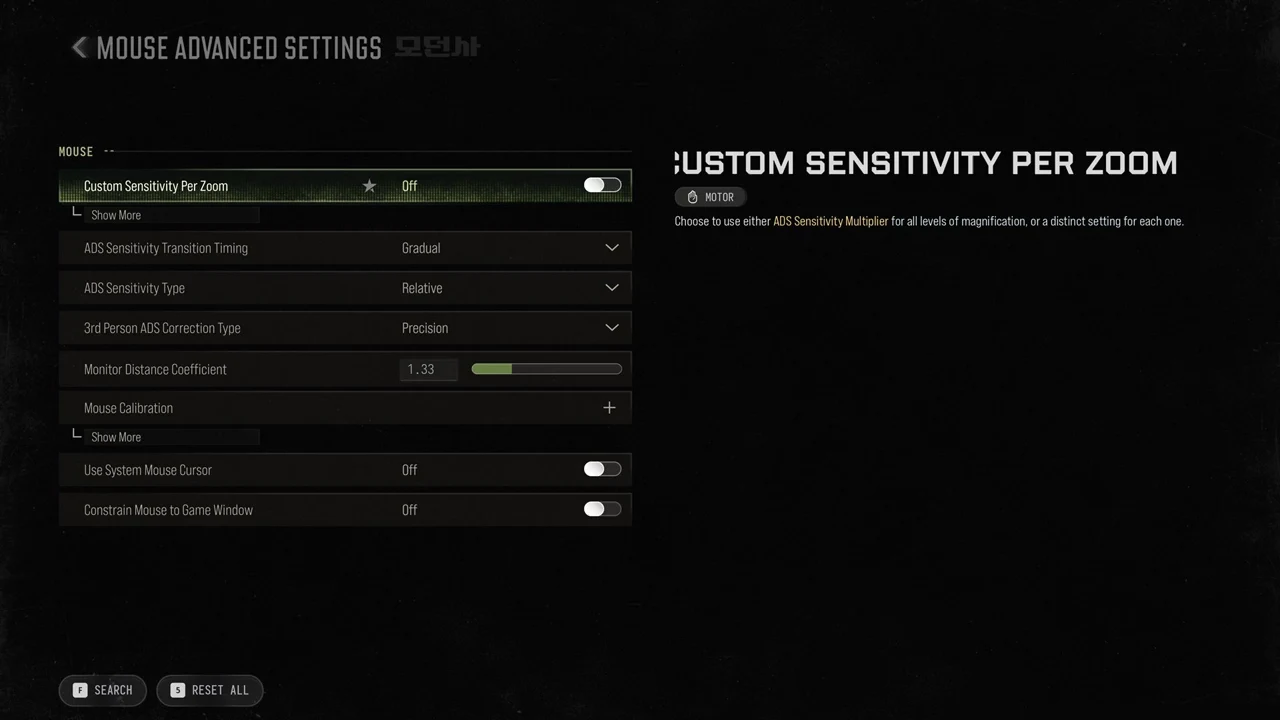
Select Mouse Advanced Settings at the bottom of the MOUSE section to open its own page. These are the options it holds and their defaults.
| Setting | Default | What the game says |
|---|---|---|
| Custom Sensitivity Per Zoom | Off | “Choose to use either ADS Sensitivity Multiplier for all levels of magnification, or a distinct setting for each one.” |
| ADS Sensitivity Transition Timing | Gradual | “Choose at which moment the aim sensitivity changes when transitioning from hipfire to Aiming Down Sights.” |
| ADS Sensitivity Type | Relative | – |
| 3rd Person ADS Correction Type | Precision | – |
| Monitor Distance Coefficient | 1.33 | – |
| Mouse Calibration | – | – |
| Use System Mouse Cursor | Off | – |
| Constrain Mouse to Game Window | Off | – |
Mouse Calibration is an expandable row rather than a single value. With Custom Sensitivity Per Zoom left Off, the one ADS Sensitivity Multiplier covers every magnification level.
ADS sensitivity transition timing
ADS Sensitivity Transition Timing decides when the multiplier kicks in as you go from hipfire to aiming. It defaults to Gradual, and the controller page uses the same wording. Each option’s description in the game reads as follows.
- Instant: “Sensitivity multiplier is applied immediately when Aiming Down Sights.”
- Gradual: “Sensitivity multiplier is progressively applied when alternating between hipfire to fully zoomed in.”
- After Zoom: “Sensitivity multiplier is applied only when fully zoomed in.”
Recommended way to set them up
These are suggestions rather than rules, but they keep the settings easy to reason about.
- Dial in Mouse Sensitivity for hipfire first, then use ADS Sensitivity Multiplier to make aiming slower or faster relative to it. Leaving it at 1.00 keeps the default relationship.
- Turn on Custom Sensitivity Per Zoom only if you want a different value for each scope magnification.
- Set the transition timing to Instant to have the ADS value apply as soon as you aim.