In Call of Duty: Modern Warfare 4, the subtitle and colour options are grouped under one heading in the Interface tab, not on the Accessibility screen. The menus below are from the PC (Steam) version.
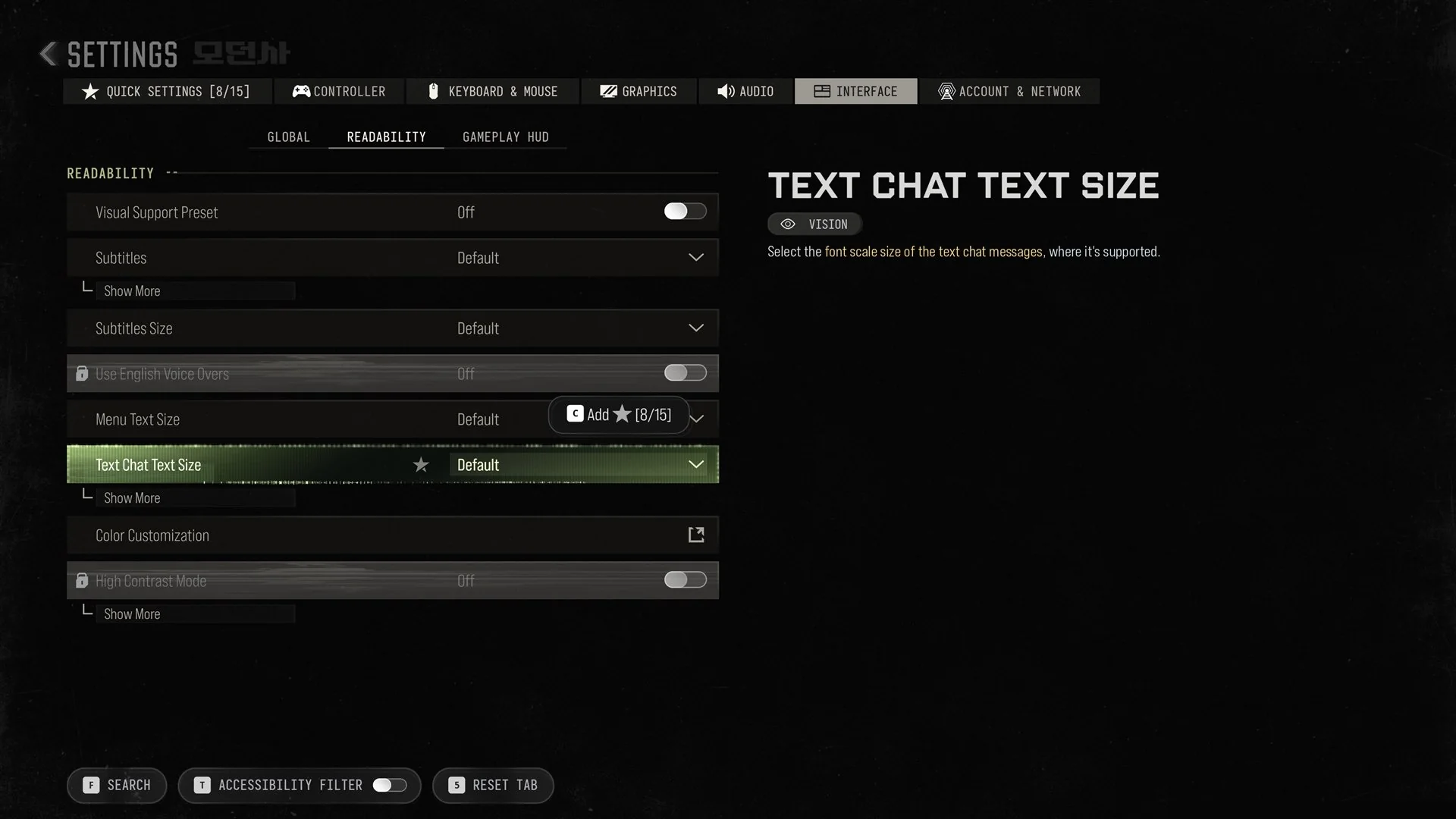
Quick answer: Open Settings > Interface > READABILITY. Use Subtitles to turn them on, Subtitles Size to make them bigger, and the Color Customization button for colour and colourblind adjustments.
How to turn on subtitles
Here is every row under READABILITY, with its default value:
| Setting | Default |
|---|---|
| Visual Support Preset | Off |
| Subtitles | Default |
| Subtitles Size | Default |
| Use English Voice Overs | Off (locked) |
| Menu Text Size | Default |
| Text Chat Text Size | Default |
| Color Customization | Button, opens a page |
| High Contrast Mode | Off (locked) |
Menu Text Size sets the size of menu text. Text Chat Text Size is described in game as “Select the font scale size of the text chat messages, where it’s supported.”
Color Customization and colourblind settings
Colour and colourblind adjustments are made in Color Customization, which is in the same READABILITY group at Settings > Interface. It isn’t a toggle or a dropdown. It is a button that opens a separate page, so select it to reach the colour options.
High Contrast Mode is the row directly below it. It is Off and locked by default and has a Show More link under it.
Accessibility presets
The Accessibility button on the Settings screen opens a short page. It has your Aiming Input Device under INPUT, which shows Mouse on PC. Below that, ACCESSIBILITY SOLUTIONS holds five presets, and each one is a single switch. All five are Off by default:
- Simplified Controls Preset
- Low Motor Strain Preset
- Visual Support Preset
- Motion Sickness Reduction Preset
- Communication Preset
The Communication Preset panel reads “Control all public communications in the game.” Its full list of chat changes is in our guide to turning off voice chat in Modern Warfare 4.
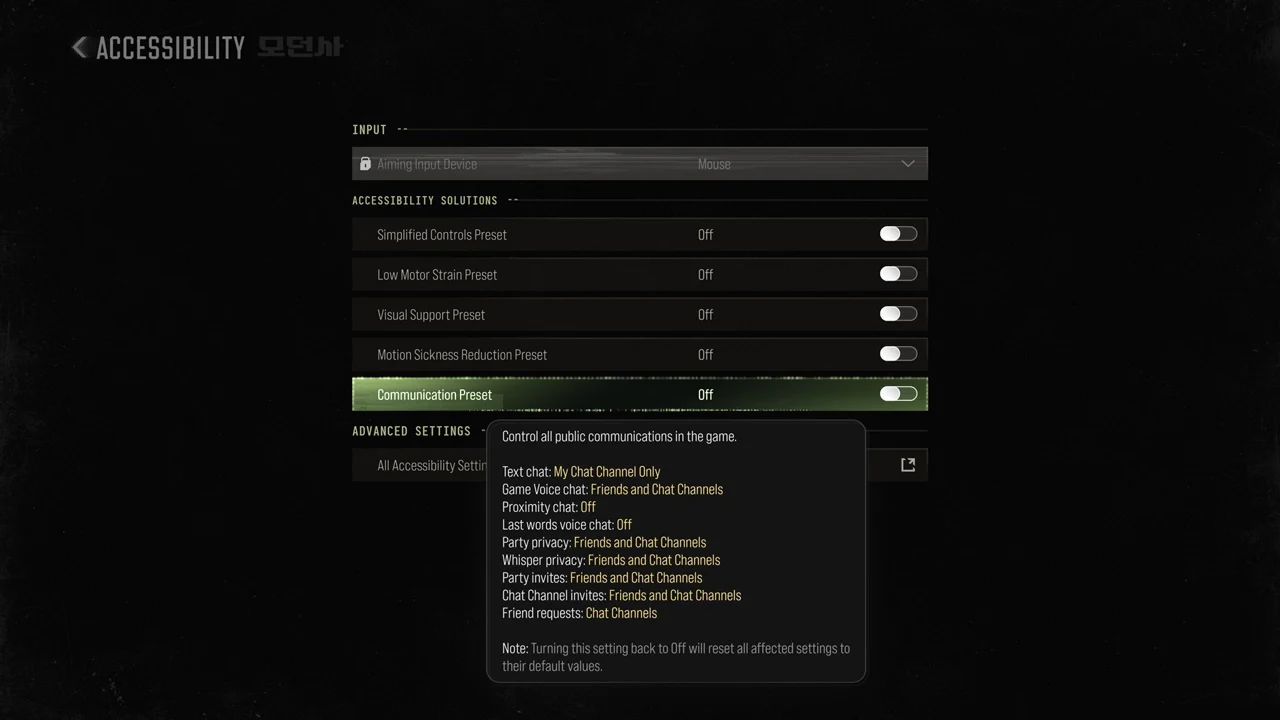
To see the complete list, select All Accessibility Settings beneath ADVANCED SETTINGS. The bottom bar on each settings tab includes an Accessibility Filter toggle assigned to the T key. Description panels use tags like VISION, COGNITION, MOTOR and AUDITION to indicate each option’s purpose.
Other accessibility settings
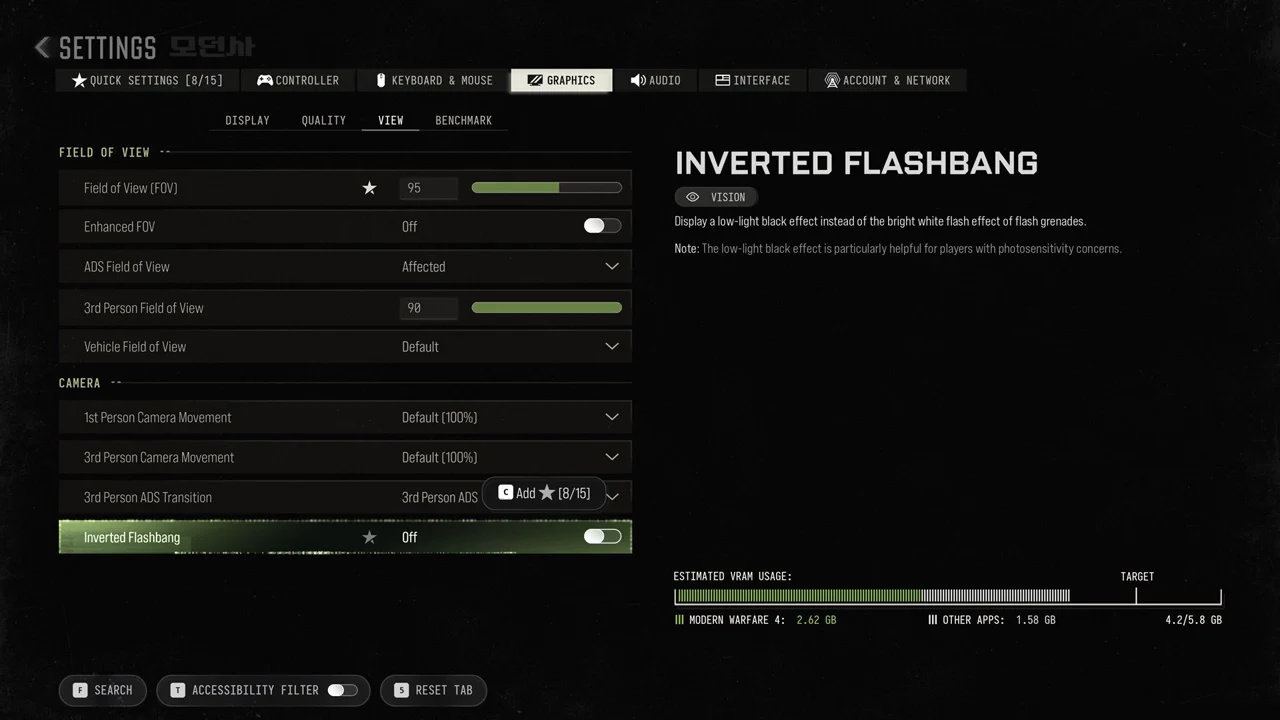
Inverted Flashbang
Go to Settings > Graphics > View to find Inverted Flashbang, which is Off by default. Its description reads “Display a low-light black effect instead of the bright white flash effect of flash grenades.” A note under it adds “The low-light black effect is particularly helpful for players with photosensitivity concerns.”
Audio and hearing options
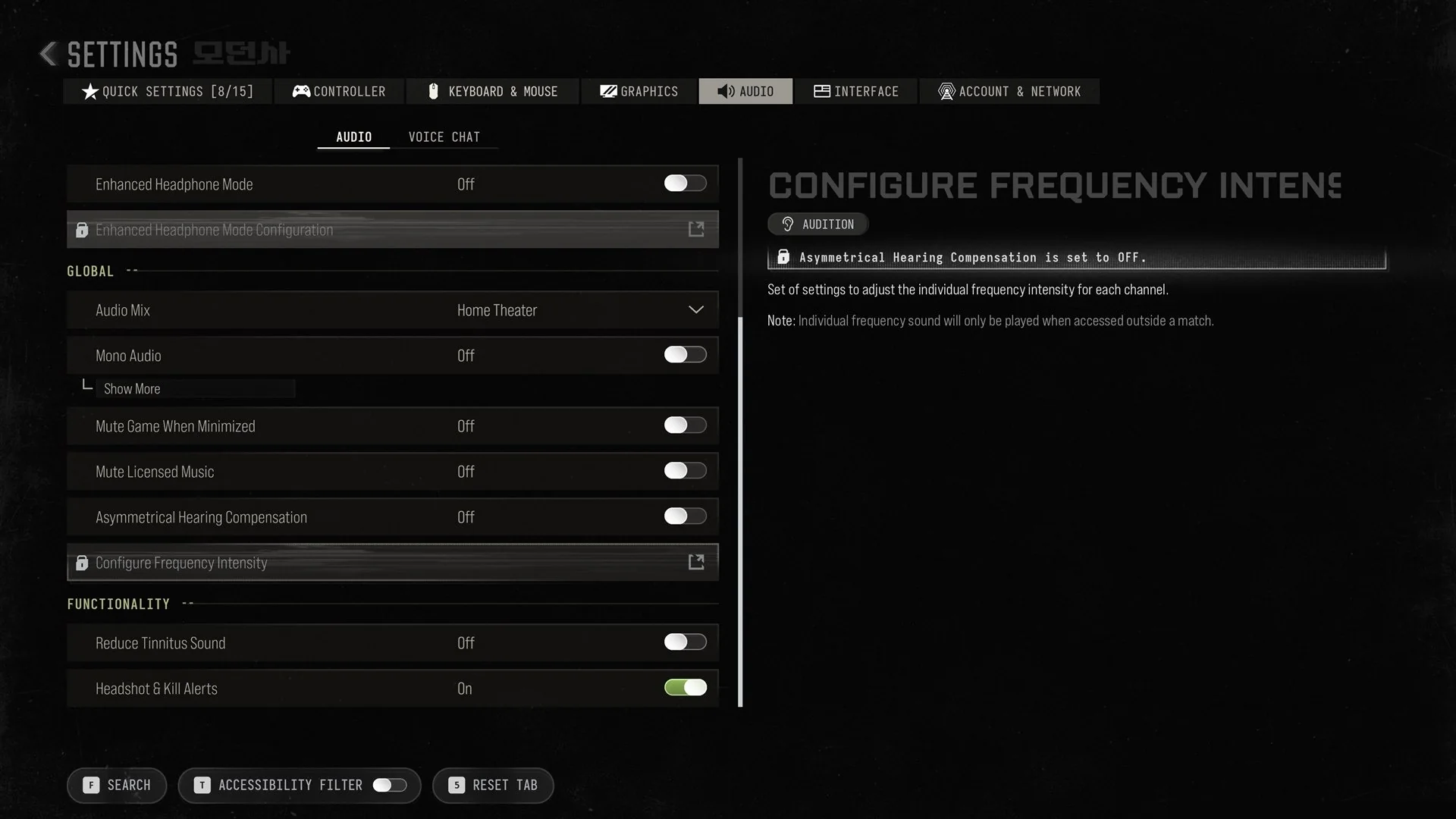
The Audio tab has several rows for players with hearing needs:
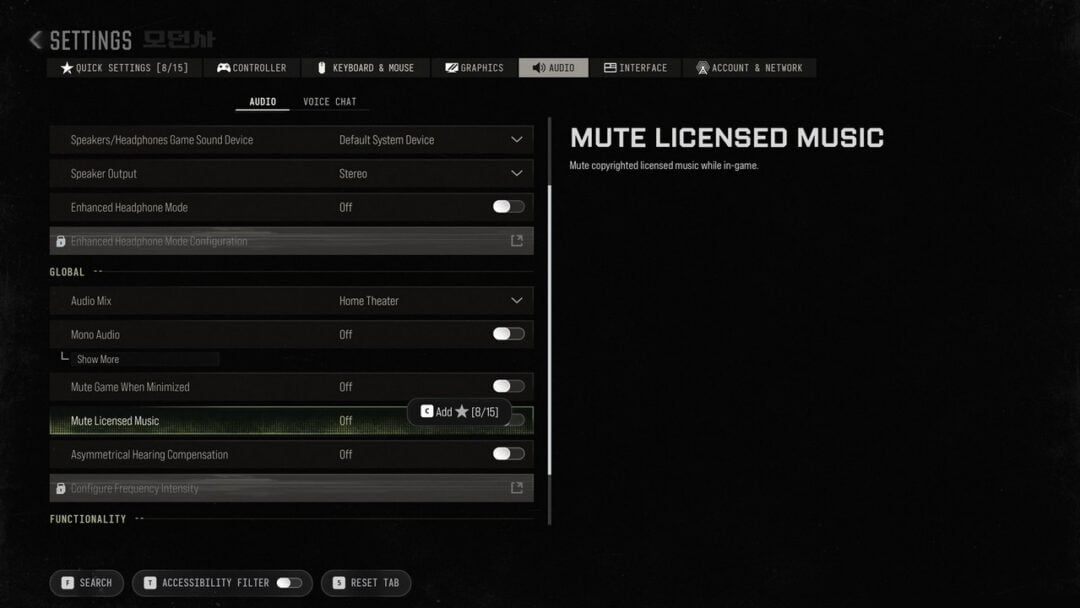
- Mono Audio, Off by default.
- Asymmetrical Hearing Compensation, Off by default.
- Configure Frequency Intensity, locked until Asymmetrical Hearing Compensation is On.
- Reduce Tinnitus Sound, Off by default.
Configure Frequency Intensity is described as “Set of settings to adjust the individual frequency intensity for each channel.”
The game warns that “Individual frequency sound will only be played when accessed outside a match.”
If motion is a problem, Quick Settings also has an Advanced Motion Sickness Control option under Interface.