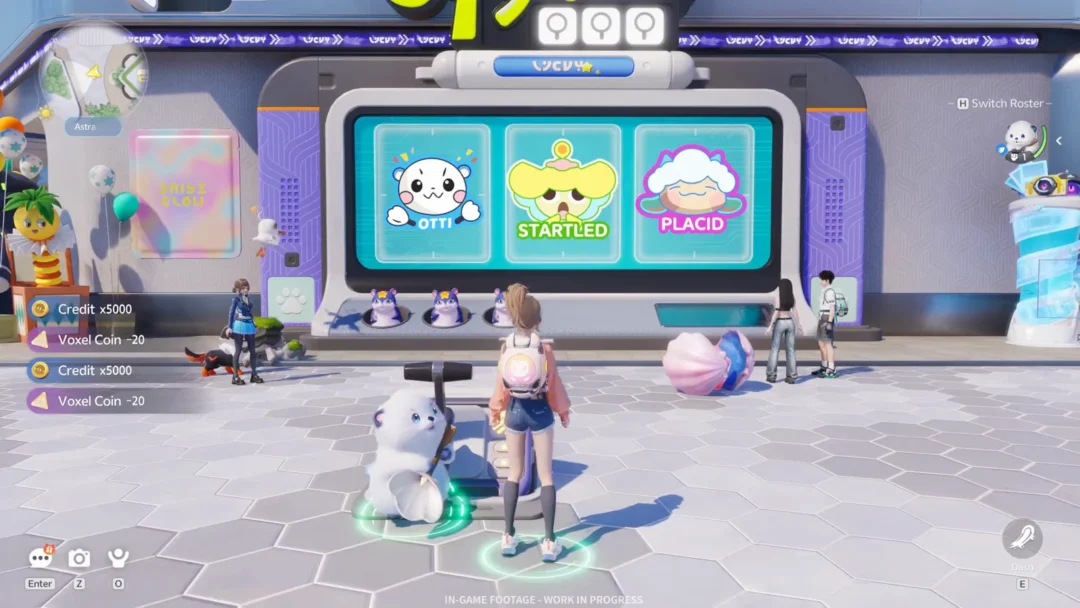
The User Center in Neverness to Everness is the in-game hub for everything tied to your Perfect World Games (PWG) account. It is where you bind an email, attach or remove a third-party login (Google, Facebook, Apple, or PSN), switch accounts, and—if needed—delete character data so a different account can be linked. There is no separate website portal. All account management runs through this panel inside the game client.
Quick answer: Open the in-game Settings (gear icon) > Account > User Center > press Go. From there, choose Bind Account or Link Account to add an email or third-party login, or use Other Settings to switch accounts or remove character data.
What the User Center does
The User Center is the only place in Neverness to Everness where you can change which credentials your in-game character is tied to. It controls four things: which email (PWG account) owns your progress, which third-party logins are attached to that email, which PSN account is bound on PlayStation 5, and whether you switch out of the current account entirely. Anything purchased, unlocked, or progressed on a server stays attached to the account shown here.
Cross-platform play depends on this panel. Sign-ins on Windows PC, Mac, iOS, Android, and PS5 only share progress when they all point back to the same PWG email on the same server. The four servers (America, Europe, Asia, SEA) remain fully separate even under the same email.
How to open the User Center

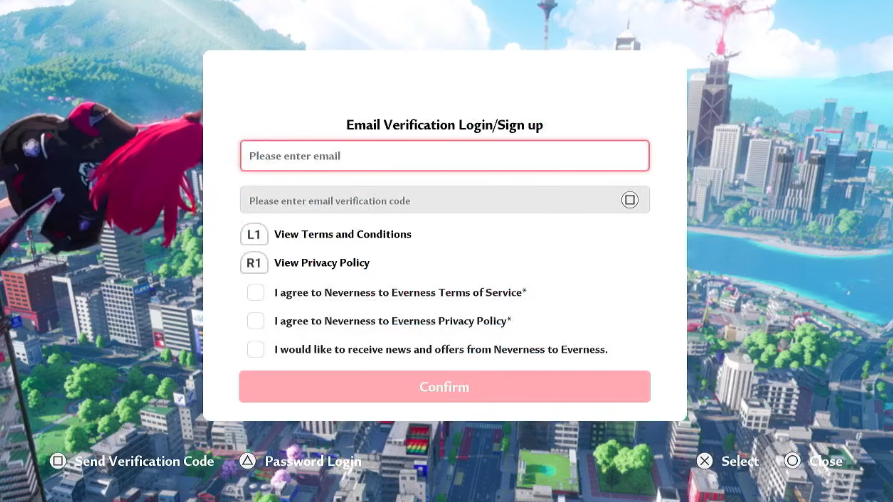
Link an email (PWG account) to a PSN or third-party login
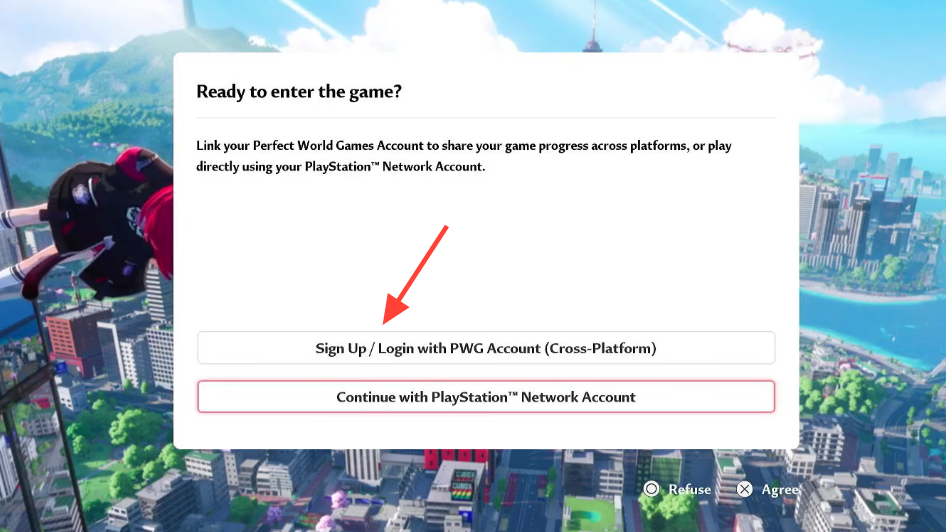
If you started on PS5 with Continue with PlayStation™ Network Account, or on PC/mobile with Google, Facebook, or Apple, your progress is currently tied only to that login. Adding an email through the User Center is what enables cross-platform sync.
Unlink an email or a third-party login
Unlinking does not delete your character. Progress stays on the email account, but it stops syncing to whatever login you removed it from.
Important limit: A PSN account can only unlink from an email account once. After that, the pairing is permanent for that PSN ID.
Switch to a different account
Use this when you want to play on a different PWG email or different third-party login without uninstalling the game.
Delete character data on a PSN account
This is needed in one specific situation: you started playing on PS5 with your PSN account, and now you want to bind that PSN account to an email that already has progress from PC or mobile. The system refuses that direct link because both sides hold game data. Deleting the PSN-side character clears the block.
Linking rules at a glance
| Scenario | Allowed? | Where to handle it |
|---|---|---|
| Bind a fresh email to a PSN account with progress | Yes | User Center > Bind Account |
| Bind an email that already has progress to a PSN account that also has progress | No | Delete PSN character first via Other Settings |
| Link multiple emails to one PSN | No, one-to-one only | — |
| Link multiple PSN accounts to one email | No, one-to-one only | — |
| Sign in to PS5 using a Google or Facebook account | Not directly | Link an email on PC/mobile first, then use that email on PS5 |
| Share progress across servers under the same email | No, servers are isolated | — |
| Unlink the email from a PSN account a second time | No, one unlink per PSN account | — |
How to verify the link worked
After binding, the User Center row for the credential you added will display the linked address or service name with a connected icon instead of an empty field. Closing the game and signing in on a second device with the matching email should load the same character on the same server. On PS5, any trophies that match progress you already had on PC or mobile unlock automatically the next time you log in.
If the second device starts a new tutorial instead of loading your character, the credentials do not point to the same PWG account, or you selected a different server at the bottom-right of the login screen. Return to the User Center on the original device, confirm which email is shown as bound, and use exactly that email when signing in elsewhere.
Common reasons binding fails
- The target email already has game data on another platform, and you are trying to bind it to a PSN account that also has data.
- You are signing in with a third-party provider (Google or Facebook) instead of the dedicated email option, which creates a separate account.
- You picked a different regional server, so the character exists but on a server the new device is not pointed to.
- The verification code expired before submission. Wait for the resend timer, request a new code, and try again.
Keep in mind that the User Center is the single source of truth for account state in Neverness to Everness. Any sign-in question—missing progress, trophies not appearing on PS5, or a third-party login that needs to be removed—starts and ends in this panel. If something cannot be resolved here, the only escalation path is the official support inbox at [email protected].