Enshrouded limits how many Flame Altars you can have lit at the same time. Once you reach that limit, the game won’t let you put down another one until you free up a slot. To move an altar, you deactivate the old one and place a new one where you want it.
Quick answer: Your Flame Level sets the limit. It is 2 at Level 1, 4 at Level 2 and 16 at Level 11. “Cannot place more Altars” means you’re at the cap. To move one, deactivate an old altar and place a new one.
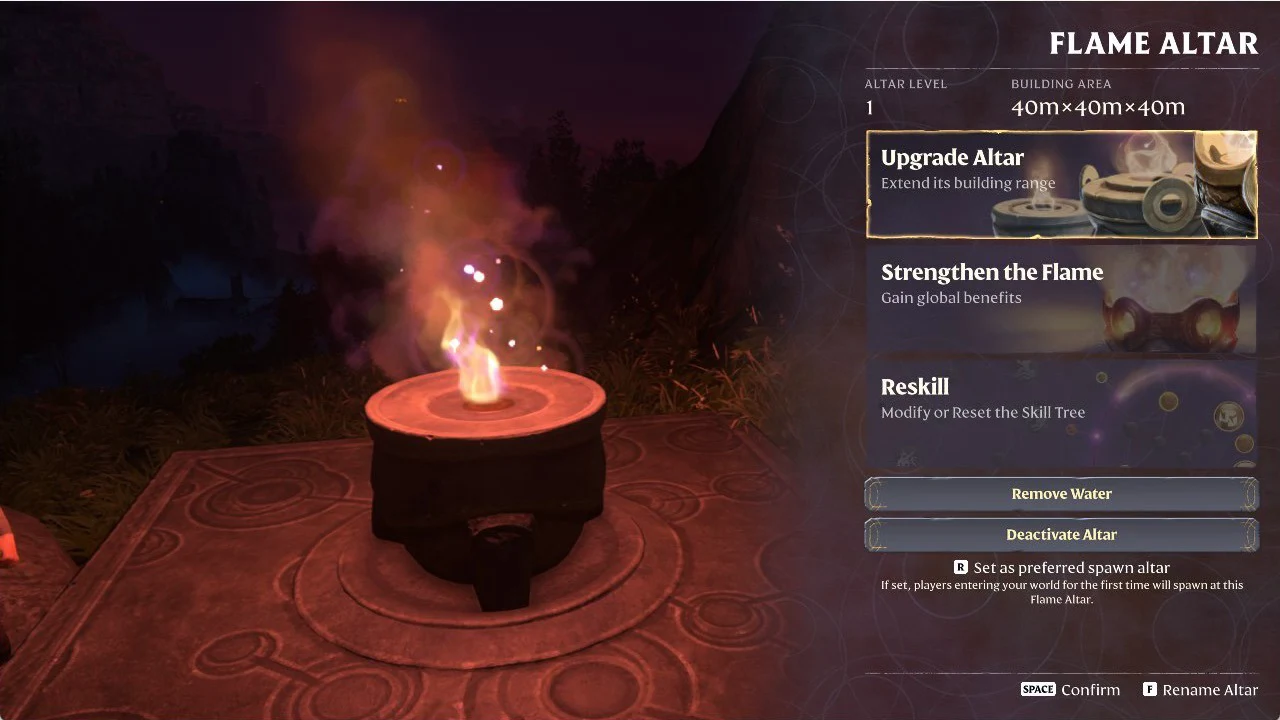
How to free a slot by deactivating a Flame Altar
Deactivating an altar removes the Flame’s protection from its area. The Shroud will reclaim it later or after a game reload, destroying anything you left there. Before proceeding, relocate your chests, crafting stations, and craftspeople. Choose an altar you no longer rely on, rather than one where your craftspeople are based.
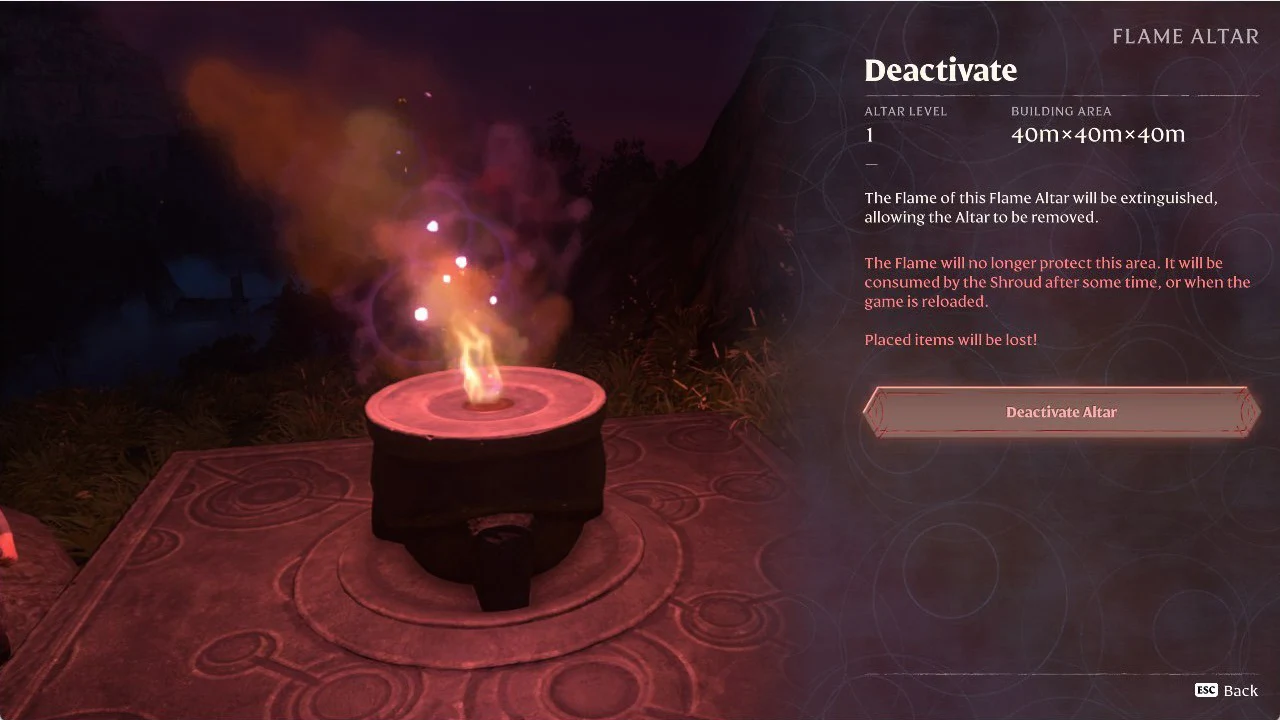
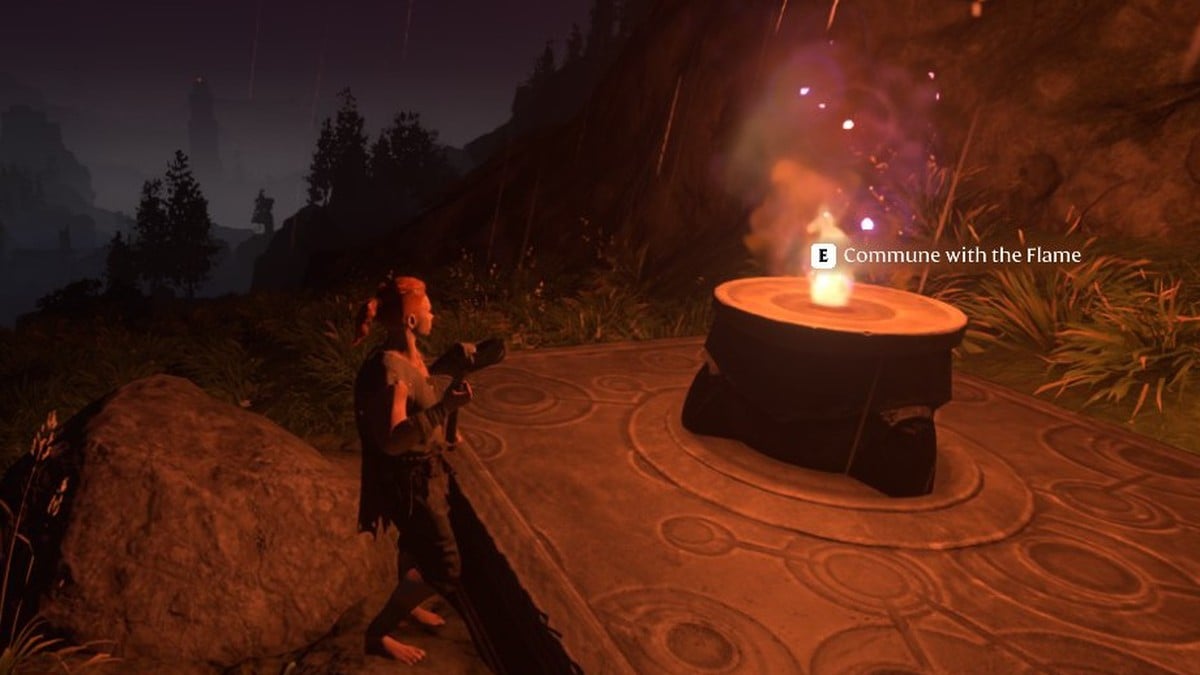
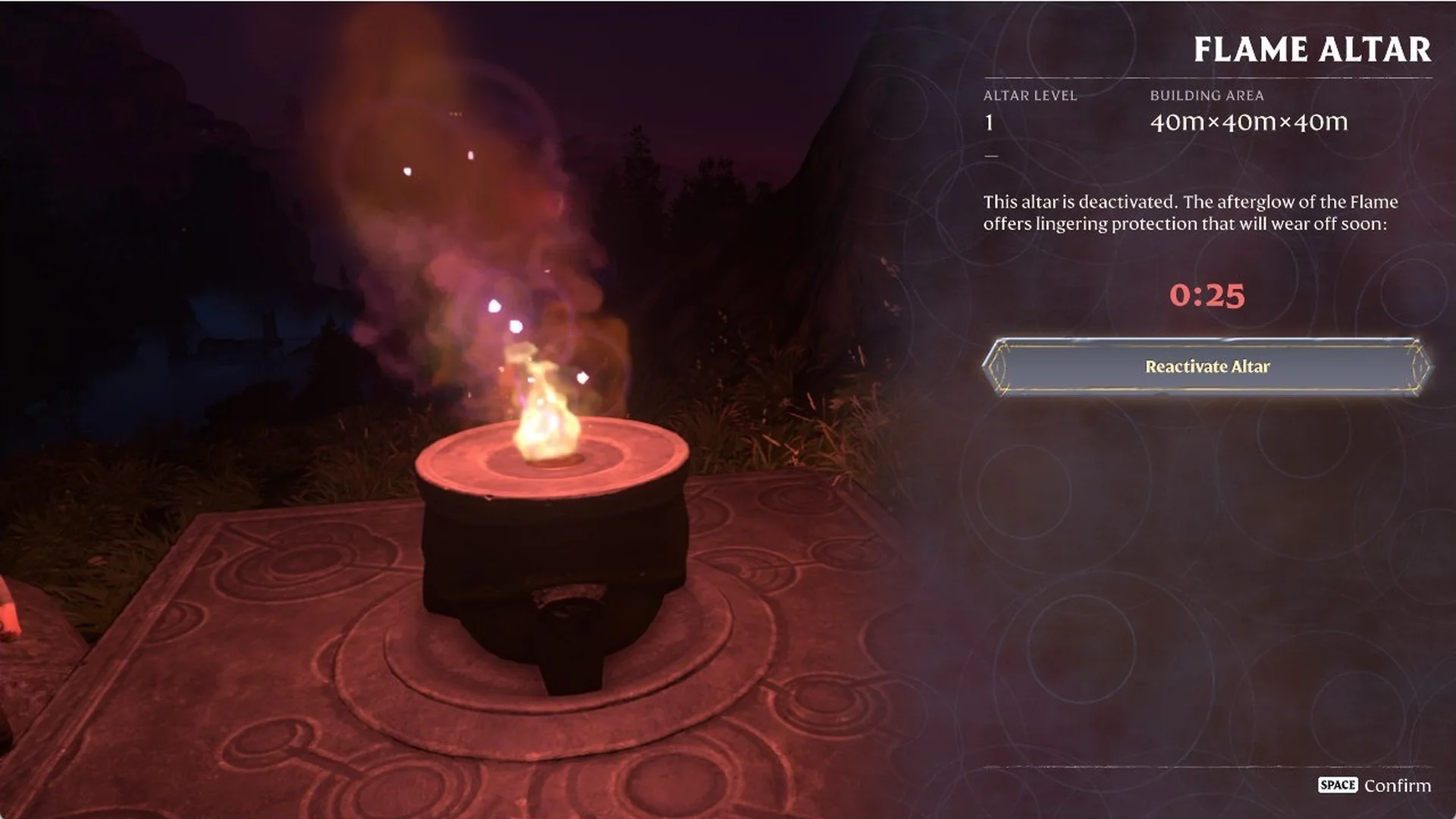
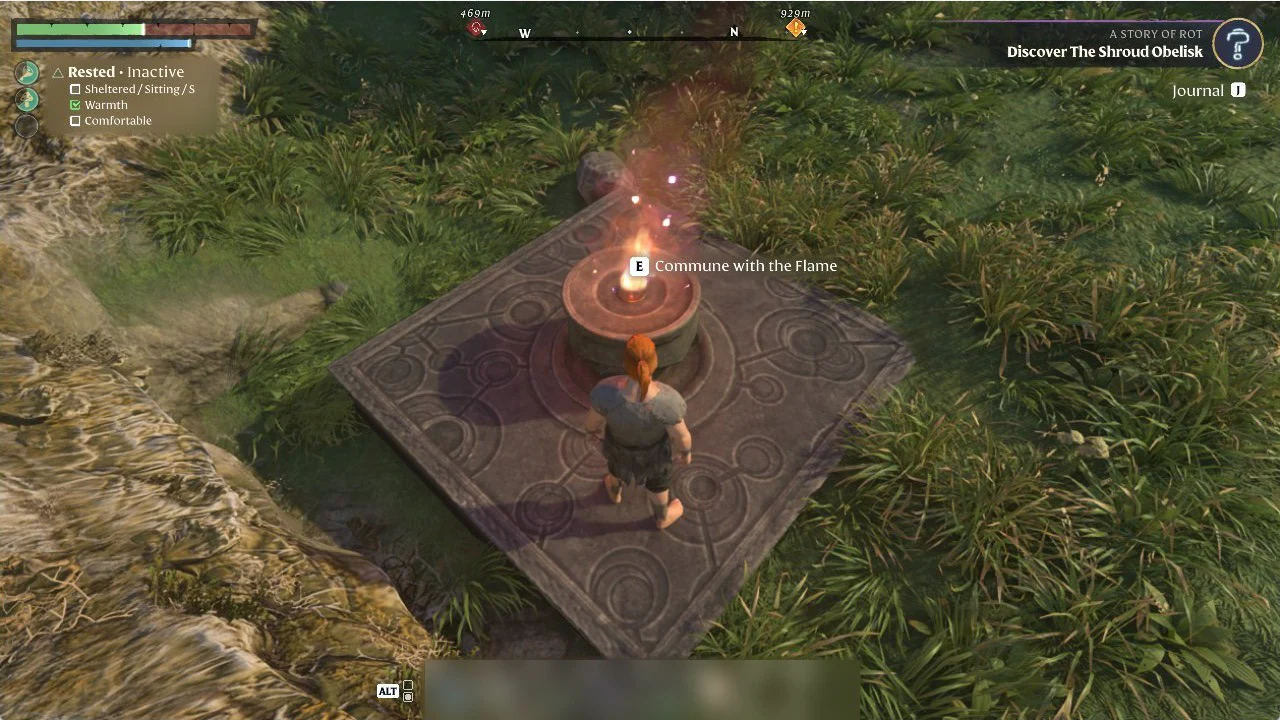
After you confirm, the menu reads “This altar is deactivated. The afterglow of the Flame offers lingering protection that will wear off soon:” with a short countdown below it and a Reactivate Altar button. No materials came back to us. The altar itself stays where it was and still shows the “E Commune with the Flame” prompt.
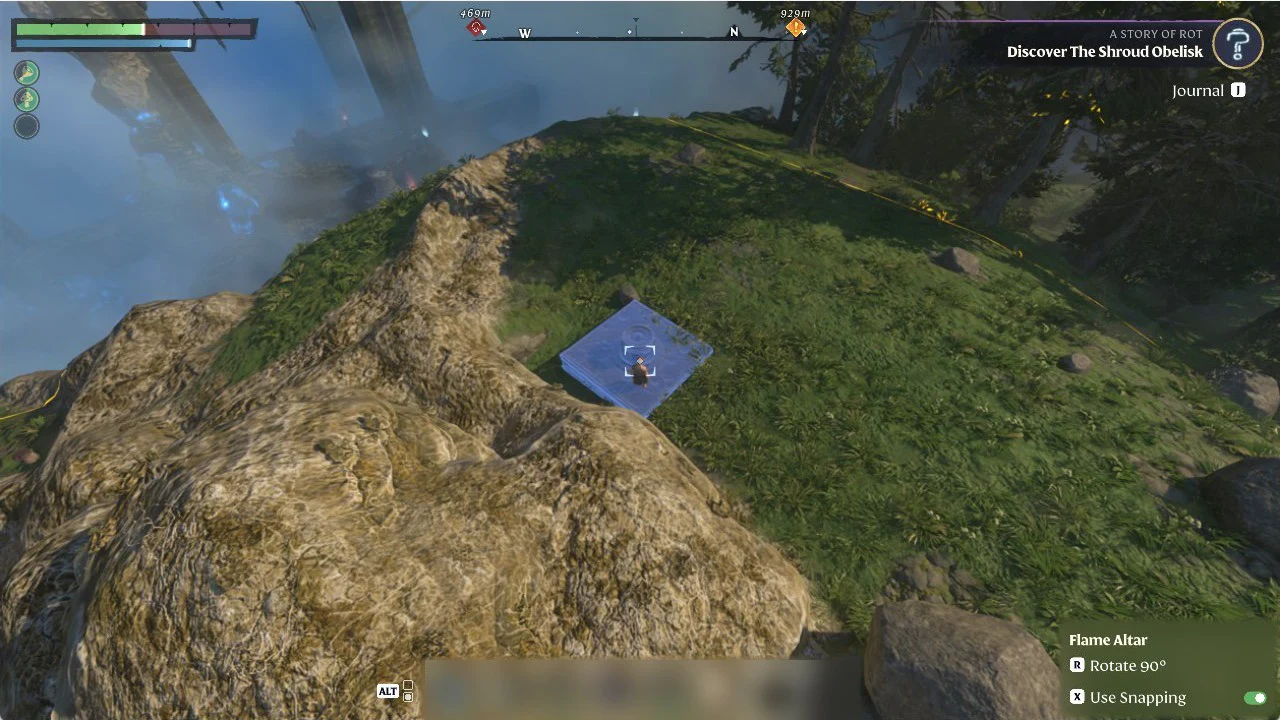
How to place the new Flame Altar in its new spot
Flame Altar limit by Flame Level
The Strengthen the Flame screen calls this number “Altar activation capacity”. It goes up by two per level through Flame Level 5. After that it goes up by one per level.
| Flame Level | Active Flame Altars allowed |
|---|---|
| 1 | 2 |
| 2 | 4 |
| 3 | 6 |
| 4 | 8 |
| 5 | 10 |
| 6 | 11 |
| 7 | 12 |
| 8 | 13 |
| 9 | 14 |
| 10 | 15 |
| 11 | 16 |
The World Map shows how many slots you’re using. On a Flame Level 2 world with every slot taken, the counter reads “ACTIVE ALTARS 4/4.” When you raise your Flame Level from 1 to 2, the Strengthen the Flame screen shows the capacity going from 2 to 4.
What “Cannot place more Altars” means
You’ll see this message when you select a crafted Flame Altar on the ALT action bar while every slot is already in use. The placement preview turns red and shows “Cannot place more Altars” beside it. Left-clicking to place does nothing. The usual side panel with Flame Altar, R Rotate 90° and X Use Snapping still appears, so the preview looks normal apart from the red color and the message.
Don’t confuse it with “Not enough free space”. That message is about the ground under the preview. “Cannot place more Altars” means you’ve used every slot your Flame Level allows, and moving the preview won’t fix it.
Check the Active Altars counter on the World Map
Press M to open the World Map and look at the left panel. On a Flame Level 2 world, it still reads FLAME Level 2 and “ACTIVE ALTARS 4/4.” The deactivated altar no longer counts toward the limit, and your new altar now fills that slot. If the counter shows you’re full but your new altar is lit, the move worked.