
Applying a new theme in Windows 11 can instantly update your system’s appearance, including the desktop wallpaper, colors, sounds, and even desktop icons. While these changes can refresh your workspace, they may also overwrite your carefully arranged or customized desktop icons. Managing whether themes are allowed to change desktop icons helps maintain a consistent look and prevents unwanted icon changes each time you switch themes.
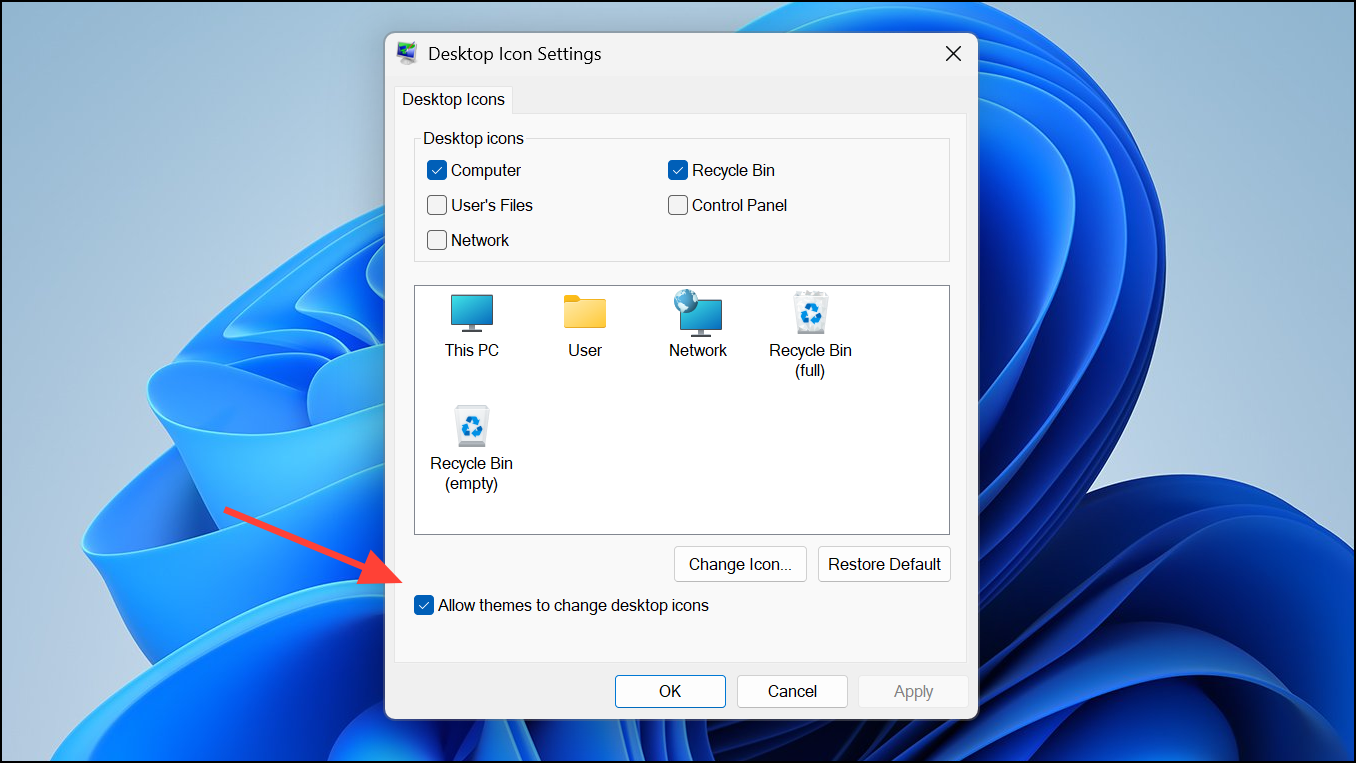
Change Theme Icon Behavior Using Desktop Icon Settings
Win+I. This shortcut brings up the main configuration window for your system.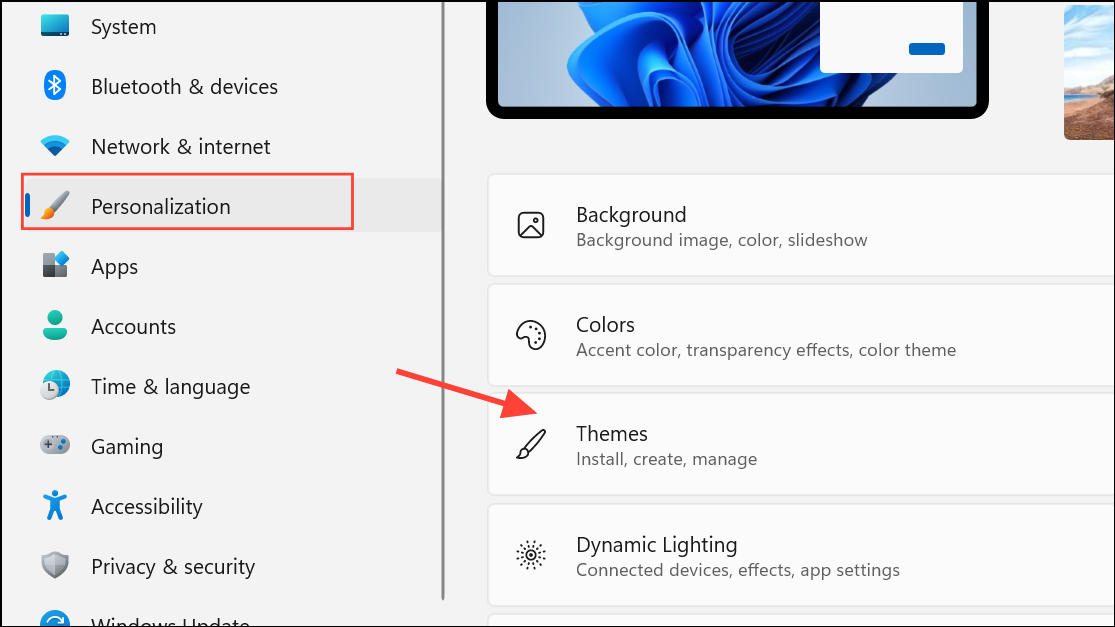
Win+R, type rundll32.exe shell32.dll,Control_RunDLL desk.cpl,,0, and press OK.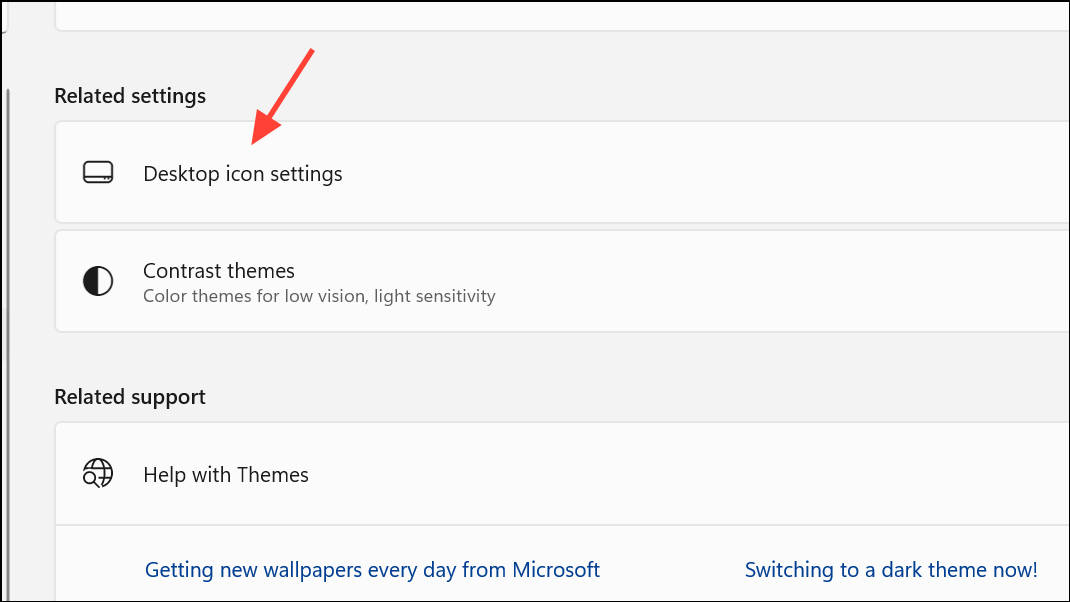
Control Icon Changes With the Windows Registry
For advanced users or administrators, modifying the Windows Registry allows for more direct control over theme behavior. Adjusting a specific registry value can enforce your preference for whether themes can change desktop icons.
Win+R, type regedit, and press Enter to open the Registry Editor. Accept any User Account Control prompts.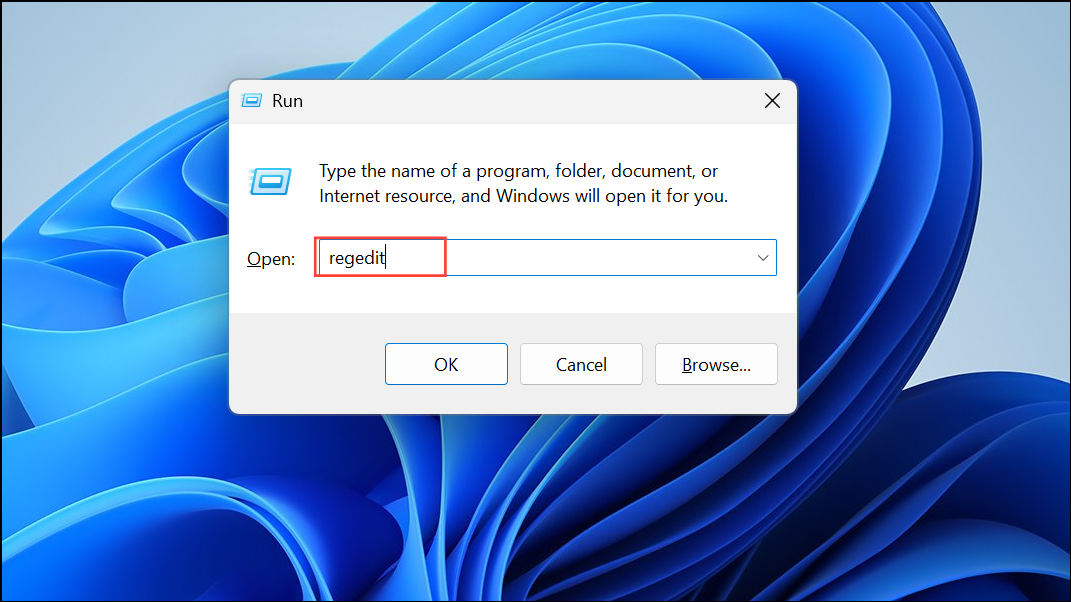
HKEY_CURRENT_USER\Software\Microsoft\Windows\CurrentVersion\Themes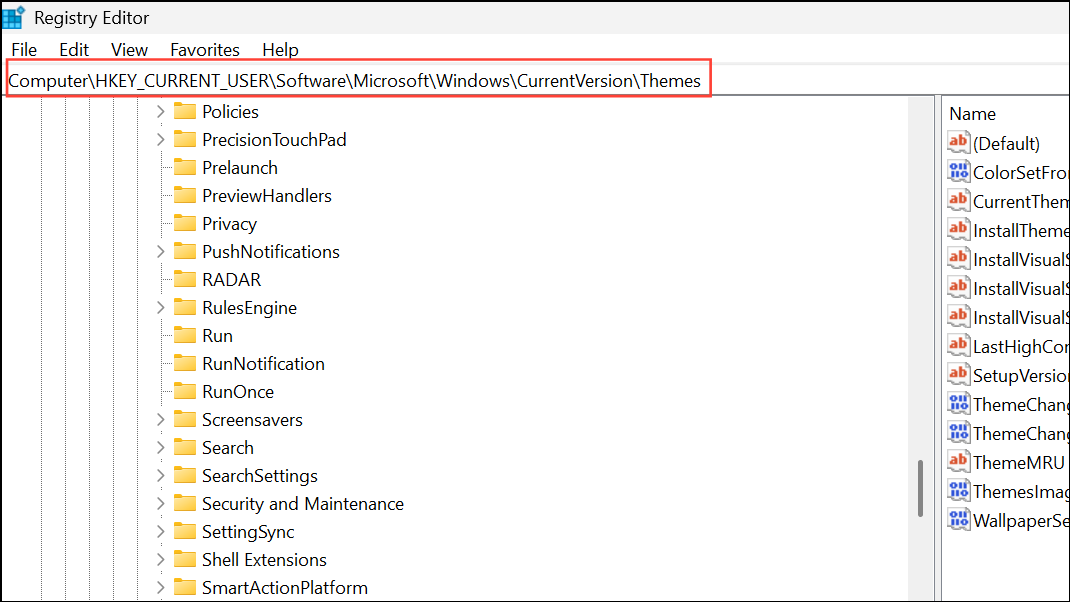
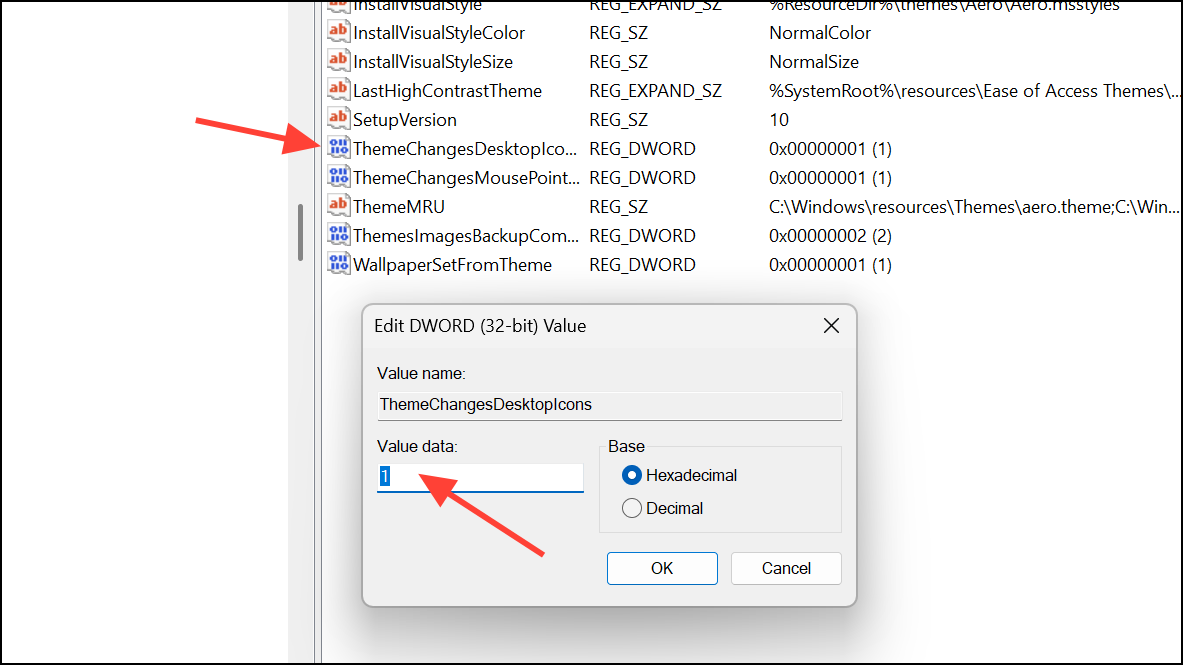
ThemeChangesDesktopIcons value. If it does not exist, right-click, select New > DWORD (32-bit) Value, and name it ThemeChangesDesktopIcons.1– Themes are allowed to change desktop icons.0– Themes are prevented from changing desktop icons.
Click OK after entering the desired value.
Restrict Icon and Theme Changes for All Users (Group Policy)
In environments where multiple users access the same computer, system administrators can use the Local Group Policy Editor to prevent changes to desktop icons or themes across all user accounts.
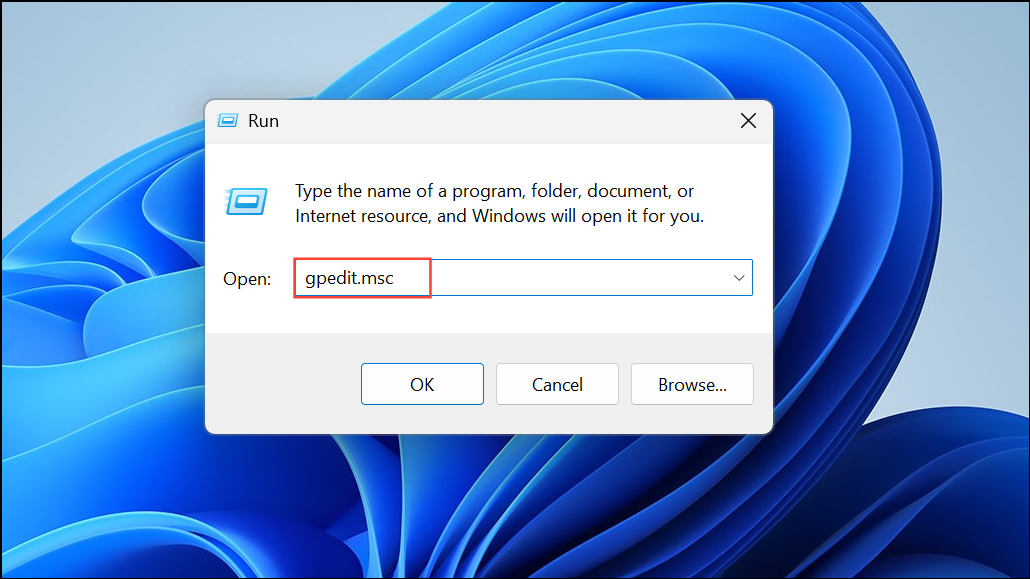
User Configuration > Administrative Templates > Control Panel > Personalization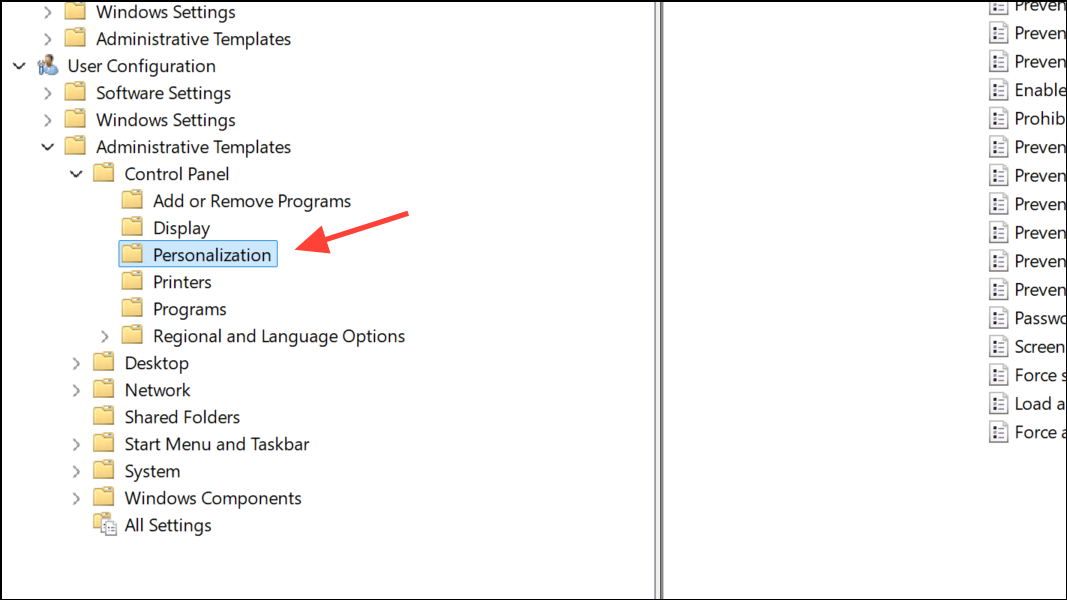
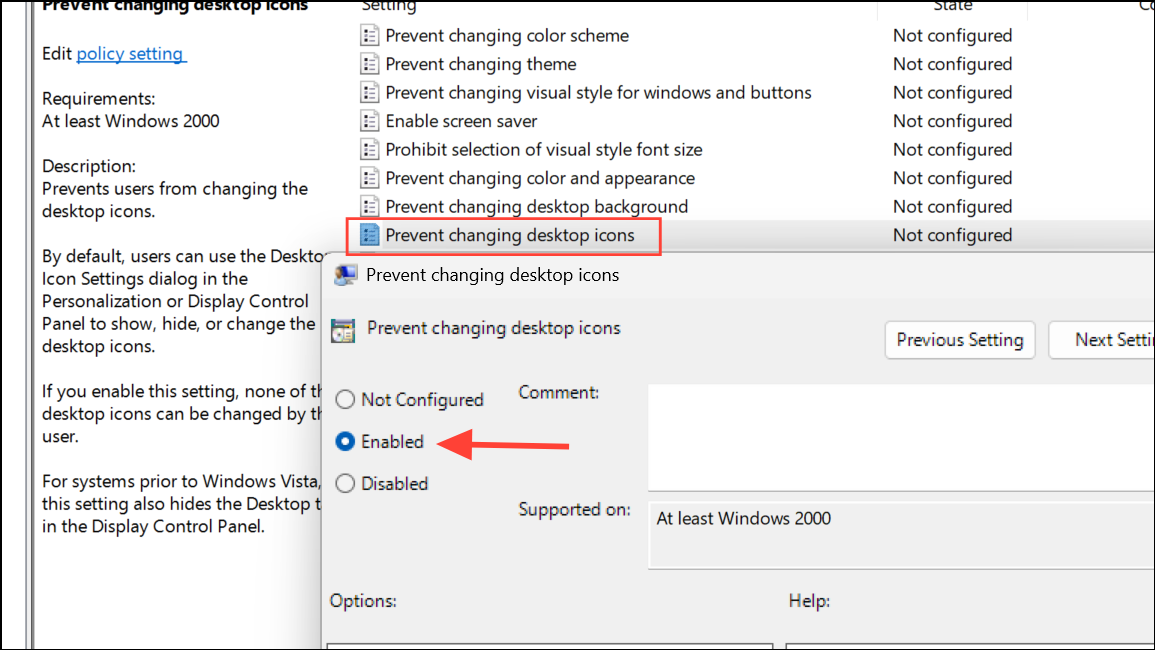
Restore Default Desktop Icons
If a theme has already altered your desktop icons and you want to revert to the standard set, you can quickly restore them using the Desktop Icon Settings dialog.
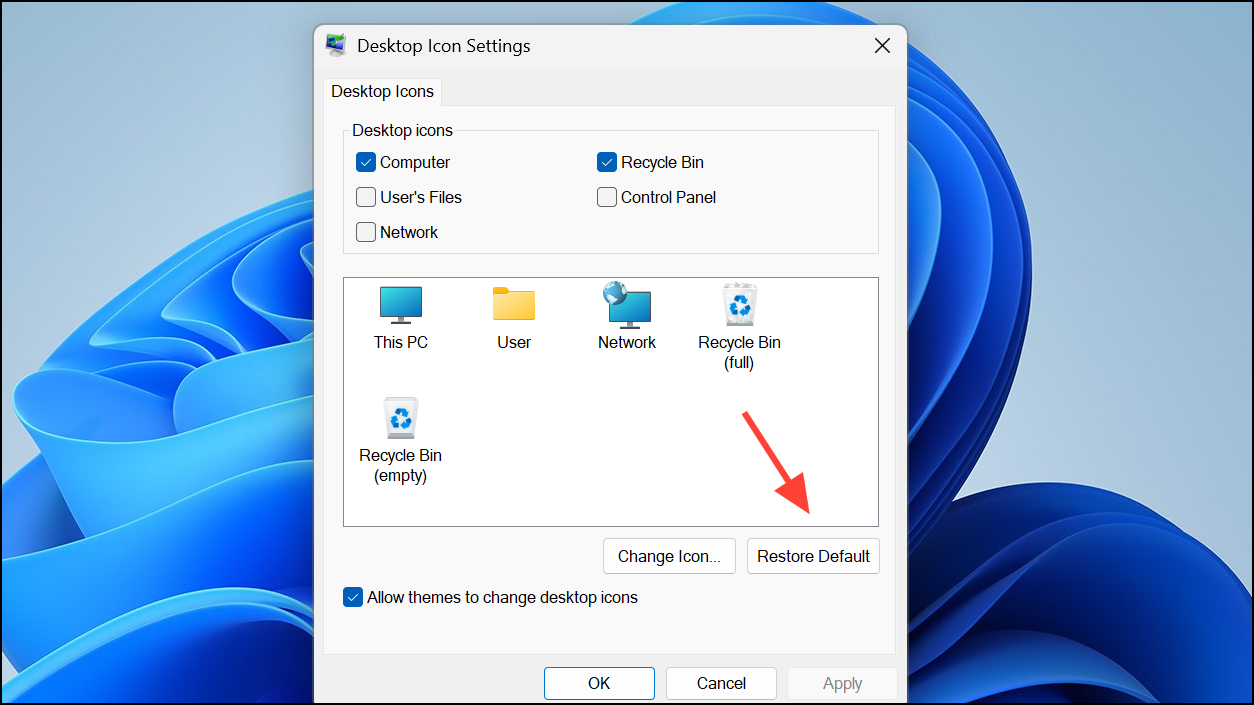
Managing whether Windows 11 themes can change your desktop icons gives you direct control over your workspace’s appearance. By applying these settings, you can maintain your preferred icon layout or let themes update them automatically, depending on your needs.



