Neverness to Everness uses a Perfect World Games (PWG) account as the bridge between PlayStation 5 and the PC or mobile versions of the game. Linking a PWG email account to your PSN profile is what makes a single character carry across devices, and the rules around that link are strict: one PSN to one email, one unlink allowed, and no merging of two existing save files.
What a PWG account does in NTE
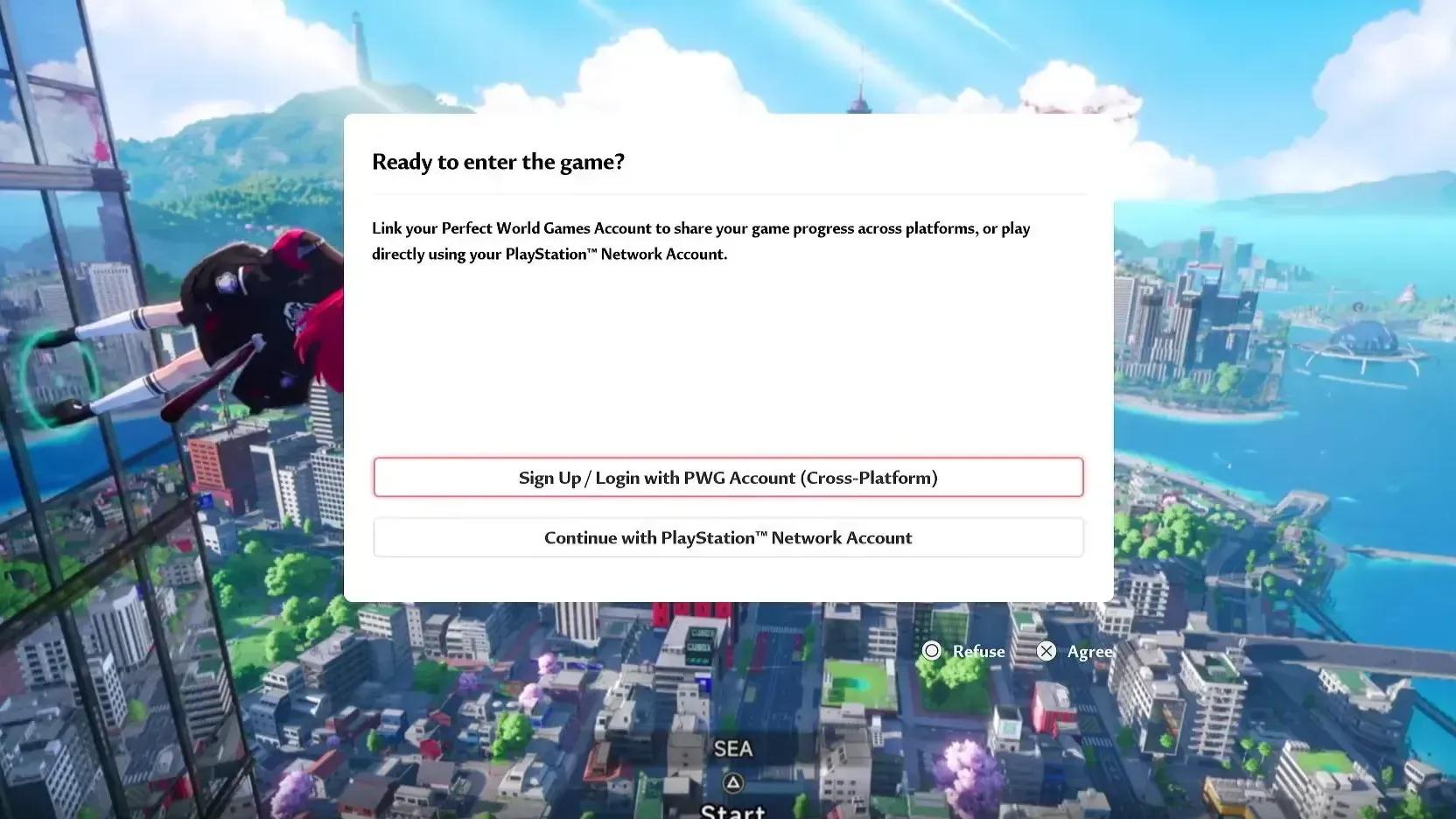
The PWG account is the cross-platform identity layer for Neverness to Everness. On iOS, Android, and PC, you log in directly with that email. On PS5, PlayStation only accepts PSN or email logins, so the PWG email gets bound to your PSN profile to act as the shared save key.
Once a PSN account is linked to a PWG email, signing in with either credential on its respective platform pulls up the same character, inventory, and purchases — provided you’re on the same server.
Server boundaries are absolute. The game runs four regional servers (America, Europe, Asia, SEA), and characters do not migrate between them. A PWG account can hold separate progress on each server, but linking only syncs within the server you’re currently playing on. The server selector sits in the bottom-right corner of the login screen on PS5.
Linking a PSN account to a PWG email
The link is established the first time you launch NTE on PS5, before you’ve committed to a save file. The flow handles both new and existing PWG accounts in the same screen.
To set a password later for a PWG account that was created through this PS5 flow, log in to that account on PC or mobile, where the password option is available.
Verifying the link
Open Settings > Account > User Center in-game on PS5 to see which email is bound to the current PSN profile. The same screen is where you’d later unlink. If the wrong email is shown, no progress sync will occur with the account you actually wanted.
Cross-platform purchases also key off this link. Items bought on PC or mobile appear on PS5 once accounts are linked, and vice versa. PS5 trophies that match milestones already cleared on another platform unlock automatically the first time you sign in on console with the linked account.
Linking rules and limits
The relationship between PSN and PWG accounts is strictly one-to-one, and a few of the constraints are permanent. Read these before committing.
| Rule | Detail |
|---|---|
| Account ratio | One PSN account links to exactly one PWG email, and one email links to exactly one PSN account. |
| Unlink allowance | Each PSN account can unlink from a PWG email only once. After that, the link is final. |
| Linking with two saves | A PSN account that already has NTE progress cannot be linked to a PWG email that also has progress on another platform. |
| Workaround for two saves | Delete character data from the PSN-side account via User Center > Other Settings, then link to the PWG email with existing progress. This deletion is irreversible. |
| Server sharing | Progress syncs only within the same regional server. America and Europe data remain entirely separate. |
| Third-party logins | PS5 doesn’t accept Facebook, Google, or other third-party logins directly. Bind the third-party account to an email on PC or mobile first, then sign in on PS5 with that email. |
Playing without linking
You can skip the PWG step at first launch by choosing Continue with PlayStation™ Network Account. The game then treats your PSN profile as a standalone NTE account, with progress kept locally to PS5.
Linking is still possible later through Settings > Account > User Center, but with a hard restriction: once your PSN side has any progress, you can only link to a brand-new PWG email that has no NTE data on it. Existing PC or mobile saves cannot be merged in retroactively without first wiping the PS5 character.
Unlinking
Unlinking is done from Settings > Account > User Center. After unlinking, the PWG email keeps its character data intact — the connection to the PSN profile is simply severed, and the two saves stop syncing. Because each PSN account gets only one unlink, treat the next link as semi-permanent.
Pre-order bundles for the PS5 edition route to whichever character is tied to the PWG email linked to your PSN account at the moment of your first PS5 login after launch. If the wrong link is in place at that moment, the bundle will land on the wrong character.
Pre-launch checklist
A few practical items worth confirming before signing in on PS5 for the first time:
- Free up at least 70 GB of storage on the console.
- Know which regional server holds the character you want to continue (America, Europe, Asia, or SEA).
- Have access to the inbox of the PWG email — verification codes are the default sign-in method.
- If your PWG account was originally created via Facebook or Google on PC, attach an email address to it through the User Center on PC or mobile before launching on PS5.
For account issues that the User Center can’t resolve, the support address is [email protected]. Most linking mistakes are recoverable only through the one-time unlink or through deleting PS5 character data, so the cleanest path is to get the link right at first launch.