

Trending search suggestions in the Windows 11 search panel can clutter your workflow and display results you may not need. Disabling these suggestions helps keep your search experience focused on local files and apps, improving privacy and reducing distractions. The following instructions outline the most effective way to remove trending searches, followed by additional options if the first method does not meet your needs.
Disable Trending Searches via Windows Settings
Windows + I on your keyboard. This shortcut quickly launches the main settings window.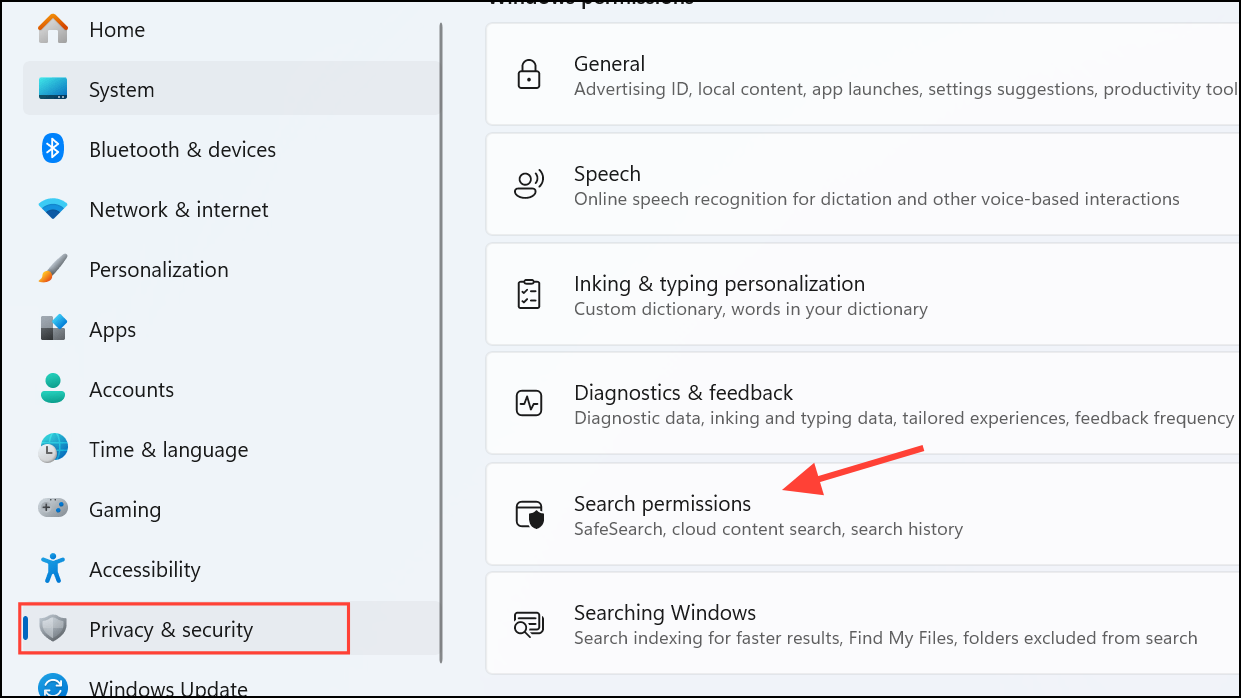
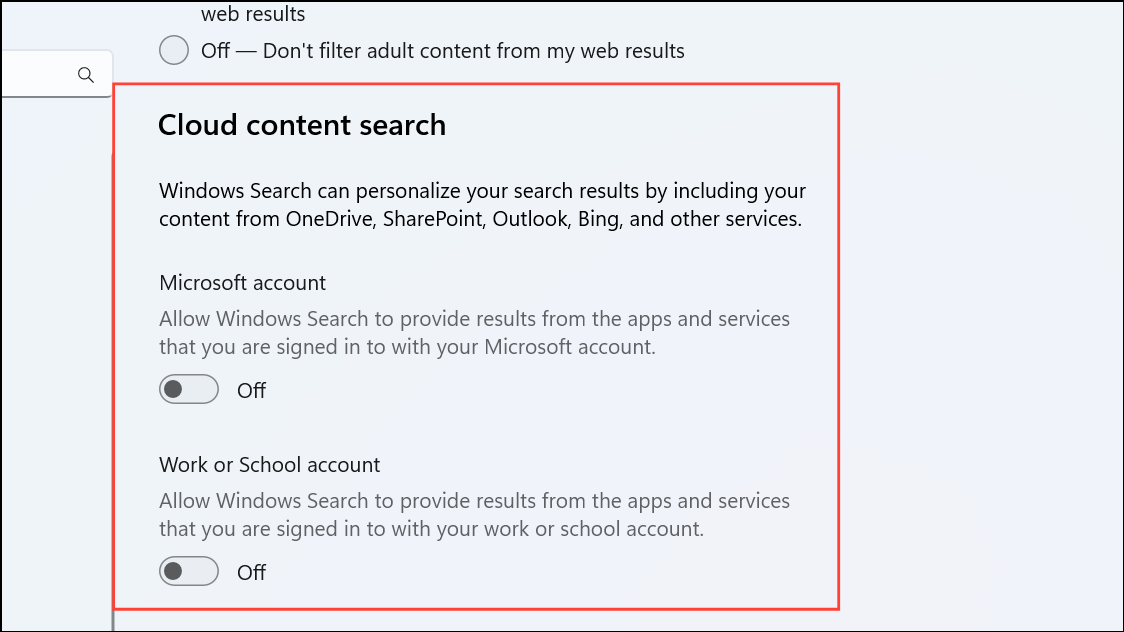
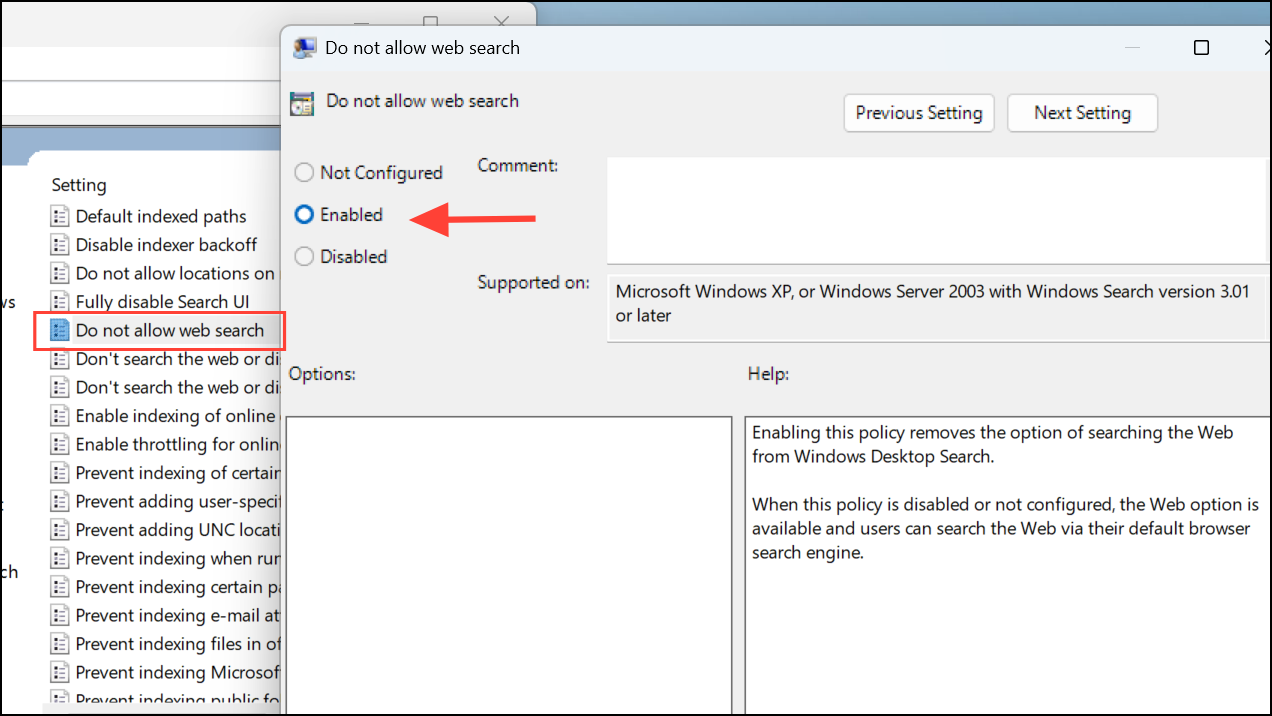
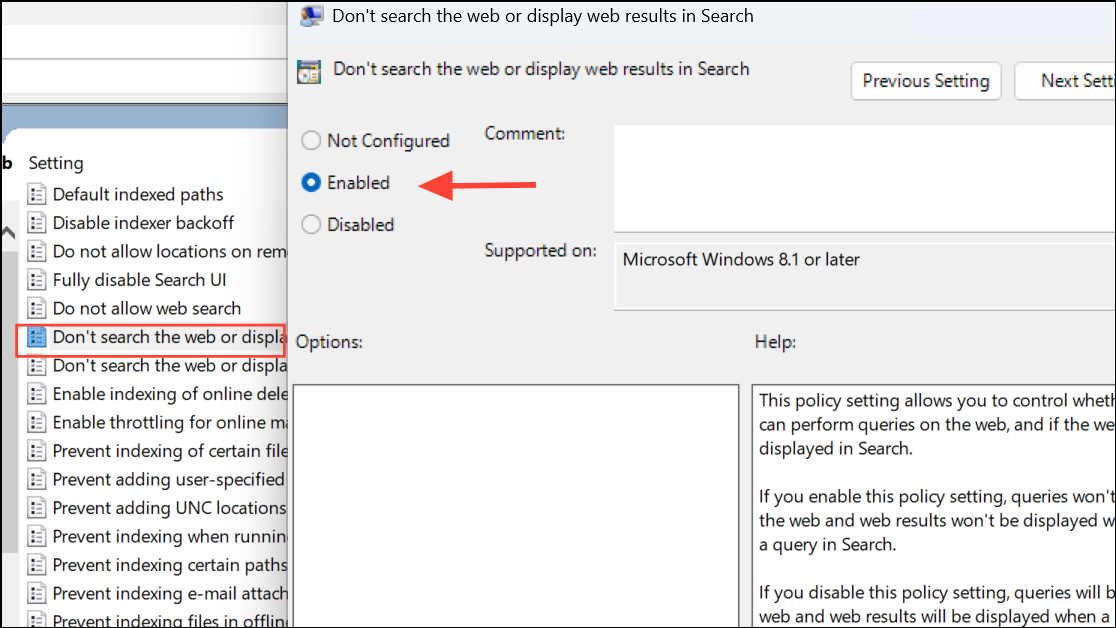
Remove Trending Searches via Group Policy Editor
This method works for Windows 11 Pro, Enterprise, or Education editions. The Group Policy Editor allows for more granular control over system features, including search suggestions.
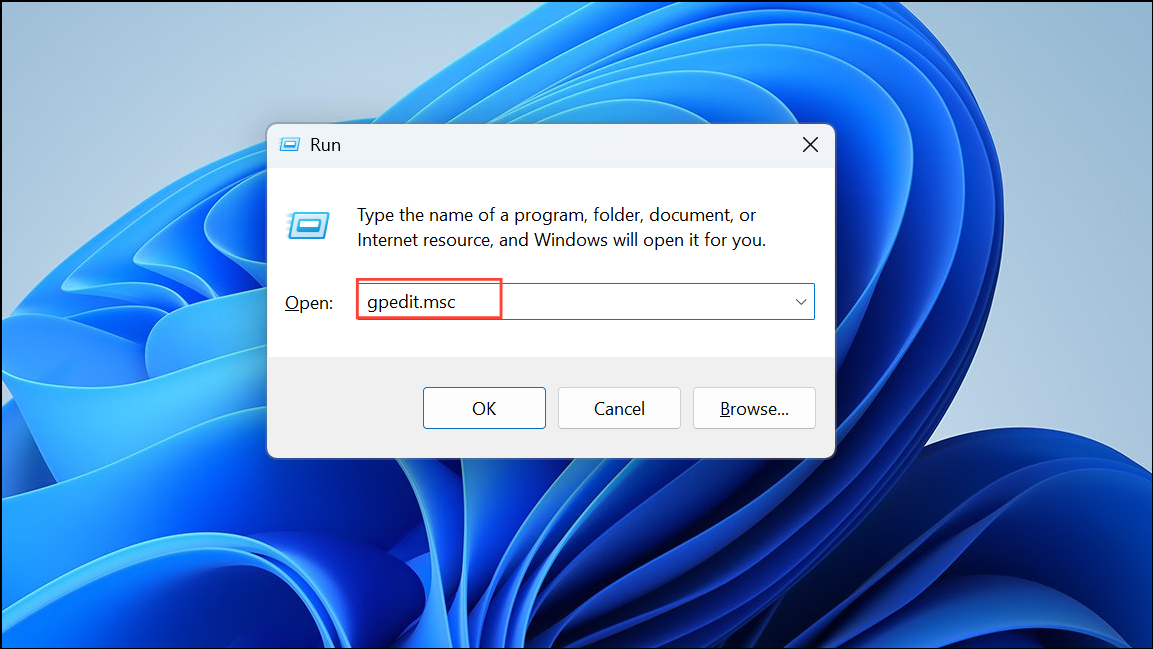
Computer Configuration > Administrative Templates > Windows Components > Search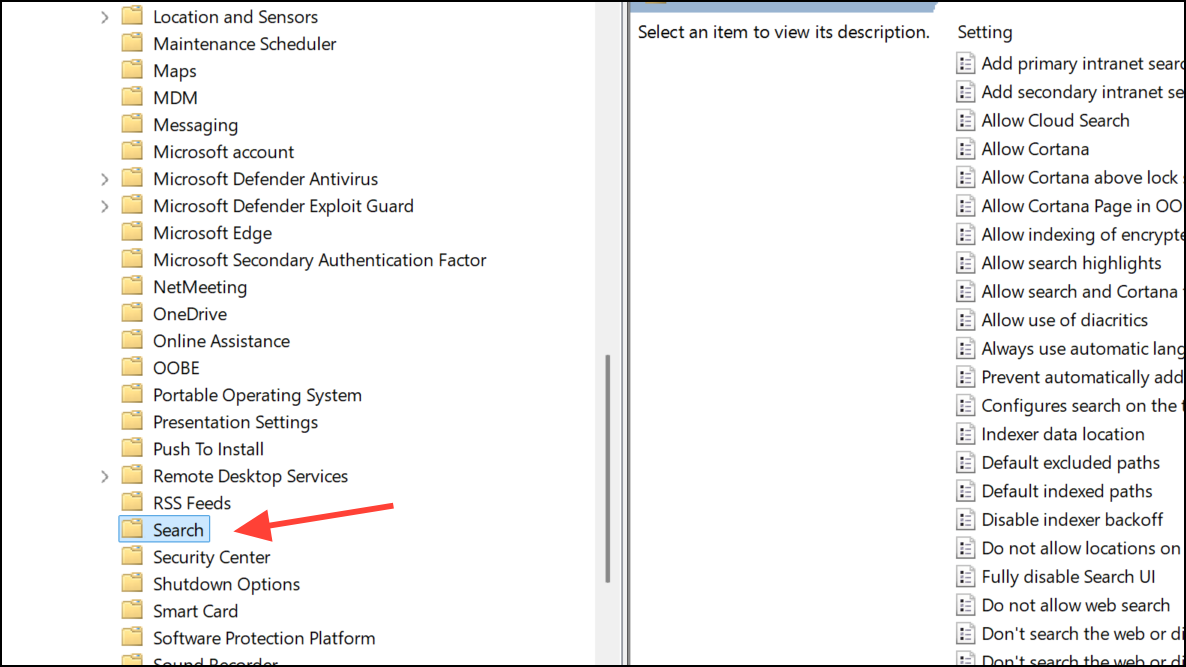
Temporarily Hide Trending Searches by Signing Out
If you want a quick, temporary solution, signing out and back in can sometimes clear trending suggestions for the current session.
Additional Notes and Tips
- Disabling trending searches may also reduce the amount of data sent to Microsoft about your search habits.
- If you use a Microsoft account, some web-based suggestions may still appear based on your sync settings. Adjusting cloud content options in Settings can help limit this.
- Some changes may require a system restart or sign-out to take full effect.
- For Windows 11 Home edition users, the Group Policy Editor is not available by default. Use the Settings method for best results.
Disabling trending searches in Windows 11 streamlines your search experience and keeps your focus on local results. If you ever want to restore trending suggestions, simply reverse the above settings.



