

Account lockout on Windows 11 devices blocks access to files, applications, and system settings, disrupting productivity and potentially leading to data loss. Fortunately, there are several proven methods to reset a forgotten Windows 11 password, depending on your account type and available recovery options. The following instructions cover the most effective approaches for both Microsoft and local accounts, including situations where standard recovery methods are unavailable.
Resetting a Microsoft Account Password Online
Next. This ensures Microsoft can identify your account and initiate the reset process.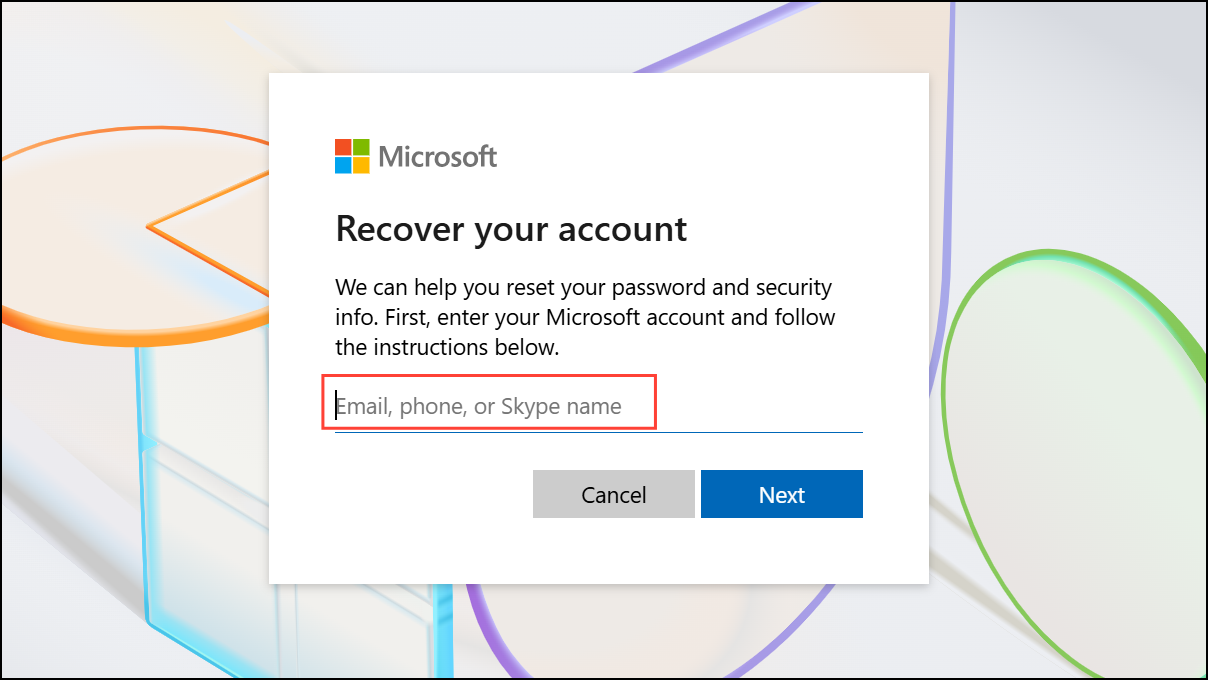
Resetting your password online is the fastest and most reliable method for Microsoft account users, as it securely updates your credentials and restores access across all devices linked to your account.
Resetting a Local Account Password Using Security Questions
Reset password option appears beneath the password field.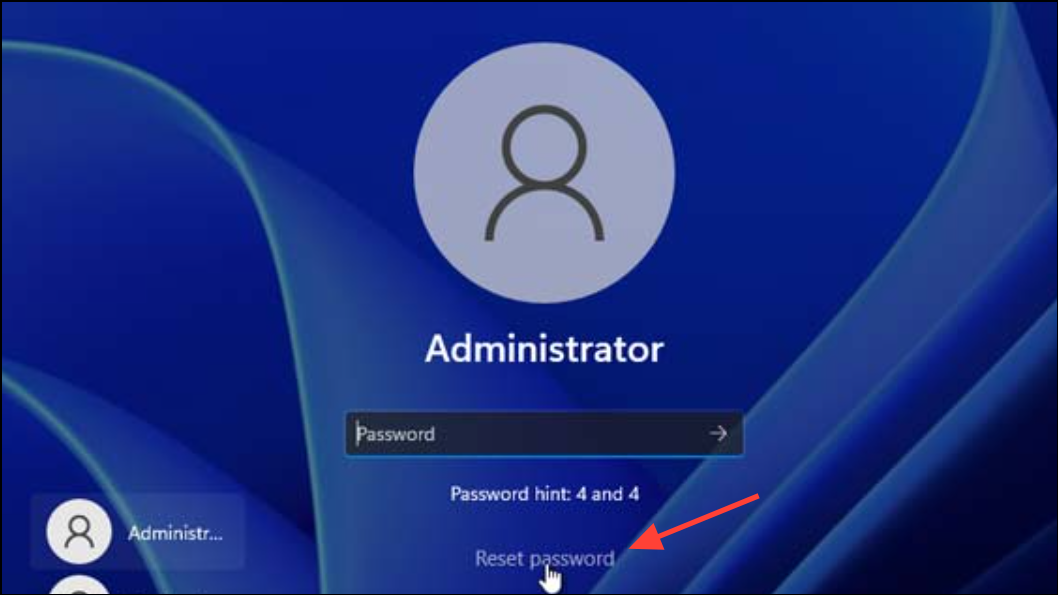
Reset password and answer the security questions you set up when creating your account. These questions verify your identity locally, without requiring internet access.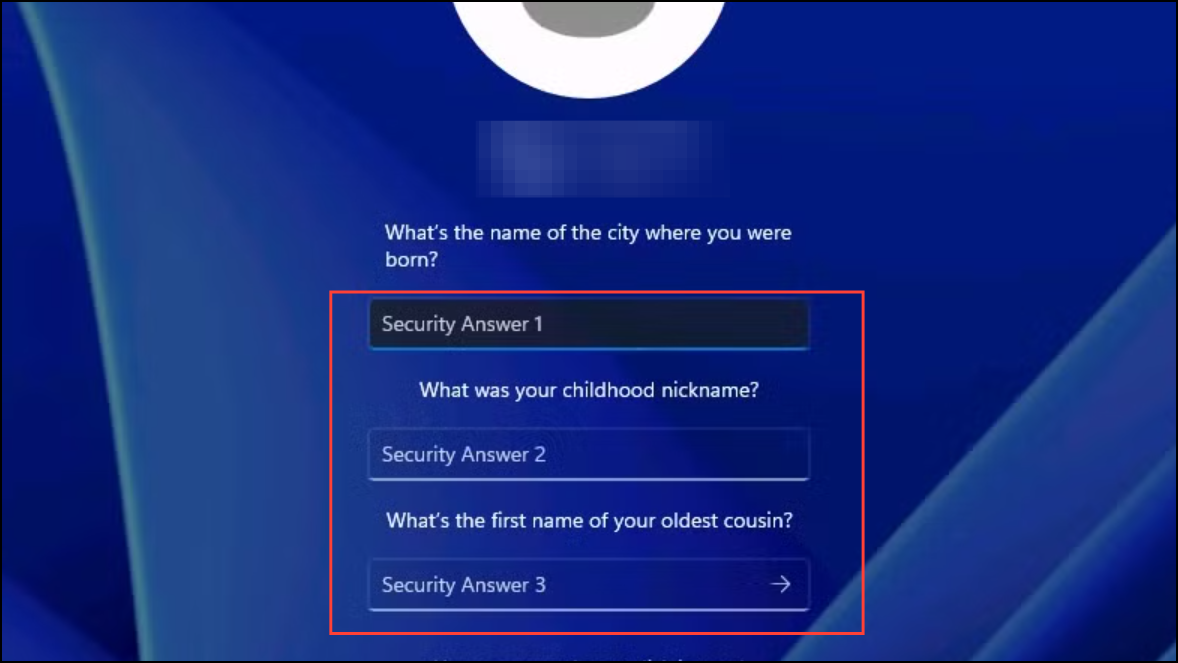
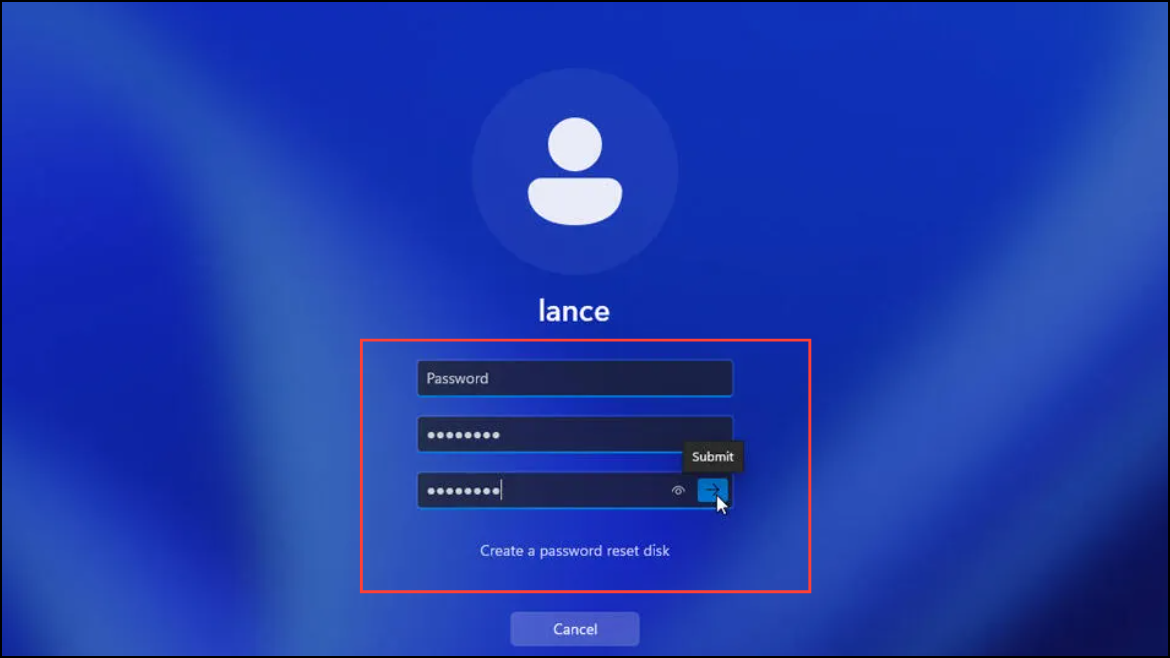
This approach works only if security questions were configured during account setup. It provides a straightforward way to regain access without external tools or administrative intervention.
Resetting a Local Account Password Without Security Questions or Recovery Disk
For situations where security questions were not set up and you lack a password reset disk, advanced recovery steps are necessary. This process involves temporarily replacing the Windows Accessibility Utility with Command Prompt to reset the password. Use caution, as this method requires familiarity with Windows recovery tools and may not work if your drive is encrypted with BitLocker.
Shift key and selecting Restart from the lock screen’s power menu. Alternatively, boot from Windows 11 installation media if you cannot access WinRE via the lock screen.Troubleshoot > Advanced options > Command Prompt. If prompted for BitLocker recovery, you must enter the recovery key before proceeding.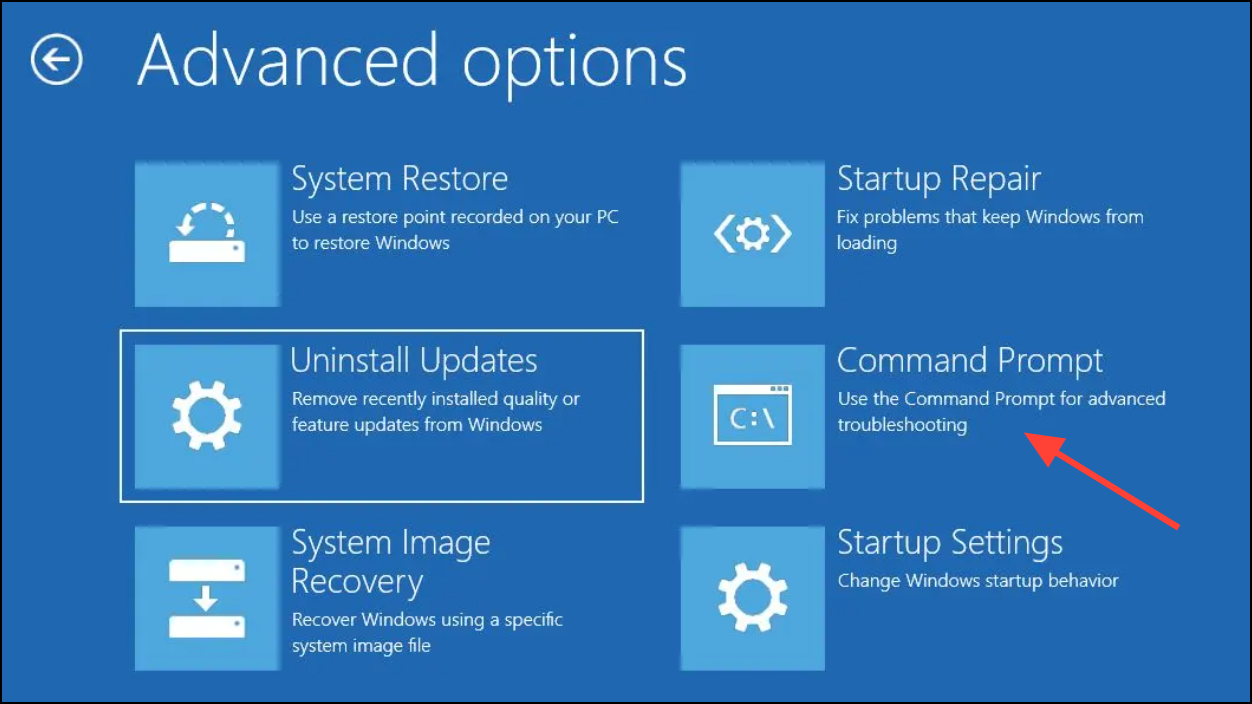
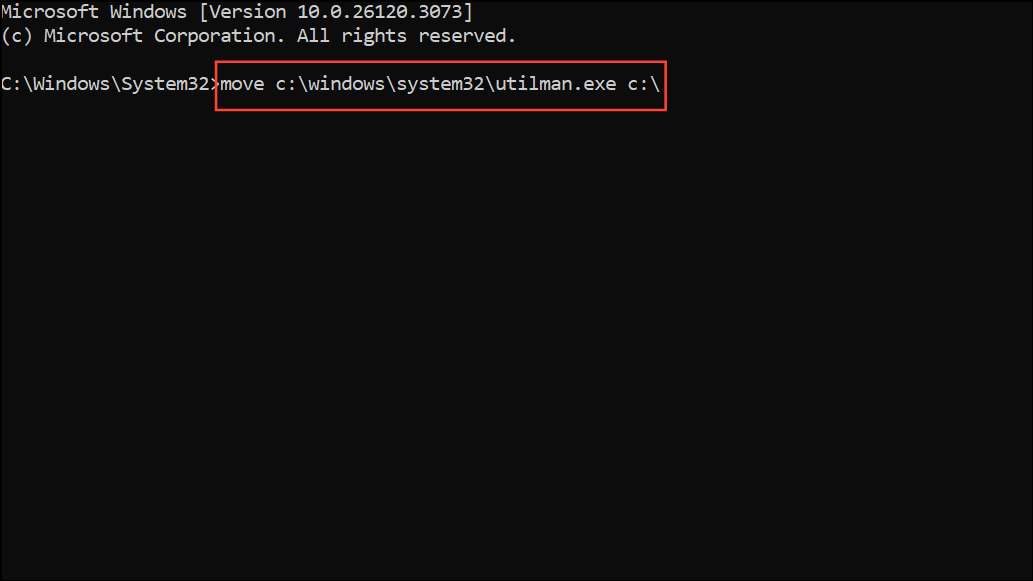
move c:\windows\system32\utilman.exe c:\
copy c:\windows\system32\cmd.exe c:\windows\system32\utilman.exe
exit
These commands allow you to open Command Prompt directly from the lock screen by clicking the Accessibility icon.
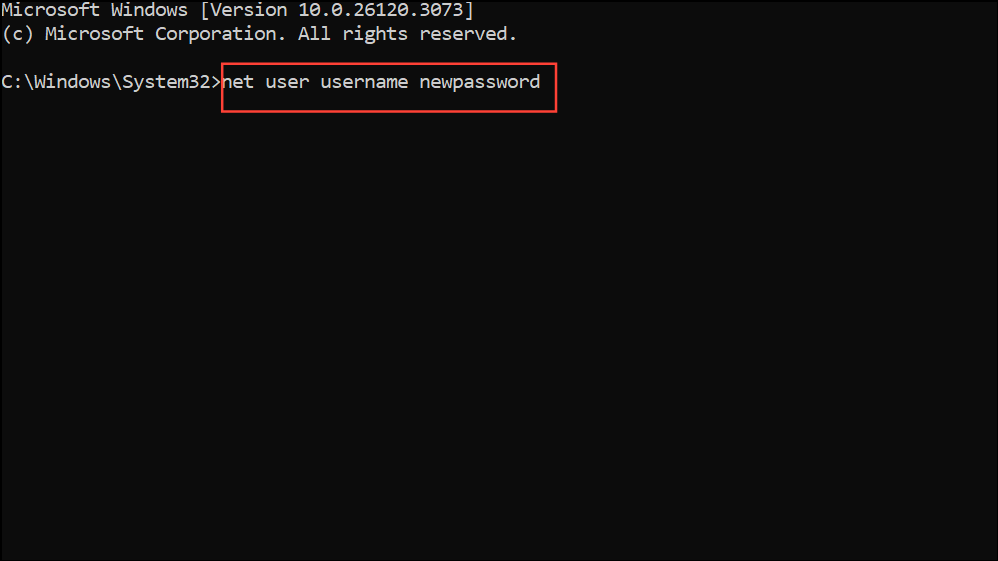
username with your actual account name and newpassword with your chosen password:
net user username newpassword
Press Enter to execute the command. Close Command Prompt and sign in using the new password.
copy c:\utilman.exe c:\windows\system32\utilman.exe
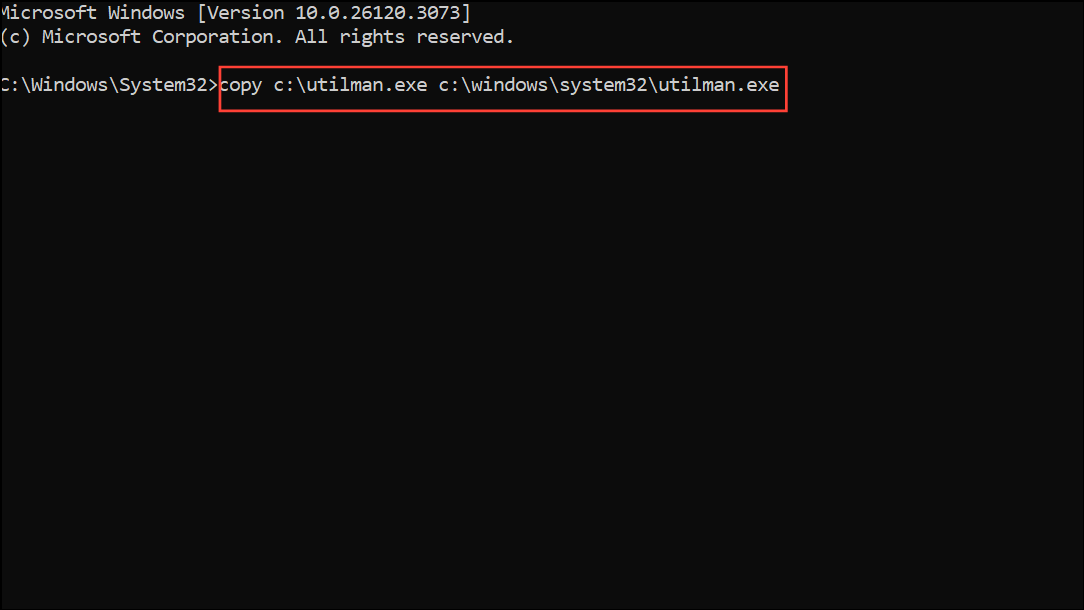
If you used installation media, you may need to repeat the process from WinRE or installation media Command Prompt. Restoring utilman.exe prevents future security risks and keeps system tools working as intended.
Resetting a Local Account Password Using the Built-in Administrator Account
When the above methods are unavailable, enabling the hidden Administrator account can provide another path to reset your password. This process should only be used on computers you own or have explicit permission to access.
utilman.exe with cmd.exe).
net user Administrator /active:yes
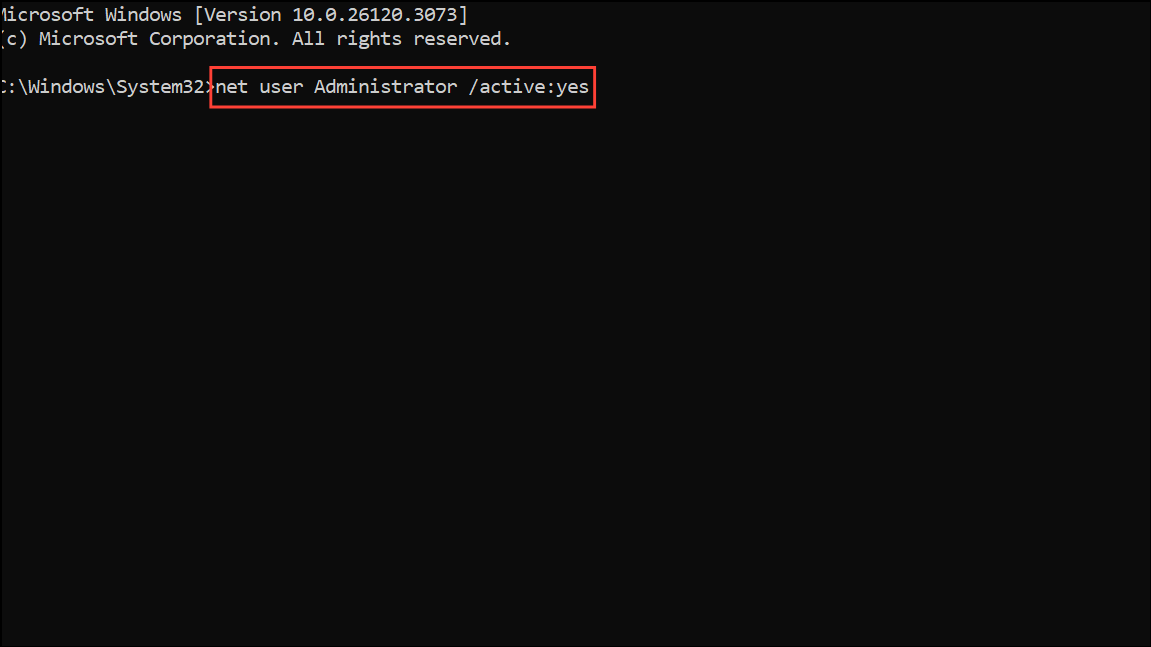
Computer Management (search from the Start menu), expand Local Users and Groups > Users, right-click your locked account, and select Set Password.... Enter and confirm a new password.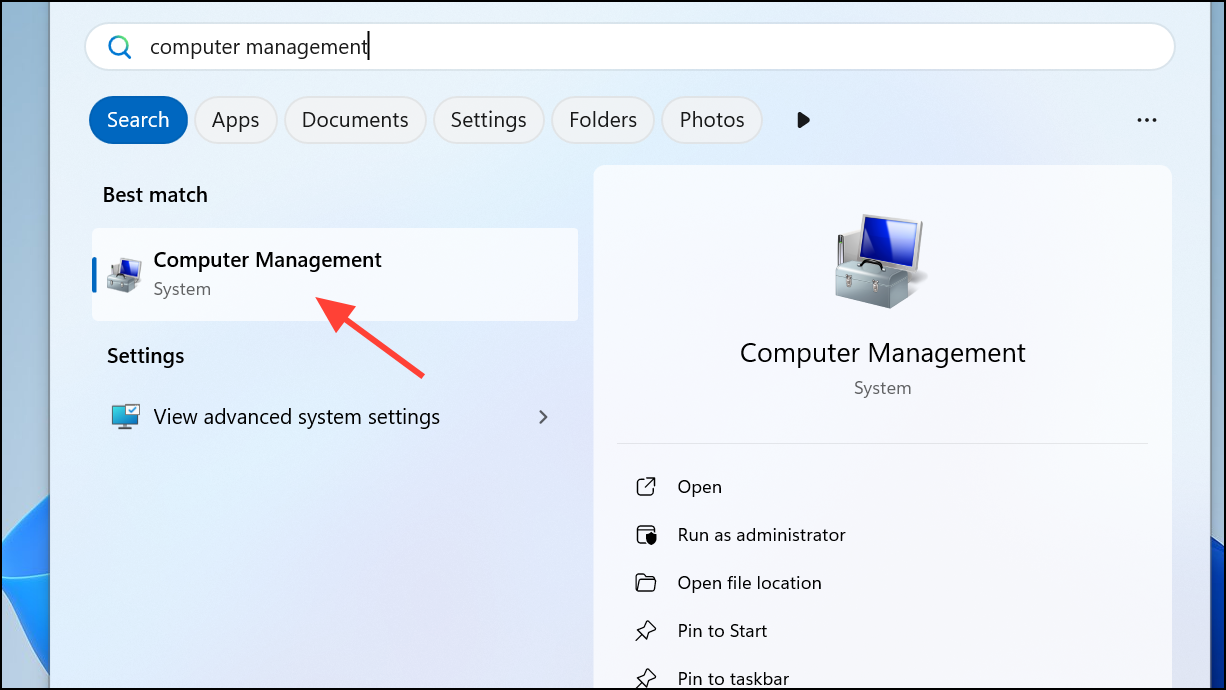
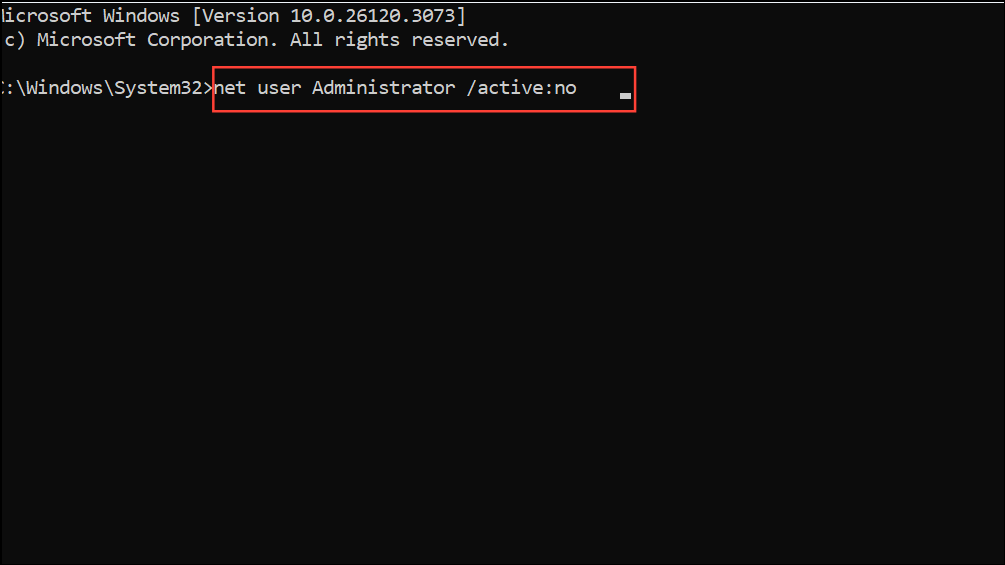
net user Administrator /active:no
This ensures the Administrator account is not available for unauthorized use.
Resetting Windows 11 Password When Using a PIN or Biometric Login
If you configured a PIN or biometric sign-in, you may still access your device even if you forgot the main password. After logging in with your PIN or biometric method, you can reset your password via account settings.
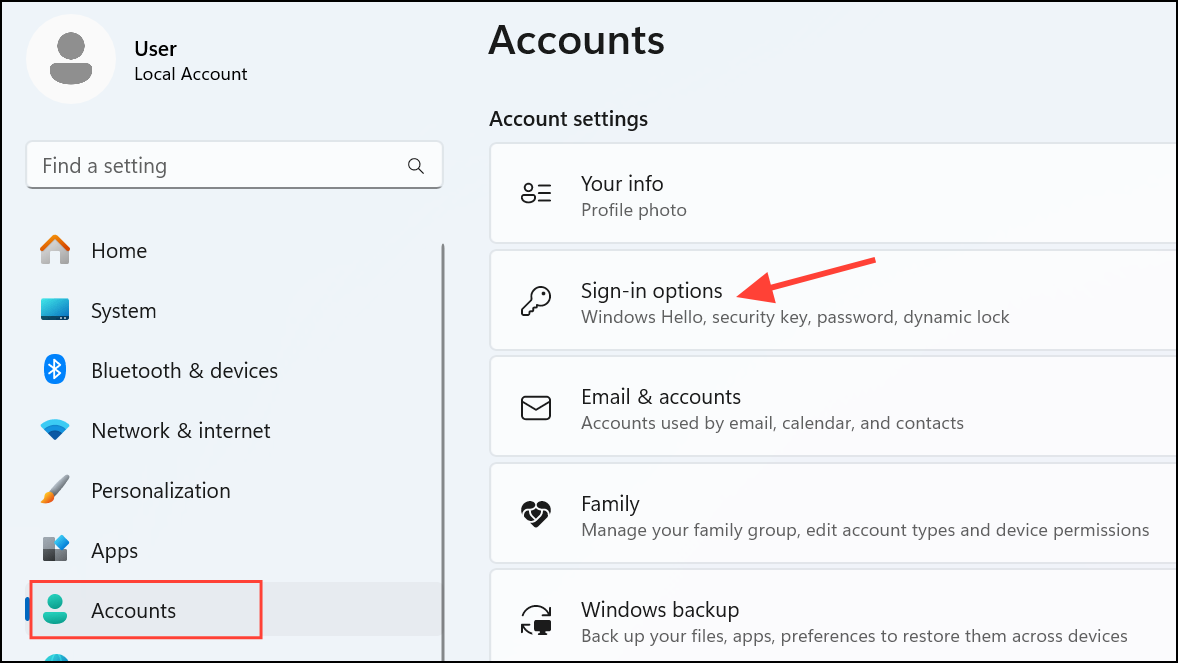
Password, select Change. If prompted, select Forgot my current password and follow the instructions to set a new password after verifying your identity.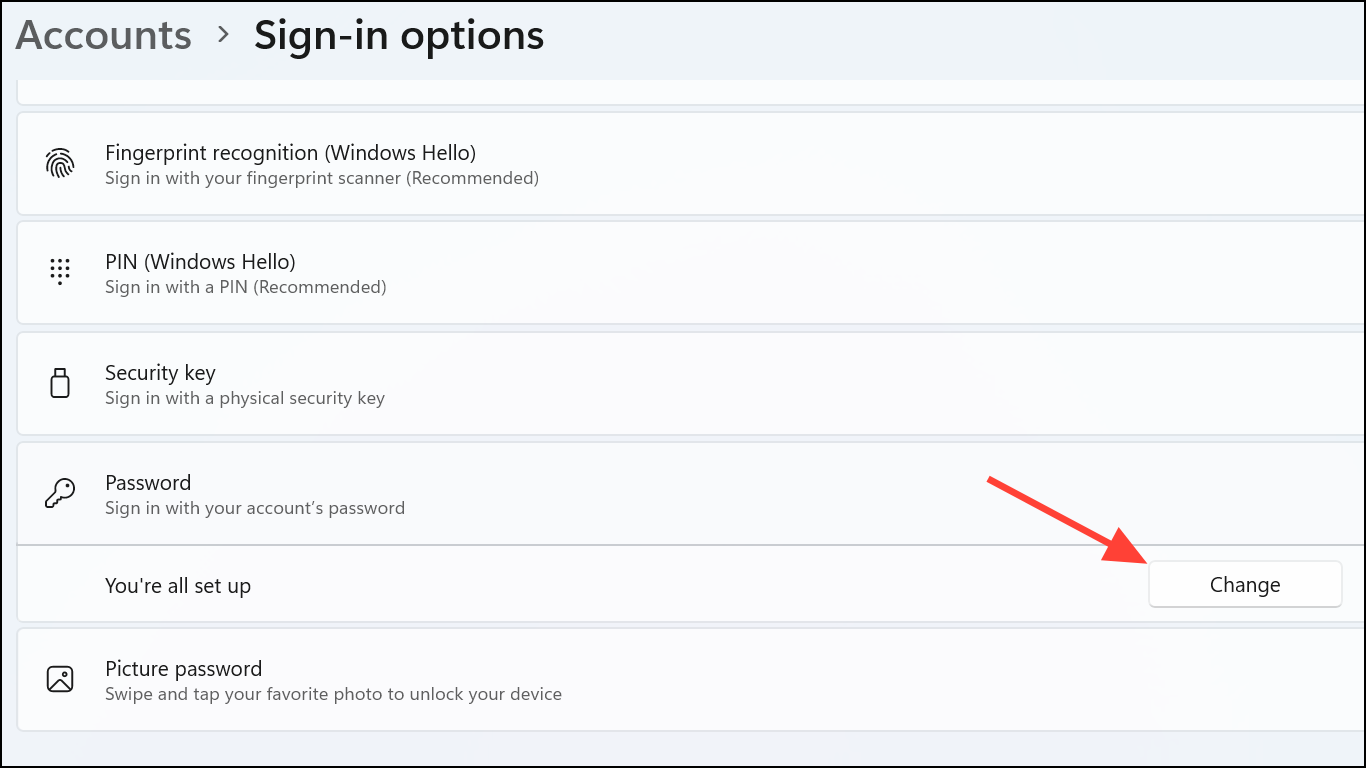
This method streamlines password recovery for users who have set up alternative sign-in options, reducing downtime and complexity.
Factory Reset as a Last Resort
If none of the above methods succeed and you are unable to recover your password, performing a factory reset will restore your device to its original state, but all files and applications will be erased. To start this process, boot into WinRE and select Troubleshoot > Reset this PC. Choose to remove everything for a full reset. Only use this option if you have no critical files remaining on the device or have already backed up your data.
Regaining access to your Windows 11 device is possible with the right method for your account type and situation. To prevent future lockouts, consider setting up recovery options, using a password manager, and creating a password reset disk or security questions for local accounts.



