In Facecard: Makeup Showdown, hair is not part of the brush tools. The model you paint on starts bald. You add a hairstyle from a separate styling menu, and you can change it at any point while you’re working on your look.
Quick answer: At the makeup station, click the STYLE tab in the left menu, then click HAIR and click any hairstyle card. It appears on the model’s head right away.
Get to the makeup station first
The hair menu is available only at the makeup station, on the face-painting screen shown when a round begins. In the lobby, you’ll see a prompt to enter the current round, or you can select JOIN ROUND at the screen’s bottom. If the game isn’t installed, visit Facecard: Makeup Showdown on Roblox and press Play.
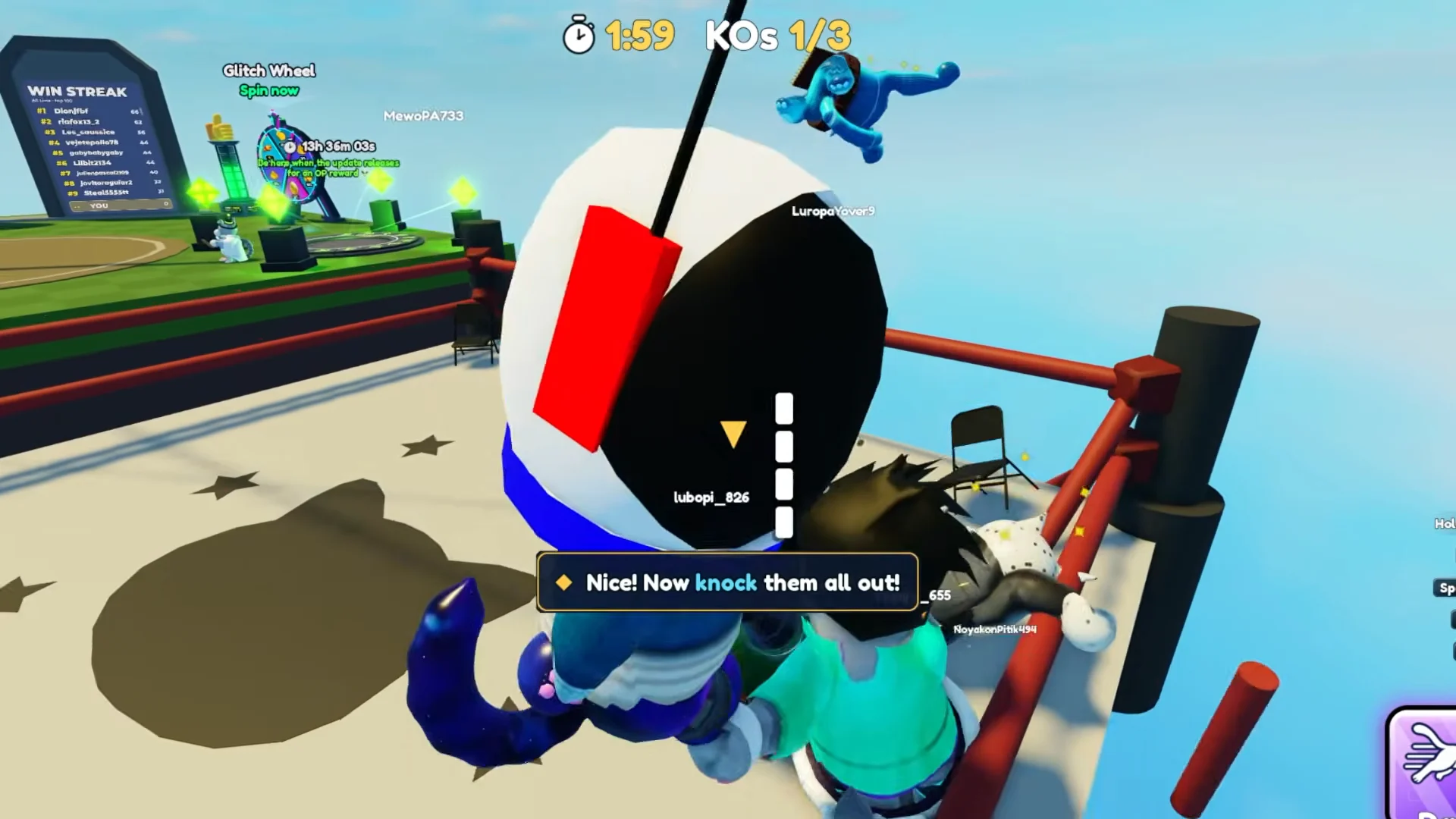
The first time you enter the station, a few tutorial pop-ups appear over a blank face model. They cover your tools, skin tone, the mirror, and the safety rules. Click through them to reach the editor.
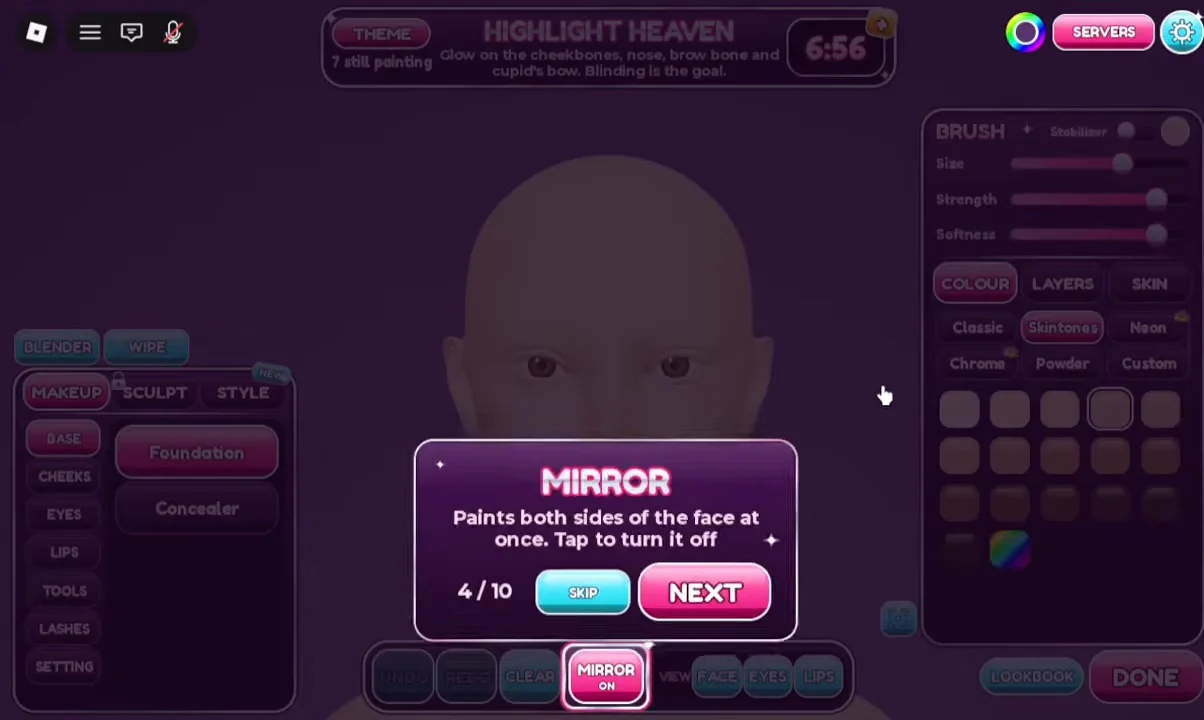
Once the pop-ups close, the editor opens on the makeup side, with brush tools such as Foundation ready to use. The hair options aren’t on this screen. They’re one tab over.
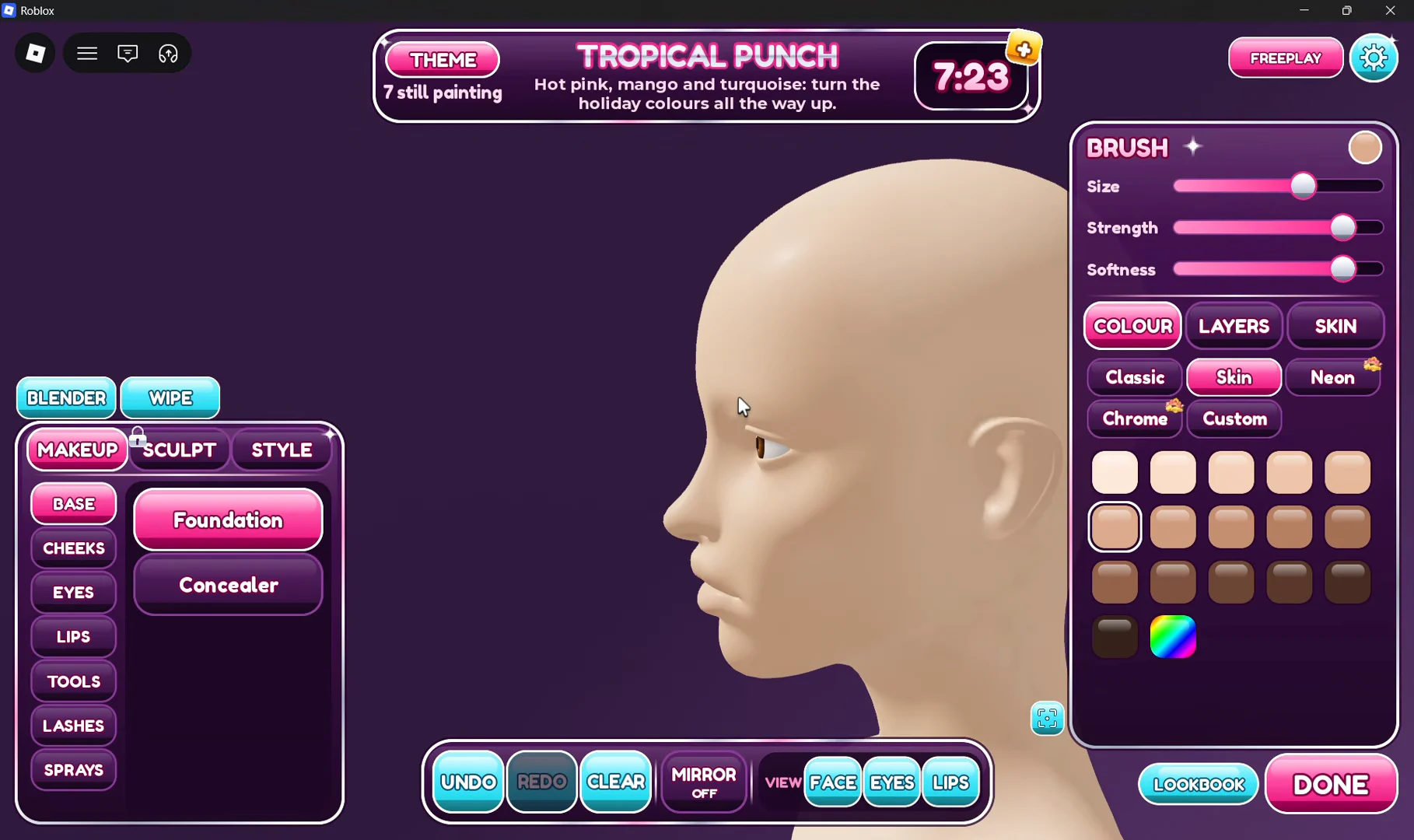
How to add hair from the STYLE tab
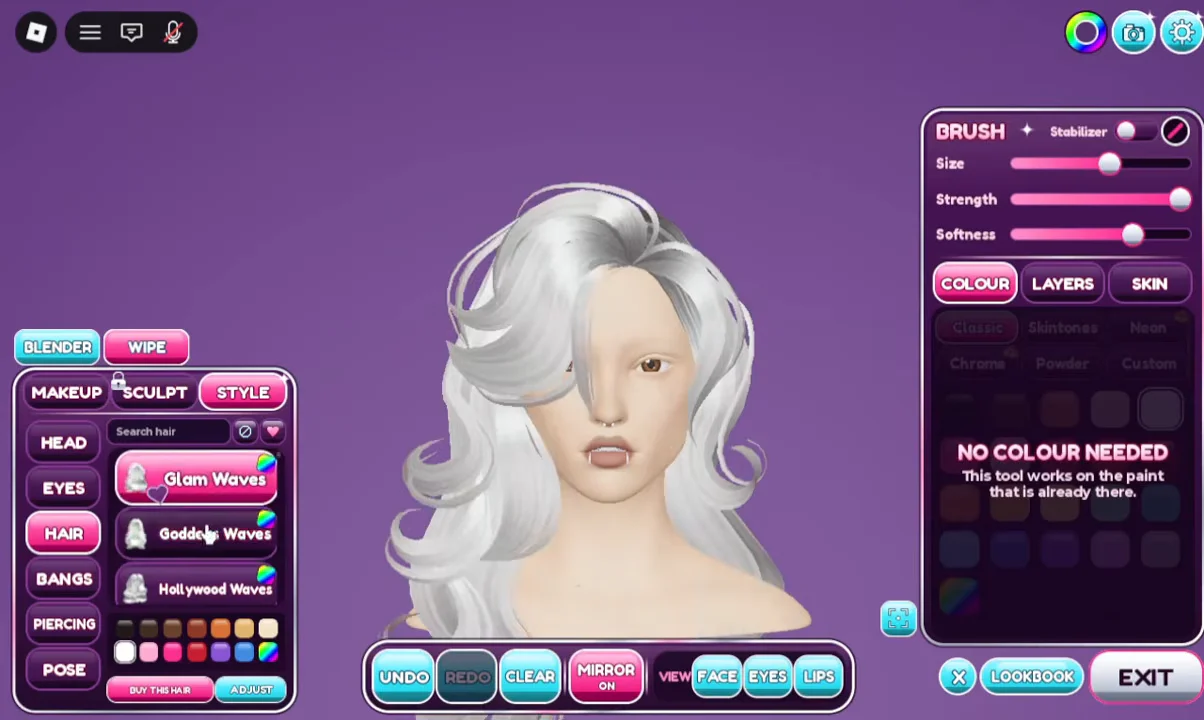
When you’re done, click the MAKEUP tab to go back to your brushes. The hairstyle stays on the model while you keep painting.
Facecard hairstyles and color variants
The list starts with a “None” option and a few named entries such as Daniela, Smirk, Bieh, and xoxo. After those come the base hairstyles, which are mostly waves, curls, and blowouts.
- Waves: Glam Waves, Goddess Waves, Hollywood Waves, Espresso Waves, Princess Waves, Windy Waves, Lush Waves, Runway Waves, Vintage Wave
- Curls: Doll Curls, Bouncy Curls, Layered Curls, Salon Curls
- Blowouts: Swirl Blowout, Big Blowout, 80s Blowout
- Others: 70s Flicks, Windy Pony, Sleek Bob
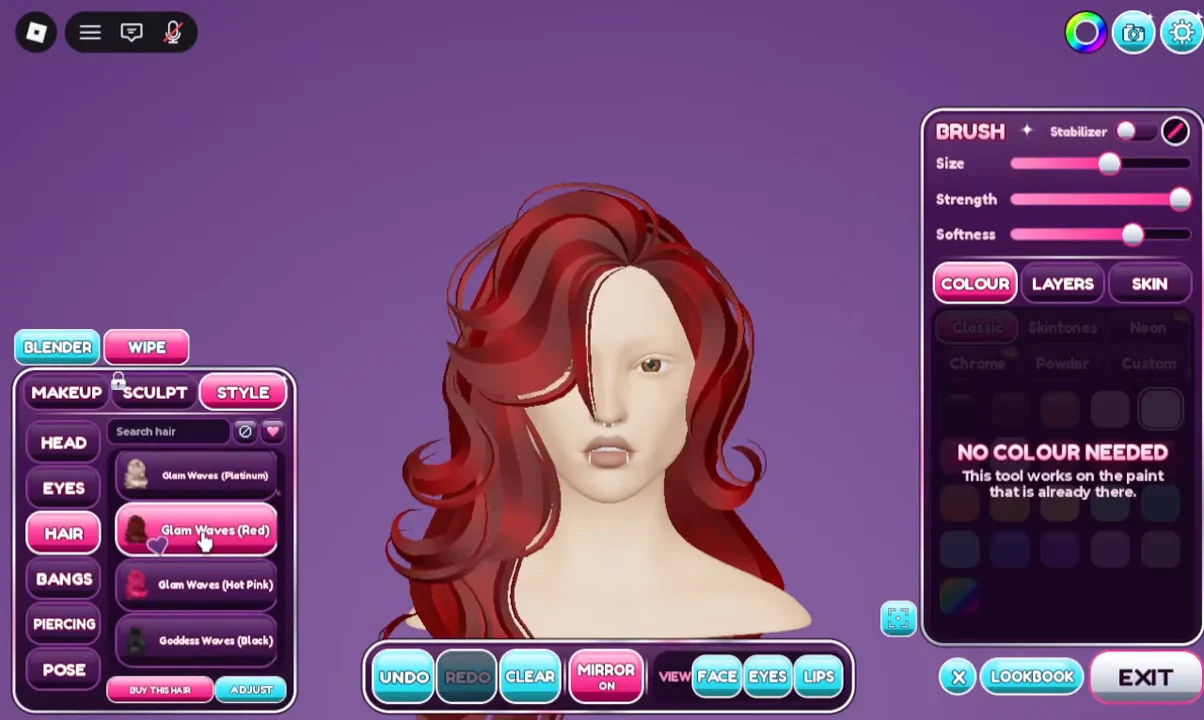
Colors aren’t a separate slider. Each colorway is its own card, named after the base style with the color in brackets. Scroll past the base styles to find them, or search for the style name to bring all of its colors up together.
| Base style | Color variants |
|---|---|
| Glam Waves | Black, Brown, Caramel, Platinum, Red, Hot Pink |
| Goddess Waves | Black, Brown, Ginger |
To apply a color, click the matching card, such as “Glam Waves (Red)”. It replaces whatever style is currently on the model.
Removing, swapping, or buying hair
- Swap: click a different card. The new style replaces the old one, and there’s no need to clear it first.
- Remove: click the hairstyle that’s already equipped. It comes off and leaves the model bald until you pick another one.
- Buy: Select the “BUY THIS HAIR” button beneath the style menu to purchase the hair asset for your Roblox character.
If your model suddenly loses its hair, you probably clicked the active card a second time. Click any hairstyle again to put hair back on.
Hair counts toward your finished look just like the paint does. Every completed face goes into the photoshoot and gets rated from 1 to 5 stars, so set your hairstyle before time runs out and the round moves to voting.