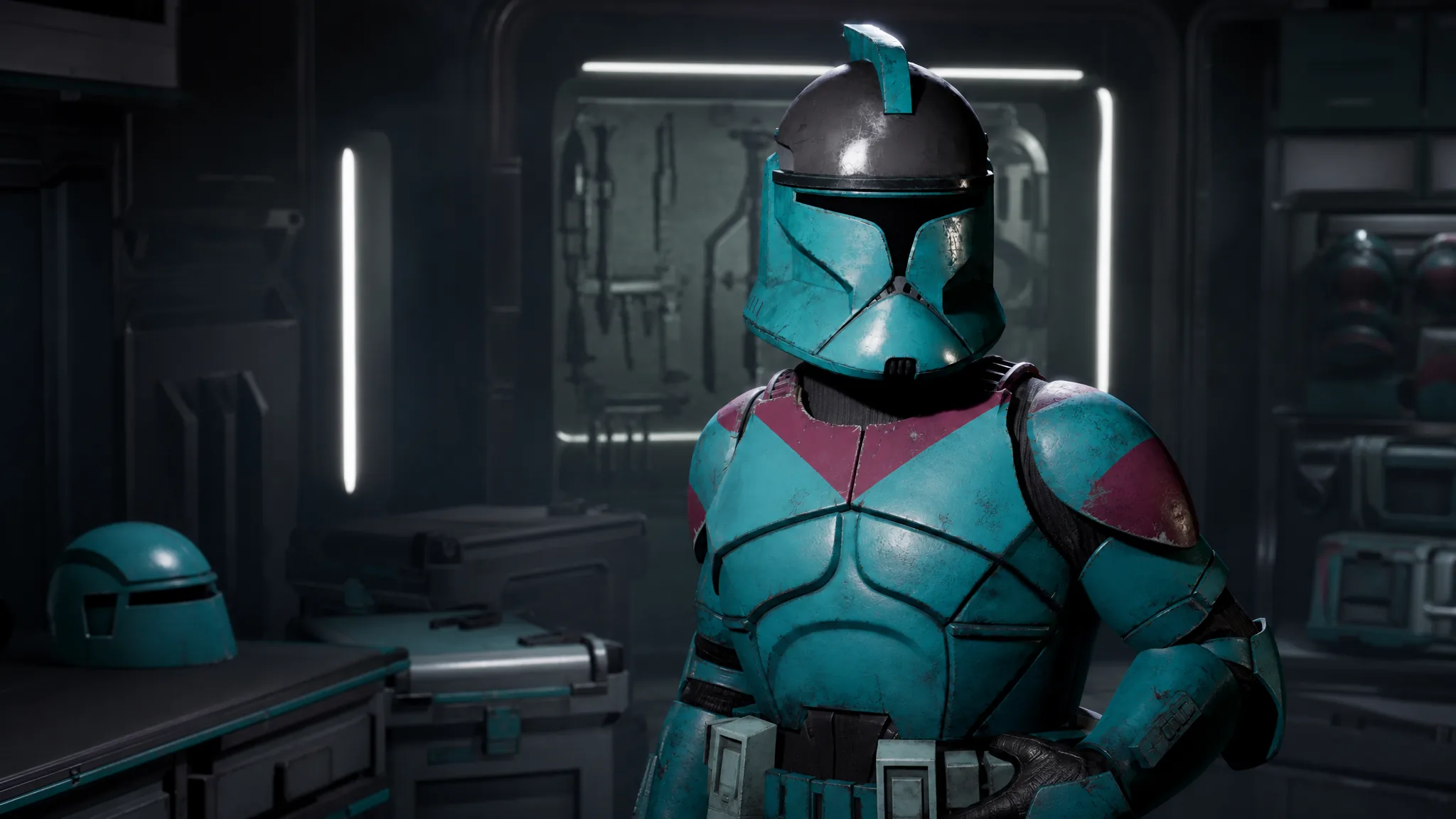
Recoloring your squad in Star Wars Zero Company happens entirely inside the Outfits menu, where every clothing and armor piece is split into its own color zones. You can tint a plain shirt, repaint a full Clone Trooper set, and match a helmet to a top without touching gameplay stats. The system works the same for Hawks and for any custom recruit.
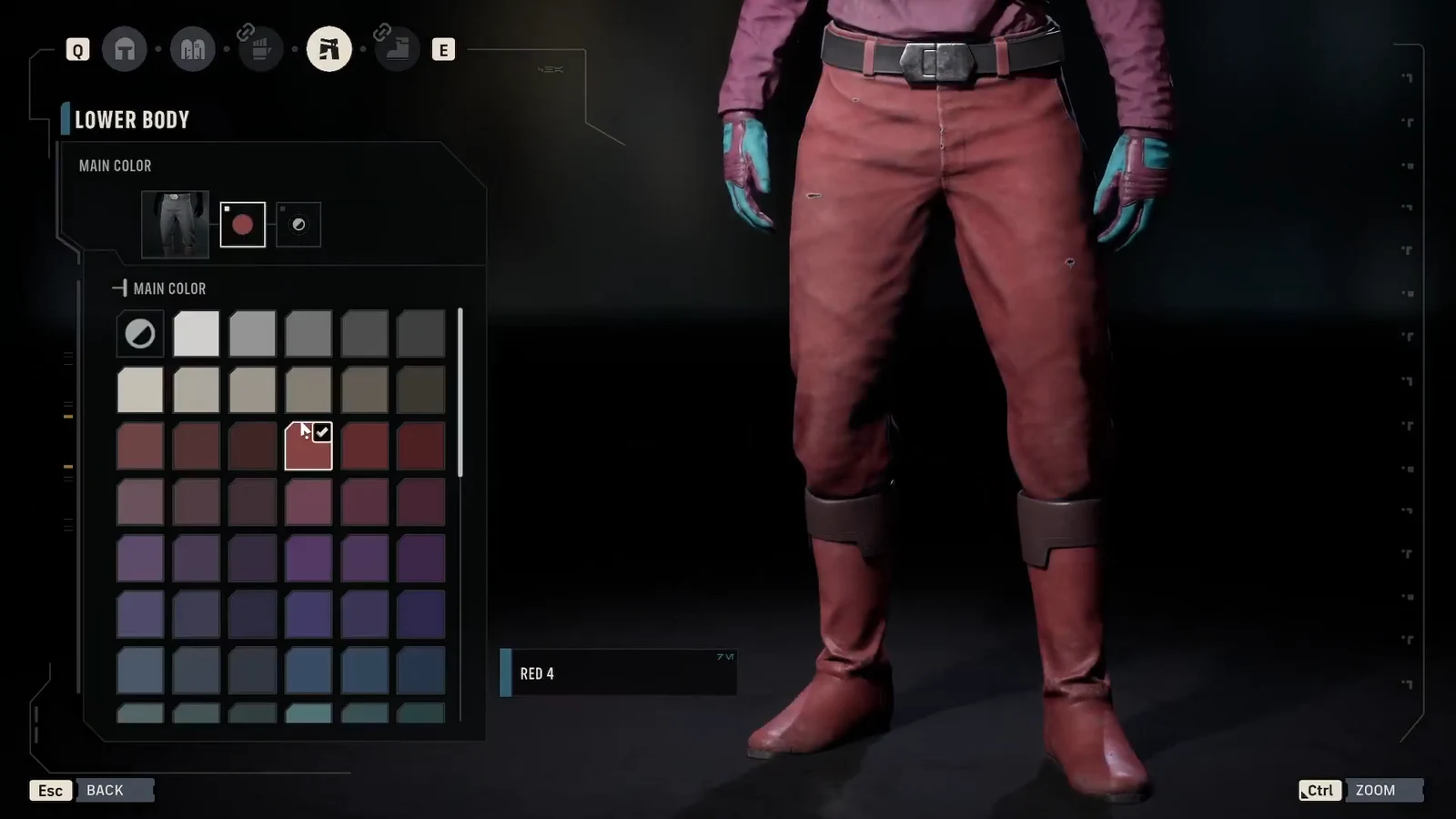
Quick answer: Open the Outfits menu, select a component such as Tops or Lower Body, open its color menu, and pick a new shade for each color zone. Every piece has one to four independent zones, so a single item can carry up to four different colors.
How color zones work in Star Wars Zero Company
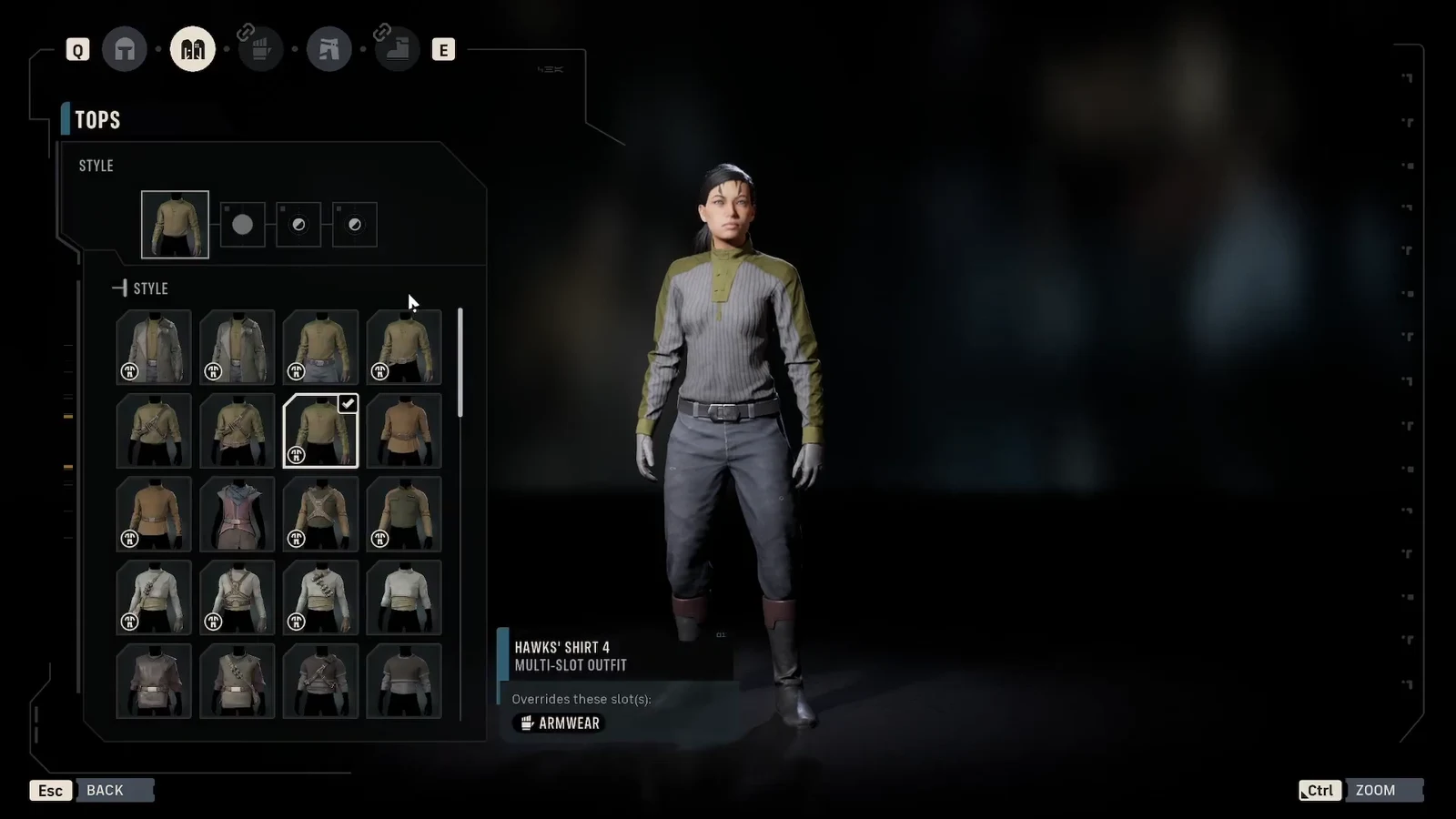
Color is applied per piece, not per outfit. When you select any item, the customizer shows how many color zones it supports. A basic shirt may only have a Main Color, while a full helmet or armor plate can expose up to four separate zones that you set one by one. This is what lets you build a uniform single-tone Clone or a helmet with four distinct shades.
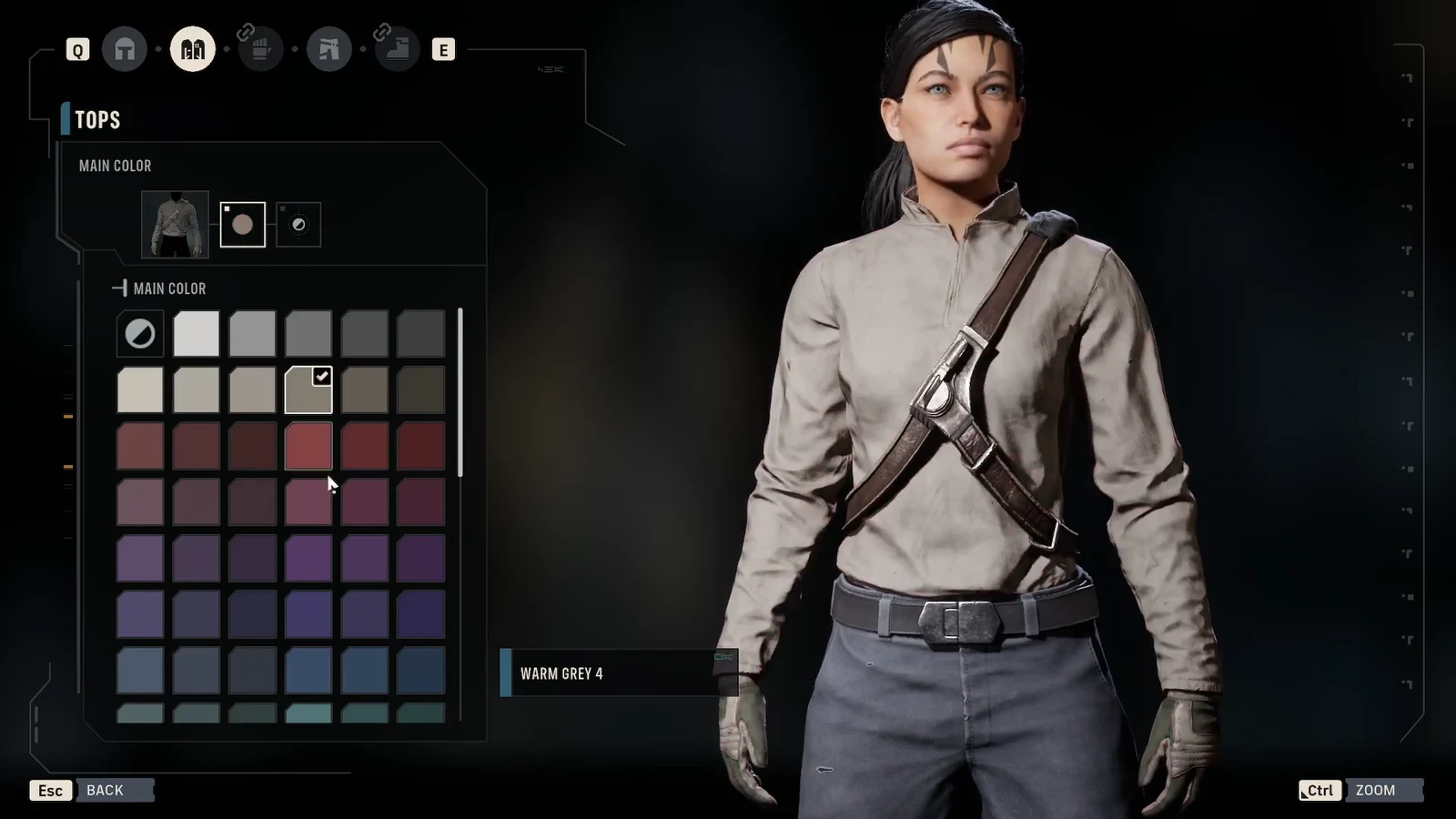
The color list is long and shared across pieces, so you can repeat the same shade on a top, pants, and boots for a matched look, or break them up for contrast. Faces and species-specific features can also be recolored using the same palette.
| Outfit component | What you can recolor |
|---|---|
| Headgear | Helmets and hats, including Clone Trooper helmets |
| Tops | Shirts, armor pieces, and Jedi robes |
| Arm wear | Gauntlets, gloves, and arm guards |
| Lower body | Pants and leg armor (bundled with boots) |
| Boots | Footwear and greaves |
Change a top’s main and accent colors
Recolor pants, boots, and headwear
Note: Clone Trooper helmets add built-in voice modulation, so your character’s dialogue is filtered while the helmet is worn. You can also toggle headgear to hide during conversations if you prefer to show the face.
Use presets and the lighting toggle
If you would rather skip manual tuning, each character has preset outfit configurations that swap the whole look in one selection. Presets are the fastest way to get a complete color scheme, and you can still edit individual zones afterward.
Before you commit, use the lighting button in the customizer to cycle through brighter and darker preview conditions. This helps you judge how a dark armor color or a subtle accent will read in different in-game environments, which is easy to misjudge under a single studio light.
Which characters you can recolor
The color system applies to Hawks and to custom recruits, and it reaches authored characters too. Padme Amidala, for example, can switch between traditional Jedi robes, Clone Wars-era Jedi armor, and a hooded variant, each with its own colorable zones. Some authored characters keep locked voice options, but their visual pieces remain editable.
Armor coverage spans several eras, including Clone Trooper Phase I and Phase II sets, ARC Trooper armor, Jedi robes and armor, plus new helmets and outfits. Every one of those pieces uses the same one-to-four zone color system, so the steps above work no matter which set you equip.
You will know a change took hold because the character model updates in real time as you pick each swatch. Confirm the piece to lock it in, and the new colors carry over to the squad selection screen and the in-game portrait. Star Wars Zero Company is available on PC, PlayStation 5, and Xbox Series X|S, and this customization is part of the base game rather than a paid add-on.