How to Stop Microsoft Teams from Starting Automatically
Learn how to stop Microsoft Teams from starting automatically with these simple steps. Keep your computer running smoothly and avoid unnecessary distractions.
Learn how to stop Microsoft Teams from starting automatically with these simple steps. Keep your computer running smoothly and avoid unnecessary distractions.
by Sakshi Garg
Microsoft Teams is a widely used collaboration platform that provides chat, meetings, and file sharing features. While it’s convenient for many users, some may find it unnecessary to have Teams launch automatically every time they start their computer. Automatic startup can slow down your system and consume resources unnecessarily. Fortunately, there are straightforward methods to prevent Microsoft Teams from starting automatically on Windows 11 and Windows 10.
How to Prevent Microsoft Teams from Starting Automatically on Windows 11
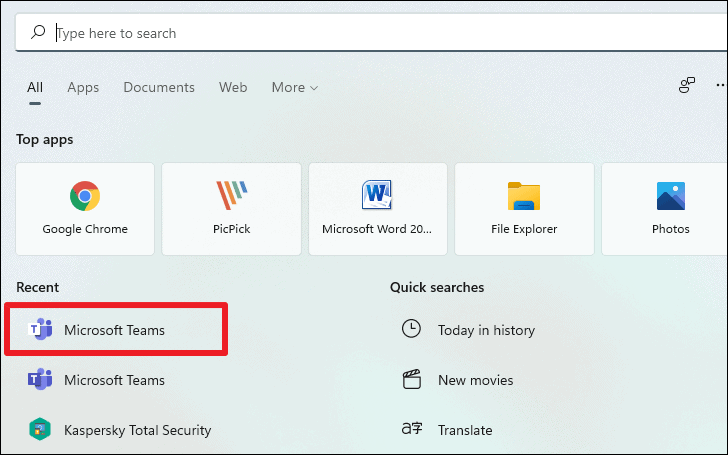
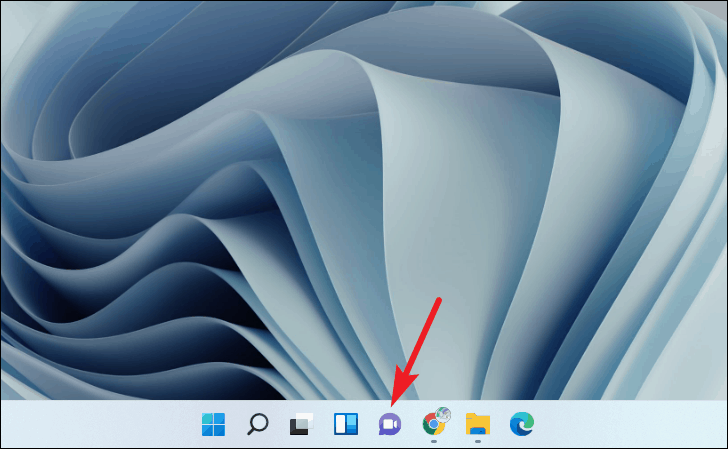
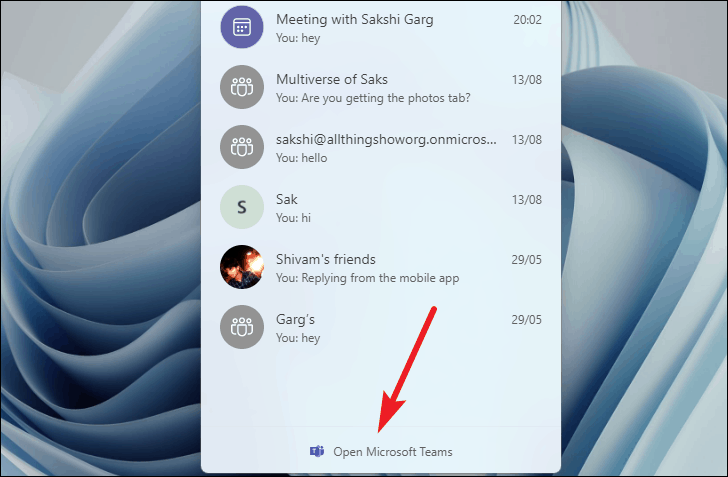
Open the Microsoft Teams app on your Windows 11 computer. You can do this by clicking the ‘Search’ icon on the taskbar and typing Microsoft Teams in the search bar. Be sure to select the personal version of Teams, which has a white background behind the ‘T’ icon.
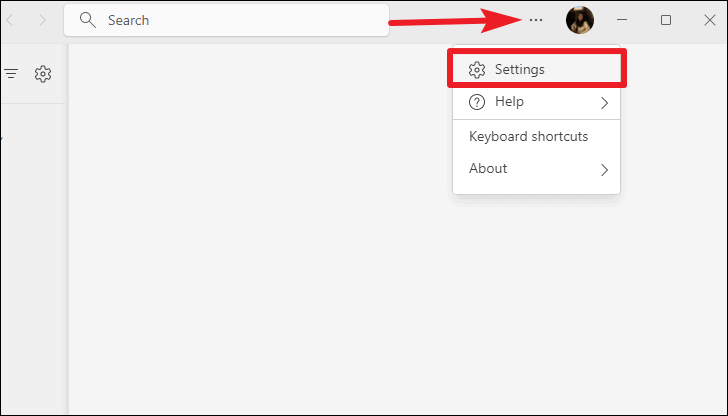
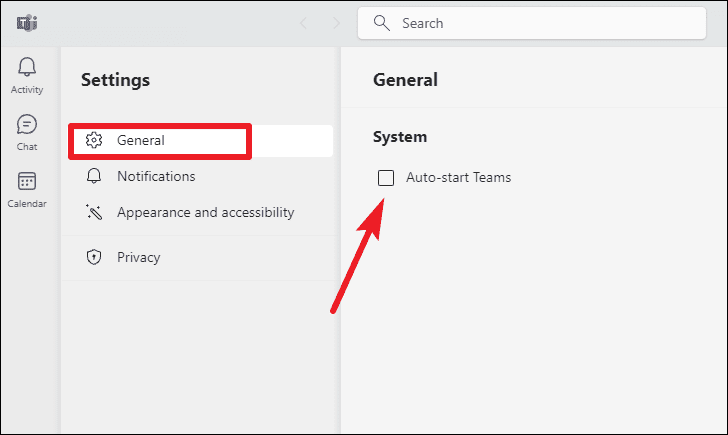
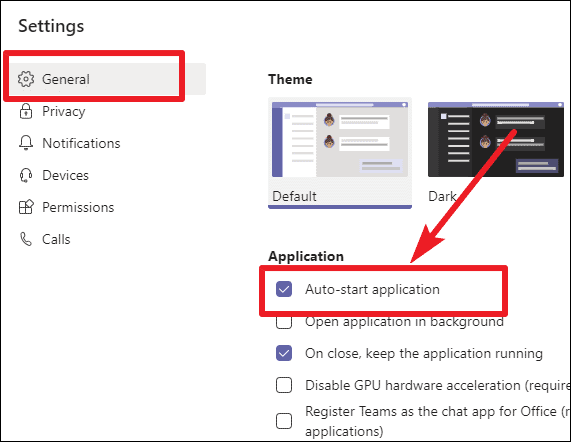
In the ‘Settings’ window, under the ‘General’ tab, uncheck the box next to ‘Auto-start Teams’ to disable the automatic launch of the app when you start your computer.
After completing these steps, Microsoft Teams will no longer start automatically when your computer boots up. You can still open the app manually whenever you need it.
How to Hide Chat from Teams in Windows 11
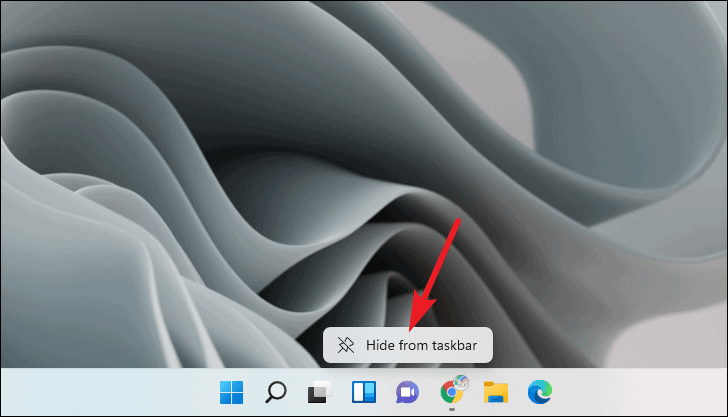
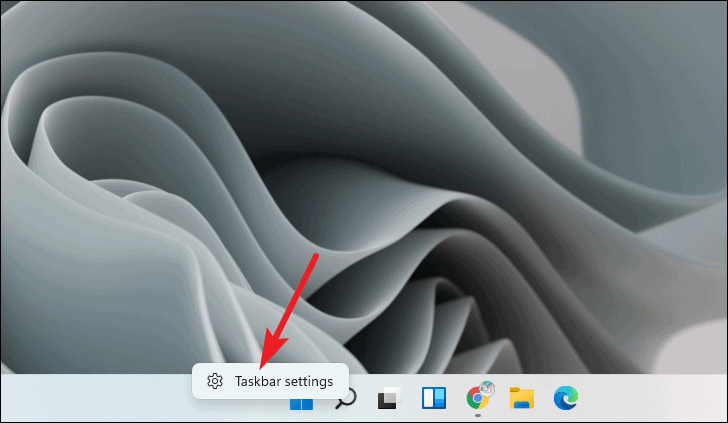
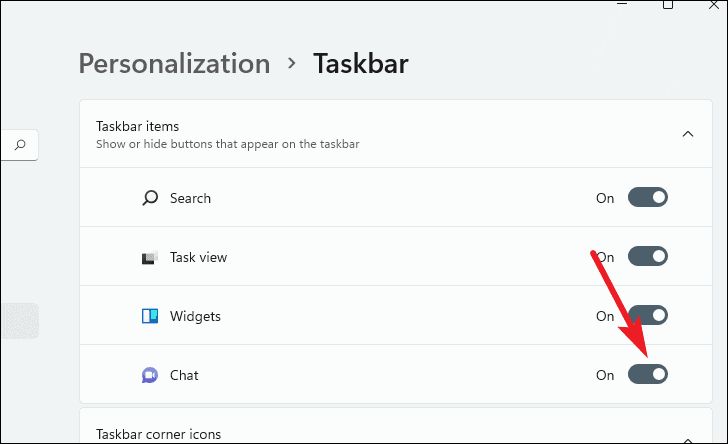
If you prefer not to see the Chat icon on your taskbar, you can hide it without uninstalling Microsoft Teams.
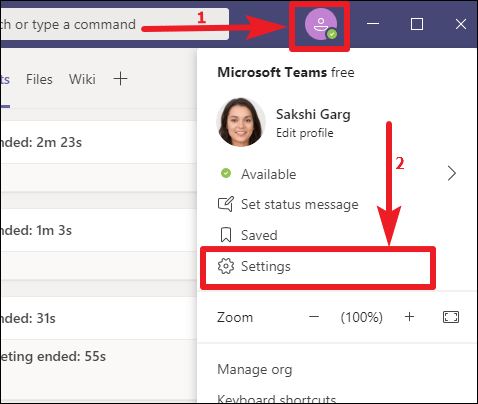
Open Microsoft Teams on your computer. Click on your ‘Profile icon’ in the upper right corner of the Teams window and select ‘Settings’ from the dropdown menu.
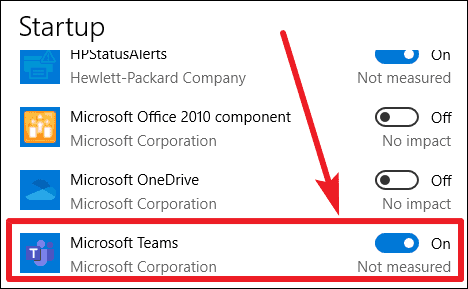
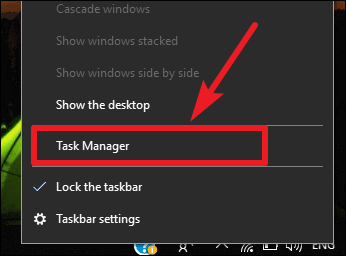
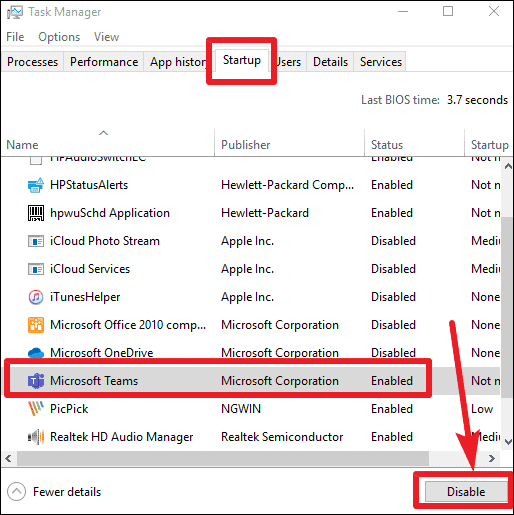
In the Task Manager window, navigate to the ‘Startup’ tab. Find ‘Microsoft Teams’ in the list, click on it, and then click the ‘Disable’ button at the bottom-right corner.
Disable Microsoft Teams startup from Task Manager.
By adjusting these settings, you can prevent Microsoft Teams from starting automatically, giving you a faster startup experience and more control over your system resources. You can always launch Teams manually when you need it for collaboration and communication.