Subnautica 2 stores its Steam save files inside a standard Unreal Engine folder buried in your Windows user directory. The game also has a built-in cloud share system with import keys, so manual file copying is optional — but knowing the path matters during Early Access, when patches can break save compatibility.
Steam save folder path
The save data sits in the Local AppData folder rather than the Steam install directory. That is the Unreal Engine 5 default for a project named Subnautica2, and it applies whether the game was installed through Steam or the Epic Games Store.
| Item | Path |
|---|---|
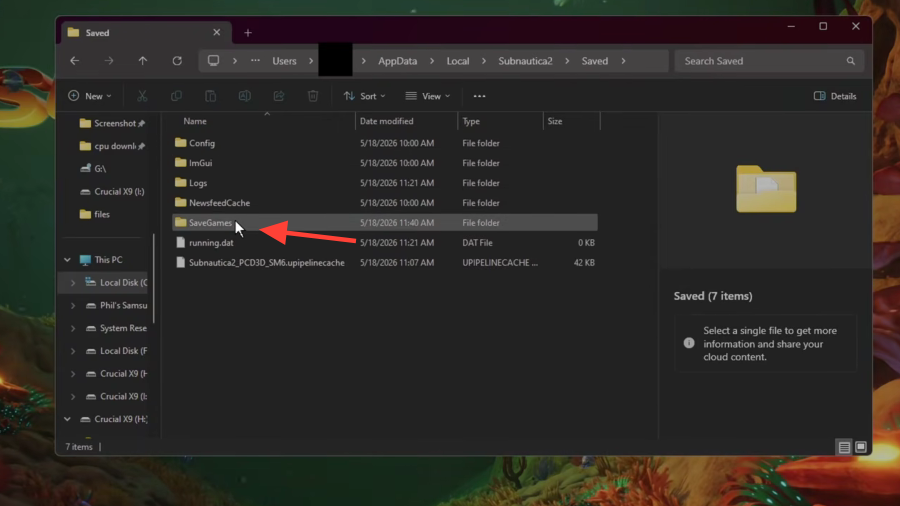
| Short path | %LOCALAPPDATA%\Subnautica2\Saved\SaveGames |
| Resolved path | C:\Users\[Windows Username]\AppData\Local\Subnautica2\Saved\SaveGames |
| Config folder | C:\Users\[Windows Username]\AppData\Local\Subnautica2\Saved\Config\Windows |
| Save extensions | .sav and .bak |
The AppData folder is hidden by default. If you cannot see it, open File Explorer, click View, choose Show, and tick Hidden items. The folder will then appear under your user directory.
How to open the folder quickly
%LOCALAPPDATA%\Subnautica2\Saved\SaveGames and press Enter. Windows resolves the variable to your user account automatically, so you do not need to type your username.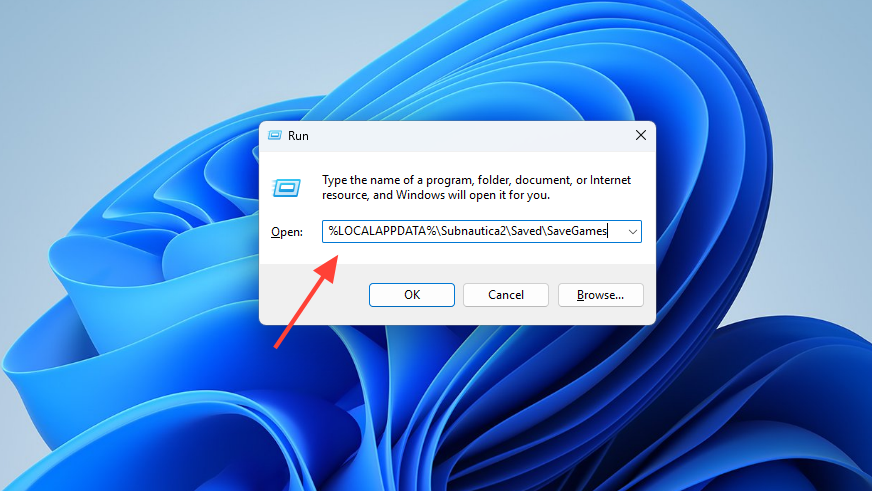
Back up saves before every patch
Early Access builds change frequently, and a bad migration is the most common reason players lose hours of progress. Manual backups take seconds and are the single most useful habit while the game is still in Early Access.
%LOCALAPPDATA%\Subnautica2\Saved. Right-click the entire SaveGames folder and copy it to a separate location, ideally on another drive. Copying the parent Subnautica2 folder is also a safe option since it picks up any sibling data folders.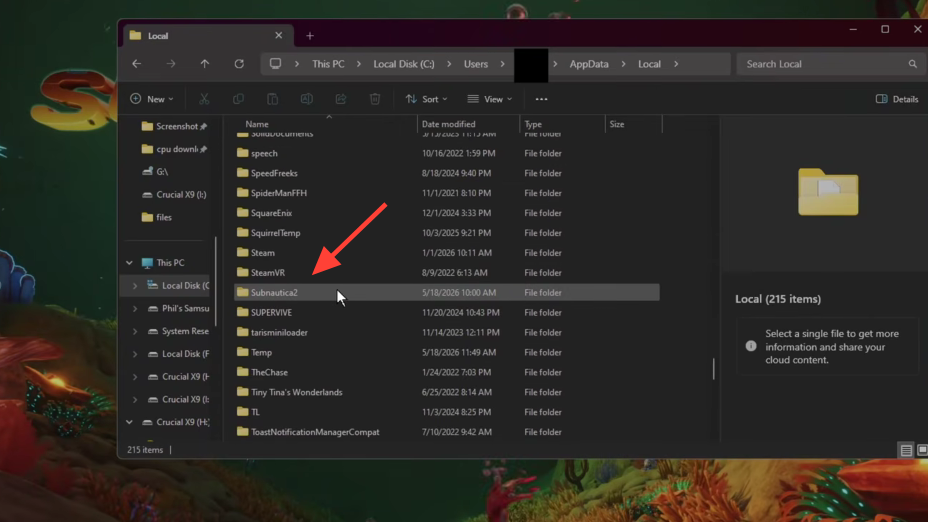
Restoring a backup
%LOCALAPPDATA%\Subnautica2\Saved\SaveGames, replacing the current contents.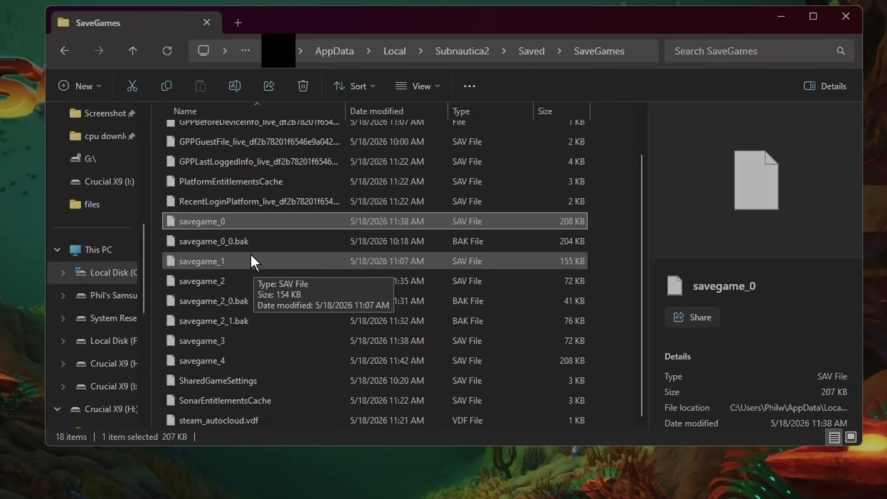
Cloud save sharing inside the game
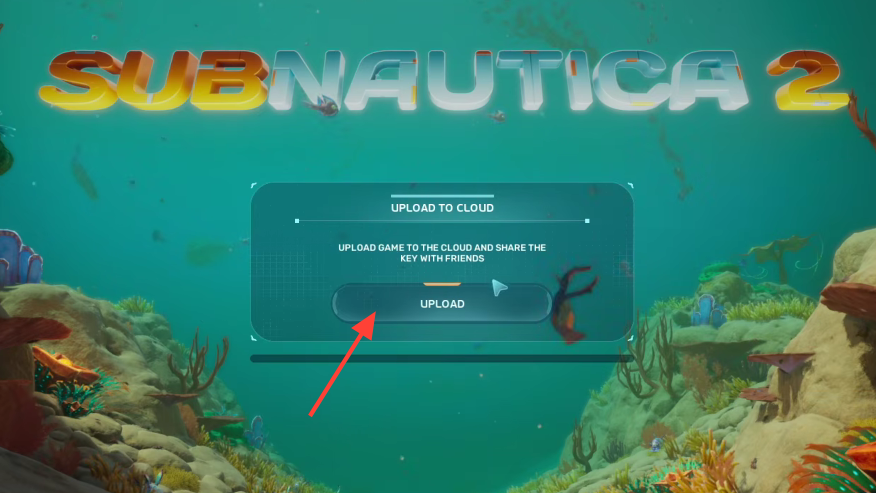
Subnautica 2 includes its own cloud share system that bypasses the file system entirely. It is the simplest way to move a save between machines or hand one to a friend, and it does not depend on Steam Cloud being healthy.
Steam Cloud behavior
Steam Cloud mirrors the local save folder when the game closes cleanly. If you sign into Steam on a different PC and install Subnautica 2, your most recent save should sync down before you launch. Force-quitting the game or crashing during exit can leave the cloud copy out of date, which is why a local backup is still worth keeping.
Steam Family Share also covers Subnautica 2, so accounts in the same Steam family group can launch it from their own libraries. Steam Input handles unsupported controllers if the built-in controller support does not detect your device.
Config file location
The Windows config lives at C:\Users\[Your Username]\AppData\Local\Subnautica2\Saved\Config\Windows, with the main file named GameUserSettings.ini. It is editable in any text editor. Graphics quality presets use numeric values, where 3 is Epic, 2 is High, 1 is Medium, and 0 is Low. For example, sg.ShadowQuality=1 forces shadows to Medium regardless of the in-game preset.
Edit the .ini only while the game is closed, since Subnautica 2 may overwrite changes on exit if it is still running.
Steam Deck and other storefronts
On Steam Deck, Subnautica 2 runs through Proton, which translates the Windows path into the Proton prefix. The equivalent location lives under .steam/steam/steamapps/compatdata/[appid]/pfx/drive_c/users/steamuser/AppData/Local/Subnautica2/Saved/SaveGames/.
The Epic Games Store build uses the same Local AppData path as Steam, since the engine writes to the same folder regardless of storefront. The Xbox app on Windows is the exception: it sandboxes saves inside %LOCALAPPDATA%\Packages\, which is harder to access without taking ownership of the folder. Xbox Play Anywhere cloud sync is the cleaner way to move those saves around.
Subnautica 2 is expected to remain in Early Access for two to three years, so the save format is likely to change more than once. Keeping a small archive of backups on a second drive is the simplest insurance against a broken migration.